Help Center
Updated on 2026-04-17
views
5min read
Downloading songs from Spotify is easy and can be done within the app. However, there are some limitations to downloading music directly within Spotify. For instance, the music download can only be accessed via the native app or the downloaded songs will be removed once your Spotify subscription expires. To avoid these issues, you may want to download Spotify songs to local MP3. The good news is that you can save Spotify tracks as MP3 and this post will share 5 Spotify downloaders to help you do that. No matter whether you are using a computer or mobile device, you'll find the corresponding methods here.
Overview of Ways to Download Spotify Songs to MP3
| Comparison Category | Eassiy Screen Recorder Ultimate | SpotifyMate | Audio Downloader Prime | SpotiFlyer | Telegram Bot | Star Rating |
|---|---|---|---|---|---|---|
| Supported Platforms | Windows and Mac | Computer, phone and tablet | Computer, phone and tablet | Android, Windows, and Mac | Android and iOS devices | |
| Ease of Use | All operations performed directly in the software | Switch between Spotify and the tool | Directly within Chrome | Switch between Spotify and the tool | Switch between Spotify and the tool | |
| Download Speed | Real-time recording | 1X | 1X | 1X | 1X | |
| Supported Spotify Content | Any audio stream playing on your device | Songs and playlists | All | All | Songs and playlists | |
| Output Parameter Customization | Supported | Not supported | Not supported | Not supported | Not supported | |
| Sound Quality | High quality (MP3, AAC, and more) | 128kbps | 128kbps | 128kbps | 128kbps–256kbps |

|
| Supported Media Formats | MP3, AAC, and more | MP3 | MP3 | MP3 | MP3 |
|
| Preserve ID3 Tags | Captures audio as played with original quality | Song title and artist name (with watermark) | None | Song title and artist name | Song title and artist name |
|
Download Streaming Audio to MP3 with Eassiy Screen Recorder Ultimate
Eassiy Screen Recorder Ultimate is engineered to support audio capture from any streaming source. It solves the core limitations of other tools by letting you record exactly what you hear, with zero playlist gaps or quality concerns.
Even better, there's no need to copy and paste song links manually. Simply play your content, hit record, and the software handles the rest — with an intuitive interface that requires no technical skills.
Key Features
- Record any audio stream playing on your device with system sound capture.
- Supports multiple output formats including MP3, AAC, and more.
- Set recording duration with a built-in timer for hands-free operation.
- Preview recordings before saving to ensure quality.
- Works on both Windows and Mac.
Here's how to record streaming audio using Eassiy Screen Recorder Ultimate:
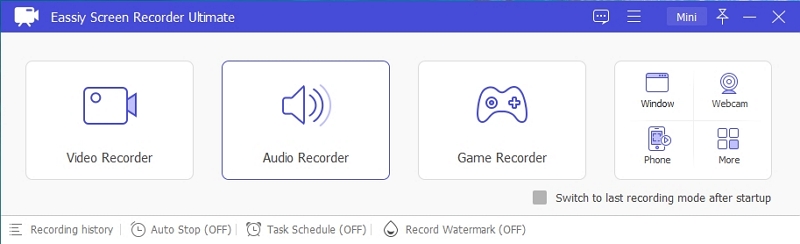
Step 1. Launch the program and select the Audio Recorder feature from the home screen.
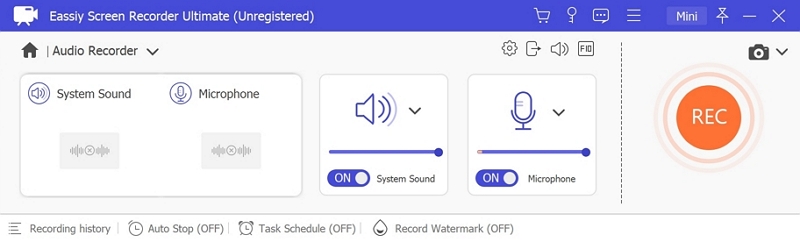
Step 2. Configure your audio recording settings. Enable System Sound to capture the live stream audio. Optionally enable the microphone if needed.
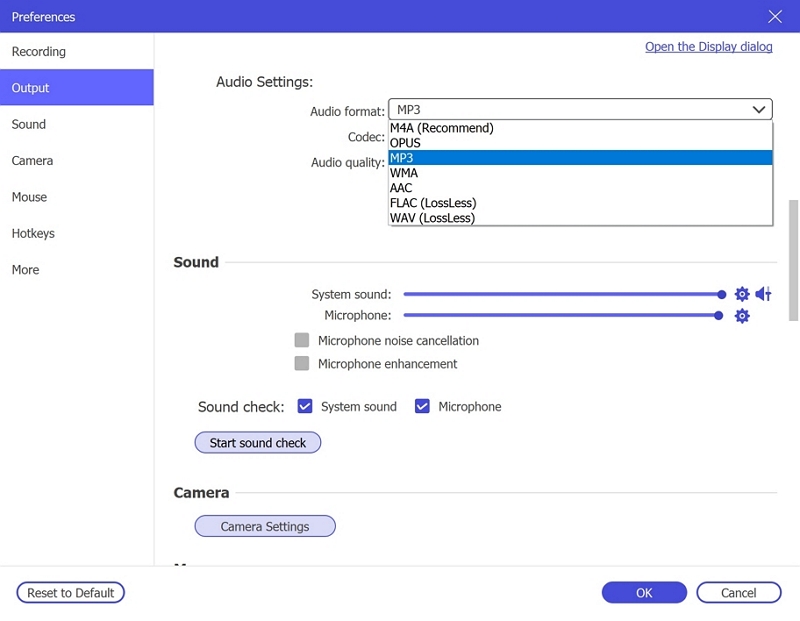
Click Settings → Preferences → Output to select your desired audio format (e.g., MP3, AAC) and set the quality to High for the best results. Click OK to save.
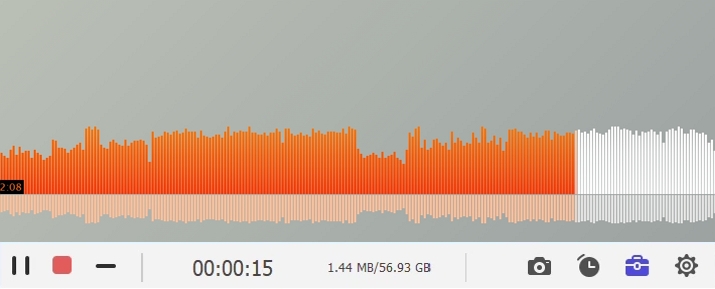
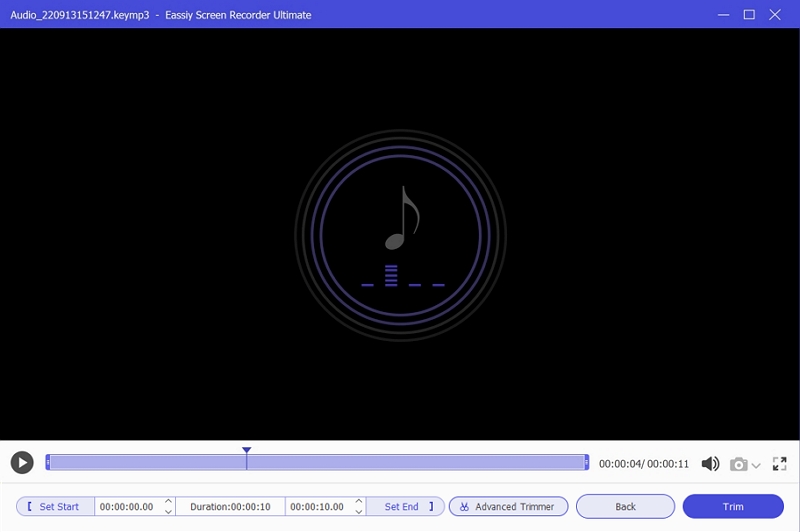
Step 3. Play the audio or music stream you wish to record, then click REC to begin recording. Use the toolbar to adjust volume, pause, or stop at any time. To automate the process, click the clock icon to set a recording duration in advance.
Step 4. When finished, click Stop and preview your recording. Save it in your preferred format (MP3, AAC, etc.) to your device for offline listening anytime.
Tip: You can also use StreamFox for Music, a professional desktop Spotify to MP3 tool. It allows you to save Spotify music as MP3 files at up to 320 kbps, and it also supports other formats such as FLAC and WAV. The downloaded songs not only maintain high audio quality but also preserve complete metadata, including artwork, artist name, song title, and album information. In addition, it can quickly export playlists or albums at up to 30X speed.
Download Spotify Songs to MP3 with Online Song Downloader [128kbps]
Perhaps you don’t want to download any third-party tool before exporting your Spotify tracks to MP3 on your computer or mobile device, then online music streaming downloader like SpotifyMate should be your go-to option. With this program, you can get your Spotify tracks on any device without activating premium on your Spotify profile. However, you have to ensure you are connected to a stable internet service to house it and note that the possible-low audio quality.
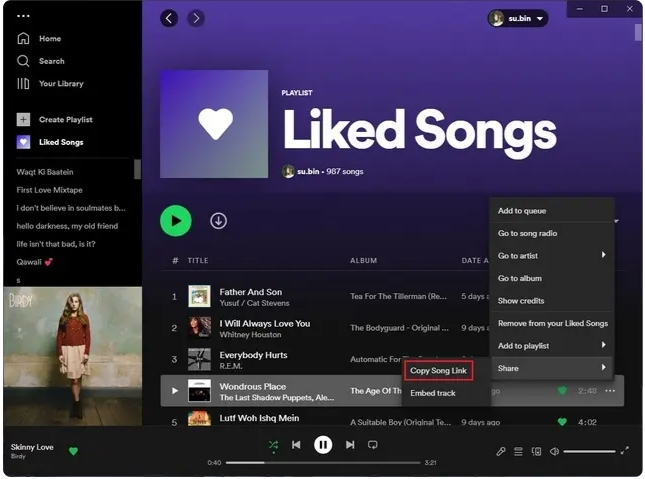
Once you have these conditions set, follow these steps to download Spotify tracks in MP3 format on your device using SpotifyMate:
- Open Spotify web player on your browser and copy the link to the song you wish to download.
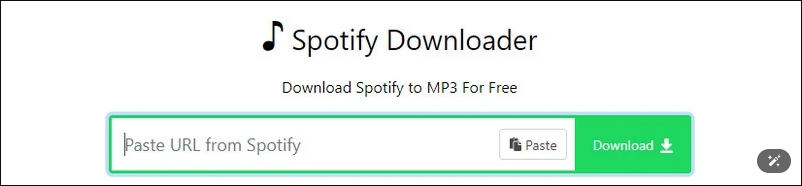
- Go to spotifymate.com and paste the link in the required space. Then, hit the green Download button.
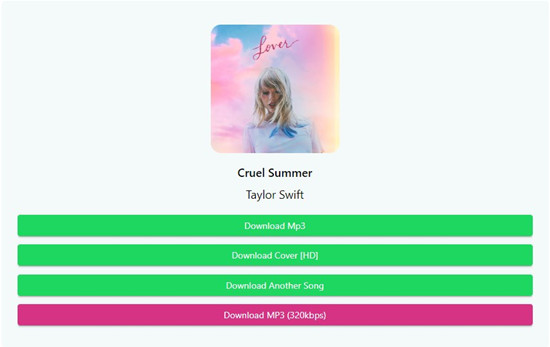
- Hit Download MP3 to save the track locally.
Download Spotify Songs to MP3 Using Spotify Chrome Downloader [128kbps]
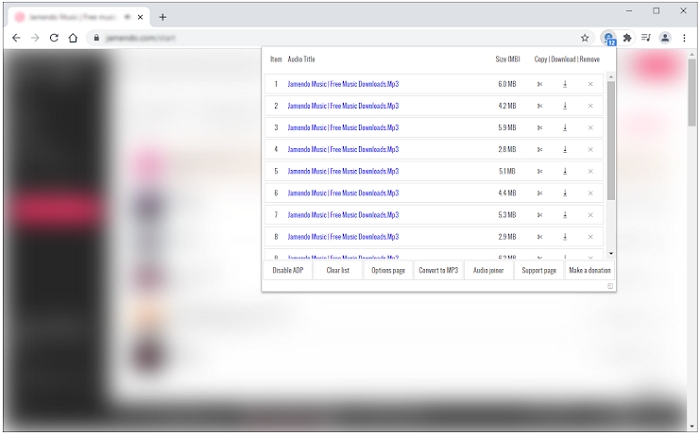
Using a browser extension to download Spotify as MP3 is another online way, though the audio quality of the downloaded songs is generally not that high. Here we will introduce a popular Spotify downloader Chrome extension "Audio Downloader Prime" to you.
Step 1: Install Audio Downloader Prime on your Chrome browser via the Chrome Web Store.
Step 2: Open the Spotify Web Player with another tab and open the installed music downloader extension.
Step 3: The extension will show all songs in the Spotify web player. Simply locate the track you want to download and click the down arrow next to it. After a while, you will get the MP3 version of the chosen song.
Download Spotify Songs to MP3 with Spotify Downloader App [128kbps-256kbps]
If you have Android or iPhone and need to download music in MP3 format, apply any of the techniques recommended down here. However, note that the audio quality of downloaded songs is unstable, ranging from 128kbps to 256kbps.
Way 1. Use SpotiFlyer on Android
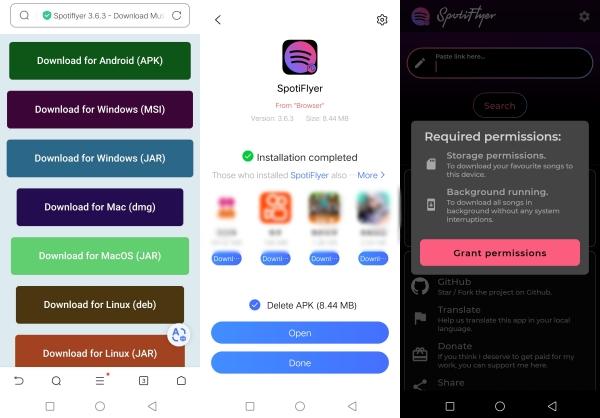
SpotiFlyer is a popular app for downloading Spotify songs on Android. This app with its simple interface allows you to export your Spotify songs to your local storage in MP3 format, thereby enabling offline listening. There are not many requirements to download Spotify songs via this platform. Just ensure you have the correct link to the music you want to download and you are good to go.
Note: You may hear of Spotify++ that is popular among Android users. It is worth mentioning that this tool currently does not provide download function.
Apply the guide below to download Spotify songs to MP3 on your Android device:
- Launch SpotiFlyer on your Android and grant the required permission when prompted.
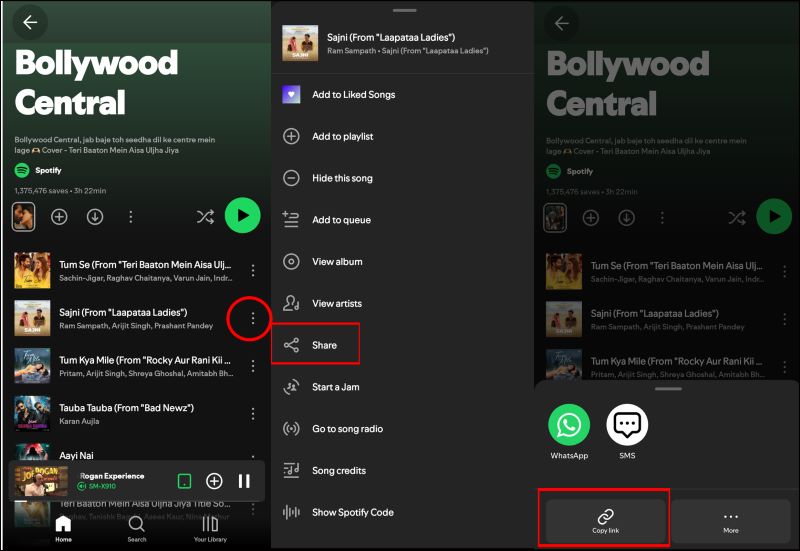
- Minimize the app, open Spotify and browse through your music library for the songs or playlists you would like to download.
- Click on the song or playlist, select the More icon beside it and click on Share. This should lead you to the Copy Link icon. Click on the icon to proceed.
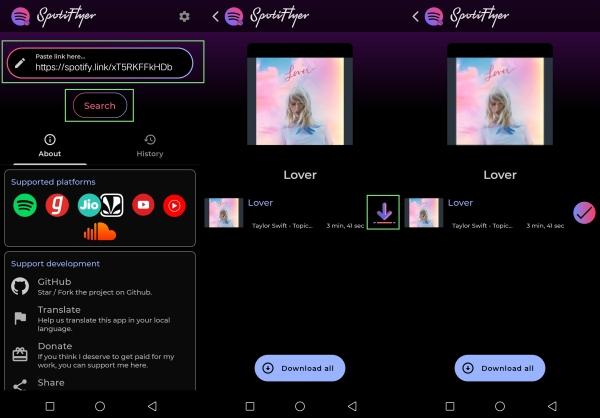
- Next, paste the link in the search bar on SpotiFlyer, then wait for the app to print the results.
- Click on Download to extract the song in MP3 format to your Android local storage.
Way 2. Use Telegram on iPhone
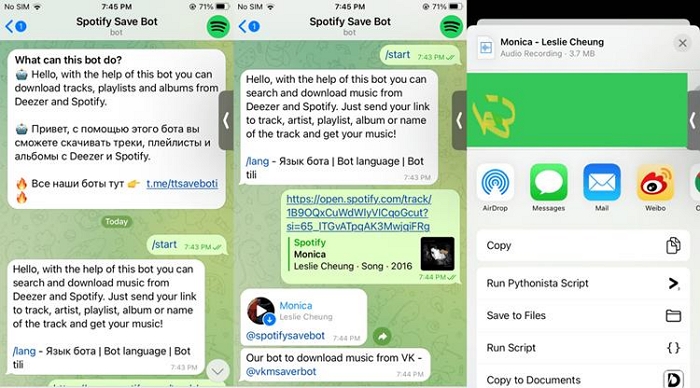
Telegram bots such as Spotify_Download_Bot, Spotify_Download_Bot, etc., come in handy for iOS users looking to output their favorite Spotify songs in MP3 format. Just like SpotiFlyer, you have to provide the corresponding link to the Spotify music you want to download in MP3 format, and the Telegram bot will locate and deliver the audio file within the shortest possible time.
Note: You can also use Telegram bots to convert Spotify to FLAC.
To download your Spotify songs and playlists in MP3 via Telegram bots, apply the instructions below:
- To begin with, launch Telegram on your iPhone.
- Input Spotify Music Downloader in the search field. Alternatively, you can fill in your desired Spotify bot in the space, and click on it to launch it.
- On the bot’s page, type /start in the chat space and hit the enter button.
- Without delay, the bot will respond that you provide the download link to the Spotify music you want to download. Please, go to Spotify to get these details.
- Copy and paste the details in the chat space and hit the enter button. The bot will return various tracks corresponding to the link provided.
- Check for the one that fits the music you want to download, click on the More icon next to it, and click Save to download to your local storage.
Conclusion
With the right guide, you can save your favorite streaming audio in MP3 format on your computer or mobile device. We've provided different ways to do this — select and apply the one that suits you best. Eassiy Screen Recorder Ultimate offers the most flexible and straightforward way to capture any streaming audio in high quality, without needing to copy links or manage complex settings.