Help Center
Updated on 2026-04-27
views
5min read
Plan to download Spotify songs on your Android phone or tablet but don't know how, because you are new to Android or Spotify? Want to get Spotify music downloaded on your Android device without premium? Or wonder if you can directly download single tracks from Spotify? Whether the case you are, you can find the solutions here. We have summed up useful ways to save Spotify music offline on Android. For more details, let's proceed.
Free Ways to Download Songs on Spotify on Android without Premium
There are free methods to download Spotify music on Android without using the original app or a Premium account. However, these options could come with limitations, such as lower audio quality, frequent download failures, and disturbing ads.
Way 1. Use Android APK
For those who don’t have a premium or don’t love the idea of in-app playback, you can use Spotify to MP3 converter apps. Almost all the Spotify to MP3 converters execute the task of saving songs in a similar fashion: use the Spotify URL to download audio.
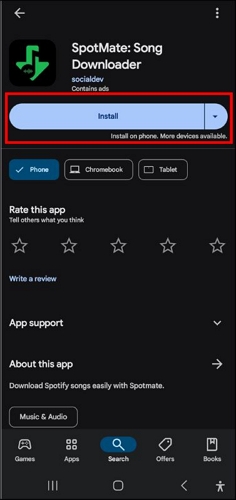
You can get this type of app on Google Play Store and one of them is SpotMate app. It has an online version, but the mobile app will be more convenient and stable to use. You can give it a shot to download Spotify songs on your Android device.
Step 1. Install SpotMate from the Google Play Store.
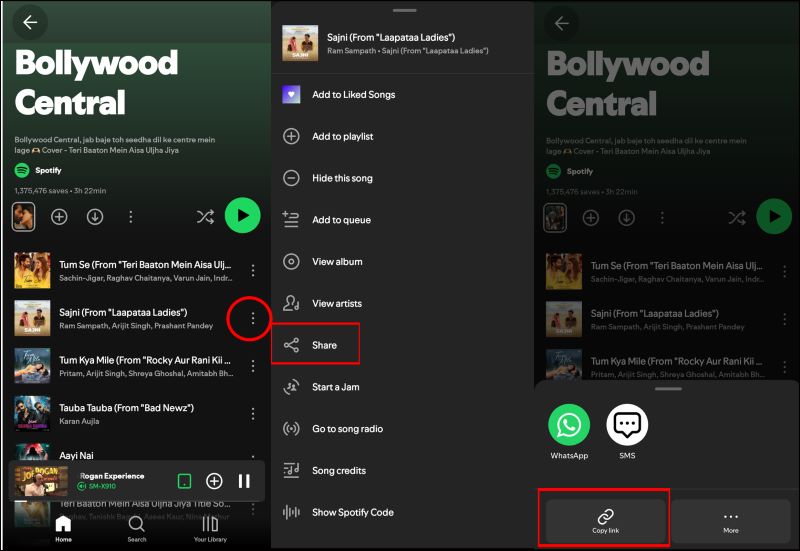
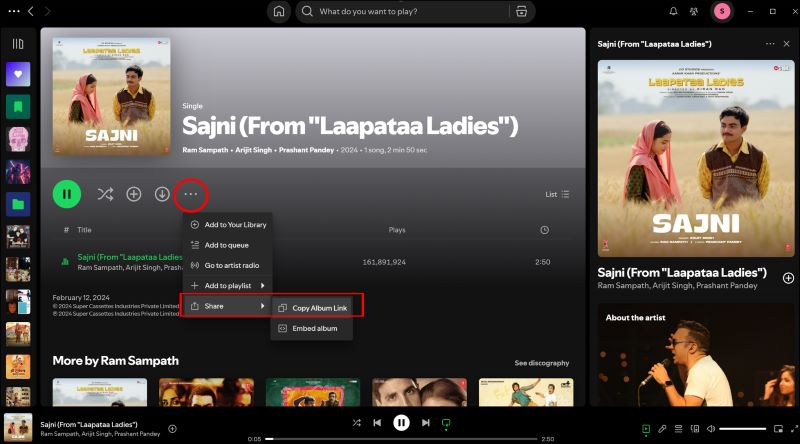
Step 2. Go to Spotify and find the desired song. Tap the three dots, select Share, and choose Copy Link.
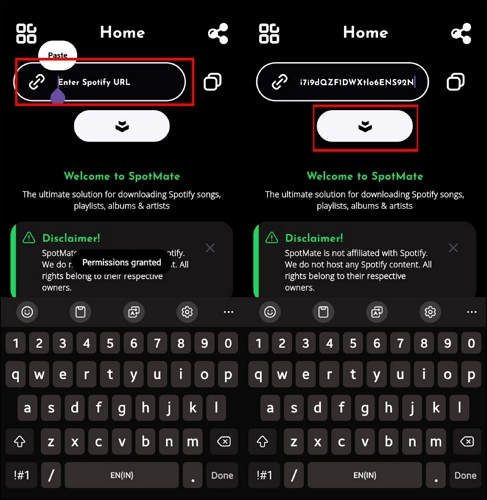
Step 3. Open SpotMate. Paste the copied link in the Enter Spotify URL field, and tap the download button.
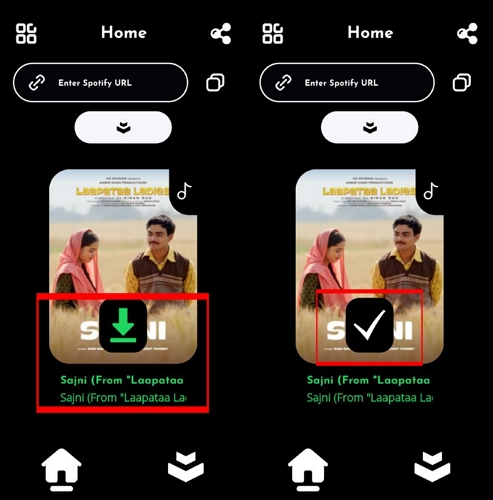
Step 4. Wait for SpotMate to process the link, you will see a thumbnail of the song, tap on the green download to start saving the MP3 version to your device. You will see a check mark indicating success.
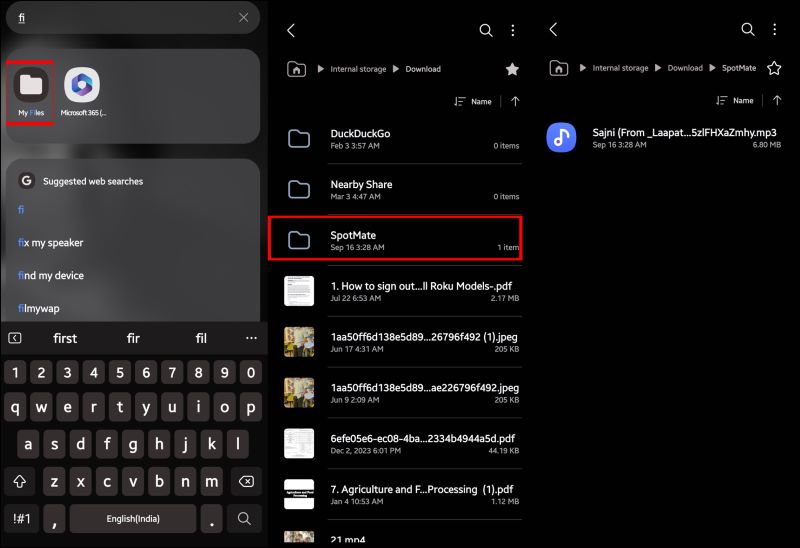
Step 5. To view the downloaded song, open the File Manager (e.g, My Files or a similar app). Tap Downloads and then find and open the SpotMate folder. You will find the downloaded song inside the SpotMate folder.
Way 2. Use Online Tool
If you don't want to install third-party apps on your Android phone for music downloads, you can consider using online Spotify downloaders. Online Spotify downloaders primarily work in a similar manner as earlier-mentioned SpotMate. In fact, SpotMate online version also works well, but a better alternative is SpotifyDown, in terms of output audio quality. Here’s how to download Spotify songs on Android with SpotifyDown.com.
Step 1. Start the Spotify app on your Android phone. Search for the song you want to download and copy its share link.
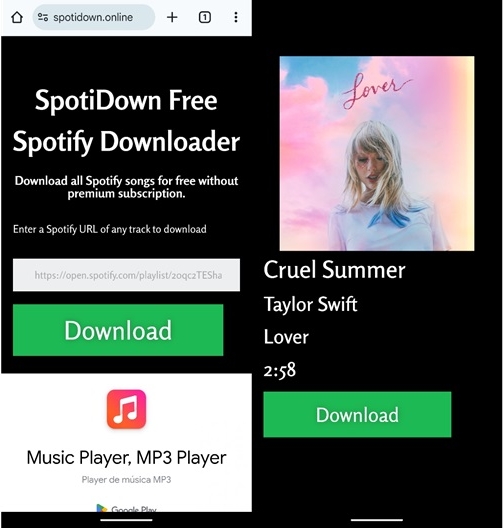
Step 2. Launch any browser on your phone and search for Spotifydown.com.
Step 3. Insert the copied URL into the input field and be sure to tap the Paste button after entering the link. Tap Download.
Step 4. Wait for Spotifydown to prepare your download. On the next screen, tap the Download button on the right to start saving the Spotify track to your Files app.
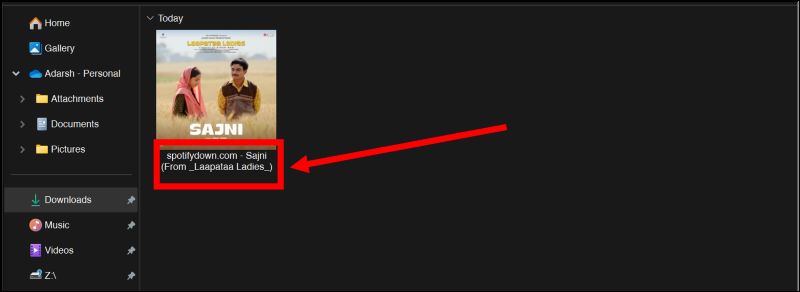
Once again, SpotifyDown will only allow you to save one song at a time. Yet, the utmost irk is that the metadata includes ‘Spotifydown.com’ in the converted song name, and you only get the song title and album name.
How to Save Individual Songs as MP3 on Android without Premium
Many music streaming apps don't allow users to directly download individual songs unless they are part of a playlist or available for offline playback within the app. If you want to save a single track for personal listening across devices, one practical method is recording the system audio while the music is playing.
A useful tool for this task is Eassiy Screen Recorder Ultimate. It allows you to capture system audio from your computer and save it locally in formats such as MP3, WAV, AAC, or FLAC. After recording, the saved audio files can easily be transferred to your Android phone for offline listening.
Key Features
- Record system audio from streaming platforms with clear sound quality.
- Save recordings in common formats such as MP3, WAV, AAC, and FLAC.
- Customize audio parameters like bitrate and sample rate.
- Preview and trim recordings before exporting.
- Transfer the recorded files to other devices for offline playback.
Steps to Record a Song as MP3:
Step 1. Install and launch the audio recording software on your computer.
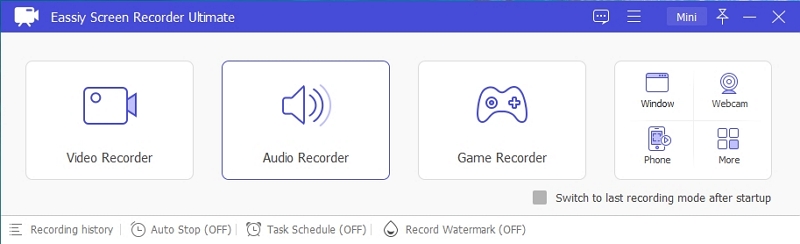
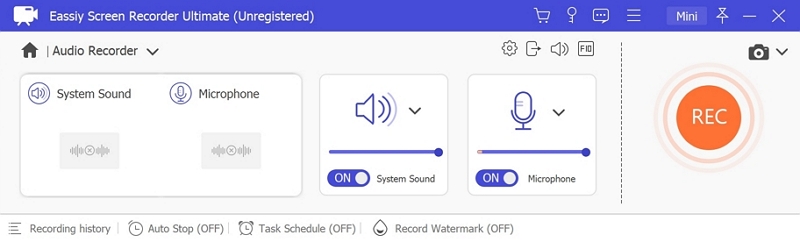
Step 2. Select the Audio Recorder mode and enable System Sound so the program can capture audio played on your device.
Step 3. Open the music streaming app or web player and start playing the song you want to save.
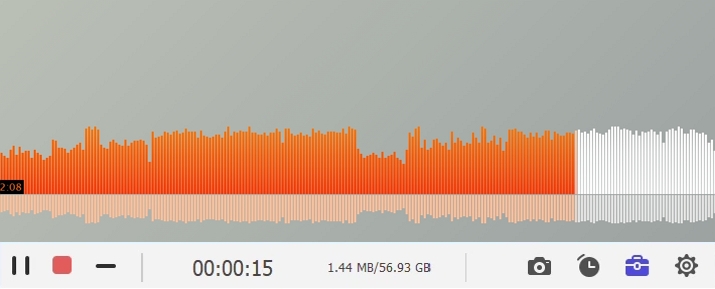
Step 4. Click the REC button to begin recording the audio.
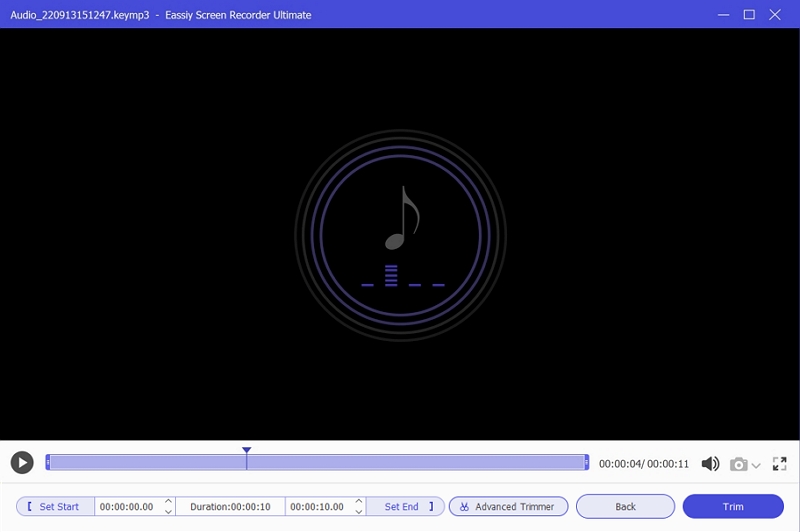
Step 5. After the song finishes playing, stop the recording and export the audio file in MP3 or another preferred format.
If you don’t want to turn your favorite Spotify songs into offline files through recording, you can also save them by using a direct conversion method. StreamFox for Music is a great music conversion helper. It not only makes the saving process simple—just log in to the built-in Spotify Web Player and choose the songs you want—but also helps preserve audio quality and complete song metadata. It supports downloading individual tracks, as well as full playlists and albums.
Steps to Transfer the Recorded Audio to Android:
Step 1. Connect your Android phone to the computer using a USB cable.
Step 2. Locate the recorded audio file on your computer.
Step 3. Drag and drop the file into your Android device's internal storage.
Step 4. Open the File Manager on your Android device to access and play the transferred audio file.
How to Download Songs on Spotify on Android with Premium
Getting songs on Spotify is a breeze, as long as you have a paid subscription. So, first let’s see how you can download songs on Android right within the Spotify app. However, you can only download Spotify playlists(personal or curated by others), not individual tracks.
Here’s How to Download Songs on Spotify on Android:
Step 1. Open the Spotify app on your Android phone and confirm that you’ve an active subscription.
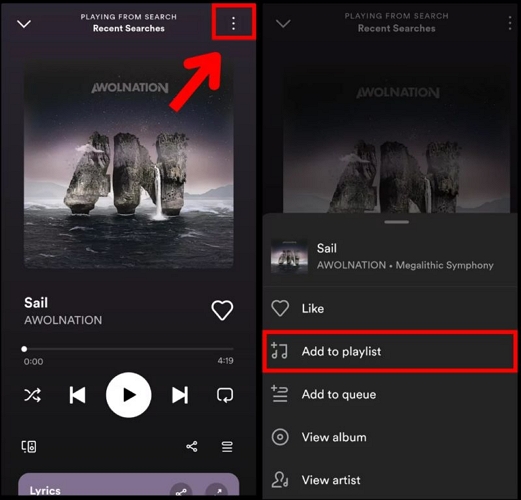
Step 2. Search for the song you want to download and tap on it to access the playback screen. Up top, touch the three dots. Then, select Add to Playlist. Repeat for all songs, but make sure that you add them to the same queue.
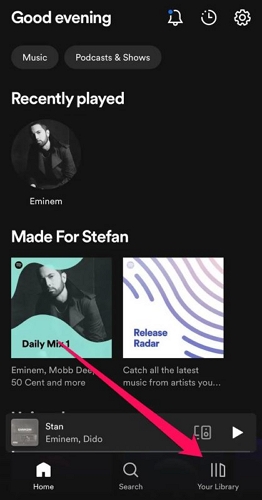
Step 3. After adding all the intended tracks to the playlist, return to the homepage. Tap Your Library in the bottom-right corner.
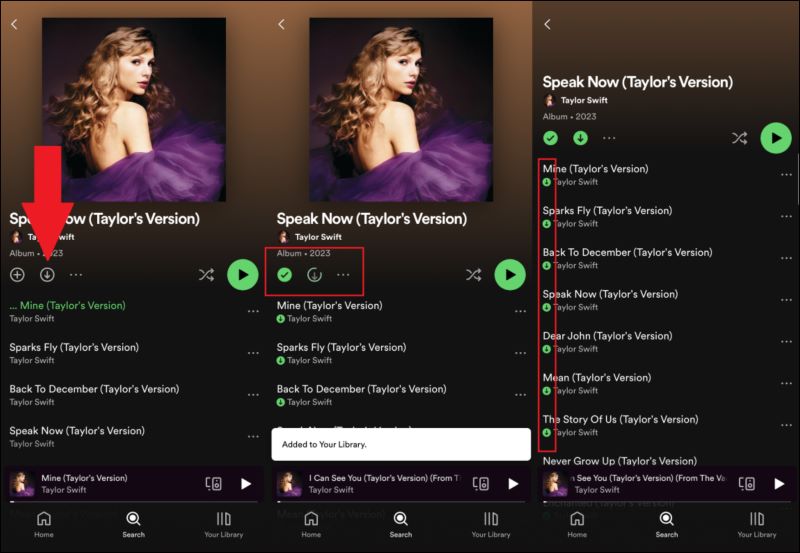
Step 4. Next, look for the playlist you’ve created, open it, and tap the download icon below the album name. This action will display a gray download symbol underneath each track in the playlist, and they will turn green (indicating they are saved).
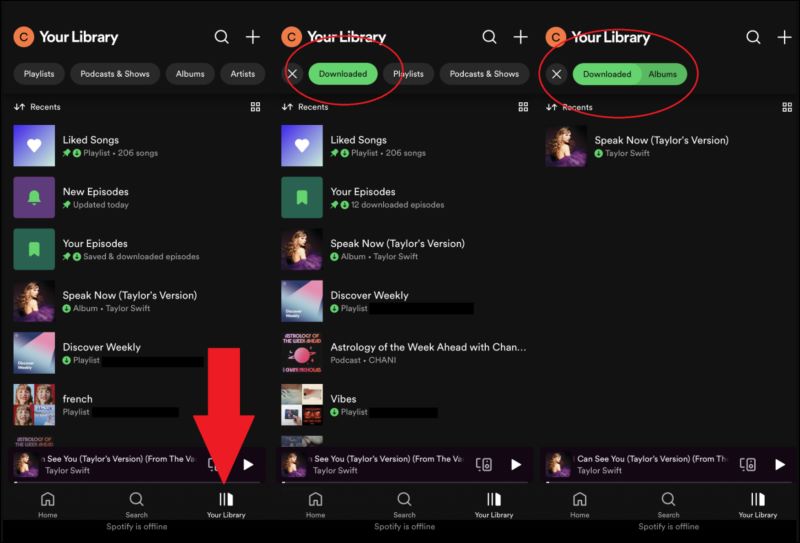
Step 5. Since Spotify doesn’t save the files directly on your device, you will have to play the saved playlist through the app. You can find the downloaded songs in the Your Library tab. Use the filters at the top and select Downloaded.
Note that you can only download 10,000 tracks in total at max on your Android device. On the bright side, you can log in via the same credentials on up to five different devices and save the same number of tracks in total.
How to Transfer Local Files from Spotify to Android
You may have imported some local files into Spotify desktop and now want to enjoy the local music on Spotify Android. Then, this part is for you. The steps also help migrate local files from your computer to Android without USB. To enable local songs saved on your Spotify desktop to be accessible on your Android phone, simply follow step 7 to step 9. For song migration from computer to Android, you need to follow the entire guide below.
Preps: Enable your Spotify Mobile to show Local audio files first by tapping Home > Settings > Local Files > Local audio files. Then ensure that your Android mobile and computer are connected to the same WiFi.
Step 1. Open the Spotify app on your desktop.
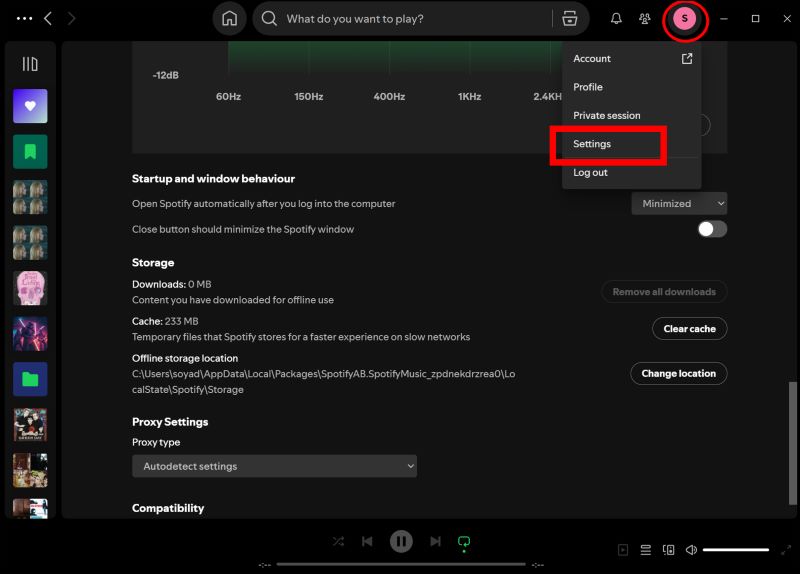
Step 2. Select your profile icon in the top-right corner, then choose Settings from the drop-down menu.
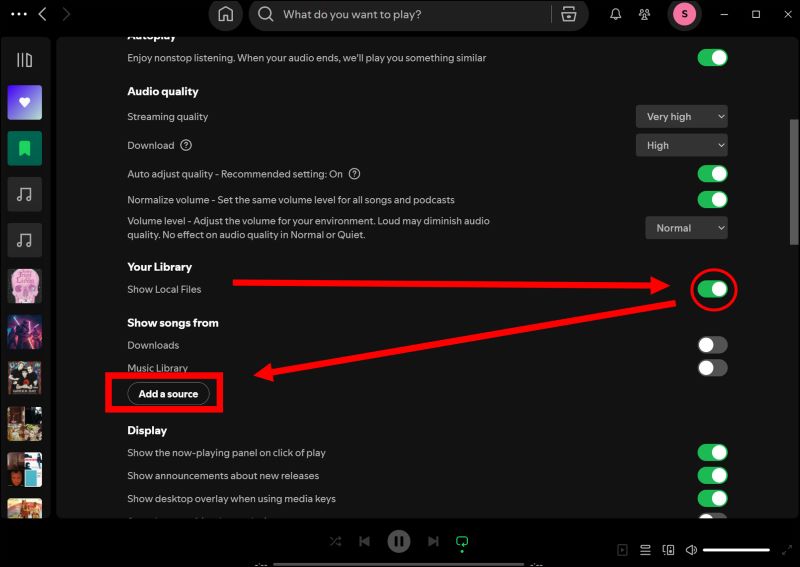
Step 3. In the Settings menu, scroll down to Your Library section and toggle on the Show Local Files option. This will reveal the Show Songs from section. Simply, click Add a Source to select your local files.
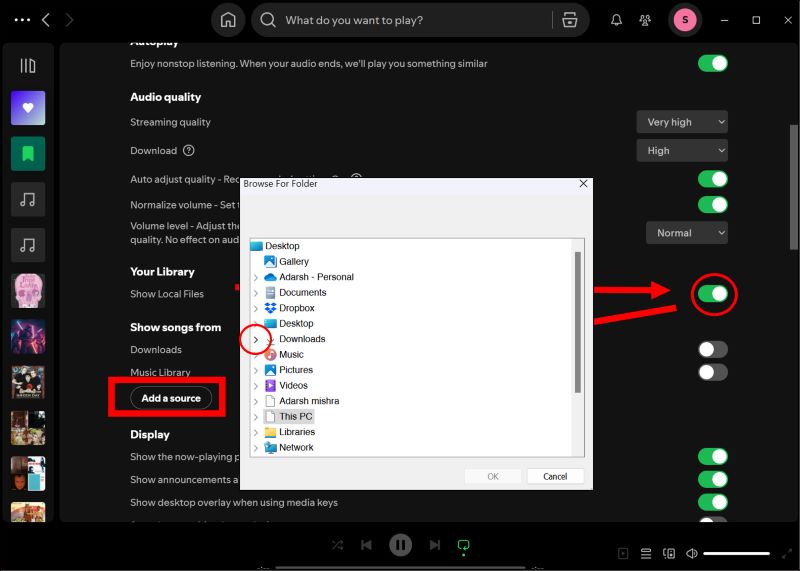
Step 4. In the Browse For Folder window, click the small triangle (or arrow) next to the folder name to expand and view its contents.
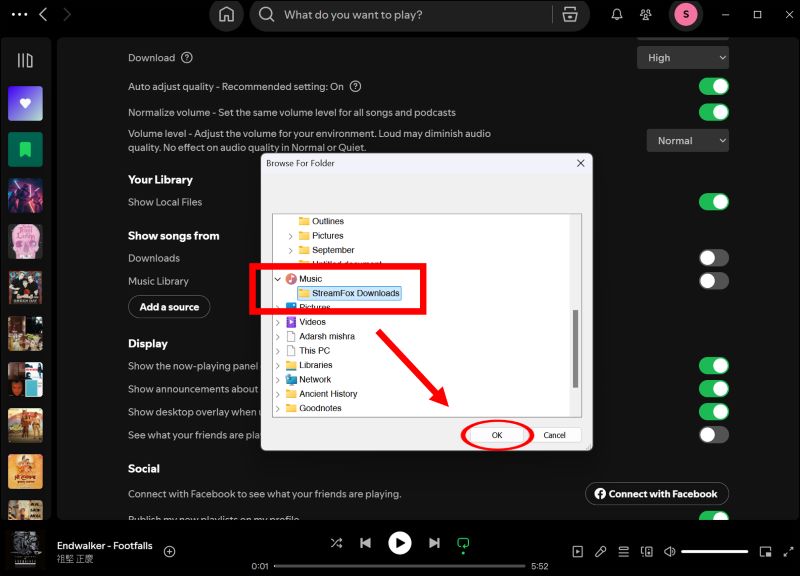
Step 5. Now, select the desired folder or subfolders and press OK to add the songs to your Spotify player.
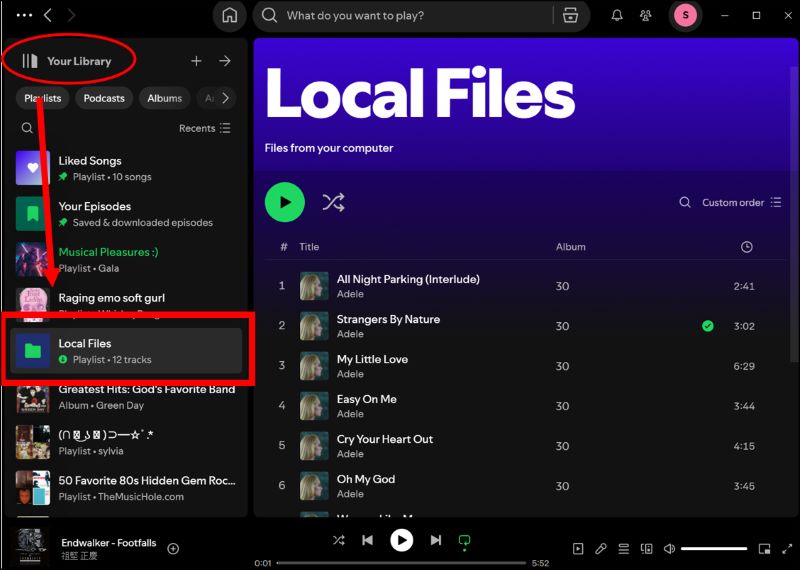
Step 6. Click on the Your Library icon on the left pane and look for Local Files — these are the songs you’ve added from your computer.
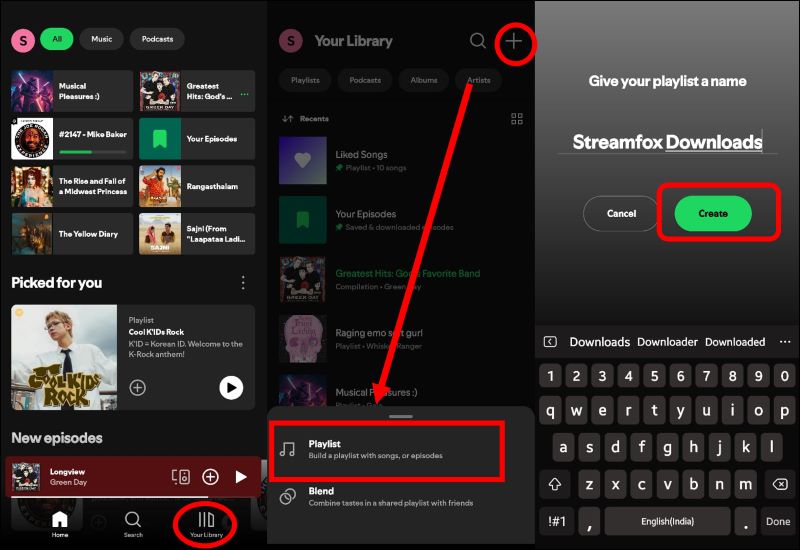
Step 7. Create a playlist to contain the added MP3 files.
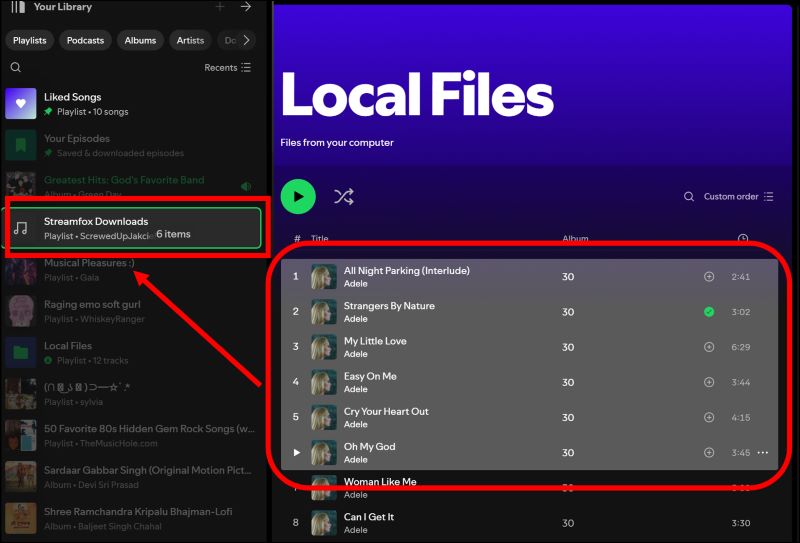
Step 8. To select all songs from the Local Playlist, you can press and hold Ctrl on your keyboard and scroll down to select all songs at once.
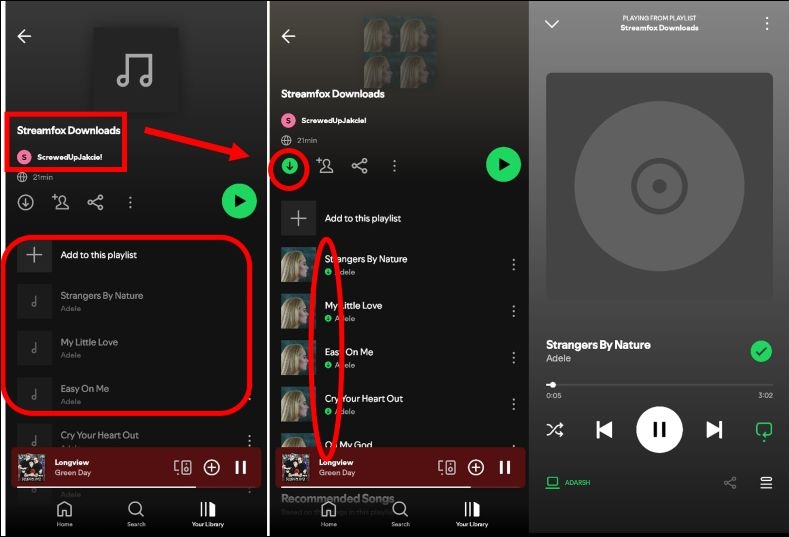
Step 9. Access the same playlist from the library on your Android mobile. While you will be able see the added songs, you will not be able to play the tracks yet. Simply, tap the download icon (downward-facing arrow) to download them on your Android device.
Conclusion
There you have it! A variety of methods detailing how to download music from Spotify to your Android phone. But don’t be confused with them. Depending on your preferences and whether you are subscribed to Premium (and for how long), you can choose the one that best suits your needs.