Help Center
Updated on 2026-04-07
views
5min read
Ready for movie night but can't download your favorite streaming videos? It's a common problem that many users face, and it can be frustrating. But don't worry! In this guide, we'll show you how to fix Amazon Prime Video download issues. From checking your account settings to using tools like Eassiy Screen Recorder Ultimate, we'll walk you through simple steps to troubleshoot and get your content saved for offline viewing. Let's get you back to enjoying your favorite content hassle-free!
Fixing Amazon Prime Video Not Downloading
If you’re struggling to download content on Amazon Prime Video, it’s likely because of the platform’s download restrictions. But don’t worry—there are solutions!
Amazon sets a limit on how many videos can be downloaded to a device, and these downloads also have expiration dates. If you can’t download new videos, start by reviewing and clearing your current downloads to free up space.
Method 1: Avoid Simultaneous Downloads on Multiple Devices
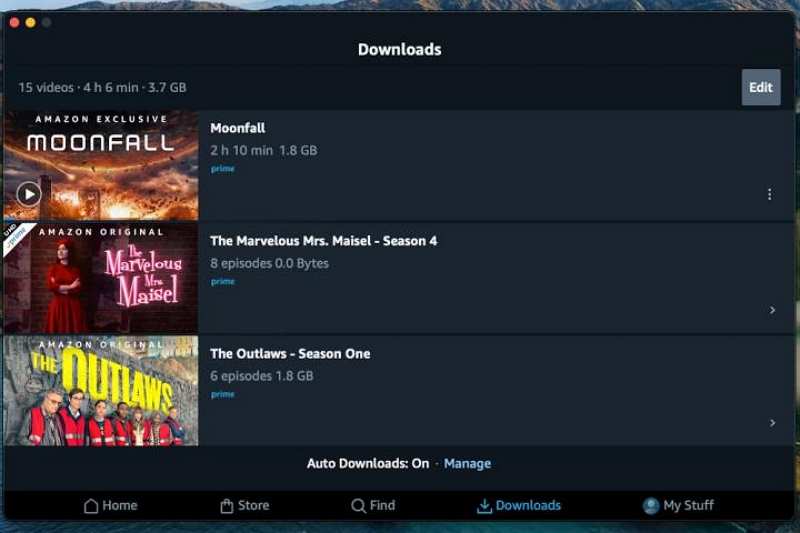
Amazon Prime Video allows up to 25 downloads across all devices linked to your account. To resolve download issues, check the number of videos stored and remove those no longer needed.
Open the Prime Video app and tap the Downloads option at the bottom of the screen. Here, you’ll find all your downloaded content. Tap the three-dot icon next to a title, then select Delete Download to remove it.
If you’re unsure how many devices are registered to your account, follow these steps:
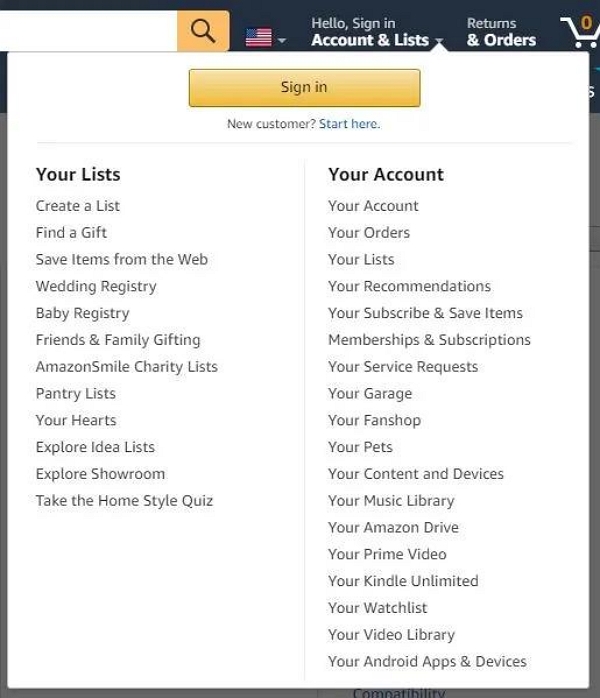
Step 1: Log in to your Amazon account. After logging in, move your cursor to the "Account & Lists" menu in the top-right corner andchoose "Your Prime Video" from the dropdown options.
Select "Account & Settings" .
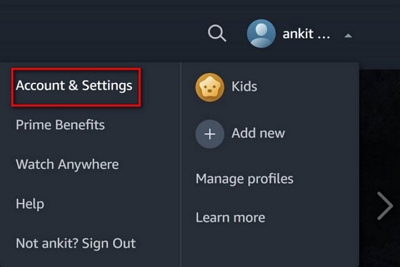
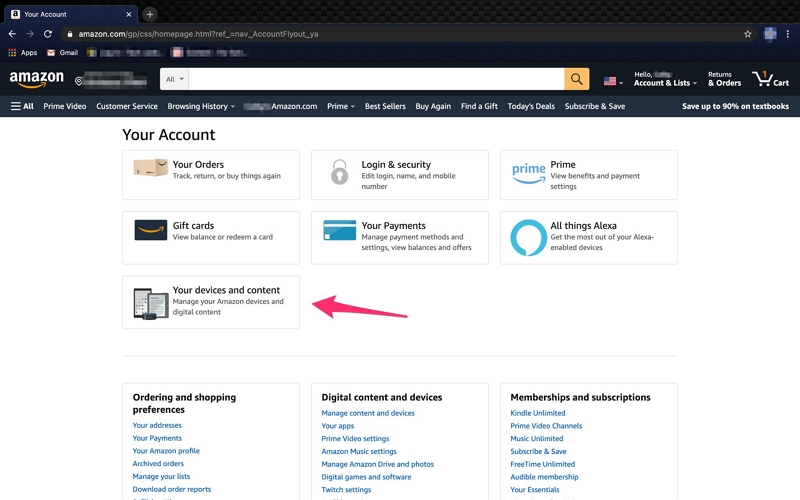
Step 2: On the "Account & Settings" page, click “Your devices and content”.
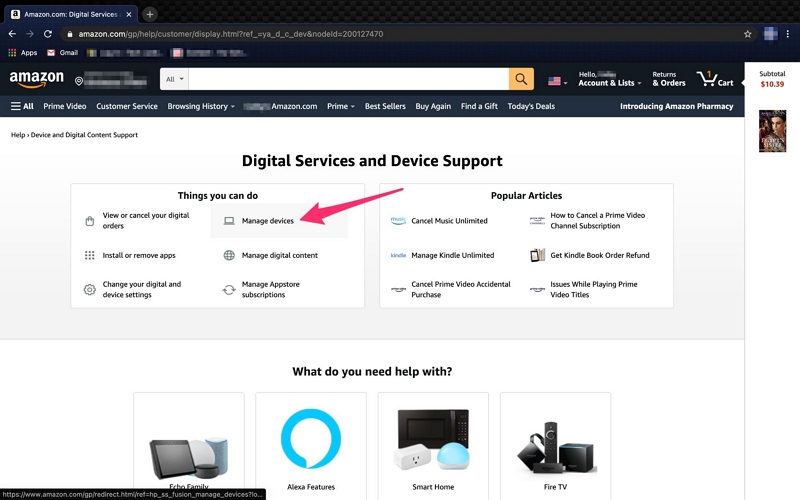
Navigate down to the "Digital Services and Device Support" section, and then select "Manage Devices."
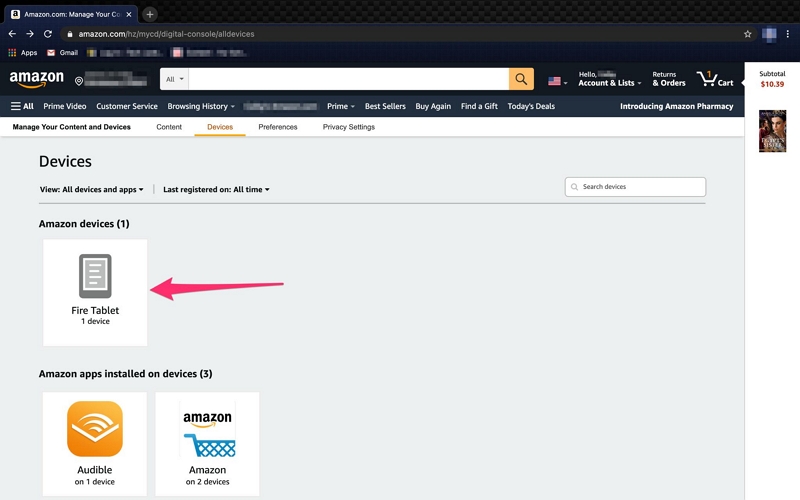
Step 3: A list of devices linked to your Amazon account will be displayed.
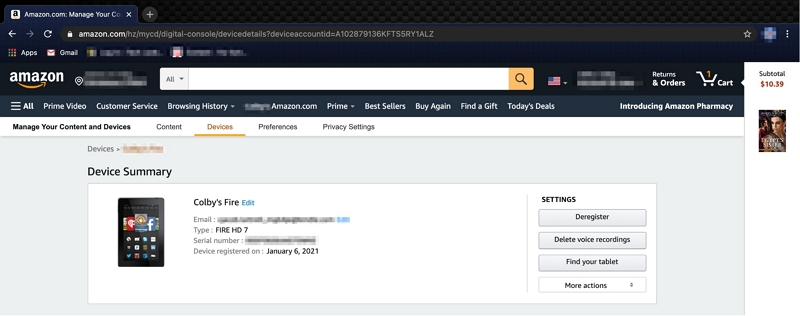
Review the list and remove any devices you no longer want to use for streaming Amazon videos by clicking the "Deregister" button next to each device you'd like to disconnect.
Finally, you can try re-downloading Amazon Video on your device.
Method 2: Use Eassiy Screen Recorder Ultimate for a Better Experience
Based on experience, Eassiy Screen Recorder Ultimate is the ultimate tool for effortlessly capturing your favorite streaming content and saving it permanently for offline viewing. It offers a suite of advanced features that set it apart from other recording tools.
With Eassiy Screen Recorder Ultimate, you can bypass streaming platform download restrictions, enabling unlimited video capture directly from your screen. These recordings can be saved locally for offline viewing or transferred to external drives for portable playback.
- No Download Restrictions: Capture any video playing on your screen without platform-imposed limits or expiry dates.
- High-Quality Recording: Record in up to 4K resolution with no quality loss for the best offline viewing experience.
- Flexible Output Formats: Save recordings in popular formats like MP4, MOV, and MKV, ensuring compatibility across various devices.
- Customizable Settings: Adjust recording area, audio source, video quality, and output format for a tailored experience.
Step 1: Launch Eassiy Screen Recorder Ultimate and select Video Recorder from the main interface.
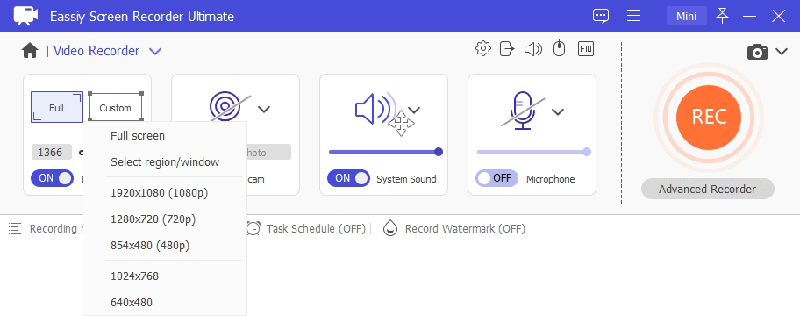
Step 2: Select your recording area. Choose full screen or drag to define a custom region around the video player window.
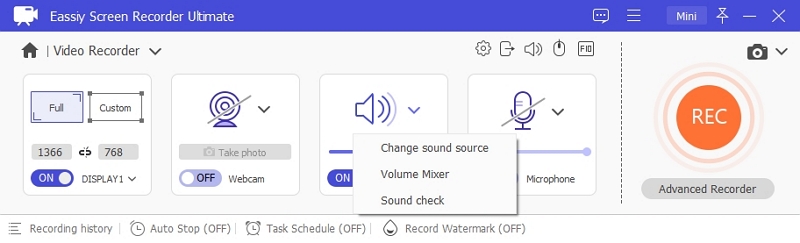
Step 3: Enable System Sound to capture the video's audio. Adjust the volume slider to your preference.
Step 4: Open Preferences to configure your output format (MP4, MKV, or MOV), video quality, and hotkeys before starting.
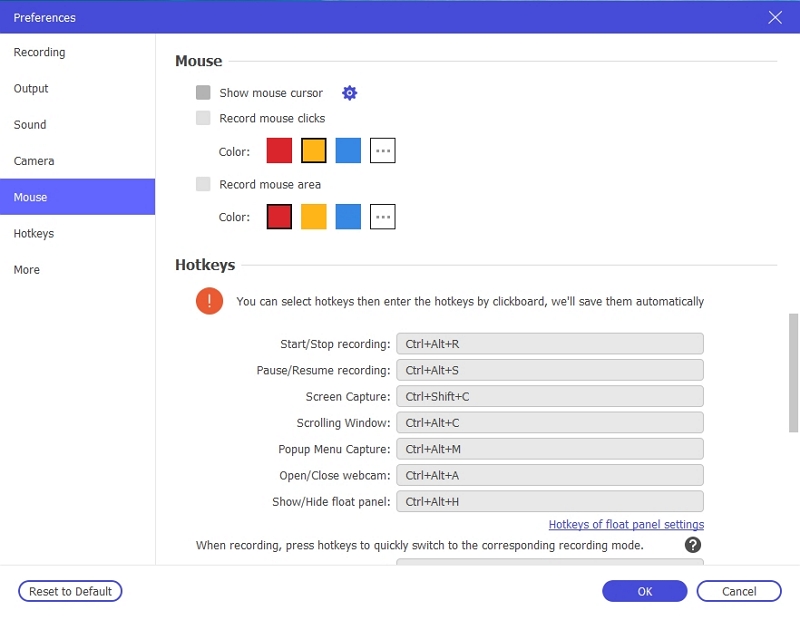
Step 5: Play the video on your screen, then click the REC button to begin recording. Use the annotation toolbar to add highlights or notes in real time if needed.
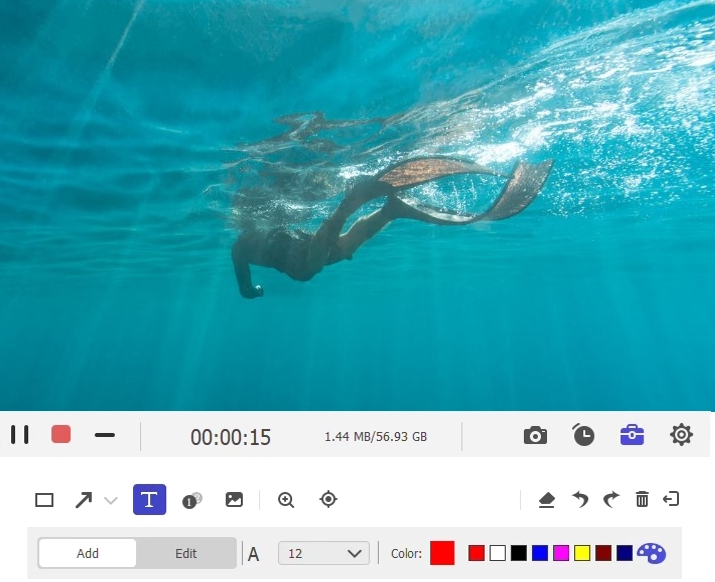
Step 6: Click the Stop button when the video finishes. The recording will be automatically saved to your computer and ready for offline playback at any time.
Method 3: Check Your Internet Connection
Downloading large files requires a stable connection to avoid buffering, interruptions, or incomplete downloads. If your internet connection fluctuates, you may also experience errors or failure to download content altogether.
Tips to Optimize Your Internet Speed for Downloading Content:
- Use a Wired Connection: If possible, connect your device directly to the router using an Ethernet cable. Wired connections are usually faster and more stable than wireless.
- Switch to a Higher-Speed Plan: If your internet speed is too slow, consider upgrading to a higher-speed plan with your internet provider for faster downloads.
- Limit Network Usage: Avoid streaming, online gaming, or other high-bandwidth activities while downloading. Reducing the number of devices connected to your network will help maximize your available bandwidth.
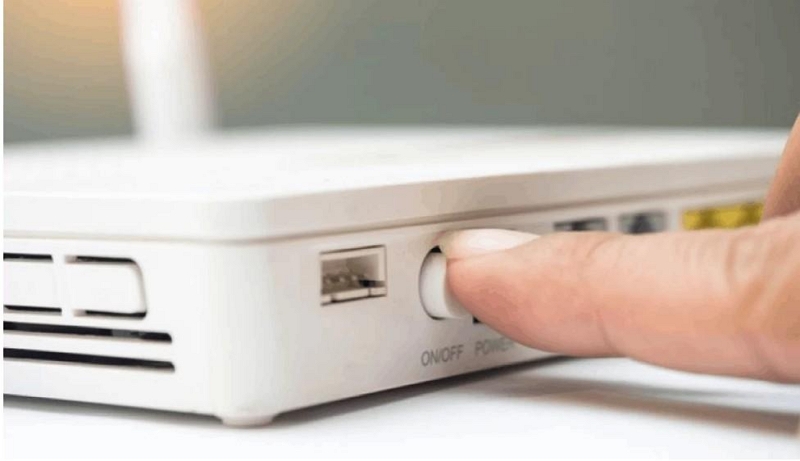
- Reboot Your Router: Sometimes, simply rebooting your router can resolve connection issues and improve your download speed.
- Use a VPN (if necessary): A VPN can help stabilize your connection if your internet provider is throttling your bandwidth, although it may slow things down in some cases.
Important Note: Make sure other devices on your network aren’t consuming too much bandwidth while you’re downloading. This includes streaming video, large file uploads, online gaming, or even other people using the internet for heavy tasks. The more devices using your internet, the slower your download speed will be. Disconnecting or limiting the use of other devices while you download from Amazon Prime Video can help improve the process.
Method 4: Clear Amazon Prime Video Cache
When you use the Amazon Prime Video app, the system stores temporary files (cache) to improve performance. Over time, however, these files can become corrupted or outdated, leading to download issues, app crashes, or playback errors. Clearing the cache helps the app run more smoothly and can resolve these problems by deleting temporary files that might be causing the issue.
How to Clear the Cache on Different Devices:
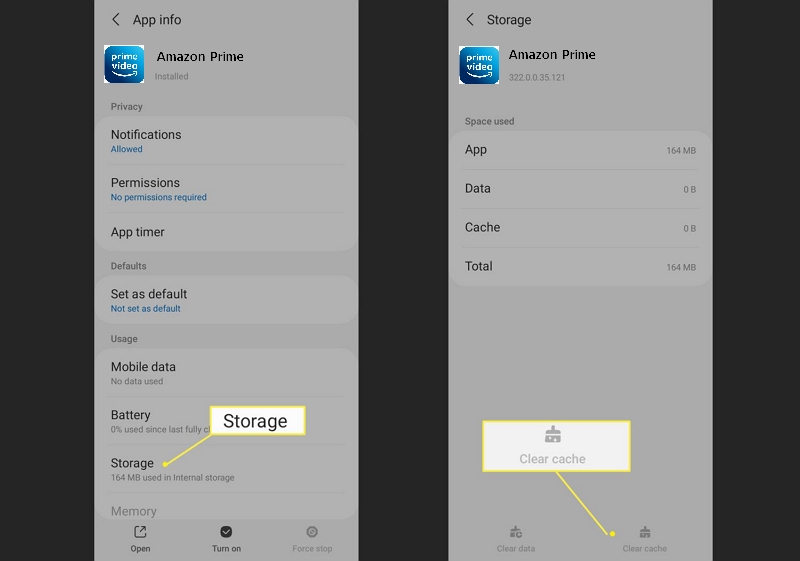
On Android:
- Open Settings and go to Apps & Notifications.
- Select Amazon Prime Video from the list of installed apps.
- Click on Clear Cache to remove temporary files.
On iOS (iPhone/iPad): Unfortunately, iOS does not offer a direct way to clear the cache of individual apps. However, you can:
A. Offload the Amazon Prime Video app: This removes the app but keeps your data intact.
- Go to Settings > General > iPhone Storage.
- Find Amazon Prime Video and tap Offload App.
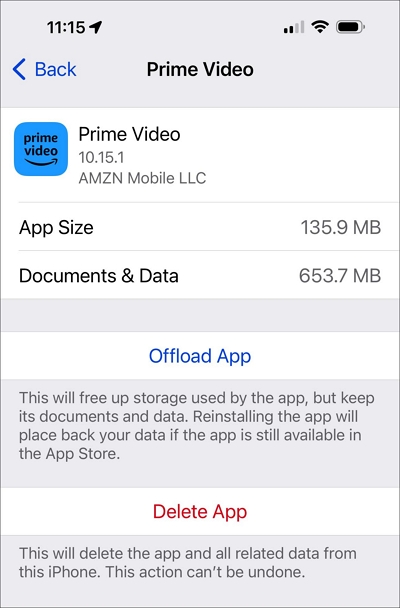
B. Reinstall the app: After offloading, tap Reinstall App to clear the cache and restore it.
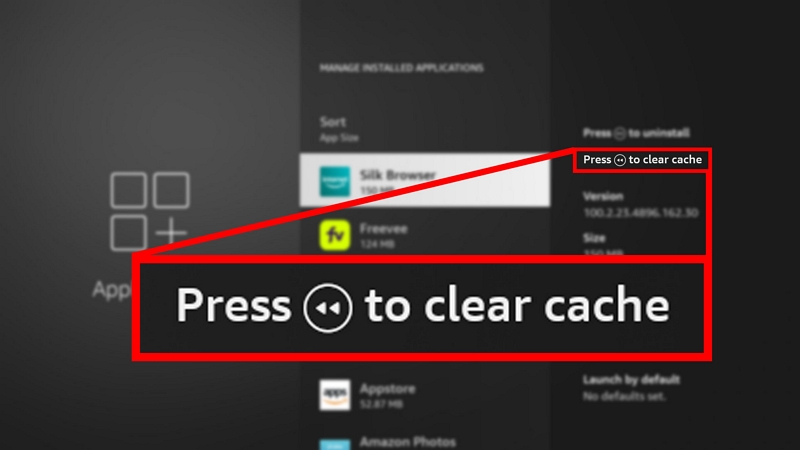
On Fire TV:
- From the home screen, go to Settings.
- Select Applications, then Manage Installed Applications.
- Choose Amazon Prime Video and click Clear Cache.
Method 5: Force Quit and Restart the Amazon Prime Video App
Sometimes, the Amazon Prime Video app may freeze or malfunction due to temporary glitches, preventing you from downloading content. Force quitting the app and restarting it can resolve these issues, refreshing the app's processes and allowing you to resume downloading videos. Force quitting can also help clear any minor bugs or memory leaks that are affecting the app’s performance.
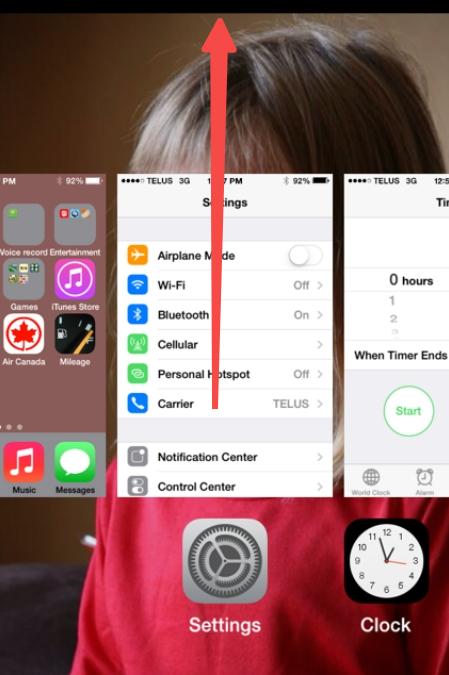
On iOS:
- Double-tap the Home button (or swipe up from the bottom on newer iPhones) to view recently used apps.
- Find the Amazon Prime Video app and swipe it off the screen to close it.
- Reopen the app and try downloading again.
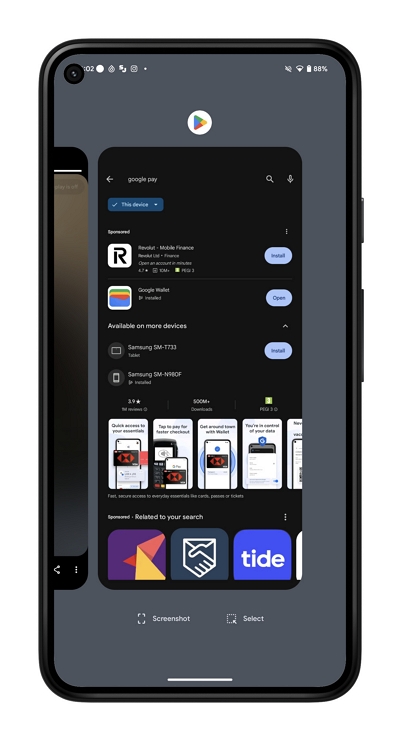
On Android:
- Open the Recent Apps screen (usually by tapping the square button at the bottom of the screen).
- Find the Amazon Prime Video app and swipe it away to close it.
- Restart the app and check if the download works.
On Desktop (Windows/Mac):
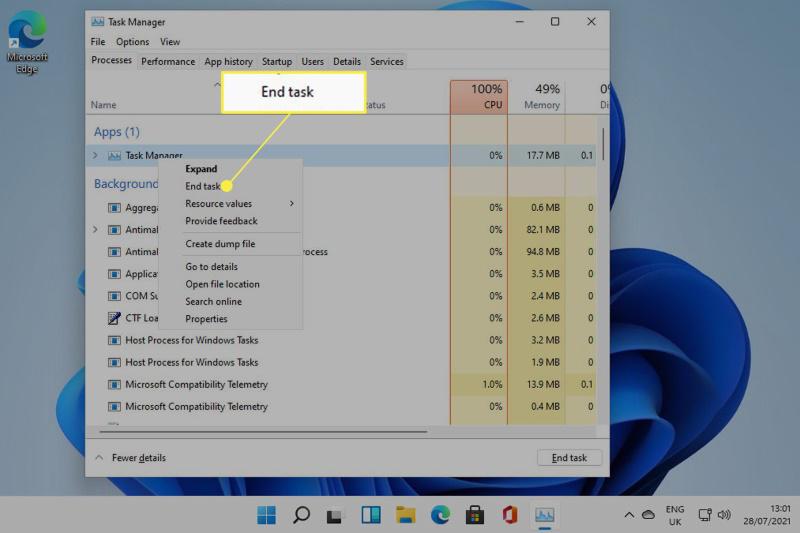
1. Windows: Press Ctrl + Shift + Esc to open Task Manager, find Amazon Prime Video, and click End Task.
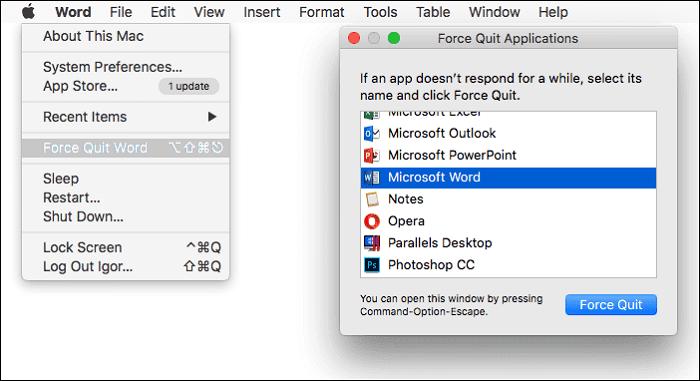
2. Mac: Press Cmd + Option + Esc, select Amazon Prime Video, and click Force Quit.
3. Restart the app and attempt your download again.
Method 6: Update Amazon Prime Video to the Latest Version
If you’re using an outdated version of Amazon Prime Video, you may encounter errors like download failures, crashes, or slow performance. Updates often include fixes for known bugs and compatibility improvements, which can help prevent these issues from arising in the first place.
Step-by-Step Guide to Check for Updates and Install the Latest Version:
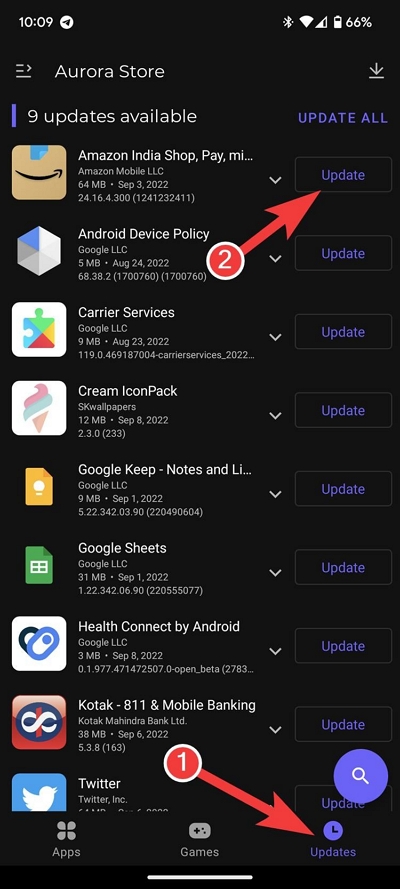
On Android:
- Open the Google Play Store app.
- Tap the Menu icon (three horizontal lines) and select My apps & games.
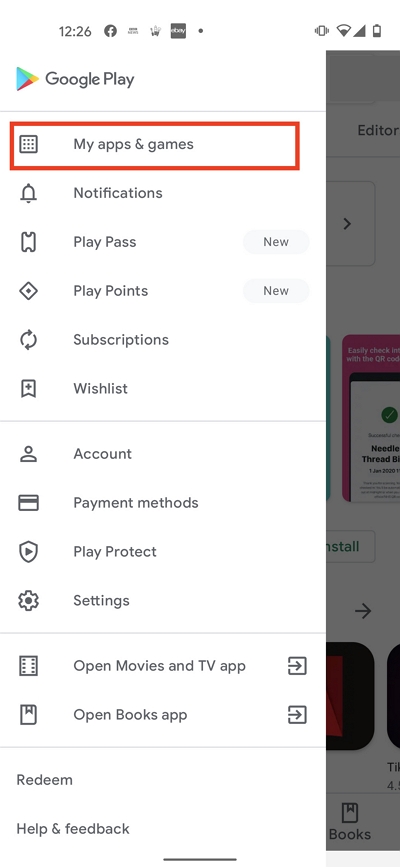
- Look for Amazon Prime Video in the list of apps with available updates.
- Tap Update to install the latest version.
On iOS:
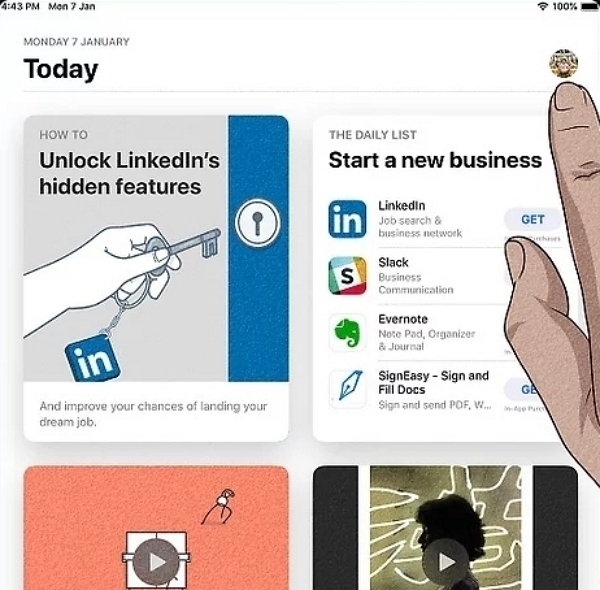
- Open the App Store on your iPhone or iPad.
- Tap Today, then tap your profile picture in the top right.
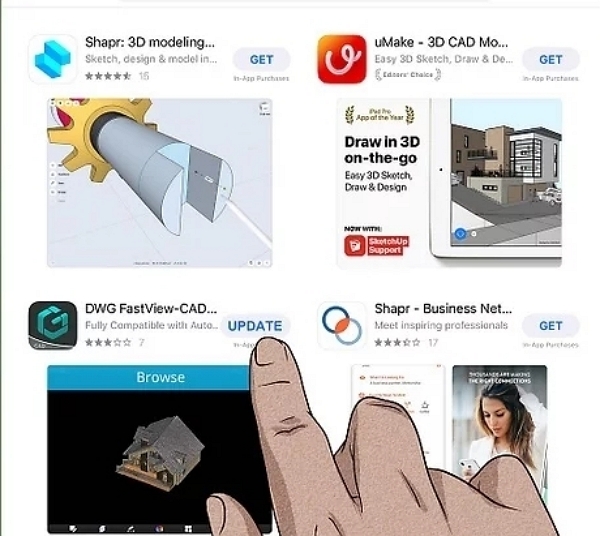
- Scroll down to see if Amazon Prime Video has an available update.
- Tap Update next to the app.
On Fire TV:
From the Home screen, select Apps (three squares and a plus sign) to the far right of the horizontal menu.
- Find Apps logo in Fire TV menu, then locate the app you want to update (don't select it)
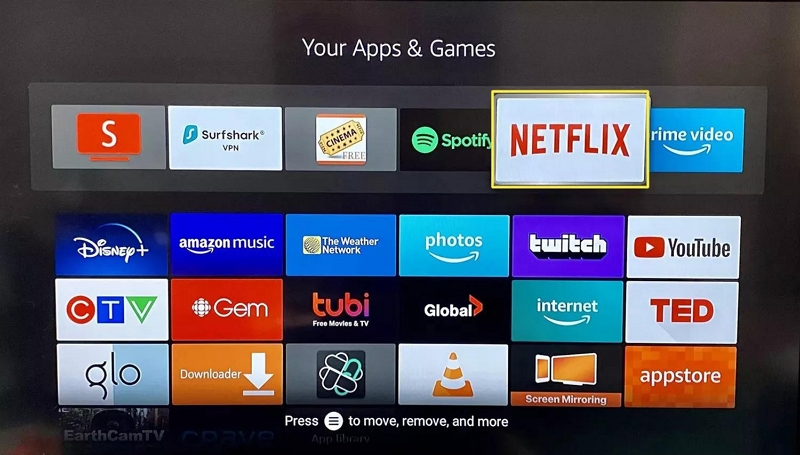
- On your Fire TV remote, press the button with three horizontal lines on it.
- Select More Info.
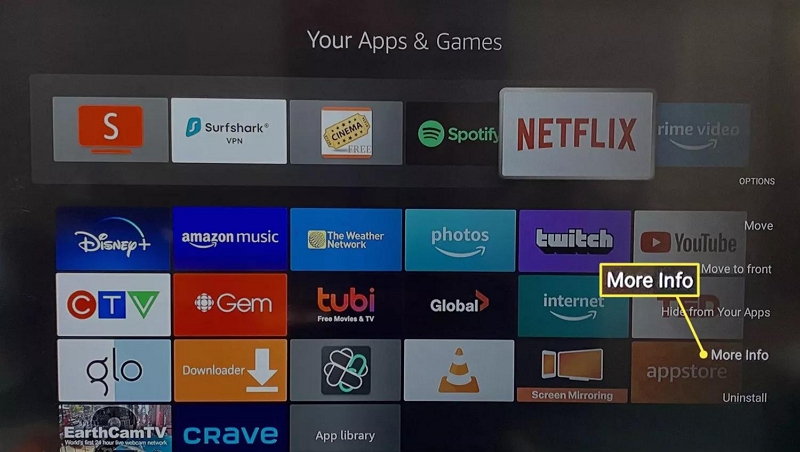
- If an update is available, select Update beside the Open button.
On Desktop (Windows/Mac):
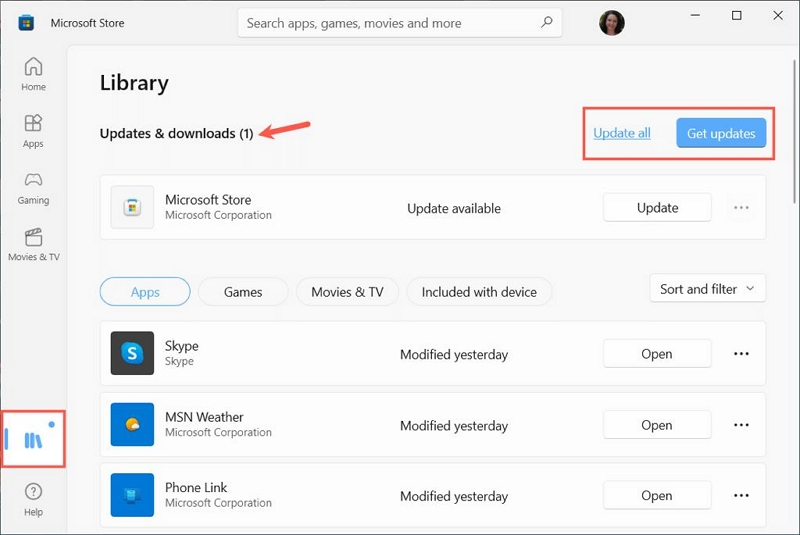
- Windows: Open the Microsoft Store and check for updates.
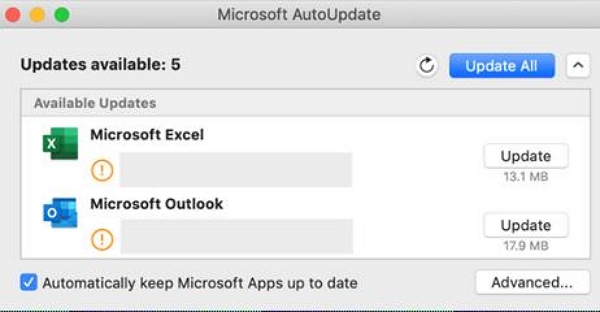
- Mac: Open the Mac App Store, search for Amazon Prime Video, and click Update if an update is available.
Troubleshooting Common Amazon Prime Video Download Issues
Apart from the issues with Amazon videos not downloading, there are other common problems Amazon Prime users face. Below, we’ll take a look at these issues and highlight effective fixes for them.
Issue 1: Prime Video Playback Issues and Error Codes
Playback issues are some of the most common issues users face with choppy video quality, or worse, the video not even playing. Luckily, these fixes will come to your rescue if you face these playback and error code issues.
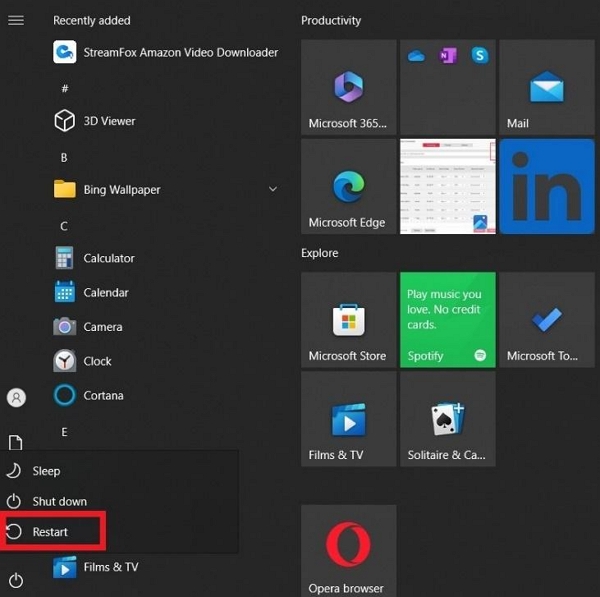
Step 1: Start by closing the Prime Video app on your device or your web browser, if you're watching on your computer. Then, restart your computer or connected device.
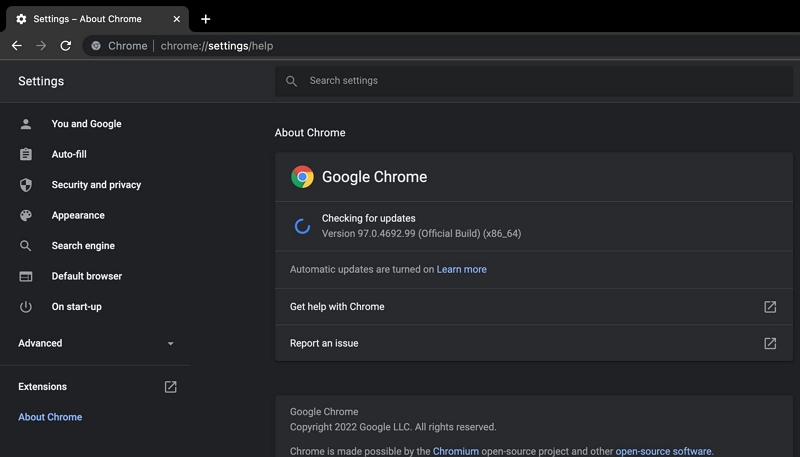
Step 2: Ensure that you regularly update your browser. To check for updates in the Chrome web browser, type chrome://settings/helpinto the address bar to automatically show any available updates.
Issue 2: Amazon Prime Network Problem
Internet connection is vital for streaming services like Prime Video. So, when things go wrong when streaming, your network connection may be the culprit. Here's how to resolve common networking issues that can affect your Prime Video experience:
Step 1: The first step in solving a network problem is to see if your internet is down by trying to surf the internet. However, if you still can't connect, contact the internet provider to help, or connect to another internet provider.
If your Prime Video setup is far from your Wi-Fi router, this could cause slow loading or buffering. If possible, try moving the router closer to your device and try again. If there’s no change, an active VPN may be at fault. Try disabling the VPN, if any, and try again.
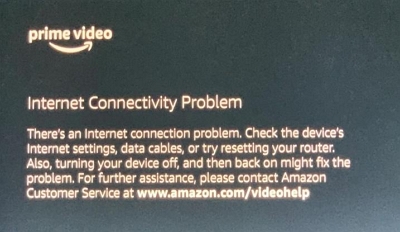
Step 2: If all of the above fixes fail, do a hard reset on your streaming device, your modem, or your router. Just power off the devices and turn them back on after 15 seconds. Reconnect and then try again. By following these steps, you should be able to resolve most network-related issues with Prime Video.
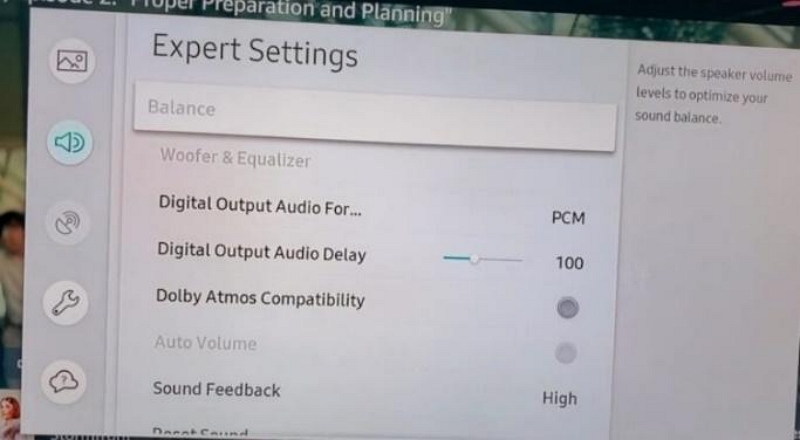
Issue 3: Amazon Prime Video Audio Problem
Prime Video can sometimes have audio issues that affect your viewing experience. Here’s how you can fix this common issue when you encounter it.
Step 1: Make sure the audio is enabled on your device and not muted. Simply check the speaker icon on the video or your computer to verify that it isn’t muted. This may seem like a simple fix but unmuting can be easy to overlook.
Step 2:Prime Video supports audio options such as mono, stereo, and surround sound such as Dolby Atmos. It is important to make sure that every element of your sound system supports the audio format you are playing.
Issue 4: Amazon Prime Downloaded Video Not Playing
If you're having trouble with downloaded Amazon Prime videos not playing, don’t worry! Here are a couple of effective fixes to help you resolve your Amazon Prime downloaded video not playing:
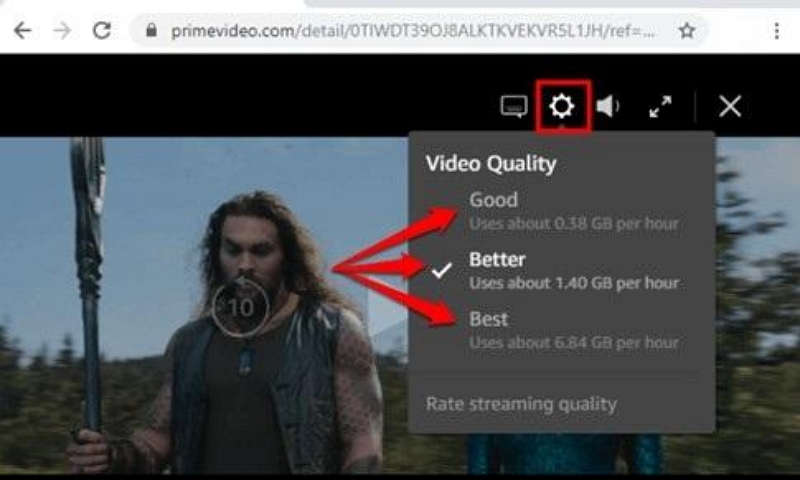
Step 1:The first fix when you notice your Amazon Prime downloaded video not showing is to ensure the video quality is suitable for your device. High-quality videos might not play well on all devices. Adjust the quality settings in the Amazon Prime app if needed.
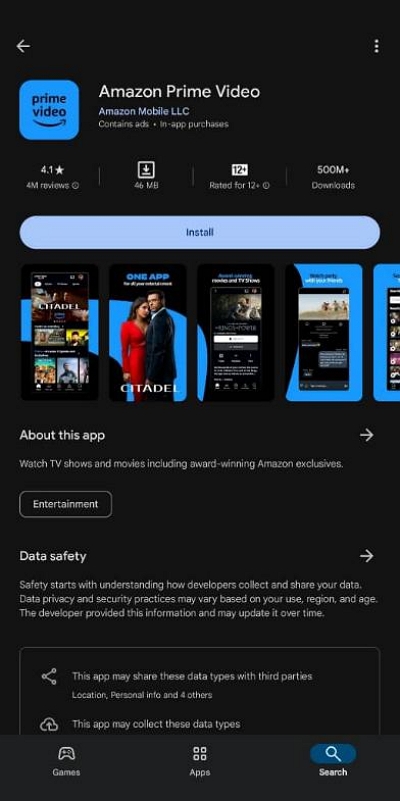
Step 2: Delete the Amazon Prime application, re-download the latest version on your app store, and install it. Check your internet connection if you notice your Amazon Prime Video app not downloading.
Conclusion
As you can see, fixing your Amazon Prime Video download issues is straightforward. You can resolve most problems by checking the number of downloads on your account or troubleshooting your connection and app settings.
However, we recommend using Eassiy Screen Recorder Ultimate for the quickest and most flexible solution. It lets you capture any video playing on your screen and save it permanently without any platform restrictions. Don't wait — try Eassiy Screen Recorder Ultimate today and enjoy your favorite content anytime!