Help Center

Updated on 2026-04-26
views
5min read
Transfer an iPhone video to a Windows PC and get a black screen? Prompted to buy a $0.99 HEVC extension? Or maybe your footage looks washed out when shared with Android users?
You are not alone. By default, iPhones record in HEVC (.MOV) format with HDR. It’s perfect for Apple devices but a compatibility nightmare for PCs, editing software, and web uploads. Converting iPhone video to a standard MP4 is the fastest, most reliable fix.
We tested the most popular tools to convert iPhone video to MP4. Below, we expose the ones that ruin your video quality or fail completely, and reveal the best lab-verified methods that actually work.
1. Our Lab’s Top Pick: Eassiy Video Converter
Best for Lossless Quality, HDR processing, and Batch Conversions
Eassiy Video Converter is a reliable, flexible application that converts iPhone videos to MP4 without compromising excellent quality. It supports batch conversion, making it easy to process multiple videos together. It ensures efficient processing, broad format support, and built-in editing functions including trimming, cropping, and video enhancements.
We tested Eassiy Video Converter in our lab with multiple iPhone MOV clips, including high-resolution footage. The process was stable and delivered MP4 output with no obvious loss in quality. After converting several files in batch, the videos preserved their clarity, synced audio, and resolution, ensuring dependable results for playback and editing.
How to Use Eassiy Video Converter:
1. Download and launch Eassiy Video Converter Ultimate on your computer.
2. Drag and drop your iPhone .mov files directly into the main interface. Alternatively, you can click the large [+] button.
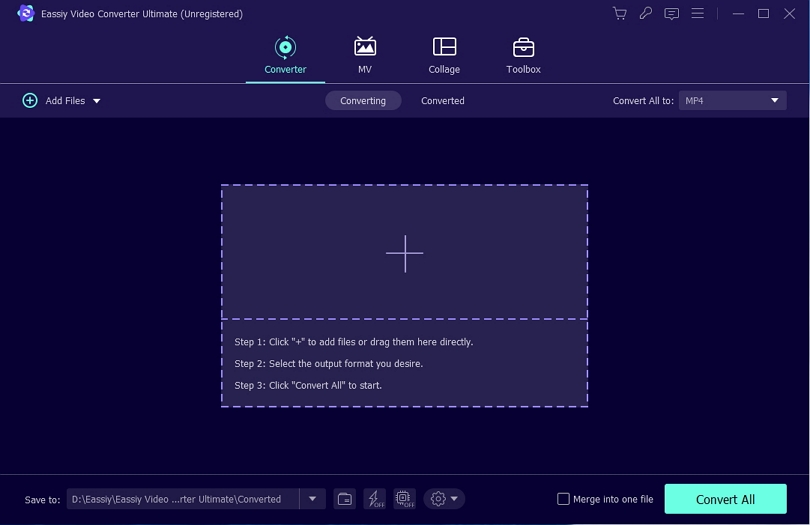
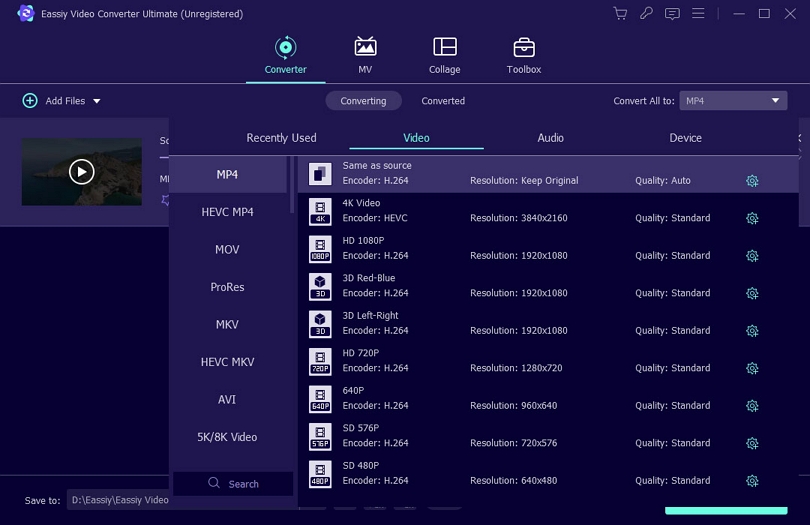
3. Click the Convert All to dropdown menu in the top right corner. Under the Video tab, select MP4 and choose your desired resolution.
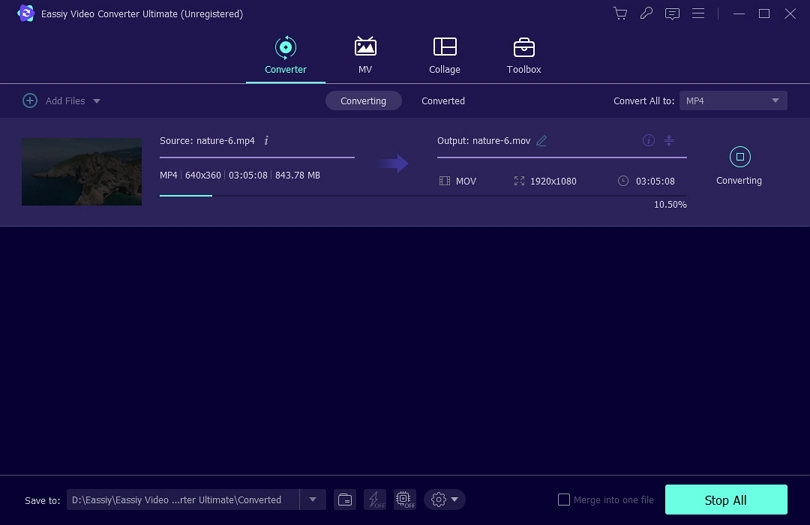
4. Select your output folder at the bottom, then click the Convert All button. You’ll see the conversion progress bar.
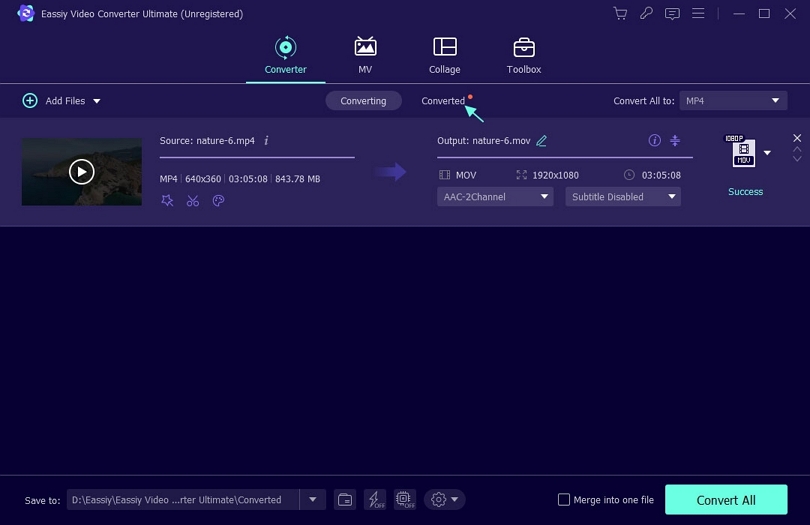
5. Once the process completes, the interface will display "Success," and the Converted file will have a red mark on its right. Additionally, the software will automatically open the folder where the final video is saved.
2. HandBrake
Best Open-Source Tool for Tech-Savvy Users
HandBrake is a widely used free converter that enables MOV to MP4 conversion with full control over encoding options. It offers broad format and codec support, with options to control resolution, bitrate, and compression. With ready-made presets and detailed customization options, it delivers efficient and high-quality video conversion.
From our testing, it ranked second in output quality, delivering smooth, clear, and stable MP4 results. However, the setup is relatively complicated because it requires extra components to be installed. The interface and settings can also feel complex, making it less suitable for non-technical users.
How to Use HandBrake:
1. Download and install HandBrake on your computer. Once launched, click the File button to browse your video and open it. Alternatively, drag your source video onto HandBrake’s main window.
Note: Some video sources include multiple clips or “Titles.” Use HandBrake’s Title option to choose the specific clip you want to convert. If there’s only one Title, it will be selected by default.
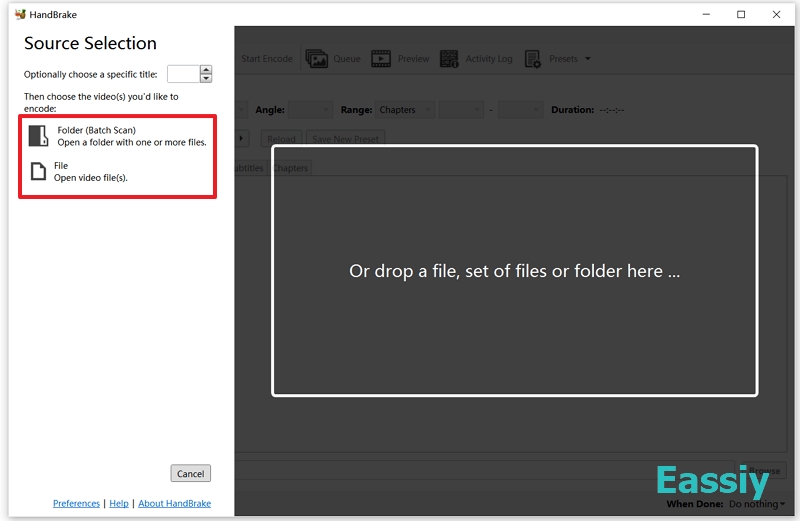
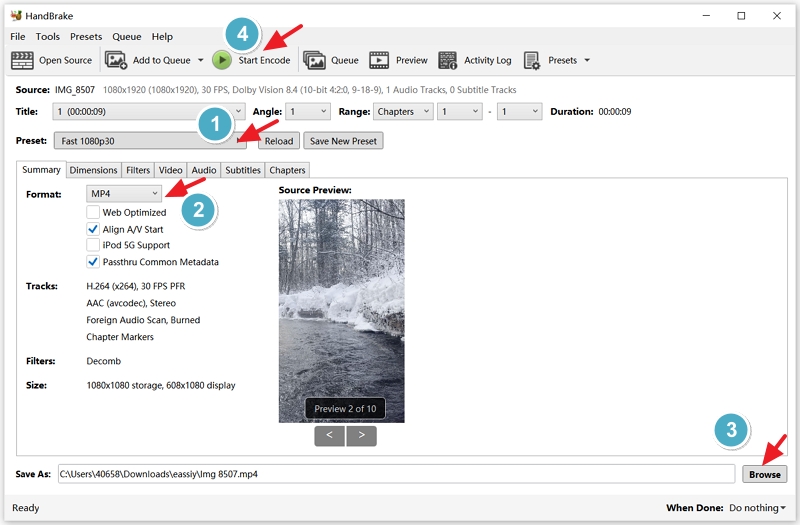
2. Choose a preset in HandBrake to instantly use ready-made optimized settings in one step. You may select a device preset or stick with the default Fast 1080p30, which works well in most cases.
3. Pick a destination folder for your converted video. Set the Save As field to name your output file, and use the Browse option to pick the folder location. Note the destination carefully so you can easily find your MP4 file after conversion.
4. Click Start Encode in the toolbar to begin generating your new video file.
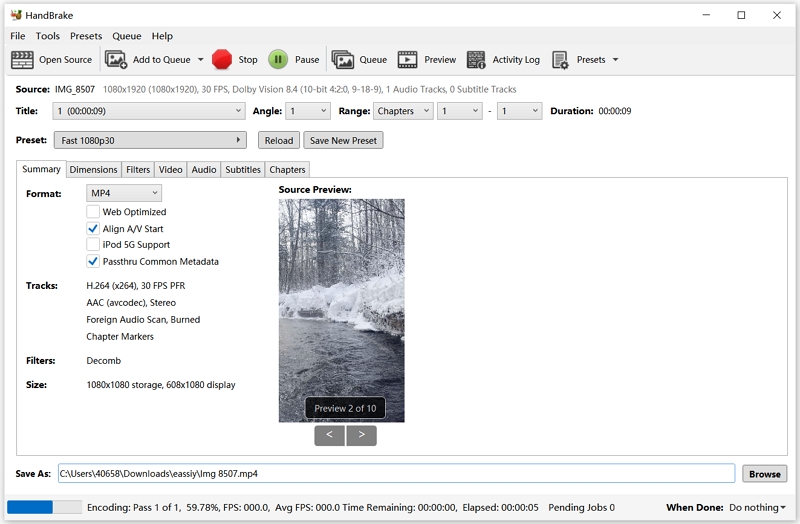
5. During conversion, HandBrake provides progress updates and notifies you when it’s done.
3. VLC Media Player
Best for Emergency Offline Use and Extreme File Compression
VLC Media Player is a free, cross-platform tool that also includes a simple feature for video conversion. It enables simple conversion of iPhone videos (MOV) to MP4 without any additional programs. VLC works across Windows, Mac, and Linux, supports various formats, and includes basic conversion options for quick video use.
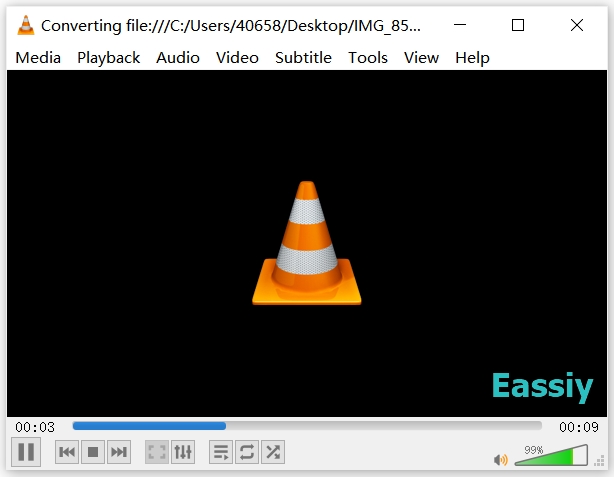
From our hands-on review, VLC Media Player was not smooth to use for converting videos and felt frustrating overall. It took about 5 attempts with the same file before it successfully converted, making the experience slow and unreliable. The output quality was also the weakest among all the tools we tested. The original 8 MB video shrank to just 2 MB, leading to clear quality loss, including blur, choppy playback, and stuttering visuals with noticeable frame instability.
How to Use VLC Media Player:
1. Install VLC Media Player, then open it on your computer.
2. Click Media at the top left corner.
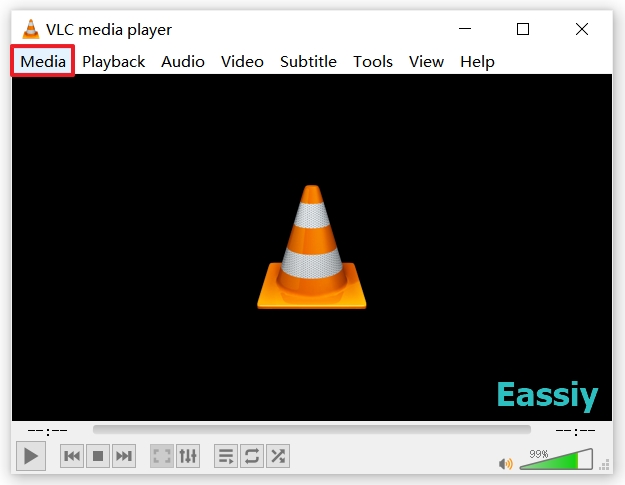
3. Select Convert / Save from the Media menu.
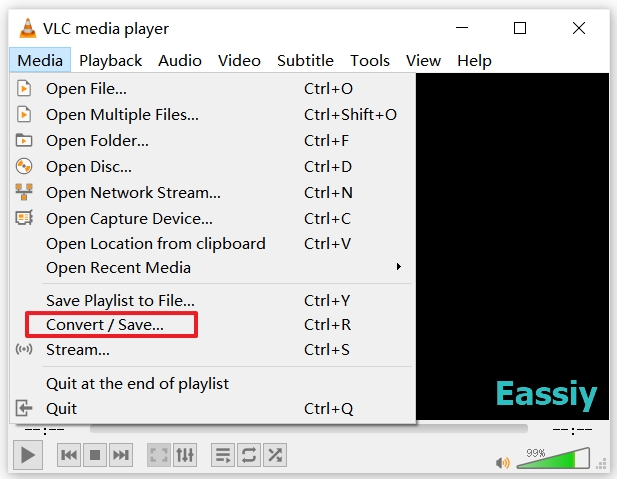
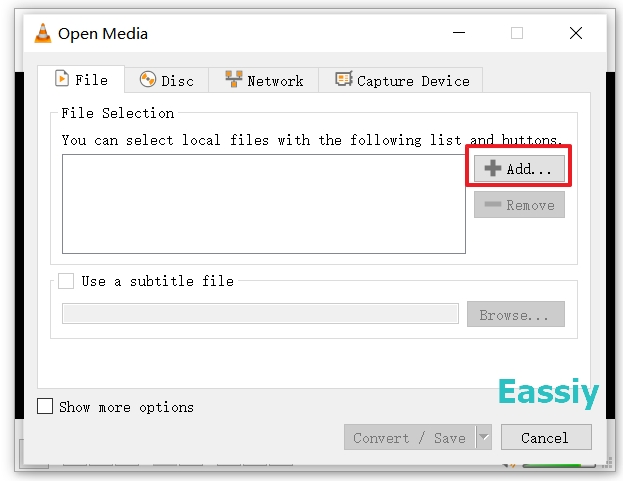
4. Click the + Add button and choose the original iPhone video file you want to convert.
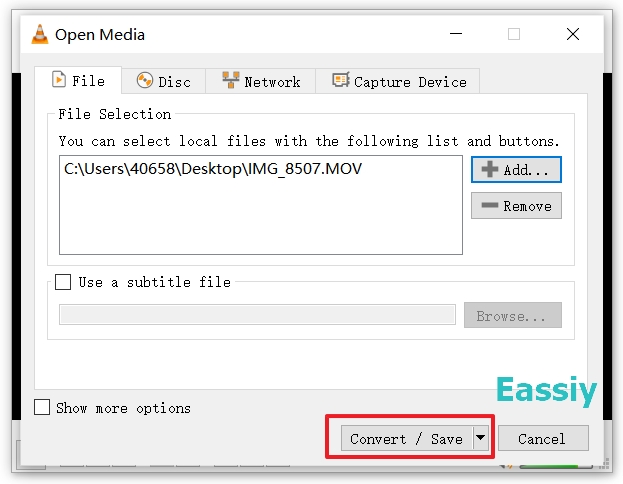
5. Click Convert/Save to proceed.
6. Select Video - H.264 + MP3 (MP4) from the Profile dropdown menu, and click Browse to choose where to save the output file.
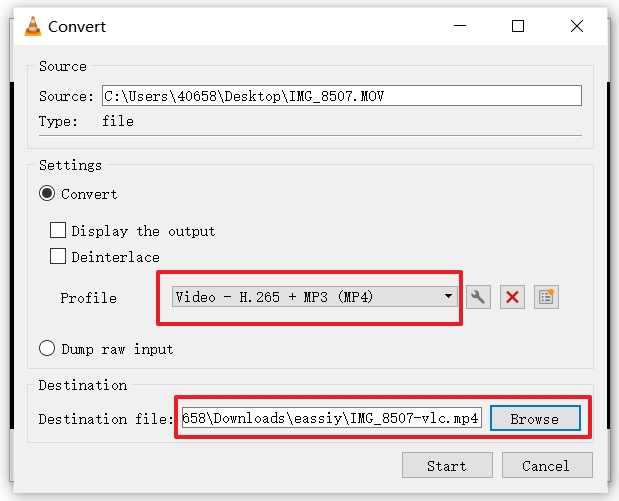
7. Click Start to begin converting your iPhone video to MP4.
4. FreeConvert
Best for Cloud Imports, Custom Web Settings, and Quick Social Media Sharing
FreeConvert is a browser-based converter that enables quick iPhone video to MP4 conversion without software installation. It allows drag-and-drop uploading and cloud imports, providing simple customization options such as resolution, codec, and compression. It is designed for quick and easy conversions and functions on all internet-enabled devices.
We also tested FreeConvert in our lab using multiple iPhone MOV files. It was simple and smooth to use, but the converted MP4 videos showed a minor drop in clarity. The files remained playable and widely compatible, but appeared somewhat blurry versus the original video.
How to Use FreeConvert:
1. Open FreeConvert on your web browser.
2. Click Choose Files and upload your video from your phone, computer, or connected cloud accounts.
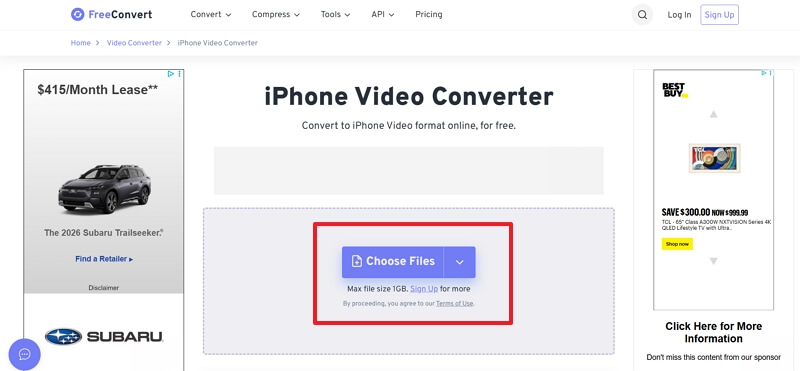
3. Once added, your video will upload automatically. Ensure the Output is selected as MP4.
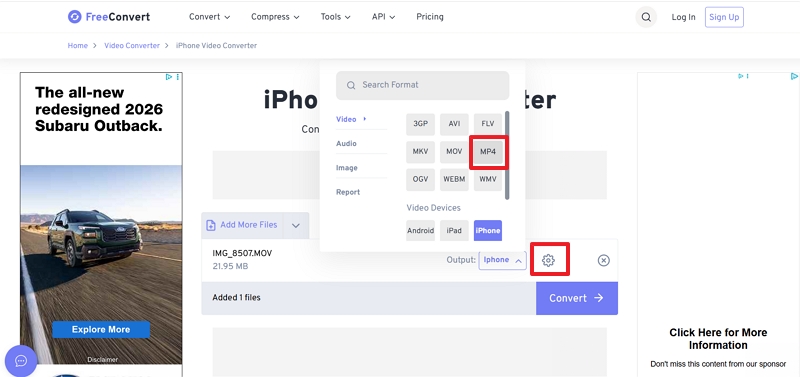
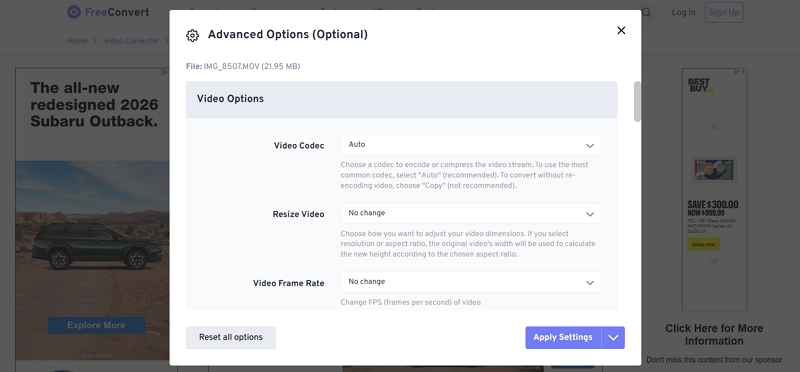
4. Click the gear icon to modify detailed settings such as codec type, resolution, and frame rate. Once done, click Apply Settings.
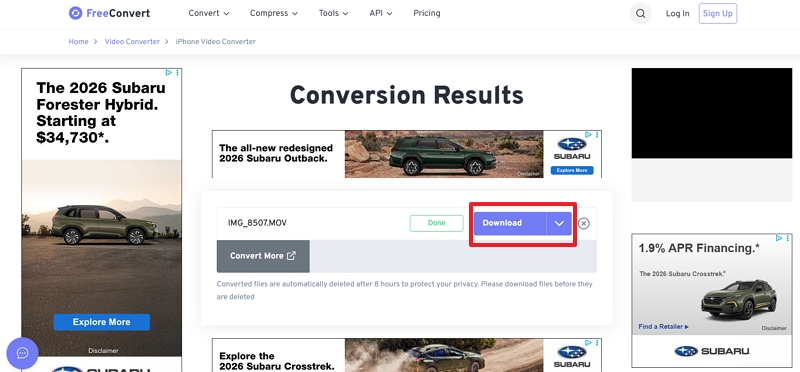
5. Press Convert to initiate the process. Next, select Download to save the converted MP4 video.
5. OnlineConverter
Best for Small Files Under 200MB and Zero-Frills Basic Conversions
Online Converter is a lightweight online service that enables MOV to MP4 conversion directly from your browser. It works like other online converters, where you upload your file, pick MP4, and start converting instantly. It focuses on quick, no-frills processing, making it suitable for basic format changes across different devices.
In our tests, OnlineConverter was slow even with short clips and limited uploads to files under 200 MB. Similar to FreeConvert, the output MP4 videos showed a slight loss of sharpness, appearing slightly blurry compared to the original iPhone footage.
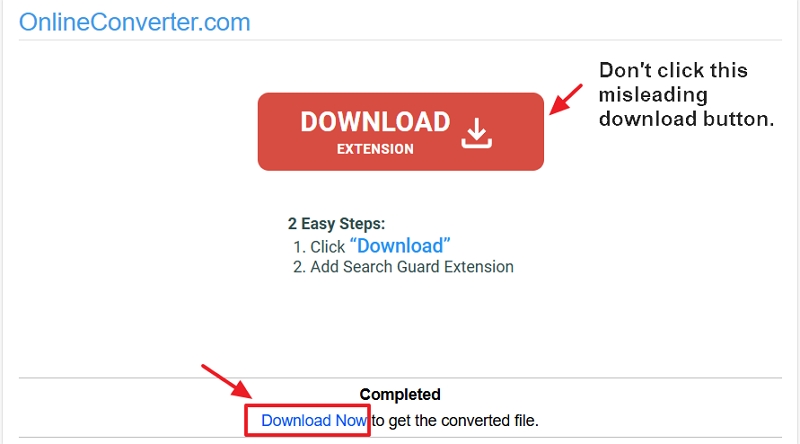
Additionally, you need to be very cautious on the final download page. You will often see a large, misleading green or red "Download" button in the center, which is actually a third-party ad. The real button to download your converted video is quite small and located at the bottom.
How to Use OnlineConverter:
1. Open OnlineConverter on your web browser.
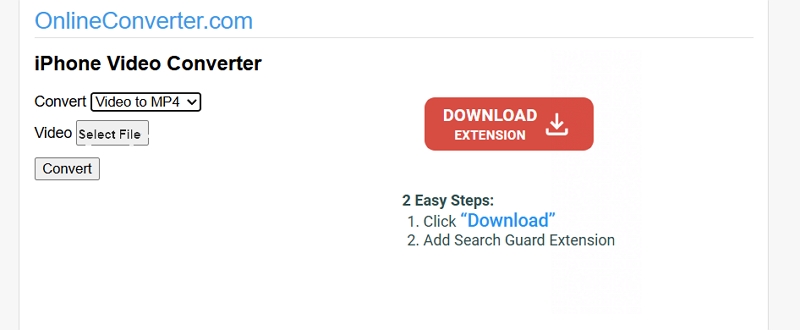
2. Select Convert Video to MP4 from the list.
3. Click Select File under the Video section and open the iPhone video to convert.
4. Once the video file uploads, tap Convert to proceed.
5. Click the Download Now button at the bottom to download your converted video.
Adobe Online MP4 Converter (Not Recommended)
Currently Unstable and Fails to Download
Adobe Online MP4 Converter is a browser-based tool from a highly reputable brand, designed to convert videos quickly via a simple drag-and-drop interface. It promises fast processing and straightforward conversions without the need for software installation. However, despite the brand's reputation, our recent hands-on experience was deeply disappointing.
Although the tool boasts a sleek interface, our latest lab tests revealed major functionality issues. In our first test, the conversion finished successfully, but the Download button remained entirely grayed out. We could only watch the preview, making it feel like a "bait" feature designed to lure users into exploring Adobe's other tools.
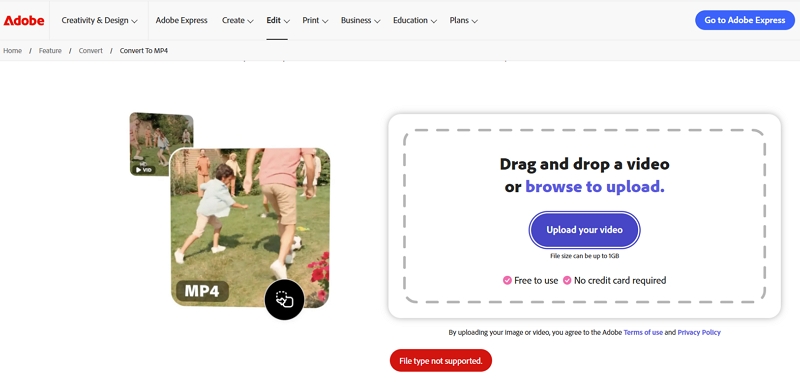
In our second test, the tool completely failed to recognize a standard iPhone video, immediately throwing a "file type not supported" error. Due to these frustrating inconsistencies and aggressive restrictions, we do not recommend this tool for a smooth conversion experience.
How to Use Adobe Online MP4 Converter:
1. Launch Adobe Online MP4 Converter on your web browser.
2. Drag and drop your video file or click Upload your video to browse and open the iPhone video to convert.
3. As soon as your media file uploads, Adobe will convert it automatically.
4. Click Download to save the converted MP4 video. (Note: During our recent testing, this final step failed completely).
To Conclude
You can choose from various options to convert iPhone video to MP4, whether through online converters or desktop programs. Online converters are fast and convenient, but in our tests, they often reduced video quality, resulting in slightly blurry clips. VLC was challenging to operate and delivered weak results, while HandBrake improved quality but wasn’t beginner-friendly.
From all our testing, Eassiy Video Converter stood out as the most balanced option. It delivers clean MP4 output without visible loss in quality, allows batch conversion, and is much simpler to use than advanced tools. If your priority is consistent quality when converting iPhone videos to MP4, Eassiy is our preferred choice.