Help Center
Updated on 2026-04-27
views
5min read
320kbps may not be the golden standard for every audiophile. However, when it comes to Spotify, it certainly sets the benchmark. So, in this guide, we’ll walk you through the 5 best 320kbps Spotify downloaders, all tested to deliver top-notch audio.
Whether you’re on a PC, Mac, Android, iPhone, or just looking for a no-fuss online downloader, this guide has got you covered. Before diving into each tool, let’s understand what it truly means and why it matters.
What is 320kbps Spotify Downloader
At 320kbps, you’re looking at the top tier of what lossy formats like MP3 can offer. In other words, it is capable of packing in rich vocals, precise instrumentals, and depth, especially when you listen to music via everyday speakers or standard handphones.
More importantly, this audio resolution, or bitrate, if you will, compresses files just enough to keep them lightweight without sacrificing much in terms of quality. That’s why even Spotify caps its in-app streaming at this level, though it drops slightly to 256 kbps on the web version.A 320kbps Spotify Downloader works on downloading Spotify music in 320kbps.
5 Best 320kbps Spotify Downloaders
320kbps is a number that you’ll see often, as we dive into these five tools. But not every 320kbps is made alike. The quality will depend on the source behind it. Some will bless your ears with crisp, full-bodies sound while others will fall a bit flat. As we will review each tool, you’ll understand what 320kbps really means in each case and also guide you through how to use them. Let’s break it down, one tool at a time.
1. Eassiy Screen Recorder Ultimate (Computer)
Eassiy Screen Recorder Ultimate is a professional audio recording tool that allows you to capture streaming music in high quality and save it locally. Instead of relying on unstable third-party downloaders, this software records the system sound directly from your computer, ensuring clean and consistent audio output.
The tool supports exporting recordings to multiple formats including MP3, WAV, AAC, and FLAC. With customizable recording settings, timer scheduling, and real-time preview features, it provides a reliable way to capture music streams and build an offline music collection while maintaining excellent sound quality.
Key Features:
- Record any streaming audio directly from system sound.
- Save recordings in multiple formats such as MP3, WAV, AAC, and FLAC.
- Support scheduled recording to capture audio automatically.
- Preview recordings before exporting them to your device.
- Clean and stable recordings without watermarks.
How to record streaming audio in 320kbps:
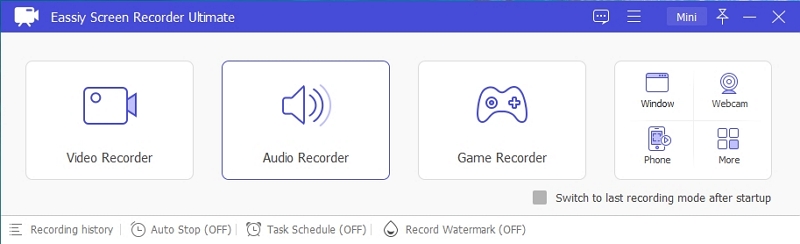
Step 1. Install and launch the audio recording software on your computer. From the main interface, choose the Audio Recorder mode.
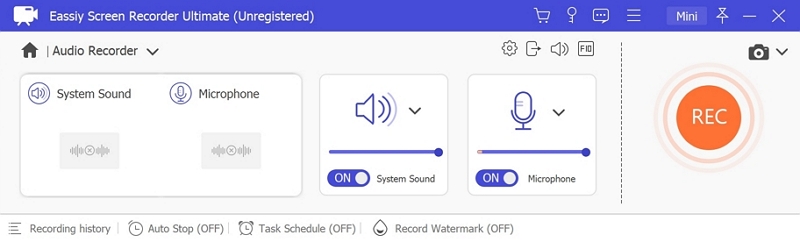
Step 2. Enable System Sound to capture the audio playing on your device. Adjust recording settings and choose the desired output format and bitrate.
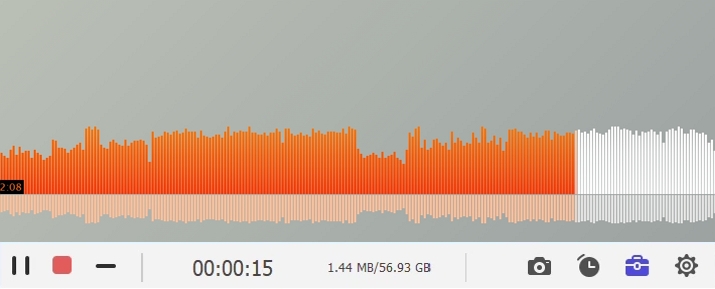
Step 3. Start playing the music or audio stream you want to capture. Click the REC button to begin recording.
Step 4. Once the playback finishes, click Stop to end the recording session.
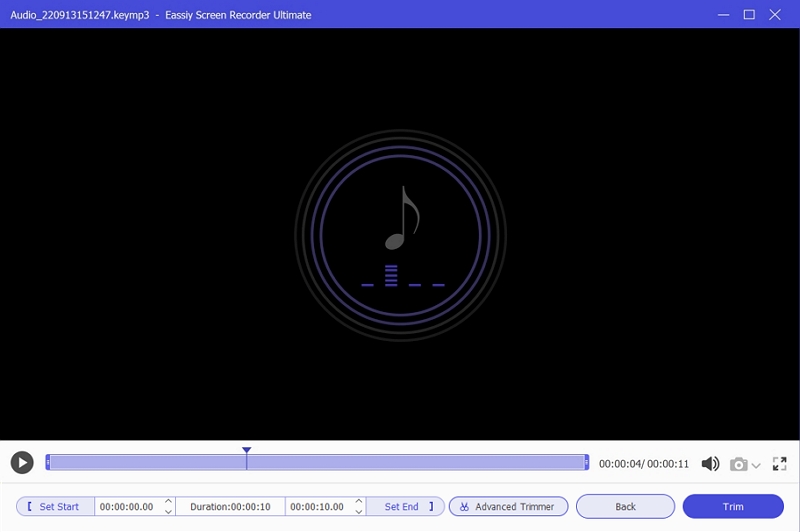
Step 5. Preview the recorded audio and save the file to your computer for offline listening.
Bonus: Eassiy Screen Recorder Ultimate Alternative
StreamFox for Music is a great desktop alternative to Eassiy Screen Recorder Ultimate. It allows you to save Spotify music as 320kbps MP3 files without using links or recording. It supports major music platforms, including Spotify. You simply select the Spotify option in its interface, log into your account, choose your favorite songs, and save them as MP3 files.
Key Features
- Support various output formats, such as MP3, M4A and FLAC.
- Preserve full metadata, including cover art, song titles, and artist names.
- Works with music conversions from platforms like Apple Music, Spotify and Amazon Music.
- Export songs, playlists, albums, podcasts and audiobooks to local storage.
2. SpotiFlyer (Android)
SpotiFlyer comes as an APK file that you have to download directly from its website, not the Play Store. It runs on a simple link-based system and pulls matching tracks from Jio Saavn and Gaana: two of the most popular music services in India. These platforms don’t have the same strong encryption as Spotify, which makes it easier to extract music. However, for that very reason, it could miss on less mainstream ones.
Note: You may wonder whether you can Spotify++, a popular app for Android, to download Spotify songs at 320kbps here, it's sad to tell you that this software doesn't offer a download feature currently.
As for quality: yes, you can expect 320kbps, but not right out of the box. By default, it will save music in its original settings as on the source platform. Still, with a single tweak in app’s settings, you can unlock MP3 format, if that’s what you’re after.
How to use SpotiFlyer to save 320kbps Spotify music on Android:
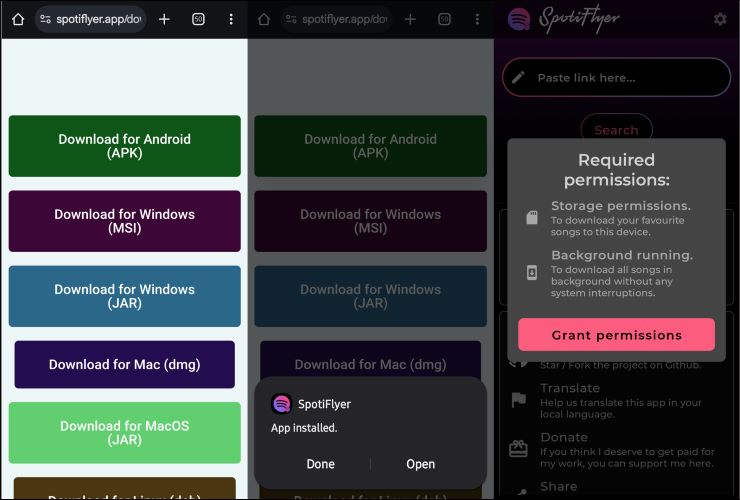
Step 1. Begin by downloading the SpotiFlyer APK from its official site. Follow the on-screen prompts to install third-party apps on Android and also grant necessary permission to the app to access your internal storage.
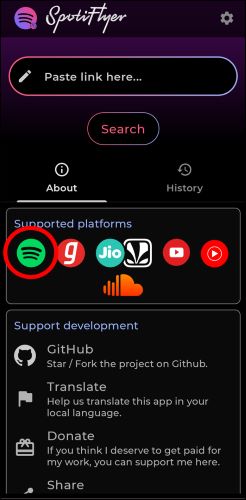
Step 2. Once on the home screen, tap on the Spotify icon to get redirected to your Spotify app on your device.
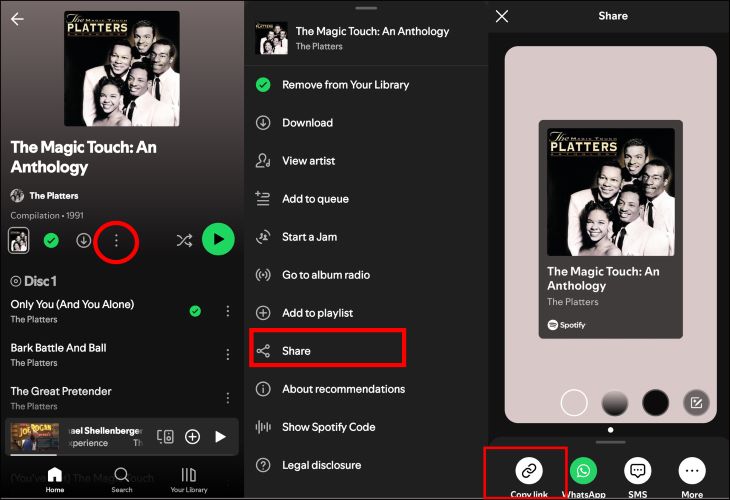
Step 3. Find your favorite song or playlist, and copy the link to it. Then, return to SpotiFlyer.
Step 4. Paste the copied link into the SpotiFlyer’s input box. Hit the Search button and let the app process the link. Once the processing is complete, tap on the Download All button.
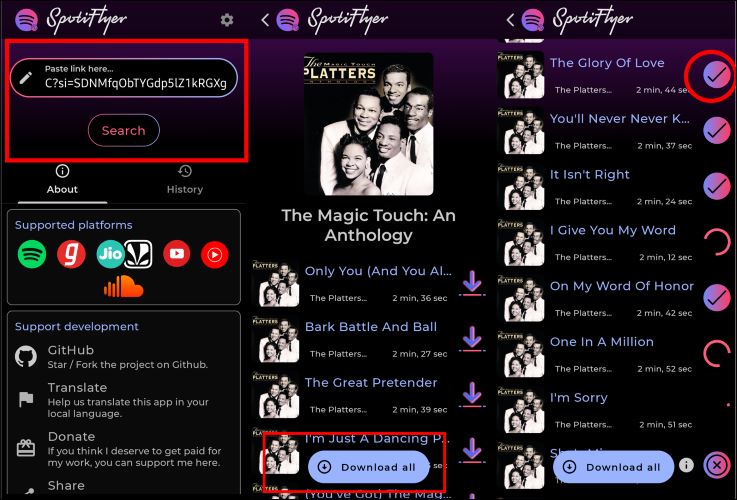
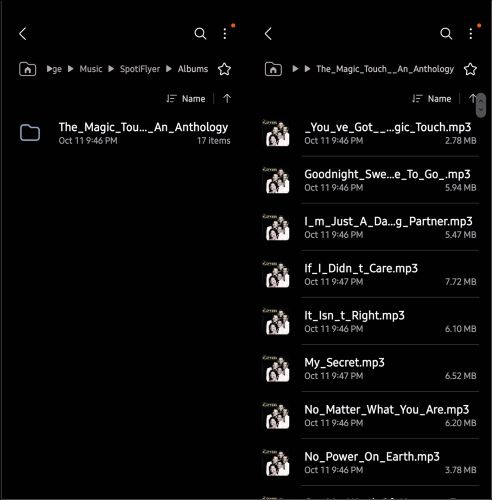
Step 5. The songs will be saved on your internal storage under a folder named SpotiFlyer.
3. Telegram Bot (iPhone and Android)
What sets Telegram bots apart is their operation: you can download Spotify music without needing any external software. So, they are applicable to users on both Android and iPhone platforms. Among the many bots available, one of the best options for high-quality audio is Deezer Music bot. While Deezer Music bot doesn’t have the capability to bypass Spotify’s encrypted algorithms, it acts as a link-pasting service, like the above SpotiFlyer, and works by matching metadata from Spotify URLs and fetching tracks from various external sources.
How to download Spotify music via Deezer Music bot on iPhone and Android:
Step 1. Open the Spotify app on iPhone or Android and play the song you want to download.
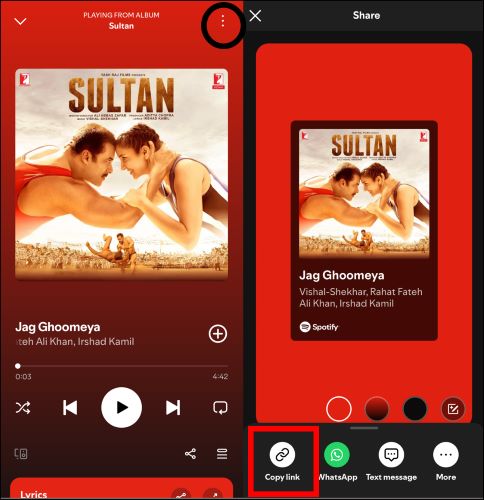
Step 2. Once in the Now Playing screen, tap the three dots in the top-right corner, and choose Share. Then, select Copy Link from the share sheet.
Step 3. Go to Telegram and search for @DeezerMusicBot.
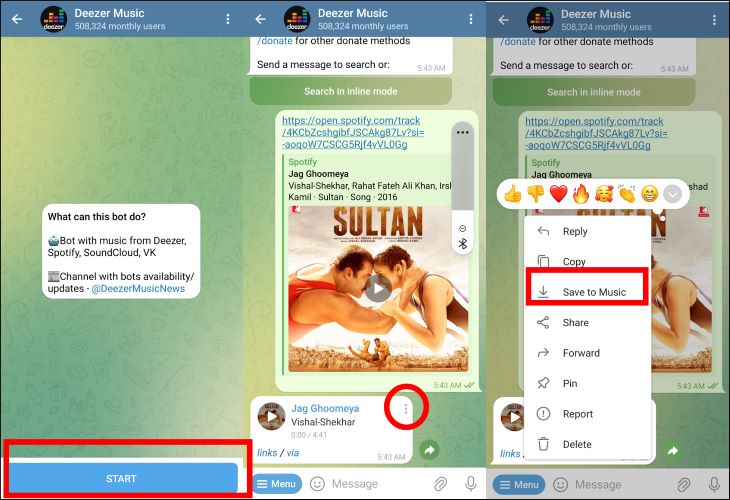
Step 4. Tap Start to activate the bot. Paste the copied link into the message field and send it to the bot.
Step 5. Once it sends you the track, tap on the three dots next to the message bubble and choose Save to Music (or Save to Files for iOS users).
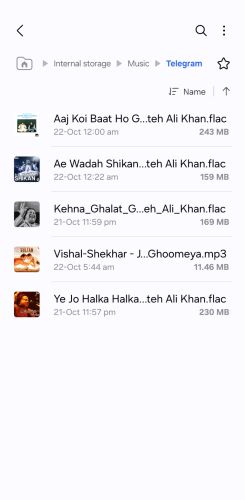
Step 6. You can find the song via the Telegram folder created on your My Files app on Android. Or My Files app for the iPhone interface.
4. SpotiSongDownloader.to
SpotifySongDownloader.to is a freemium browser-based tool that allows you to download Spotify songs in two main formats: 256 kbps M4A and the one in question 320kbps MP3. The free version limits you to downloading two songs per playlist, its premium version (priced at US$ 7.99) unlocks batch downloads for up to 100 songs at once. Keep in mind that the 320kbps quality comes courtesy of YouTube, not Spotify.
Steps to use SpotiSongDownloader.to
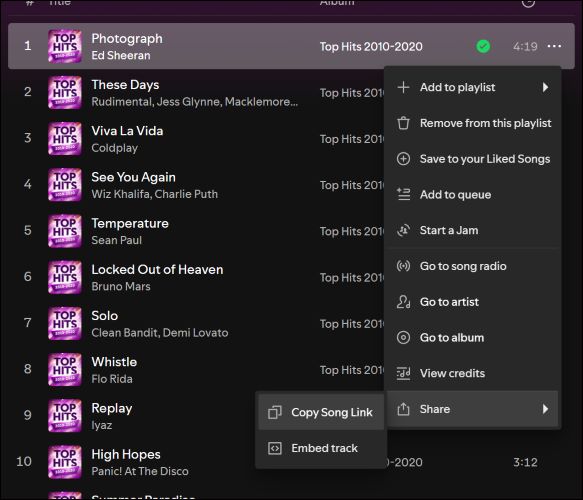
Step 1. On the Spotify desktop or web app, right-click on the desired song. Glide over to the Share option, and select Copy Song Link.
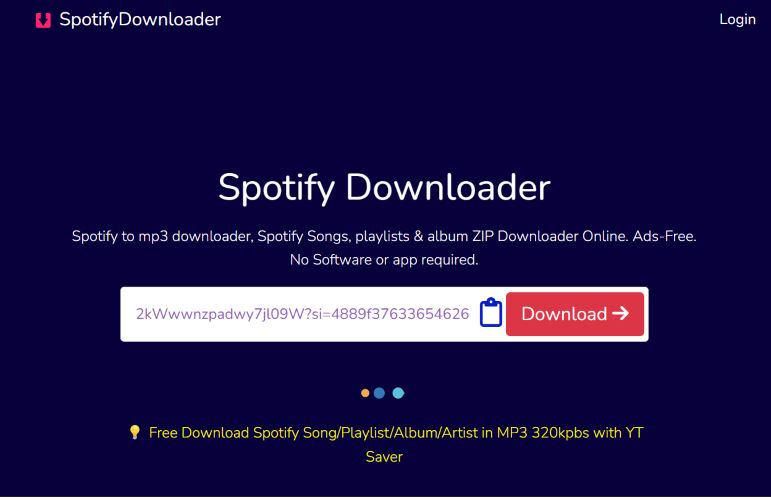
Step 2. Run your preferred browser and visit the official site: SpotiSongDownloader.to. Once there, paste the copied link. Then, click the Download button to let the tool fetch the desired audio.
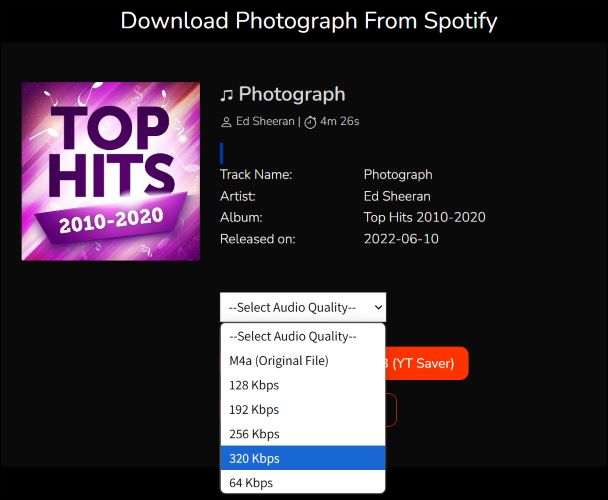
Step 3. On the next screen, simply select Generate Download Link to proceed. Then, click on Audio Quality, and set your preferred audio quality to 320kbps.
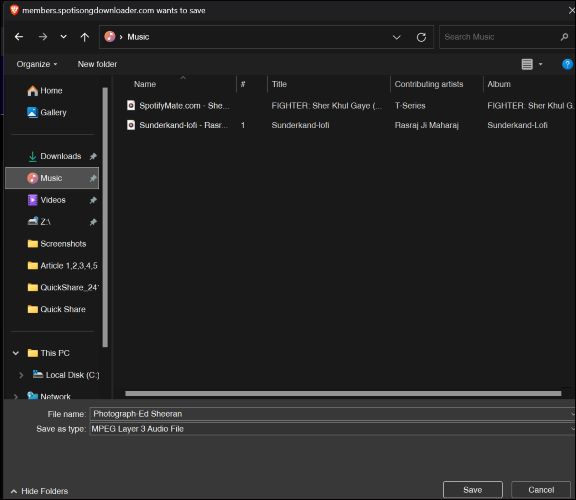
Step 4. Once you select the desired audio quality, the download will automatically begin, saving the track to your device. The saved file will include all the metadata on its own.
5. SpotMate
While SpotMate relies on ad-support, its simplicity shines through its clean and easy-to-use interface for grabbing individual tracks from Spotify. You won’t always get Spotify’s peak quality, as it too relies on various sources to pull audio. However, it’s fast, reliable, and perfect for casual users who want to build a small playlist without jumping through hoops of downloading tools and paying money for a few tracks.
Here’s how to use SpotMate to save music:
Step 1. Ensure that you have the Spotify song link.
Step 2. Visit the SpotMate.com and paste the song link into the designated input field. Hit Start to get things moving.
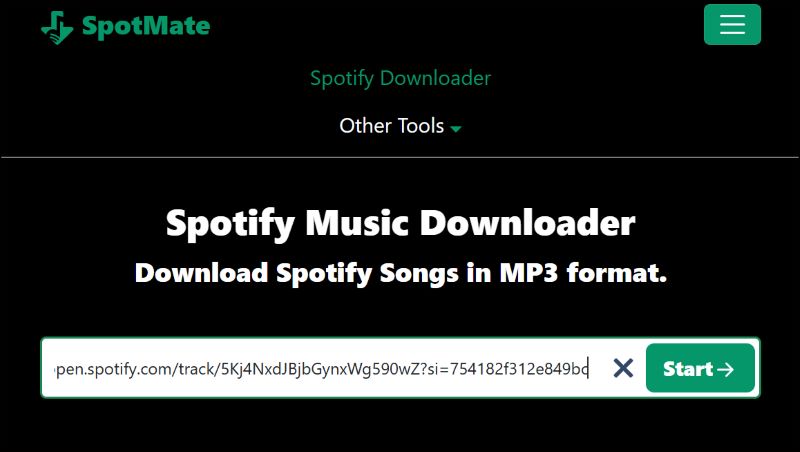
Step 3. Once the tool processes the link, it will present you with a Convert button. Click on it and wait till you see it turn to the Download button.

Step 4. Press the Download option to save the track on your device.

How to Choose the Best 320kbps Spotify Downloader for Your Needs
The answer is: it depends on your needs. If you want a reliable way to capture high-quality streaming audio, a professional recording tool like Eassiy Screen Recorder Ultimate offers a stable and flexible solution. By recording system sound directly, it allows you to save audio streams in high bitrate formats for offline listening.
Online tools like SpotMate and SpotiSongDownloader are quick, but they will give you a hard time when downloading a large playlist or album to MP3. For an at-a-glance comparison of the source quality and what really each tool offers, here’s a quick table:
| Feature | Eassiy Screen Recorder Ultimate | SpotiFlyer APK | Telegram Bot | SpotiSong Downloader.to | SpotMate |
|---|---|---|---|---|---|
| Metadata | Original, including cover art, etc. | Mostly original, songs & artist info intact. | Preserve album covers and song details. | Basic info, song title & artist preserved. | Basic info, song title & artist preserved |
| Audio Quality | Lossless, as on Spotify | 320kbps available | High quality, sourced from Deezer | 320kbps, M4A from YouTube | 320kbps, source-dependent |
| Batch Downloads | Yes, multiple playlists | Limited batch downloads | No, one song at a time | 100 songs (premium), 2 songs (free) | No batch downloads |
| Additional Steps | Tool download required | APK installation required | No extra software, runs via Telegram | Web-based | No extra tools, browser-based |
| Formats | MP3, WAV, AAC, FLAC | M4A, MP3 | MP3 | MP3, M4A | MP3 |
| Sources | System audio recording | Jio Saavn, Gaana | Deezer (via Spotify links) | Mostly YouTube | Various |
| Platforms | Windows, macOS | Android | Android, iPhone | Web browser | Web browser |
Conclusion
There are many tools that claim to download streaming music in 320kbps, but not all of them deliver consistent results. Many online tools rely on external sources, which can affect audio quality and stability.
Using a professional recording solution such as Eassiy Screen Recorder Ultimate provides a more reliable approach. By capturing the audio directly from your system sound, it ensures stable recording quality and allows you to save music streams locally in high-quality formats for offline listening.