Help Center
Updated on 2026-04-27
views
5min read
Spotify Canvas videos are exclusive gems. Short, but packed with meaning. Artists often pour their creativity into these 8-second clips, knowing well that they boost engagement. Sure, Spotify offers some ways to share them, but let’s be real, the built-in ways sometimes don’t work and often aren’t enough.
So, here are three fast and free Spotify Canvas downloaders. With a click of a button, these will let you save the video and repurpose them for personal videos, whether it’s setting wallpapers or sharing them in unique ways. And if you are after the background score as well, we’ve got something for you too.
Part 1. What is Spotify Canvas
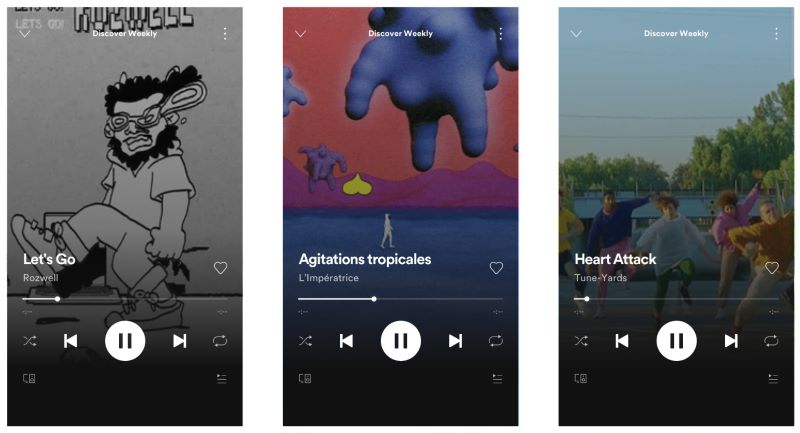
Notice those looping videos in Spotify's Now Playing screen or when scrolling through the home interface? Well, those are Spotify Canvas videos.
Artist-uploaded, 3 to 8-second visual snippets, which can range from seamless loops of animation to straightforward, repeating video clips. And unlike static album art, these visuals change from track to track, if the artist decides to upload one.
Part 2. 3 Best Free Spotify Canvas Downloaders to Get Spotify Canvas
We’ve picked 3 tools that work across iOS, Android, Windows, and Mac and two of them are browser-based, so everyone can use them easily. And yes, all of them are also free and quick to use, because let’s face it, nobody wants to waste time or money downloading an 8-second video.
1. Canvas Downloader for Spotify (Online Tool)
Apply to: Online tool could be accessed via any browser.
Canvas Downloader for Spotify is a no-fuss and browser-friendly tool that works like a charm on both mobile and desktop. Purpose-built, it saves videos in crisp MPEG-4 or JPG format, leaving out the clutter: no lyrics, just the raw, artist-uploaded visual content. Better yet, you can search by artists or simply drop a link to get the video in its original quality. Here is how to use it. The process doesn’t change much across platforms, so no matter the device, you’re set.
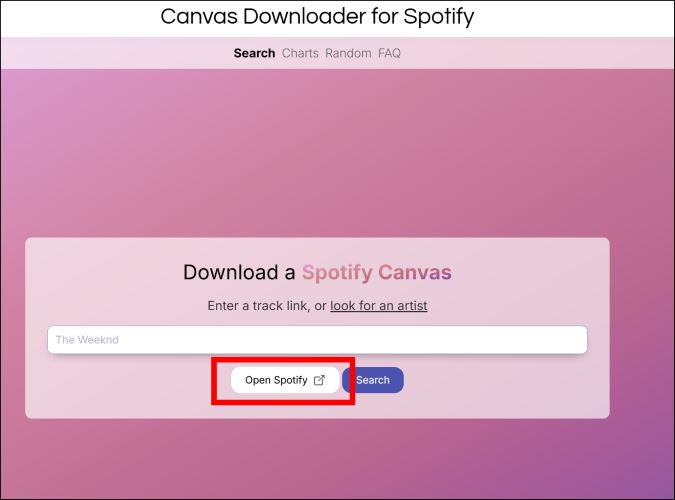
Step 1. Open your preferred browser. Head to the URL bar and type canvasdownloader.com. After the side loads, you’ll spot a button labeled Open Spotify. Click on it to launch Spotify’s web app.
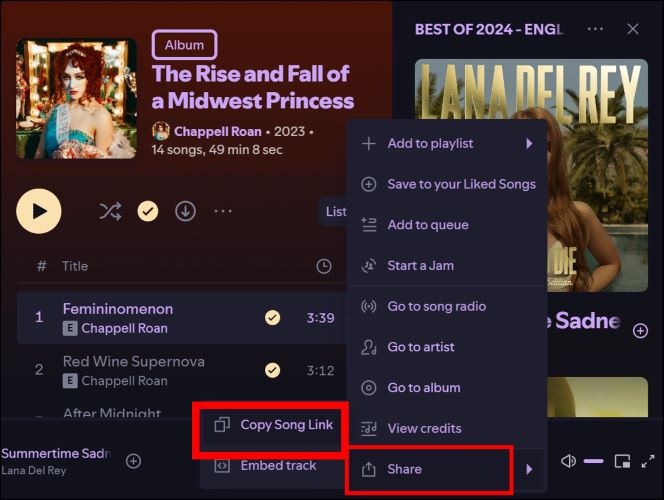
Step 2. Search for the desired song. And click on the three-dot next to the title. Remember, this has to be a song with a canvas video (not an album or playlist link). From the options that pops up, hover over Share and click Copy Song Link.
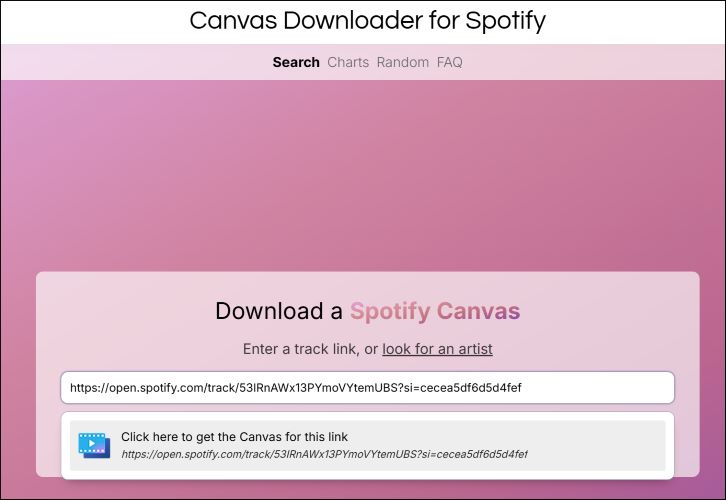
Step 3. Head back to the Canvas Downloader tab and paste the link into the input box. As soon as you drop the URL, a new car will appear: Click here to get the canvas for this link. Give it a tap.
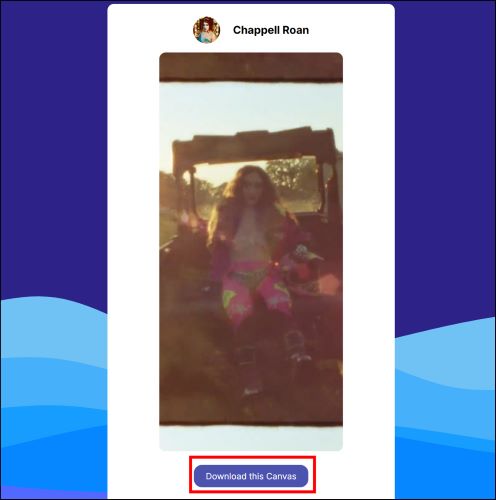
Step 4. On the fresh page that loads, you will see the artist name and Canvas video. Just below it, click on the Download this Canvas button.
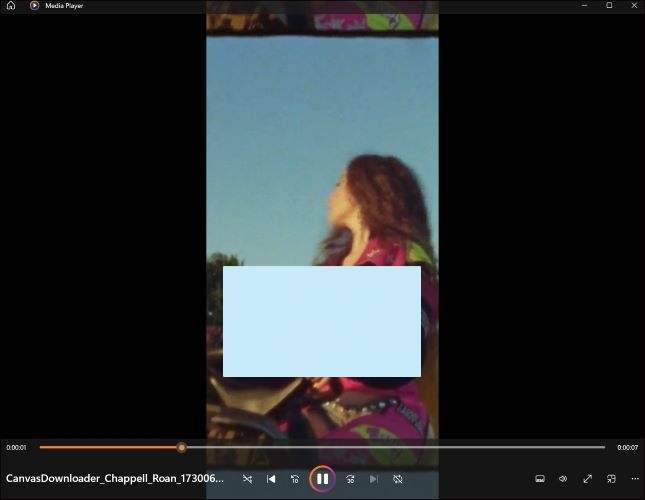
Step 5. The file will be saved to your Downloads folder on Windows or Mac. The video name will be generated as Canvasdownloader_Artists name_random numbers, which you can edit.
2. Delitefully.com (Reddit and Online Tool)
Apply to: Browser tool (Windows, Mac, Android, iOS)
Long before CanvasDownloader.com entered the scene, Delitefully Canvas Downloader was already a fan-favorite on Reddit. It only requires a few-steps to get the video.
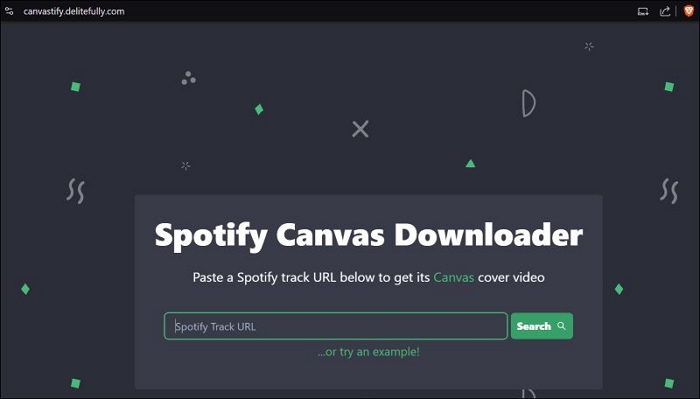
Just visit the site: https://canvastify.delitefully.com/. Drop in your Spotify song URL, and hit Search. It will fetch the video, then click Download.
3. Yt-dlp’s SpotifyCanvas (GitHub)
Apply to: Windows, Mac
A command-line tool, Yt-dlp has many community-built extensions and one of the recent additions to its extensive plugins is the Canvas Downloader. You can stick with the above ones for a seamless experience. But if they fail you, this tool will give you the most guaranteed results. Just ensure that Python and Git are already installed on your computer. Once that’s sorted, follow these straightforward steps:
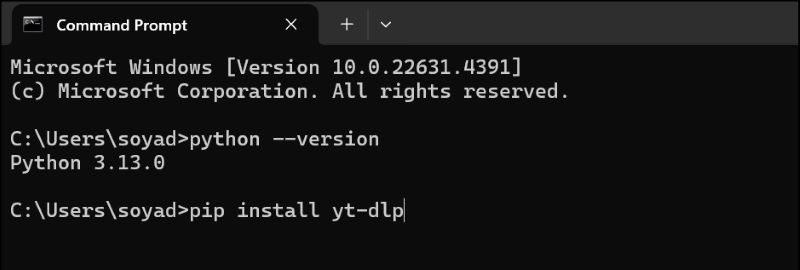
Step 1. Open your command line or terminal, and enter the following command:
pip install yt-dlp
Hit the Enter key. This will install the Yt-dlp tool.
Step 2. Once the installation wraps up successfully, you’ll see a confirmation. So, it’s time to bring in the Spotify Canvas extension. Type in the following command:
pip install git+https://github.com/qbnu/yt-dlp-SpotifyCanvas
Press Enter, and the tool will fetch the plugin for you. You’ll see the Installation completion message, indicating everything is set up.

Step 3. Now, you only need to paste the song link whenever you want to download the Canvas video. Simply replace the Spotify URL with the actual URL in the following command:
yt-dlp --extractor-args spotify:canvas=true "
And press enter. The video will be downloaded in the default download location (the Downloads folder).
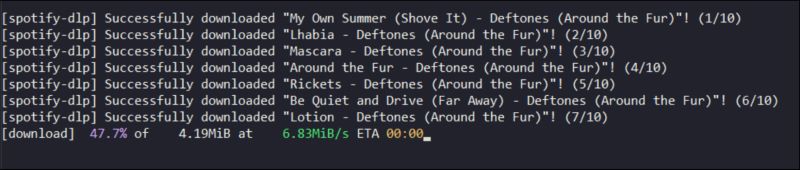
Part 3. How to Record Streaming Audio in MP3 on Any Device
Many of you might want more than just the Canvas videos: maybe the tracks to match, or perhaps your entire music library saved in high-quality MP3. If that's the case, you don't have to juggle multiple tools. Eassiy Screen Recorder Ultimate is one tool to get the job done — capturing any audio stream playing on your device and saving it permanently in your preferred format.
Purpose-built for audio and video capture, Eassiy Screen Recorder Ultimate works with any streaming source. Simply play what you want to record, hit the record button, and the software handles the rest. No link copying, no bot dependency, no technical setup. Plus, each recording arrives in the format you choose, keeping the audio quality as close to the original stream as possible.
Key Features:
- Record any audio stream playing on your device with system sound capture.
- Supports multiple output formats including MP3, AAC, FLAC, and more.
- Set recording duration with a built-in timer for hands-free, automated operation.
- Preview recordings before saving to ensure quality.
- Works on both Windows and Mac.
Steps to Use Eassiy Screen Recorder Ultimate to Save Streaming Audio in MP3
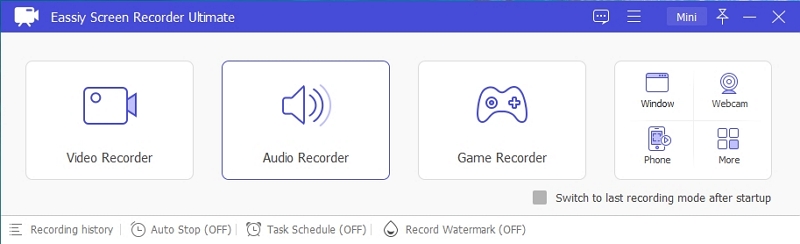
Step 1. Download and install Eassiy Screen Recorder Ultimate on your Windows PC or Mac. Once launched, select the Audio Recorder feature from the home screen.
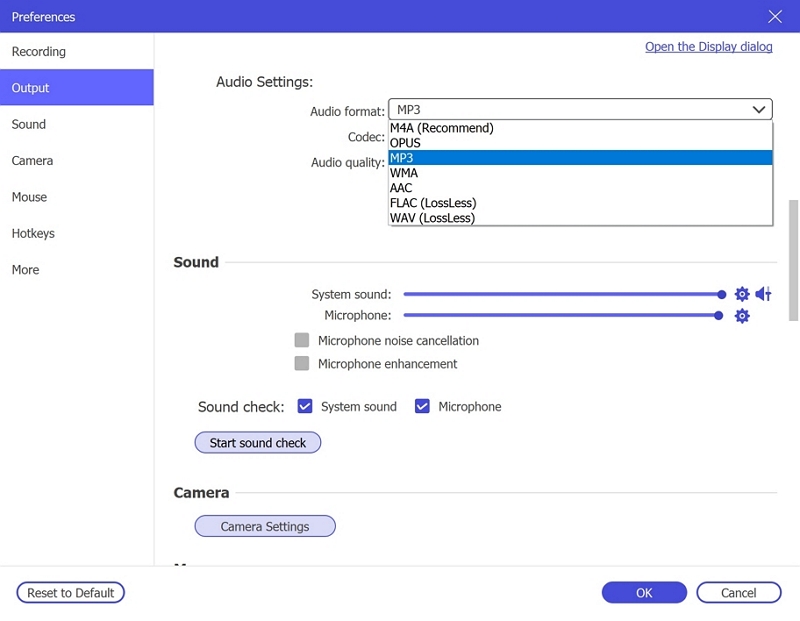
Step 2. Configure your audio recording settings. Enable System Sound to capture the live stream audio. Optionally enable the microphone if needed. Click Settings → Preferences → Output to select MP3 as your output format and set the quality to High. Click OK to save.
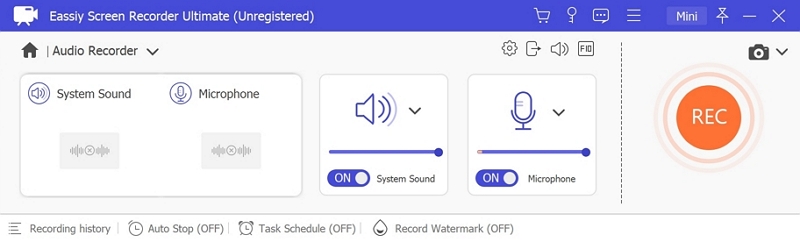
Step 3. Play the audio stream you wish to record, then click REC to begin recording. Use the toolbar to adjust volume, pause, or stop at any time. To automate the process, click the clock icon to set a recording duration in advance.
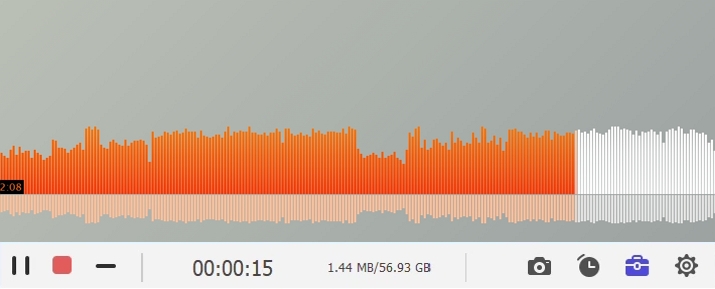
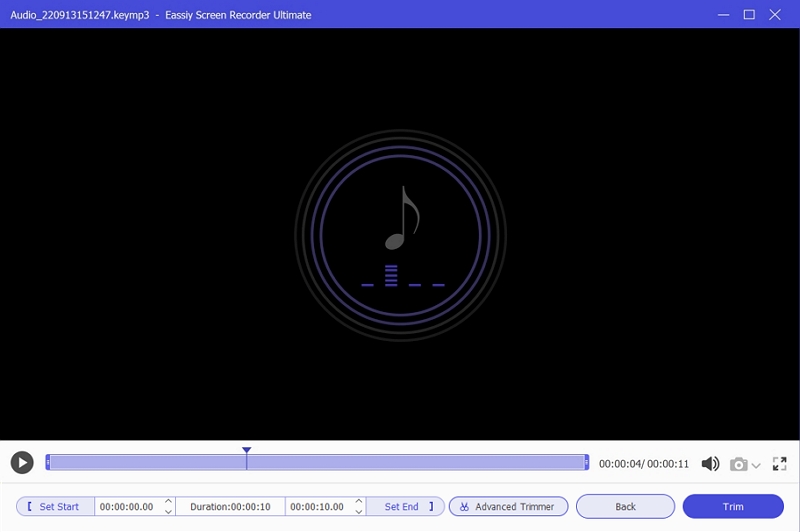
Step 4. When finished, click Stop and preview your recording. Save it in MP3 format to your device for offline listening anytime.
Tip: You can also use StreamFox for Music to download your favorite Spotify tracks. StreamFox has a built-in Spotify Web Player, allowing you to directly select songs, playlists, or albums. You can then choose MP3 or other output formats and set your preferred audio quality. After downloading, you will get files with complete ID3 tags.
Steps to Transfer to Android and iPhone
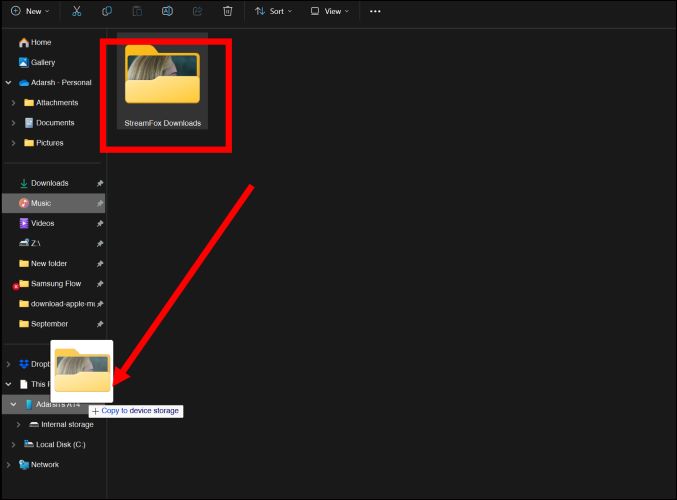
To transfer your Eassiy recordings from a Windows computer to an Android phone, just connect your device via USB:
- Open File Explorer.
- Locate your Eassiy Screen Recorder recordings folder.
- Drag the folder over to your phone's name in the left pane.
Within seconds, your favorite tracks will be on your Android device. You can open any media player and it will reflect the added music.
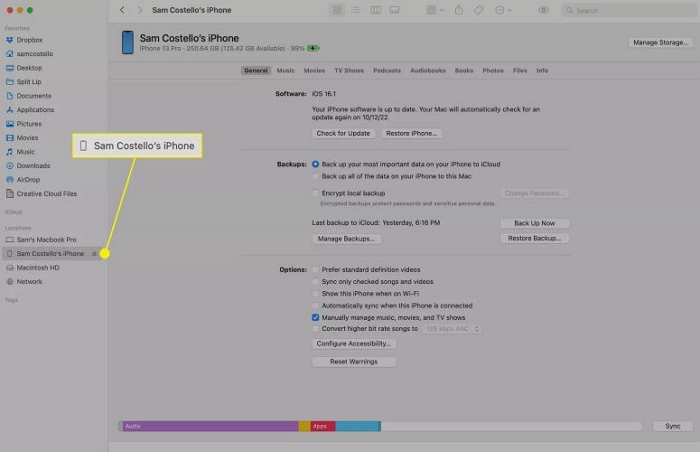
And to move the recordings to your iPhone using a Mac (running macOS Catalina or later), start by connecting them using a USB-to-Lightning cable.
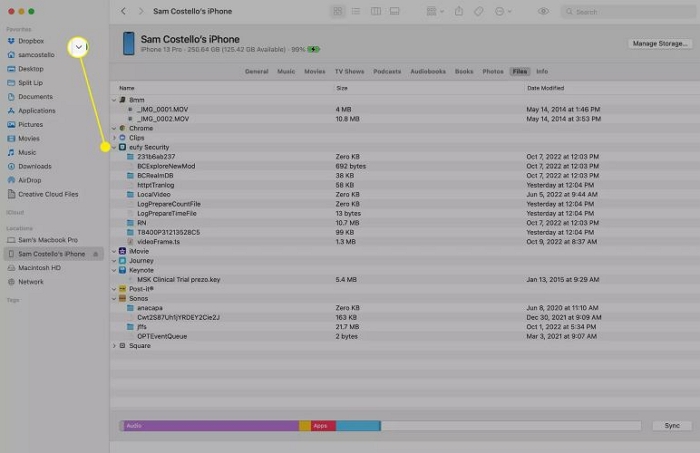
- Open a Finder window. Under Locations on the left, you should see your iPhone listed by name. Select it.
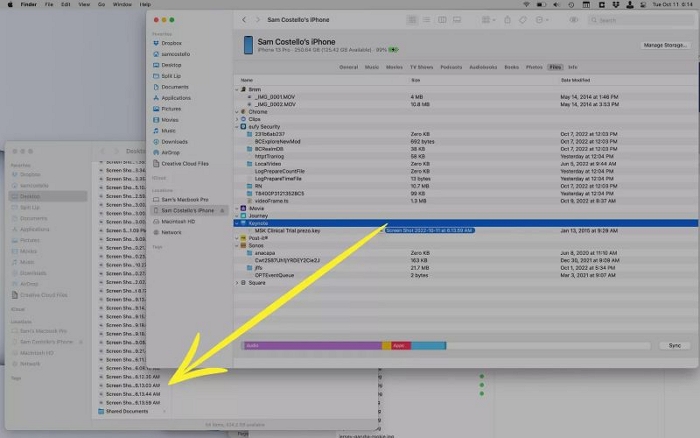
- Switch to the Files tab from the top ribbon. Expand the Files app by clicking the arrow to view the contents of your iPhone's file directories.
- Then, open another Finder window and navigate to your Eassiy recordings folder. Simply drag and drop your selected audio files into a suitable folder on your iPhone.
Conclusion
Any of the above tools will serve you well when downloading Spotify Canvas videos. CanvasDownloader.com is your go-to across many devices, but if it ever falls short, the other options will have your back.
As for music, Eassiy Screen Recorder Ultimate is the only tool you'll ever need. Once installed on your Mac or Windows, it will always be there. Simply open it, play what you love, and save it in high-quality MP3 or FLAC for true offline listening — no accounts, no link copying, no complications.