Help Center
Updated on 2026-04-17
views
5min read
You must be familiar with the steps of downloading Spotify playlists on your iPhone with the native mobile app. However, do you know how to download Spotify playlists to MP3 on your iDevice? If you are curious, keep reading, as we have summed up 4 quick ways to download an entire Spotify playlist to MP3 on iPhone. You can pick up the method that suits the size of your Spotify playlists, whether small or large. If you don't mind this or just want to download a small Spotify playlist on your iPhone, then follow this part to get the detailed way.
Part 1: 3 Ways to Download an Entire Small Spotify Playlist to MP3 on iPhone
There are some free tools available for downloading Spotify playlists on iPhone. However, they all share a common drawback which is low efficiency when saving large playlists, whether in terms of download time or saving the downloaded playlists to local storage.
Way 1. Use Spotify to MP3 iOS Shortcut
The Shortcuts app enables you to save Spotify playlists as MP3 without installing any apps but a shortcut and here is how to use this app for Spotify playlist downloads.
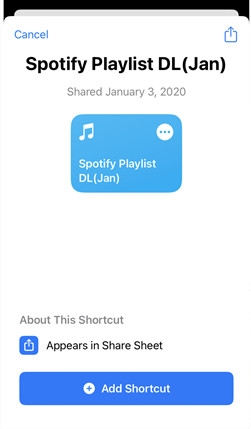
Step 1. Run the Shortcuts app on your iPhone. Next, search Spotify Playlist DL(Jan) on Safari and tap Add (Get) Shortcut. You will be redirected to the Shortcuts app for downloading the Spotify to MP3 shortcut.
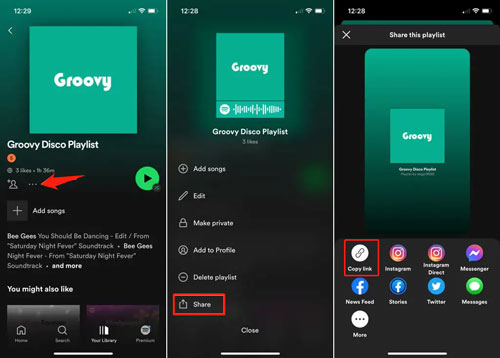
Step 2. Once the shortcut is installed. Open the Spotify app and copy the sharing link of the playlist you want to download.
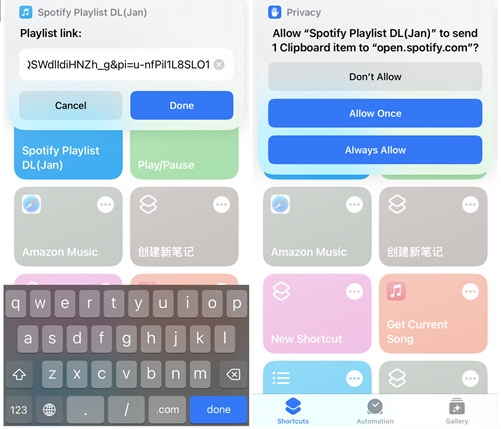
Step 3. Head back to the Shortcuts app and run Spotify Playlist DL(Jan).
Step 4. Paste the copied playlist link into the shortcut. Then, tap Allow to start the playlist download.
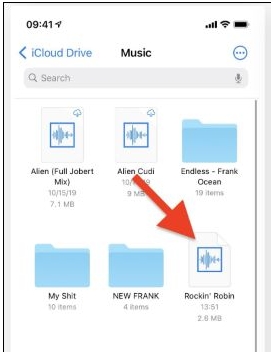
To find the downloaded MP3 playlist, go to the Files app. Next, access iCloud > Shortcuts > Music.
Way 2. Use Online Spotify Playlist Downloader
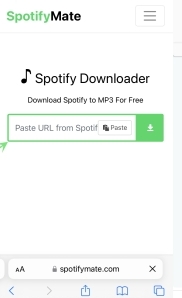
You can also export Spotify playlists to your iPhone with Safari browser and what you also need is a workable online tool. Here we will show you the steps of using SpotifyMate, the free Spotify to MP3 playlist downloader, to get your Spotify playlists in MP3 on your iPhone.
Step 1: Open the playlist on your Spotify mobile app, tap 3-dot > Share > Copy link.
Step 2: Go to SpotifyMate site on Safari and paste the playlist link. Then, tap the Download icon.
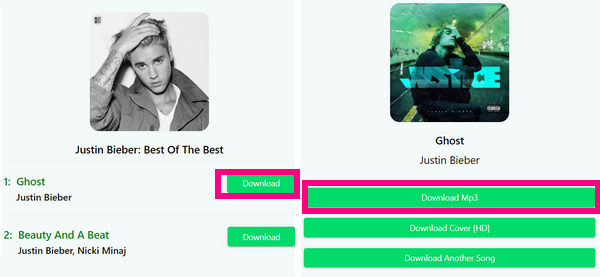
Step 3: Hit Download next to each song and hit Download MP3 to download every song. Repeat the steps until you download all songs from the playlist.
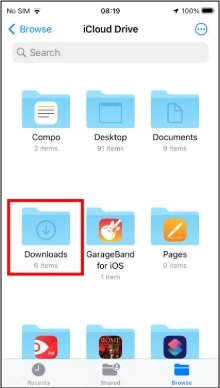
You can check the MP3 downloads by accessing Files app, choosing iCloud Drive and tapping Downloads.
Way 3. Use Spotify to MP3 Telegram Bot
Using Telegram bots is a useful way to download Spotify playlists in MP3 on your iPhone. Put plainly, Telegram bots are automated applications that are designed to run within the platform and carry out a function, like converting Spotify songs in MP3.
You can usually locate these bots by simply searching for them in the Telegram search bar. As for grabbing Spotify playlists in MP3, you can use the widely-used DeezLoad. Telegram’s DeezLoad bot requires you to paste the link of the desired Spotify audio and it will give you the MP3 audio file after a brief pause.
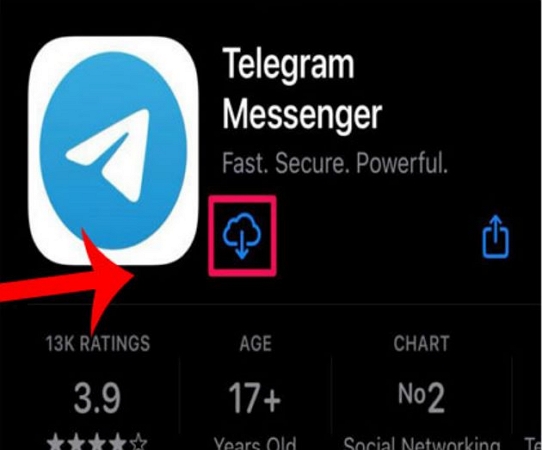
Step 1. Install Telegram Messenger from the App Store if you don’t already have it installed on your iPhone.
Step 2. Type DeezLoad in the search field. Tap on the DeezLoad bot to open it.
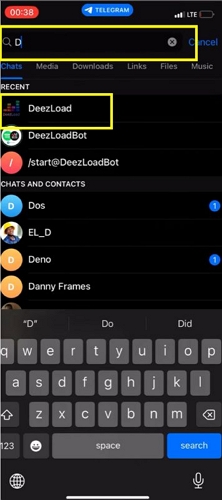
Step 3. Select Start to activate the bot.
Step 4. Now open the Spotify app. Go to Your Library, select Playlist, and tap the playlist you wish to download.
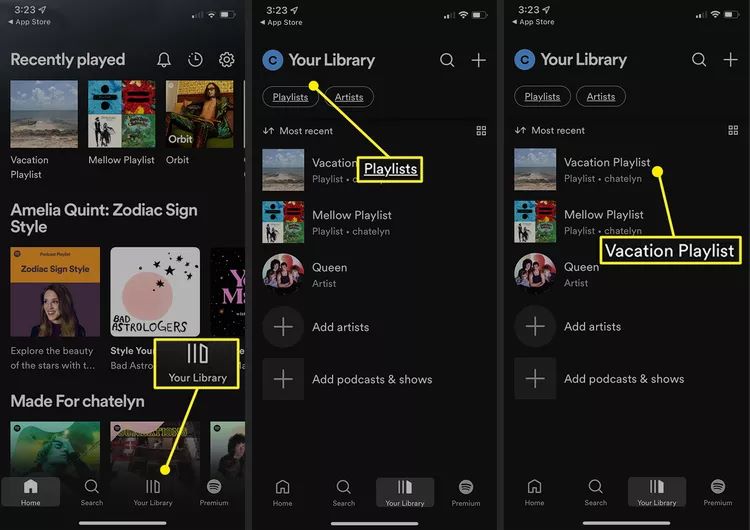
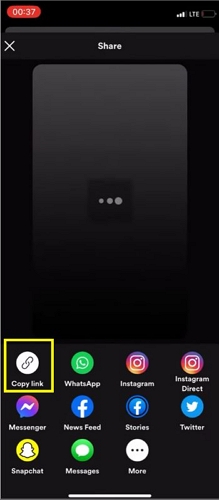
Step 5. Note that the DeezLoad Telegram bot does not allow you to download the entire playlist in a single go. So, you have to copy the link of individual songs one by one.
Step 6. Return to the Telegram app. Start the Deezload bot. And paste the copied URL into the chat field. Send the song link to the bot.
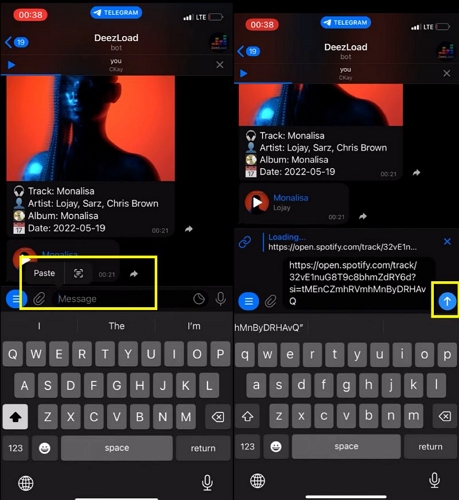
Step 7. The bot will process the link and provide the song shortly. Tap the Download button to save the song to your iPhone. Repeat the process to download all the songs in your playlist one by one.
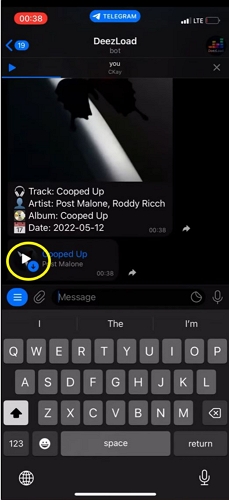
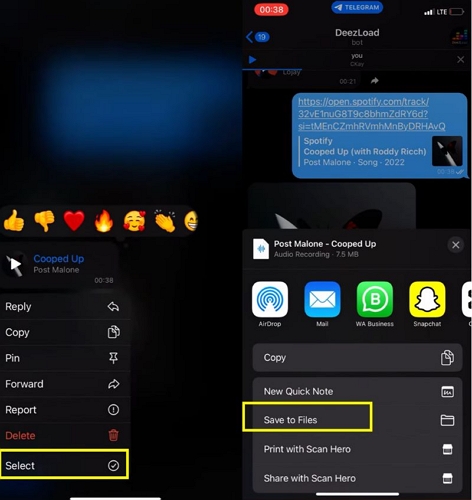
Step 8. Long-press on one of the downloaded songs in the chat view to open the menu options. Choose Select and mark all the downloaded songs you want to save as MP3 to your device. Then, select Save to Files to save the MP3 audio track on your device.
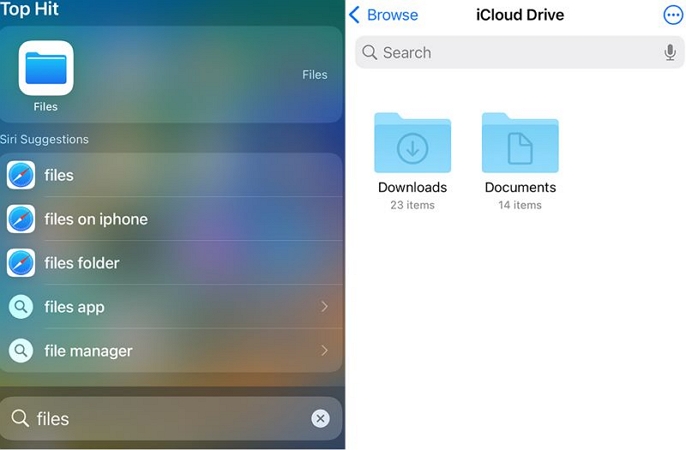
Step 9. Open Files, choose Browse, then select iCloud Drive, and tap Downloads to see all the saved MP3 files on your iPhone. Tap on the MP3 file to start playback.
The Spotify MP3 playlists downloaded using the above methods have some similar characteristics. You can quickly preview them through the table below.
| Spotify MP3 Playlist | Details |
|---|---|
| Audio Quality | Compromised: 128-256 kbps, depend on the source (usually YouTube). |
| ID3 Tags (Song Title) | Commonly include the song title and artist name, based on YouTube data. May be incomplete or inaccurate. |
| Download Speed | 1X, depend on internet speed. |
| Output Format | MP3 and suitable for general listening. |
| Source | Not from Spotify, usually match and download tracks from YouTube. |
| Compatibility | Work with most devices supporting MP3, including iPhone. |
| Possible Issues | Download wrong Spotify songs. The downloaded MP3 can't be opened. Fail to download specific Spotify songs. |
Part 2: How to Record an Entire Large Streaming Playlist as MP3 to iPhone
If downloading one track at a time or slow download speed doesn't resonate with you, consider using a purpose-built audio recorder like Eassiy Screen Recorder Ultimate.
Eassiy Screen Recorder Ultimate is specifically designed to capture any audio stream playing on your device and save it in high-quality MP3, AAC, FLAC, and more — without needing to copy links one by one. Simply play your audio content, set a recording timer for hands-free operation, and let Eassiy handle the rest. The recorded audio will be delivered in high quality with no watermarks or platform restrictions. You can then transfer the recordings to your iPhone for offline listening.
Coming to its user interface, simplicity is the most appropriate term that can summarize Eassiy Screen Recorder Ultimate's usability. The built-in timer and audio format selector make it easy to capture and save content with great ease.
Key Features
- Record any audio stream playing on your device with system sound capture for a complete, ad-free experience.
- Supports multiple output formats including MP3, AAC, FLAC, and more.
- Set recording duration with a built-in timer for hands-free, automated operation.
- Preview recordings before saving to ensure quality.
Steps to Record Streaming Audio as MP3 on Computer
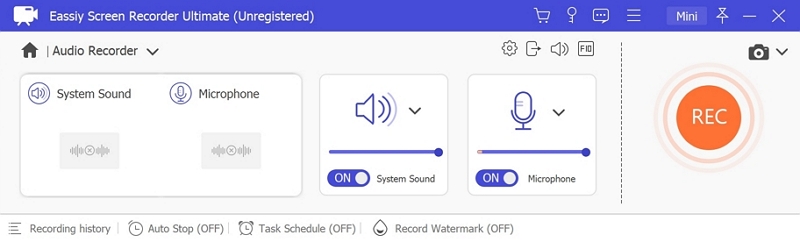
Step 1. Download and install Eassiy Screen Recorder Ultimate on your Windows PC or Mac. Once launched, select the Audio Recorder feature from the main interface.
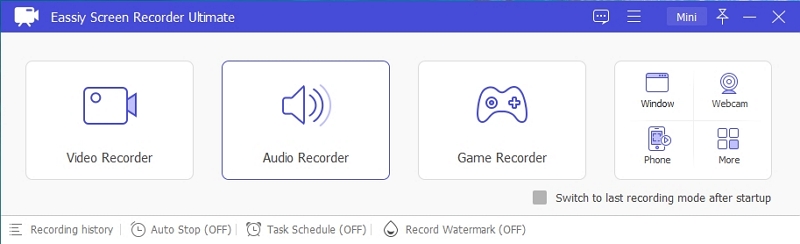
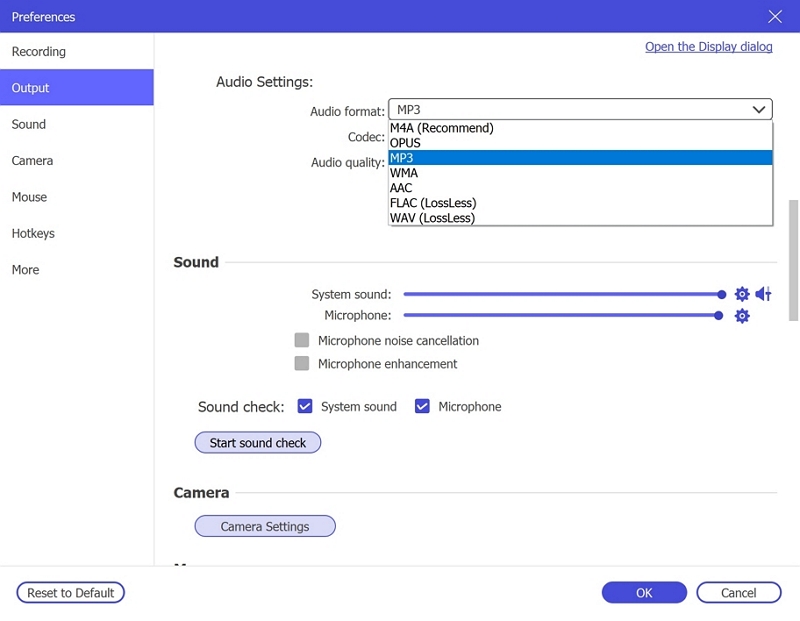
Step 2. Configure your audio recording settings. Enable System Sound to capture the live stream audio. Optionally enable the microphone if needed. Click Settings → Preferences → Output to select your desired audio format (e.g., MP3, AAC, FLAC) and set the quality to High. Click OK to save.
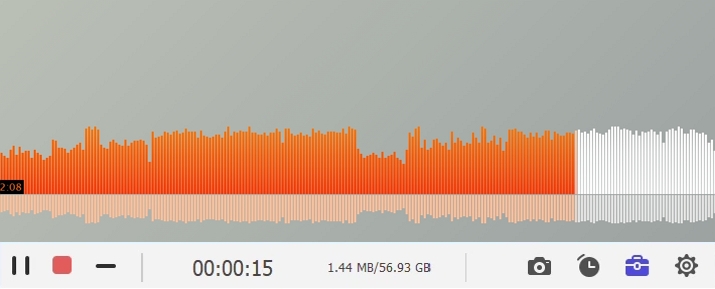
Step 3. Play the audio stream you wish to record, then click REC to begin recording. Use the toolbar to adjust volume, pause, or stop at any time. To automate the process, click the clock icon to set a recording duration in advance.
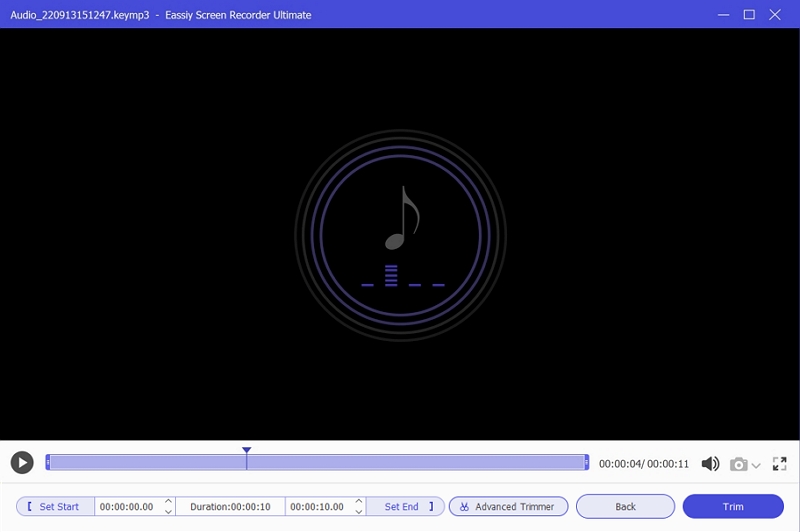
Step 4. When finished, click Stop and preview your recording. Save it in MP3 format to your computer for offline listening anytime.
Step 5. Open your recordings folder. You will find all your saved audio files ready to play or transfer to your iPhone.
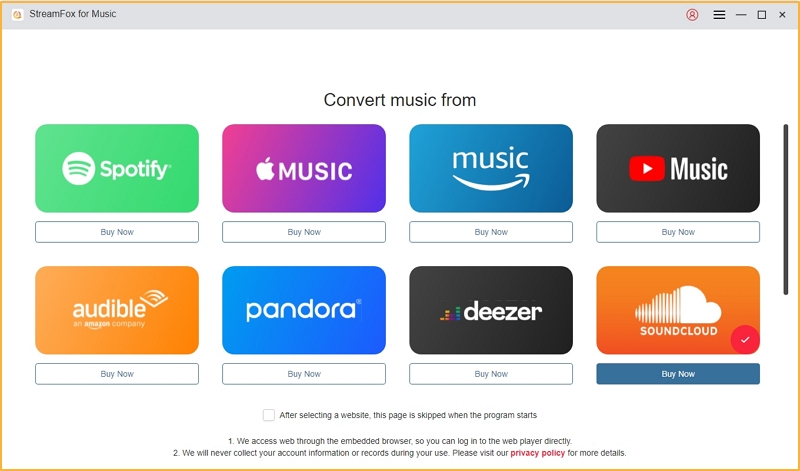
Alternatively, you can use StreamFox for Music on your computer to save streaming audio, such as Spotify music and playlists as local files, and then transfer them to your iPhone via iTunes or Finder. No matter how large your playlist is, StreamFox can complete the conversion quickly thanks to its 30x processing speed. The converted playlist will keep the same track order as on Spotify, while the audio quality can reach up to 320 kbps, and all ID3 tags will be preserved.
Steps to Move MP3 Downloads from Computer to iPhone
Once the songs are saved in MP3 format on your computer, you can access them on any device. Let’s discuss how to move the downloaded Spotify playlists from your Windows PC or Mac to your iPhone for offline listening.
Via iTunes:
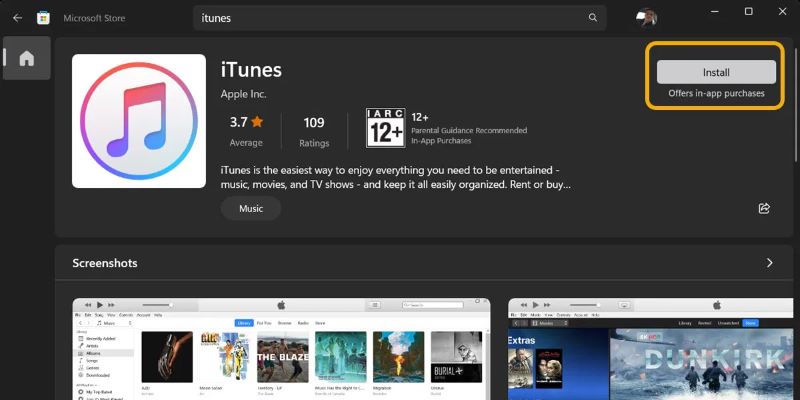
Step 1. Launch iTunes and ensure you have the latest version.
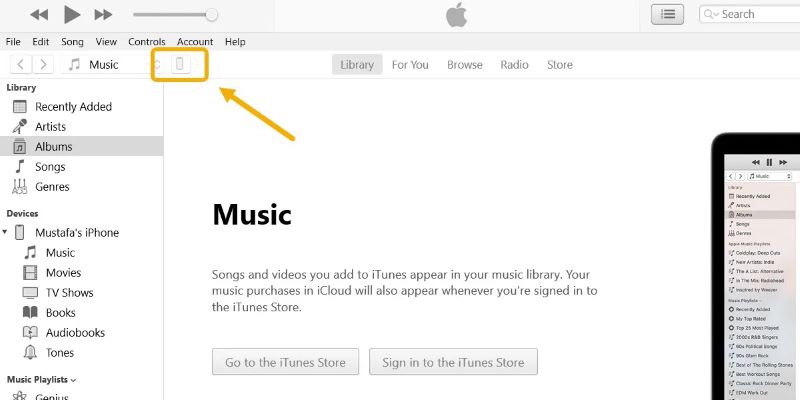
Step 2. Now, connect your iOS device to the computer using a Lightning-to-USB cable. Click on the mobile-shaped icon in the iTunes app.
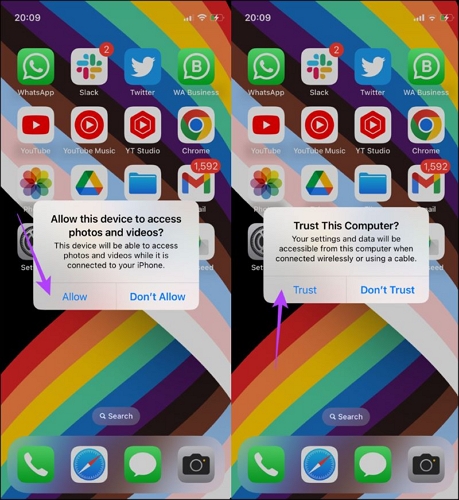
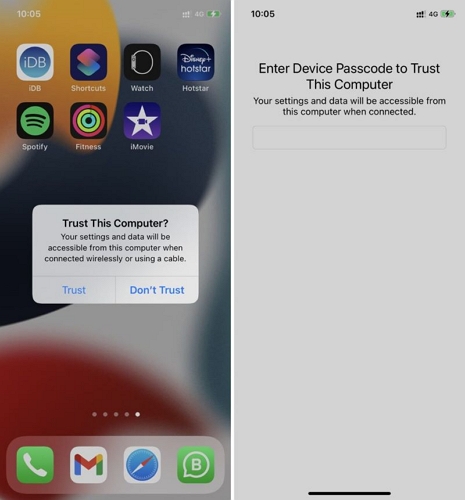
Step 3. Hit Allow in the prompt on your iPhone. If you haven’t connected your iPhone to the computer before, you will see Trust This Computer? Prompt. Simply, tap Trust to continue.
Step 4. After successfully linking the iPhone to the computer, click File Sharing from the sidebar.
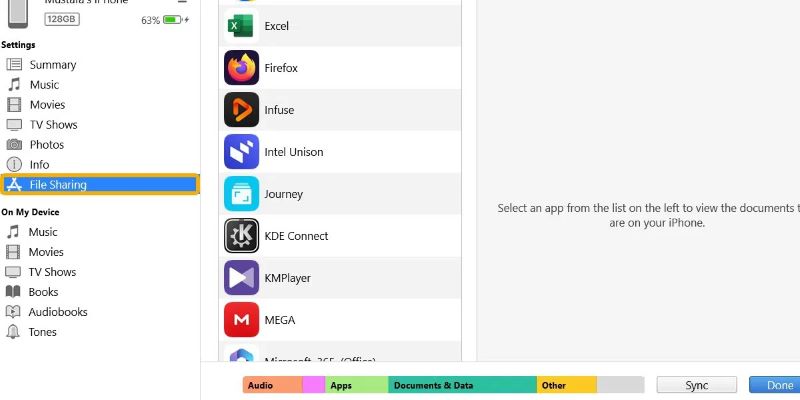
Step 5. The File Sharing option only allows you to share files with specific apps. For this, pre-install free VLC Media Player on your iPhone. Choose VLC Media Player or any other music player, and select Add File.
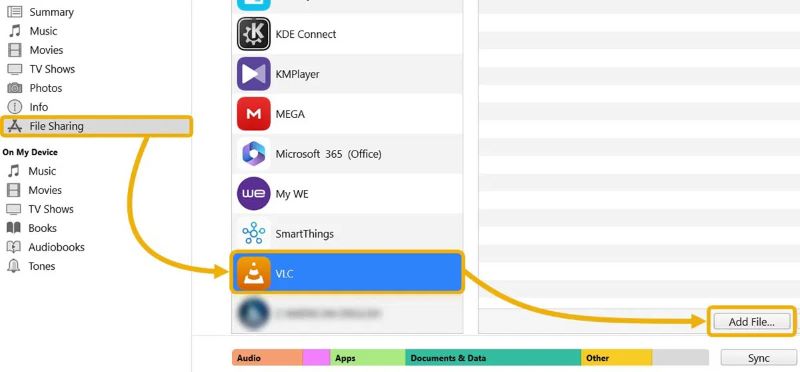
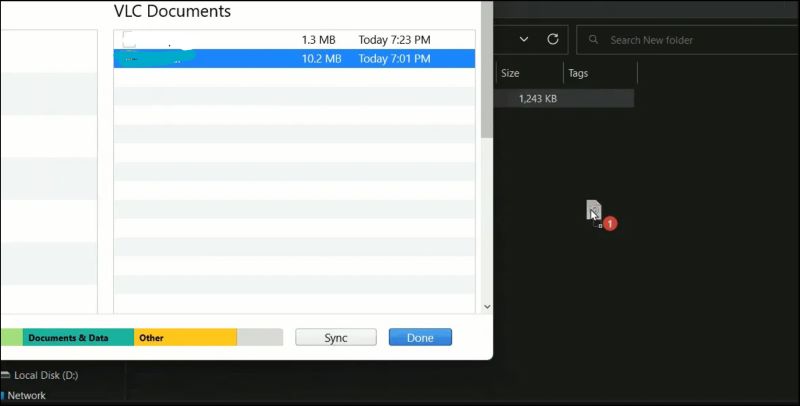
Step 6. Drag and drop the downloaded music files from your computer directly into the VLC’s Document section in iTunes.
Step 7. Click Done after adding the MP3 playlist to the VLC or selected app.
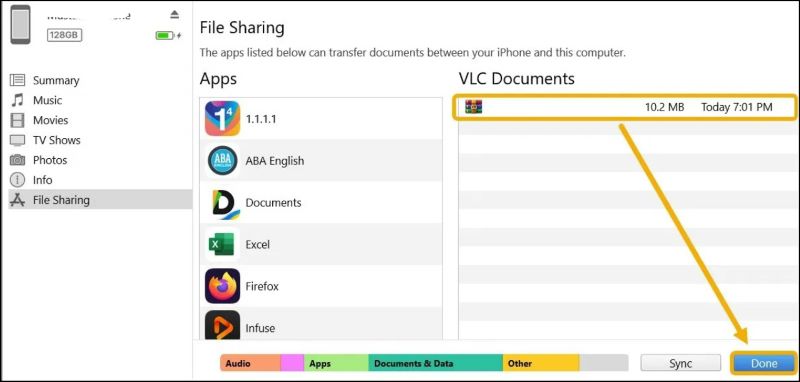
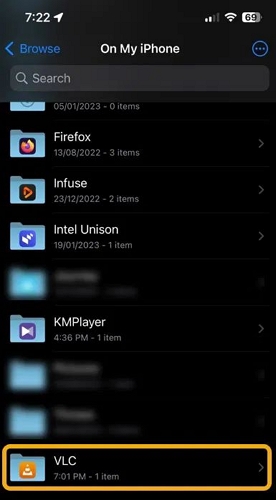
Step 8. Disconnect your iPhone from the PC. Open the Files app on your iPhone and go to the On My iPhone folder, and choose VLC to view and play the MP3 playlists.
Via Finder:
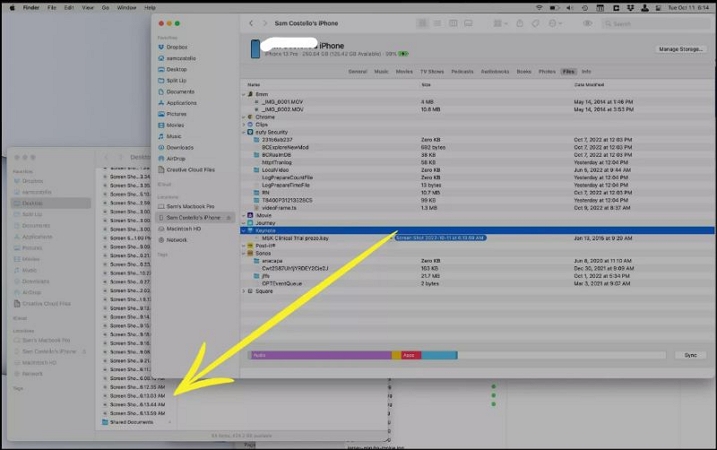
Step 1. Use a USB or USB-C cable to connect your iPhone to your Mac. Open Finder icon from the Dock. Trust the computer on your iPhone.
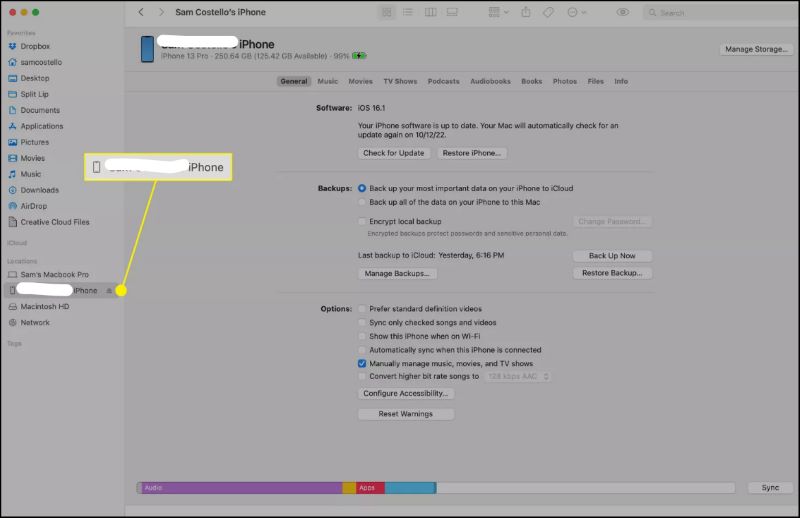
Step 2. Click on your iPhone’s name from the sidebar.
Step 3. Navigate to the Files section inside Finder.
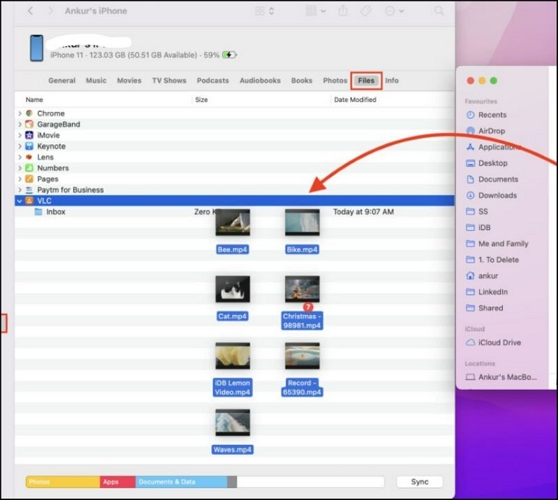
Step 4. When you select the Files option, you will see all the apps on your iPhone. Choose an app that can play MP3 files and expand it to view its contents.
Step 5: Simply, drag and drop the music files from the folder where they are downloaded to the app’s content section.
Here's a detailed summary of using Eassiy Screen Recorder Ultimate to save streaming audio playlists as MP3.
| Attribute | Details |
|---|---|
| Audio Quality | High-quality capture from the original stream — no upscaling or compression beyond source quality. |
| Output Tags | Clean output with no watermarks; audio quality matches the original stream. |
| Recording Speed | Real-time recording with built-in timer for automated, hands-free operation. |
| Output Format | Supports multiple formats: MP3, AAC, FLAC, and more. |
| Source | Captures any audio stream playing on your device — no platform restrictions. |
| Copy to iPhone | Save recordings on Windows or Mac and transfer them using iTunes or Finder. |
| Compatibility | Compatible with all devices supporting popular audio formats, including iPhone and Android. |
| Ease of Use | Simple and intuitive interface. Play audio, click record, and save locally with no technical skills required. |
| Additional Features | Built-in timer, audio format selector, preview before saving, and scheduled recording. |
Conclusion
That's three of the best methods to save streaming playlists in MP3 on iPhone. Tools like SpotifyMate can save songs directly on your iPhone, but they usually compress audio quality and require converting songs one by one.
However, if you want to quickly capture multiple or large playlists at the same time and save them on your computer in high quality, Eassiy Screen Recorder Ultimate is the best approach without a doubt. It captures any audio stream in high quality, supports multiple output formats, and lets you transfer recordings to your iPhone with ease.