Help Center
Updated on 2026-04-12
views
5min read
Tracking all your saved playlists on Spotify is simple. Each playlist sits organized in a dedicated section. And it gets better. You’re not limited to your own collection. Spotify allows you to tap into your friends and even strangers' playlists.
And it’s all here, scroll down to learn how to find your playlist on Spotify. We’ll also discuss how to expand your library with others’ favorite songs and the ultimate method to save Spotify playlists offline without Premium.
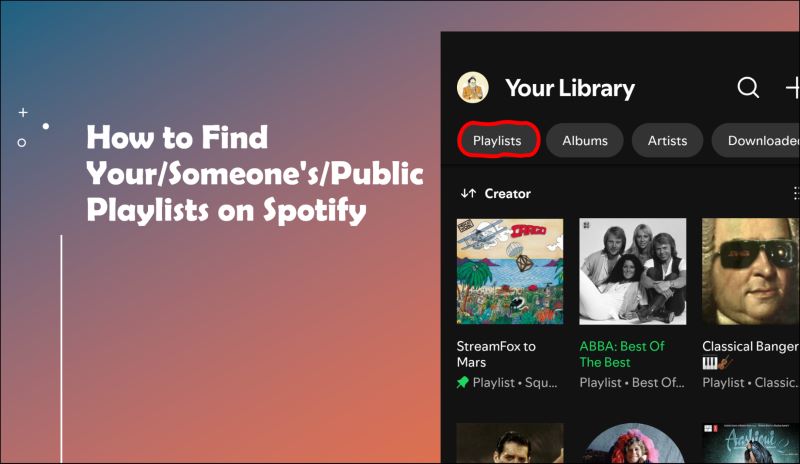
Part 1: How to Find Your Playlists on Spotify
Every playlist you've created or added is stored in your library under Your Library that keeps all your favorites, liked songs, artist stations, collaborative playlists, and any other playlist you've followed. The only exceptions are the Spotify-curated playlists like Made for You, which won’t appear unless you've actively saved them. Here’s how you can find your playlists on both mobile and desktop:
On Mobile
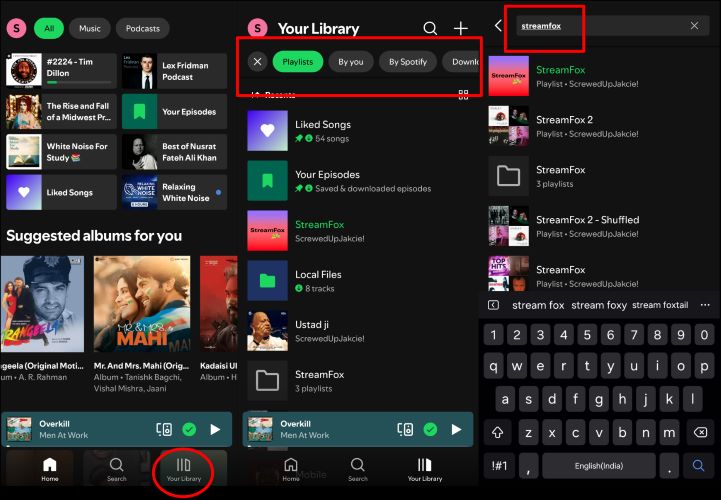
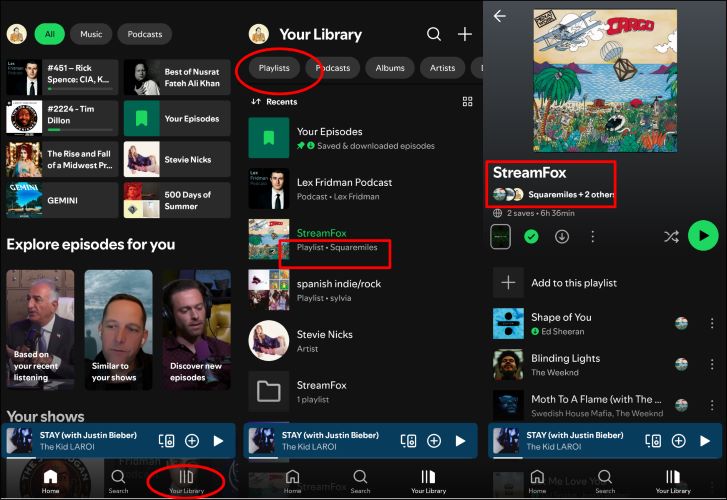
Step 1. Open Spotify. Down at the bottom right, you’ll see the Your Library tab. Tap on it to view everything you’ve collected.
Step 2. At the very top, you’ll find filters: tap Playlists (usually at the far left) to clear away albums and artists. You can even narrow it down further using By You or Downloaded to make the search faster. Once your playlist is in sight, tap on it to enjoy your music.
Alternatively, if you have a specific playlist in mind, you can skip the scroll. Simply, tap on the Search barwithin Your Library page, type the playlist’s name, and you’ll see it appear.
On Desktop
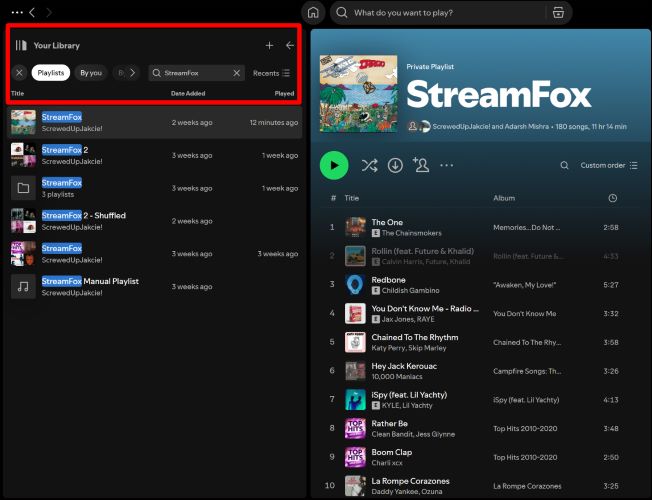
Step 1. Fire up Spotify on your desktop. Over on the left, click Your Library icon to expand its view.
Step 2. Spotify has the Playlists filter option here as well. With one click, you can filter out everything else and only playlists will remain on display.
Again, the Search bar in the Your Library will serve as a handy shortcut once again. Use it zero in and avoid scrolling.
Part 2: How to Find Someone’s/Friend's Playlists on Spotify
You can also bring your friends playlists and add it to your collection. However, to get them there, you first need to connect with friends or join as a collaborator on their playlists. Here's how.
Through Social Sharing
The easiest way to find what your friends are listening to is simply linking your Spotify account to the social-giant Facebook. This sync will pull in friends who’ve also linked their accounts. You could do this via both mobile and desktop apps.
On Spotify iPhone/Android
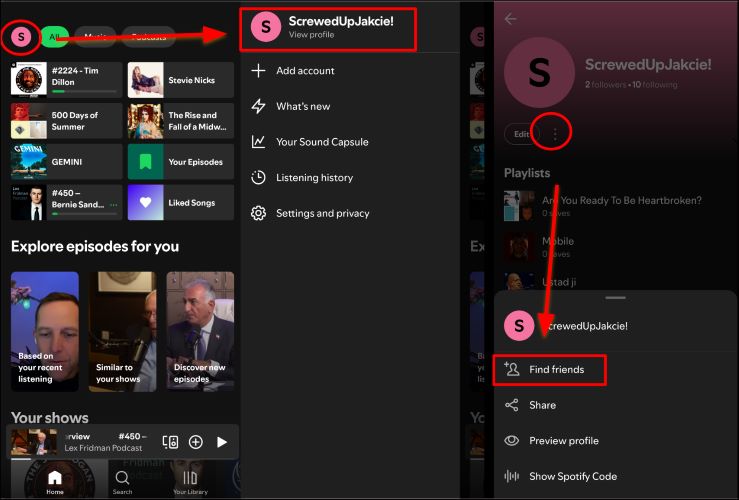
Step 1. Tap your profile avatar at the top-left of the home screen. Click on your View Profile option to bring up your user profile.
Step 2. Right below your profile photo, click on three dots to open a menu from the bottom. Choose Find Friends.
Step 3. Tap the Connect Facebook button on the next screen, enter your credentials, and log in.
Step 4. Any of your Facebook friends that have previously linked their account to Spotify will appear. Follow anyone you’d like by tapping the Follow button.
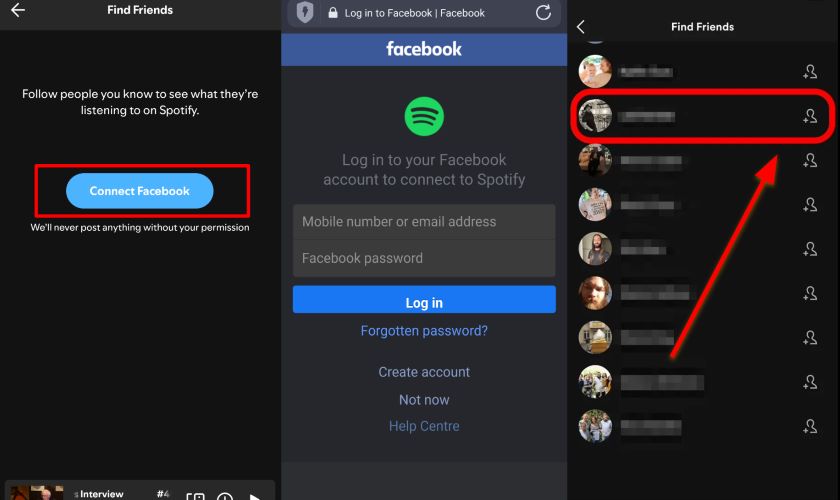
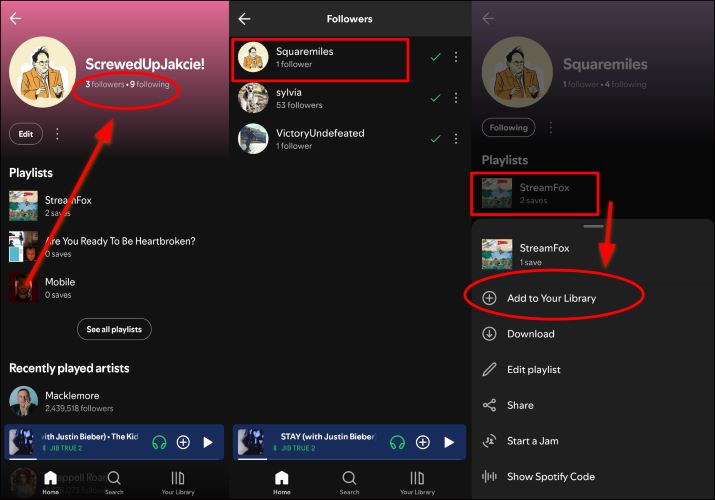
Step 5. Go back to your profile and tap the Following sticker under your display name. Choose a friend’s name to view their public playlists and then simply long-press any playlist you’d like to save.
Step 6. Select Add to Your Library and the playlist will instantly appear in Your Library.
On Spotify Windows/Mac
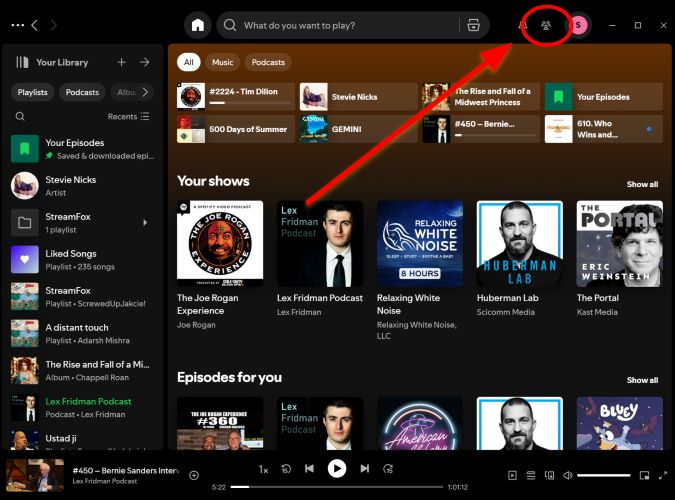
Step 1. On the desktop app, you can find a Friends icon (the three silhouettes) beside your profile picture.
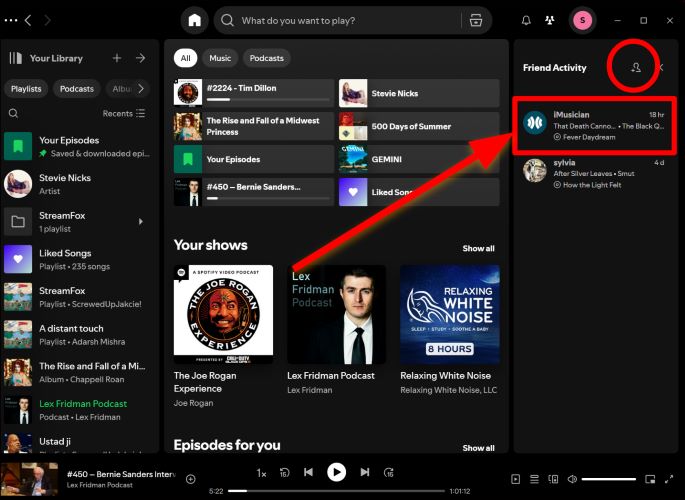
Step 2. Click the Connect (a person icon with a + icon) and then follow the prompts to log into Facebook. And once the list appears, click on any friend’s name to open their profile.
Step 3. Once you’re on their profile, scroll down to view their public playlists and click Show All if necessary. Right-click on any playlist you’d like to add and select Add to Your Library to save it.
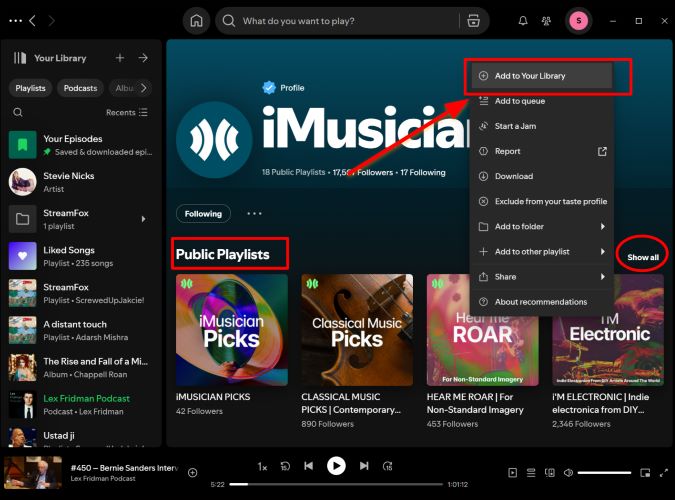
Check Collaborative Playlists
Instead of following your friends individually, you can use Spotify collaborative playlists feature and bring all your friend’s musical tastes into one place. A single playlist with collaborative status can have upwards of 1,000 people and have up to 10,000 songs. So, it’s your entire school or your work team, everyone can chime in.
Plus, this feature is also handy if your friends have private playlists, which you can’t see on their public profile through the above method.
Here’s how to get in on it, with steps for mobile and desktop:
Steps on Spotify iPhone/Android
Step 1. Receive the collaborative playlist link through Facebook, WhatsApp, or any messenger. Tap the link to open it in Spotify.
Step 2. Once you’re viewing the playlist, tap the plus icon below the title. The icon will turn into a green checkmark, signaling it’s been officially added to Your Library.
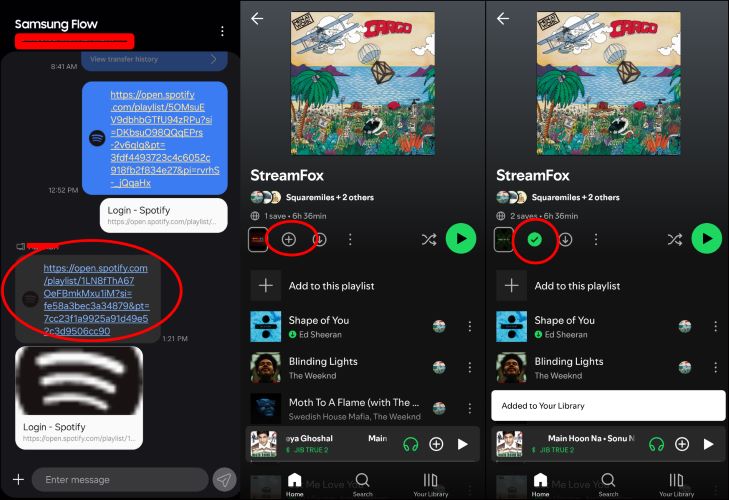
Step 3. Head to Your Library to locate the playlist and tap it. You’ll see all contributors listed under the title. The playlist should contain the songs that your friends like and want to share with you.
Steps on Spotify Windows/Mac
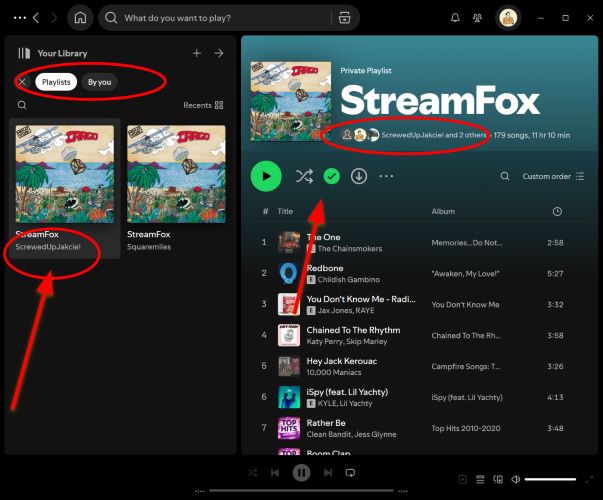
Step 1. Click the collaborative playlist link to open it in Spotify desktop. Then, hit the plus icon below the title to save it to your music library.
Step 2. From now on, you can find the playlist sitting in your library and check the songs shared by your friends.
Find Playlists via a Username
Beyond the above two, here’s a direct route: searching by Spotify username. If you don’t already have it, just ask your friend to share or check their social profiles where they might have listed it. Here’s how you can look it up on both mobile and desktop.
On Mobile
Step 1. Open Spotify, head to the main search from the bottom. Type your friend’s username into the search bar precisely and hit Enter or OK to start the search.
Step 2. If the name matches, your friend’s profile will be listed at the top of the results. Access the profile and scroll through their public playlists. Long press on the one that calls out to you to save it to your library.
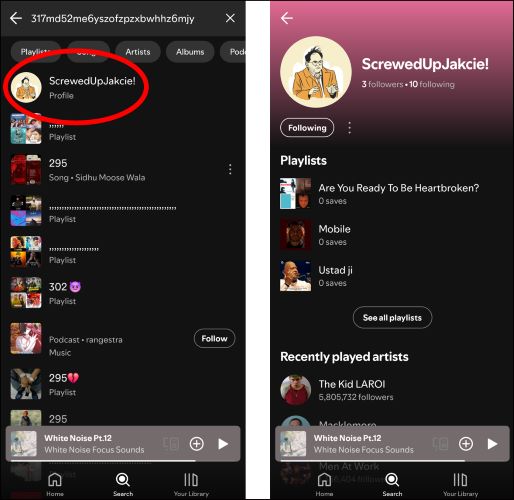
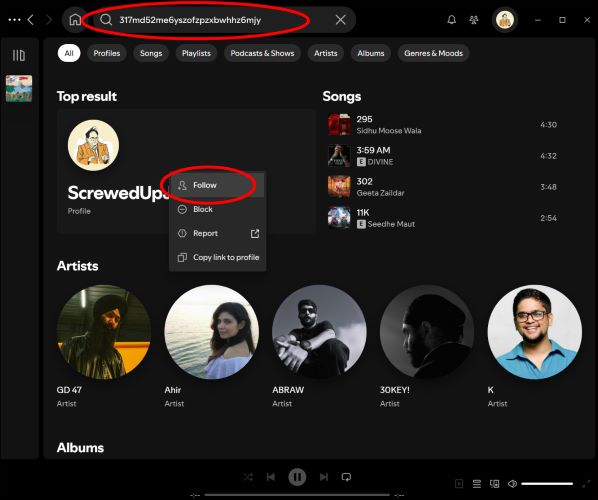
On Desktop
Step 1. On your computer, click the main search bar in the Spotify app. Carefully type in the name and press Enter to search. When their profile appears, click to enter their profiles.
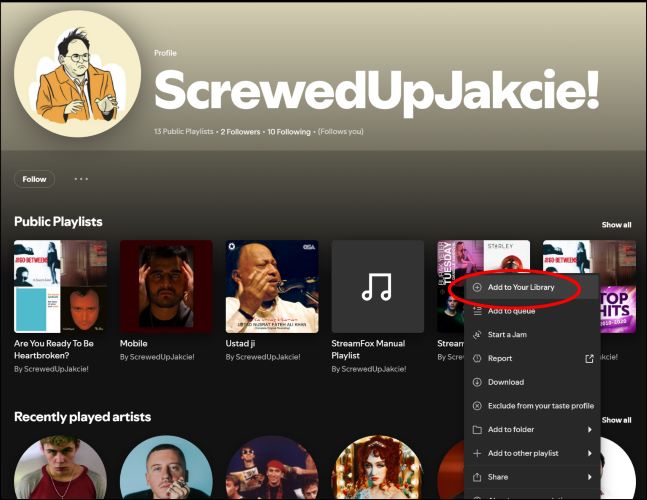
Step 2. Right-click on the playlist that you want to keep and choose Add to Your Library.
Part 3: How to Find Public Playlists on Spotify
Spotify practically hands public playlists to you on a silver platter. Here are two of the best ways to find ones that can fulfill any mood:
Search for Public Playlists
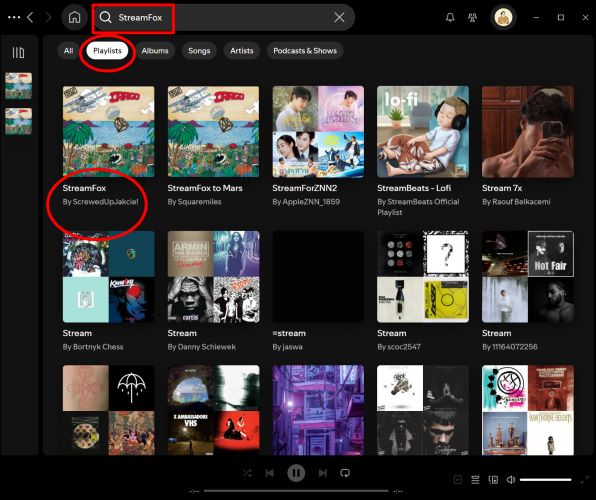
Step 1. On the desktop, you’ll find the search bar at the top. Enter anything that speaks to your mood or theme, such as chill vibes or power workout. You can also enter the name of a specific public playlist, type in what you’re after, and hit Enter.
Step 2. Filter the results down by clicking Playlists. Scroll through the list and right-click on the one that grabs your interest and choose Add to Library from the context menu.
Browse Curated and Editorial Playlists
From curated collections to niche user-made lists, Spotify uncovers a lot of playlists based on your listening habits regularly. To find them via the mobile:
Step 1. Head over to the Search tab and choose Music.
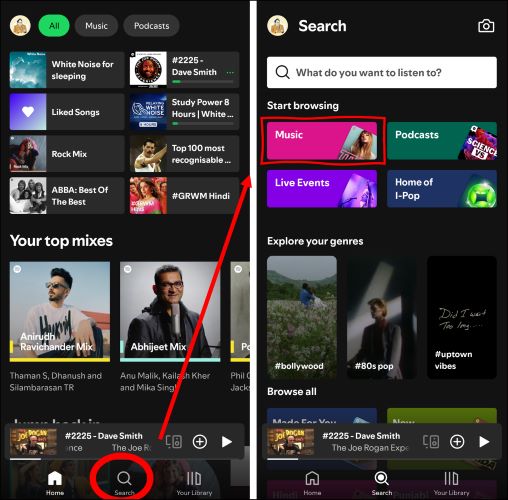
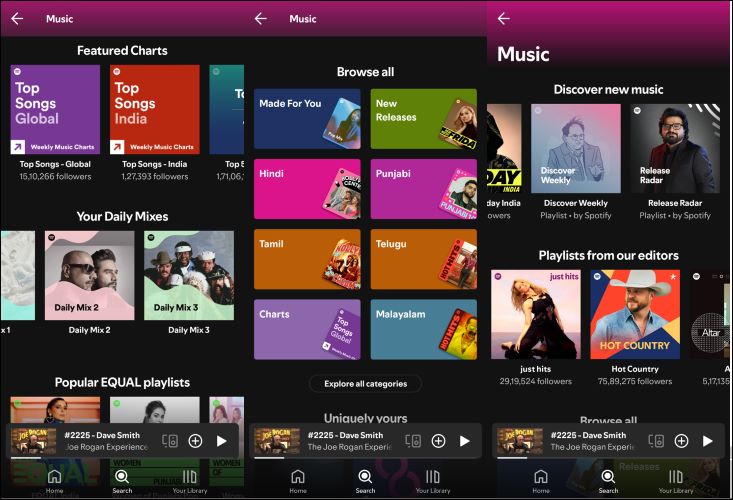
Step 2. Here, Spotify rolls out a spread of categories: Genres & Moods, Charts, New Releases, and editorial picks like Today’s Top Hits. Dive into any category that picks your interest.
Part 4: How to Save Your Streaming Audio After Subscription Expiration
Imagine this: no WiFi, no streaming subscription, and just music. Eassiy Screen Recorder Ultimate makes this real. It lets you capture any audio stream playing on your device and save it permanently — playlists, individual tracks, podcasts, or any other content. And there's no subscription barrier or platform restriction to worry about.
The flexibility doesn't end there. You have full control over output formats, keeping your audio files in MP3, AAC, FLAC, and more. If speed has ever been your concern, set it aside — Eassiy Screen Recorder Ultimate is optimized for smooth, real-time capture with a built-in timer so even a long recording session runs without effort.
Eassiy Screen Recorder Ultimate
Record any audio stream playing on your device and save it as MP3, AAC, FLAC, and more with system sound capture and permanent offline access.
Key Features
- Record any audio stream playing on your device with system sound capture — no link copying or bot dependency.
- Set recording duration with a built-in timer for hands-free, automated operation.
- Preview recordings before saving to ensure quality.
- Supports multiple output formats including MP3, AAC, FLAC, and more.
- Works on both Windows and Mac with an intuitive interface requiring no technical skills.
How to Use Eassiy Screen Recorder Ultimate to Record Streaming Audio:
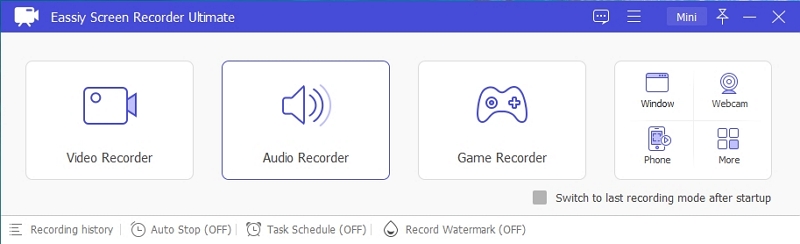
Step 1. Download and install Eassiy Screen Recorder Ultimate on your Windows or Mac device. On the main dashboard, select the Audio Recorder feature.
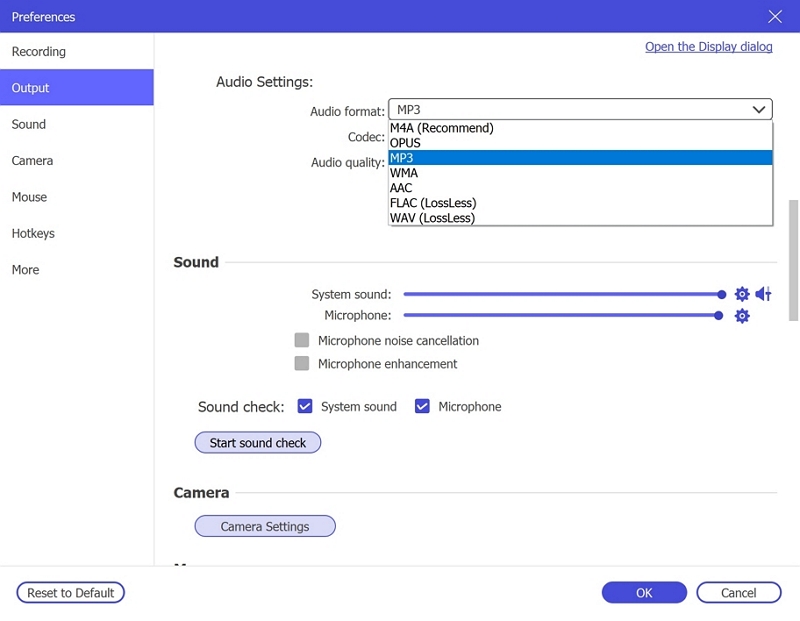
Step 2. Configure your audio recording settings. Enable System Sound to capture the live stream audio. Optionally enable the microphone if needed. Click Settings → Preferences → Output to select your desired audio format (e.g., MP3, AAC, FLAC) and set the quality to High. Click OK to save.
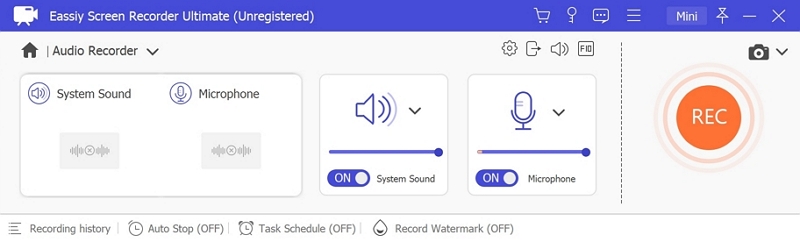
Step 3. Play the audio stream you wish to record, then click REC to begin recording. Use the toolbar to adjust volume, pause, or stop at any time. To automate the process, click the clock icon to set a recording duration in advance.

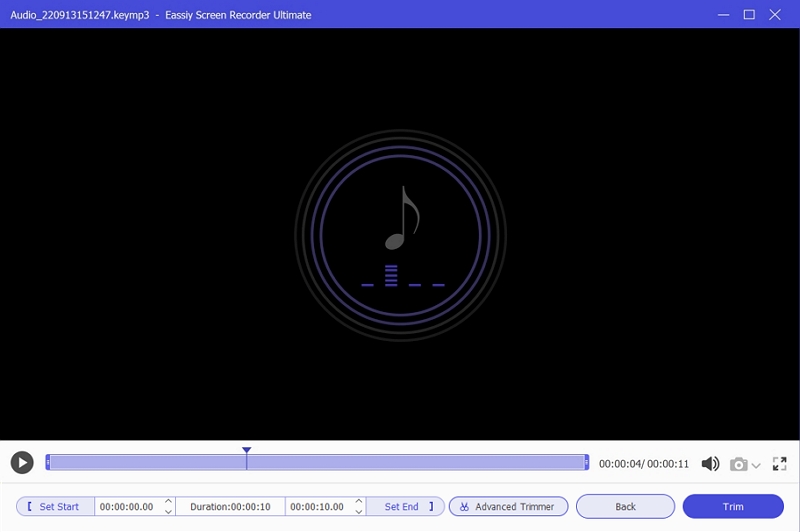
Step 4. When finished, click Stop and preview your recording. Save it in your preferred format to your device for offline listening anytime — without internet or subscription.
Part 5: Can't Find Your Playlist on Spotify on a Different Device [Fixed]
Here are some common reasons why your Spotify playlists might not be syncing between devices and their fixes:
Fix 1: Log in to Spotify Web Player to Access Your Playlists
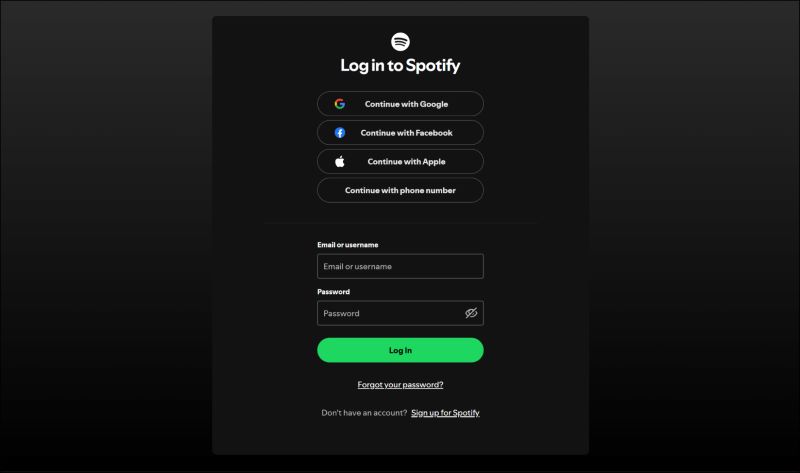
You can start with the Spotify Web Player on any browser (use this direct link). Log in and take a moment to scan for your playlists. If the added playlist is sitting in your library, it’s a solid sign that it is intact. It could be missing because of a syncing hiccup. And you can make it appear by simply restarting the Spotify app on the device from which it’s missing.
Fix 2: Verify You’re Using the Same Spotify Account on All Devices
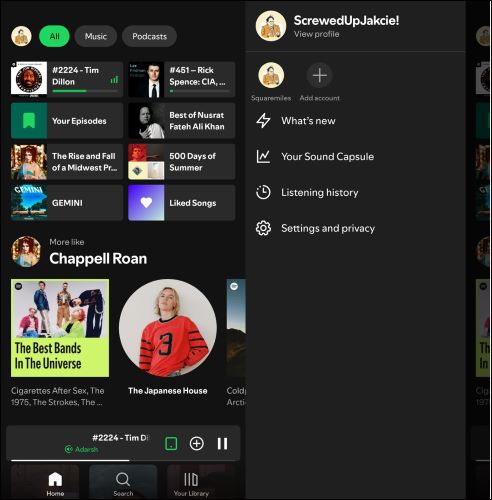
If you juggle multiple accounts, you’ve accidentally logged into the wrong one. Ensure that you’re using the same account across all devices. A quick way is to simply log out and log back in via the credentials on which you’ve added the playlist.
Fix 3: Disable Offline Mode to Sync Playlists
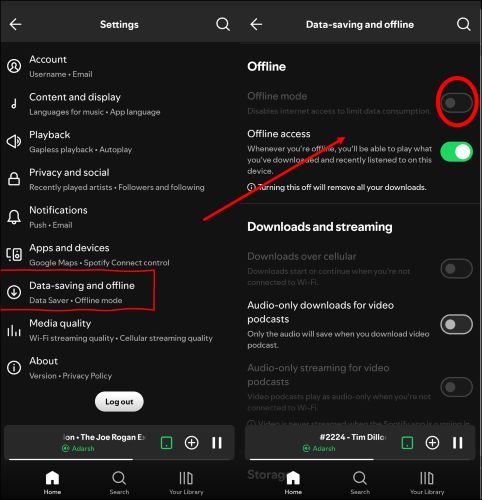
Offline Mode will keep Spotify from refreshing your library. So, it couldn’t sync with the recent additions made via other devices. To fix: head into Spotify Settings, find Offline Mode, and switch it off.
Part 6: How to Find Deleted Playlists on Spotify
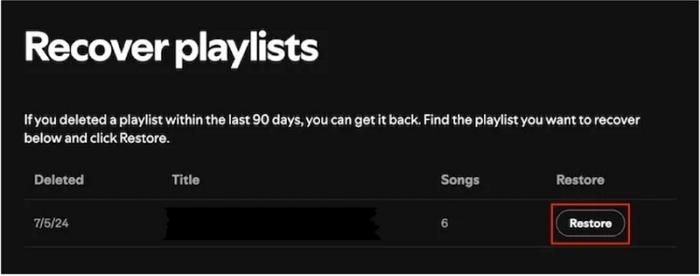
If you suspect your playlist went missing due to accidental deletion, or if you simply want it back, don’t worry! There are multiple ways to recover a deleted playlist and Spotify’s Recovery Playlists feature is one, making makes things simple. Plus, if it is a shared playlist, check if your family members or friends still have it in their library.
Conclusion
That's all the tricks in the bag to expand your streaming music library collection. You've learned how to find your own saved playlists and also dig through friends' libraries. Even how to borrow one from someone entirely random.
To bring it all offline, you've got options. Streaming platforms let you download directly within their apps. However, if you want permanent access without subscription restrictions, Eassiy Screen Recorder Ultimate has got you covered. It captures audio in original quality and saves it in your preferred format — keeping everything organized and right on your device, ready to play anytime.