Help Center
Updated on 2026-04-12
views
5min read
And because your playlists matter more than a string of numbers, we'll also introduce Eassiy Screen Recorder Ultimate. With it, you can capture and back up your entire audio collection in high quality and keep it safe, no matter what happens to your account.
FAQs About Spotify Username
Before diving into finding your user ID, let’s quickly clear up some doubts about Spotify usernames.
What is the Difference Between Spotify's Username and Display Name?
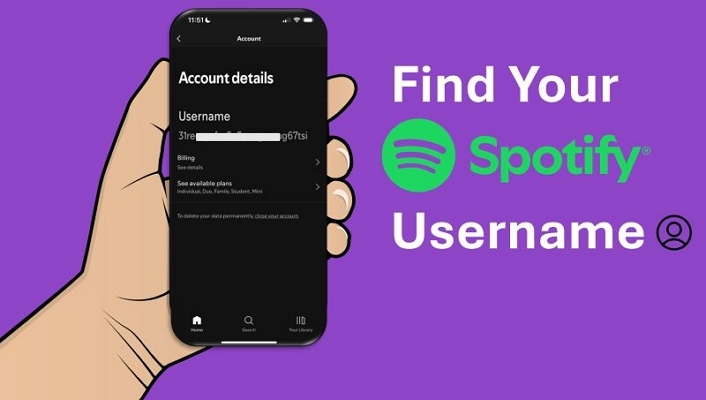
Every Spotify account comes with a unique identifier: a jumble of random letters and numbers assigned automatically. This is your Spotify username. It is mostly used by Spotify internally for authentication and tracking. So, it is hidden from view. Yet, in certain situations, knowing it can be surprisingly useful.
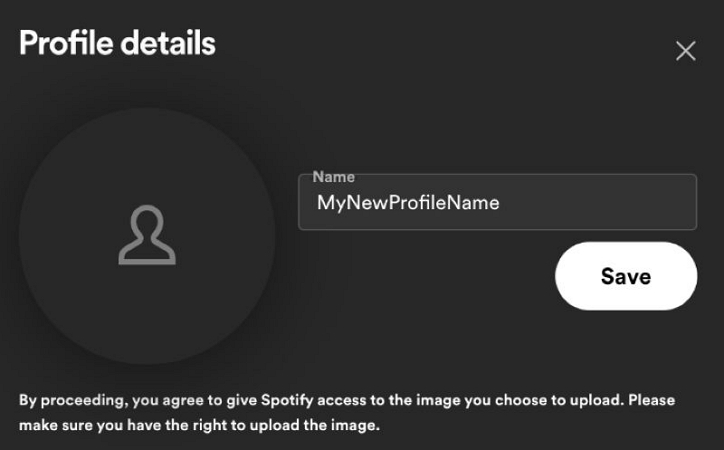
Your display name, on the other hand, is the name that appears on your profile, making it easier for your friends and followers to easily locate you. Unlike user tags, it shows up everywhere, whether you’re creating a playlist, sharing your profile, as well as showing up in other public sections of the platform, like Spotify Wrapped cards.
Can You Change Your Spotify Username?
No, Spotify usernames are fixed. They’re randomly generated when you create your account. In the past, Spotify did allow users to edit their user IDs, but the option to do so disappeared after 2018.
However, you can change your display names by going to your Profile > Edit Profile, note that it’s limited to 30 characters.
When Would a Spotify Username be Used?
For everyday use, your display name is what matters. However, there are some situations when username becomes important. For instance:
- Login Spotify when you can’t access your email.
- Share your exact profile so others can find you quickly on Spotify.
- Recover a lost account, since support may ask for your username.
- Syncing with external apps like Discord or Last.fm that require it.
- Manually adding friends when they’re hard to locate through search.
How to Find Your Spotify Username While Logged In
Retrieving your username is just a few taps away, whether you're on mobile or desktop. Still, the steps do vary slightly between platforms, so let’s see what it entails.
On Mobile
You will have to access your Settings menu when on Spotify's iOS or Android app. Follow these simple steps:
Step 1. Tap your profile icon in the top left corner after opening the Spotify app. Then, hit Settings and Privacy.

Step 2. Tap Account. And your Spotify username will be visible at the very top, which is a string of random letters and numbers.
Step 3. Long-press on it and it will be copied to your clipboard, as shown on the following image. You can paste it somewhere for safekeeping.

On Desktop
Doesn’t matter if you’re on the desktop app or a browser, the steps are the same. Whether it’s macOS or Windows, follow these steps to grab your username:
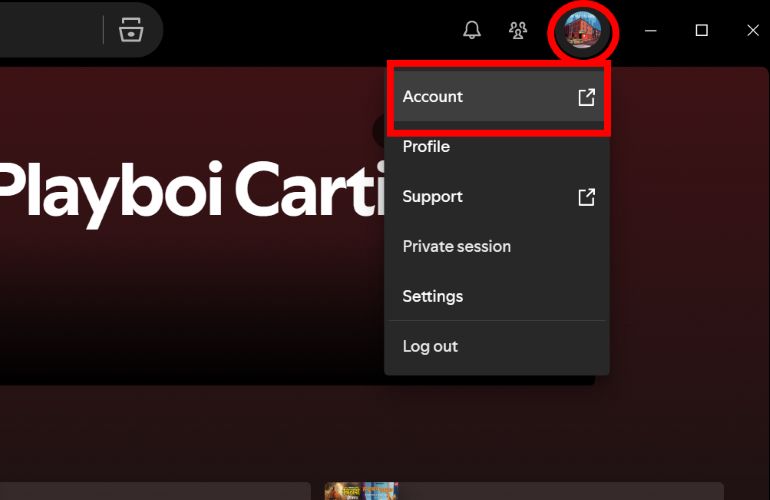
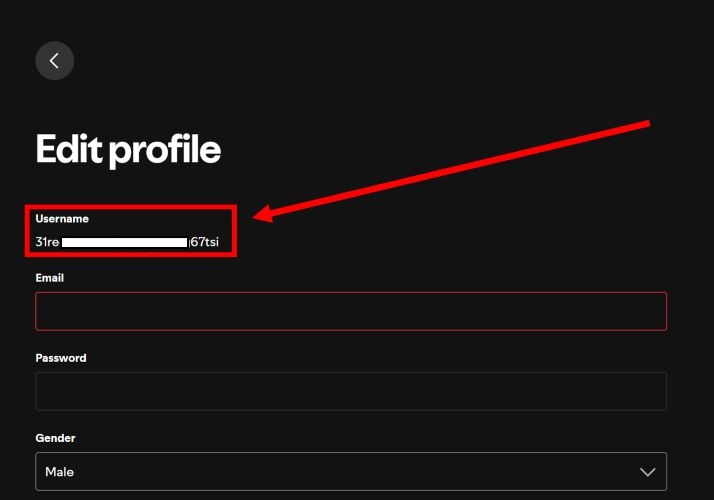
Step 1. At the top-right corner of the Spotify app, click on your avatar. From the drop-down, select Account.
Step 2. Once you’re redirected to a new tab, find Edit Profile under Account.
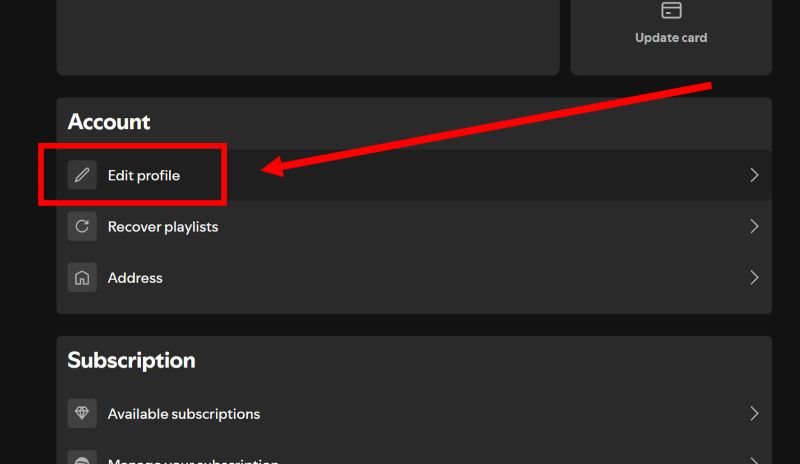
Step 3. Your username sits right at the top, but unlike your display name, you can’t change it. Whenever there is a use for it, you can highlight the random characters and copy them.
How to Find Your Spotify Username Without Logging In
There are instances when you have to find out your username even when you can’t actually access Spotify. For example:
- You're locked out of the Spotify app.
- Maybe your phone broke, leaving you with no way to check.
- Or perhaps you’re being charged for a subscription but have no clue which account it’s tied to.
In cases like these, when you contact Spotify support, it asks for your username before helping you recover or cancel your subscription. The good news? You can find it. Here are some reliable ways.
Way 1. Browse Emails from Spotify
When your email is still linked to Spotify, you don’t need to think about your username. You can just log in via email (or even reset your password) and then use the method discussed earlier to reveal the ID.
However, there’s a chance that may have switched emails at some point or removed the linked mail address entirely. That doesn’t mean your old inbox is useless. Past messages from Spotify still hold important details.
Note: Even if you signed up using Google or Apple ID, Spotify still considers those emails as your registered address. So, check those inboxes too.
Phone or computer, here’s what to do:
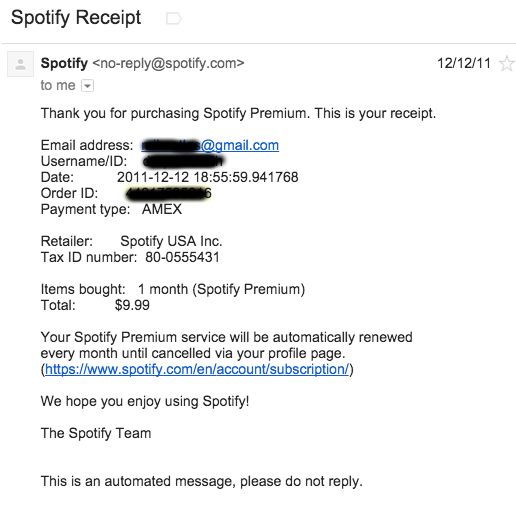
Step 1. Open your email app on the phone or computer and type Spotify in the search bar.
Step 2. Go through the emails one by one, especially receipts, subscription confirmations and password reset emails. These often contain your username.
Tip: Ignore promotion emails, as they rarely include account details.
Way 2. Use Profile Links
You are logged out means you can’t access your profile, but your friends who follow you can help. If someone has you on their Following list, they can retrieve your profile link in just a few steps.
This method also applies if you’ve shared your profile link before, maybe to a friend on WhatsApp or somewhere else. You can follow these steps to try this way:
On Mobile
Let your friend open Spotify, go to their profile and head to their Following list. Once they find your display name, they need to tap it to open your profile. From there:
Step 1. Tap the share icon (on Android, they’ll need to tap the three dots first). This will bring up an option to Copy Link.
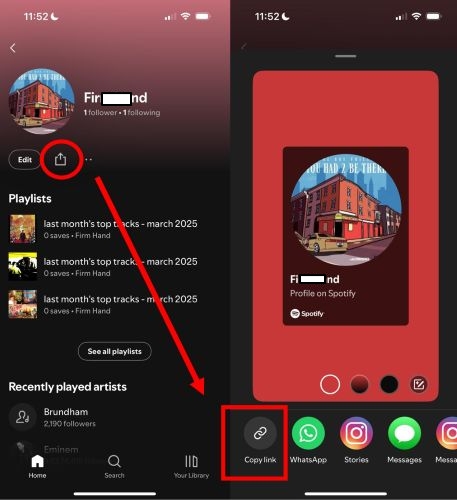
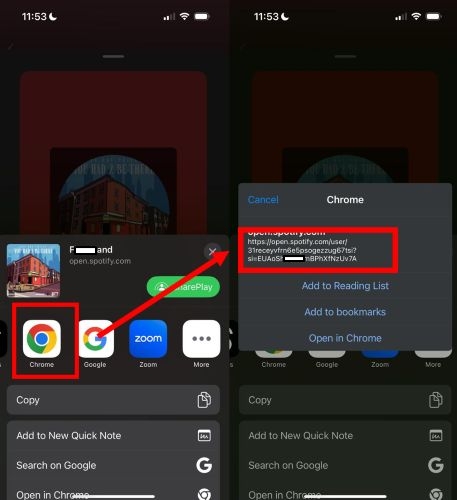
Step 2. Once you have the link, paste it into Chrome or any browser. The URL will look something like this:
https://open.spotify.com/user/abcdef123456?si=xyz
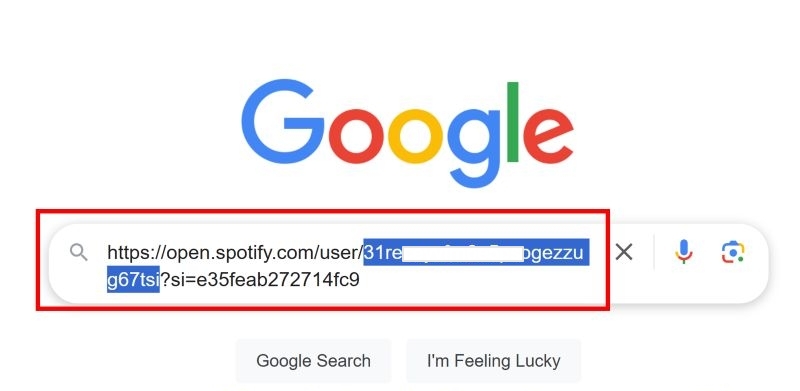
What matters here is what comes after "user/" and before "?si=", that’s your Spotify username. For instance, in the above address: abcdef123456 is the user ID.
On Desktop
Your friend can access your profile via their Following list. After then:
Step 1. Once they locate your profile page, ask them to click the three dots menu icon and select Copy Link to Profile.
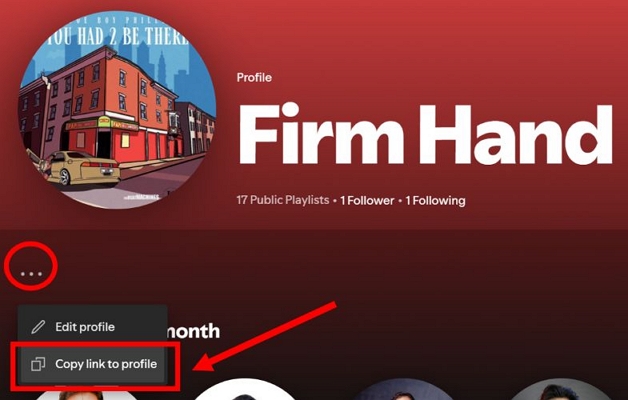
Step 2. Once you have the link, paste it anywhere—a browser, a note, or a chat window. The username sits right inside the URL. Look for the part between "user/" and "?si=", which is your Spotify ID. It will be a string of random characters.
Way 3. Check Users Folder
Even when you are logged out, Spotify leaves traces of data on any device you’ve previously used, which is called the “user folder”. It’s where Spotify stores your account details.
This trick works on Windows, Android, and Mac. iPhone users, unfortunately, are out of luck because Apple keeps the apps in a sandboxed environment.
On Android
Normally, the Spotify folder we’re after, sits inside the Android folder. You can access it right from your File Manager. However, with recent Android updates, many brands have blocked direct access to only that specific folder.
No worries. A simple workaround is to connect your phone to a computer and retrieve the folder from there. Here’s how:
Step 1. After linking your phone to the computer successfully, locate your phone’s internal storage. Inside, select the Android folder.
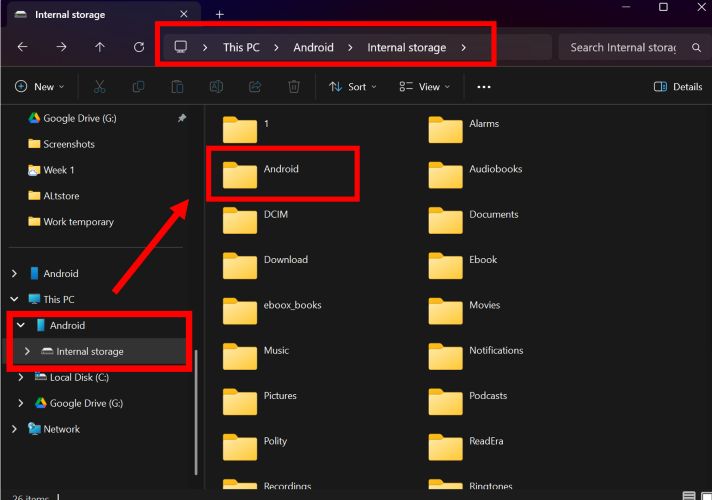
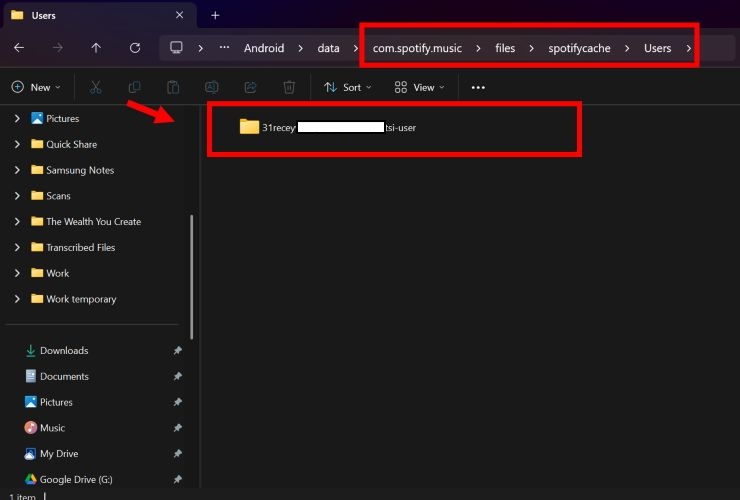
Step 2. Choose Data. Then, you’ll see a bunch of folders: locate and select com.Spotify.music > files > spotifycache > users.
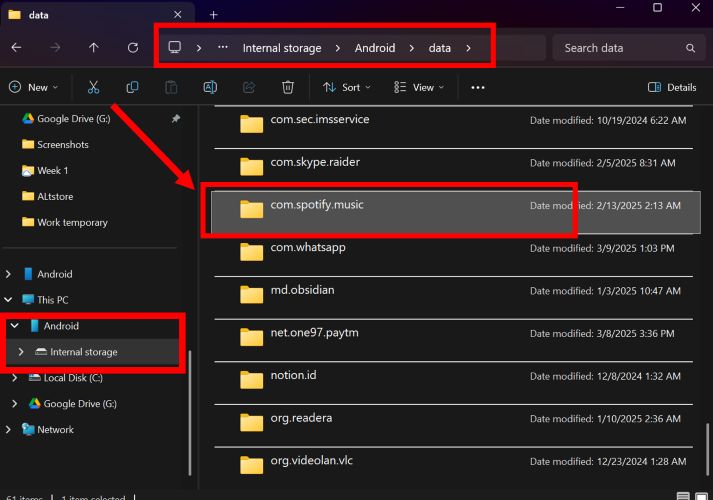
Step 3. Inside the users folder, you’ll find a directory with a long string of numbers and letters as its name. That’s what you need.
- The part before "-user" in the folder name, which is your Spotify username.
Note: If you’ve logged in with multiple accounts, there will be several user folders. Simply try each one: paste them into any Spotify search box and match it with your display name to find the right one.
On Windows
Whether you installed Spotify via Microsoft Store or directly from its website, a folder containing account traces remains even on Windows. Here are the steps to find it easily:
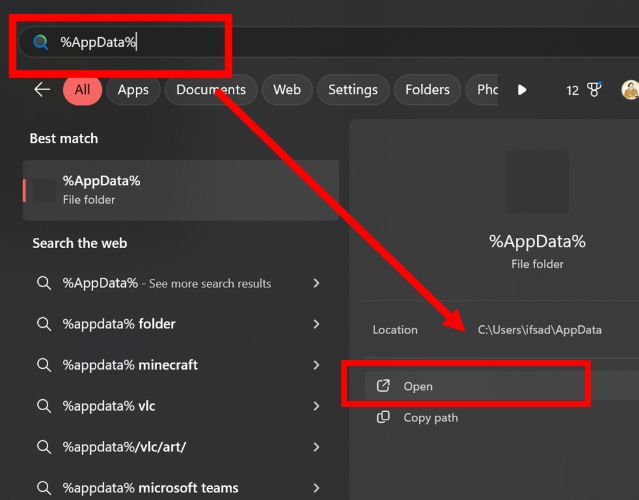
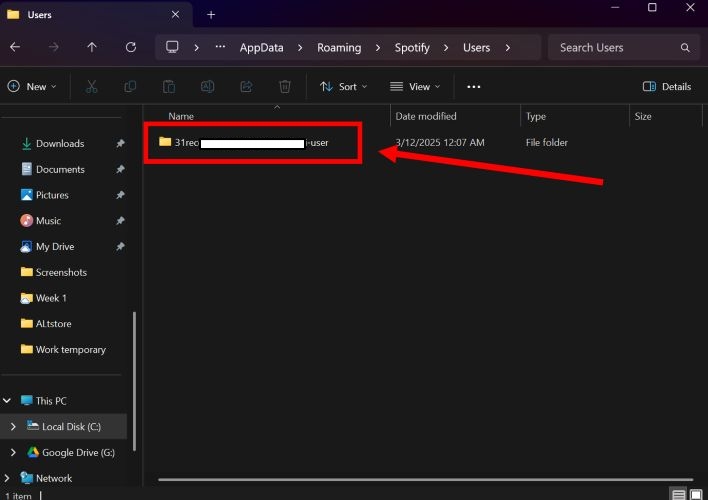
Step 1. Press the Windows key on your keyboard and type %appdata%. Then, choose Open.
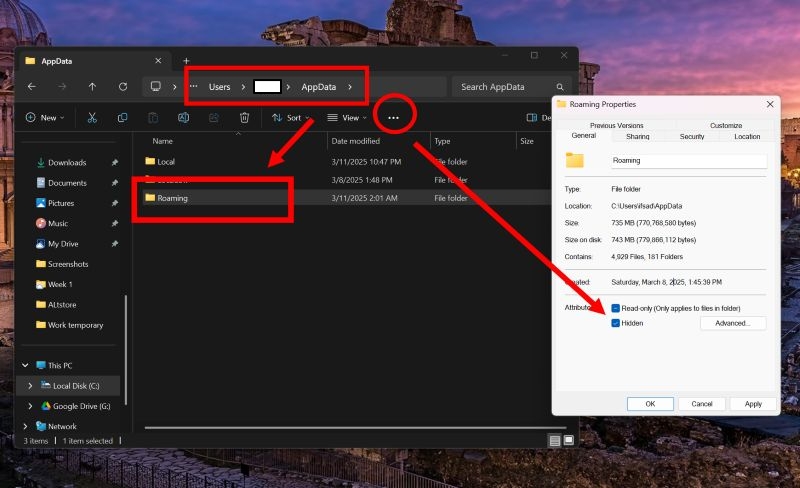
Step 2. Open the Roaming folder from the results that appear.
Note: If you don’t see the Roaming folder in the AppData page, right-click anywhere in the window and select Properties. And tick the box assigned to Hidden. Apply the changes.
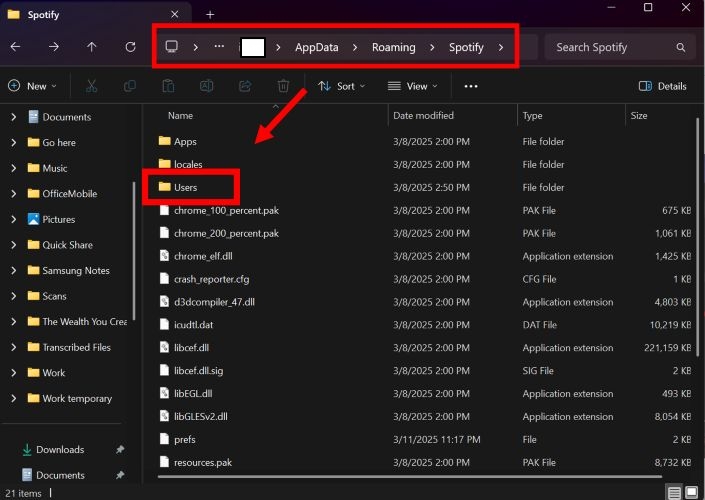
Step 3. Find and open the Spotify folder. Inside, locate the Users folder.
Step 4. Look for a folder named with random characters ending in -user.
- The string before "-user" in the folder name is your Spotify username.
On Mac
Spotify’s user folder on Mac is neatly tucked away in a hidden location, but you can still access it with a few simple steps:
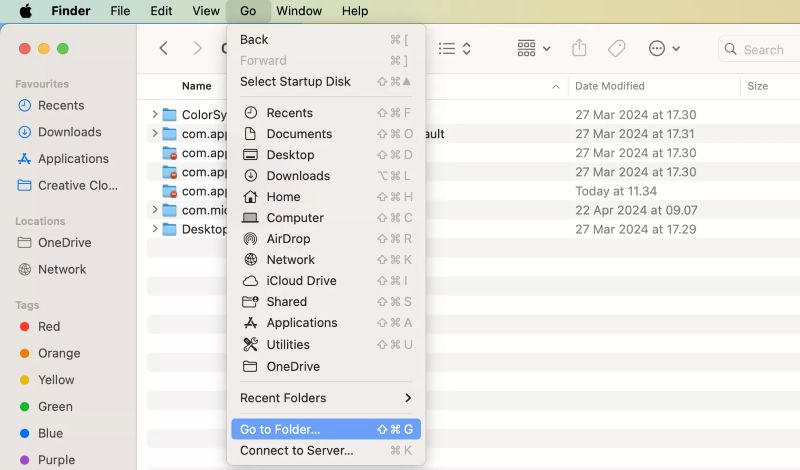
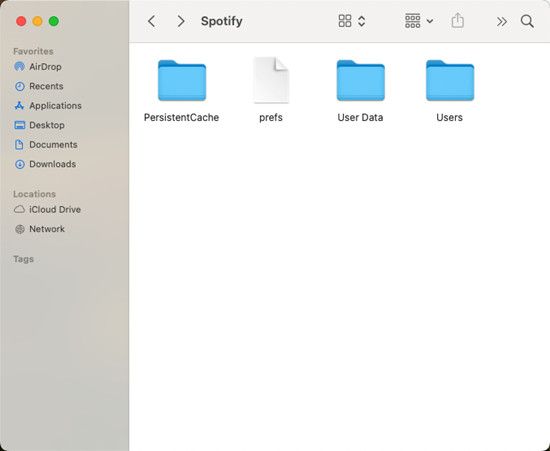
Step 1. Open Finder and click on Go in the top menu bar. When the drop-down appears, select Go to Folder.
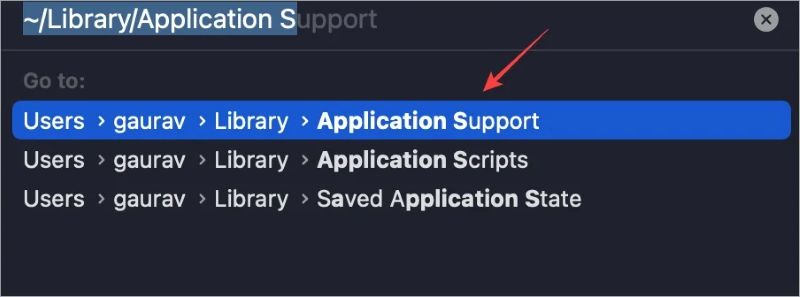
Step 2. Enter this file path and hit Return:
~/Library/Application Support/Spotify
Step 3. Click on the Spotify name to view its internal folders.
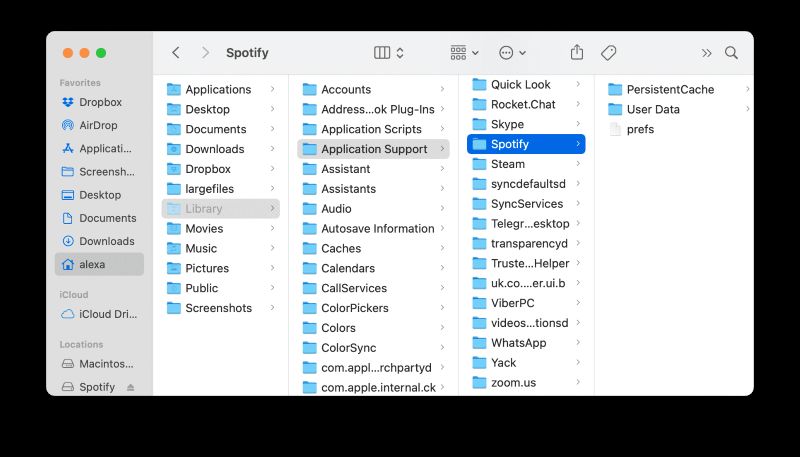
Step 4. Select the folder labeled Users. Inside, you’ll find multiple subfolders. Your Spotify username is the name of the folder—specifically, the part before "-user."
Backup Your Streaming Playlists In Case You Can't Access Your Account
Your streaming account isn't what matters — it's the playlists tied to it that hold the real value. Playlists are what you've spent years crafting, and that's what makes a streaming account essential to everyone. Losing access to those playlists? That's not an option.
Eassiy Screen Recorder Ultimate makes sure you never lose your favorite audio content by allowing you to capture it directly from any streaming source and save it permanently to your computer. It is designed to record any audio playing on your device in high quality and save it in your preferred format — MP3, AAC, FLAC, and more.
The best part? Your recordings are yours to keep, forever. You can move them between devices, listen without the internet, and never worry about losing them again.
Eassiy Screen Recorder Ultimate
Record any audio stream playing on your device and save it as MP3, AAC, FLAC, and more with system sound capture and permanent offline access.
Key Features
- Record any audio stream playing on your device with system sound capture — no link copying or account required.
- Supports multiple output formats including MP3, AAC, FLAC, and more.
- Set recording duration with a built-in timer for hands-free, automated operation.
- Preview recordings before saving to ensure quality.
- Works on both Windows and Mac with an intuitive interface requiring no technical skills.
Steps to Backup Your Audio Collection Using Eassiy Screen Recorder Ultimate
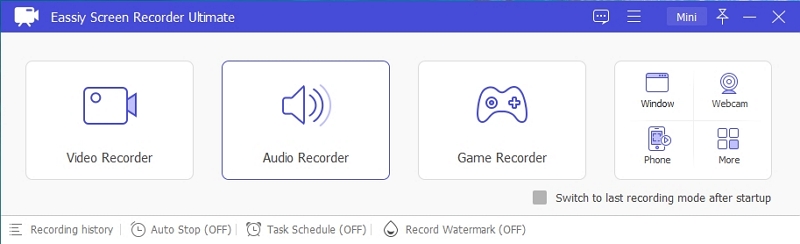
Step 1. Download and install Eassiy Screen Recorder Ultimate on your Windows or Mac. Once launched, select the Audio Recorder feature from the main dashboard.
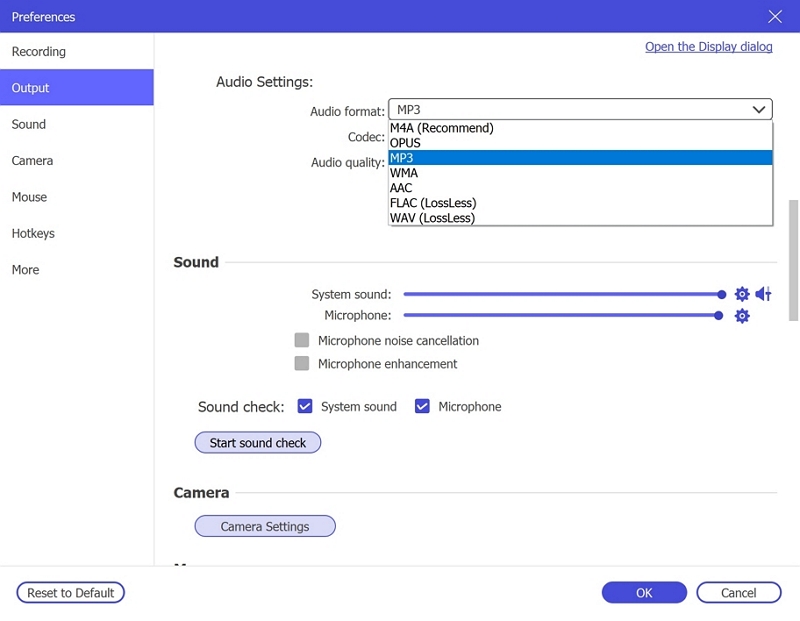
Step 2. Configure your audio recording settings. Enable System Sound to capture the live stream audio. Optionally enable the microphone if needed. Click Settings → Preferences → Output to select your desired audio format (e.g., MP3, AAC, FLAC) and set the quality to High. Click OK to save.
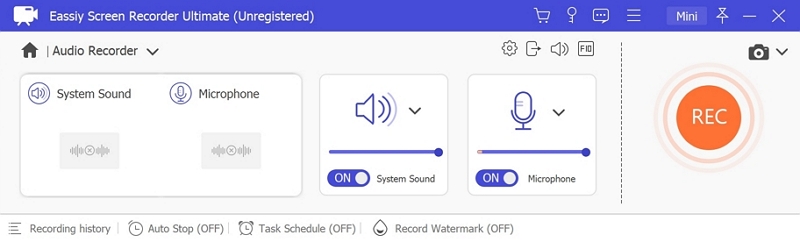
Step 3. Play the audio stream you wish to record, then click REC to begin recording. Use the toolbar to adjust volume, pause, or stop at any time. To automate the process, click the clock icon to set a recording duration in advance.

Step 4. When finished, click Stop and preview your recording. Save it in your preferred format to your device for offline listening anytime — permanently, with no expiry dates or platform restrictions.
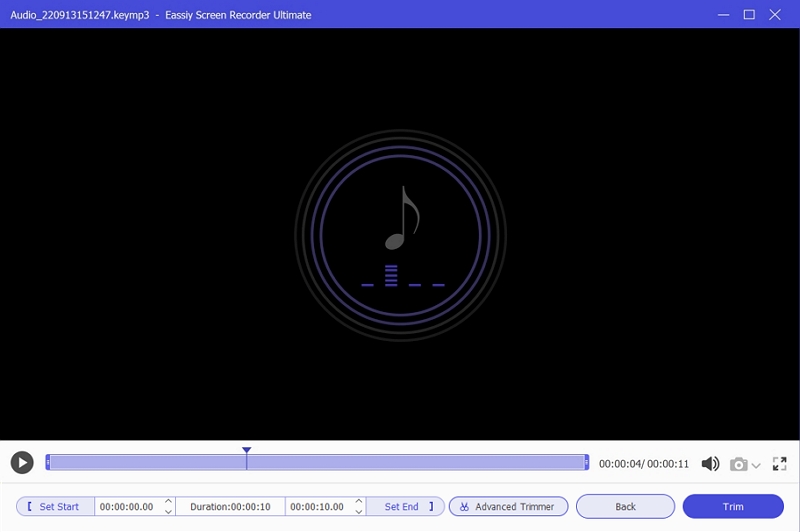
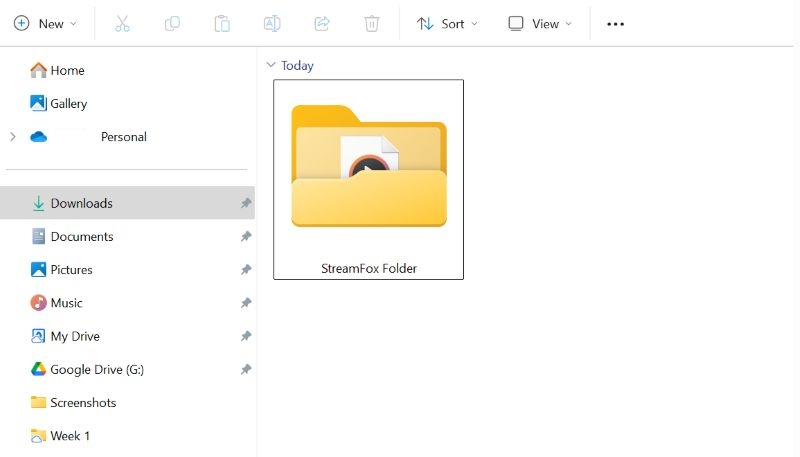
Step 5. Open your recordings folder and you will find your audio files saved in the Eassiy Screen Recorder output folder, ready to play on any media player.
How to Find Someone's Username on Spotify
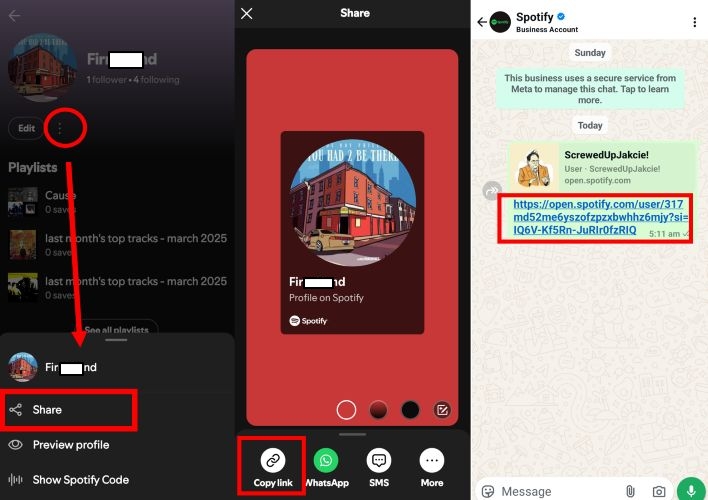
The fastest way? Ask for their profile link. Once you have it, just paste it anywhere and extract their Spotify ID. You can follow the method shared in Way 2 earlier to pinpoint the exact username.
However, what if you don’t have the link? No problem. If you’re in a collaborative playlist with them or already following their account, just tap their name to open their profile. From there, you can copy the profile link, which contains their username.
This works for any public profile. Whether it's a friend, playlist curator, or even a random user, just navigate to their page and generate the link. That’s an easy way to find their details without needing direct access.
How to Find Someone on Spotify With or Without Their Username
Of course, whether you have their username or not, finding your friends or someone on Spotify isn’t that difficult. Let’s go through all the methods.
With Username
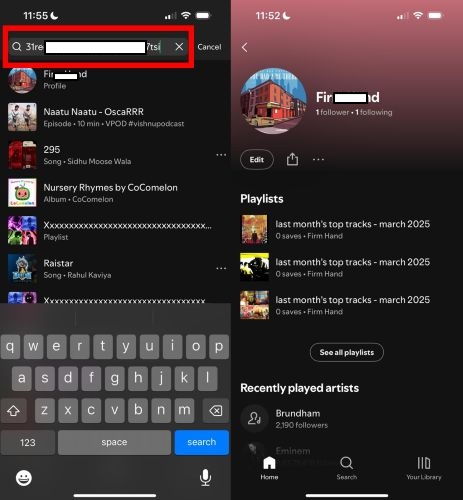
When you have the Spotify ID, it’s as simple as it gets.
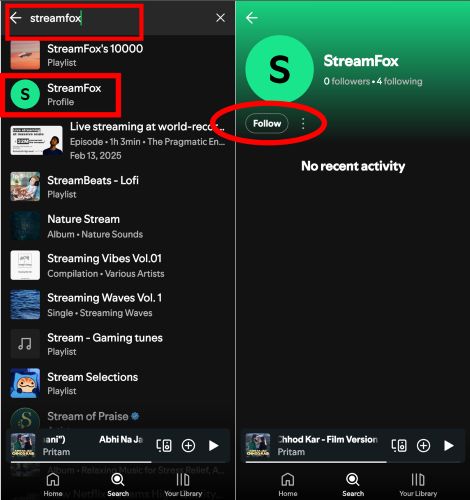
- Just paste the username into Spotify’s search bar. The result? You can locate them easily because their profile will show.
Without Username
There are still plenty of ways to find someone on Spotify even when you don’t have their user ID.
- Search by display name. The same search box you use for songs works for people too. Just type in their name and scroll through the results.
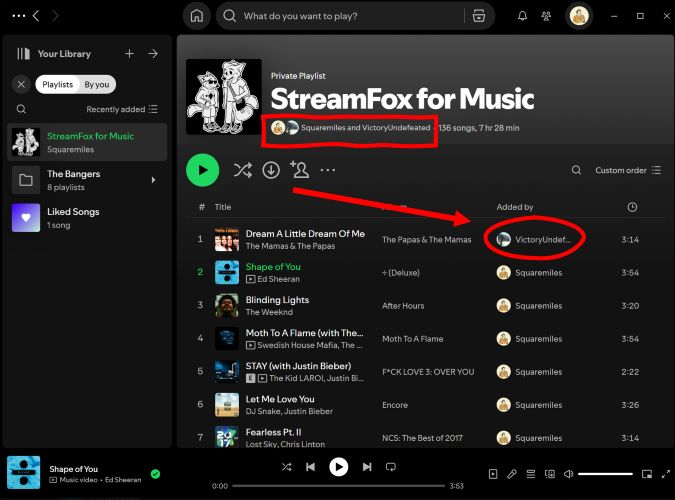
- Check shared playlists. If you’ve ever collaborated on a playlist or come across a public one they’ve made, just tap their name on the contributor list to visit their profile and locate their username.
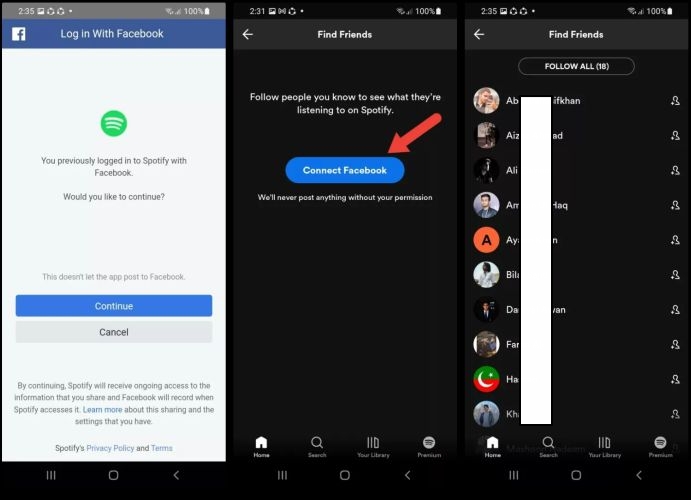
- Sync with Facebook. Link your Spotify to Facebook and you’ll see all your friends who have done the same, making it easy to follow them directly.
Conclusion
Follow the steps and you'll find your Spotify username, whether you're logged in or locked out — it's always within reach. It's not something you think about often, but when the time comes, it matters.
The key takeaway for today is: Your username doesn't define your streaming experience — your playlists do. So, use Eassiy Screen Recorder Ultimate to quickly capture and save your favorite audio content in high quality to store it safely on your computer, even when you don't have an active subscription.