Help Center
Updated on 2026-06-05
views
5min read
When you invest in a smart speaker, you expect your music to play hands-free and hassle-free. And for the most part, Alexa delivers. When you try asking Alexa to play a song on YouTube Music, Alexa will simply reply, “YouTube Music isn’t supported on this device”.
So does that mean your favorite playlists, liked songs, or daily mixes on YouTube Music are off-limits on Echo speakers? Not quite. We’ll show you the simplest ways to play YouTube Music on the popular Alexa device-Echo, regardless of the model you use, such as Echo Dot, Echo Show and Echo Studio.
Bonus: Can you unlock YouTube Music premium features on Android for free? Yes! Check this YouTube Music Premium APK post to get YouTube Music premium for free.
How to Play YouTube Music on Alexa-enabled Echo via Silk Browser
Requirements:
- Any Echo Show models with a screen: Echo Show 5, 8, 10, and 15
- Internet speed: Minimum of 5 Mbps for smooth playback
- A Google account
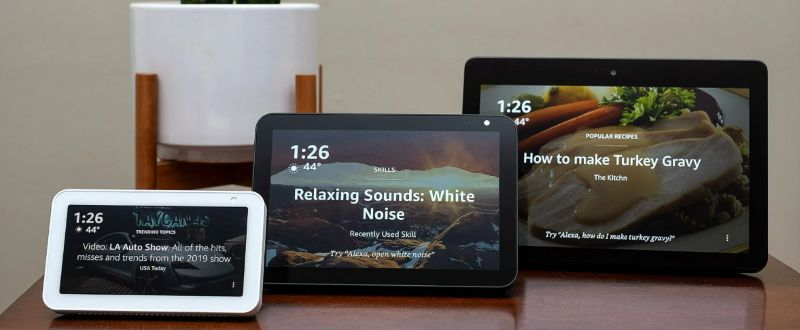
You can stream YouTube Music directly on your Echo Show using the built-in Silk Browser. These touchscreen Echo models work independently, so there’s no need to pair with a phone or computer: just a stable internet connection is enough to get started. All Echo Show models supports Google sign-in, so you can open YouTube Music in the Silk Browser, log in to your account, and access your playlists, liked songs, and albums directly.
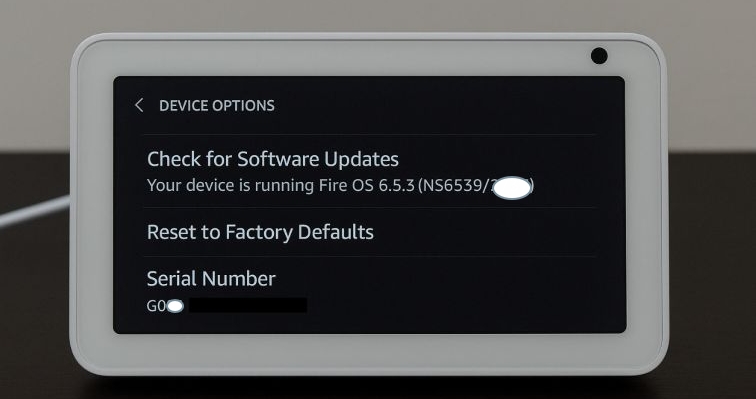
Also, keep your Echo firmware up to date by going to Settings > Device Options > Check for Software Updates.
Note: Silk Browser doesn’t retain cookies. Once the session ends or the app is closed, you'll need to sign in again.
Steps to Play YouTube Music on Echo Show:
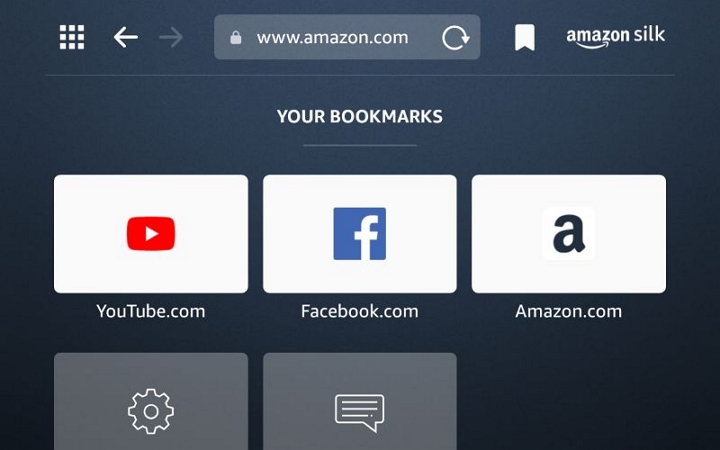
Step 1. Say “Alexa, open Silk” to launch the browser. If that doesn’t work, swipe down from the top of the Echo Show screen, tap the Settings gear icon, go to Device Options, then select
Web Options, and choose Silk Browser. This will take you directly to the browser.
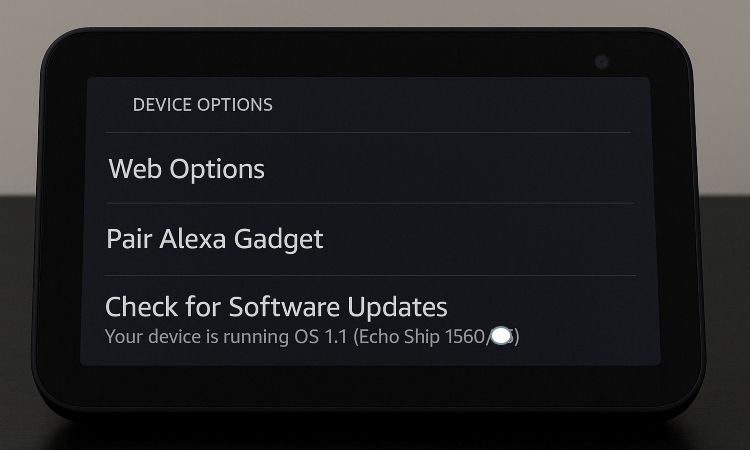
Step 2. Use the on-screen keyboard to type in music.youtube.com and load the site.
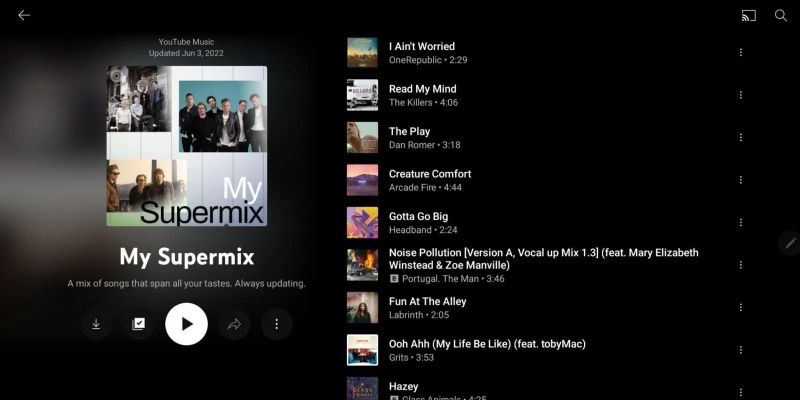
Step 3. Tap on the song you want to play, as voice commands like “Alexa, play” don’t work inside the Silk browser.
How to Play YouTube Music on Echo with Alexa Using Bluetooth
Most Echo devices don’t support the Silk browser, which rules out direct access to YouTube Music. That’s where Bluetooth steps in. By using your Echo as a Bluetooth speaker, you can play YouTube Music on your phone or computer and stream the audio directly to your Echo.
There’s a trade-off, though: Bluetooth connections also carry interruptions like notifications and calls. Still, it remains the most practical option across most Echo models. So, let’s break down the Bluetooth method: first with your phone, then with your computer.
For Phone
Requirements:
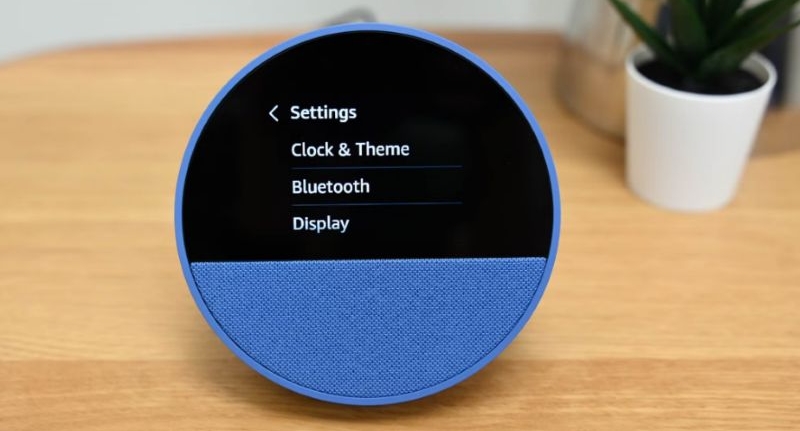
- Any Echo model with Bluetooth support, including Echo Dot, Echo Studio, and Echo Show.
- An Android or iPhone device with a stable internet connection.
- The Alexa app installed (optional, but makes pairing easier).
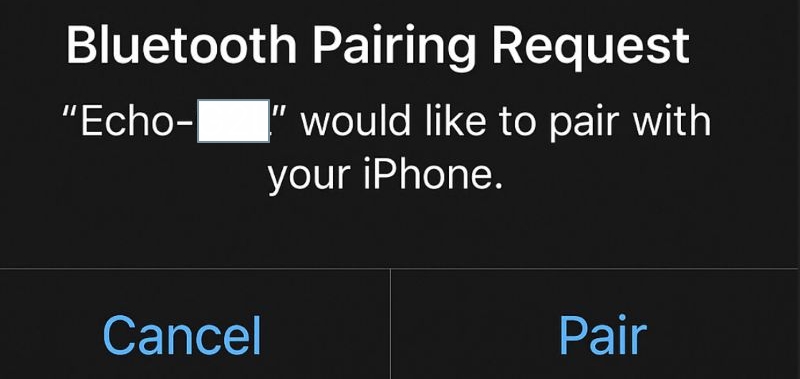
Whether or not your phone is already linked to Alexa, pairing and playing YouTube Music is quick and straightforward. You can connect using your phone’s native Bluetooth settings or through the Alexa app if you have already installed and paired with your Echo device.
Steps to Play YouTube Music on Echo Devices via Bluetooth from Phone
Step 1. Say: “Alexa, pair Bluetooth.” You’ll hear a confirmation and your Echo will show up in your phone’s available Bluetooth devices list.
Alternatively, if you have installed the Alexa app on your Android or iOS device, tap Devices at the bottom, choose your Echo, and select Bluetooth Devices > Pair a New Device. Your phone will appear, just tap it to connect.
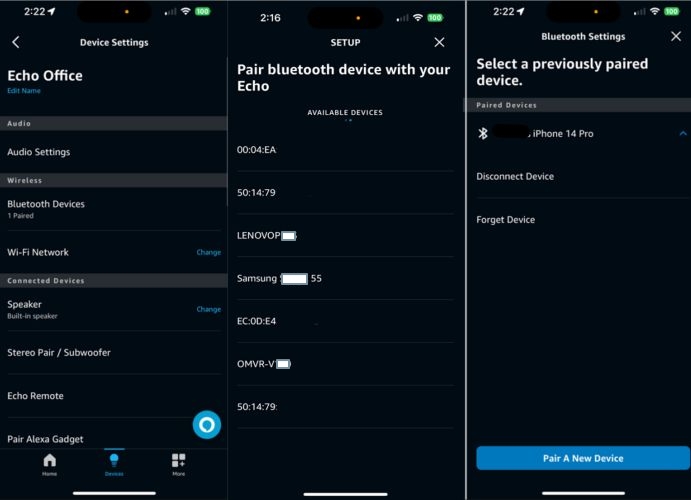
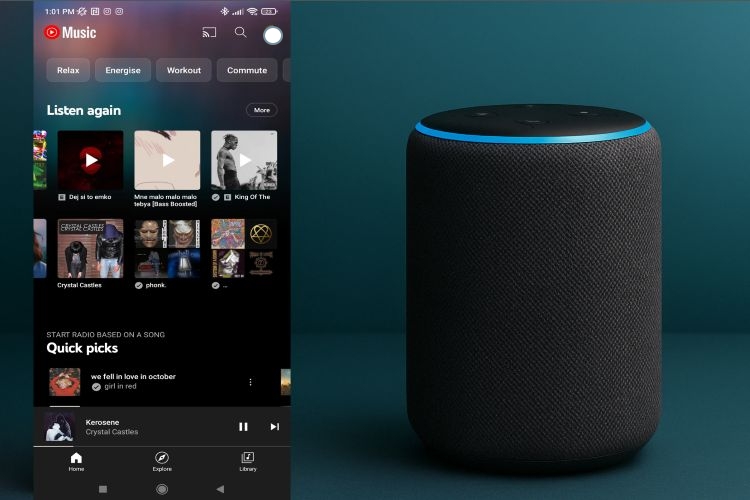
Step 2. Once paired, just open the YouTube Music app on your phone and hit Play. Your Echo will now stream the sound directly from your phone, just like a regular Bluetooth speaker.
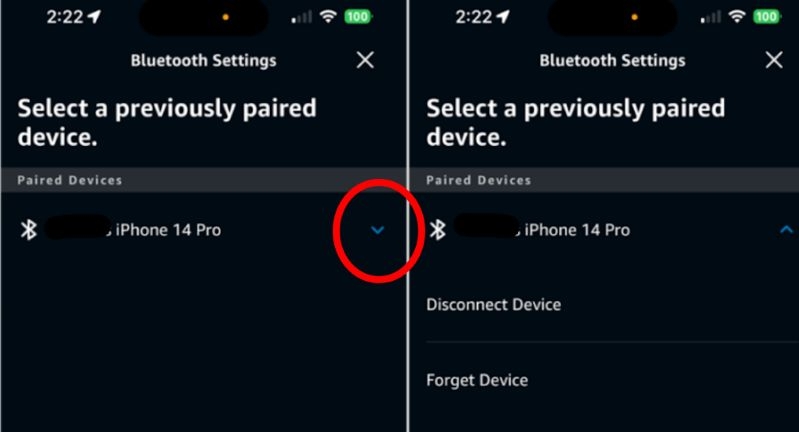
To disconnect: You can either turn off Bluetooth from your phone or, in the Alexa app, open Bluetooth settings under your connected Echo and tap Disconnect Device.
For Computer
Requirements:
- Any Alexa-enabled speaker (Echo, Echo Dot, Studio, etc.)
- A Windows or Mac computer
- One-time internet connection to capture the audio
On a computer, you’ve got two choices: stream your audio directly from the browser and send it to your Echo device, or take the smoother route: you can record and save your audio offline ahead of time securely with Eassiy Screen Recorder Ultimate.
Eassiy Screen Recorder Ultimate allows you to record any audio playing on your computer and save it in open formats like MP3, AAC, FLAC, or WAV, all in high quality. Once recorded, you can just pair your Echo with your computer via Bluetooth and play your collection even without an internet connection and avoid ads. Since the recorder captures the exact system sound you hear, your audio library stays perfectly clear and organized.
Eassiy Screen Recorder Ultimate
Record any audio playing on your device and save it as MP3, AAC, FLAC, and more with system sound capture and permanent offline access.
Key Features
- Record any audio stream in high quality — songs, playlists, podcasts, audiobooks, and more.
- Supports multiple output formats including MP3, AAC, FLAC, and more.
- Built-in timer for hands-free, automated recording sessions with no set limit.
- Preview recordings before saving to ensure quality.
Steps to Record Audio and Play it on Alexa via Computer
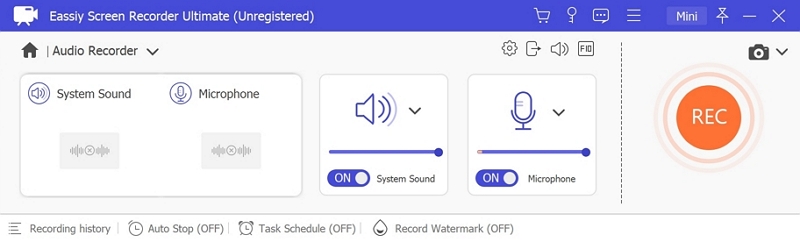
Step 1. Download and install Eassiy Screen Recorder Ultimate on your Windows or Mac computer. Once launched, select the Audio Recorder feature from the main interface.
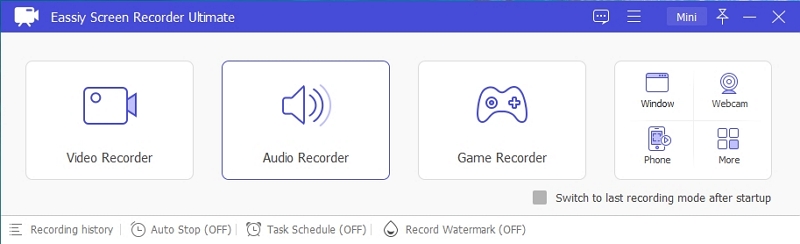
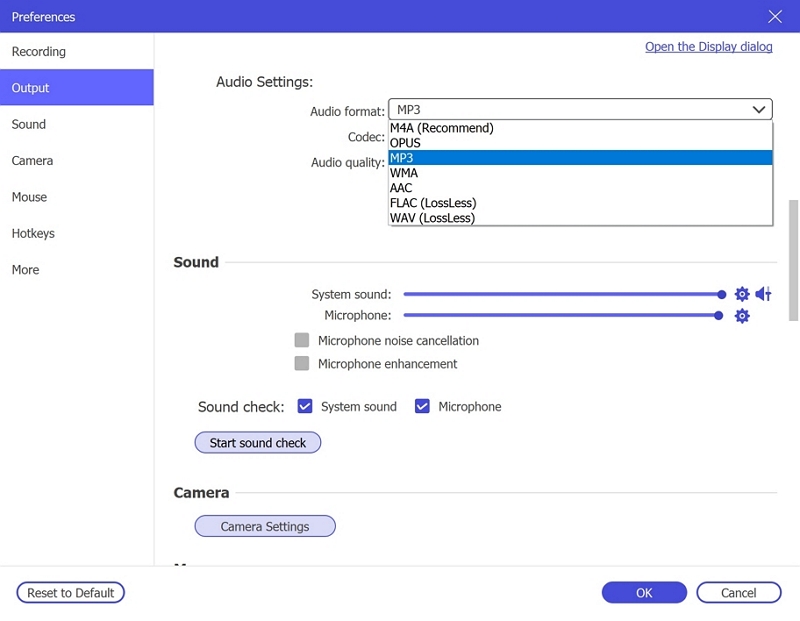
Step 2. Configure your audio recording settings. Enable System Sound to capture the audio playing on your computer. Optionally enable the microphone if needed. Click Settings → Preferences → Output to select your desired audio format (e.g., MP3, AAC, FLAC) and set the quality to High. Click OK to save.
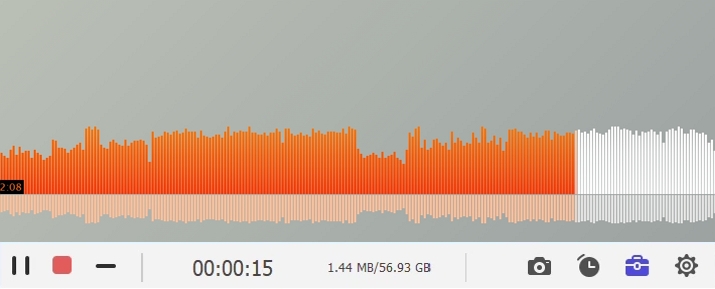
Step 3. Play the audio you wish to record, then click REC to begin recording. Use the toolbar to adjust volume, pause, or stop at any time. To automate the process, click the clock icon to set a recording duration in advance.
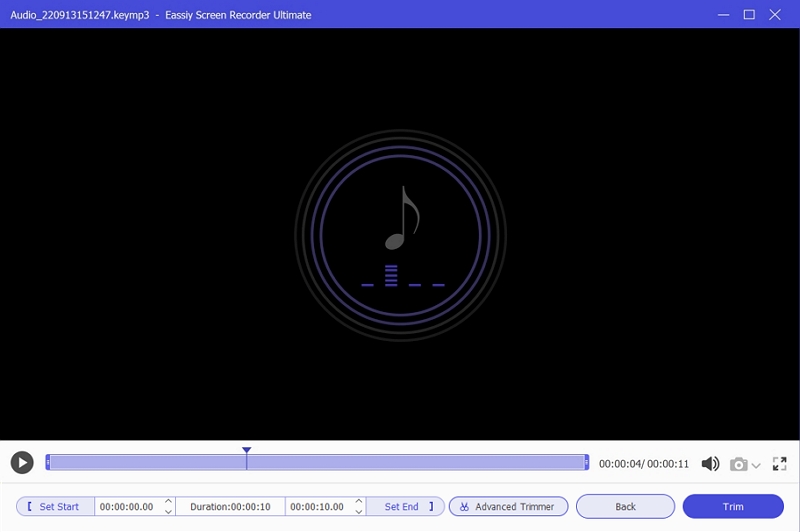
Step 4. When finished, click Stop and preview your recording. Save it in your preferred format to your computer for offline listening.
Step 5. Say “Alexa, pair Bluetooth” to put your Echo device in pairing mode. Alexa will confirm it’s ready to connect.
Step 6. Finish the Bluetooth connection on your computer.
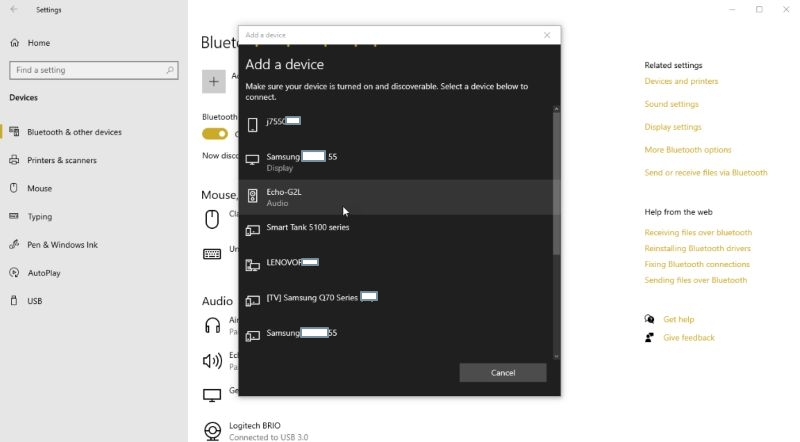
- Windows: Open Settings, go to Bluetooth & devices, click Add a device and choose your Echo from the list.
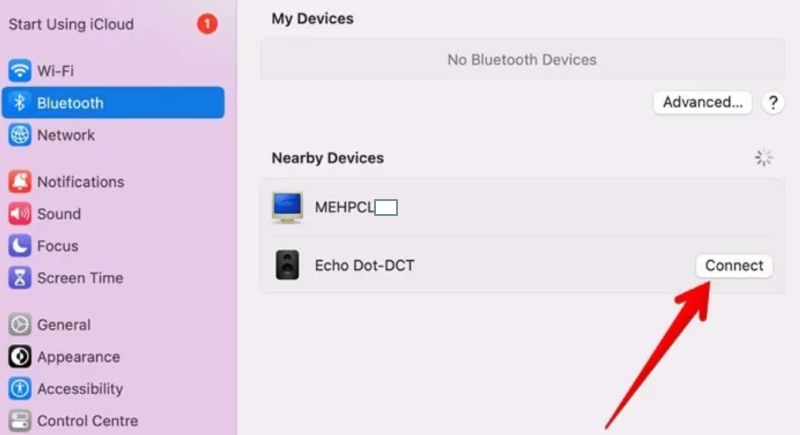
- On macOS: Open System Preferences, select Bluetooth from the sidebar, pair and connect your Echo device from the available list.
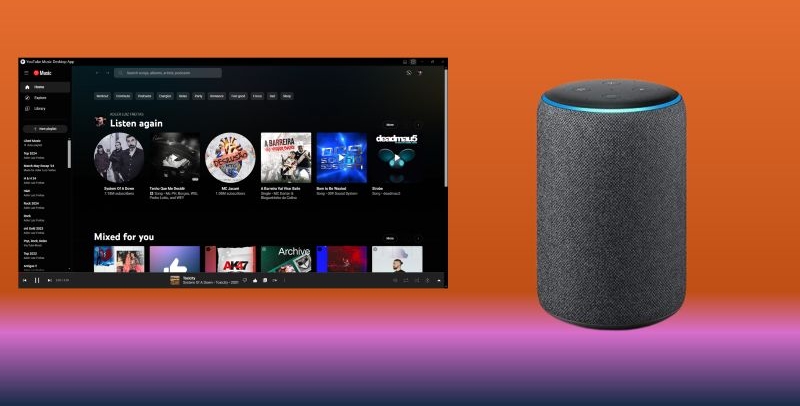
Once connected, open your saved audio files with any media player. Instantly, the audio will now stream through your Echo speaker.
Why Does Alexa Not Support YouTube Music?
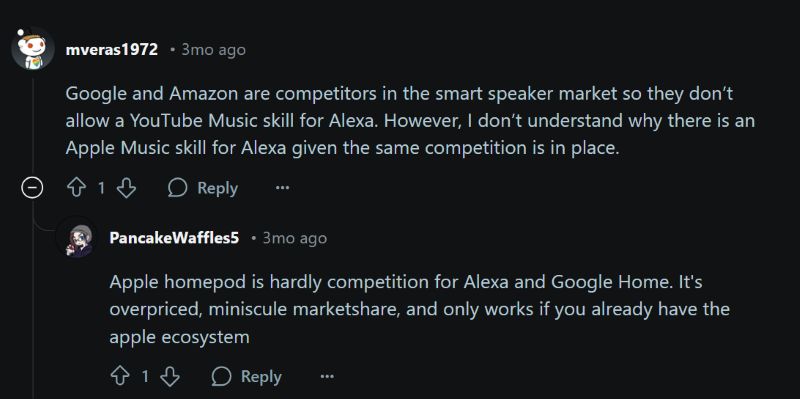
There’s no official word from Amazon or Google for this question, but let’s be honest: it’s the rivalry. Both are out to dominate the smart home space, so it’s no surprise YouTube Music doesn’t show up on Alexa. As Redditors often put it: it’s less about tech, more about turf. Yes, Amazon doesn’t even list Google Nest devices on its eCommerce platform.
What’s frustrating is there’s no sign this will change anytime soon. Amazon’s public roadmap for Echo devices doesn’t hint at any support for YouTube Music.
What Music Services Work with Alexa-supported Echo?
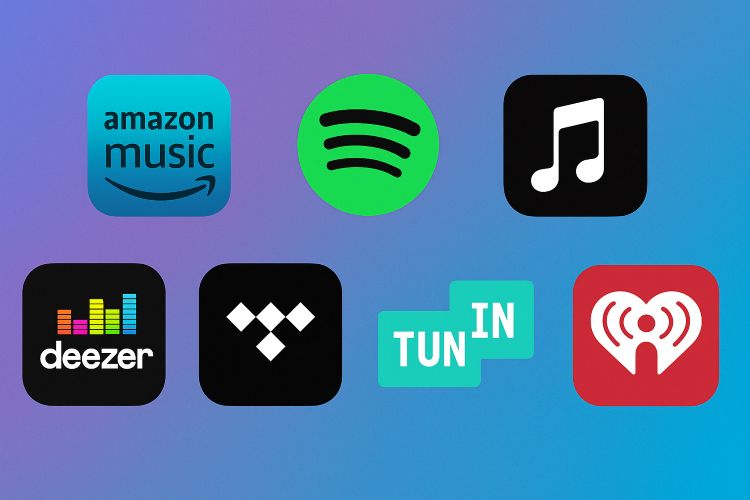
Echo devices support direct integration with a number of major music services. You can link and even set defaults for Amazon Music, Spotify, Apple Music, Deezer, Pandora, iHeartRadio, SiriusXM, and TuneIn.
However, you will need the Alexa app on your iPhone or Android to integrate these services. Once connected, Alexa remembers your account and playback can be fully voice-controlled: you can say things like “Play my chill playlist” or “Pause the music” without lifting a finger. And since these services are officially supported, everything runs smoothly without Bluetooth and screen workarounds.
Conclusion
That’s the workaround story behind getting your favorite audio to play on the popular Alexa device-Echo without waiting for official support. Whether you’re using a browser, Bluetooth, or desktop pairing, it’s all about finding the path that fits your device.
And when you’re looking for the most reliable way to play offline audio on Alexa Echo, Eassiy Screen Recorder Ultimate quietly stands out. It lets you capture your favorite audio seamlessly into MP3 files which you can play on any Echo device via Bluetooth without ads or background restrictions, giving you full control of your listening experience.