Help Center
Updated on 2026-04-30
views
5min read
As someone who uses the iPhone Notes app as a “second brain,” I understand how stressful it is to see the “Enter Password” prompt and realize you’ve forgotten it. If you're searching for how to unlock notes on iPhone after forgetting the password—especially a custom one—you’re not alone.
After testing multiple scenarios on an iPhone 16 running iOS 18.5, the conclusion is clear: there is no reliable way to directly unlock a note if the original password is lost. Apple protects Notes with end-to-end encryption, meaning only the correct password can decrypt the content.
However, this doesn’t mean you have no options. There are still practical ways to recall your notes password and steps you can take to avoid this issue in the future. In the following guide, I will explain how to unlock notes on iPhone if you forgot password in a safe and realistic way.
Quick Tips for the Frustrated User:
- No Master Key: Apple does not have a back door. If you forget a unique Notes password, neither Apple Support nor third-party software can "crack" it.
- Beware of Scams: Any tool claiming to "recover" a forgotten custom Notes password is a scam. Save your money and your data.
- The "Unlimited" Loophole: Unlike the iPhone lock screen, the Notes app allows unlimited attempts. You will not be locked out of the device for guessing.
- The "Reset" Nuance: Resetting your Notes password does not unlock old notes. It only sets a new password for future locked notes.
- The Solution: Use the Password Hint or the Device Passcode migration (detailed below) to prevent this from ever happening again.
The Only Way to Unlock Old Notes on iPhone When Forgot Password: The "Unlimited Attempts" Strategy
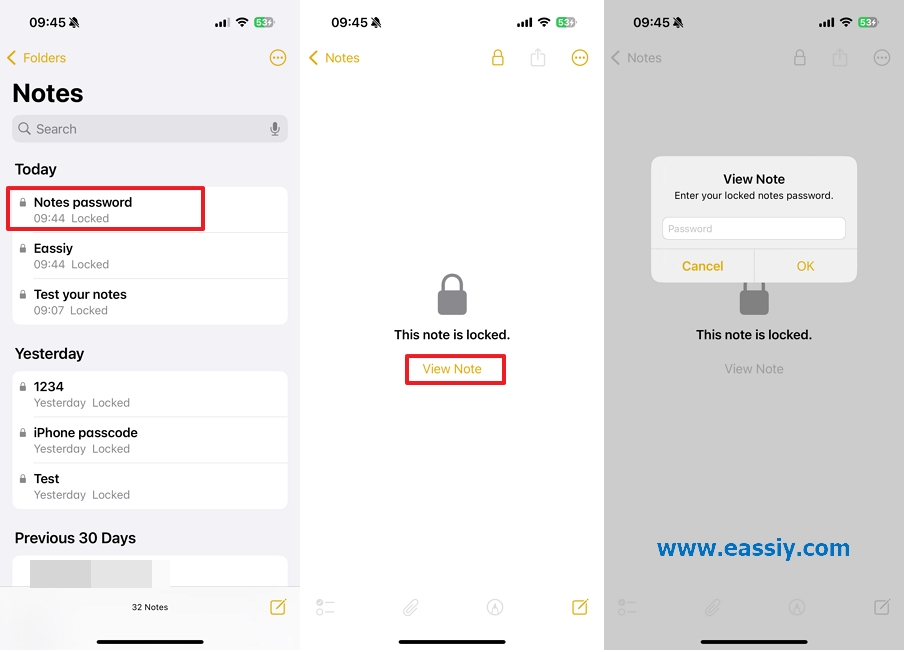
If you’re trying to figure out how to unlock a locked note on iPhone after forgetting the password, the first thing to understand is the concept of “unlimited attempts.” Unlike your iPhone’s lock screen—which may temporarily disable the device after too many incorrect tries—the Notes app does not impose such strict limits.
In my testing on an iPhone 16 running iOS 18, I was able to enter more than 20 incorrect passwords without being locked out. There is no “self-destruct” or lockout mechanism for Notes, which means you can keep trying different combinations without risking data loss. In this case, your memory becomes the most important factor.
Try commonly used password patterns
If you’re wondering how to unlock old notes on iPhone after forgetting the password, a good place to start is the password hint. Since Notes passwords can be customized with any length or character combination, recalling the exact one can be challenging. If the hint doesn’t help, you can try common passwords you may have used before.
According to widely reported data on commonly used passwords (such as those summarized on Wikipedia, here are some of the most frequently used options people tend to fall back on:
| Rank | Password | Rank | Password |
|---|---|---|---|
| 1 | 123456 | 6 | password |
| 2 | admin | 7 | Aa123456 |
| 3 | 12345678 | 8 | 1234567890 |
| 4 | 123456789 | 9 | Pass@123 |
| 5 | 12345 | 10 | admin123 |
Rely on your personal patterns
If common defaults don’t work, the next step is to rely on your personal patterns. Most people don’t create entirely new passwords for Notes. Instead, they tend to reuse a “Level 2” password—something more secure than “123456,” but still familiar enough to remember (or so they thought).
To better trigger your memory, you can think in terms of three common “personal pattern” categories:
- The “Legacy” Pattern: Many users fall back on one of the first passwords they ever created—such as for a high school email account, an old social media profile, or an early online service. It’s often an “old reliable” password that was eventually abandoned for being too simple, but still feels “safe enough” for something like Notes.
- The Milestone Variation:Instead of only trying current dates, think about when the note was created. Was it around a wedding anniversary, a child’s birthday, or another important life event? Passwords like Name2024 or AnniversaryDate! are very common. Many users also add a special character (such as !, @, or #) at the end to make the password seem stronger.
- The Environment Clue: Look around your physical environment. Did you ever write down a hint on a sticky note or in a notebook? Some users realize they used part of their Wi-Fi password, an office badge number, or another frequently used numeric pattern.
Before you start trying combinations, double-check your keyboard settings—especially Caps Lock. It may sound basic, but incorrect capitalization is one of the most common reasons passwords fail, particularly in stressful situations.
Since the Notes app allows unlimited attempts, you can test your top password guesses systematically—for example, trying all lowercase, all uppercase, and then capitalizing the first letter. With a bit of patience and structured attempts, you increase your chances of unlocking the note without losing your data.
How to Prevent Forgetting Notes Password on iPhone Again
Reset Your Notes Password
If you cannot guess the password, you must accept that the "Old Notes" are currently inaccessible. However, you need to reset your password immediately.
Warning: Resetting your password will not unlock your old notes. It simply ensures that future notes you lock will use a password you actually know.
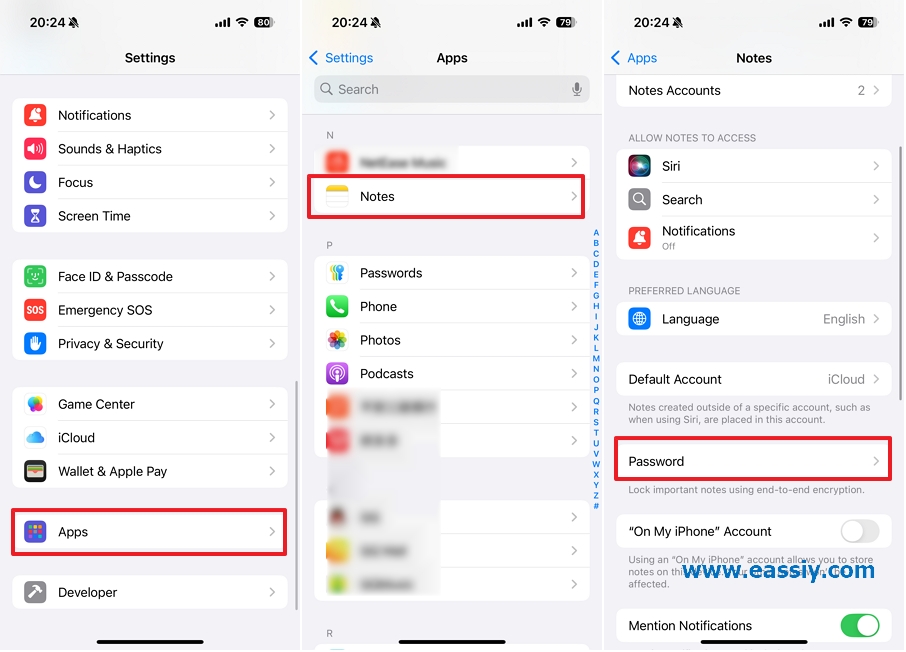
How to Reset (Verified on iOS 18.5):
-
- Open Settings and tap Apps.
- Scroll down to Notes.
- Tap Password.
-
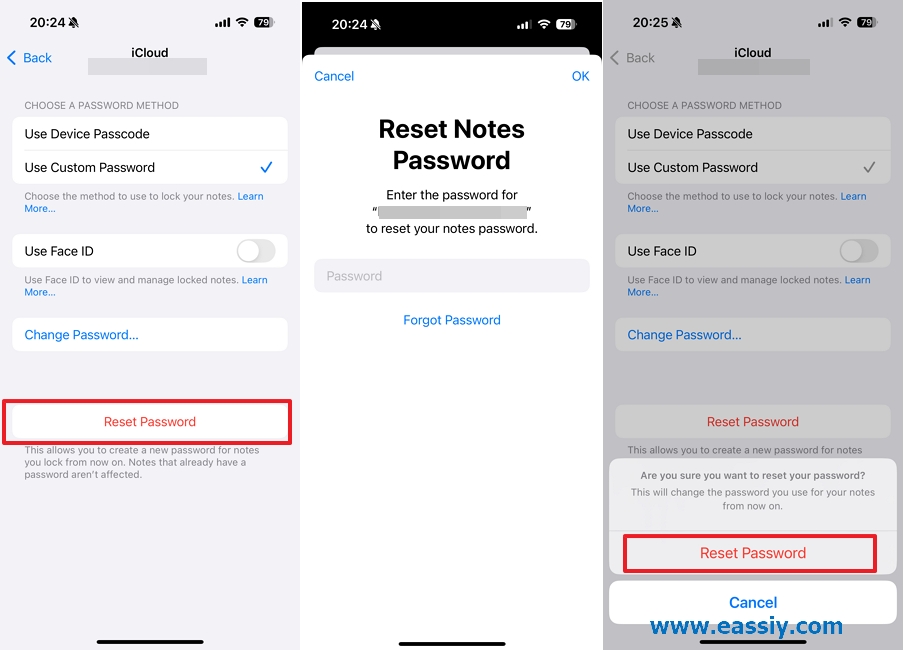
- Select the account and tap Reset Password.
- Enter your Apple Account Password to verify your identity.
- Tap Reset Password again to confirm.
-
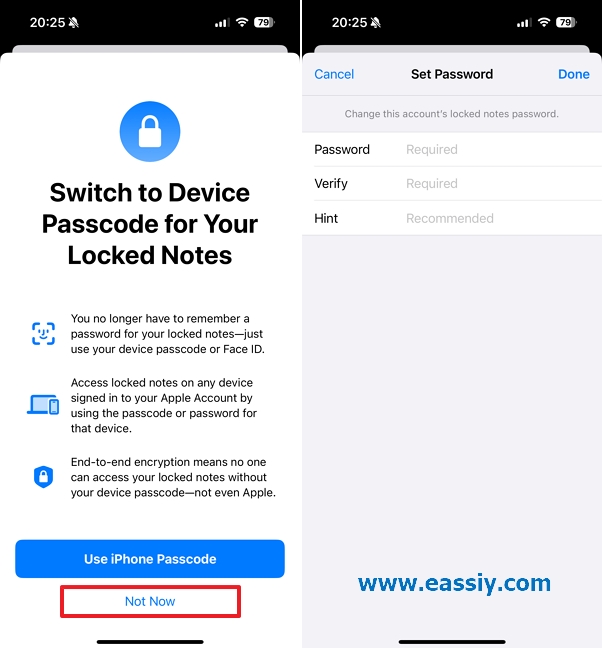
- You can now choose to use your Device Passcode (recommended) or set a new Custom Password.
Switch to Device Passcode
The smartest move you can make is to stop relying on separate passwords for Notes. Instead, switch to using your iPhone’s screen lock passcode. This way, you only need to remember one “master key,” which greatly reduces the risk of being locked out.
Eassiy Lab Test Result: I also tested the "Chain Reaction" of password changes. When Notes is set to use the device passcode, any future changes to your iPhone’s lock screen passcode will automatically apply to your locked notes as well. This means you won’t run into issues caused by outdated or forgotten passwords.
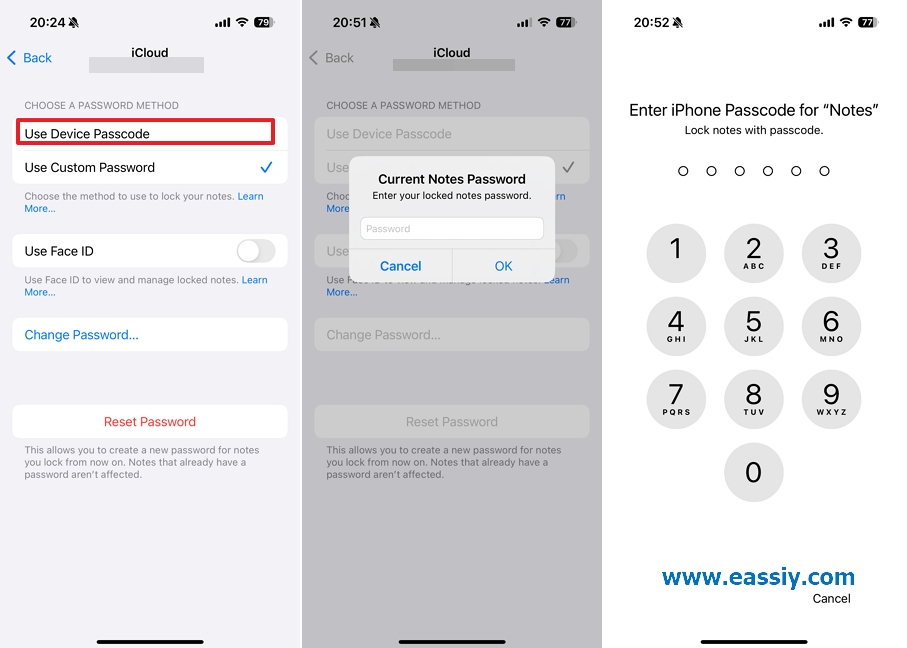
How to Switch (Verified on iOS 18.5):
- Go to Settings > Apps > Notes > Password.
- Select Use Device Passcode.
- Note: You will be asked for your old custom password one last time to authorize the switch. If you don’t have it, use the "Reset" method mentioned above first.
- Note: Ensure iCloud Keychain is toggled ON in your Apple Account settings.
Use Face ID
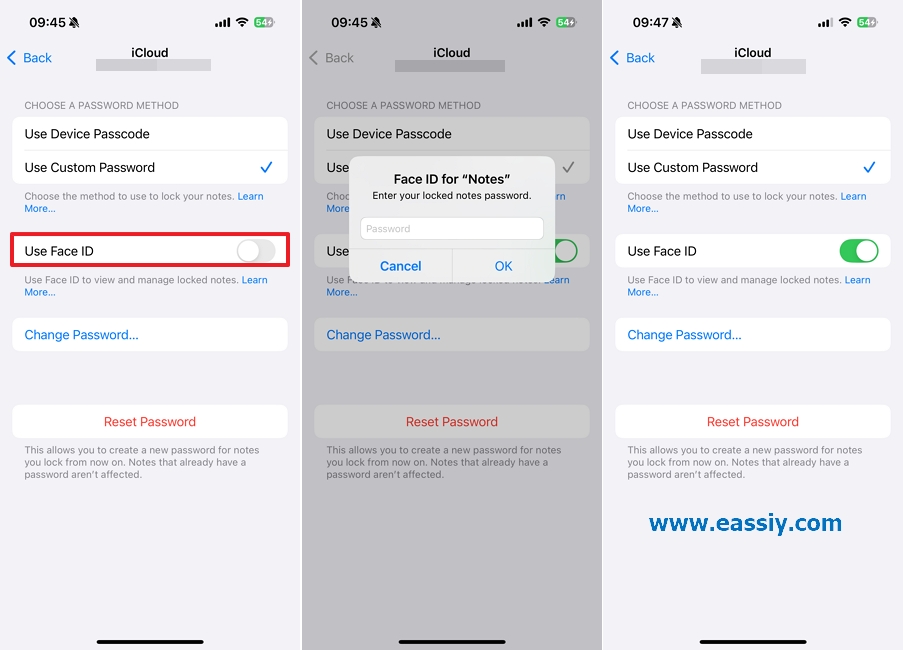
Once you have reset your password or switched to the Device Passcode, enable Face ID immediately. This adds a layer of convenience that bypasses the need for typing altogether.
- In Settings > Apps > Notes > Password, toggle Use Face ID to ON.
- You will be asked for your old custom password one last time to authorize the switch. If you don’t have it, use the "Reset" method mentioned above first.
- Now, when you tap the "Lock" icon on a note, a quick glance at your phone grants you entry.
FAQs: Everything You Still Need to Know About Locked Notes
We know the panic doesn't subside easily. Here are the most common questions answered with 100% technical accuracy.
Q1: Can I use my Apple ID password to unlock a specific note?
No. Your Apple ID password reset your Notes settings, but it cannot directly decrypt a note protected by a unique "Custom Password."
Q2: Does "Reset Password" delete my existing locked notes?
No. Your notes stay exactly where they are. However, resetting the password only affects new notes you lock from that moment forward.
Q3: Is there a limit to how many times I can guess the password?
No. The Notes app allows unlimited guesses. Our testing on iOS 18.5 confirmed you can try hundreds of variations without any lockout period.
Q4: If I restore my iPhone from an iCloud backup, will the notes be unlocked?
Absolutely not. The encryption key is baked into the note's data. When you restore, it will still demand the original custom password.
Q5: Can Face ID unlock a note if I forgot the password?
Only if Face ID was enabled before you forgot the password. If you recently restarted your iPhone, Apple often requires the actual password to "re-authorize" Face ID.
Final Takeaway
Don't fall for the "iPhone Notes Cracker" ads online. They are scams designed to steal your data. The encryption Apple uses is enterprise-grade. Your best tools are your memory, your password hints, and a more sustainable security strategy moving forward.
My advice? Reset the password today, switch to Device Passcode + Face ID, and treat those old locked notes as a "time capsule" that you might accidentally crack one day when a random memory surfaces.