Help Center

Updated on 2026-07-07
views
5min read
When your iPhone screen displays the "iPhone Unavailable" or "Security Lockout" message, it means your device has been disabled due to multiple incorrect passcode entries. To provide you with accurate, working solutions, our team at the Eassiy Test Lab spent two days testing different Unavailable scenarios.
We locked and unlocked devices to see which official and unofficial methods actually work. To ensure our guide covers different hardware and software versions, we used the following iPhones in our tests:
- iPhone 16 (Running iOS 18.5)
- iPhone 13 (Running the latest iOS 26)
- iPhone 6s (Running iOS 15.8.1)
This guide explains the exact rules of the iOS Unavailable system and provides 6 tested solutions to help you fix the iPhone Unavailable issue and regain access to your device.
Part 1: 5 Verified Facts You Must Know Before You Start
When searching for solutions online, it is easy to find incorrect information. Before you take any action, please review these five facts verified by our lab:
iPhone Unavailable is a Self-Protection Mechanism
The "iPhone Unavailable" status is a built-in security measure designed by Apple to protect your data from unauthorized access. Your data is still safely stored inside the phone; the system has simply blocked the screen to prevent further guessing.
The Timer is the Most Important Detail
If you see a timer (for example, "try again in 15 minutes"), your data is safe. You still have a chance to enter the correct passcode when the timer ends. If you enter the correct code, your iPhone will unlock normally with zero data loss.
If it says "iPhone Unavailable" with no timer, you are in a permanent lockout. The only fix is erasing the device entirely and set it up from scratch.
No-Data-Loss Hacks are Scams
Any software claiming to bypass a permanent unavailable status on iPhone without erasing data (unless you remember the passcode) is a scam. Data recovery is only possible if you have a prior iCloud or computer backup.
You Cannot Back Up a Unavailable iPhone
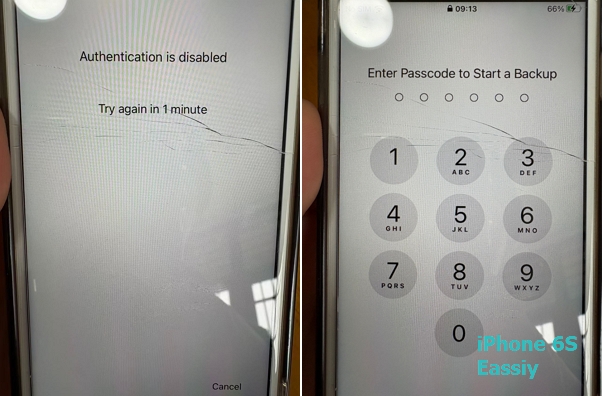
Many users want to plug their unavailable iPhone into a computer to make a quick backup before erasing it. Our lab tested this on an iPhone 6s running iOS 15.8.1. It does not work. When we tried to back up the device to a previously trusted computer, the system displayed an "Authentication is disabled" error and asked for the passcode on the iPhone screen. You cannot back up an iPhone after it becomes unavailable.
The Importance of Find My
Many of the easiest ways to erase and reset your phone require the "Find My" feature to be turned on before the lockout happened. In our tests, if "Find My" was turned off, the simple on-screen reset buttons did not appear.
Part 2: How iPhone Unavailable Works
When you repeatedly input the wrong passcode on your iPhone, the iOS system automatically places the iPhone into an "unavailable" state to prevent brute-force intrusion.
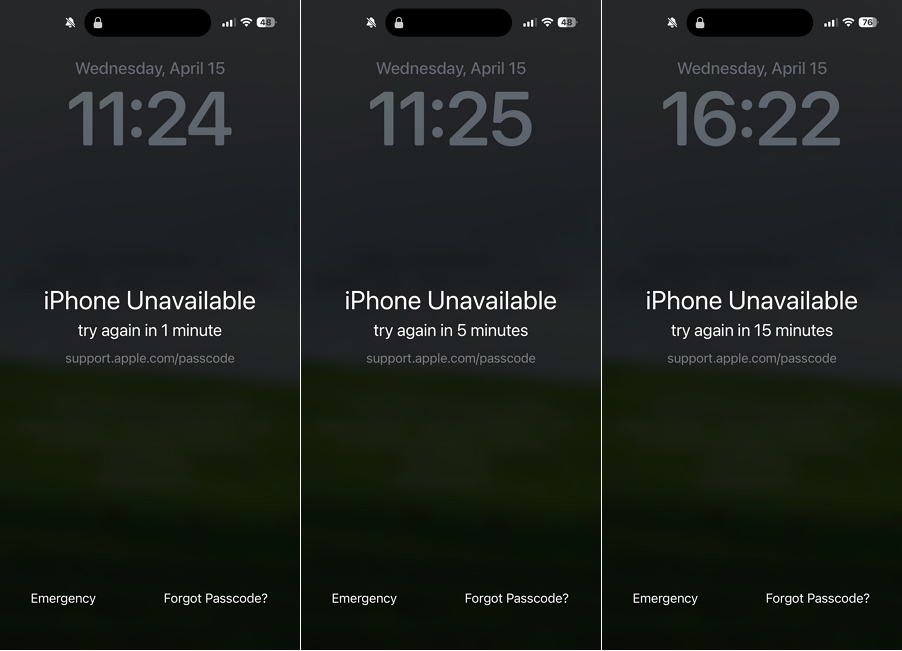
It will display "iPhone Unavailable" or "Security Lockout" messages based on the exact number of consecutive incorrect entries. Every time you enter a wrong passcode, the waiting time gets longer. Here is the exact timeline based on our tests:
- 1 to 5 incorrect attempts: The screen shakes, indicating a wrong passcode, but there is no time penalty.
- 6th incorrect attempt: iPhone unavailable, try again in 1 minute.
- 7th incorrect attempt: iPhone unavailable, try again in 5 minutes.
- 8th incorrect attempt: iPhone unavailable, try again in 15 minutes.
- 9th incorrect attempt: iPhone unavailable, try again in 1 hour. (Depending on your iOS version, this might also show 3 hours or 8 hours).
- 10th incorrect attempt: iPhone unavailable. (No timer. The device is permanently locked).
Part 3: What to Do If Your iPhone Shows iPhone Unavailable with a Timer
If your screen says "try again in 15 minutes" or "try again in 1 hour," stop and wait. Do not try to erase or restore your phone yet. This is your last opportunity to keep your data.
1. Calculate Your Remaining Chances
If you see "15 minutes," you have entered the wrong code 8 times. You have approximately 2 attempts left.
If you see "1 hour," you have entered the wrong code 9 times. You have exactly 1 attempt left before the phone locks permanently.
2. Take Time to Remember the Passcode
While you are waiting for the timer to count down, do not guess randomly. Use a pen and paper to list potential passcodes:
- Write down the codes you just tried, so you do not repeat them.
- Ask family members or children if they accidentally changed the passcode while using your phone.
- List your 3 to 5 most common passwords, such as bank PINs or door codes.
- Think about significant dates, like birthdays or anniversaries.
- Check physical notebooks or calendars where you might have written it down.
3. Check for Existing Backups
While waiting, check if you have an iCloud backup. To do this, you need another Apple device (like an iPad or a Mac) that is signed into your Apple ID. Go to iCloud.com on that device and check your data on it to see when your last backup was created. If you have a recent backup, you will not lose much data even if you have to erase the phone.
4. Make Your Final Attempt
When the timer finishes, the keypad will appear. Carefully type the passcode you think is most likely to be correct. If it works, your phone will unlock. If it fails, and no new timer appears, proceed to the next section.
Part 4: What to Do If Your iPhone is Unavailable Permanently
If your screen says "iPhone Unavailable" with no timer, the device is permanently locked. You must erase it. Choose one of the 6 methods below that best matches your device model and situation.
Method 1: Use the "Erase iPhone" Option (For iOS 15.2 - iOS 16)
Apple added a feature in iOS 15.2 that lets you erase a locked phone directly from the screen, without needing a computer.
Lab Test Result: On our iPhone 6s (running iOS 15.8.1), the phone was connected to Wi-Fi and "Find My" was turned on. However, the "Erase iPhone" button did not appear. If you do not see this button on your screen, skip to Method 5 or Method 6.
Best for:
- Users who do not want to use a computer.
- Devices running iOS 15.2 up to iOS 16.
- Devices connected to Wi-Fi or cellular data.
- Devices with "Find My" turned on.
- Users who can clearly see the "Erase iPhone" button on the screen.
Steps:
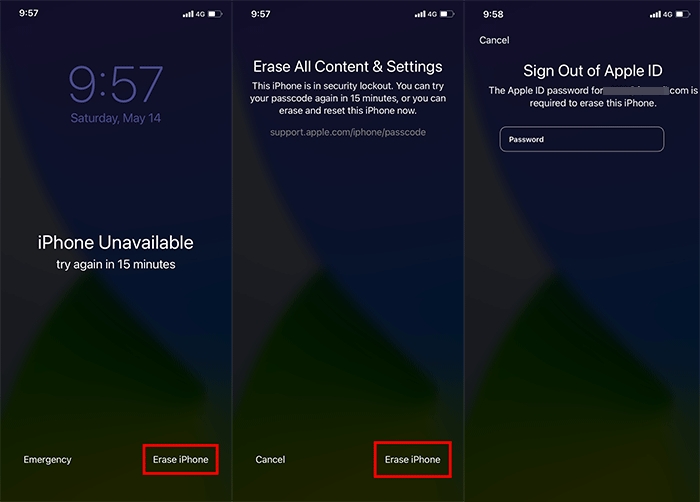
- Tap the Erase iPhone button at the bottom right corner of the screen.
- Tap Erase iPhone again to confirm.
- Enter your Apple ID password to sign out of your account.
- The device will erase all data and restart. You can then set it up again.
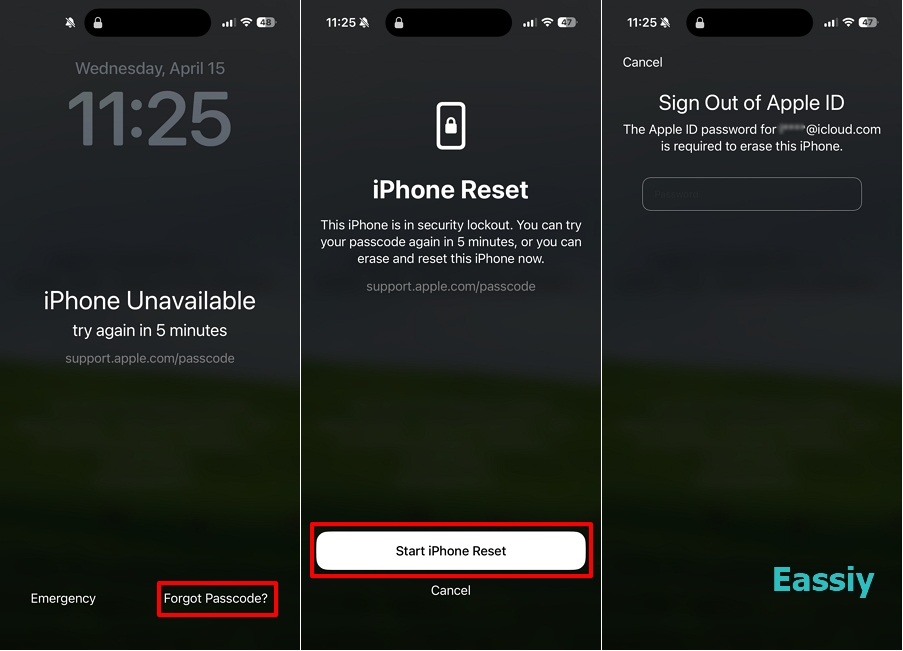
Method 2: Use the "Forgot Passcode?" Option (For iOS 17 and Later, including iOS 26)
For newer iOS versions, Apple replaced "Erase iPhone" with a "Forgot Passcode?" option. This version includes a helpful 72-hour rule: if you changed your passcode in the last 72 hours, you can use your old passcode to unlock the phone without losing any data.
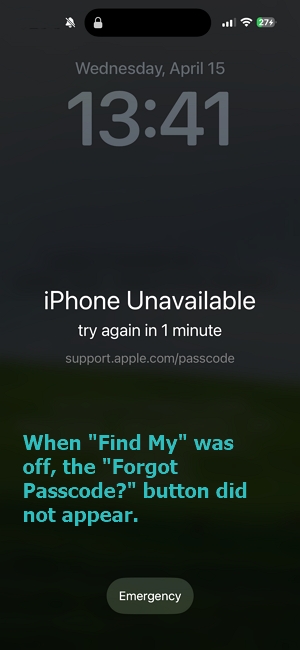
Lab Test Result: We tested this on the iPhone 16 (iOS 18.5) and the iPhone 13 (iOS 26). When "Find My" was turned on and the phones were connected to the internet, the button worked perfectly. We also tested it with "Find My" turned off. When Find My"was off, the Forgot Passcode? button did not appear.
Best for:
- Users who do not want to use a computer.
- Devices running iOS 17, iOS 18, iOS 26, or newer.
- Devices with "Find My" turned on and connected to the internet.
Steps:
- Tap Forgot Passcode? at the bottom right of the screen.
- Tap Try Passcode Recovery.
- If you changed your passcode within the last 72 hours, tap Enter Previous Passcode. Enter your old code, and the phone will unlock without erasing data.
- If it has been more than 72 hours, tap Start iPhone Reset. Enter your Apple ID password, then tap Erase iPhone.
Method 3: Erase iPhone via iCloud.com
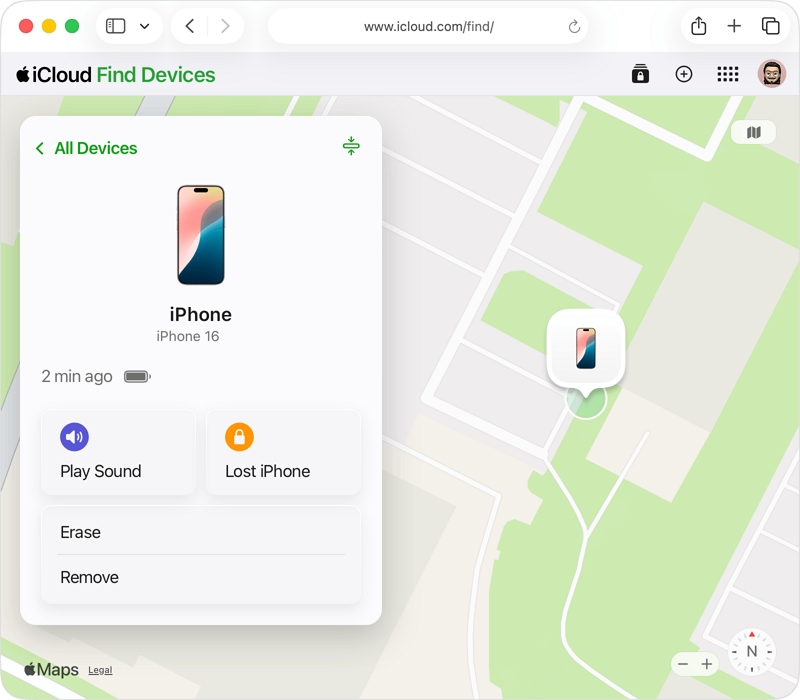
You can use a computer or a friend's phone to log into the iCloud website and send a signal to erase your locked iPhone.
Lab Test Result: During our tests, logging into iCloud.com required Two-Factor Authentication (2FA). The system sent a 6-digit verification code to the locked iPhone 16. Because the phone was locked, we could not read the code to log into the website. This method only works if you have a second Apple device (like a Mac or iPad) that can receive the verification code.
Best for:
- Devices with "Find My" turned on and connected to the internet.
- Users who have a second Apple device to receive the iCloud login code.
Steps:
- Open a web browser on another device and go to iCloud.com. Sign in with your Apple ID.
- Enter the verification code sent to your second device.
- Open the Find My app on the website.
- Select your locked iPhone from the list of devices.
- Click Erase iPhone and follow the prompts. The phone will begin erasing as soon as it connects to the internet.
Method 4: Restore iPhone using iTunes or Finder on a Trusted Computer
If you have a computer that you previously connected to your iPhone (and you clicked "Trust This Computer" in the past), you can try using it to erase the device.
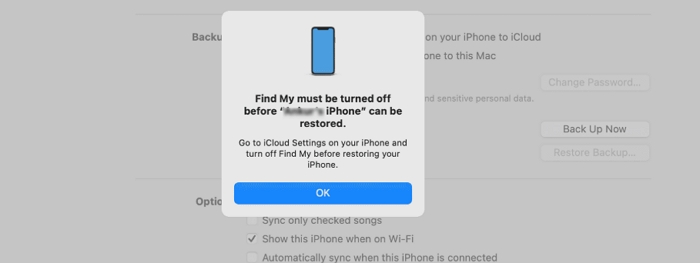
Lab Test Result: In our lab, this method caused errors. We connected our locked iPhone 6s to a previously trusted Mac. When we clicked "Restore" in Finder, the software gave us an error message asking us to "Turn off Find My on the iPhone." Because the iPhone screen was locked, it was impossible to turn off "Find My." If you see this error, you must use Method 5 or Method 6 instead.
Best for:
- Users with a PC or Mac that was previously synced with the iPhone.
- Devices where "Find My" was already turned OFF before the lockout.
Steps:
- Connect your iPhone to the trusted computer using a USB cable.
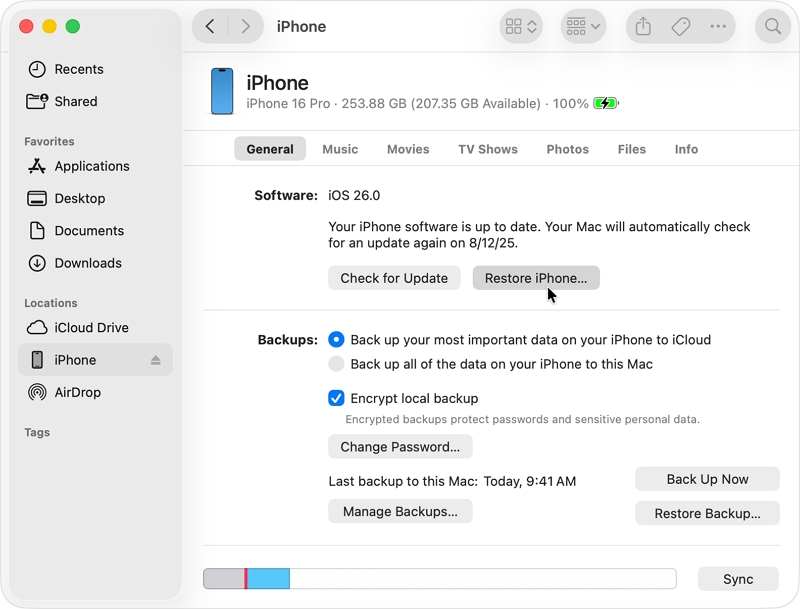
- Open iTunes (on Windows) or Finder (on Mac). Click on your device icon.
- If the software recognizes the phone, click the Restore button.
Method 5: Restore iPhone via Recovery Mode
If the easy methods do not work, or your computer does not recognize your phone, you must manually put the phone into "Recovery Mode." This forces the computer to recognize the basic hardware so it can erase the system.
Lab Test Result: We also attempted multiple times to restore the iPhone in Recovery Mode using iTunes or Finder. The reality, however, was that once the iPhone was placed in Recovery Mode, we were almost entirely unable to perform any operations within iTunes—particularly on Windows computers. iTunes would repeatedly freeze and fail to close normally; ultimately, we were forced to terminate the application via the Task Manager.
Best for:
- Any user with a computer and a USB cable.
- Users willing to follow specific button combinations.
Steps:
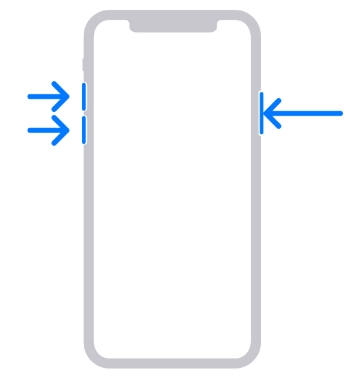
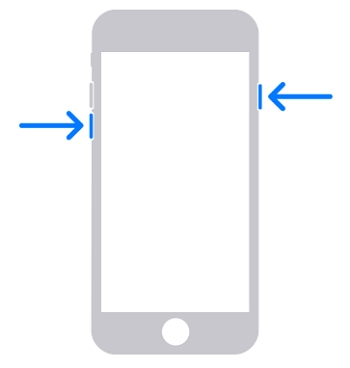
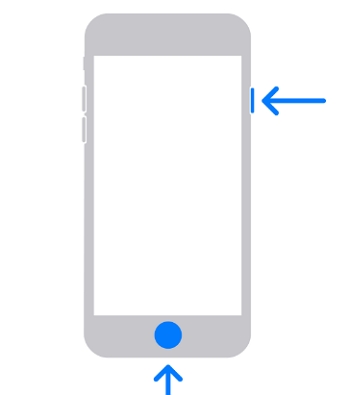
1. Put the device in Recovery Mode: Keep holding the final button in these sequences until you see a picture of a computer and a cable on your iPhone screen.
iPhone 8, iPhone X to iPhone 16, and iPhone SE (2nd/3rd gen): Press and quickly release Volume Up. Press and quickly release Volume Down. Press and hold the Side (Power) button.
iPhone 7 and 7 Plus: Press and hold the Side button and Volume Down button at the same time.
iPhone 6s and earlier: Press and hold the Home button and the Top (or Side) button at the same time.
2. Connect the phone to your computer with a USB cable.
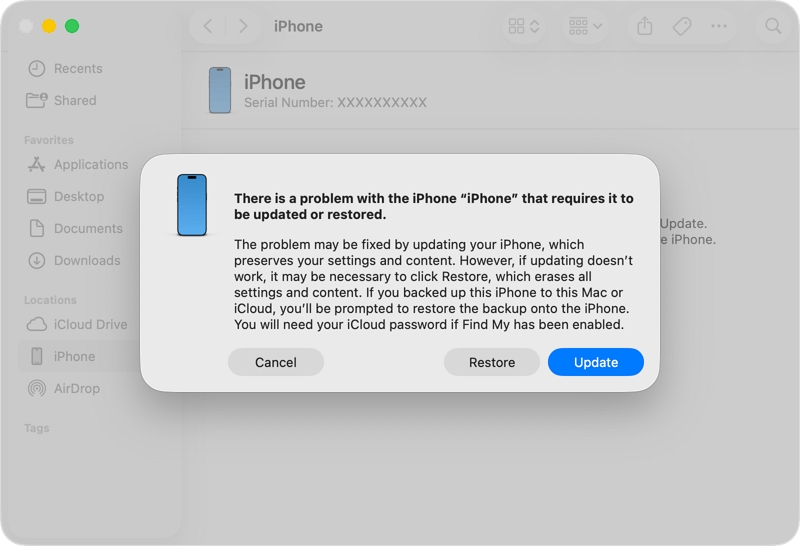
3. iTunes or Finder will pop up a message saying there is a problem with the iPhone. Click Restore.
4. The computer will download the iOS software and erase the phone.
Method 6: The Guaranteed Fix: Eassiy iPhone Access
If you are struggling with the official methods—such as the "Erase iPhone" button not showing up, iTunes giving you error messages, or being unable to log into iCloud because you cannot receive the verification code—we recommend using a dedicated tool.
At Eassiy, we designed iPhone Access specifically for users who get stuck on these official Apple roadblocks. The software automatically skips past common issues—like iTunes Error 4013, Two-Factor Authentication deadlocks, or Find My conflicts. It handles all the complex technical steps in the background, giving you a clean and easy-to-use interface without endless error pop-ups.
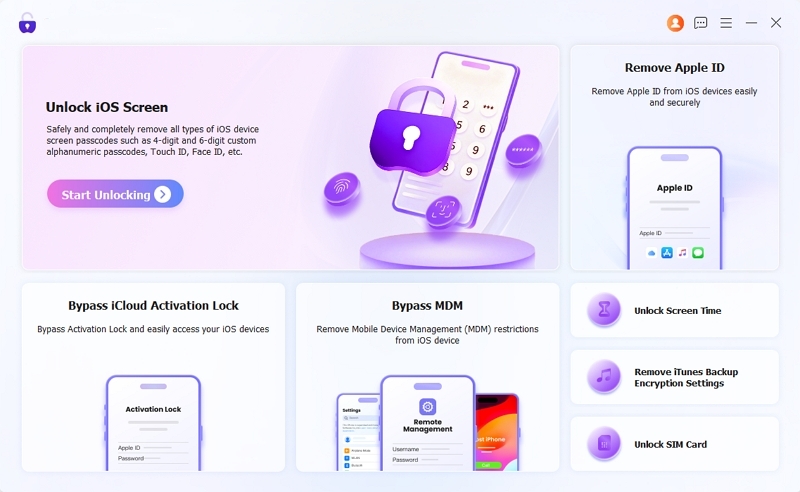
It simply removes the lock screen passcode to fix the "unavailable" or "security lockout" error on any iPhone or iPad. Beyond fixing screen locks, the tool also allows you to remove an Apple ID without a password, turn off forgotten Screen Time passcodes, bypass Activation Locks, and remove company MDM (Mobile Device Management) restrictions on iPhone.
Lab Test Result: We tested our software on the iPhone 16 and the iPhone X. While official methods were blocked by various requirements, Eassiy iPhone Access recognized the devices immediately, downloaded the correct firmware, and completed the unlock process in about 20 minutes with zero error messages.
Best for:
- Users who do not see the "Erase iPhone" or "Forgot Passcode" buttons on iPhone.
- Users who cannot log into iCloud due to Two-Factor Authentication.
- Users experiencing iTunes errors.
- Beginners who want a simple, step-by-step process.
Steps:
1. Download and open Eassiy iPhone Access on your computer. Click on the Unlock iOS Screen mode.
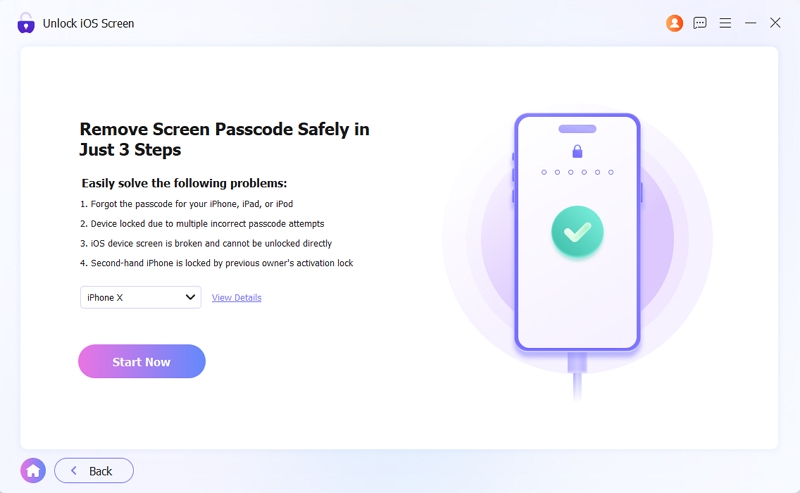
2. Connect your iPhone to the computer using a USB cable. The software will detect your iPhone model. Check that the information is correct and click Start Now.
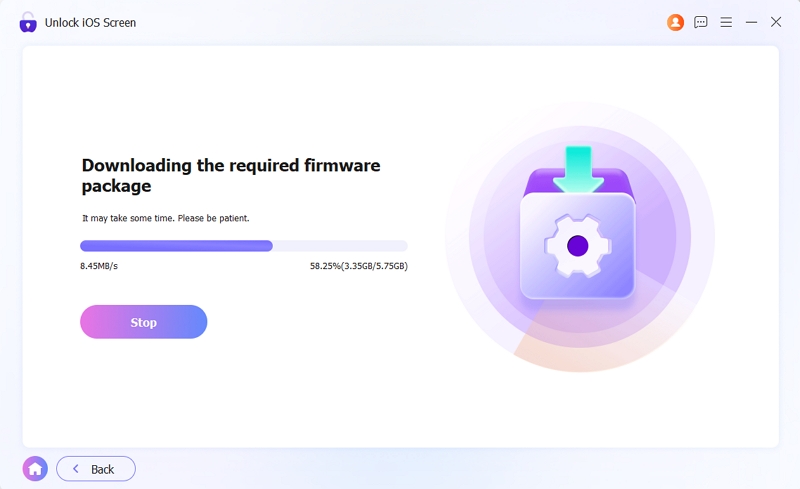
3. The program will automatically download the correct official iOS firmware for your phone.
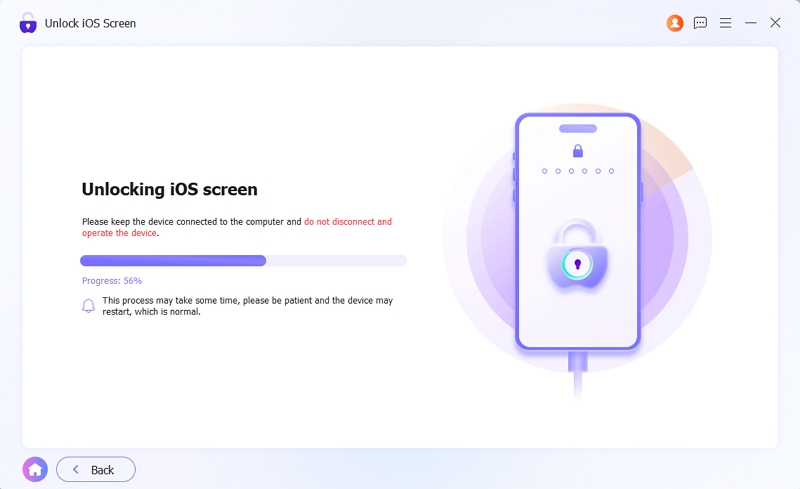
4. Once the download is finished, read the final warning and click to start the unlock process. Your phone will be erased and ready to set up as a new device in about 20 minutes.
Conclusion
If your iPhone shows iPhone Unavailable with a timer, be patient and carefully try to remember your passcode to save your data. If you iPhone doesn't show the timer, erasing your device is the final option.
Once you have successfully erased your phone, you will see the "Hello" screen. You can follow the instructions to set it up. If you have a backup on iCloud or your computer, you can select "Restore from Backup" during this setup process.
To prevent this from happening again, we highly recommend taking two simple steps today:
- Go to your Settings and create a passcode that is easy for you to remember but difficult for others to guess.
- Go to Settings, tap your name at the top, tap iCloud, and turn on iCloud Backup. This ensures your phone automatically saves your photos and data when it is connected to Wi-Fi and charging, so you never have to worry about losing everything again.