Help Center

Updated on 2026-07-07
views
5min read
Removing the passcode from your iPhone is never recommended, because without it, anyone can pick it up and start using it. It's not just about theft - even someone in your home could access your photos and messages. But sometimes there's a genuine reason. When Face ID stops working and you don’t want to type a code each time just to check a notification.
This guide will show you how to remove passcode from iPhone in every scenario, whether you just want to turn off the passcode feature or you are locked out of the device completely.
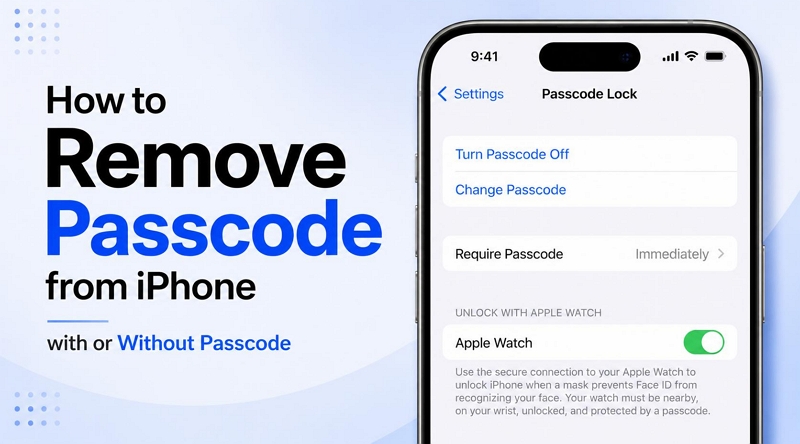
How to Remove Passcode from iPhone If You Remember the Passcode
This method will work the same way across pretty much every iOS version still in use. Whether you’re on an iPhone that uses Face ID or Touch ID, the steps don’t change, only the menu name shifts, from Face ID & Passcode to Touch ID & Passcode.
Before turning off iPhone passcode, it's worth knowing what goes with it:
- Your iPhone will become noticeably less secure — anyone who picks it up can get straight in.
- Apple Pay cards will be automatically removed. When you add a passcode back later, you'll need to re-add those cards by hand.
- Your Apple Watch will stop unlocking automatically alongside your iPhone.
- Apps that were hidden behind Face ID will become visible on your Home Screen again.
- You lose the ability to use your passcode to help reset your Apple Account password down the line.
Steps to Remove Passcode from iPhone Screen Lock
If none of the above consequences changes your mind, here's how to do it.
- Open Settings.
- Then tap Face ID & Passcode (or Touch ID & Passcode, depending on your model).
- Enter your current passcode to get in.
- Scroll down and tap Turn Passcode Off.
- A warning will pop up, listing exactly what you'll lose. Tap Turn Off to confirm.
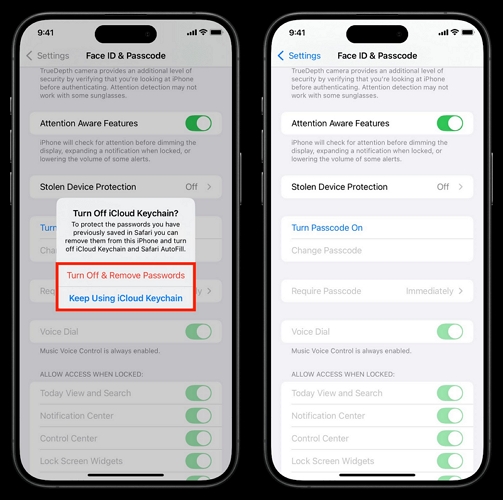
- If you use iCloud Keychain or saved passwords, one more prompt will appear — choose Turn Off & Remove Passwords to clear them from the device, or Keep Using iCloud Keychain to leave them as is.
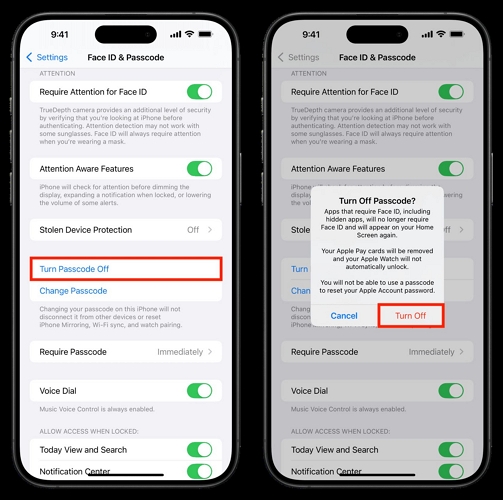
That's it. The option will now read Turn Passcode On instead of Turn Passcode Off, confirming it's been switched off, along with everything tied to it.
Can't Remove iPhone Passcode Because "Turn Passcode Off" Is Greyed Out
Sometimes the Turn Passcode Off option is just greyed out and unclickable. Other times, the entire Face ID & Passcode menu isn't even there in Settings. A handful of things can cause this: paired Apple Pay cards, parental restrictions or a security feature. Here's how to work through each one.
Fix 1. Turn Off Face ID
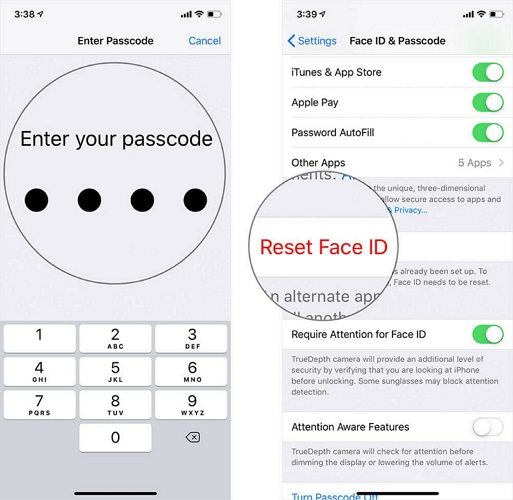
If Face ID is set up, it has to off first. You'll notice a red Reset Face ID option sitting just above Turn Passcode Off. Until that's dealt with, the passcode toggle will stay locked.
So here’s what to do:
Step 1. Go to Settings.
Step 2. Tap Face ID & Passcode and enter your passcode.
Step 3. Then tap Reset Face ID.
Once that's cleared, Turn Passcode Off should become tappable.
Fix 2. Remove Cards from Apple Wallet
Apple won't let go of the passcode while a payment card or pass is still sitting in Wallet, as money on an unlocked phone is exactly the risk it's built to prevent. You won't be able to use them on the iPhone until you set a passcode.
Step 1. Open the Wallet app, then tap the card or pass you want to go with.
Step 2. Tap the three dots in the corner.
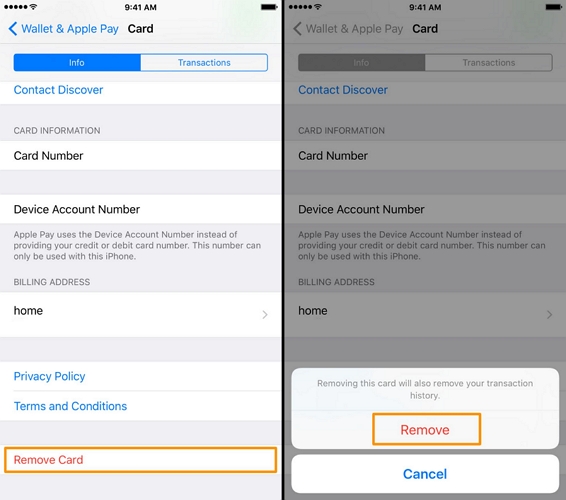
Step 3. For a card, tap into its details, hit Remove Card and confirm by tapping Remove.
For a pass, tap it and choose Remove Pass.
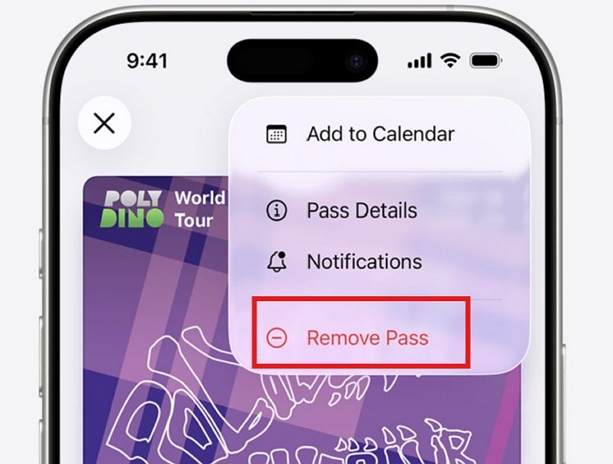
Worth knowing: Removing a payment card will only clear it from this iPhone, but it will still be sitting in Wallet on your other devices and you can re-add it any time when you set a passcode.
A Wallet pass works differently. Once you delete it, it's gone from Wallet everywhere, not just this iPhone.
Fix 3. Disable Content & Privacy Restrictions
This is probably the most common culprit. If Screen Time restrictions are active, they can grey out the passcode option or hide the entire Face ID & Passcode menu from Settings outright. Here's how to turn off Screen Time:
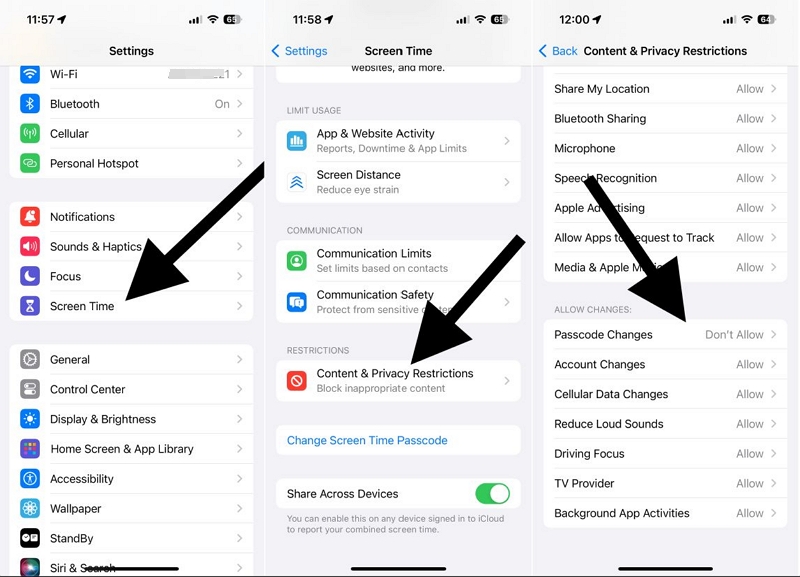
Step 1. Open Settings and tap Screen Time.
Step 2. Tap Content & Privacy Restrictions.
Step 3. Enter your Screen Time passcode if asked. This is not your device passcode but it's a separate one(4-digit code) set specifically for Screen Time.
Step 4. Scroll down to Allow Changes to, then tap Passcode & Face ID.
Step 5. Switch it from Don't Allow to Allow.
Now go back to Settings. The Face ID & Passcode menu will be back where it belongs and Turn Passcode Off will be available again. From there, follow the steps above to finish turning it off.
Fix 4. Turn Off Stolen Device Protection
If you're running iOS 17.3 or later, Stolen Device Protection might be enabled. Stolen Device Protection acts as a wall in front of any Face ID or passcode changes, which is exactly why the Reset Face ID button also stays locked and Turn Passcode Off will stay greyed out.
Here's how to get past Stolen Device Protection:
Step 1. Go to Settings, tap Face ID & Passcode and enter your passcode.
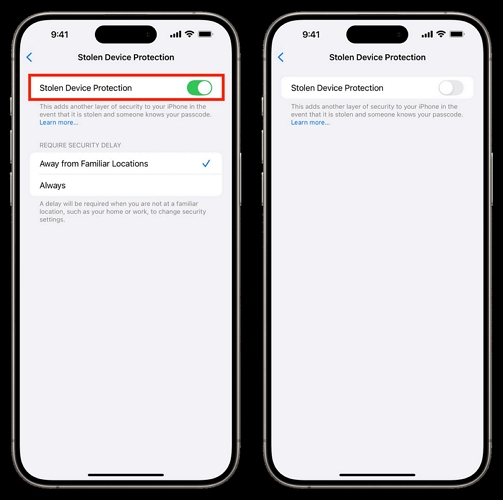
Step 2. Just above Turn Passcode Off, you'll see a Stolen Device Protection option. If it shows as On, tap into it. Authenticate with Face ID to open it.
Tip: If Face ID itself isn't cooperating, which can happen,check this separate walkthrough for turning off Stolen Device Protection without it.
Step 3. Turn Stolen Device Protection off. If you're in an unfamiliar location, Apple will add a one-hour security delay before the change goes through.
Step 4. After the hour, you'll get a notification that changes can now be made. Return to Face ID & Passcode menu.
Reset Face ID first. Then Turn Passcode Off will become available.
Fix 5. Remove MDM Profile from iPhone
MDM stands for Mobile Device Management. If the iPhone came from a school or employer, an MDM profile is likely the reason. They add these profiles to iPhone, so as to manage settings and enforce their own rules remotely. And locking the passcode settings is one of the most common restrictions they apply.
Your first move is to check with them. If there's a genuine reason you need the passcode off, ask them to allow it. Some organizations are fine with it, especially if the phone is yours to keep. If they give you the MDM password or if the profile isn't passcode-protected, you can remove it yourself:
Step 1. Open Settings, then tap General.
Step 2. Look for Profile & Device Management, Device Management, or VPN & Device Management. The wording will vary by iOS version, but Device Management is what you're looking for.
Step 3. Tap the configuration profile listed under Downloaded Profiles or Configuration Profile.
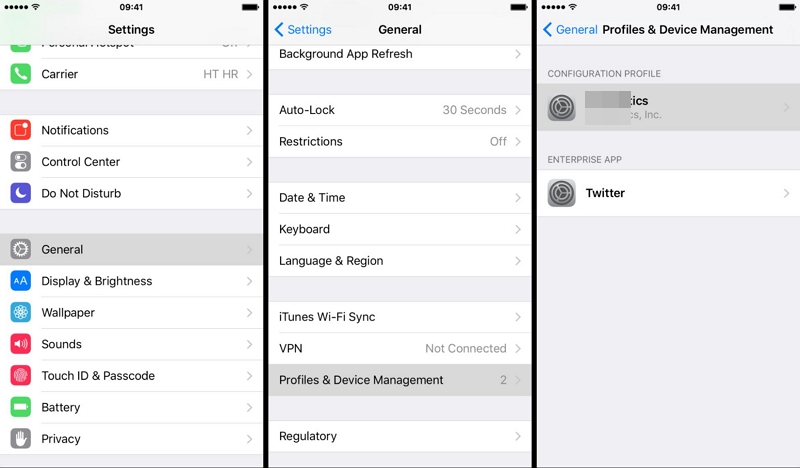
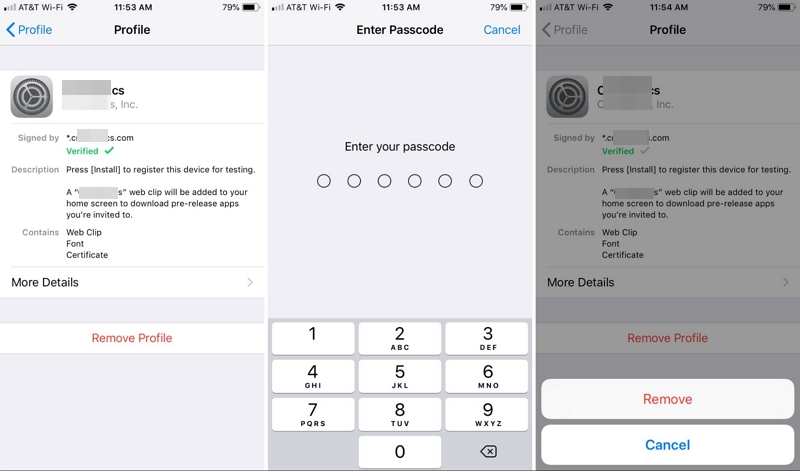
Step 4. Tap Remove Profile at the bottom. Enter the organization's MDM password if prompted.
Step 5. Confirm by tapping Remove.
That's it. All settings and accounts tied to that profile will be cleared off the device. Head back to Face ID & Passcode and you will find Turn Passcode Off available now. If it's still greyed out after this, a simple restart will refresh the iOS.
If you've left the organization or can't contact it now, Eassiy iPhone Access can remove the MDM profile directly. It can remove the MDM profile set up by a school or workplace and doesn’t require any credentials to work.
Steps to Remove MDM using Eassiy iPhone Access
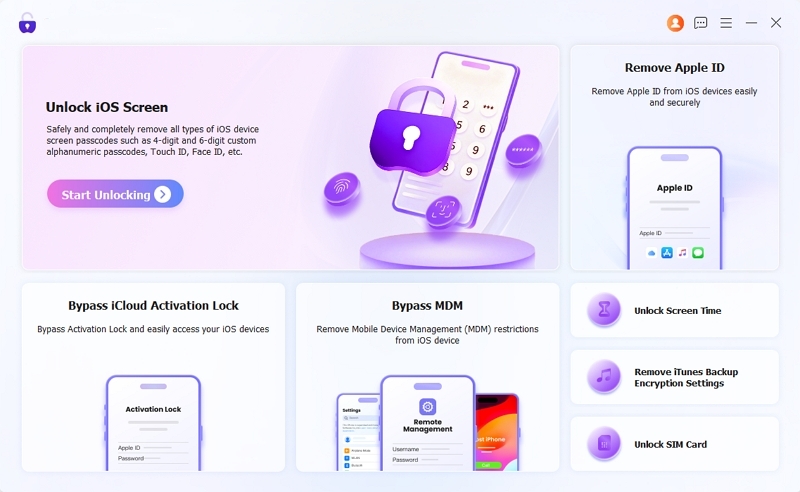
Step 1. Open Bypass MDM on the dashboard, connect the iPhone, then click Start Now.
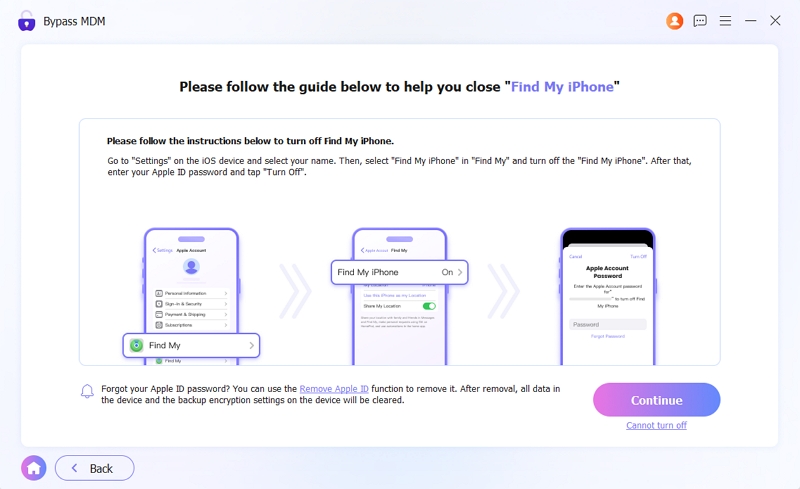
Step 2. Eassiy will check the Find My status automatically. If it's off, the bypass will start right away. If it's on, go to Settings > [Your Name] > Find My on the iPhone, turn it off, then click Continue in the software.
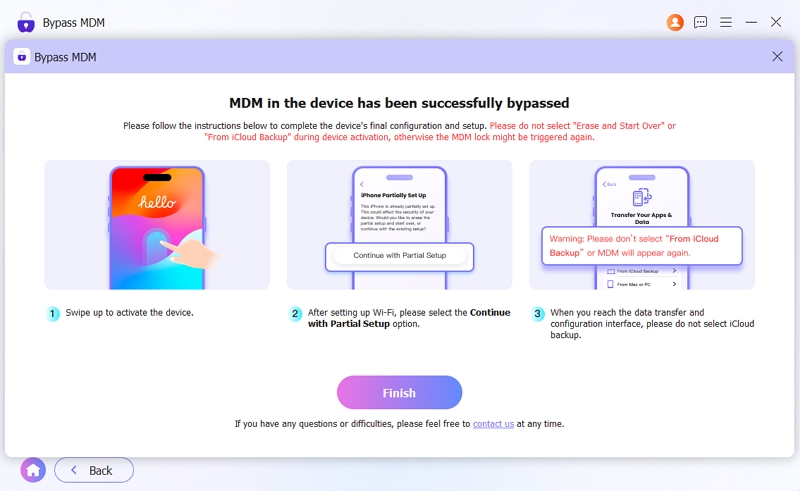
Step 3. Eassiy will clear the MDM restriction and restart the device. Once it's back on, follow the setup assistant and you can use the iPhone without restrictions.
How to Remove Passcode from iPhone If Forgotten
This is a different problem from the above one where you knew the current passcode and just wanted it gone. Here, you don't have it at all, which usually means you're stuck right on the lock screen, with no way past it.
Note: If you recently changed your passcode(within the last 72 hours) and remember the old one, and your iPhone is on iOS 17 or later, you can remove the forgotten passcode with the previous one. No data loss will be occurred.
- Type the wrong passcode on the lock screen until you see Forgot Passcode?.
- Tap Forgot Passcode?. Enter your previous passcode and set a new one.
If that's not your situation and the passcode is genuinely lost, or the iPhone arrived already locked, a reset is the only way forward to remove the forgotten passcode. But where things go from here depends on two things:
- Whether you know your Apple ID password.
- Whether you have a computer nearby.
We'll walk through each one below.
Remove Passcode from iPhone Without Apple ID
Removing the passcode itself doesn't require an Apple ID when you use a computer. But Apple ID credentials requirement will come into play afterward if Find My is enabled on the iPhone. If Find My is off, you’ll be able to use the iPhone after the reset without any problems. If you’re sure Find My is off, you can use these two methods to remove the forgotten iPhone passcode.
Option 1. Use iTunes
This is Apple's official desktop method. You'll need a Mac or Windows PC, and a working USB cable. Note that a slow connection can make the firmware download take longer than 15 minutes and when that happens, the iPhone will exit recovery mode on its own and you have to start the sequence over. Still, most of the time, it goes through fine.
How to Unlock iPhone Passcode Using Recovery Mode
Step 1. Connect the iPhone to the computer, with Finder (Mac) or iTunes (Windows) open.
Step 2. Force the iPhone into recovery mode. The button sequence depends on the model:
iPhone 8 and later:
- Press and quickly release Volume Up.
- Then press and quickly release the Volume Down button.
- Then hold the Side button.
Keep holding until the recovery screen — the cable-and-computer icon, appears.
iPhone 7/7 Plus:
- Hold the Side and Volume Down buttons together and release them when you see the recovery screen.
iPhone 6s and earlier:
- Press and hold the Home and Power buttons together. Keep holding until the recovery screen shows.
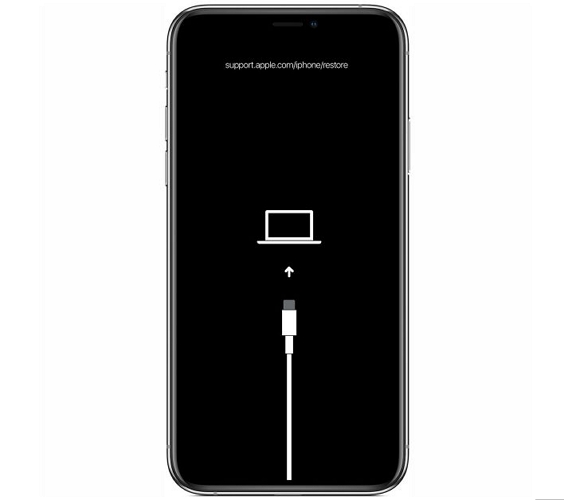
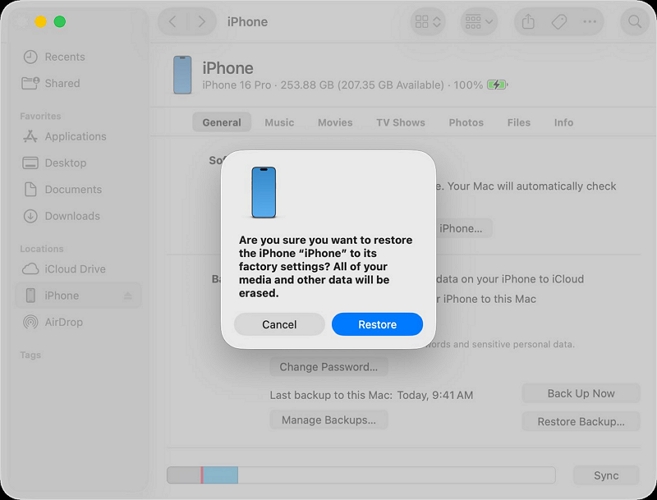
Step 3. Once in recovery mode, Finder or iTunes shows a pop-up with two options — Update or Restore. Click Restore.
Step 4. Agree to the terms. Let the firmware download complete. Once it finishes, the device will get wiped and the lock screen will go with it.
One thing to flag: This will only remove the passcode. If Find My was on, you'll still hit that Activation Lock screen afterward.
Option 2. Use Eassiy iPhone Access
iTunes can be unpredictable. For example, it throws 4013 errors or just doesn't recognize the device at all sometimes.
Eassiy iPhone Access is built specifically to avoid that while removing the screen passcode and it works smoothly across iOS versions and iPhone models. Its Unlock iOS Screen feature can handle locked, disabled, and completely unresponsive screens. It doesn't matter whether the passcode is 4-digit, 6-digit, or alphanumeric, or whether Face ID or Touch ID is in the mix, Eassiy clears all of it. And no, it doesn't jailbreak the device to do this. Instead, the firmware it pulls comes straight from Apple's own servers, so your iPhone will remain exactly as secure as it was. Eassiy just applies its own process on top to push past the lock screen and give you full access again.
Key Features:
- Remove 4-digit, 6-digit, Face ID, or Touch ID locks instantly.
- Work even when the iPhone shows "Security Lockout" or "iPhone Unavailable."
- Fully compatible with the latest iPhone models and iOS versions, including iOS 26.
- Also remove iCloud Activation Lock without Apple ID password.
- Clear Screen Time restrictions and MDM locks to use iPhone without limitations.
Steps to Remove Passcode from iPhone When Locked
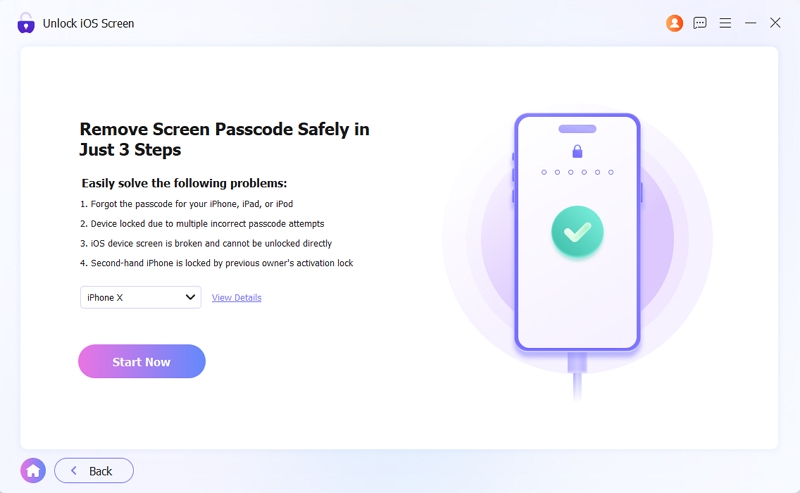
Step 1. Select Unlock iOS Screen from the main Eassiy interface.
Step 2. Connect the locked iPhone with a stable USB cable. The software will detect the device category, type, and model — ensure they are correct. Then click Start Now.
Eassiy will download the firmware package needed for your specific device. This will take a few minutes.
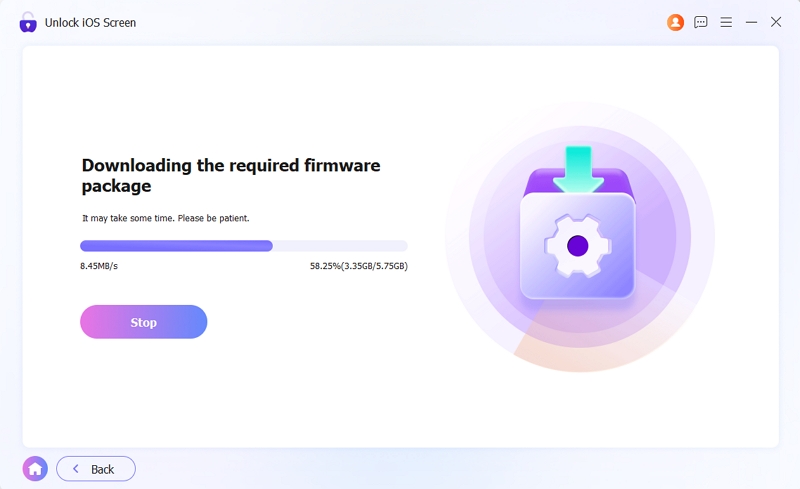
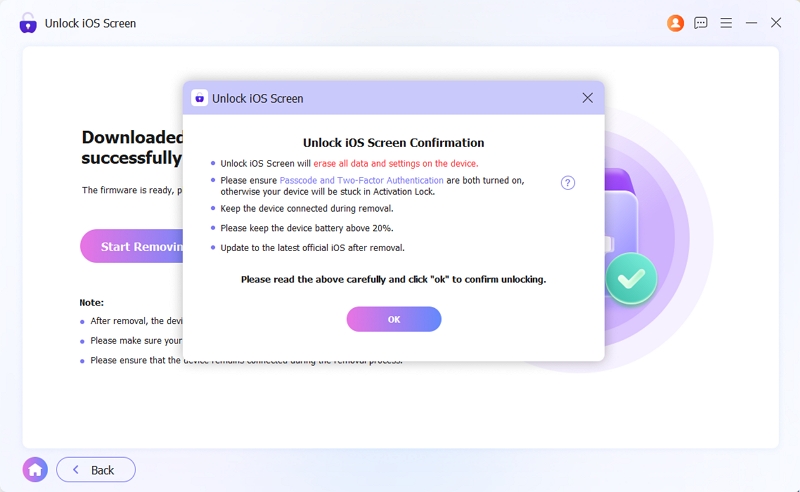
Step 3. Once it's ready, an Unlock Confirmation prompt will appear. Review it, click OK and hit Confirm Again.
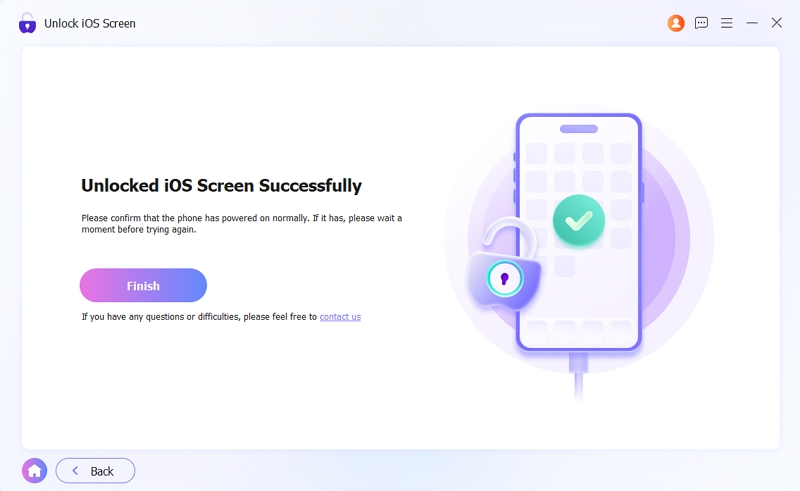
Step 4. When it's done, you'll see "Unlock iOS Screen Successfully" on Eassiy’s software interface. The iPhone will restart and you can set it up fresh from there.
Remove Passcode from iPhone Without Computer
When you don’t have a computer on hand, it doesn't mean you're stuck. You can use the Apple ID password tied to the iPhone to remove its passcode.
That said, we’ve included two methods to reset the iPhone.
Option 1. Erase iPhone from Lock Screen
Starting with iOS 15.2, Apple added a way to wipe the iPhone directly from the lock screen without needing a computer, though this method comes with its requirement:
- It will only work if Find My is already turned on.
- The iPhone has an active internet connection, since it has to verify the Apple ID before anything happens.
Here is how this way works:
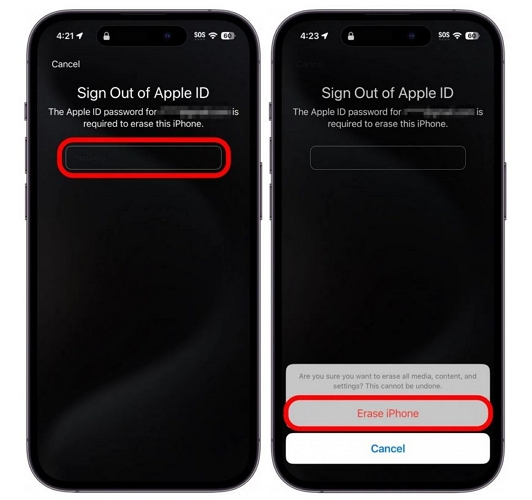
Step 1. Keep entering the wrong passcode on the iPhone lock screen. After several failed attempts, the screen shows iPhone Unavailable (or Security Lockout) with a countdown timer.
Step 2. Keep going past that. Eventually, you’ll see an option on the bottom-right — Erase iPhone on iOS 15.2 through iOS 16 or Forgot Passcode? on iOS 17 and later. Tap it.
Step 3. Tap Start iPhone Reset next. And if the iPhone has an eSIM, you will also get the choice to keep it or erase it along with everything else.
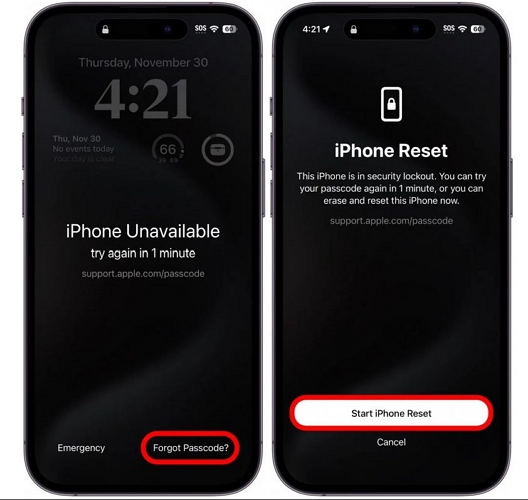
Step 4. Enter the Apple ID password when prompted. Confirm by tapping Erase iPhone again.
Step 5. The iPhone will erase and restart to the Hello screen.
Option 2. Reset iPhone via iCloud Find My
This one doesn't even need the iPhone to be in your hands. It is suitable for situations when your screen's cracked beyond use, or it's already with someone else — a buyer on eBay, for instance, and you want to remove the passcode and wipe it clean.
As long as the iPhone has a battery and can reach Wi-Fi or cellular, it'll pick up the command. Just follow these steps from any browser — a friend's phone, a laptop, anything:
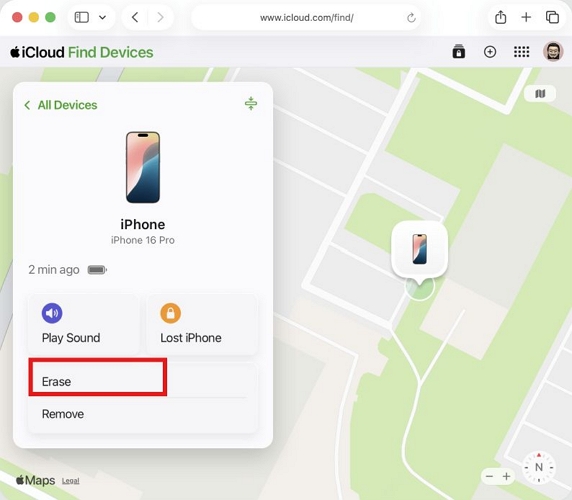
Step 1. From any browser, go to icloud.com/find.
Step 2. Sign in with the same Apple ID that's on the locked iPhone.
Step 3. Click All Devices and then select the locked iPhone.
Step 4. Click Erase and confirm.
Step 5. Once it's done, you'll get a confirmation email.
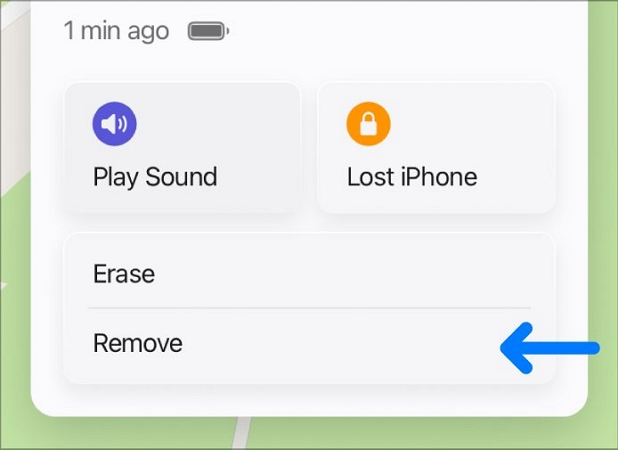
One more step matters here, erasing alone doesn't fully let go of the device.
- Go back to the same screen.
- Click Remove This Device or Remove. That's what actually remove Activation Lock once the erase is completed.
Conclusion
Whether you remember the iPhone screen passcode or not, you can turn it off easily. If the Turn Passcode Off option was greyed out, now you know exactly which setting was blocking it and how to clear it, too. And if you were stuck at the lock screen with no passcode and no way in, you've seen how to handle that too.
The trickiest situation is when you don't have the passcode and the Apple ID either. In that case, Eassiy iPhone Access can help. It removes any type of screen lock with a high success rate, making the iPhone usable again.