Help Center

Updated on 2026-07-10
views
5min read
Note: Many users confuse a hard reset with a factory reset. They are two different things and serve completely different purposes. Simply put:
- A hard reset is simply a restart and will not erase any data. If you are looking to hard reset (force restart) your iPhone with buttons, jump directly to Part 4 of this guide.
- A factory reset, which this guide covers in detail, will wipe everything from your iPhone and restore it to the condition it was in when you first took it out of the box.
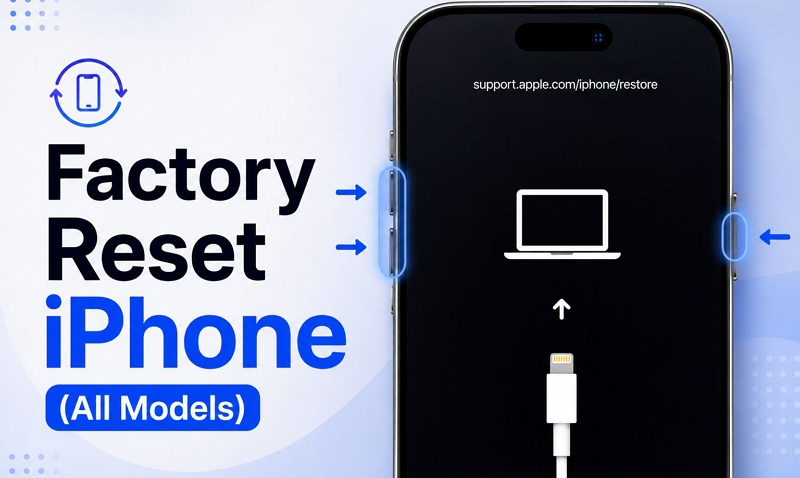
“Can I factory reset iPhone with only buttons?” This question usually comes up in two situations: when your iPhone screen is broken or frozen and you can’t erase it in Settings or when you’re locked out due to forgotten passcode and stuck on the iPhone Unavailable screen. So, is it possible to factory reset iPhone using buttons only? The answer is YES if you include on-screen controls in the process. However, if you mean using only physical buttons to erase your iPhone, the answer is NO. This guide will explain the details.
Part 1: How to Factory Reset iPhone with Buttons and Passcode
If you have your device passcode, the safest and smoothest route to factory reset your iPhone is through the Settings menu, which uses the on-screen buttons.
It will wipe out everything on the device (except your eSIM) without needing a computer. Even if you have not created a backup beforehand, the process itself will prompt you to create one. Or you can back up the iPhone first and then proceed.
Steps to Factory Reset iPhone with On-Screen Buttons and Device Passcode
Step 1. Open the Settings app and tap General.
Step 2. Scroll all the way to the bottom and tap Transfer or Reset iPhone.
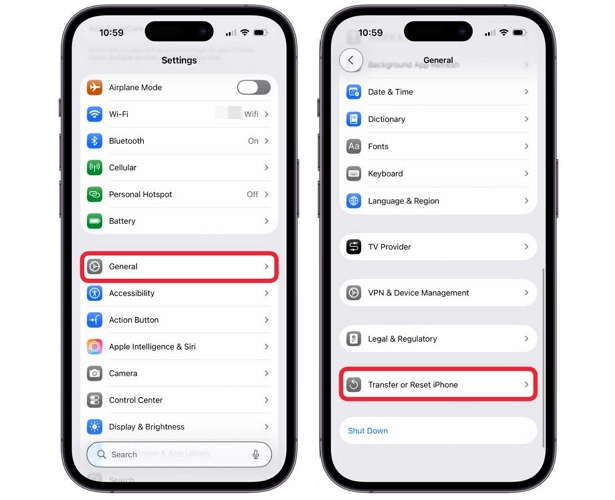
Step 3. Tap Erase All Content and Settings. You will see a summary of everything that will be removed from your iPhone. Tap Continue.
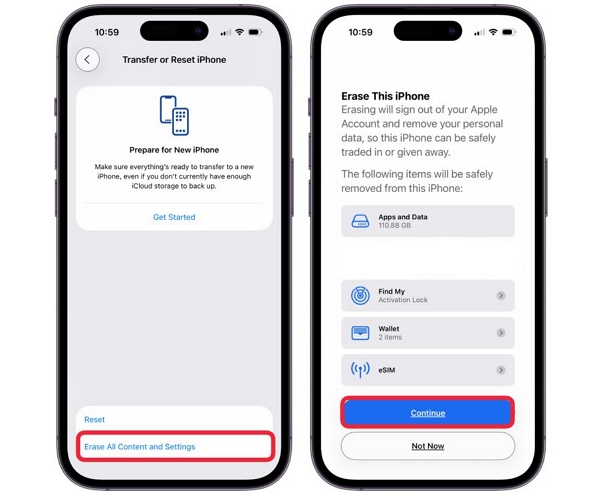
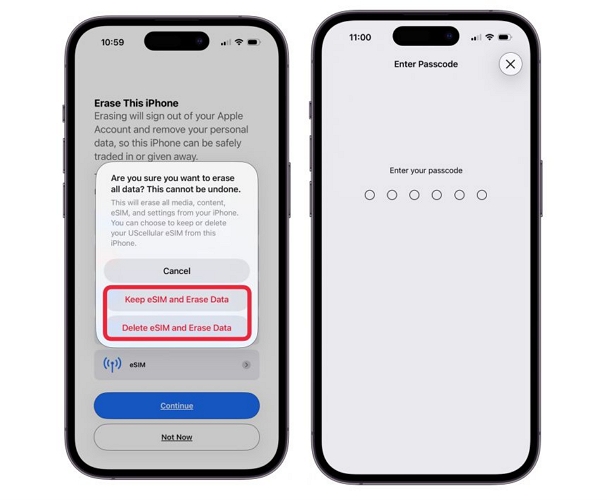
Step 4. If your iPhone uses an eSIM, you will be prompted to either Keep eSIM and Erase Data or Delete eSIM and Erase Data. Choose one based on your need.
Note: If you choose to delete eSIM option, you will need to contact your carrier to reactivate it.
Step 5. Enter your iPhone passcode and tap Next at the top.
Step 6(Optional). If Find My is enabled, you will also be asked for your Apple ID and password. Enter that to proceed.
Step 7. Your iPhone will then attempt a final iCloud backup. You can skip this if needed.
The erase will begin, which takes a few minutes. Finally, the screen will go black, the Apple logo will appear, and your iPhone will restart completely clean. Ready to be handed over or set up fresh.
Part 2: How to Factory Reset iPhone with Buttons Without Passcode
When you are completely locked out of your iPhone, you can factory reset it using either Apple's cloud network or a computer. We will walk you through both ways to do it, but keep in mind that whether you use computer or not, you will need your Apple ID and password at some point to complete the process.
Note: None of these methods allows you to create a backup in advance, so whatever is on the device will be lost. Still, you can use Eassiy iPhone Data Recovery to bring back the data once the reset process completes.
Factory Reset iPhone with On-Screen Buttons Without Computer
Without a computer, you have to rely entirely on Apple's cloud network to force the reset. The reset can be done remotely or directly on the lock screen with on-screen actions.
Either way, 2 non-negotiable requirements for both methods are that your iPhone is connected to Wi-Fi or cellular network and Find My iPhone is enabled.
Way 1. Through Find My App
This method works regardless of your iPhone model (iOS 7 or later). Plus, it will allow you to factory reset the iPhone without side buttons or touchscreen, with the help of another Apple device’s screen.
Here’s how that works:
Step 1. Open the Find My app on another Apple device that could be a trust device or someone else’s iPhone, iPad or Mac.
Step 2. If you are using a trust device, directly select your iPhone from the Devices tab.
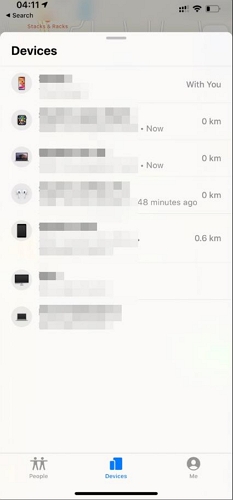
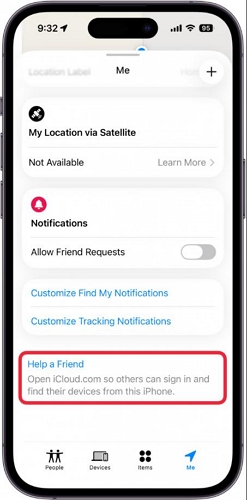
If the device isn’t yours, tap Me at the bottom screen, choose Help a Friend and sign in with the Apple ID used on the locked iPhone. Then, select the iPhone from the device list.
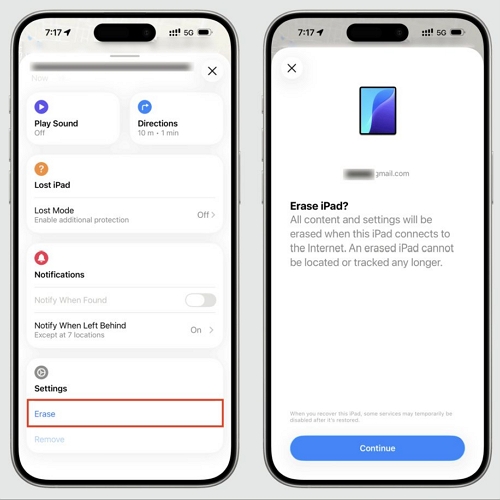
Step 3. Tap Erase. Follow the final warning and confirm the wipe.
Your iPhone will receive the command almost immediately, turn black, and begin resetting itself.
Step 4. After the erase completes, you will receive a confirmation email.
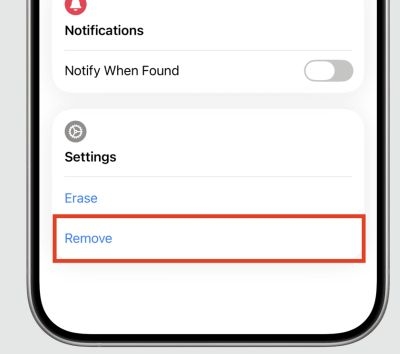
You can then remove the Activation Lock directly from the on-screen setup on the iPhone or return to the same iCloud portal and select Remove, which will remove the Activation Lock entirely. This is especially useful if you are trading the device in and cannot access it physically.
Way 2. Via iPhone Lock Screen
Starting with iOS 15.2, Apple added a self-reset option directly on the iPhone’s lock screen. It is designed specifically for this situation: when you have forgotten the passcode and do not have access to a computer.
So as long as your iPhone is connected to the internet, the touchscreen is functioning, and you have your Apple ID and password, you can use this method.
Here are the steps:
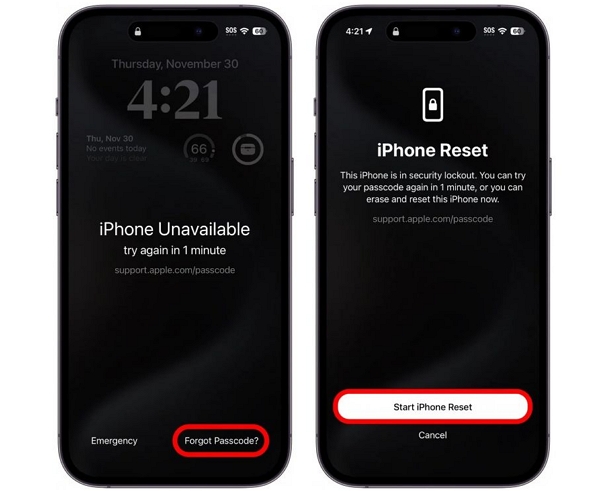
Step 1. Keep entering the incorrect passcode until the iPhone displays iPhone Unavailable.
Step 2. Tap Erase iPhone or Forgot Passcode? at the bottom right corner.
Step 3. Select Erase iPhone. On iOS 17 or later, this will appear as Start iPhone Reset instead.
Note: You may also see an Enter Previous Passcode option here. This appears if your passcode was changed within the last 72 hours. Tap the option, enter the old passcode and regain access without data loss.
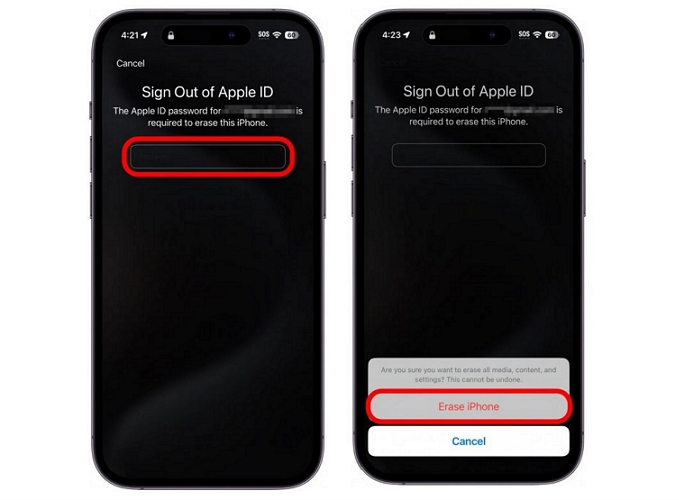
Step 4. Enter your Apple ID and password when prompted. This signs you out of your Apple account and prepares the device for erasure.
Step 5. Tap Erase iPhone again to confirm.
Step 6. Choose whether to Keep eSIM or Delete eSIM when prompted.
After confirmation, the device will immediately wipe itself and restart clean.
Factory Reset iPhone with Physical Buttons and Computer
This is the traditional recovery method and it relies on your iPhone's physical buttons — the Side button and Volume buttons, to enter Recovery Mode. From there, you can use any of Apple's desktop tools (iTunes, Finder, or Apple Devices) to factory reset the device.
The biggest advantage here is that this way works even if your iPhone has completely lost internet access, unlike the remote iCloud method above. The computer, however, must be connected to the internet.
Important: Many people expect this process to bypass the need for an Apple ID after the wipe. However, if Find My was enabled, Activation Lock will appear after the restore and you will need the Apple ID and password previously used on the device to bypass the lock. Also, use a reliable USB cable for this, as a poor-quality cable is one of the most common causes of iTunes errors like 4013, 4019, and Error 9.
Step 1. Launch Finder, Apple Devices, or iTunes, whichever is available on your computer.
Step 2. Connect your iPhone using a reliable USB cable.
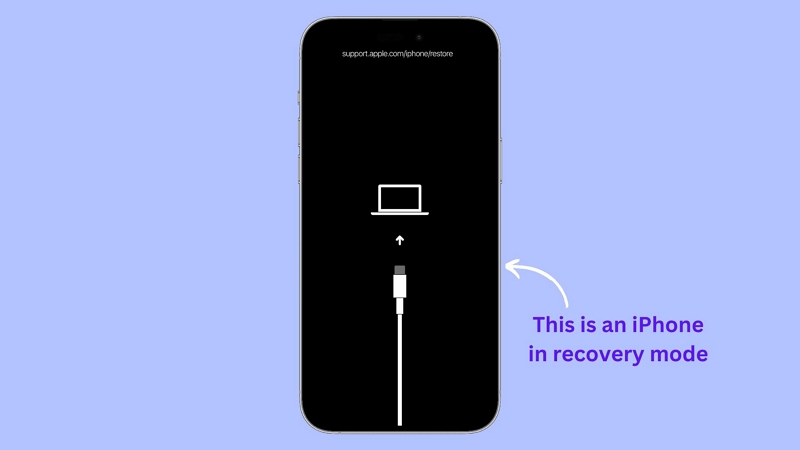
Step 3. Place your iPhone into Recovery Mode using the button combination for your model.
Note: While holding the buttons, you will likely see the Power Off slider appear first, ignore it. Keep holding until the display changes to a cable pointing toward a computer. That is Recovery Mode.
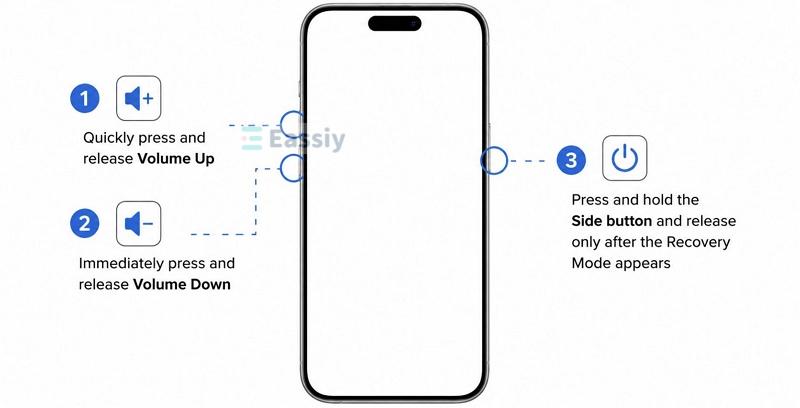
iPhone 8 and later (Face ID models):
- Quickly press and release Volume Up.
- Immediately press and release Volume Down.
- Press and hold the Side button and release only after the Recovery Mode appears.
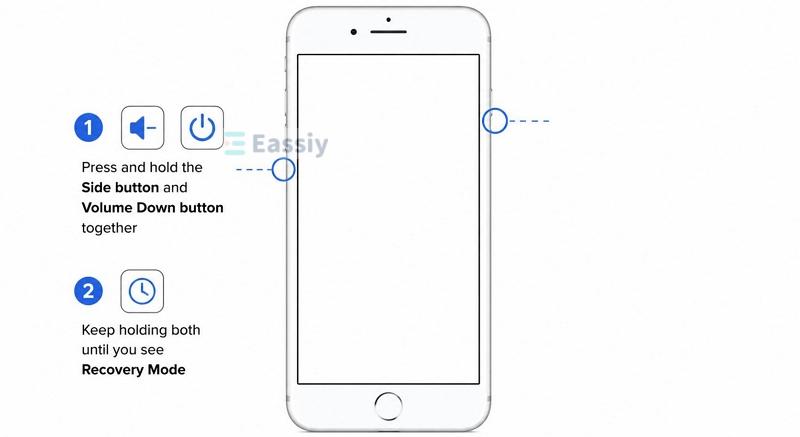
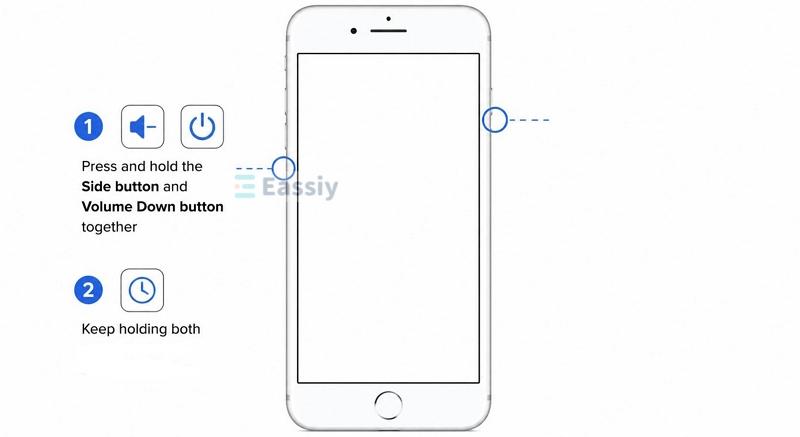
iPhone 7 and iPhone 7 Plus:
- Press and hold the Side button and Volume Down button together.
- Keep holding both until you see Recovery Mode.
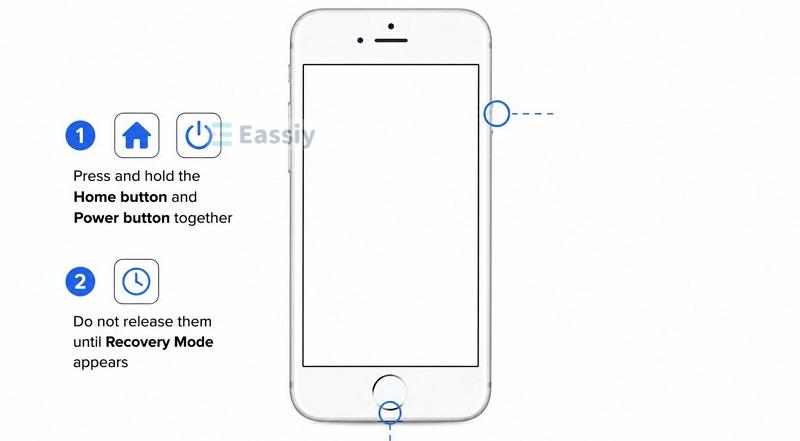
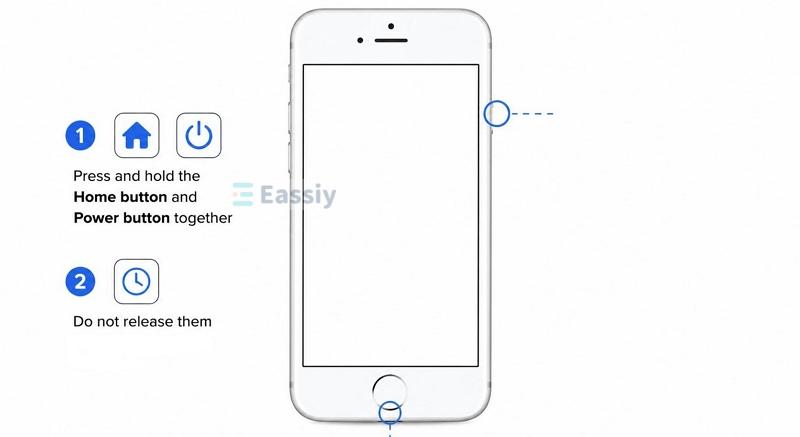
Older iPhone (iPhone 6S, iPhone SE 1st generation, and earlier):
- Press and hold the Home button and Power button together.
- Do not release them until Recovery Mode appears.
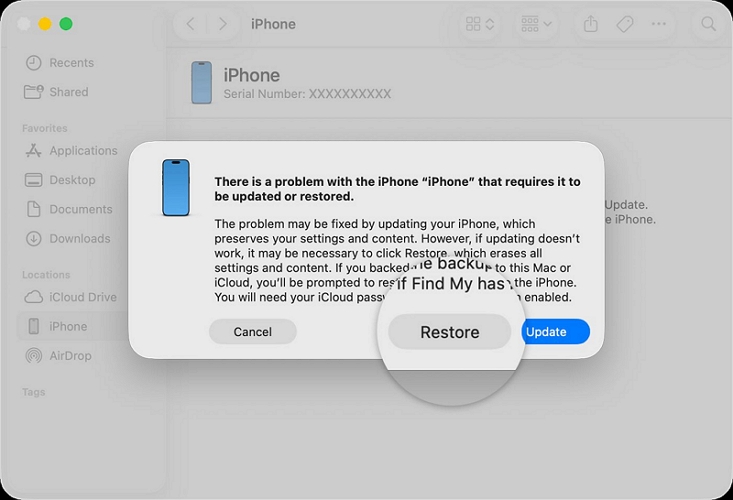
Step 4. Finder, Apple Devices, or iTunes will display a message stating there is a problem with the iPhone. Select Restore.
This will factory reset the iPhone and install the latest iOS version on the iPhone. Afterward, you will need to use the touchscreen on your iPhone to go through the initial setup and remove the Activation Lock.
Part 3: How to Factory Reset iPhone Without Buttons or Passcode
Eassiy iPhone Access lets you factory reset your iPhone, whether the device is unlocked or not. It completely erases the iPhone without passcode and Apple ID during the process. After resetting, screen lock will be removed from your iPhone, whether it is a four- or six-digit passcode, Face ID, or Touch ID. In other words, Eassiy is also a powerful tool to help you regain access to your device if it is stuck on “iPhone Disabled”, “iPhone Unavailable”, and “Security Lockout” screens.
Moreover, Eassiy works on resetting your iPhone even when phone screen is shattered or physical buttons don’t work, as the entire process runs from your computer. With a high success rate, it is a genuine lifesaver when broken hardware makes every other method impossible.
Key Features:
- Easy to use — on-screen instructions guide you through the entire process without any physical button combinations.
- Bypass four-digit, six-digit, Face ID, and Touch ID with ease.
- Sign out of Apple ID without password, regardless of Find My status.
- Handle iCloud Activation Lock removal if you no longer remember the Apple ID password and you can’t reset it.
Steps to Factory Reset iPhone with Eassiy iPhone Access
Step 1. Open Eassiy iPhone Access and select Unlock iOS Screen from the main interface.
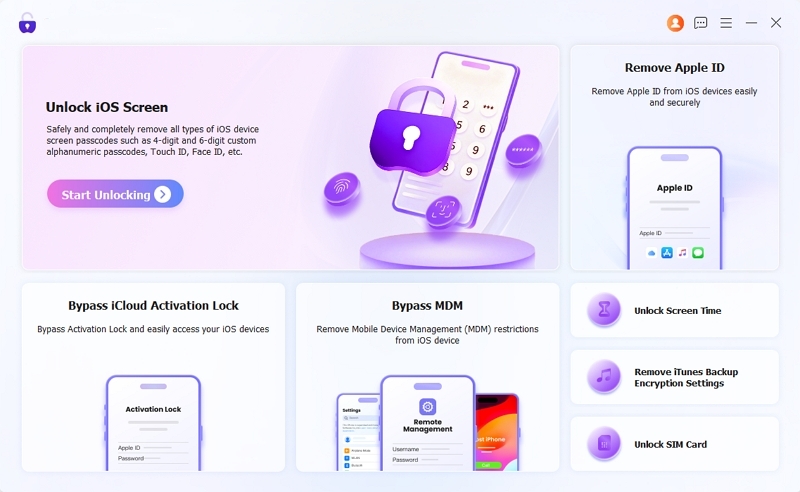
Step 2. Connect your locked iPhone to the computer. Eassiy will display its category, type, and model. Verify the information and click Start Now.
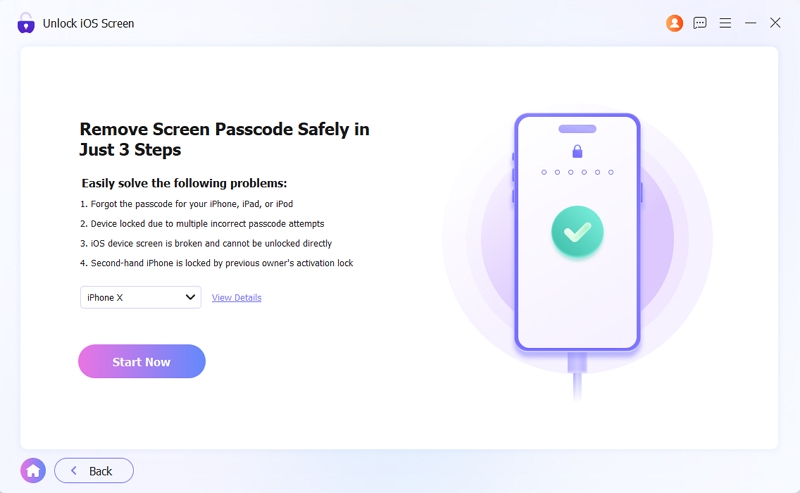
Eassiy will download the required firmware package for your device.
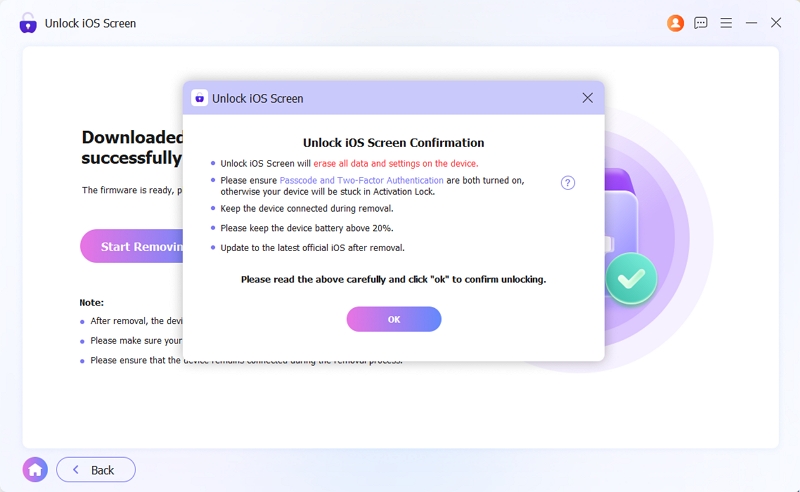
Step 3. Once the firmware is ready, you’ll see an Unlock Confirmation prompt. Review the details and click OK. Confirm the unlocking with Confirm Again.
Once completed, you will see an Unlock iOS Screen Successfully message. Your iPhone will restart and you can set it up as new.
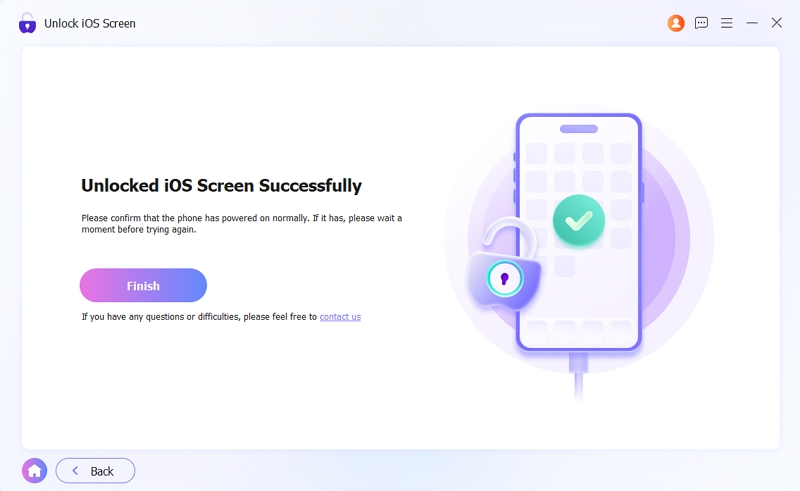
Note: If Find My was enabled, you will need to enter the original Apple ID and password to turn off Activation Lock. If your iPhone can't be recognized, Eassiy will prompt you to put it into Recovery Mode. In this case, you'll need to use the physical buttons on your iPhone. However, in most cases, Eassiy can detect your device and restore it directly without requiring you to use the physical buttons.
Part 4: How to Hard Reset iPhone with Buttons
As mentioned at the start of this guide, a hard reset(forced restart) is not the same as a factory reset. A hard reset is simply a restart at the hardware level, doesn’t erase any data on the iPhone and does not need a computer or an internet connection to work either.
If your iPhone is frozen, stuck on a black screen, or glitching mid-process, it is recommended to go for a hard reset. It will clear whatever the iOS system is stuck on and start it fresh.
However, keep in mind that after a hard reset, Face ID and Touch ID will not work at the lock screen. You will need to enter your iPhone’s passcode manually to get back in.
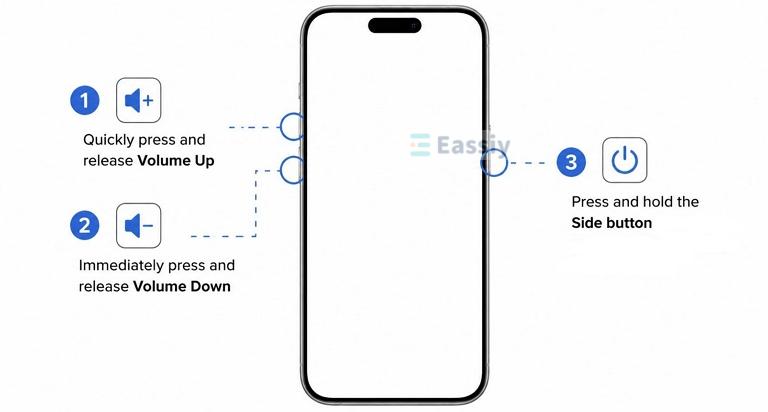
Steps to Hard Reset (Force Restart) iPhone 8 and Later:
- Press and instantly release the Volume Up button. This must be a quick tap, not a hold.
- Do the exact same with the Volume Down button.
- Then, press and keep pressing the Side (Power) button. Keep holding even when the Power Off slider appears.
- Release the Side button only when the screen goes completely black and the white Apple logo appears.
On iPhone 7 and iPhone 7 Plus:
You can force restart iPhone 7 series by pressing and holding the Volume Down and Sleep/Wake buttons simultaneously until the Apple logo appears.
On iPhone 6s or Older:
Hold the Home button and the Sleep/Wake button together until you see the Apple logo.
Conclusion
Now you can factory reset iPhone only with on-screen buttons or by using physical buttons and computer combinations.
The only situation where things get complicated is when you have forgotten the passcode, the iPhone isn’t connected to the internet, and even the iPhone’s buttons aren't responding. In that case, you can rely on Eassiy iPhone Access to reset the device. Eassiy only requires a computer and keeps the reset process straightforward.