Help Center

Updated on 2026-07-13
views
5min read
Forgetting your iPhone passcode when Face ID suddenly stopped working doesn't always mean you have to restore the iPhone to regain access and lose all data. Apple now lets you unlock iPhone without passcode or Face ID without losing any data. We'll start with those methods first. And if they don't apply to your situation, we'll then cover the available reset and unlock methods and explain how to restore as much of your data as possible afterward using Eassiy iPhone Data Recovery.
How to Unlock iPhone Without Passcode or Face ID (No Reset & No Data Loss)
These two methods will not require you to reset your iPhone at all. This means you can get back into your iPhone without losing a single photo or message.
However, both come with specific requirements and you’ll have to act quickly. Let’s look at them first.
Way 1. Unlock iPhone with Apple Watch
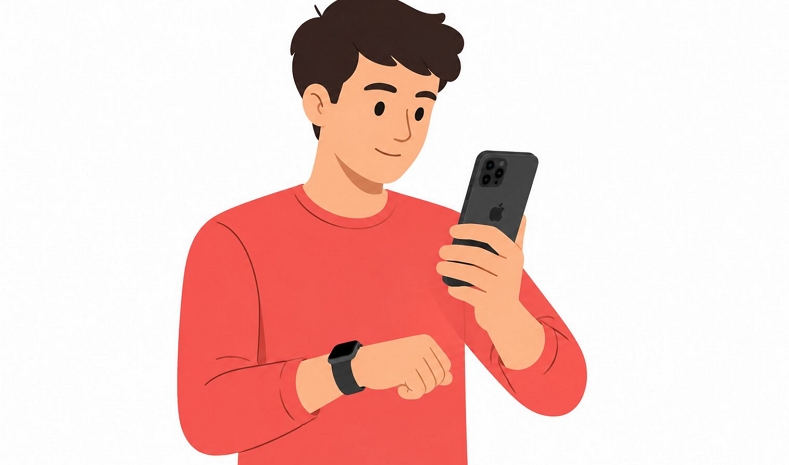
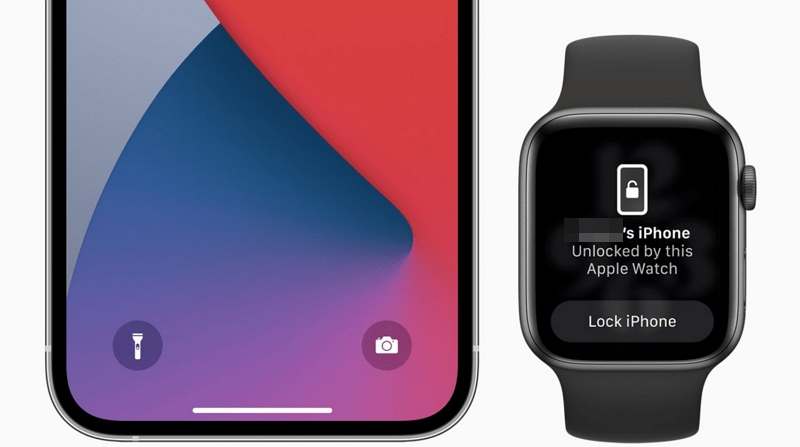
Apple has a feature that lets your Apple Watch act as a digital key for your iPhone when the two are nearby. It was originally designed for situations when Face ID doesn't work with a mask, mean that you're wearing a mask and Face ID can't capture facial information. At that time, your Apple Watch acts as an additional factor to confirm your identity.
While Apple later introduced Face ID with mask support, it continued to support the Unlock with Apple Watch feature, which still falls back into action whenever Face ID is unable to scan your face properly.
This unlock sounds fairly straightforward, but it comes with a fair number of requirements and limitations. Let's walk through both before getting into the steps.
Requirements
- Your Face ID iPhone model must be running iOS 14.5 or later.
- You need an Apple Watch Series 3 or later (running watchOS 7.4 or above).
- Apple Watch must already be paired with your iPhone.
- Wi-Fi and Bluetooth must be turned on for both devices (you do not need to be connected to an actual Wi-Fi network — just have it enabled).
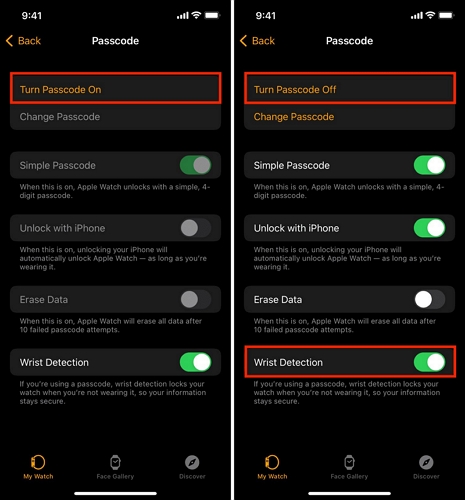
- Your Apple Watch must have a passcode set up.
- “Wrist Detection” must be turned on in the Watch app.
- “Unlock with Apple Watch” must already be enabled in the Face ID & Passcode menu, which is asked when you pair your Apple Watch.
- You also need to be wearing something that covers your face, like a mask, or your eyes, like sunglasses, as this feature only kicks in when Face ID genuinely cannot read your face.
Limitations
- This method only unlocks your iPhone screen and lets you get in with nothing more. It will not let you reset Face ID, verify your identity for Apple Pay, access passwords stored in Keychain, or open password-protected apps. You will even need your actual passcode to access the Face ID and Passcode menu.
- It also will not work if you have just restarted your iPhone. The device passcode becomes mandatory immediately after a restart.
Steps to Unlock iPhone Passcode Without Reset
Step 1. Wake your iPhone by raising it or tapping the screen.
Step 2. Glance at your iPhone as you normally would for Face ID.
Note: This feature is designed to rely on the Face ID system being operational. So if your TrueDepth camera hardware is completely unavailable, the feature may not work at all. That said, some users have reported success.
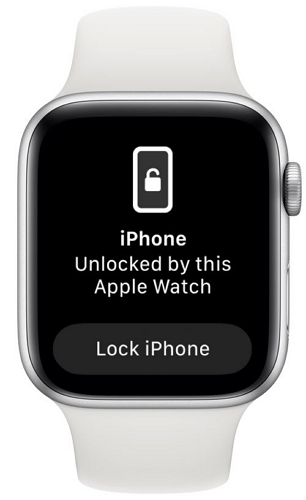
If this successfully unlocks your iPhone, you will feel a quick haptic tap (a vibration) on your wrist and your Apple Watch will show a notification confirming your iPhone has been unlocked.
Step 3. Swipe up from the bottom of your iPhone screen to access your home screen and all your data.
Note: After unlocking the iPhone, back up your important data as soon as possible. If Face ID remains unavailable and you can’t recall the passcode, you'll eventually need to erase and restore the iPhone to use it normally again.
Way 2. Unlock iPhone with Previous Passcode
Here, “previous passcode” simply means the passcode you used before but not the one you have forgotten.
Starting with iOS 17, Apple introduced a 72-hour grace period for exactly this kind of situation: if you recently switched to a complex alphanumeric passcode and have now forgotten it but still remember the one you used before, you can use that old passcode to get back in.
As useful as this sounds, it comes with quite a few ins and outs. Let’s break them down.
What You Need
- Your iPhone must be running iOS 17 or later.
- It only works if you have changed your passcode within the last 72 hours.
- You should still remember the passcode that was used before your current one.
- You must not have already used the Previous Passcode option once before as it only works the first time within the 72-hour window.
- Your iPhone must not have been switched off or restarted in the last 72 hours.
- Your iPhone needs to be connected to Wi-Fi or cellular data for this to work.
Cons
This method has fairly low applicability — it only helps if you changed your passcode very recently and the right conditions still hold.
How to Unlock iPhone Without Passcode or Face ID Without Losing Data
Step 1. On the passcode entry screen, enter the wrong passcode a few times until you see iPhone Unavailable, Try Again in 1 Minute that means your iPhone has entered security lockout mode.
Step 2. Tap Forgot Passcode? at the bottom right.
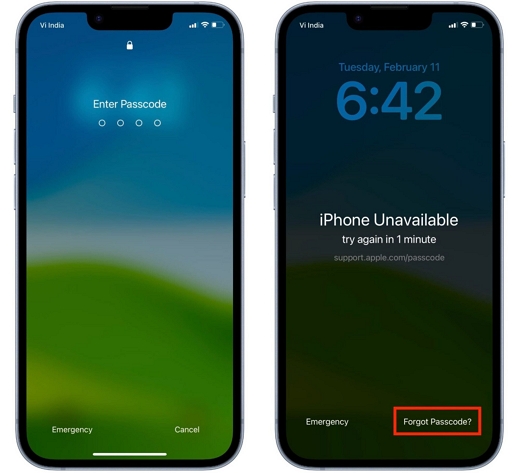
Step 3. Tap Enter Previous Passcode.
Note: If you only see the Start iPhone Reset option here, it means your device does not meet the requirements above. So this method will not work for you.
Step 4. Enter the four or six-digit passcode you used before your current one
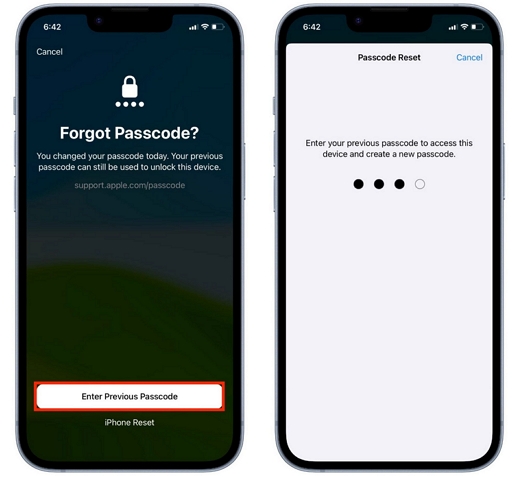
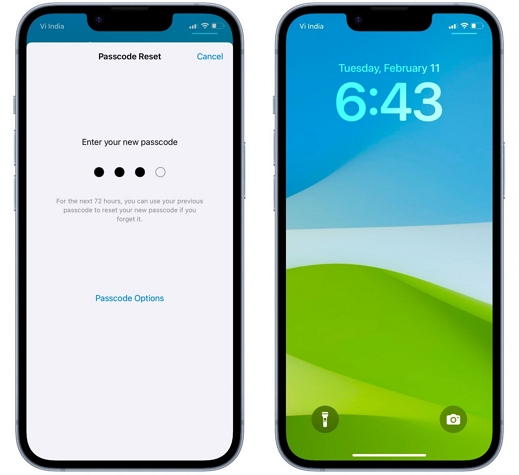
Step 5. You will be prompted to create a new passcode. Enter it, then re-enter it to confirm.
That’s all there is to it. You can now swipe up to unlock your iPhone.
How to Unlock iPhone Without Passcode or Face ID With Data Loss
The above methods can be a lifesaver as they don’t cause data loss. However, they come with strict requirements and only work if your device meets them.
So if neither of them allowed you to unlock the iPhone, the way forward is to erase the device. Yes, this will delete your photos, messages, and apps but it will also permanently remove the forgotten lock screen passcode. The good thing is you can later restore data from an iCloud or computer backup (if you’ve created one).
Note: Don't have a backup? Eassiy iPhone Data Recovery can help retrieve deleted files before they're permanently overwritten. Read this guide for the exact steps: How to Recover Data from iPhone without Backup After Factory Reset.
One thing to keep in mind: Erasing the iPhone will not remove the requirement for Apple ID credentials if Find My iPhone is enabled. In fact, some phone reset methods will only work if Find My iPhone is enabled on your iPhone. The table below will help you pick the right method based on what you have access to.
| Method | Requires Apple ID | Requires Computer | Estimated Time |
|---|---|---|---|
| Erase in Lock Screen | Yes, to authorize the wipe | No | 10–30 mins |
| Eassiy iPhone Access | Yes if Find My is on before | Yes | 10–30 mins |
| Restore Using iTunes | Yes if you have turned on Find My iPhone before | Yes | 20–60 mins |
| Find My Feature | Yes, to initiate the erase (not needed if already signed in on a trusted device) | No, any browser works | 10–30 mins |
Way 1. Erase iPhone in Lock Screen
Before iOS 17 introduced the 72-hour previous passcode grace period mentioned earlier, Apple had already given users a way to wipe a locked iPhone directly from the lock screen, starting with iOS 15.2.
So if your locked iPhone is on iOS 15.2 or later, you can erase the device directly from the lock screen. The main requirements here: your iPhone must be connected to the internet, Find My is enabled and you have the Apple ID and password used on the iPhone currently.
Steps to Unlock iPhone Without Computer
Step 1. Enter the wrong passcode repeatedly until you see the iPhone Unavailable or Security Lockout screen.
Step 2. Tap Forgot Passcode? or Erase iPhone at the bottom. What you see depends on your iOS version.
Step 3. Select iPhone Reset > Start iPhone Reset or tap Erase iPhone twice.
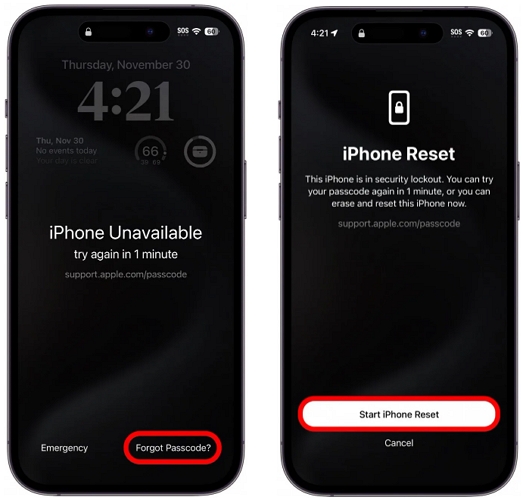
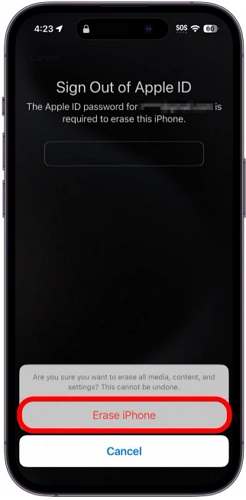
Step 4. Enter your Apple ID password when prompted. This signs you out of Find My and confirms your identity before the wipe begins.
Step 5. Your iPhone will erase itself and restart fresh — ready to be set up as new.
Way 2. Unlock iPhone with Eassiy iPhone Access
If your locked iPhone has dropped its internet connection or you simply cannot remember your Apple ID password to authorize the on-screen wipe, Eassiy iPhone Access is worth using.
Eassiy is built specifically to remove all kinds of locks from iOS, including four-digit/six-digit passcode, custom alphanumeric/numeric code, Face ID and Touch ID. Once you connect the locked iPhone to your computer, Eassiy will automatically identify the model and iOS version and then proceed to reset and unlock it. It’s not only powerful at unlocking iPhone with forgotten passcode, but it can also unlock iPhone with broken screen or those stuck in Recovery Mode.
Key Features
- Successfully unlock an iPhone showing iPhone Disabled, Security Lockout, or iPhone Unavailable message.
- Support passcode removal from latest iOS versions and iPhone models.
- Bypass iCloud Activation Lock without Apple ID credentials and make the iPhone usable again.
- Remove Apple ID from an iPhone without needing the forgotten account credentials.
- Bypass MDM restrictions that can limit the ability to reset the iPhone normally.
- Remove Screen Time passcode and turn off Screen Time without erasing personal data.
Steps to Unlock iPhone Passcode Without Apple ID
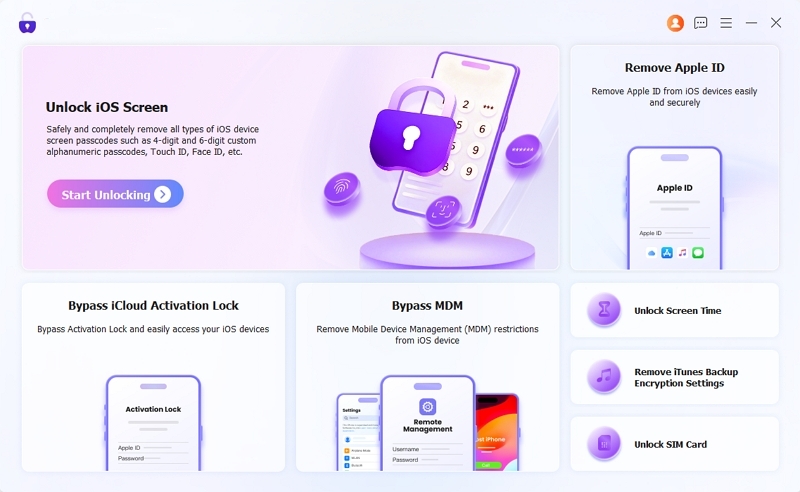
Step 1. Download and install Eassiy iPhone Access on your computer. Open it and select Unlock iOS Screen from the main interface.
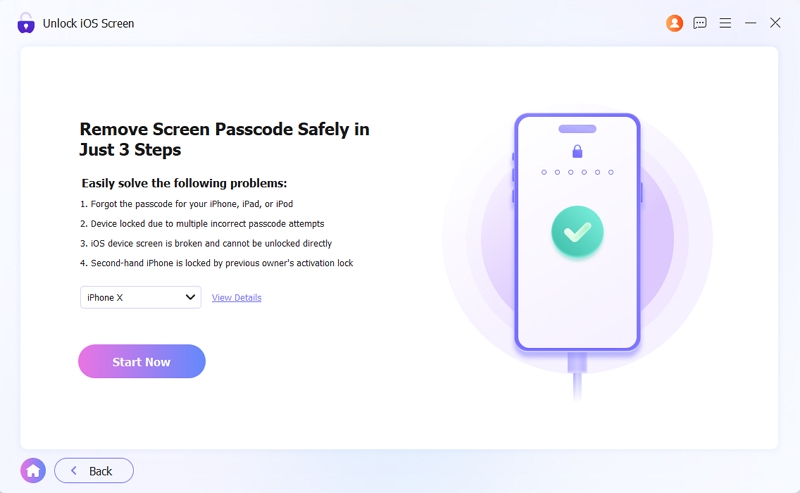
Step 2. Connect your locked iPhone to the computer with a workable cable. Eassiy will detect the device and display its category, type, and model. Verify the details and click Start.
Step 3. Eassiy will download the required firmware package for iPhone unlocking from Apple servers directly.
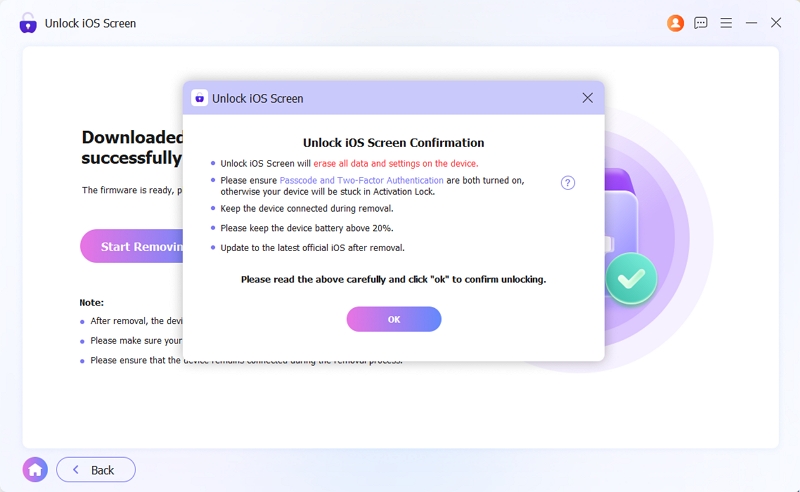
Step 4. Once the firmware is ready, an Unlock Confirmation prompt will appear. Review the information and click OK to proceed. Then, click Confirm Again to begin the unlocking.
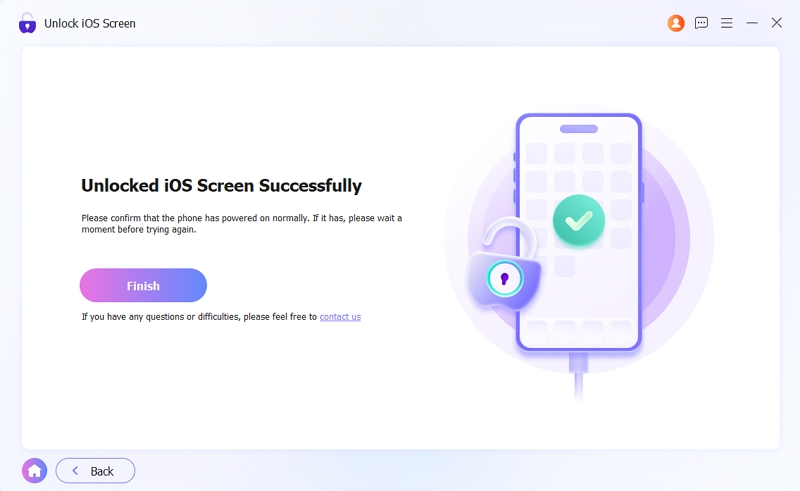
Step 5. Once completed, you will see the Unlock iOS Screen Successfully message.
Your iPhone will restart and can be set up as new without needing Face ID or passcode.
Note: If Find My was enabled on the device, you will need to enter the original Apple ID and password to clear the iCloud Activation Lock during the initial setup.
Way 3. Restore iPhone Using iTunes
You can restore the locked iPhone using Apple's own desktop software — iTunes or Apple Devices on Windows or Finder on Mac. However, it is somewhat difficult to follow compared to advanced tools like Eassiy. For instance, this method always requires you to follow precise button presses to get your locked iPhone into Recovery Mode.
Note: If you do not own a computer or cannot borrow one, you can take the locked iPhone to an Apple Store Genius Bar. They will run the Restore process for you. However, you still have to provide your Apple ID and password.
Steps to Unlock iPhone Without Passcode and Face ID for Free
Step 1. Plug your iPhone into your Mac or Windows PC using a reliable USB cable. Then, open Finder, iTunes or the Apple Devices app.
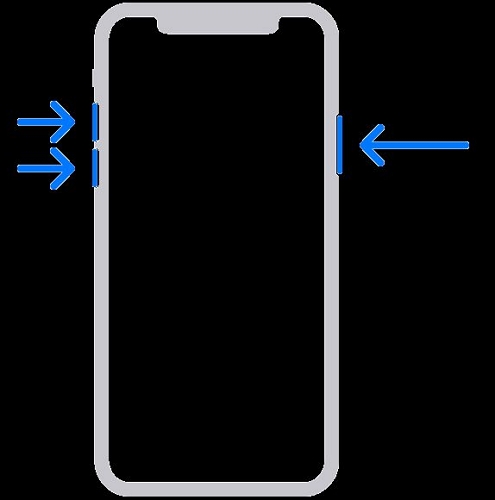
Step 2. Force your iPhone into Recovery Mode (on Face ID models):
- Quickly press and release Volume Up.
- Quickly press and release Volume Down.
- Press and hold the Side button until the cable-and-computer icon appears on screen.
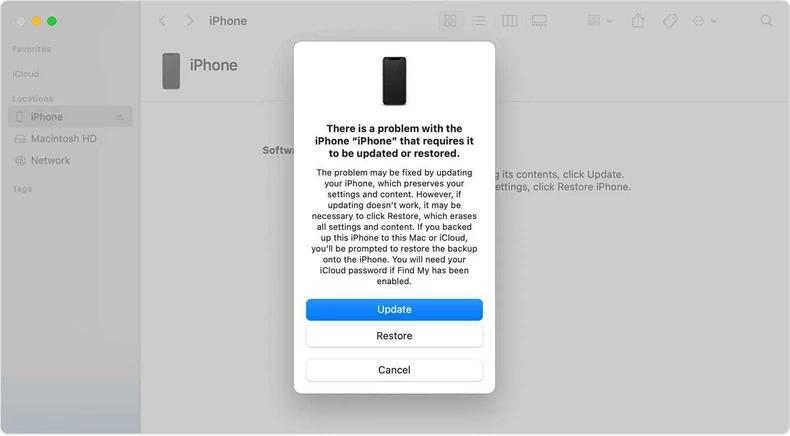
Step 3. A pop-up will appear on your computer asking whether to Update or Restore. Click Restore here.
Step 4. Agree to the software terms. Your computer will then download a fresh copy of iOS and wipe the device.
Note: If your internet is slow and the firmware download takes more than 15 minutes, your locked iPhone will automatically exit Recovery Mode. If that happens, repeat Step 2 and try again.
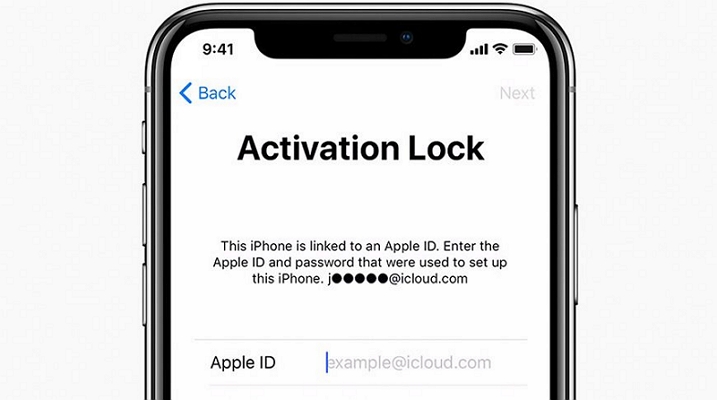
Step 5. Your iPhone will restart. Activation Lock(if Find My is on) will kick in and you will need your Apple ID and password to get past it.
Way 4. Reset iPhone via Find My Feature
If your locked iPhone has an active internet connection and Find My iPhone is enabled, you can wipe the device remotely. For this, you can either use iCloud's website or the Find My app on another Apple device. Here is how both options work.
Option 1. iCloud Find My Site
This is the route to take when you do not have another Apple device nearby but have access to any browser on a borrowed phone, a friend's computer, or any device that can open a webpage. Here are the steps:
Step 1. Open any browser and go to iCloud.com/find.
Step 2. Sign in with the Apple ID tied to the locked iPhone.
Step 3. Tap All Devices at the top of the map and select your locked iPhone.
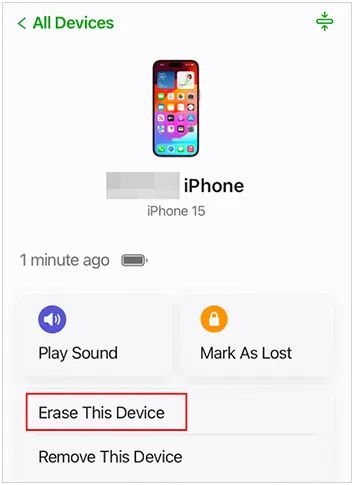
Step 4. Tap Erase and confirm the prompts.
As long as the locked iPhone can catch a signal, it will wipe itself. You will receive a confirmation email once it is done.
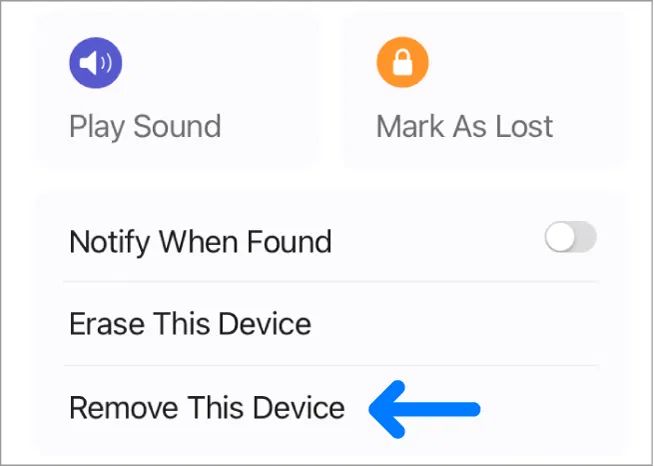
After that, revisit the same page and use the Remove option to turn off the Activation Lock remotely, so the iPhone is completely free to set up fresh.
Option 2. Find My App
If you have your own iPad or Mac signed into the same Apple ID or a family member in your iCloud sharing group hands you their phone, you can use the Find My app. It is often quicker and more straightforward too. Follow these exact steps:
Step 1. Open the Find My app on your secondary Apple device. If you are already signed in, you can skip the login entirely.
Step 2. Tap the Devices tab at the bottom.
Step 3. Find and select your locked iPhone from the list.
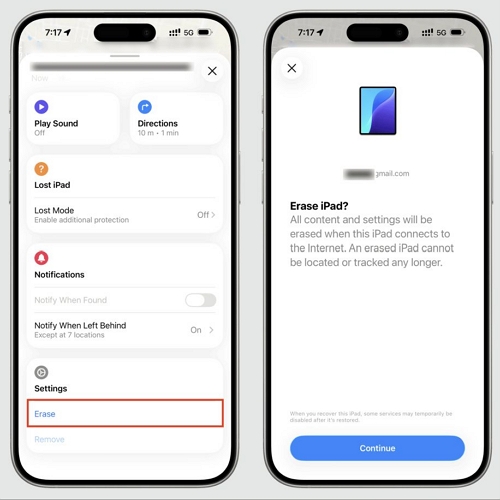
Step 4. At the bottom of the device information card, tap Erase.
Step 5. Follow the on-screen confirmation prompts to clear the forgotten passcode along with everything else.
Once the erase completes, you can remove Activation Lock by either entering your Apple ID credentials directly on the iPhone or using the Remove option right inside the Find My app.
FAQ: Can You Unlock iPhone Without Passcode with Calculator?
No, not even close. There are countless TikTok videos and YouTube Shorts claiming you can unlock a passcode-protected iPhone by typing some mathematical sequence through the Control Center calculator. However, it is nothing more than a camera trick designed to rack up views.
Here's what usually happens in these videos:
- The person recording quietly brings their thumb near the Touch ID sensor.
- They block the TrueDepth camera and remove the finger to authenticate via Face ID after demonstrating what needs to be done on the calculator.
But the phone will unlock only with the biometrics with nothing to do with the calculator at all. In some cases, the videos are simply edited.
Final Words
Those are all your options to unlock your iPhone without passcode or Face ID. If you have a pre-linked Apple Watch or can catch that 72-hour previous passcode window, your photos and messages will stay perfectly intact after unlocking the phone.
When neither of those works, a reset is the only real path forward. Eassiy iPhone Access is the most convenient way to restore your locked iPhone, which doesn’t need active internet on the iPhone or require Apple ID credentials to get started.
Plus, once the reset is done, you can use Eassiy iPhone Data Recovery tool to bring back most of your photos, messages and other data before it gets overwritten. That is the main reason Eassiy stands out here.