Help Center

Updated on 2026-07-15
views
5min read
A cracked screen is one thing. A cracked screen that won't respond to touch is a whole different ball game, because the passcode you've typed hundreds of times is completely out of reach. If you're trying to unlock iPhone with broken screen and don't want to lose everything in the process, there are tried-and-true options within your reach. You’ll see five ways to get back in without wiping the device, along with three alt="image description" />
Which Way to Choose
This is entirely dependent on how much of the screen still works, what was set up before the screen cracked, and whether you’re okay with losing all your data. Look at the table below to see what’s required, the time it’ll take, and how difficult each unlocking method is.
| Method | Requirements | Data Loss | Est. Time | Ease of Use |
|---|---|---|---|---|
| USB Keyboard | Wired USB keyboard, Lightning-to-USB adapter (or USB-C adapter for iPhone 15+), USB accessories must still be available (USB Restricted Mode must not have blocked access), iPhone not restarted | No | 2-5 min | Moderate |
| VoiceOver (Siri) | Siri enabled before screen broke, screen still registers partial touch, no reboot | No | 5-10 min | Difficult |
| Siri Voice Control | Siri + Voice Control enabled and configured before screen broke, no reboot | No | 5-10 min | Difficult |
| Reachability | Bottom of screen must still respond to touch, iPhone X or later, enabled in Settings | No | 1-2 min | Easy |
| Screen Repair | Nearby Apple Store or authorized repair shop | No | 1-3 hours (In-Store) 3-5 days (Mail-In) | Easy (outsourced) |
| Eassiy iPhone Access | Windows PC or Mac, USB cable | Yes | 10-30 min | Easy |
| iTunes Restore | Computer, USB cable, prior iTunes sync or Recovery Mode | Yes | 15-60 min | Moderate |
| Find My (App) | Your other Apple device (or friend's device via "Help a Friend"), Find My enabled, Apple Account and online iPhone | Yes | 5-20 min | Easy |
| iCloud Site | Browser, Find My enabled, Apple ID, internet on iPhone | Yes | 5-20 min | Easy |
How to Unlock iPhone with Broken Screen Without Losing Data
These five solutions work with unlocking a broken iPhone screen and don’t touch your data. So, start with the one that matches what's still working on the device. If one part of the screen still responds to touch, then Reachability is the quickest fix. If touch is completely dead but Siri was on, the VoiceOver or Voice Control routes are worth trying. And if nothing on the screen works at all, the USB keyboard method bypasses touch entirely.
Way 1. Unlock iPhone with Broken Screen with Keyboard
When to Use This Way
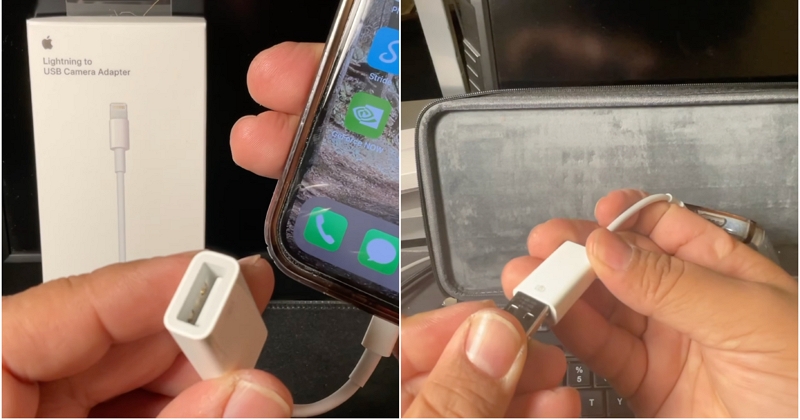
When your iPhone's touchscreen is completely dead, a wired USB keyboard can come in very handy. Just connect it to your iPhone with a Lightning-to-USB adapter (or a USB-C adapter on iPhone 15 and newer), then use the keyboard to enter your passcode. Simple as that.
There is one catch, though. If your phone has been locked for a long time or restarted, Apple's USB Restricted Mode may block the keyboard from connecting to the phone until it’s unlocked with the passcode.
Note: Bluetooth keyboards won't work here. Pairing a wireless device means going deep into the Settings menu, which you can't do with a dead screen. Only wired keyboards connected through a physical adapter will be recognized.
Success Rate
Moderate. If the iPhone still accepts USB accessories, a wired keyboard is a convenient, quick way to type in the passcode without using the touchscreen.
Steps to Use
- Plug the USB keyboard into a Lightning-to-USB camera adapter or a standard USB-C adapter. Connect the adapter to your iPhone's charging port.
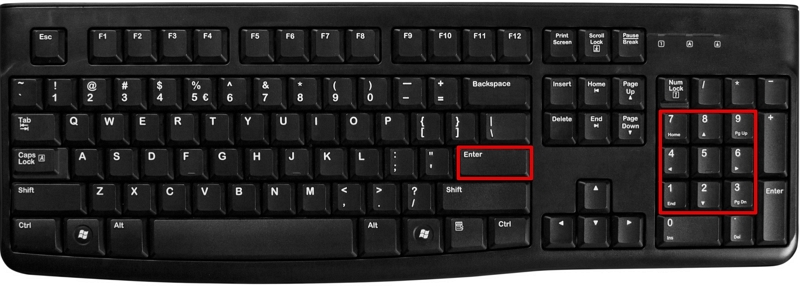
- Press any other key to wake the iPhone’s lock screen.
- Enter the passcode using the keyboard. Depending on the iPhone model and iOS version of your phone, it may unlock automatically after the final digit, or maybe you’ll need to press Enter/Return.
Way 2. Use VoiceOver to Unlock iPhone with Broken Screen
When to Use This Way
VoiceOver is worth trying when the touchscreen still registers some input but responds to the wrong spots, or when a small working section of the screen can be used for gesture input. But this only works if you already enabled Siri before the iPhone screen broke. It also won't help if your iPhone has been restarted or the battery has died, because in such cases, Siri remains unavailable until the device is unlocked with its passcode.
Success Rate
Low to moderate. VoiceOver changes how touch input is interpreted, which helps when the screen is partially responsive. On a screen that's fully dead, it won't help. The process also takes patience since entering a passcode through VoiceOver gestures is slow and easy to mis-tap.
Steps to Use
- Hold the Side button (or Home button on older iPhone models) and say, "Hey Siri, turn on VoiceOver."
- Next, press the Home button (swipe up on Face ID models) to go to the passcode screen.
- Slowly swipe left or right with a finger to move the VoiceOver cursor over the number keys (take your time, as it's easy to move past the correct number). Your iPhone will call out each number when your finger lands on it.
- When the cursor lands on the correct number, just double-tap anywhere on the screen to choose it.
- Repeat this for each digit in the passcode. The moment you double-tap the final correct digit, your iPhone will unlock itself.
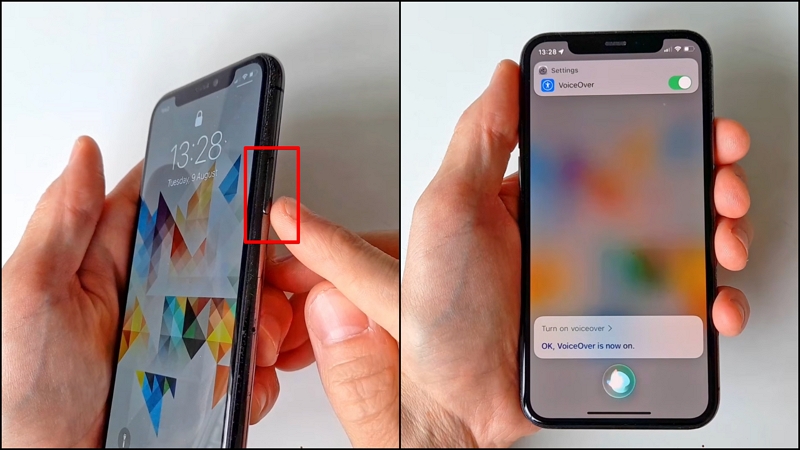
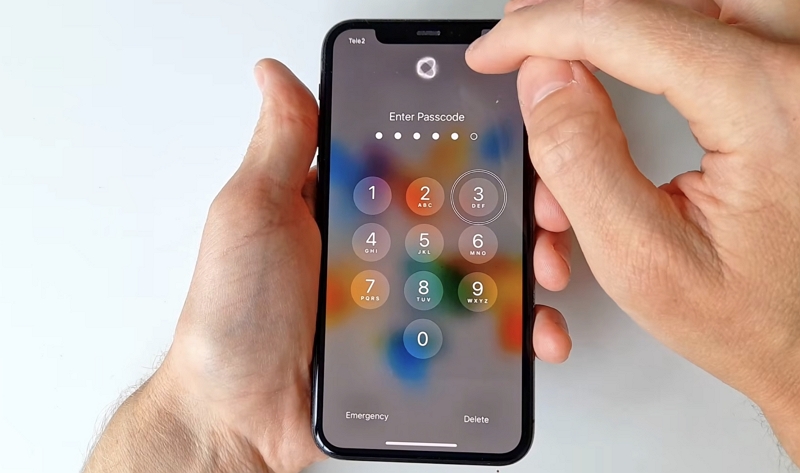
So what happens if your screen is severely cracked and only a thin strip at the bottom still responds? That little strip is all you need for the swipe gestures. So, do it like this: place a finger in a working area and slowly drag across to move the VoiceOver cursor without needing precise taps.
Way 3. Unlock iPhone with Broken Screen with Siri
When to Use This Way
Here’s something you may not have known: VoiceOver and Voice Control aren't the same thing. VoiceOver helps you navigate the screen by changing how touch gestures work, but Voice Control allows you to use your iPhone with voice commands.
For Voice Control to work, you must have had it turned on at least once before the screen broke. That's because iOS downloads the speech recognition files the first time you enable this feature. If you didn’t do that, you can’t enable Voice Control from a locked iPhone with a broken screen. And you must have "Allow Siri When Locked" toggled on. But if the iPhone has been rebooted or the battery has completely drained, Siri won't be available again until you've unlocked the device with your passcode.
Success Rate
Low. The narrow set of conditions (Voice Control enabled beforehand, Siri active, not in a post-reboot state) means this route closes itself off for most users before they ever need it. But when all conditions are met, it works cleanly.
Steps to Use
- Activate Siri by holding the Side button or saying "Hey Siri."
- Say "Turn on Voice Control."
- Once Voice Control is active, the passcode screen can be navigated entirely by voice. Say "Tap 1" (or whichever number is first in the passcode) to press each digit.
- Repeat for each digit. When the full passcode has been spoken, the iPhone will automatically submit the code and unlock.
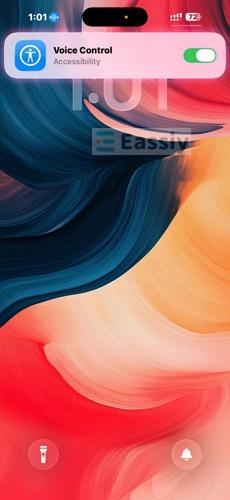
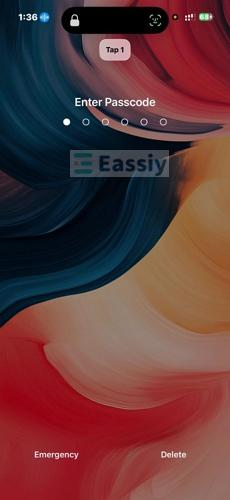
Way 4. Unlock iPhone Broken Screen with Reachability
When to Use This Way
Reachability is the right move when only the top portion of the screen is broken or unresponsive, but the bottom section still works. The feature drags the entire screen downward, bringing the phone’s keypad into the lower area where touch still works.
Are you using an iPhone X or a newer model? For these, simply swipe down on the bottom edge of the screen to use Reachability. But on iPhone with Home button, just double-tap the Home button (don’t press it) to trigger it.
Success Rate
Moderate to high when the bottom section of the screen is still responsive. Reachability can work on the Lock Screen on many recent iOS versions, but behavior may vary depending on your iPhone model and iOS version. Additionally, it will not work if your phone has been restarted or run out of battery, as iOS disables the gesture prior to your first successful unlock. But when it works, it's the fastest method in this guide since no external tools or prior setups beyond enabling Reachability are needed.
Steps to Use
- On your phone’s lock screen, gently swipe down along the very bottom edge of the screen (the thin, white bar at the bottom).
- The entire screen will slide down, bringing the keypad into the lower half of the display where the screen still responds to you.
- Use the working lower section of the screen to tap in the passcode normally.
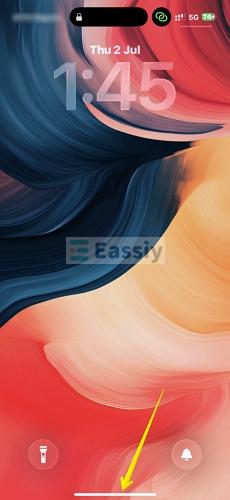
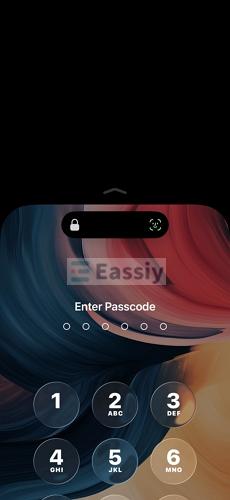
You must be quick when usingReachability because it only holds the screen down temporarily. If it snaps back before the passcode is fully entered, swipe down once more and enter the passcode quickly. With a little practice, you can get through a 6-digit passcode in the first or second attempt.
Way 5. Repair iPhone Broken Screen to Regain Access
When to Use This Way
Screen repair is the best option when no part of the screen responds to touch and none of the above workarounds are available. It's also the only method on this list that restores full functionality without any data loss(most of the time) and without requiring accessories or prior settings to have been enabled. If the iPhone has AppleCare+, screen repair costs a flat fee. Without coverage, pricing varies by model.
Success Rate
High. Replacing the screen physically restores touch input, after which the passcode can be entered normally. The only risk is that the repair shop causes additional damage during the process, which is minimized by using Apple's own repair service or an Apple Authorized Service Provider.
Steps to Use
- Back up the iPhone first if any part of the screen still works. Even a partial backup through iCloud or iTunes protects your data before handing the device over.
- Book a repair appointment via Apple Support (support.apple.com) or walk into the nearest Apple Store or Apple Authorized Service Provider.
- Hand over the device. Most Apple Stores can complete a screen replacement the same day, although repair times can vary by location and parts availability.
- Once the screen is replaced, enter the passcode normally to unlock the iPhone.
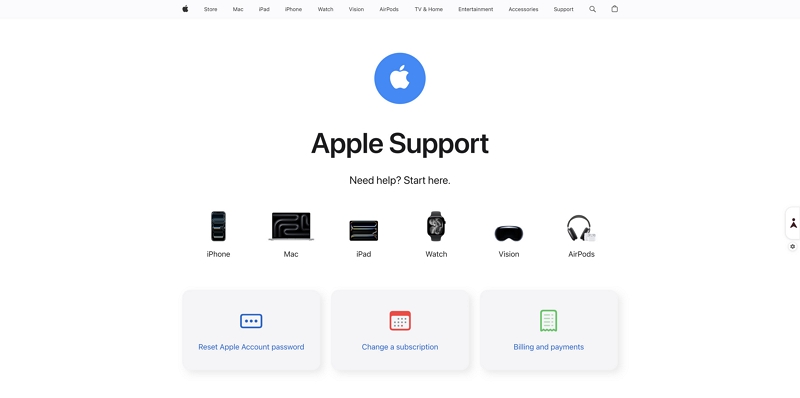
Repair shops typically ask for the passcode to test the screen after replacement, so don’t be cautious if they do. However, if sharing the passcode makes you uncomfortable, ask them to demonstrate touch responsiveness with a test app first. You can then enter the passcode privately once the device is back.
It might also interest you to know that third-party screen repairs are cheaper but riskier. If the technician doesn't preserve the original Face ID sensor assembly during repairs, it can affect Face ID. For iPhones where Face ID matters, Apple's own repair is worth the extra cost.
How to Unlock iPhone with Broken Screen with Data Loss
Nobody gets excited about resetting an iPhone. Still, when the screen is completely unusable and every other workaround has failed, restore is really your only practical choice. But on the bright side, a recent backup lets you put most of data back once the phone has been set up again.
Unlock iPhone with Broken Screen Without Passcode
When nothing else has worked, dedicated unlocking software is usually the next step. Eassiy iPhone Access removes the screen lock from iPhone on a computer, so it doesn't matter whether the phone display responds to touch or not. If the iPhone can still be detected over USB, the broken screen isn't a problem. Just connect the locked iPhone to Eassiy and it will be reset and unlocked in a click-through process. After unlocking, your iPhone will be free from screen locks, including the passcode and biometric authentication.
Key Features:
- Remove any screen passcode from a broken, disabled, or unresponsive iPhone without needing the original credentials or iTunes.
- Turn off Activation Lock on your iPhone/iPad with Apple ID or screen passcode.
- Unlink Apple ID from iPhone without password, so you can register a new Apple ID on the device.
- Remove Screen Time Passcode and MDM credentials without a factory reset or data loss in most cases.
How to Unlock iPhone Broken Screen with Eassiy
Step 1: Run Eassiy iPhone Access and Enter the Unlock iOS Screen Mode.
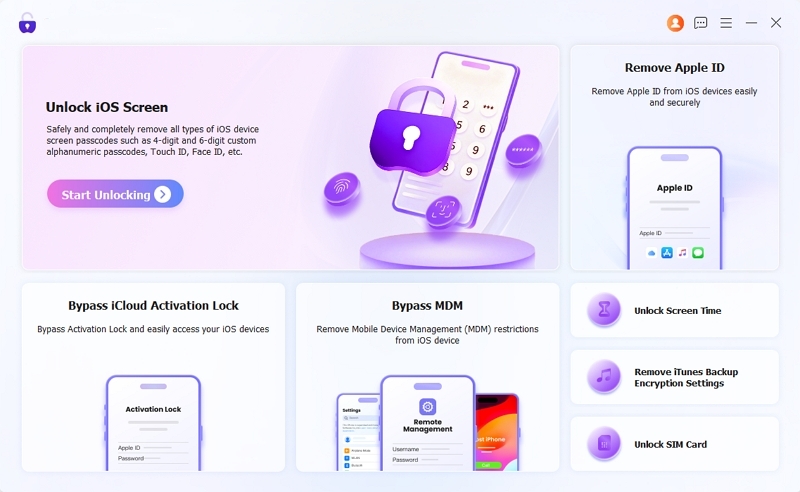
Download, install, and launch Eassiy iPhone Access on a Windows PC or a system running macOS. From the main screen, select Unlock iOS Screen.
Step 2: Connect the iPhone.
Use a certified USB cable to connect the broken iPhone to the computer. Eassiy will detect the device automatically.
Step 3: Download the Firmware Package.
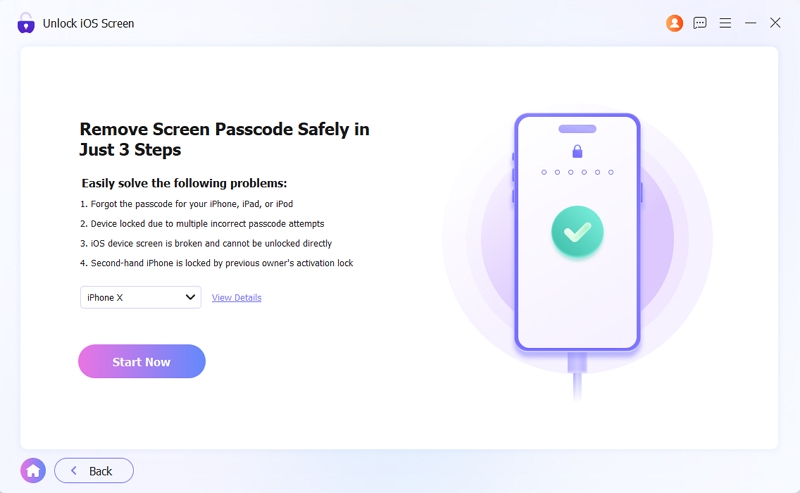
Confirm the device model shown on the screen matches the iPhone. Hit Start Now to begin downloading the firmware package needed to unlock the device.
Step 4: Confirm Unlock.
Once the firmware is ready, an "Unlock iOS Screen" confirmation box will appear. Review the details, click OK, then Confirm Again. Eassiy will begin the unlocking process.
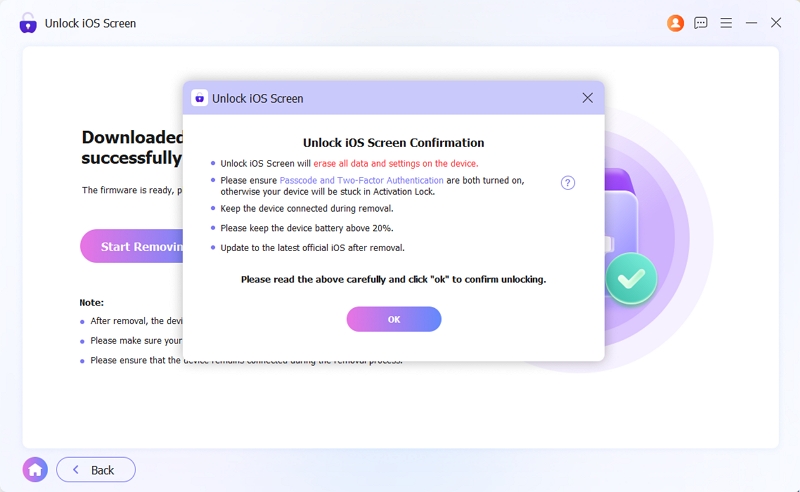
Step 5: Unlock the iPhone.
The app will start unlocking the iPhone. Once it’s done, you’ll see an “Unlocked iOS Screen Successfully” message that marks the final step of the unlocking process. Click Finish and proceed to set up your device as new.
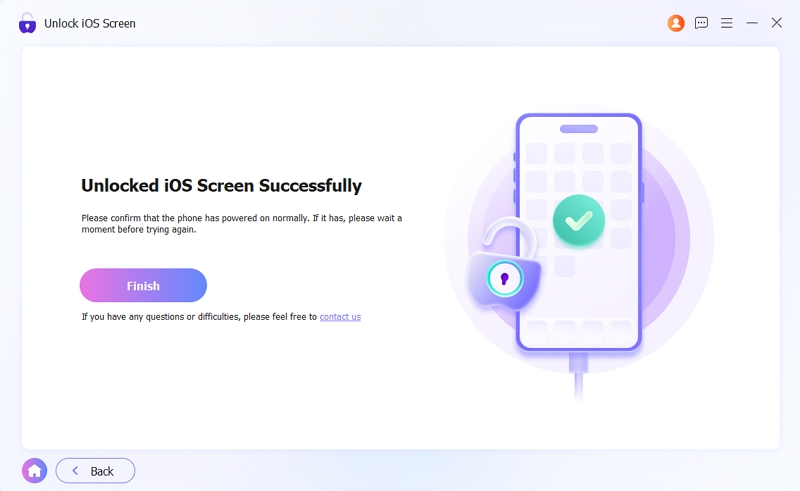
Note: If Find My was enabled on the device before unlocking, the iCloud Activation Lock will remain after the process. The original Apple ID and password will be needed to complete setup. Make sure those credentials are available before proceeding.
Unlock iPhone with Broken Screen for Free
Would you rather use Apple's native apps to unlock your phone than a third-party tool? All you need for this is iTunes on Windows or Finder on a Mac (macOS Catalina or later). But you must have already plugged your phone into the computer you’re trying to unlock with and trusted it before this step. If you’ve not done this before, then you need to put your phone into recovery mode.
Once your iTunes or Finder removes the passcode, set up your device as new and restore any data you have backed up.
How to Unlock iPhone with Broken Screen Using iTunes or Finder:
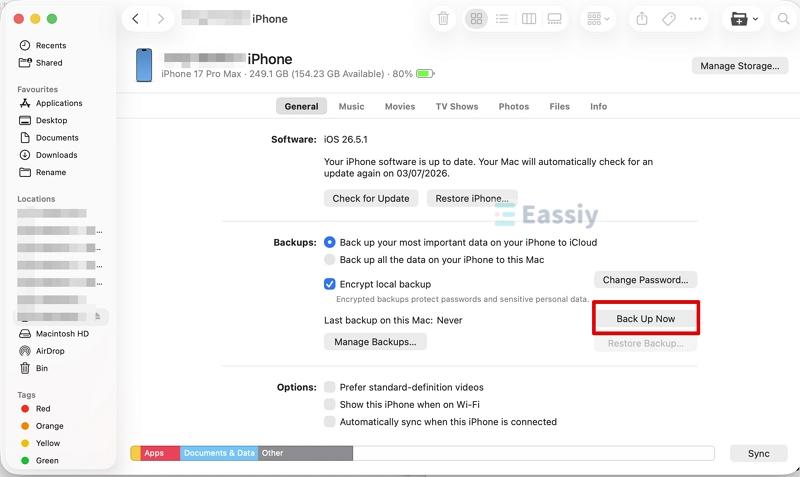
- First, connect your iPhone to a computer using a USB cable. Then open iTunes if you're using Windows. For Mac users, you should open Finder.
- If the phone appears right away, don't jump straight into resetting it. Create a backup first by clicking Back Up Now. Once that's finished, continue with the restore.
If the computer can't access the iPhone because it hasn't been trusted before, Recovery Mode is your next step.
iPhone 8 or later: Press and quickly release Volume Up, followed by Volume Down. Then hold the Side button until the Recovery Mode screen appears.
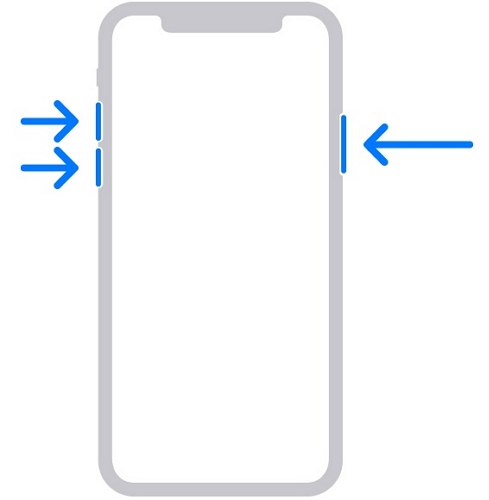
iPhone 7/7 Plus: Hold Volume Down and the Side button simultaneously until you see the Recovery Mode screen.
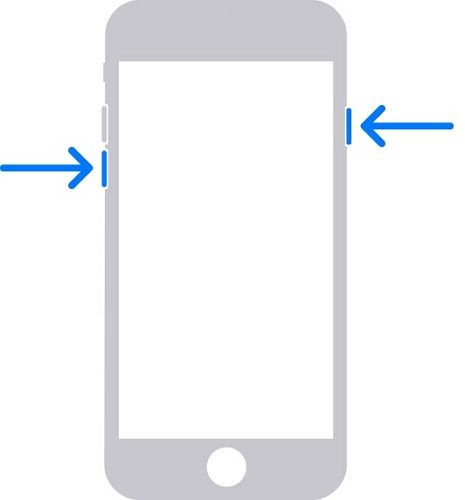
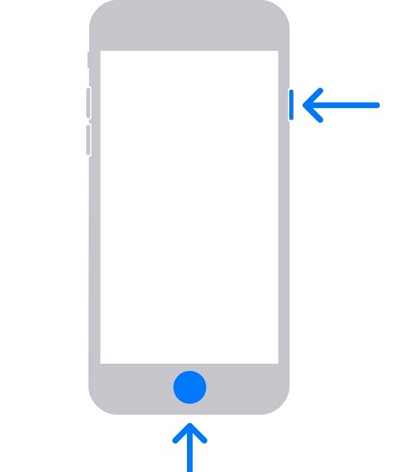
iPhone 6s or earlier: Hold the Home button and the Side/Top button together and release them when Recovery Mode screen is shown.
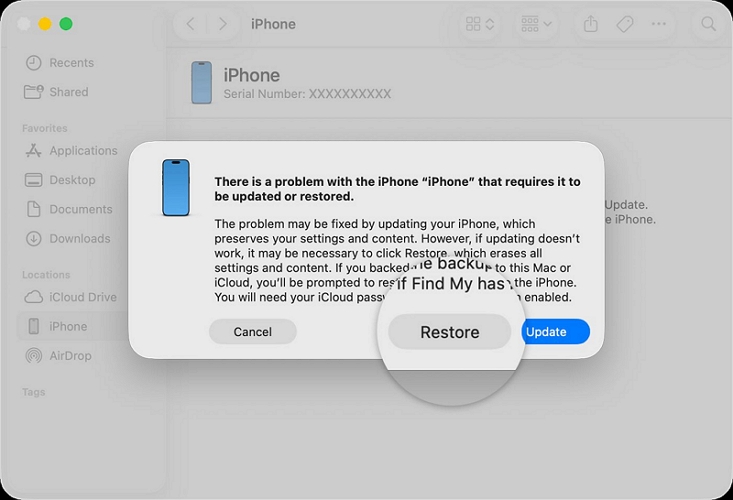
- In iTunes or Finder, a prompt will appear asking to Restore or Update the iPhone. Choose Restore. Confirm the action. iTunes will download the latest iOS and restore the device.
Unlock iPhone with Broken Screen Without Computer
One of the best things about Find My is that it can remotely erase everything on your phone without a USB cable or a computer. You can do this either through the Find My app on a second Apple device or via the iCloud site using any browser. But you must have your Apple login details and Find My enabled on the iPhone before the screen cracked to use either method. This is the best option you can explore if your iPhone’s screen is unresponsive, but the phone itself still has power and is still connected to the internet to receive the remote command.
Option 1. Use Find My App
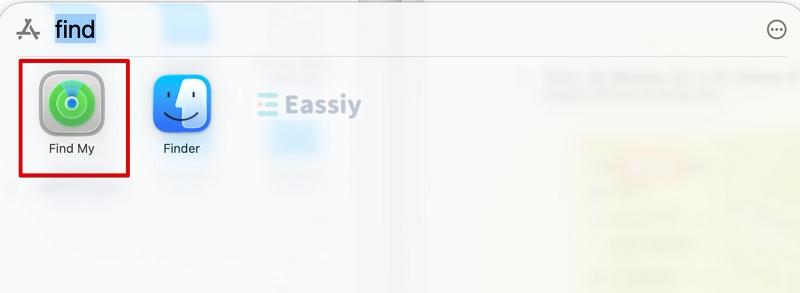
This option requires access to another Apple device — an iPad, a second iPhone, or a Mac that can run the Find My app.
On Mac:
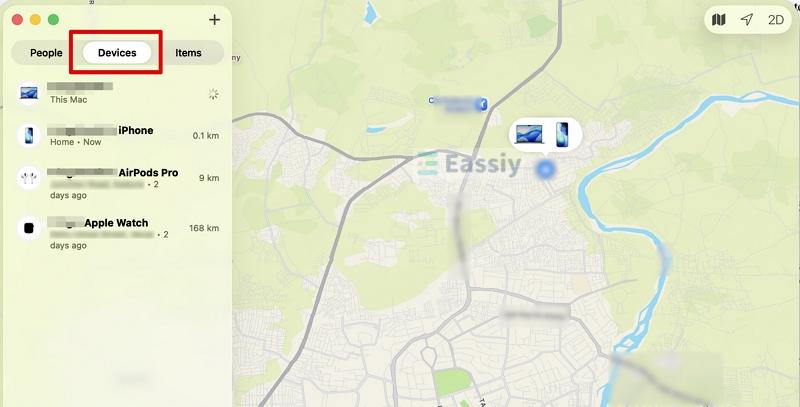
- Open the native Find My app on your Mac.
- Look at the top left corner of the window and click the Devices tab.
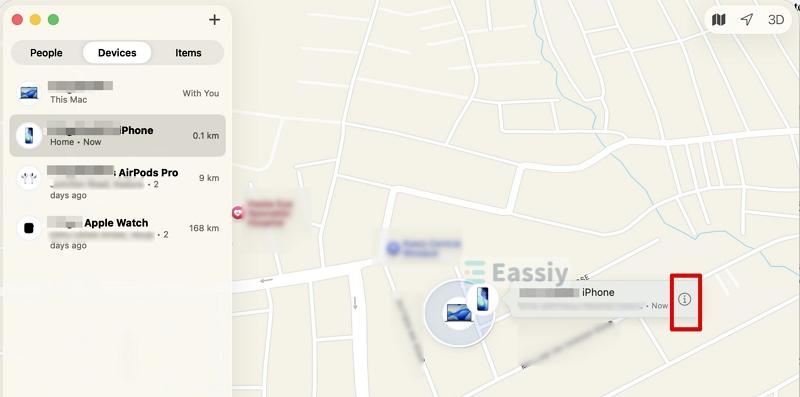
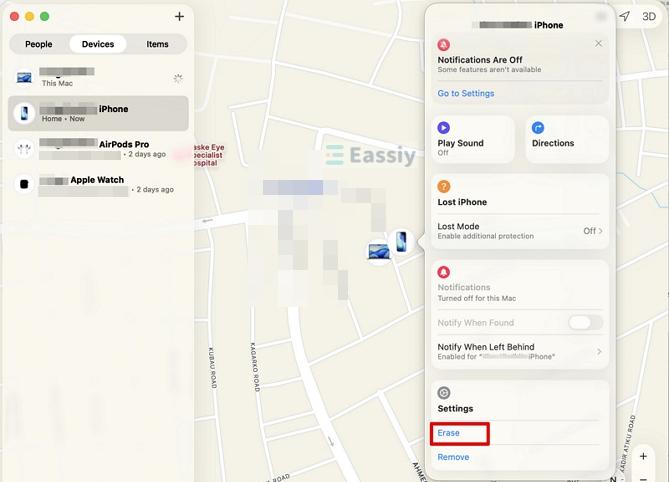
- Click on the damaged iPhone from the list on the left. A map will appear. Right-click the iPhone's name in the list and choose the small "i" (information) icon next to it on the map.
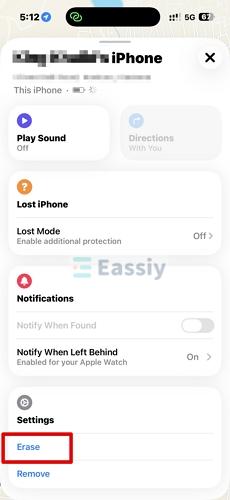
- Select Erase from the menu.
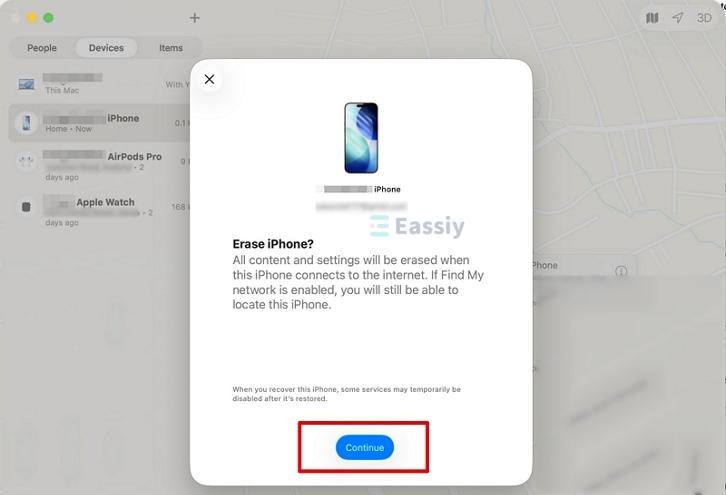
- Click Continue, then confirm your choice. The online iPhone will be remotely wiped.
On iPhone or iPad:
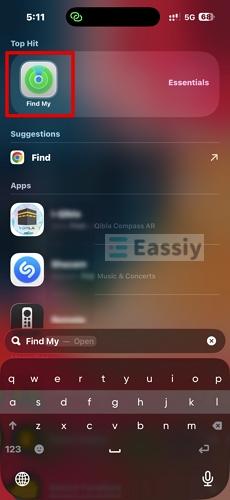
Step 1: Open the native Find My app.
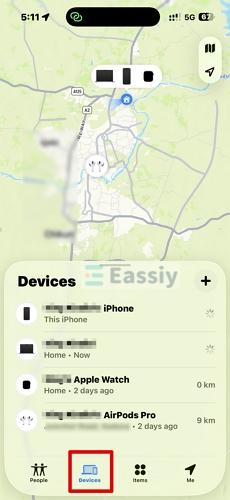
Step 2: Select the Devices tab from the bottom navigation bar.
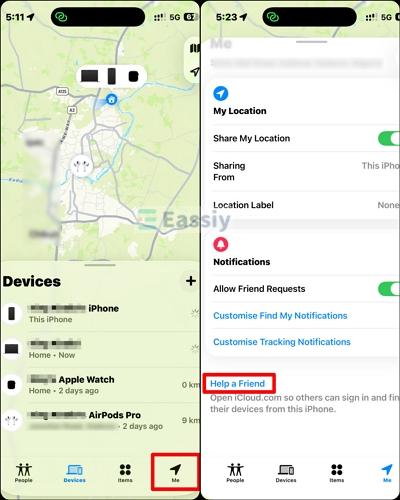
Note: If you're borrowing a friend's iPhone or iPad, look to the bottom right, and you’ll see. A little black arrow with “Me” under it. Tap it, then scroll down a bit and choose Help a Friend. This will open Apple's secure iCloud Find Devices sign-in page in a private browser session.
This lets you log in to your friend’s phone with your own Apple Account instead of your friend's without sign-out. After you finish, simply sign out of the account and your info won’t be stored on their phone.
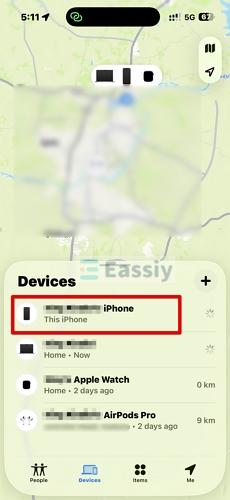
Step 3: Locate and tap your broken iPhone from the map menu.
Step 4: Swipe up on the card to open the action menu, then choose Erase.
Option 2. Via iCloud Site
This path is highly recommended if you do not have another personal Apple device, as it provides a way to continue using Find Devices on an internet-access browser. Meanwhile, you don’t need to enter the verification code sent to the trusted device or number.
Step 1: Open any browser and go to iCloud.com/find. Sign in with the Apple ID linked to the broken iPhone.

If Apple asks for a two-factor authentication (2FA) code, don't panic. Look below the sign-in fields and you will see the “Continue to Find Devices/Find Devices” button. Click it. Apple adds this option so you can still locate, mark as lost, or erase your iPhone even if you’re unable to receive the verification code because your screen is cracked or you don't have access to a trusted device.
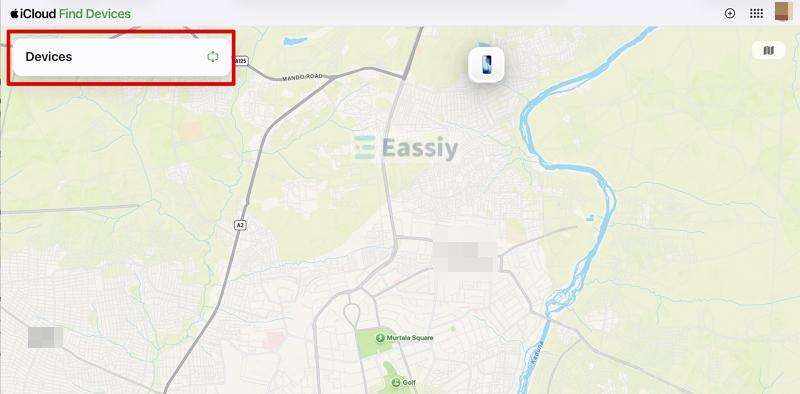
Step 2: Once signed in, click on Devices at the top of the dashboard.
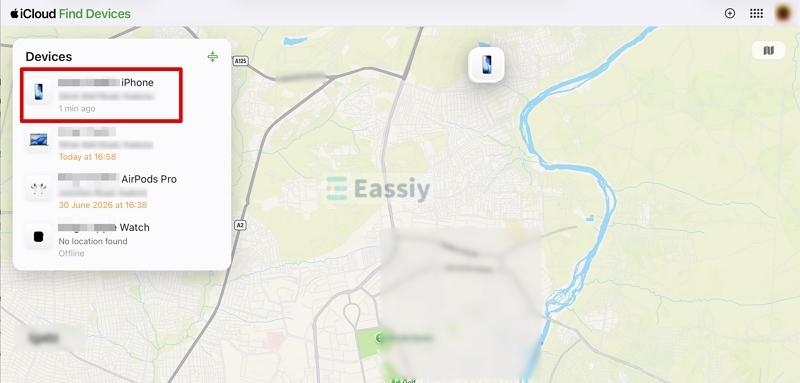
- Select your broken iPhone from the list.
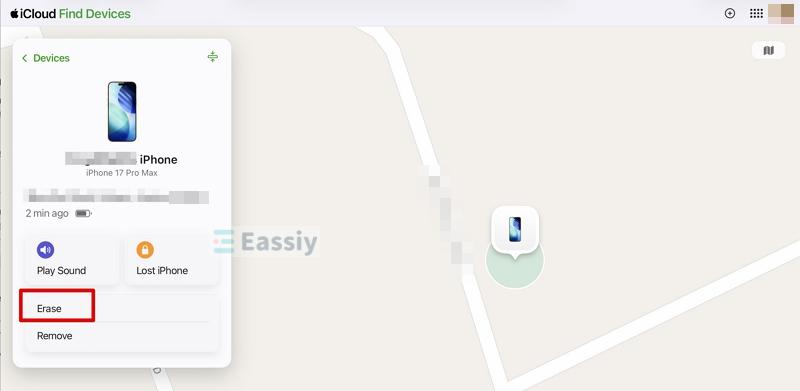
- Select Erase, then confirm. The device will be wiped remotely.
Final Words
Most people assume a broken iPhone screen means the data is gone too. That's not always true because Reachability, VoiceOver, Voice Control, a USB keyboard, or a quick screen repair can all get into a broken iPhone while leaving your data safe. The catch with most of them is that some settings had to be on before the damage.
When the screen is completely dead and none of those options are available, Eassiy iPhone Access removes the lock through a USB connection with no interaction on the iPhone required.