Help Center

Updated on 2026-07-17
views
5min read
Locked out of your iPhone 4 due to forgetting the passcode? It happens, especially with an older device that hasn't been used in a while. The good news is there are a few ways to get back into the locked iPhone. What changes between methods is what tools are required. Some need a computer while others don't. This guide covers how to unlock iPhone 4 without passcode across several routes, so there's something here regardless of what's available. If a broken screen prevents you from entering the correct passcode to unlock your iPhone 4, you can use the same methods to access your device without entering the passcode.
FAQ: Can You Unlock iPhone 4 Without Passcode Without Resetting?
No, you can’t do that. Currently, only iOS 17 or later supports using a previous passcode within 72 hours after changing the passcode to unlock an iPhone without losing data. The highest iOS version the iPhone 4 can run is iOS 7.1.2. So, you can’t bypass the iPhone 4 passcode without wiping your device.
But look on the bright side. When you reset your phone, it doesn’t mean you've permanently lost all your files. Have you backed up your files to iCloud or iTunes before? If yes, just restore everything even after the reset. Alternatively, you can use data recovery tools like Eassiy iPhone Data Recovery to retrieve iPhone data without backup.
How to Unlock iPhone 4 Without Passcode or iTunes
Most people use iTunes to unlock their iPhones, but it's neither the only option, nor is it the most convenient one. Besides, iTunes may fail to recognize your device or fail to restore it.
So, what do you do if you want to unlock and reset a locked iPhone 4 but don't want to use iTunes or even Finder? Your answer lies with Eassiy iPhone Access. This awesome app is an excellent alternative that handles iOS unlocking directly from your computer. Whether your iPhone is locked with 4-digit/6-digit passcode or custom code, Eassiy can remove them along with Face ID/Touch ID. It’s extremely useful when you forget the screen passcode of your old iPhone 4 or the second-hand iPhone 4 is locked with previous owner’s passcode.
Key Features:
- Unlock disabled or unavailable iPhone without passcode, Face ID or iTunes.
- Bypass iCloud Activation Lock when you forget the Apple ID password that can’t be reset.
- Sign out of Apple ID on your iPhone/iPad without password, regardless of the Find My status.
- Turn off Screen Time without passcode and data loss on the iDevice where you set a Screen Time passcode.
How to Unlock iPhone 4 Passcode Without Apple ID Using Eassiy
Step 1: Download, install, and launch Eassiy iPhone Access on a Windows PC or Mac. From the main screen, choose Unlock iOS Screen.
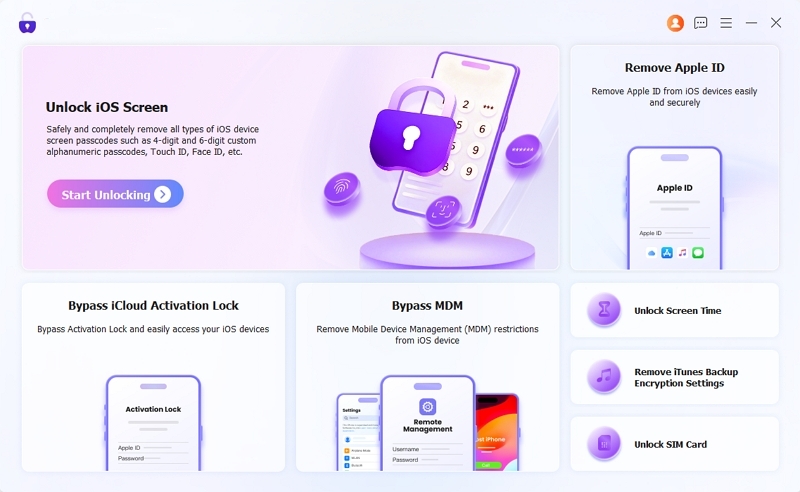
Step 2: Use a certified USB cable to connect the iPhone 4 to the computer with Eassiy installed. Eassiy will detect the device automatically.
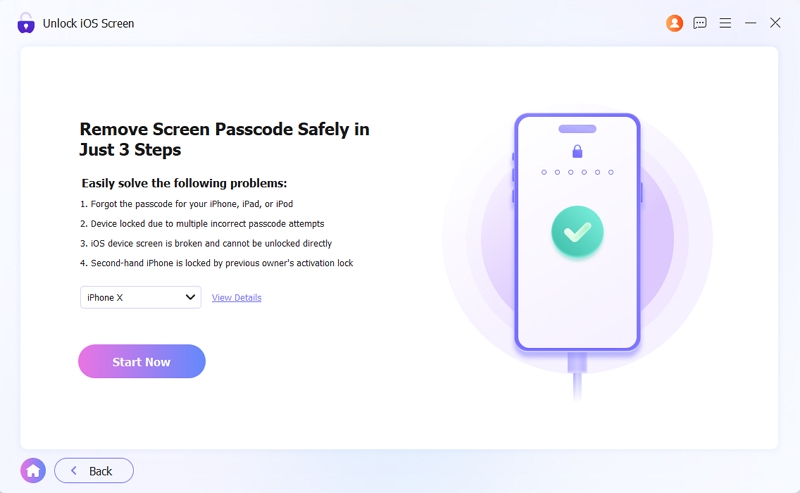
Step 3: Hit Start Now. Eassiy will begin downloading the firmware needed to unlock the device.
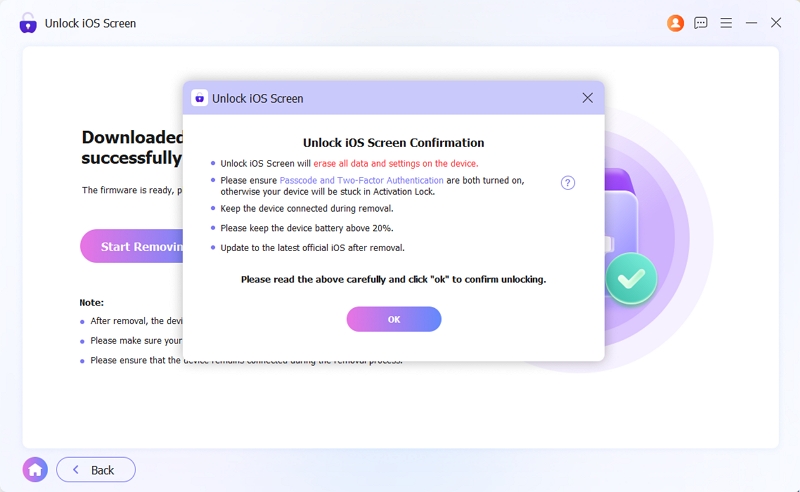
Step 4: Once the firmware is ready, you’ll see an "Unlock iOS Screen" confirmation box. Check the in-box items and click OK. Then hit Confirm Again.
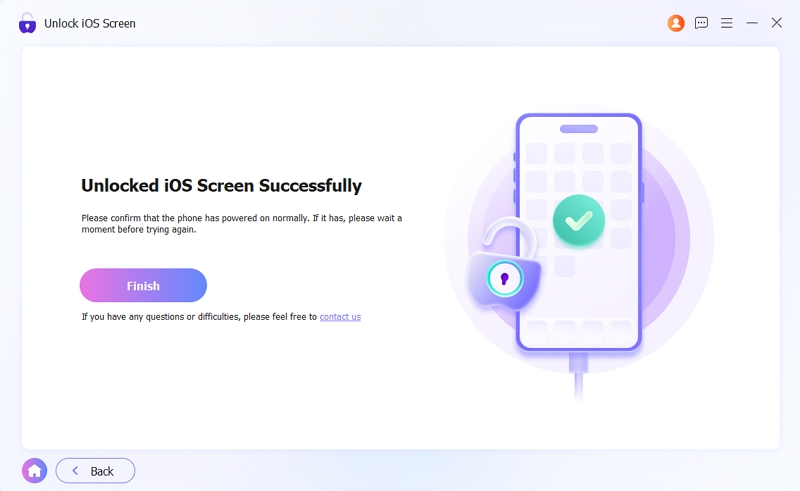
When the process finishes, "Unlocked iOS Screen Successfully" will appear, meaning that you can set up your iPhone 4 for use now. Click Finish and you’re done.
If Find My iPhone was on before you reset, you’ll see the Activation Lock when you set up the phone. So it’s necessary that you have the Apple ID and password used on the device to turn off Activation Lock first.
How to Unlock iPhone 4 Without Passcode or Computer
If you don’t have a computer on hand, your iPhone 4 is online and Find My iPhone is enabled, you can try unlocking the device with Find My feature. This innovative feature lets you remotely erase your phone from pretty much any kind of device, as long as it has a working web browser. It’s even better and more streamlined if you use another Apple device for the task. As long as you have the Apple ID details, you’re good to go.
Option 1. Use Find My App
This works from another iPhone, iPad, or Mac running the Find My app.
Steps to Use
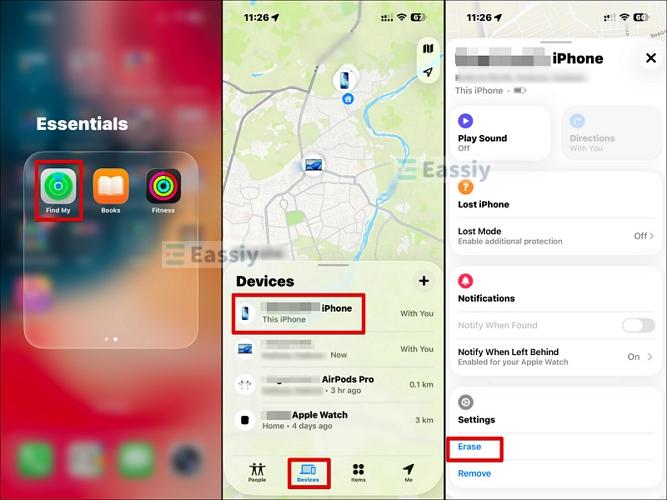
- Open the Find My app on a second Apple device. Ensure the device is signed in with the same Apple ID used on the iPhone 4.
- Go to the Devices tab and select iPhone 4.
- Scroll down a bit until you see Erase. Choose it and confirm.
- Your iPhone 4 will be wiped instantly.
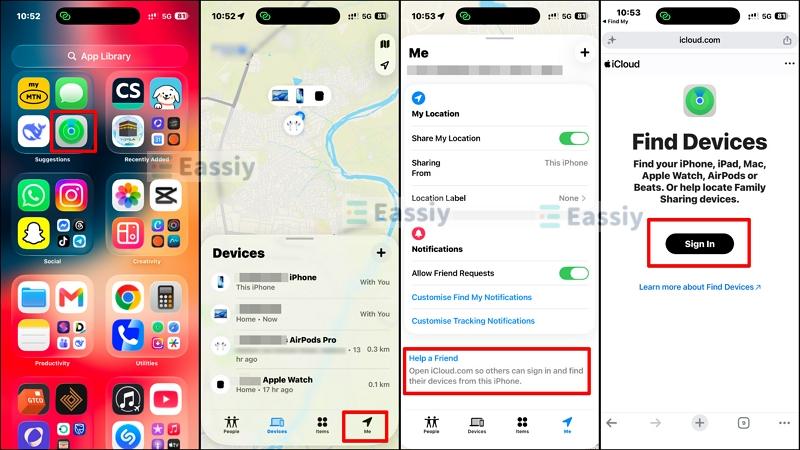
Also, do you plan to use a friend’s iPhone? You don’t need to sign out of your friend’s Apple ID in the Settings app. Instead, open Find My, go to the Me tab, then tap Help a Friend. Apple's Find Devices page will open up in a private browsing session. Use that to sign in with your own Apple ID and erase the iPhone 4.
Option 2. Use iCloud Find My
Any browser on any device works for this one — an Android phone, a Windows PC, or a borrowed tablet.
Steps to Use
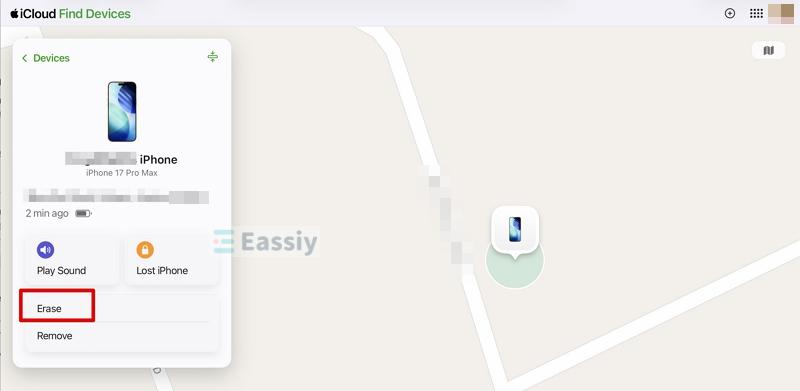
- Open any good browser and visit iCloud.com/find. Sign in with your locked iPhone 4’s Apple ID.
- Next, choose the iPhone 4 from the Devices list at the top left.
- Select Erase and confirm with your Apple ID password. The device will be erased remotely.
Rememebr that iCloud will only work when the locked iPhone is online. If it's not, the erase command will queue up and execute itself the next time it sees the internet.
How to Recover iPhone Data After Unlocking
Unlocking the iPhone 4 through any of these methods means the device gets wiped. That's just the reality with a phone this old. But that’s not the end. There’s now a way to get all your files back even after the phone goes through a reset. Eassiy iPhone Data Recovery is one of the best tools for the job. It has one of the highest iOS recovery rates for pictures and clips in the industry.
Eassiy can scan over 1000 deleted photos in mere seconds, so speed is not an issue. And if you’re concerned about whether Eassiy can recover a specific file format, rest assured it won’t be an issue too, as it supports recovery of 36+ file formats, including images, videos, contacts, etc.
Best of all, you don’t even need to first recover the files to a computer and then copy them back to your iPhone, because Eassiy can scan the device and restore deleted or lost files directly to your iPhone. It works through a USB connection and doesn't require a backup to find recoverable data.
Key Features:
- Recover from iOS Device: Scan the iPhone to recover any photos, messages, contacts, etc., you deleted, even without a backup.
- Recover from iTunes Backup: After scanning your saved iTunes backup, you can easily recover specific files without overwriting everything currently on the device.
- Recover from iCloud Backup: Pull data from iCloud and get back only what you want.
- Preview Before Recovery: There’s a clean preview window that lets you see recoverable files, so you can save time by choosing and recovering only them.
Steps to Recover iPhone Data After Resetting
Step 1: Connect and Scan.
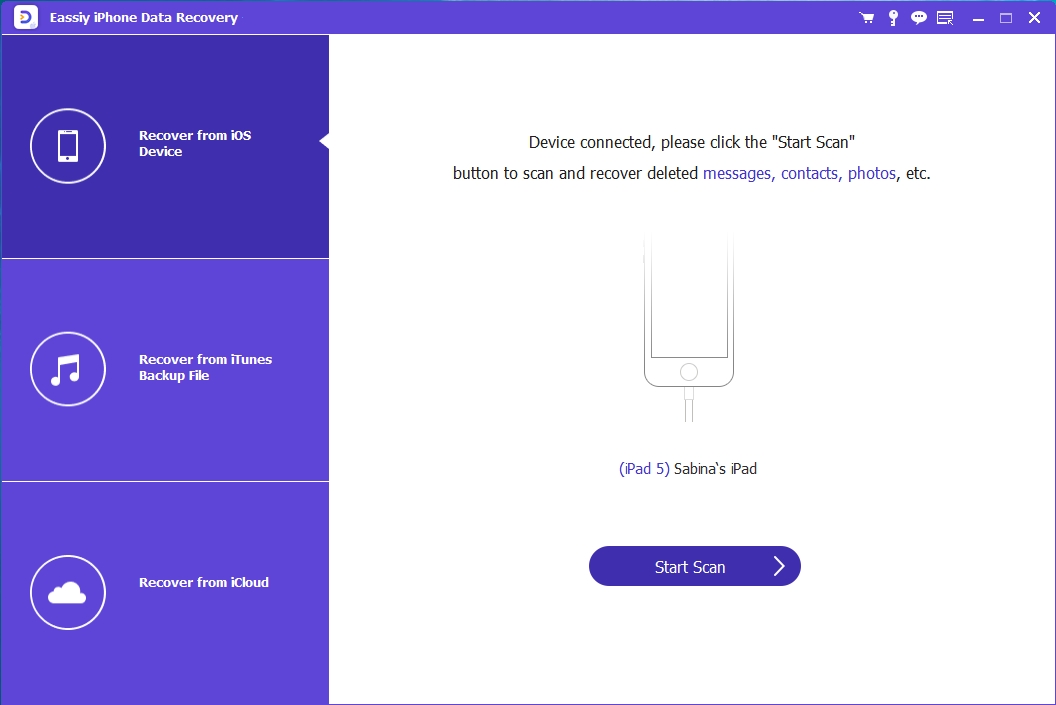
Download and install Eassiy iPhone Data Recovery. There’s a version for both Windows and macOS. Launch Eassiy and connect the iPhone 4 via USB cable. From the left sidebar, select Recover from iOS Device, then hit Start Scan.
Step 2: Preview the Results.
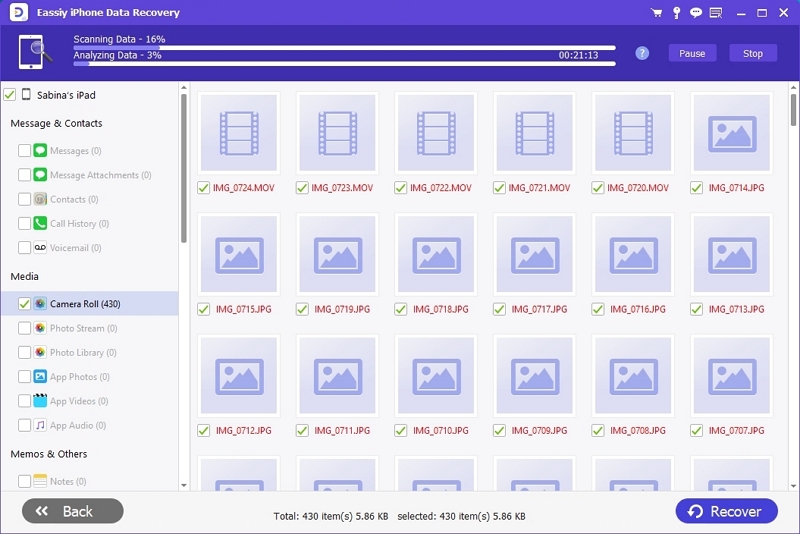
If you’ve set up a new passcode on the iPhone 4, enter it and click Continue. The scan will start. Once it finishes, all recoverable files appear on screen, organized by type: photos, messages, contacts, notes, and more. Browse through them and tick only what needs to be recovered.
Step 3: Recover.
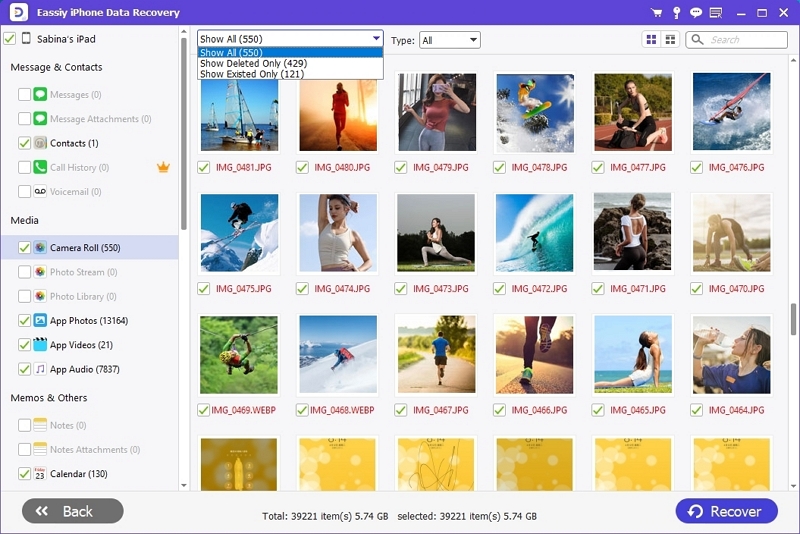
Choose Recover to save the selected files to the computer or send them directly back to the iPhone. The process time depends on how many files are selected.
Here’s a simple but vital tip for you. Data recovery works best the sooner you do it after you wipe your phone. If you continue using your phone after erasing, there’s a lower chance the software will be able to recover all your files because they’ll get overwritten by newer files. So, endeavor to run the scan as you get the iPhone 4.
Conclusion
Getting back into an iPhone 4 without the passcode always means resetting it first. That's not a workaround but it's just how the device works at that iOS version. The question is which reset method fits the situation.
Eassiy iPhone Access is the fastest path when a computer is available and iTunes doesn’t work. iCloud and the Find My app handle it without a computer at all, as long as the Apple ID credentials are on hand and Find My was active beforehand. And if the data matters, Eassiy iPhone Data Recovery can scan the wiped device and bring back what can still be found.