Help Center

Updated on 2026-07-22
views
5min read
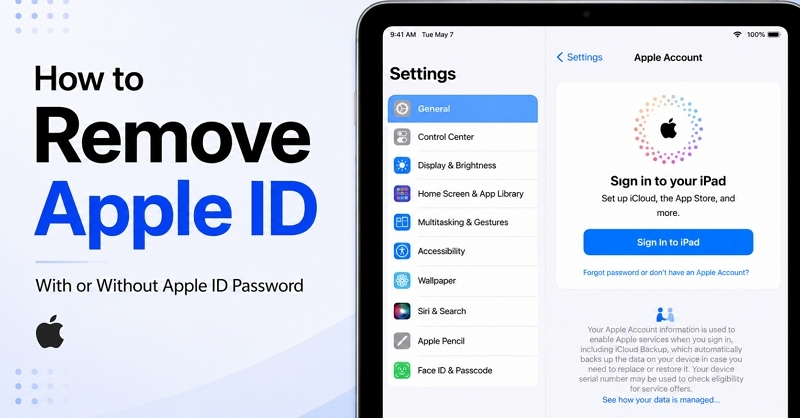
Removing the Apple ID is necessary when you’re selling it to a stranger or even giving it to a family member. It can protect your privacy, as your Apple ID carries a lot with it, such as your iCloud storage, Apple Wallet and payment details, App Store purchases, photos, contact syncing and location(Find My).Furthermore, the new user of your iPad will need their own Apple ID to access apps and features without limitations.
In the following section, we'll walk through how to remove Apple ID from iPad when you still have the password. If the Apple ID password is unavailable, we’ll show you how to reset it, recover it, or work around it during Apple ID removal.
How to Remove Apple ID from iPad with Password
When you have the Apple ID password, Apple can quickly confirm you're the account owner. That clears you to make security changes, such as signing out, disabling Find My, removing Activation Lock or erasing the device entirely.
There are several ways to delete Apple ID from iPad. The following table lays out your options, so you can pick the one that fits what you're trying to do.
| Method | Requirements | Data Loss | Best For |
|---|---|---|---|
| Sign Out in Settings | Apple ID password | iPadOS 26+: Yes if you choose “Erase This iPad”when signing out. Older versions: If you don’t have a local copy of your iCloud data on the iPad, you may lose access to it on the device. However, you can restore the data by signing in again with the same Apple ID. |
Change Apple ID on your iPad. |
| Erase via iCloud Find My | Apple ID password, iPad connected to the internet, enabled Find My feature | Wipe all data and settings from iPad and return iPad to the Hello screen | Trade the iPad in or wiping it remotely after a sale |
| Restore in Unavailable Screen | Apple ID password, iPadOS 15.2+, Find My on, iPad with network connected | All personal content will be removed from iPad. | Sign out option is greyed out in Settings and you don’t have another device to erase iPad remotely. |
Way 1. Sign out of Apple ID in Settings
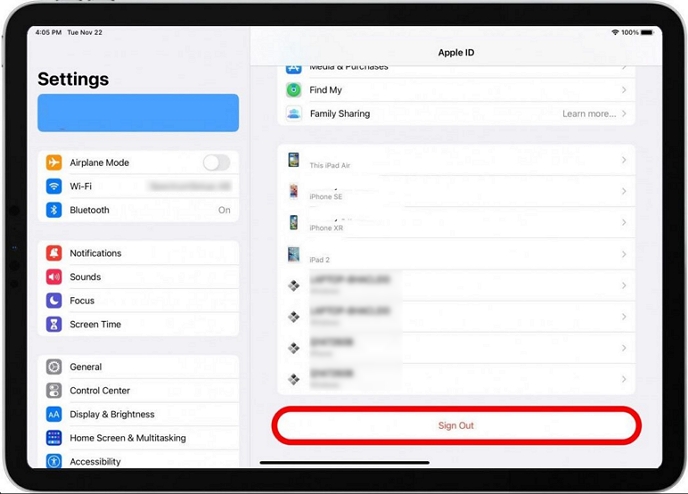
This is the fastest option to sign out of the Apple ID. It's also the only method that lets you keep the desired data while deleting the account. Here is how to log out of iPad installed with iPadOS 26.
- Open the Settings app on your iPad. Tap your name at the top.
- Scroll to the bottom and tap Sign Out.
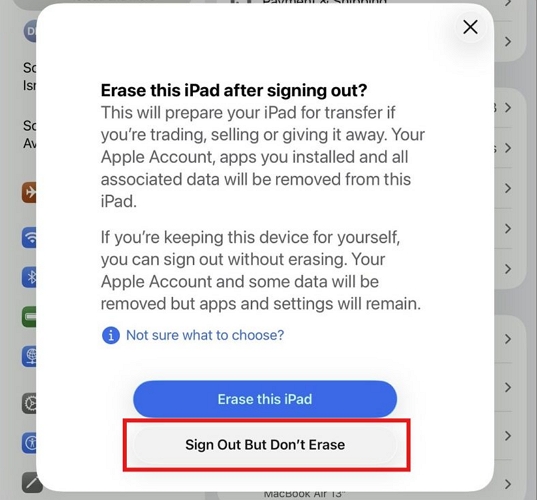
- Choose Sign Out But Don't Erase. The other option, Erase This iPad, will wipe everything — pick this when you want to get rid of the iPad entirely.
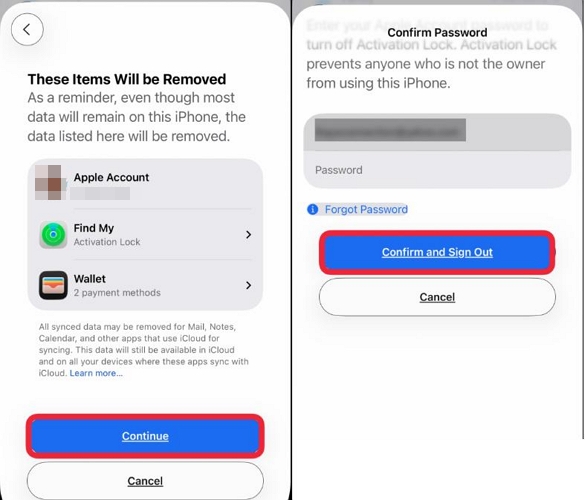
- Follow the on-screen prompts. This will tell you exactly what stays and what goes before you confirm anything.
- Enter your Apple ID password (or the device passcode) when asked.
- Tap Confirm and Sign Out.
Way 2. Erase and Remove iPad via iCloud Find My
This method works best when the iPad isn't physically with you and you want to completely wipe the device, including the Apple ID. Maybe you sold it secondhand and the buyer wants the old Apple ID off it. Or perhaps you're the buyer, stuck with someone else's account still attached. Either way, this method lets you erase the iPad and pull the Apple ID off it remotely and it also lifts Activation Lock in the same process without previous owner handing over their password.
To try this way, your iPad needs to stay connected to the internet while Find My iPad is enabled.
Steps to Remove Previous Owner's Apple ID from iPad
Step 1. Make sure the iPad is connected to Wi-Fi or cellular data until the process finishes.
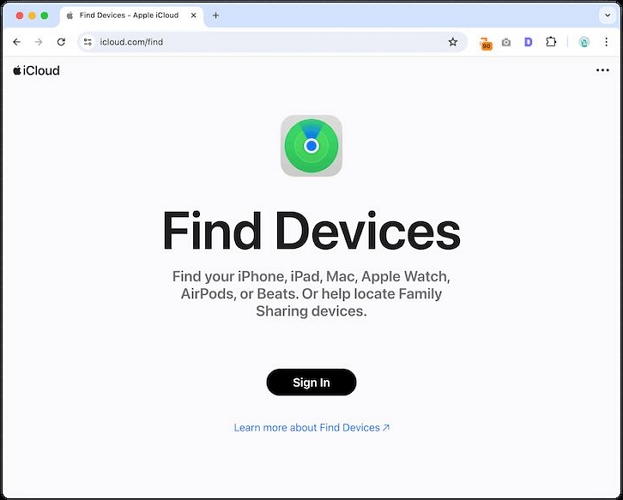
Step 2. From any browser, go to iCloud.com/find and sign in with the Apple ID associated with the iPad.
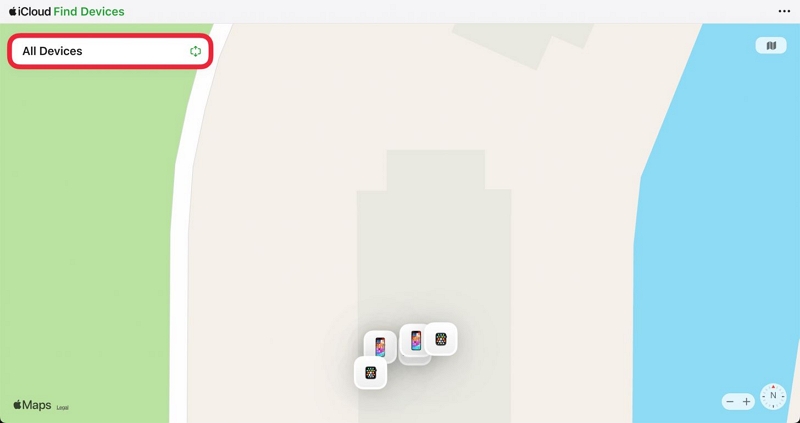
Step 3. Select All Devices, then pick the iPad.
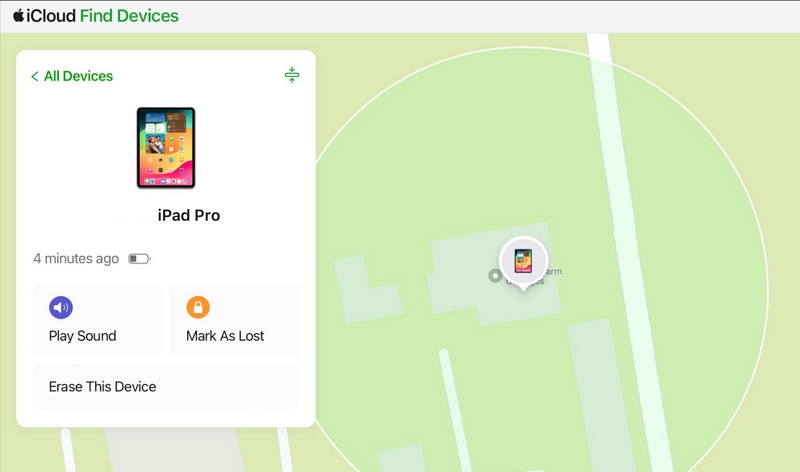
Step 4. Click Erase or Erase This iPad. Confirm the erasing by entering the Apple ID password. You'll get an email once it's done.
Step 5. Select the iPad again and click Remove or Remove This Device. This is the step that actually turn off Activation Lock as erasing on its own doesn't do that.
Way 3. Restore iPad in Unavailable Screen
Although this method was originally designed to unlock an unavailable iPad without a second device, it can also help remove Apple ID from iPad. If your iPad is running iPadOS 15.2 or later and you enter the wrong passcode five times in a row, an Erase iPad or iPad Reset option may appear on the lock screen. Selecting this option will factory reset the locked iPad, erasing all content and settings, including the Apple ID associated with the device.
Here's how to use this method.
Step 1. On the lock screen, keep entering wrong passcodes until the iPad Unavailable or Security Lockout message appears.
Step 2. Tap Erase iPad at the bottom-right. On iPadOS 17 and later, this will appear as Forgot Passcode? option instead. Tap that and then choose iPad Reset > Start iPad Reset.
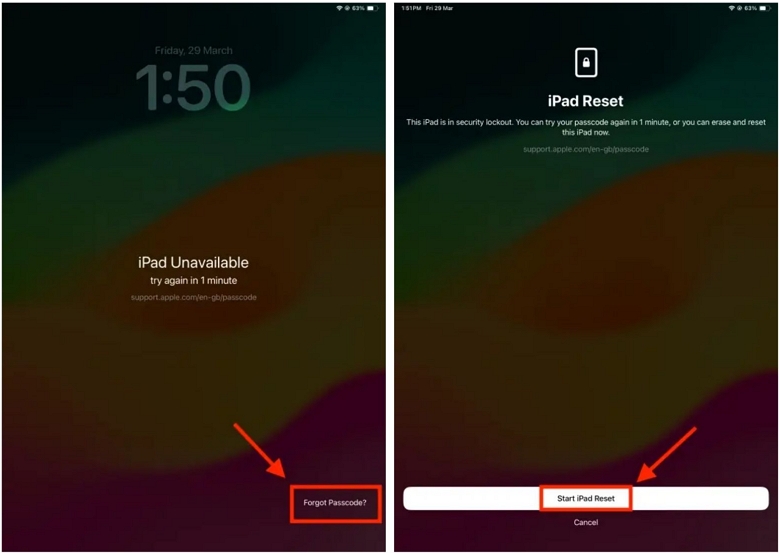
Step 3. Tap Erase iPad again.
Step 4. Enter the Apple ID password when prompted. This will sign the iPad out of the account. The iPad will erase and restart. You can set it up as new or restore from a backup if you have one.
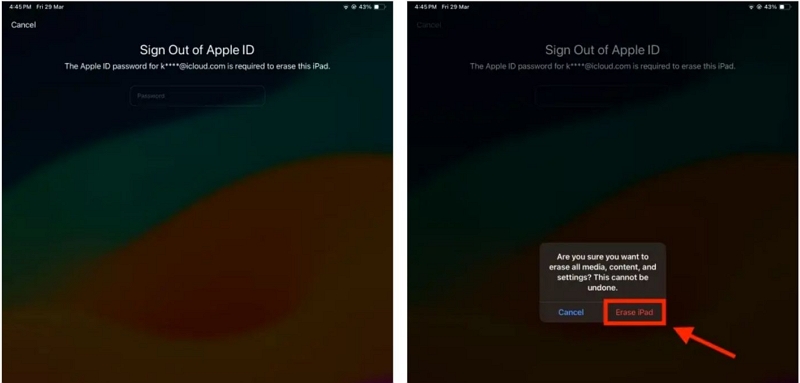
Note: You can also erase the iPad through iTunes or the Settings menu directly. This will remove the Apple ID too. However, both will ask for the Apple ID password to clear Activation Lock later if Find My iPad is enabled.
How to Remove Apple ID from iPad Without Password
Not knowing the Apple ID password is also common. Maybe you forget the new Apple ID password you just changed. Maybe the iPad arrived already locked to someone else's account and you can't reach them to ask. At that time, you can try resetting the Apple ID password first (we’ve covered in the next section). After that, it will put you back in the "with password" methods discussed above and you can follow the steps to unlink the Apple ID. However, if that's not an option, say, you don't have access to the recovery email, trusted device or phone number, take it easy. It’s still available to remove Apple ID from iPad without password.
Check If Find My iPad Is On or Off
This one check decides everything. Find My iPad powers Activation Lock — the feature that ties an iPad to an Apple ID even after it's wiped. So if Find My is off, the iPad has no lock to fight. You can erase it and walk away with no Apple ID required. If it's on, Apple's servers will still require the Apple ID password before logging out of Apple ID.
Just go to Settings and tap your name. Then choose Find My > Find My iPad. The toggle here tells you everything.
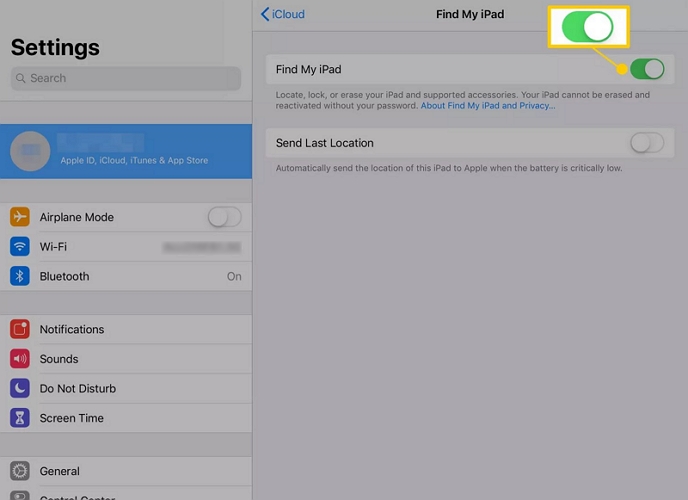
Here's what it means:
- If Find My is off (grey), jump to Case 1 below and free the iPad from its old Apple ID easily.
- If it's turned on (green), jump to Case 2.
If you're completely locked out of the iPad itself, with no way to even check Find My, go to Case 2 too.
Case 1. Unlink iPad from Apple ID Without Password When Find My iPad Is Off
This is the easier case. You won't need an Apple ID at any point. Both methods below wipe the iPad completely to remove Apple ID, so back up anything you will need later.
Way 1. Wipe iPad in Settings
When Find My iPad is turned off, you can erase your iPad directly from Settings with screen passcode. Once the erase process is complete, the iPad will be restored to its factory settings and the Apple ID previously signed in to the device will be removed. Here's how this way works.
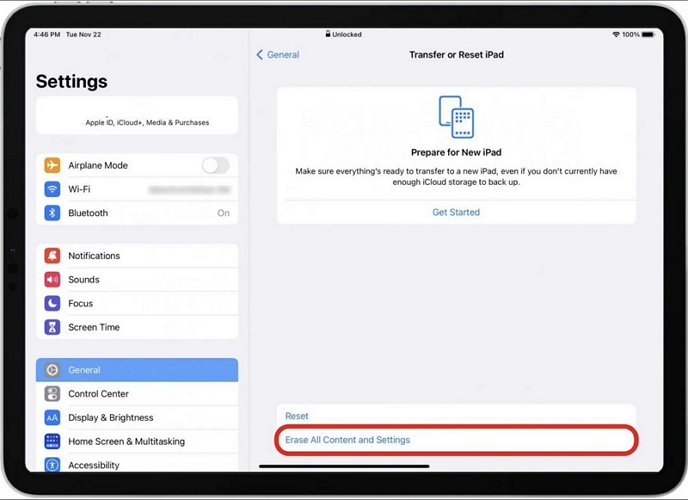
- Open Settings and tap General.
- Scroll down and tap Transfer or Reset iPad.
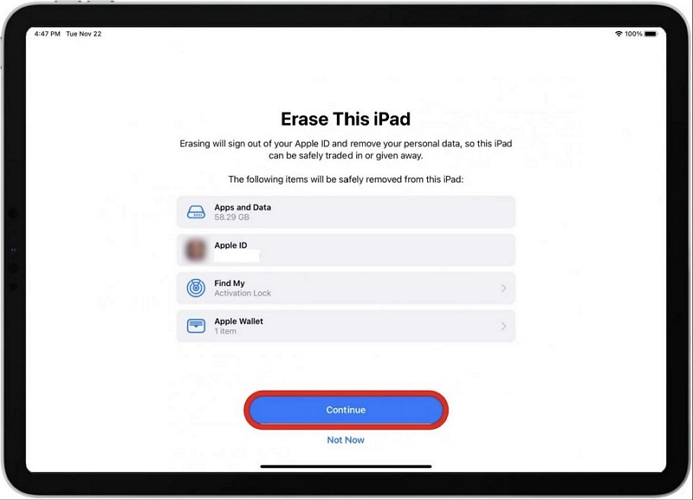
- Tap Erase All Content and Settings.
- Enter the iPad's passcode when asked. Since Find My is off, that's all it needs — no Apple ID password.
- Confirm and let it finish. The iPad will restart straight to the Hello screen finally.
Way 2. Factory Reset iPad Using iTunes
This way will restore iPad and thus Apple ID is removed. Different from the above way, it works on a computer. If you fail to erase iPad in Settings because the greyed-out Erase option or screen passcode can’t be verified, this way is helpful.
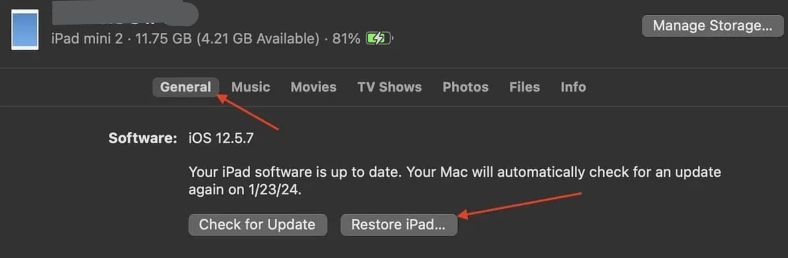
- Connect the iPad to a Mac or PC with a certified cable.
- Open Finder (Mac) or iTunes (Windows). In Windows 10 or later, you can use the Apple Devices app instead.
- Select the iPad in the tool once it shows up.
- Click General and click Restore iPad.
- Confirm to start the restore.
Because Find My is already off, the restore will go through without stopping to ask for anything tied to an Apple ID. You don’t even have to enter recovery mode here if your iPad is unlocked.
Case 2. Delete Apple ID from iPad Without Password When Find My iPad Is On
This is the tougher case. Find My being on means Activation Lock is active, meaning that the moment you erase the iPad, that iCloud lock will kick in.
Officially, there are two routes here.
- For second-hand iPad, you can contact the original owner and ask them to remove the device from their account. We’ve already discussed this in Way 2 in the Password section.
- For own iPad, if you have its original purchase receipt, you can go to Apple’s Activation Lock support page and submit a request with it.
When neither option works, Eassiy iPhone Access offers a Remove Apple ID feature built for exactly this. You can use Eassiy to easily remove the Apple ID from the iPad without needing the Apple ID password. With Eassiy, you don’t need Apple ID password to turn off Find My or disable Activation Lock after removing Apple ID. Once the removal is done, you can sign in with a new Apple Account and use your iPad with full ownership.
Key Features:
- Remove MDM restrictions to make the Sign Out option work again if the option is greyed out.
- Lets you bypass iCloud Activation Lock without the original Apple ID password.
- Lifts Screen Time restrictions that can prevent you from signing out of the Apple ID.
- Handles other iPad lock situations as well, including forgotten screen passcode.
Steps to Remove Apple ID from iPad Without Password
Step 1. Launch Eassiy iPhone Access and select Remove Apple ID mode from the main dashboard.
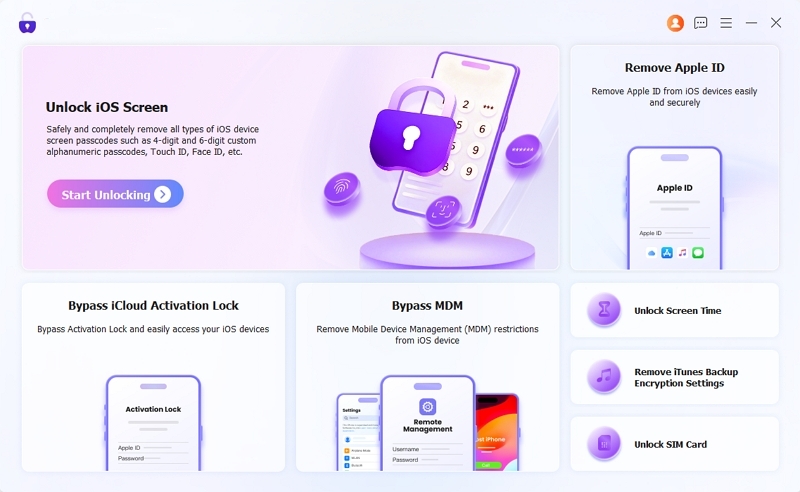
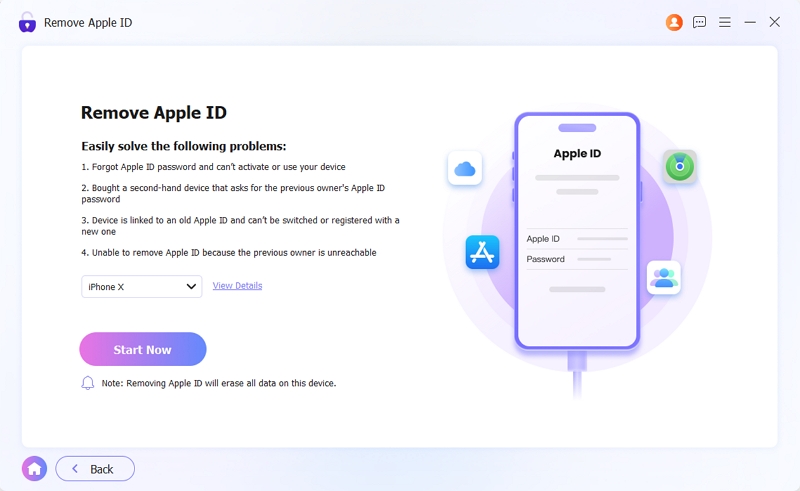
Step 2. Connect the iPad to your computer. Then click Start Now.
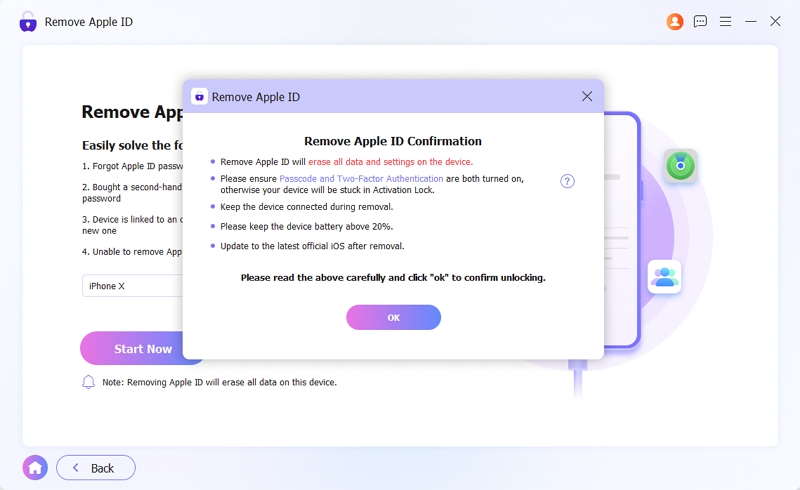
Step 3. For iPads on iPadOS 11.4 or later, make sure Two-Factor Authentication is on. If it’s off: go to Settings > [Your Apple ID] > Password & Security on the iPad and turn it on. Also, ensure that you have set a screen passcode on your iPad. Then return to the software, click OK and click Confirm Again to authorize the removal.
Note: This wipes all data on the device.
Step 4. Eassiy will start removing the Apple ID automatically. Keep the iPad connected until it finishes.
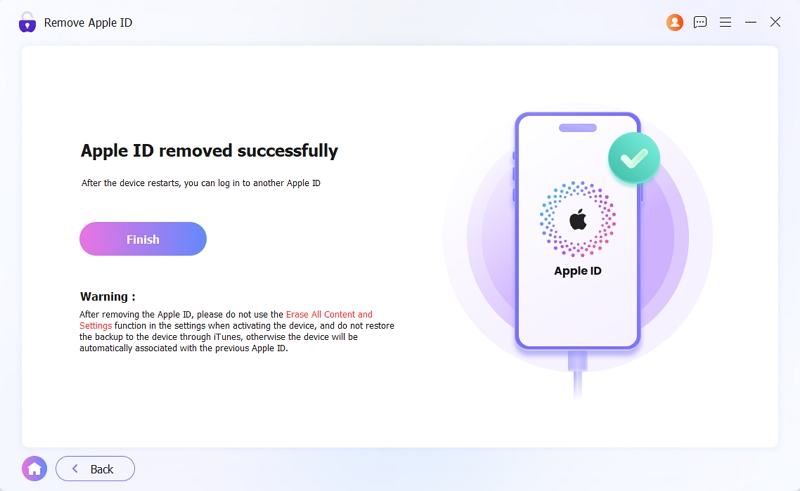
Step 5. Once it’s done, follow the on-screen instructions to set up the iPad like new again. The old Apple ID will now be gone and you can sign in with a new one or create one from scratch.
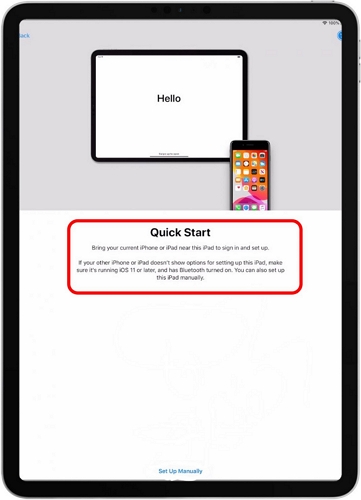
How to Reset Apple ID Password
There are a few ways to change your Apple ID password, but two are the most direct and highly recommended by Apple. Both work well and which one you use comes down to what you have on hand: a trusted device or just a browser.
If you've forgotten the password entirely, either method below gets you a fresh one. Once that's done, you're back to the "with password" methods discussed earlier and you don’t need any of the workarounds.
Way 1. Reset on Trusted Device
If you already have a trusted device, such as your iPhone, another iPad, even a Mac, this is the fastest route.
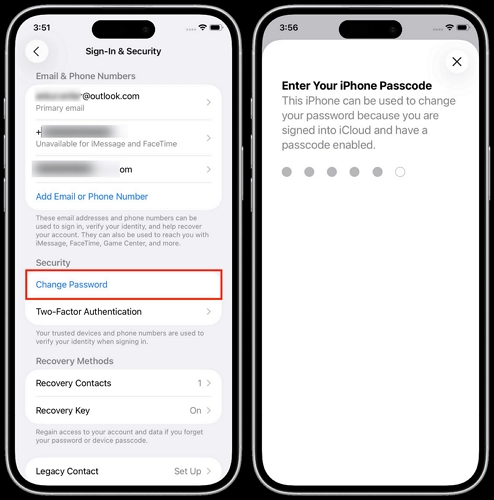
- Open Settings, tap your name.
- Tap Sign-In & Security.
- Tap Change Password.
- Enter the device's screen passcode when asked.
- Follow the prompts to set a new password.
- Choose whether to sign out of your other devices or stay signed in, then continue.
Note: If Stolen Device Protection is turned on, this can come with a catch. That is, Apple may ask you to wait an hour before approving the password change. Plus, it will also insist on Face ID or Touch ID instead of accepting a passcode alone.
Way 2. Reset Online
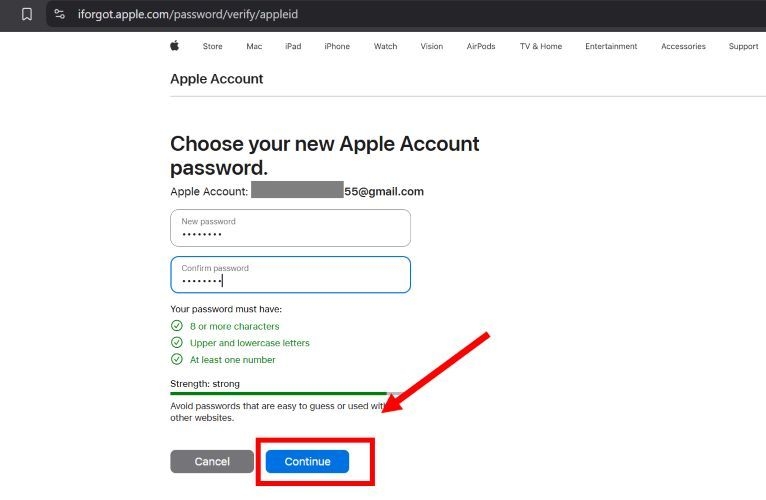
When you don’t have a trusted device, you can still do this through a browser, using iforgot.apple.com. This relies on having a trusted phone number or device within reach, even if it's the iPad you're trying to fix. As long as one of those exists, you can reset the password entirely from the web. Here’s how:
- Go to iforgot.apple.com and enter your Apple ID.
- Verify the CAPTCHA, then continue.
- Enter your trusted number when asked.
- A code will be sent to your number. Enter that code on iforgot site.
- Set your new password.
Final Words
This article has covered every situation for removing Apple ID from iPad. If you can’t reset the forgotten Apple ID password, you can use Eassiy iPhone Access to easily remove the Apple ID from iPad even when Find My iPad is enabled.And once the removal's done, you'll be free to sign in with a new Apple ID and start fresh.