Help Center

Updated on 2026-07-22
views
5min read
Screen Distance is a feature iPhones come with. It uses the front camera to measure how close your face is to the screen, and if it decides you're too close, it'll show you a notification asking you to move back a bit before you continue using your iPhone. Apple added Screen Distance to encourage healthier viewing habits, especially for kids.
Having said that, Screen Distance can get frustrating fast when it keeps interrupting what you're doing with a full-screen warning. Turning it off should take seconds when you have the passcode. What if you forgot that credential? It suddenly becomes a lot harder than it should be. Don’t worry. The methods below cover how to turn off Screen Distance without passcode, plus the straightforward way to do it when the passcode is known.
What Is Screen Distance Passcode?
As one of the Screen Time features, Screen Distance doesn't have its own passcode. It's locked behind the Screen Time passcode, so the 4-digit code controls Screen Distance too.
How to Turn Off Screen Distance Without Passcode
Forgot the Screen Time passcode? That's the most common reason people end up here. The good news is there's a way to reset it without losing any data as long as an Apple ID was linked when the passcode was first created. If that's not the case or the Apple ID credentials are also gone, Eassiy iPhone Access can help remove the Screen Time passcode directly through a USB connection while keeping the iPhone's data intact, provided the passcode was set directly on the device rather than through Family Sharing. And if neither option works, a factory reset through iTunes clears everything, Screen Time included.
Reset Screen Time Passcode If Forgotten
On iPhones powered by iOS 13.4 or later, Apple added a way to reset the Screen Time passcode using the Apple ID originally used to set it. It won’t be amiss to try this first since there’s no risk of your iPhone being erased and it’s the fastest way to disable Screen Distance.
- Open Settings and choose Screen Time.
- Select Change Screen Time Passcode, then tap it again to confirm.
- At the passcode entry screen, hit Forgot Passcode?
- Type in the Apple ID email and password that were used when setting up the Screen Time passcode. Choose OK.
- Set a new passcode and tap OK. Then re-enter it to confirm. Screen Time is now accessible again and you can use the new passcode to disable Screen Distance without issues.
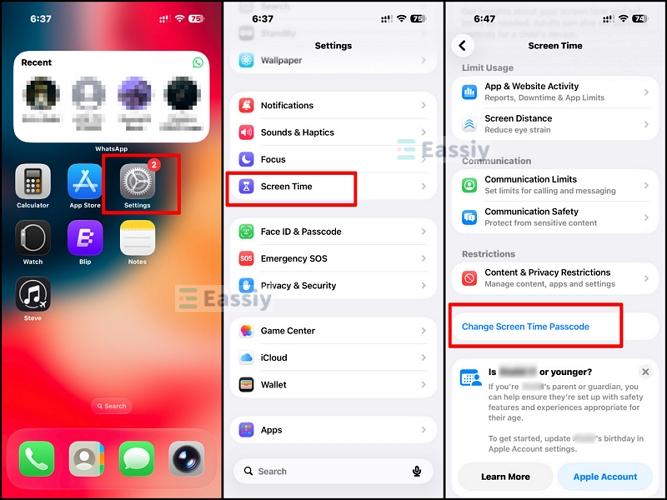
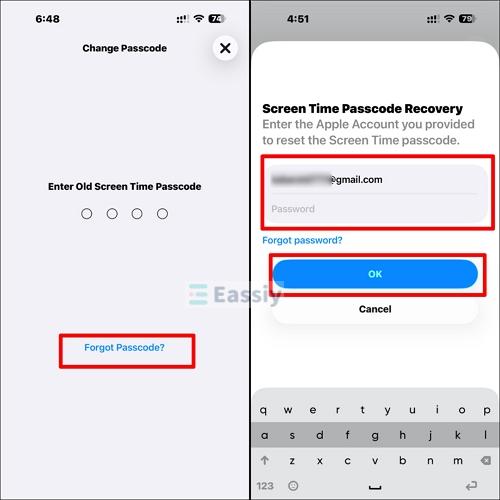
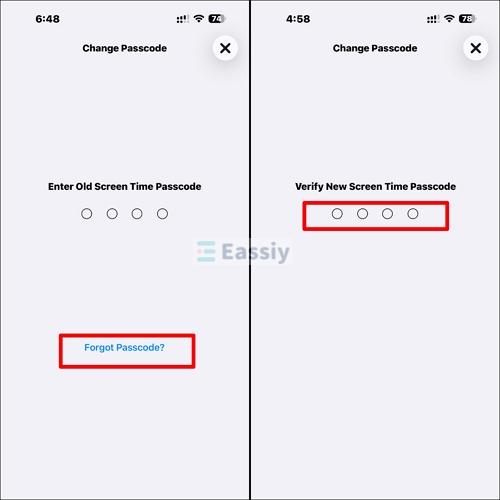
All of this will only work if the Apple Account was linked to the Screen Time passcode when you created it. But if you set up your passcode with no Apple ID, you won’t see “Forgot Passcode”.
Way 1. Use Eassiy iPhone Access to Deactivate Screen Distance
So, if you can’t reset Screen Time(Screen Distance) passcode through your Apple ID, what do you do? Try Eassiy iPhone Access for a quick and easy solution.
The light but powerful app removes the Screen Time passcode directly from your iPhone via a simple USB connection. You don’t need your Apple ID or the forgotten passcode during the removal. Moreover, Eassiy can remove the Screen Time passcode and disable Screen Time without data loss, as long as the Screen Time passcode was not set through Family Sharing.
Key Features
- Clear the Screen Time passcode and all Screen Time restrictions without factory resetting your phone.
- Easily remove any screen lock from your iPhone when you forget the passcode or buy a second-hand device.
- Bypass iCloud Activation Lock even with no Apple ID and previous owner.
- Remove Apple ID from iPhone/iPad without password and without being stuck on iCloud Activation Lock.
Steps to Disable Screen Distance Without Passcode or Apple ID
First, pick up your iPhone and turn off Find My. Go to Settings > Apple ID name > Find My > Find My iPhone and toggle it off. Eassiy needs this disabled before it can remove the Screen Time passcode.
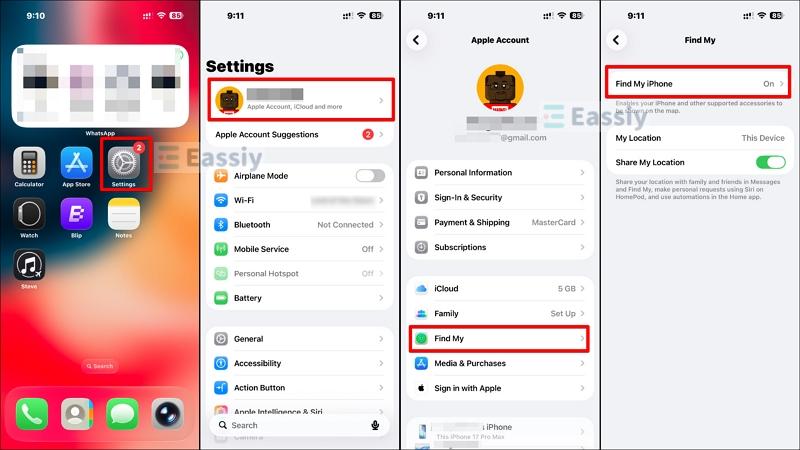
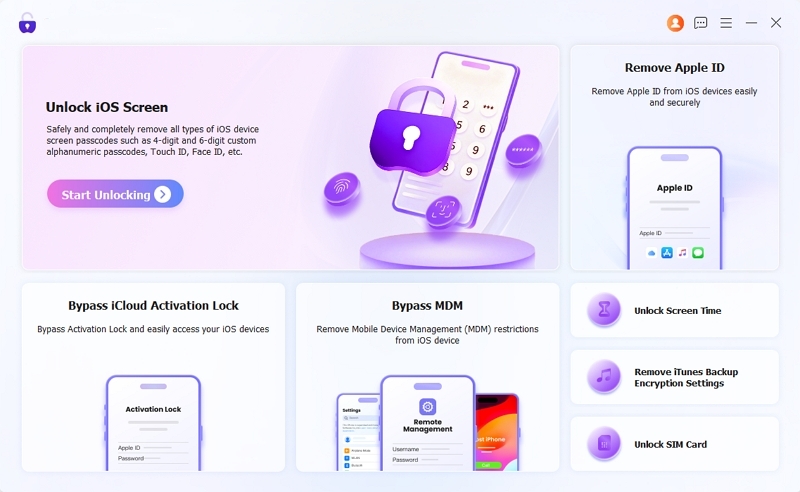
Step 1: Download, install, and launch Eassiy iPhone Access on a Windows PC or Mac. Look to the bottom right on the main screen. Click on Unlock Screen Time. Plug a USB cable into your iPhone and into the computer, then unlock the phone.
Step 2: Eassiy will ask how the Screen Time passcode was originally created. Two options appear:
- Set up directly on this device: Choose this if the Screen Time passcode was set on the iPhone itself.
- Through Family settings: Select this if a family member set the passcode on their device and applied it to this one.
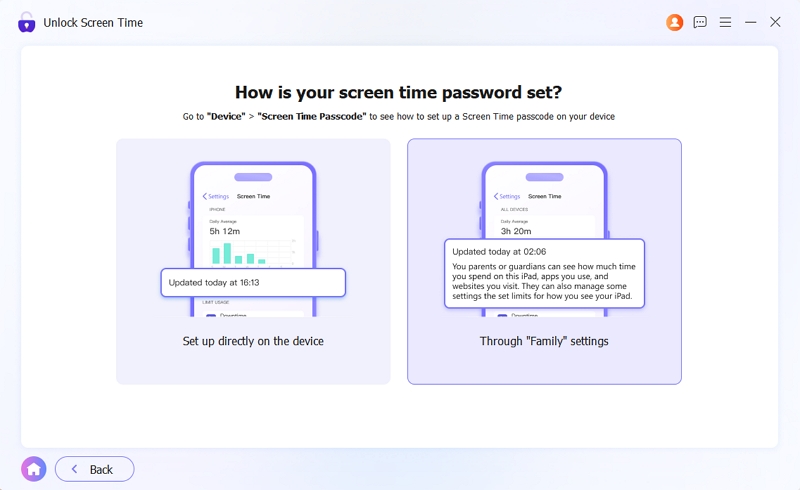
The first option is chosen here. After selection, hit Start Now to continue.
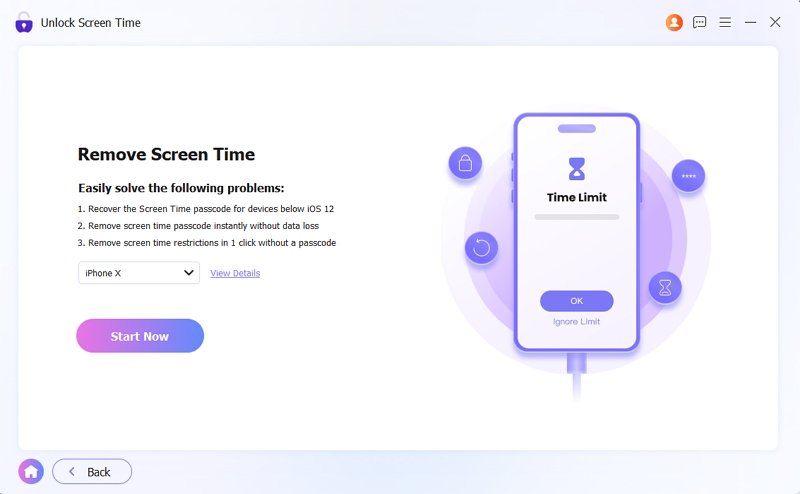
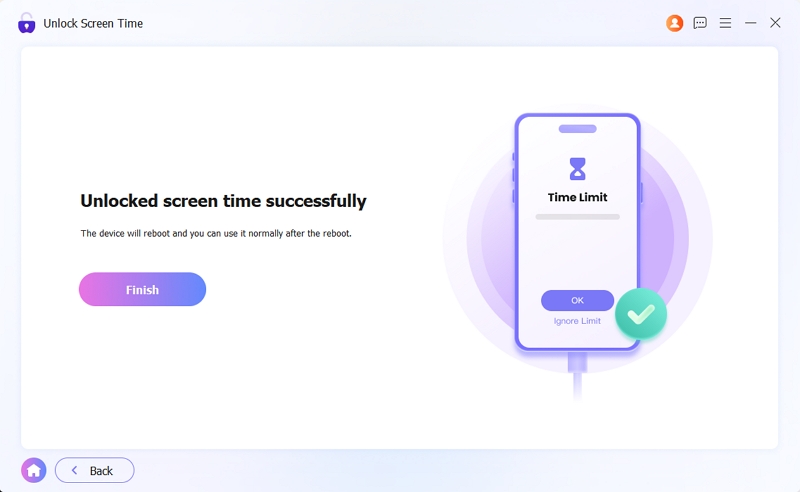
Step 3: The Screen Time passcode will be removed within a few minutes. Click Finish. No data loss!
Way 2. Factory Reset iPhone
Factory resetting through iTunes or Finder wipes everything on the phone and thus turns off Screen Time entirely along with it. It's the nuclear option and should only be used when you don’t want to use Screen Time removers like Eassiy and the Apple ID reset doesn't work. Don’t forget to back up the iPhone first.
How to Factory Reset Using iTunes or Finder to Turn Off Screen Distance
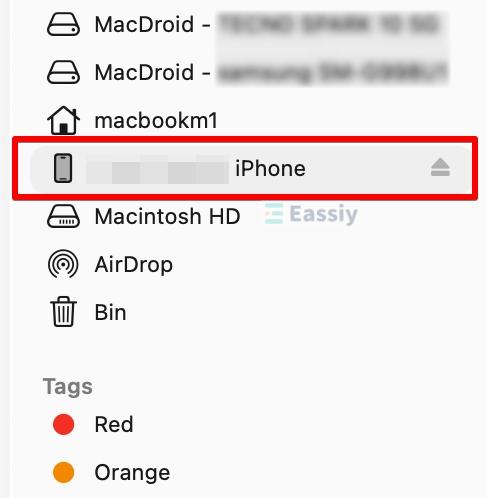
- Open iTunes on Windows or Finder on Mac. Connect the iPhone with a USB cable.
- If you’re asked to Trust the computer on your iPhone, do so. It’ll appear in iTunes or Finder once recognized.
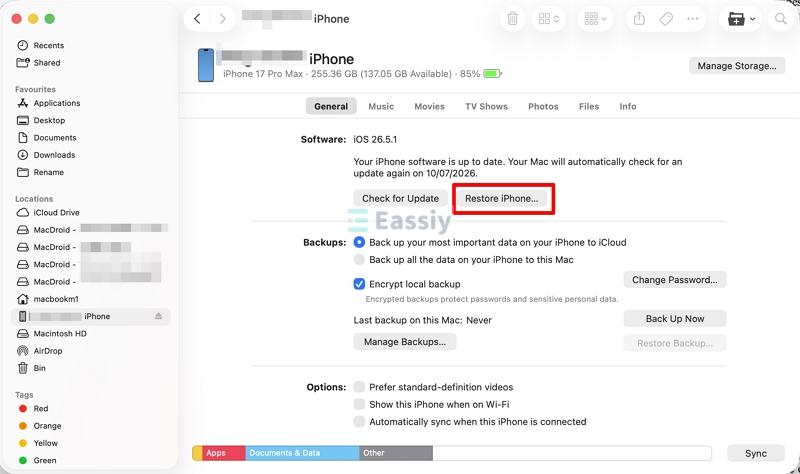
- Click the iPhone, then choose Restore iPhone. Confirm when prompted.
- iTunes or Finder will download the latest iOS and restore the device to factory settings. Screen Time passcode will be gone and Screen Distance will be off when the process finishes.
Since the iPhone is still accessible, back it up before starting the restore. Go to Settings > Apple ID name > iCloud > iCloud Backup and tap Back Up Now, or connect it to a computer and back up through iTunes or Finder first. That way, the data can be restored once the process is done.
How to Turn Off Screen Distance with Passcode
If the Screen Time passcode is known, turning off Screen Distance takes about 30 seconds.
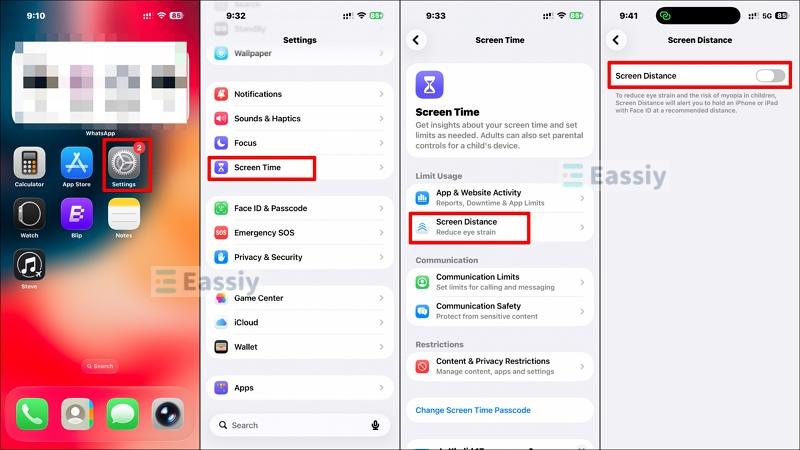
- Open Settings and scroll down to Screen Time.
- Choose Screen Distance.
- Toggle off Screen Distance. When the Screen Time passcode prompt appears, enter it.
Note: If Screen Distance is being managed by a parent or guardian through Family Sharing, it can only be turned off from the organizer's device. The child's iPhone won't have the option available in Settings.
FAQ: How to Turn Off "Your Face Is Too Close to the Screen"
That warning is Screen Distance in action. When your iPhone’s camera realizes your phone is closer than 12 inches to your face, it’ll lock the screen and show the warning. The warning will remain there until you move the phone away.
To get rid of the warning, simply move the iPhone at least 12 inches from the face, then tap Continue. The screen will unlock.
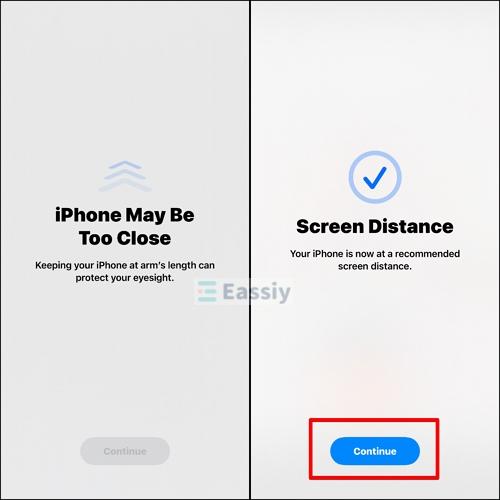
If you keep seeing the warning, you can use one of the above methods to turn it off for good rather than ignoring the warning every time.
Conclusion
Screen Distance is tied to Screen Time, so the passcode for one is the passcode for the other. If that code is known, turning it off through Settings takes seconds. If you forget it, try the Apple ID reset first. And if that doesn't work, Eassiy iPhone Access might be your best bet, because it removes the Screen Time passcode with no data loss in supported situations. Factory resetting through iTunes should only be a last resort when everything else fails.