Help Center

Updated on 2026-06-17
views
5min read
iPhone locked with iCloud usually means that your device is stuck on iCloud Activation Lock. As one of the strongest security features of Apple, iCloud Activation Lock is generally simple to unlock when you are the rightful owner of the device. Simply enter the Apple ID credentials on the “Locked to Owner” screen and you will find the iCloud lock is removed instantly and you can activate the device again. What if you can’t provide the Apple ID because the account is permanently locked or you don’t have access to a trusted device to reset the forgotten password? Don’t worry, it’s still possible to unlock an iPhone locked with iCloud without password. Next, we will share you all effective ways to remove Activation Lock from your iPhone.
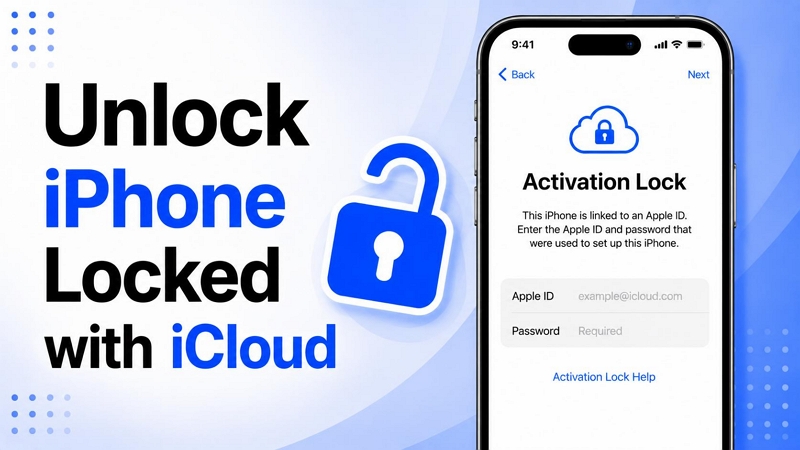
Unlock iCloud-Locked iPhone: Way Overview
Apple can display different Activation Lock screens depending on how the device was locked. You’ll usually see one of these interfaces:
- Activation Lock: This iPhone is linked to an Apple ID. Enter the Apple ID and password that were used to set up this iPhone.
- iPhone Locked to Owner: This iPhone was lost and erased.
- Activate iPhone: This iPhone was lost and erased. Enter the Apple ID and password that were used to erase this iPhone.
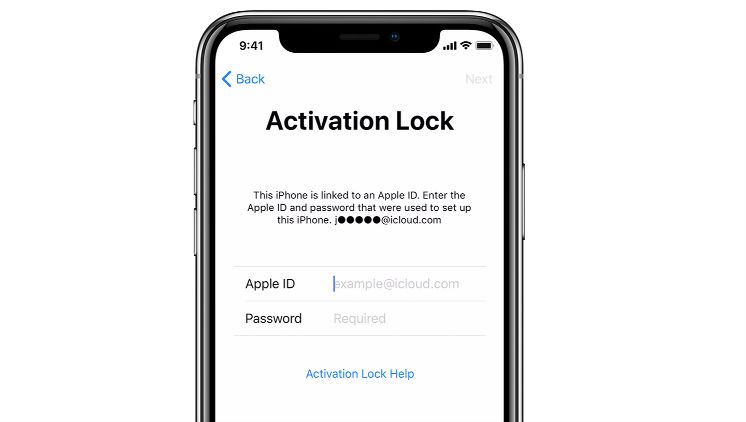
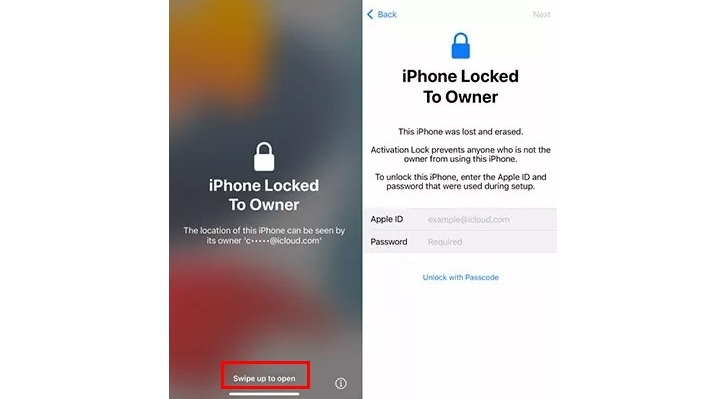
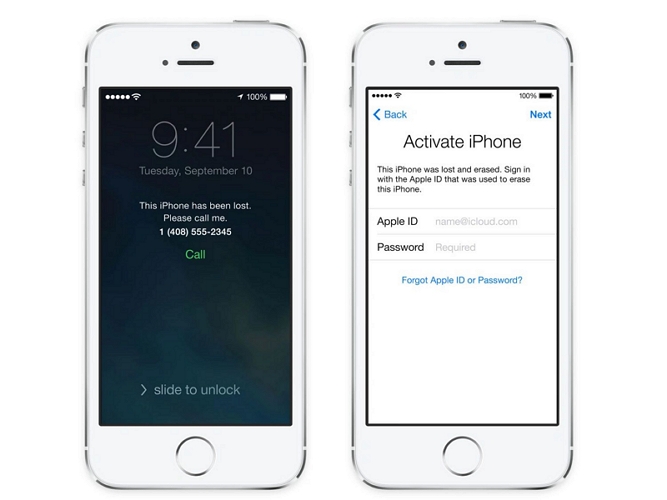
Regardless of which message your iPhone displays, the methods below will let you remove Activation Lock. That said, not every method below works in every situation. For example, Apple will deny help when your iPhone’s Activation screen shows the “iPhone was Lost and Erased” message.
Still, we’ve covered 5 different ways to unlock iCloud Activation Lock and each comes with its own requirements. Here’s an overview table to help you quickly identify the option that best matches your situation.
| Method | What You Need | Required Time | Success Rate | Ease of Use |
|---|---|---|---|---|
| Apple ID(Apple Account) | Apple ID and password | 1–3 minutes | Very High | Very Easy |
| Screen Passcode | Previous device passcode | Less than 1 minute | High if your iPhone meets the requirements | Very Easy |
| Apple Support Request | Proof of ownership and purchase documents | Several days | Moderate | Moderate |
| Eassiy iPhone Access | Windows or Mac computer | 10–30 minutes | Very High | Easy |
| Previous Owner Removal | Access to previous owner | Depends on how quickly you can get in touch with them and their willingness to help. | High | Easy |
Way 1. Unlock an iPhone Locked with iCloud Using Apple ID Password
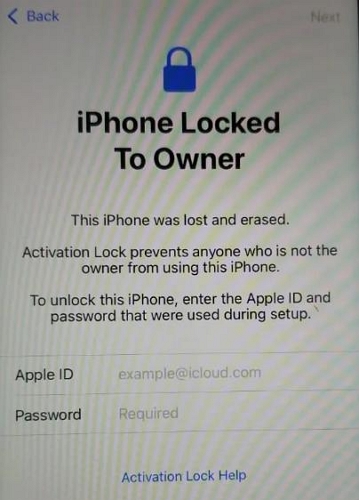
This is the easiest way to get past the iCloud Activation Lock. You just have to verify ownership by signing in with the Apple ID previously linked to the iPhone. This method works for all three Activation Lock screens.
Your Apple ID is simply the email ID you used when setting up the iPhone, meaning the one you use for Apple services, such as App Store, Apple Music and Find My. The Activation Lock screen (unless it is the Lost Mode) will also show the first letter of the email address and part of the email domain (iCloud.com, betterbag.com, etc). Still, if you don’t remember the correct email, you can also enter your trusted phone number or another verified email address linked to your Apple ID.
You’ll also need your account password. In case you don’t remember the password:
- You can reset it on another trusted Apple device.
- Use iforgot.apple.com for password reset.
So long as you remember the correct Apple ID and password, Apple can verify ownership. So it will allow you to continue setting up the iPhone.
Steps to Turn Off iCloud Activation Lock with Password
Step 1. On the Activation Lock screen, enter the Apple ID email address. You can also use a trusted phone number.
Step 2. Enter the account password. Then tap Next in the top-right corner.
Wait while Apple verifies the account information. Once verification is successful, the Activation Lock screen will automatically disappear. And the iPhone will resume the setup process. From there, you can simply continue following the on-screen instructions until setup is complete.
Way 2. Unlock an iPhone Locked with iCloud with Screen Passcode
Apple built a brilliant backdoor into the Activation Lock screen. That is, you can authenticate using the device passcode set on the iPhone previously. Yes, the 4-digit, 6-digit, or alphanumeric passcode that you used to unlock the iPhone every single day lets you remove Activation Lock.
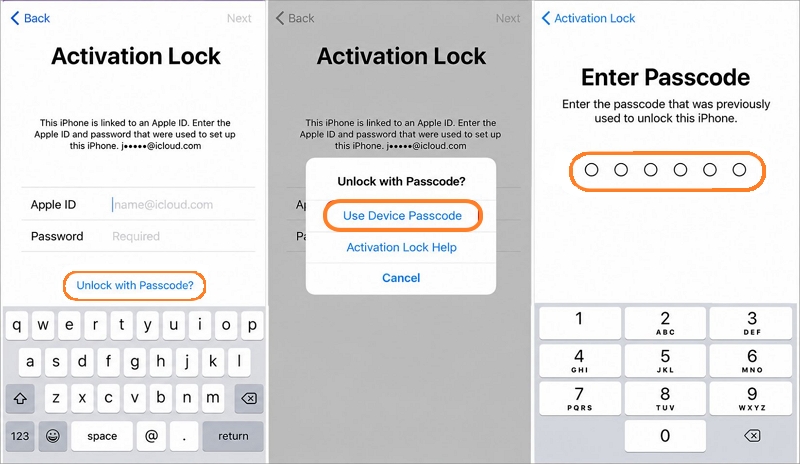
You’ll usually see the Unlock with Passcode link right on the Activation Lock screen itself, beneath the Apple Account sign-in fields. If you don’t see that option, it means your iPhone doesn’t meet the requirements for this feature. Apple only provides the passcode unlocking option when:
- Your iPhone is running iOS 11 or later.
- Two-Factor Authentication (2FA) was enabled before the device was placed in Activation Lock.
- Your iPhone had an active screen passcode.
Steps to Remove iCloud Activation Lock via Screen Passcode
Step 1. Tap Unlock with Passcode? link. Choose Use Device Passcode from the pop-up.
Step 2. Enter the screen passcode that was previously used on the iPhone before it was erased.
Once verification is completed, the activation screen will disappear.
Way 3. Unlock an iCloud-Locked iPhone Through Apple Support
Apple also provides a dedicated self-service portal for Activation Lock removal. So you can submit a request to Apple in situations where you genuinely cannot regain access to the locked device. For example:
- You have forgotten the Apple Account itself.
- You have lost access to the trusted phone number, or no longer have a trusted Apple device available to reset the password.
- Your Apple Account is inaccessible and standard recovery methods have failed.
However, it comes with some strict requirements. The most important requirement is proof of ownership. You may be asked for:
- Original purchase receipt or invoice
- Device serial number, IMEI, or other identifying information
- Purchase date
- Seller information, depending on the document provided
- Clear photos or screenshots of ownership documents
Also, the iPhone must not be in Lost Mode. The same applies to devices managed by a school, business, or organization through device management systems. In these situations, you must contact the IT administrator or organization, as they control the Activation Lock status of managed iPhones.
Before submitting the request, there are three important things to understand.
- First, if Apple approves the removal request, the device will be erased during the process. Apple will not create a backup of your data or recover files stored on the iPhone.
- Second, you cannot withdraw the request after making it.
- Third, Apple does not guarantee that Activation Lock will be removed. Apple may approve or deny the request based on the ownership information.
Steps to Complete iCloud Activation Lock Removal Online
Then the steps can be very direct.
Step 1. Go to the Activation Lock request page. Choose the For a personally owned device link under Need additional support? section.
Step 2. Read the Terms of Use, check the agreement box and select Continue.
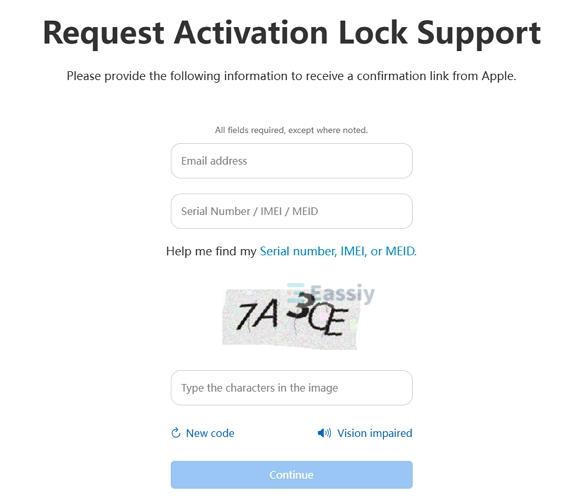
Step 3. Enter an email address where Apple can contact you regarding the request. Type in the device's serial number, IMEI, or MEID. Complete the CAPTCHA. Then click Continue.
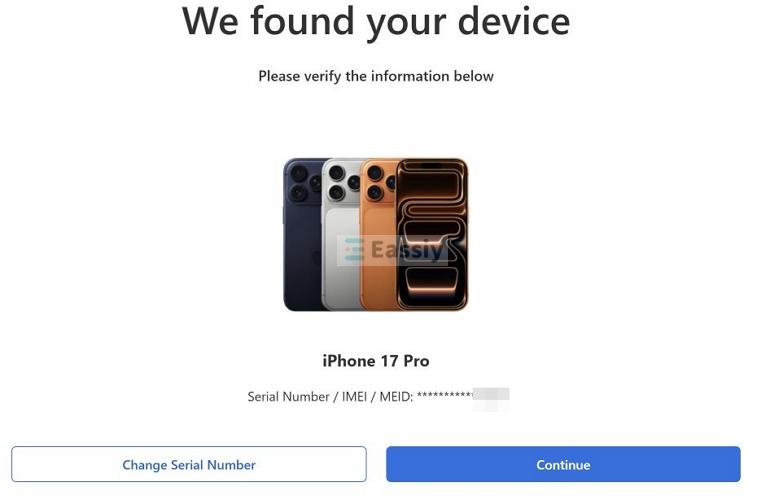
Step 4. Apple will send a confirmation email. Open the email and click the Secure Messaging Site link. The page will display your iPhone model. Select Continue.
Step 5. Fill in the requested information. You’ll have to enter the purchase date and other details. Describe the steps you have taken until now to remove Activation Lock. After completing the form, simply hit Continue. Finally, submit the request. Apple will contact you with the outcome via the email you provided.
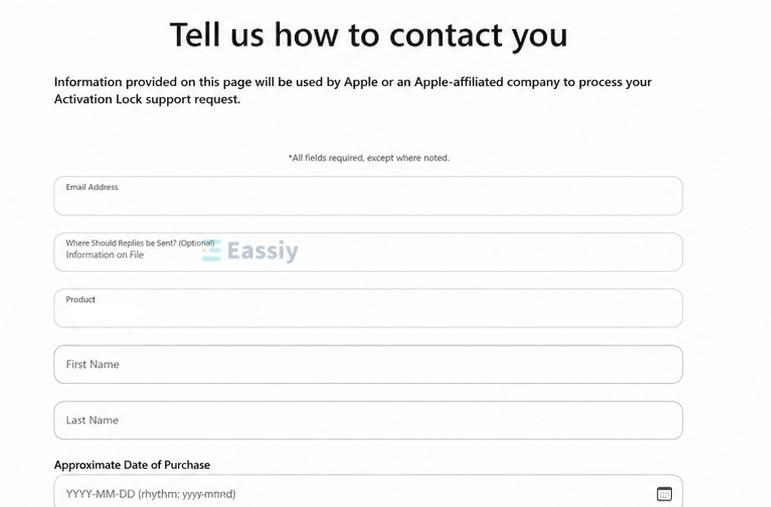
Way 4. Unlock an iCloud-Locked iPhone via Eassiy iPhone Access
There’s also another common situation that many users face. You have the iPhone in your hands and can access the Activation Lock screen. But you cannot get past it because you cannot contact the previous owner(for second-hand devices), fail to recover the Apple ID or no longer have the original purchase documents needed for an Apple Support request. In cases like these, you can use a dedicated iCloud Activation Lock removal tool like Eassiy iPhone Access.
Eassiy iPhone Access works on various Activation Lock removal situations. The software guides you through the entire process and helps remove the lock directly from supported iPhone models. Eassiy delivers a high success rate across many supported devices and iOS versions. After it removes the Activation Lock from your iPhone, you can use the iPhone again for games, listening to music, watching videos, etc.
Key Features
- Works on both Windows and Mac computers.
- Handles forgotten screen passcode and Screen Time passcode, enabling you to access your device or app without limitations.
- Remove MDM locks put by organizations or schools, without data loss in some cases.
- Log out of the Apple ID on the iPhone without password, so you can sign in with your own account.
Steps to Unlock iCloud Activation Lock Using Eassiy iPhone Access
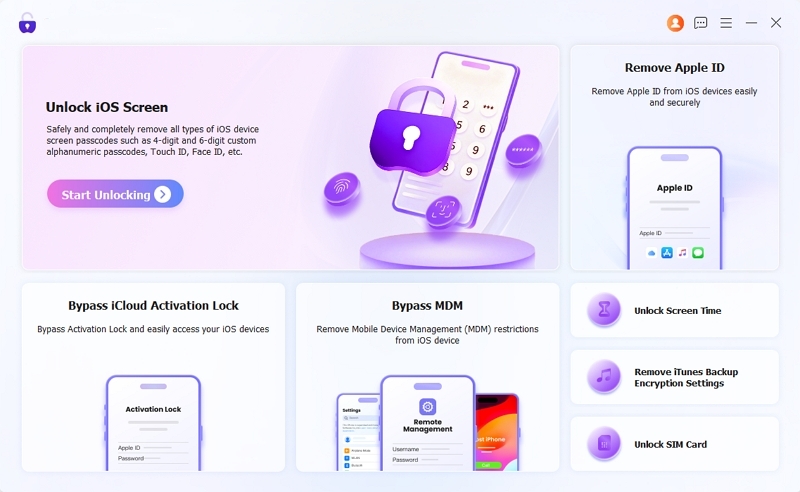
Step 1. Launch Eassiy iPhone Access on your Mac or Windows PC. Choose the Bypass iCloud Activation Lock option. Then, connect your iPhone to the computer.
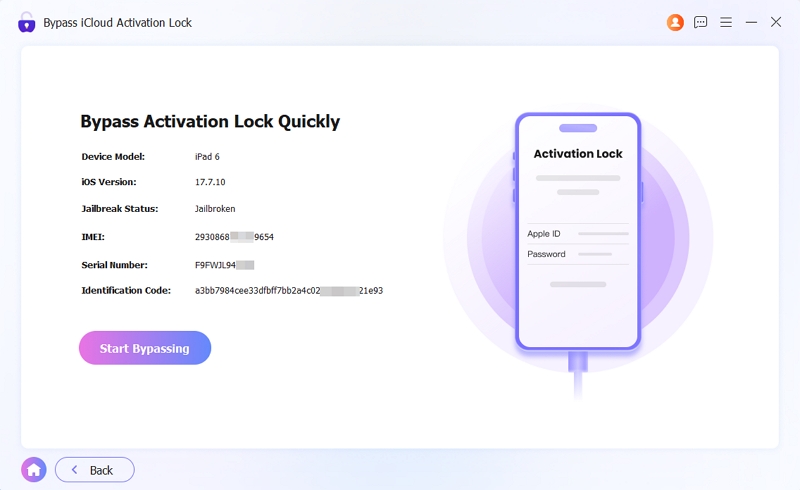
Step 2. Eassiy will then show the specifications of the iPhone locked with Activation Lock. Review this information and then click on Start Bypassing.
Step 3. Follow the on-screen steps to jailbreak your iPhone model.
Note: Because iCloud lock is a severe, system-level lock, a jailbreak is required.
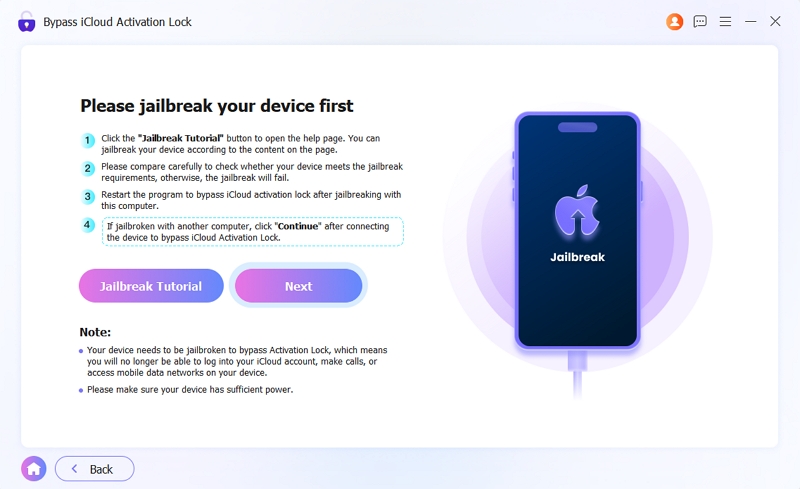
Step 4. Once you have completed the jailbreak. Head back to Eassiy and choose Bypass iCloud Activation Lock again. This time, once you click Start Bypassing, Eassiy will instantly apply the unlocking process to your device.
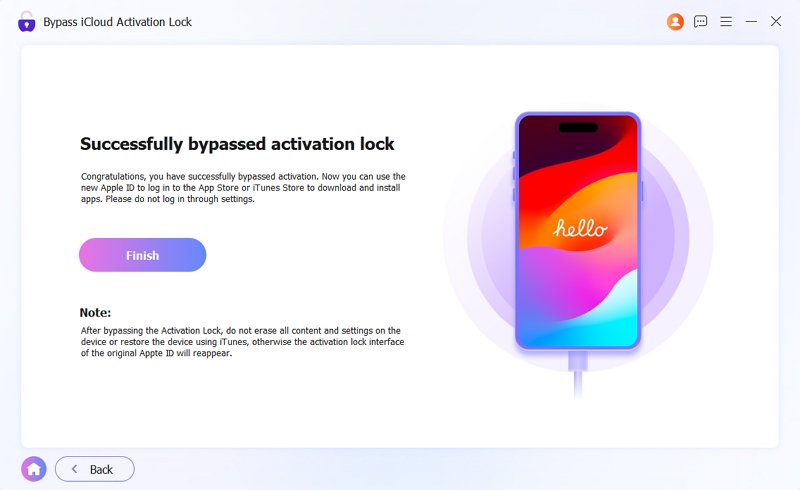
Step 5. Your iPhone will automatically restart and drop you right onto the "Hello" screen. You will not see the activation lock again.
Way 5. Unlock an iPhone Locked to iCloud by Contacting the Previous Owner
If you bought a second-hand iPhone and it arrived stuck on the Activation screen, you will need the cooperation of the previous owner to turn off iPhone iCloud lock. Simply ask them to remove the iPhone from their account remotely by following the method below.
Note: Apple will not remove Activation Lock simply when you have a second-hand receipt.
Steps to Remove iPhone Through iCloud
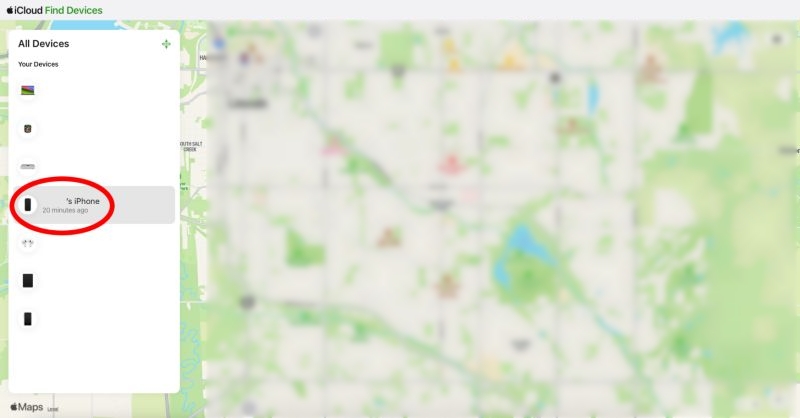
Step 1. Ask the previous owner to visit iCloud.com or the Find My app. Sign in using the same Apple Account that is currently linked to the locked iPhone.
Step 2. Click All Devices and select the iPhone they sold to you.
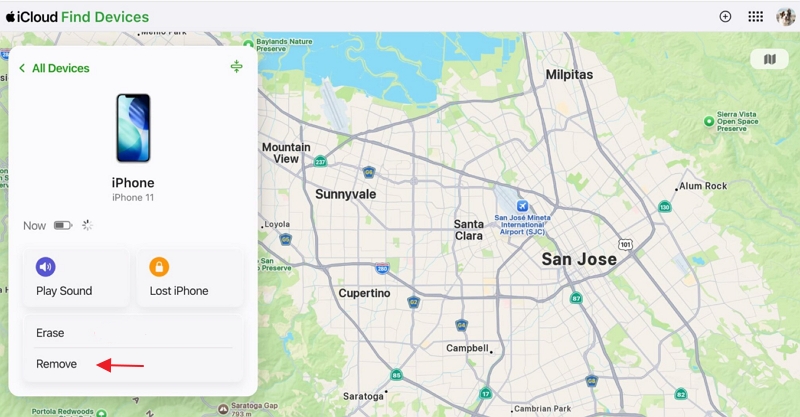
Step 3. Click Remove or Remove This Device. This will remove the Activation Lock from the iPhone. You can then resume the setup on your end and use it normally.
FAQs
Can You Unlock an iCloud-Locked iPhone Using IMEI?
No. An IMEI number by itself cannot remove iCloud Activation Lock.
Yes, you will find many websites claiming to do this for US$30-US$300. But in reality, the success rate is extremely low and it may leak your device information. The iPhone and Activation Lock are deeply tied to the original Apple Account used to set up the device, so entering a 15-digit serial or IMEI number on a random third-party website cannot break Apple's server-side encryption. In all, they charge high fees but can’t unlock Activation Lock most of the time. What’s worse, it’s not that easy to request a refund when the unlock is unsuccessful.
As a result, you should always approach IMEI lookup sites with caution.
Note: IMEI unlocking is possible when you want to remove carrier lock from an iPhone, as AT&T, Verizon, and other carriers.
How to Unlock an iPhone Locked with iCloud via DNS?
Another method you will see mentioned across forums is the DNS bypass trick. Keep in mind that this does not remove Activation Lock and does not unlock the iPhone either. Instead, it temporarily redirects the activation request to a custom server and gives you access to a limited web-based portal. From there, you could sometimes be able to watch YouTube videos or access a few basic online functions.
If you still want to try it, follow these steps on your iPhone running iOS 11 or earlier.
Step 1. Turn on the iPhone and begin the setup process.
Step 2. Choose your language and country.
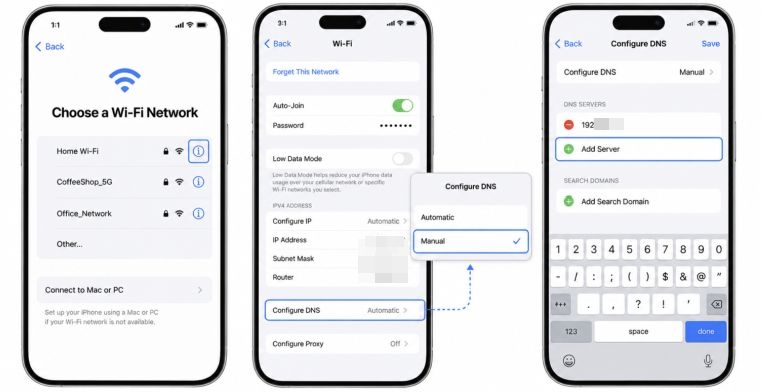
Step 3. When you reach the Wi-Fi screen, do not connect yet. Tap the small blue information icon next to the Wi-Fi network.
Step 4. Scroll down and tap Configure DNS. The reason this method works is that you’re replacing the default DNS. This will prevent the iPhone from contacting Apple’s server and redirect you to a third-party portal instead.
Step 5. Select Manual.
Step 6. Remove the existing DNS server by tapping the red minus icon.
Step 7. Tap Add Server and enter the DNS address for your region.
| Location | DNS Address |
|---|---|
| North America | 104.154.51.7 |
| Europe | 104.155.28.90 |
| Asia | 104.155.220.58 |
| South America / Rest of World | 78.100.17.60 |
Step 8. Tap Save.
Step 9. Tap the back arrow to return to the Wi-Fi screen.
Step 10. Select your Wi-Fi network. Enter the password.
Step 11. Tap Join and iPhone will attempt to activate. But make sure to tap the Back button in the upper-left corner immediately.
If the timing is right, the activation request will be redirected. And you will be taken to a page labeled iCloudDNSBypass.net instead of the normal Activation Lock screen.
From there, you can access the limited portal features available on that server. In most cases, that means basic web functions. But it does not give you full access to the iPhone and it does not permanently remove Activation Lock. But it is a temporary access. Restarting the iPhone or even switching Wi-Fi networks will let the iPhone communicate with Apple’s servers again. So the Activation Lock screen will return.
Conclusion
The Activation Lock is a very strict security feature. However, it is very simple to unlock an iPhone locked with iCloud lock. You just need the previous device passcode or the Apple ID password to unlock it. If you only have the purchase receipt(it’s even easier for a device purchased from Amazon), you can get it unlocked directly with Apple.
When you don’t have anything, you can always use an easy-to-use solution like Eassiy iPhone Access. Eassiy lets you bypass Activation Lock with little effort and once you do, you can use your iPhone for daily entertainment.