Help Center

Updated on 2026-06-18
views
5min read
It’s particularly annoying when your iPhone suddenly freezes: the screen is on, but nothing reacts, and even the power button doesn't bring up the slider to turn it off. And the worst part is, this freeze almost always happens at the worst possible time, like during mid-call!
Don’t worry, it often doesn’t mean anything is permanently wrong. If you can't turn off iPhone because it's completely frozen, relax! This guide will show you two fixes: a quick force shutdown that works on every iPhone model and a factory reset when the freeze keeps happening. Both are simple and one of them will certainly get things moving again.
Can't Turn Off Frozen iPhone: Fix It in 1–2 Steps
Honestly, a force shutdown might feel too simple to actually work, but it really does solve most iPhone freezes. So, if your iPhone froze and won't turn off, it probably just needs a forced restart to break the freeze or a factory reset if the problem is more serious.
So, begin with Step 1 (it takes under 1 minute and resolves the issue for most people). Only move to Step 2 if the problem persists after the restart.
Step 1. Force Shut Down iPhone
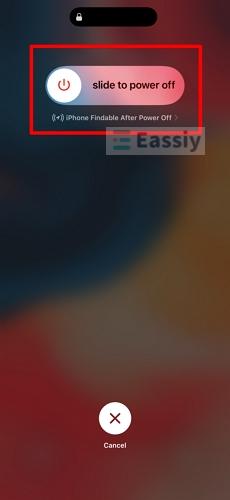
A force shut down, also called a force restart iPhone, cuts power to the iPhone at a hardware level, bypassing the frozen software entirely. Unlike a normal restart, it doesn't go through iOS at all, which is exactly why it works when the screen is completely unresponsive. The button combination will depend on your iPhone model, so find yours below to see how to turn off frozen iPhone.
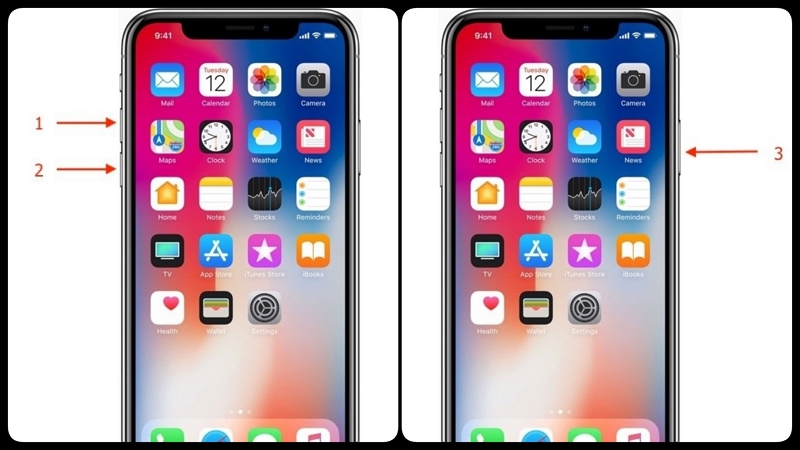
For iPhone X or Later
This includes iPhone X, XS, XR, 11, 12, 13, 14, 15, and 16 series.
- Press and quickly release the Volume Up button.
- Press and quickly release the Volume Down button.
- Press and hold the Side Button until the Apple logo appears, then release.
For iPhone 6–iPhone SE (2nd & 3rd Gen) - iPhone 7 series Excluded
To force restart iPhone 8 and earlier models like iPhone 6, 6s, 8 and newer ones like SE (2nd generation), and SE (3rd generation), do this:
- Press and hold both the Home Button and the Sleep/Wake button simultaneously.
- Keep holding them until the Apple logo appears.
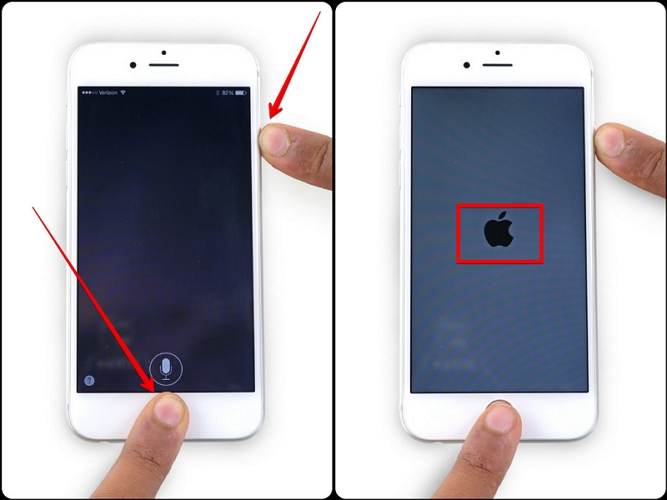
Note: Specifically on iPhone 7 and 7 Plus, use the Volume Down button instead of the Home button. If your iPhone won't respond to buttons at all, it's because the Home button on the 7 is solid-state and doesn't physically move or click when you press it.
For iPhone SE (1st Gen), iPhone 5, and Earlier
This applies to the original iPhone SE, iPhone 5, 5s, 5c, and any older model with a physical Home button and a top power button.
- Press and hold both the Sleep/Wake and the Home Button at the same time.
- Hold and release them when you see the Apple logo.
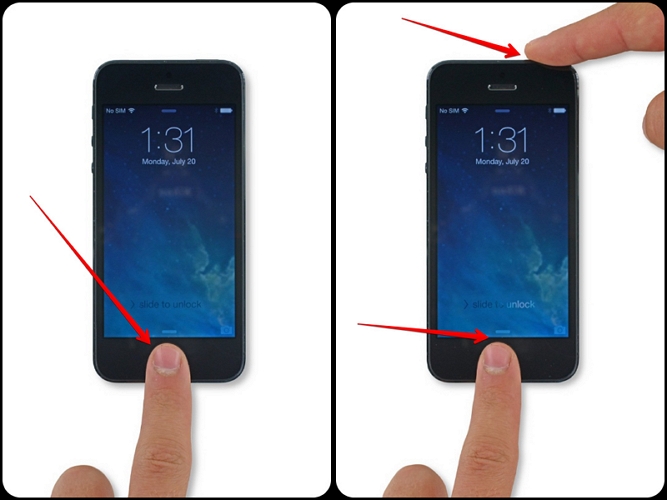
Once the Apple logo appears on any of these models, the iPhone is restarting. Wait for about 30–60 seconds to fully boot up, then check if it's back to normal. For most people, this is all it takes to fix an unresponsive iPhone. But if it still doesn't work, don’t be so quick to jump to another fix. Try two or three more times because the button timing can be tricky to get right (particularly if you’re under pressure!).
Step 2. Factory Reset iPhone
If force restarting didn't fix the problem, or if the iPhone keeps freezing and doesn’t respond regularly, try a factory reset. This wipes the phone entirely and reinstalls iOS, clearing whatever software issue is freezing your phone. The steps below show simple ways to factory reset frozen iPhone.
Note: A factory reset may feel drastic because it erases all data on the iPhone, but bear in mind that that’s probably what Apple support would walk you through if you called them, because it’s a standard fix.
But before doing it, back up your iPhone to iCloud or a computer first if possible. After the reset, if Find My was enabled, you'll need the associated Apple ID and password to bypass the iCloud Activation Lock before setting up the device again.
Option 1. Erase iPhone via iCloud Site
If the frozen iPhone is still online, meaning that it's connected to Wi-Fi or cellular and powered on, you can wipe it remotely from any browser. No computer or cable needed.
Requirements:
- The iPhone must be signed into an Apple ID with Find My enabled.
- The iPhone must have an active internet connection (Wi-Fi or cellular).
- You'll need access to the Apple ID and password used on the device.
- Another device with a network-connected browser.
How to Erase iPhone Without a Computer:
Step 1. On any browser on another device, go to iCloud.com and sign in with the iPhone's Apple ID.
You may be prompted with Sign in with Passkey that only works seamlessly on your own trusted devices. If you are using a borrowed phone or an unfamiliar browser, stick to the Apple ID password.

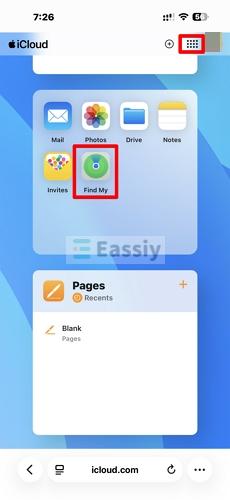
Step 2. Tap the More menu next to your profile icon to open Apps, iCloud storage, and other additional iCloud settings. Select Find My to reveal all the Apple devices linked to the iCloud.
Step 3. Find and select your iPhone from the list, then hit Erase This Device or Erase. Tap Next to confirm. The iPhone will be remotely wiped and restarted to the setup screen.
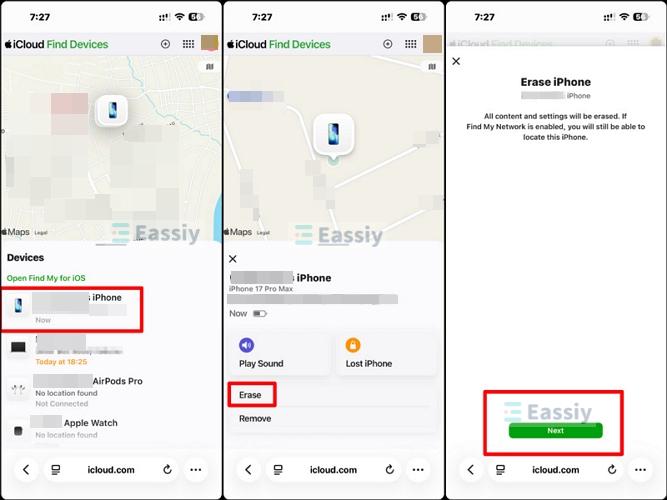
Note: Once the unresponsive iPhone has been erased, the device will require the original Apple ID and password to complete setup. This is Apple's Activation Lock. Make sure you have those credentials handy before proceeding.
Option 2. Restore iPhone Using Eassiy iPhone Access
What if iCloud erasing doesn’t work for you because Find My iPhone is disabled? Or you just want to factory reset your frozen iPhone within a click-through process? The best and most reliable alternative in such a case is Eassiy iPhone Access. It's a desktop tool for Windows and macOS that can easily restore a frozen iPhone directly via USB, with no Apple ID or iTunes required during the reset. This option is best suited for iPhone with broken or unresponsive screen or unavailable Face ID. If you bought a second-hand iPhone locked with previous owner’s screen passcode, Eassiy can also help.
Key Features:
- Restore frozen iPhone without iTunes or iCloud.
- Turn off Screen Time without resetting or passcode.
- Bypass iCloud Activation Lock without disabled Apple ID or previous owner.
- Sign out of Apple ID on iPhone without password, regardless of Find My status.
What You Need:
- A Windows PC or Mac.
- A USB cable to connect the iPhone.
- Eassiy iPhone Access installed on your computer.
How to Restore iPhone Without iTunes or iCloud:
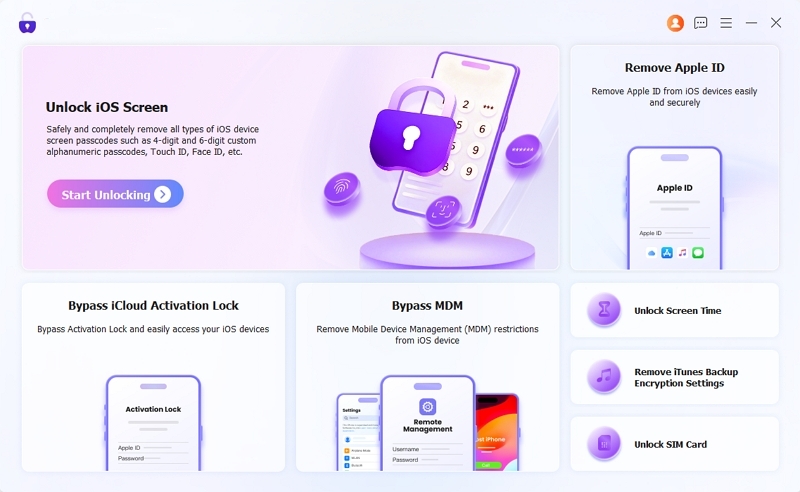
- Download, install, and launch Eassiy iPhone Access on your computer. On the main screen, select Unlock iOS Screen.
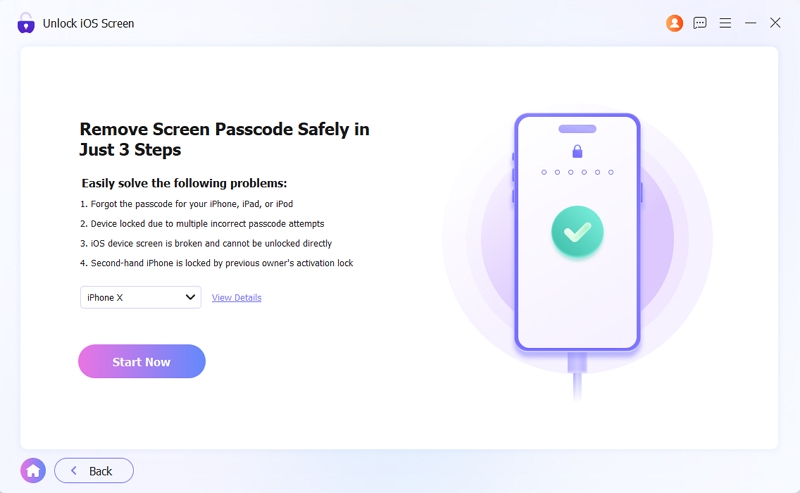
- Connect your iPhone to the computer using a USB cable. Hit Start Now. The tool will start downloading the firmware needed to unlock the iPhone.
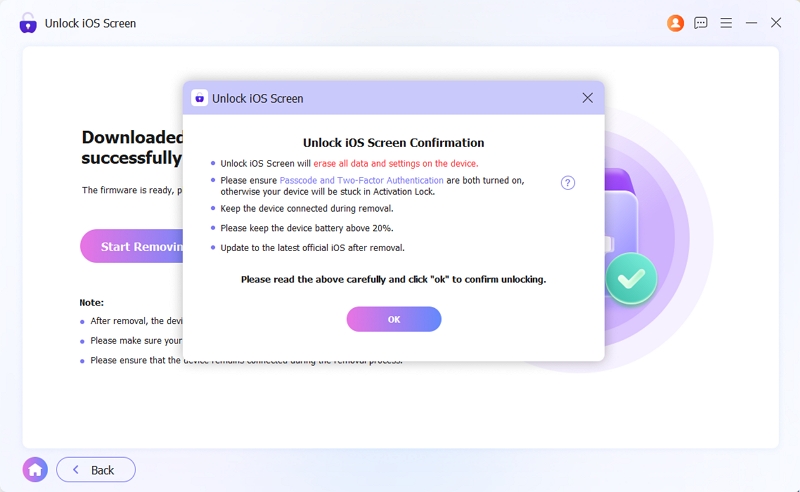
- An “Unlock iOS Screen” confirmation box will open after the firmware is ready. Click the OK button on it. Then select Confirm Again on the next box.
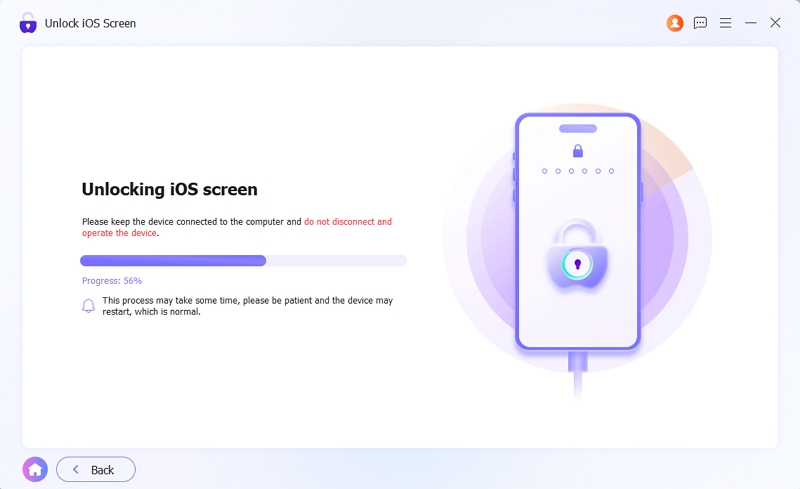
- You’ll see the app begin unlocking your frozen phone after your confirmation.
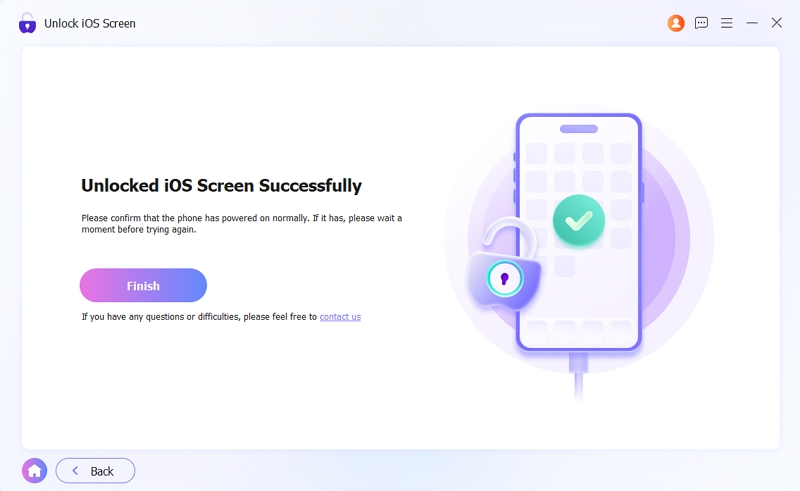
- Wait for a bit for the process to complete. You’ll see “Unlocked iOS Screen Successfully”, meaning your frozen phone has been restored. All you have to do now is click Finish and then set up your iPhone as new.
How to Avoid Your iPhone Freezing Again
If you know why your iPhone keeps freezing, you’ll know exactly what to do to stop it from happening again. The problem often stems from outdated software, low phone storage or a problematic app, which are easily fixable. Here's how to stop iPhone from freezing:
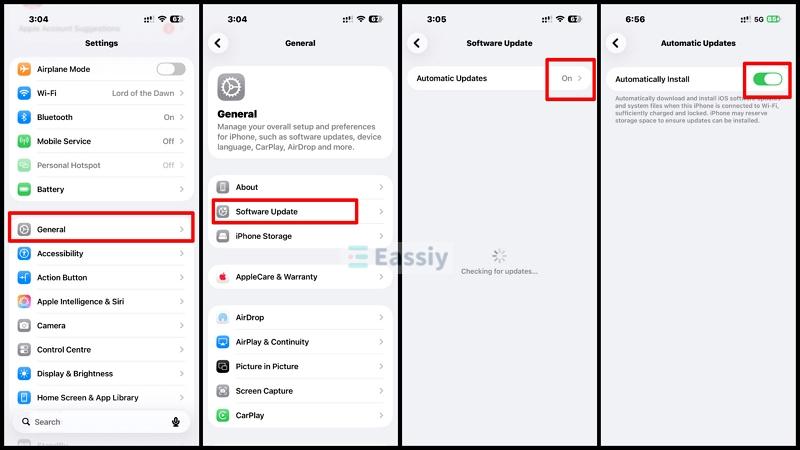
- Keep iOS updated. Apple's software updates come with bug fixes that address the exact kinds of glitches that cause iPhone freezes, so make sure your phone is set to receive them automatically: go to Settings > General > Software Update > Automatically Install. Toggle this setting ON if it isn’t already.
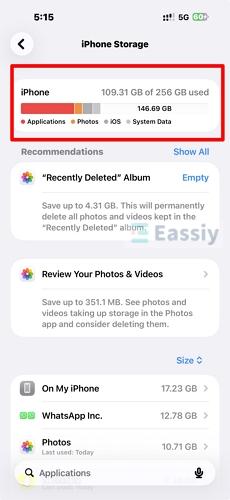
- Free up storage space. iPhone with very little free storage will slow down and freeze more often. Here’s a good rule of thumb: if your iPhone’s storage is more than 90% full, expect lags and other performance issues. This is especially true if you’re using one of the older iPhone models. So just delete unused apps, clear photo duplicates, or move large files to iCloud.
- Restart the iPhone regularly. If your iPhone keeps freezing and restarting on its own, accumulated background processes and memory pressure are usually the answer, so a manual restart once a week clears those out before they build up into a bigger problem.
- Avoid running too many apps at once. While iOS manages background apps automatically, keeping dozens of them open can strain older devices. Swipe away apps you're not using will lighten the load on your phone.
- Don't ignore overheating. Are you a gamer or video editor? If so, your iPhone is more prone to overheating than most users. Why is this so? It’s because these two activities, along with GPS navigation, can quickly raise your phone’s temperature during extended usage. An iPhone that's consistently hot to the touch is more likely to freeze or shut down unexpectedly. Meanwhile, keep it out of direct sunlight or remove the case if it feels unusually warm during heavy use.
- Check for problematic apps. If the iPhone only freezes while using a specific app, that app is likely the culprit. Check for an update, reinstall it, replace it with a lightweight alternative or contact the developer for help if the issue persists.



Conclusion
A frozen iPhone that won't turn off is fixable with a force shutdown most of the time. So, find your model above, follow the button combination, and the Apple logo should appear within seconds. If the problem keeps coming back, a factory reset via iCloud or Eassiy iPhone Access will clear it for good. And with a few basic habits around storage, updates, and app management, the odds of it happening again drop significantly.
Moreover, here’s a bit of good news for you. Most people who experience a frozen iPhone do so only once. The iPhone rarely ever freezes again after the forced shutdown. It’s often a one-time wake-up call, so don’t worry yourself too much if it happens to you. And if everything else fails to fix it, Eassiy iPhone Access certainly won’t fail.