Help Center

Updated on 2026-06-17
views
5min read
Auto-Lock sounds like a simple screen timeout feature. But in reality, it governs how long your battery survives and exactly how secure your device is. That is why it is worth knowing what is Auto Lock on iPhone and how it works. And that’s what we will break down here. We will help you find the best Auto Lock settings for your daily routine. We'll also cover what to do when Auto-Lock is stuck on a 30-second timer, appears greyed out, or keeps turning off the screen when you're still using the device.
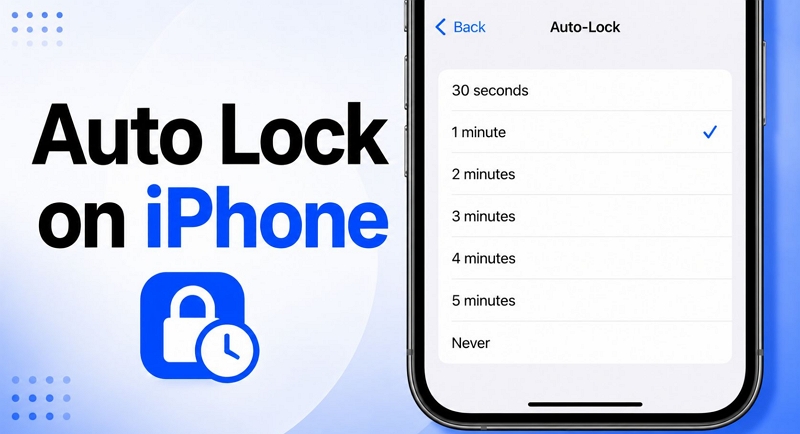
What Is Auto Lock on iPhone
At its core, Auto Lock is a built-in countdown clock. Its entire job is to detect when you stop using your phone, dim the display, and eventually throw up the lock screen. It exists for two massive reasons.
- First, stop your screen from draining your battery down to zero.
- Second, serve as your frontline privacy guard, ensuring no one can snoop through your unlocked apps if you leave your device sitting on a public lunch table.
Apple gives you a handful of strict, unchangeable timers for this, ranging from a hyper-secure 30 seconds all the way up to 5 minutes, plus a "Never" option. So how does the phone actually know you are done? Well, the system constantly watches for "inactivity."
- On older iPhone with a Home button: Inactivity strictly means you stopped physically touching or swiping the glass.
- In modern Face ID models, the definition of inactivity is much more sophisticated, depending on Attention-Aware feature. Here is how this option works: the TrueDepth camera actively tracks your eyes. So as long as you are staring at the display, the phone will know you are there and pause the clock, even if you haven't touched the glass in minutes. The second you look away, break eye contact or set the phone down on a desk, the countdown timer will start ticking. When the timer runs out, the screen will go black and the iPhone will lock itself.
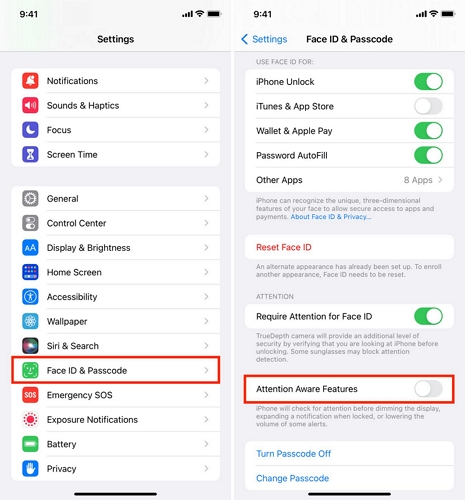
Note: Besides the main factors - touch and eye contact, iOS also counts most background tasks like playing music as inactivity.
How to Use Auto Lock on iPhone
You have two straightforward ways to handle the Auto Lock feature on the iPhone.
- Disable it completely. In that case, the display will stay awake and fully lit unless you manually press the Side(Lock) button.
- Or turn it on and assign a fixed countdown timer. In this case, the iPhone will lock itself after sitting idle for the selected duration.
The best Auto Lock setting out of the two depends on your needs.
How to Turn On or Off Auto Lock on iPhone
Turning Auto Lock off is never suggested. Yes, it can be convenient sometimes. For instance, you are practicing piano by reading sheet music on your phone. Keeping the display remain lit will avoid you from touching it repeatedly.
There are also trade-offs that are privacy risks. For one, your iPhone can remain unlocked for hours on your couch or bedside table. Not to mention, anyone can pick it up and immediately go through your chats and photos. Plus, leaving the display awake means the battery will continue to drain the entire time. And on newer OLED iPhone models, keeping the iPhone on static content (like the Home screen or an app’s page) for extended periods can cause dead pixel issues.
Steps to Stop the Screen from Automatically Turning Off
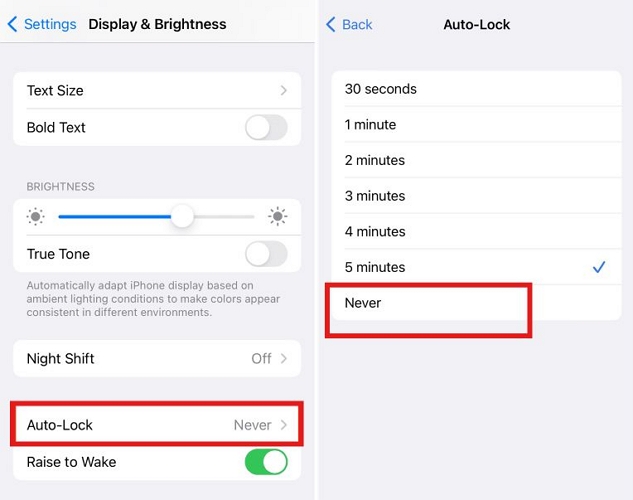
Step 1. Open the Settings app. Select Display & Brightness.
Step 2. Locate Auto Lock and open it.
Step 3. Select Never from the list. The Auto Lock feature is now disabled. Your iPhone will no longer automatically turn off when left idle. You’ll have to press the Side button manually or wait the battery to run out to disable the display.
Whenever you want to turn Auto Lock back on, return to the same menu and choose any time value instead of Never.
How to Change Auto Lock on iPhone
Given the privacy risks, it is generally suggested not to disable Auto Lock completely. However, for many of you, though, the default 30-second Auto Lock can feel too short sometimes. So you can simply increase the interval before the iPhone dims the display.
Steps to Change Screen Lock Time on iPhone
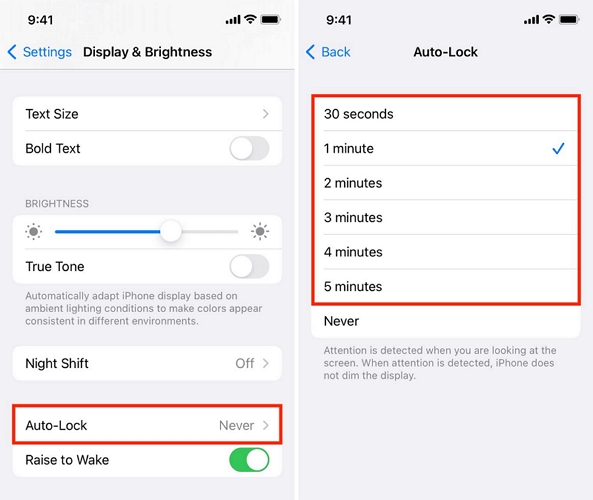
Step 1. Open the Auto Lock menu again.
Step 2. Pick a duration from the available list. The available values range from 30 Seconds to 5 Minutes. Setting the Auto Lock to 5 minutes means the iPhone will lock itself after 5 minutes of inactivity. Any tap or swipe will reset the timer.
And keep in mind that Apple only provides these preset options. So you can't set a custom Auto Lock duration from this menu. However, you can always create your own automation using the Shortcuts app.
How Long Should Auto Lock Be on an iPhone?
Actually, there isn't a single Auto Lock setting that works for everyone.
From a privacy and security standpoint, the default 30-second option is actually very sensible. It makes sure your iPhone never sits exposed for a long time. But the real problem with 30 seconds is everyday use. The shorter screen timeout will become inconvenient. That's why many users choose to keep the Auto Lock duration somewhere in the middle. A 1 Minute or 2 Minute setting is better. It will give you enough time to use the screen comfortably. Plus, it ensures your device isn't locked for too long.
Don't worry about navigation apps. Maps knows when you're actively following directions, so it can keep the display awake on its own. You don't have to choose a longer Auto Lock timer just because you're using navigation in the car.
iPhone Auto Lock Greyed Out (Fixed)
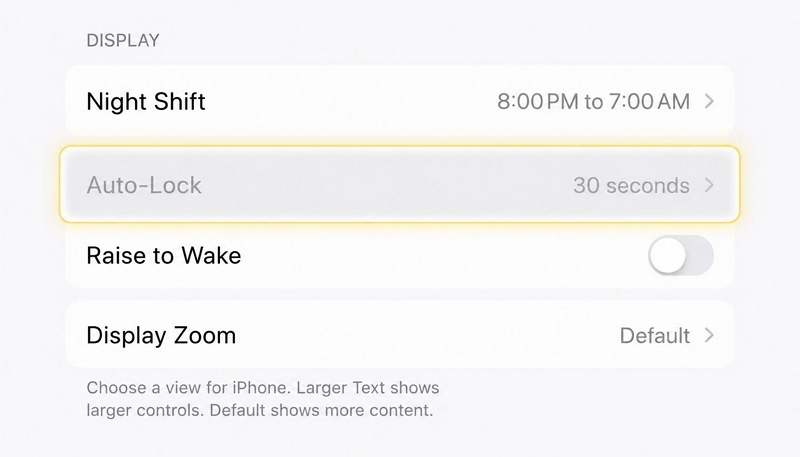
Some of you will see a greyed-out 30-second timer when you navigate to the Auto Lock option. You cannot tap it to change the countdown timer. As a result, you cannot select a different duration and cannot even turn the feature off. Well, this isn't a glitch. This is intentional iPhone behavior. Whenever your iPhone turns on Low Power Mode, either automatically when the battery drops below 20% or because you manually enabled it to reduce battery usage, the system will force Auto Lock to 30 Seconds to reduce battery drain. The fix here is very simple.
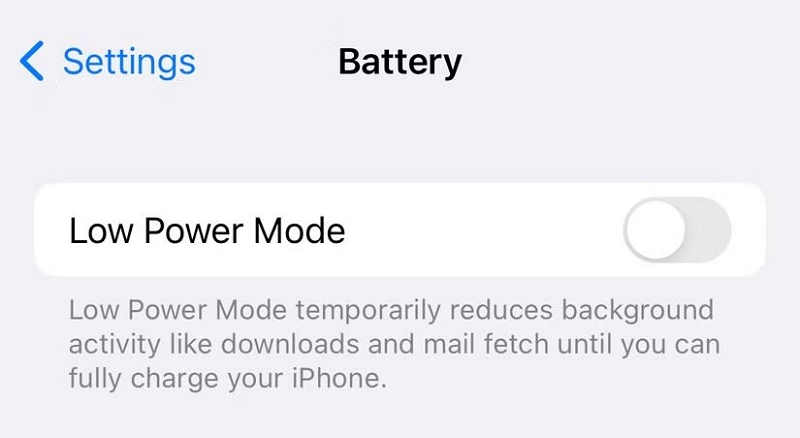
Fix: Turn Off Low Power Mode
Step 1. Select Battery from the iPhone Settings menu.
Step 2. Locate the Low Power Mode toggle near the top of the screen.
Step 3. Switch the toggle to the Off position.
Fixed: iPhone Auto Locks Even When in Use
Auto Lock normally works exactly as intended. Once the selected countdown timer expires due to inactivity, iPhone will dim its display and eventually lock itself. However, some users notice the opposite behavior. Their iPhones will lock itself while they’re still reading or actively viewing content. This is especially frustrating on Face ID models, where the screen is supposed to stay awake when Attention Aware is turned on.
The reason for this issue could be one of three things:
- The Face sensors aren’t detecting your attention correctly.
- A temporary iOS glitch.
- A hardware issue preventing the sensors from working as intended.
Let’s go through these causes in detail and how to fix them.
Fix 1. Don't Block the Proximity Sensor
As mentioned above, Face ID models use Attention Aware features to keep the display awake while you’re looking at it. That will only work if the iPhone can clearly see your face.
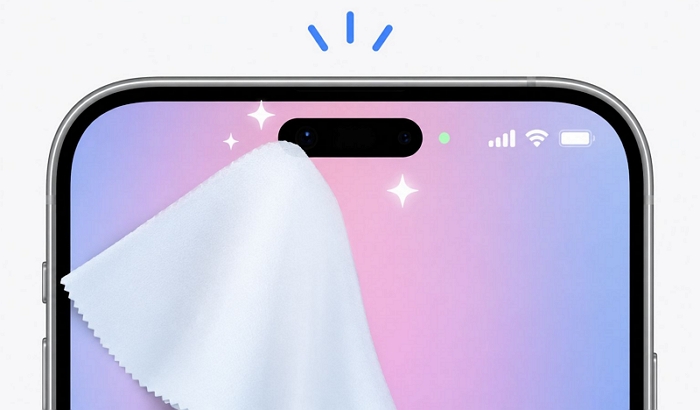
Sometimes the sensors are covered or broken, so they cannot scan your face. When that happens, iPhone will assume you’re no longer looking at the screen and lock itself once the Auto Lock timer expires. These sensors are located inside the Dynamic Island or notch at the top of the display.
- So make sure not to cover the top area of the iPhone with your fingers while reading.
- Plus, clean the sensor area as dust or fingerprint smudges can interfere with detection.
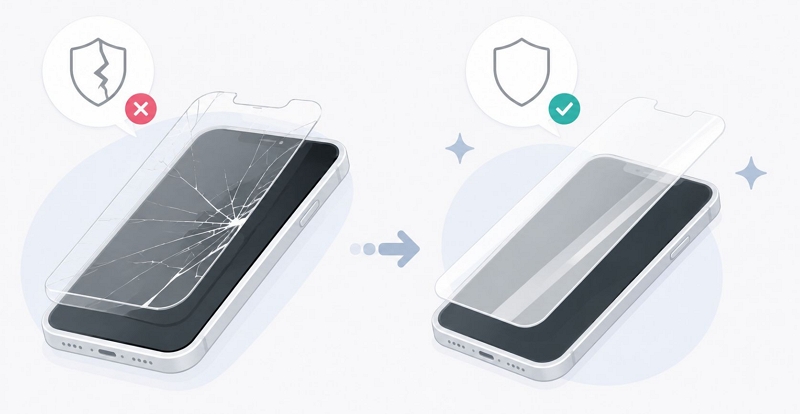
- In some cases, the problem can even be caused by a broken or a new screen protector, so replace it if needed.
- In other cases, the problem could be hardware-related. The Face ID sensors could be damaged, so the Auto Lock cannot rely on the Attention feature at all. The cleanest sign of a hardware issue is when Face ID isn’t working as well, since both features rely on the same system. You’ll have to opt for a repair for a permanent fix if that’s the case. Before sending the iPhone for a screen repair, you can set Auto Lock to Never or press the Side button manually, whenever you want to turn the display off.
Fix 2. Force Restart iPhone
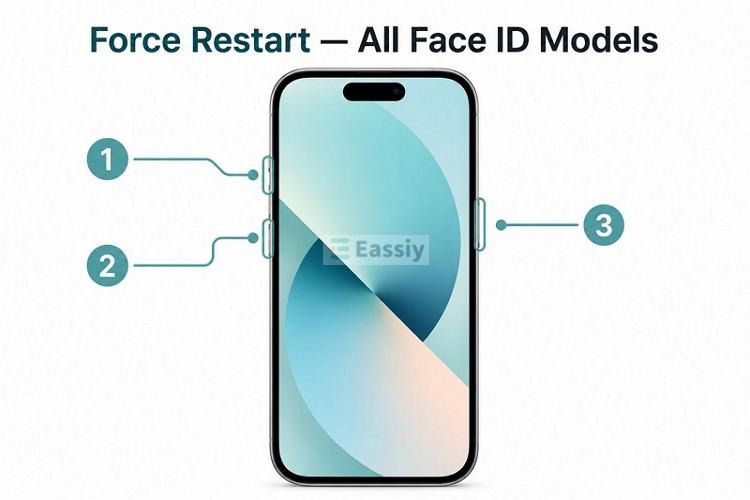
If the iPhone has closed the display multiple times while you're reading this post, it is a strong indication of a software glitch. Such issues often occur after an update or at random. The fix here is a force restart. It will clear out temporary bugs that can interfere with Auto Lock behavior. For this:
- Start by quickly pressing and releasing the Volume Up button.
- Next, quickly press and release the Volume Down button.
- Finally, press and hold the Side button until the Apple logo appears.
After that, you will be able to use your iPhone normally.
FAQ: Auto Lock vs Passcode Lock: What’s the Difference
Auto Lock and Passcode Lock serve two completely different purposes. Auto Lock, the feature we've been discussing throughout this guide, simply determines when the screen should turn off after being left idle.
Passcode Lock, on the other hand, controls access to the device itself. It is the 4- or 6-digit passcode or a custom passcode that you have to enter to unlock the iPhone.
Passcode Lock typically appears after your iPhone screen is turned off by Auto Lock or by pressing the Lock button.
When you forget the screen passcode or biometrics (Face ID or Touch ID) doesn’t recognize you, you cannot enter the iPhone. You’ll have to erase the device and set it up again most of the time, except the 72-hour passcode reset works for you. There’s an Apple way, using iTunes or Finder to factory reset your iPhone. However, the steps change depending on your iPhone model and iOS version and iTunes may not be able to recognize your locked iPhone. You can choose another easier and more efficient(97.7% success rate) option that works on all iPhones, iPads and iPod models- Eassiy iPhone Access. Eassiy can remove forgotten 4-digit, 6-digit, custom numeric code and alphanumeric passcode from iDevice, allowing you to regain access to the device. It can even bypass the passcode screen when Face ID or Touch ID fails to recognize you or when the biometric hardware itself is not working.
Key Features:
- Unlock iPhone, whether it’s locked due to lost passcode, faulty Face ID, broken screen or unknown password(second-hand device).
- Remove screen lock from iPhone without skill needed.
- Delete Apple ID from iPhone when the account is locked, the forgotten password can’t be reset or Find My is on.
- Bypass iCloud Activation Lock without Apple ID or previous owner, useful for second-hand iOS devices.
Conclusion
So now you know what Auto-Lock is on iPhone and how to choose the best setting for it. Here’s a simple rule you can follow depending on your iPhone model:
- On newer Face ID iPhones: enable Attention Aware feature and use a shorter timer. That works well.
- On older Touch ID models, you'll have to choose a timer that matches your daily routine.