Help Center

Updated on 2026-06-18
views
5min read
If your iPhone restricts access to an app with a “Time Limit” alert, you’re probably searching for what is Time Limit on iPhone and ways to turn it off. This restriction usually shows up when Apple’s Screen Time feature decides that the daily limit for an app, website, or category has been used up.
Many users think their iPhone is broken, while others simply don’t recall ever setting a limit in the first place. Things get even more confusing when a Screen Time passcode is required or the limit is managed via Family Sharing.
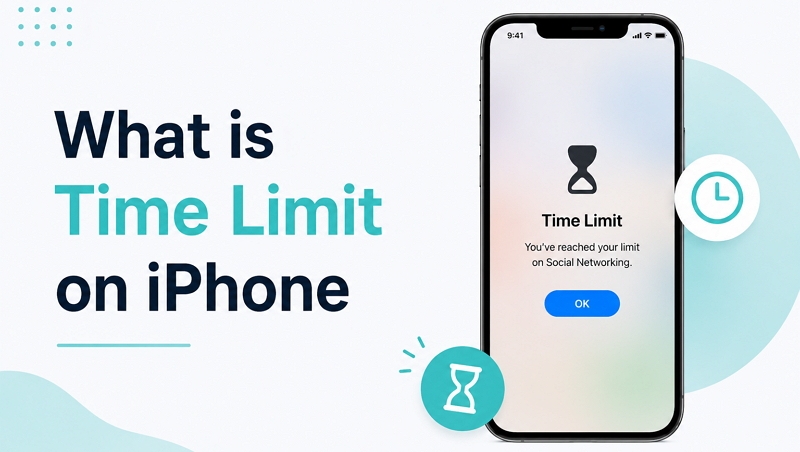
In this guide, we’ll break down how iPhone Time Limits work, what triggers them, and why they may activate unexpectedly. Based on real-world testing and lab analysis, we’ll also look at what happens behind the scenes when Screen Time restrictions kick in, clearing up common confusion around iOS limits.
If your iPhone is currently restricted and you want instructions to disable it, refer to our guide on How to Turn Off Time Limit on iPhone. Otherwise, keep reading to understand how this feature operates.
1. How Does a Time Limit Actually Work?
iPhone Time Limits operate on a daily 24-hour cycle. When the usage limit is exhausted, the app or category remains locked until it automatically resets. Screen Time renews usage allowances every day at 12:00 AM local time, restarting the countdown from zero.
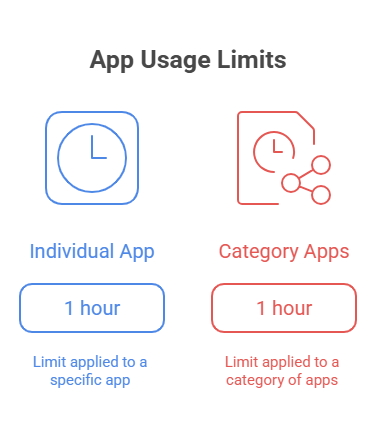
Category-Wide vs. Individual App Limits
Individual
You can assign a limit to a specific app. For instance, a one-hour TikTok limit restricts only that app, without affecting others. After you use the full hour, that app is locked, but your other apps continue to operate normally.
Category
It’s possible to apply restrictions to full categories like Social, Games, or Entertainment. As an example, a one-hour limit on Social apps is divided across Instagram, Facebook, Snapchat, and TikTok. Every minute used in one app is deducted from the overall shared allowance for the category.
The 1-Minute Warning Feature: iOS issues a notice 60 seconds before the Time Limit expires so users aren’t cut off suddenly. The notification allows you to wrap up your activity, save important work, or exit before the limit takes effect.
2. Which Screen Time Settings Cause a "Time Limit" to Appear?
A major source of confusion is that the “Time Limit” alert isn’t always triggered by just one setting. In practice, it is a general warning that can be activated by different Screen Time settings in iOS.
When an app becomes inaccessible, the key is figuring out which Screen Time setting is triggering the restriction.
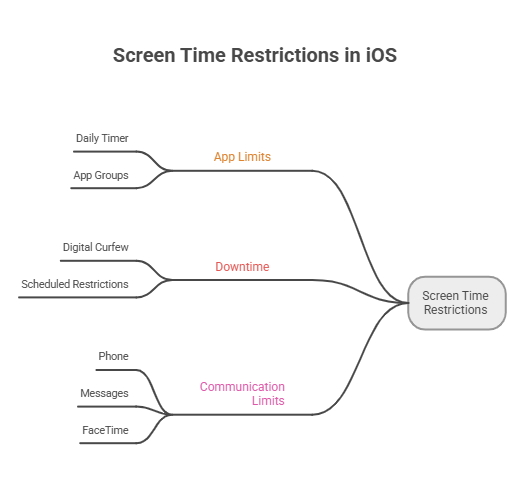
App Limits
This is the most common trigger. With App Limits, iOS assigns a daily timer to selected apps, websites, or app groups. After the allotted usage time has been consumed, iOS shows a Time Limit message and locks access until the restriction resets or is extended.
Downtime
Downtime works differently from App Limits. Unlike App Limits, it doesn’t measure usage duration and instead relies on a clock-based schedule similar to a digital curfew. As an example, if Downtime begins at 10:00 PM, it will restrict access to selected apps and activities even if your screen time allowance hasn’t been used up.
Communication Limits
Communication Limits control who can contact you through Phone, Messages, and FaceTime during allowed screen time and after limits have been reached. Depending on the configuration, you may be prevented from calling, messaging, or receiving communications from certain contacts once Screen Time restrictions are active.
Because all three features can produce similar restriction messages, many users mistakenly assume a standard App Limit is responsible when the actual cause may be Downtime or Communication Limits.
3. The Real Labs Test: How Do Time Limits Behave in Real Life?
Most resources explain Time Limits, but only a few illustrate how they function in real-world conditions. To better understand how Screen Time works behind the scenes, we ran a series of practical tests across multiple devices and real usage scenarios.
Lab Scenario 1: The Multi-Device Sync Test (iPhone + iPad + Mac):
The Setup: We enabled Share Across Devices using the same Apple ID on an iPhone and iPad, then applied a one-hour daily limit to YouTube.
The Finding: The limit applies collectively across synced devices instead of being split per device. Once 40 minutes were spent watching YouTube on the iPhone, just 20 minutes remained on the iPad. Once the full hour was exhausted, access was restricted across both devices simultaneously. This behavior often surprises users who expect each device to have its own independent timer.
Lab Scenario 2: The "Background Audio" Drain Test:
The Setup: We tested whether apps such as YouTube and Spotify continue consuming Screen Time while streaming audio in the background with the screen turned off.
The Finding: In our testing, iOS continued counting usage while media was actively streaming in the background. As a result, users could reach their Time Limit without actively looking at the screen. This leads to unexpected "Time Limit Reached" notifications when they returned to the app later.
Lab Scenario 3: Legacy Device Sync Delays (e.g., iPhone 6s):
The Setup: We compared Screen Time synchronization between newer devices and older hardware running legacy iOS versions.
The Finding: Older devices can sometimes experience noticeable delays when receiving Screen Time updates through iCloud. In some cases, changes made by a parent or organizer took several minutes to appear, temporarily allowing additional usage before the new restriction was enforced. While synchronization eventually occurred, the delay could create the impression that Screen Time limits were not working correctly.
4. The "Soft" Reminder vs. The "Hard" Passcode Lock
A key reason for confusion is that iPhone Time Limits don’t all work with the same level of enforcement. Whether a limit can be bypassed depends entirely on whether a Screen Time passcode has been configured.
Without a Screen Time Passcode
In the absence of a passcode, Screen Time limits are more like alerts than strict controls. After the limit is reached, the screen dims and displays a warning, but the user can usually continue by tapping options such as Ignore Limit, Ask for One More Minute, or extending access for the rest of the day.
This setup makes Time Limits more of a nudge for behavior than a rigid lock.
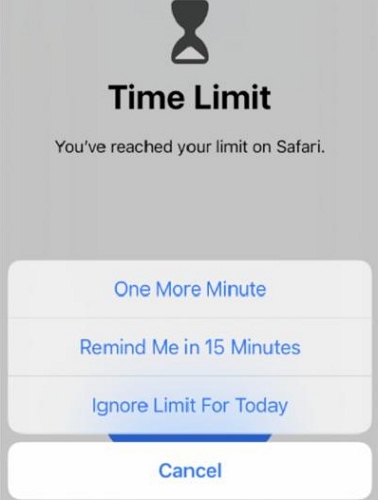
With a Screen Time Passcode
Once a Screen Time passcode is enabled, the restriction becomes significantly harder to bypass. Extending usage typically requires entering the correct passcode before access is granted.
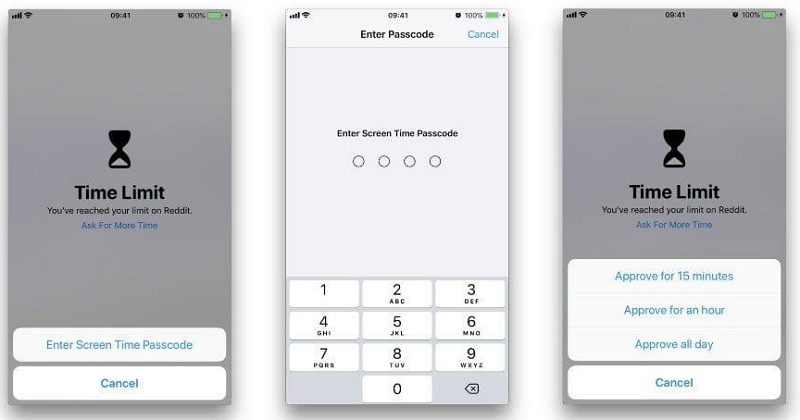
For parents using Family Sharing, this creates a much stronger control system because children cannot simply ignore the limit on their own.
When additional access is needed, the child can choose Ask for More Time, triggering a request sent to the parent or family organizer. The parent can review the request and manage additional time approval directly from their device, even when away from the child’s iPhone.
In this setup, Screen Time evolves from a soft reminder into a real restriction and control system.
5. The Cross-Reference: What to Do If You Forget Your Passcode?
If you forget the Screen Time passcode, you lose the ability to adjust it directly on the iPhone. Neither can you extend nor remove Time Limit settings directly from the device. By design, iOS blocks any direct method of bypassing these restrictions on the device.
In supported iOS versions, the first thing to try is Apple’s official recovery option using your Apple ID (if it was enabled during setup). If that isn’t available, you can rely on a professional tool like Eassiy iPhone Access instead of wiping your entire device.
Eassiy iPhone Access can safely bypass and wipe away a forgotten Screen Time passcode on modern iOS systems (fully compatible up to iOS 26 environments) without deleting your data.
If you know your passcode and just want to remove these daily restrictions permanently, read our deep-dive tutorial on how to turn off time limit on iPhone for a complete step-by-step walkthrough.
7. Conclusion
A Time Limit on iPhone is ultimately a dual-purpose feature. It functions as a productivity aid for self-discipline or a strong control mechanism for parental supervision. Knowing what is Time Limit on iPhone and how it functions allows you to avoid sudden restrictions and control your screen time more effectively.
It’s important to know whether your limits are applied to specific apps, shared across categories, or controlled system-wide. This helps you maintain digital well-being without confusion or interruptions.