Help Center

Updated on 2026-06-22
views
5min read
Lost Mode is easy to turn on. But after you've located the missing iPhone or it's been returned to you, getting out of Lost Mode to use the iPhone normally again isn't always straightforward. That's where this guide comes in. We will show you how to turn off Lost Mode on iPhone using several methods, whether you have the device in your hands or you need to do it remotely. We'll also cover situations where you're unable to get out of Lost Mode due to forgotten passcode or Face ID issues and explain how you can regain access to your iPhone in such cases.
How to Turn Off Lost Mode on iPhone
You can turn off Lost Mode directly on the iPhone or remotely from another Apple device or even a browser. Let's look at all three ways to turn off Lost Mode and get back into your iPhone.
Way 1. Use Screen Passcode
This is the easiest method if the iPhone is already in your hands. You’ll just have to use your iPhone's screen passcode and Lost Mode will be removed directly from the iPhone itself.
How to Turn Off Lost Mode Directly on the Device
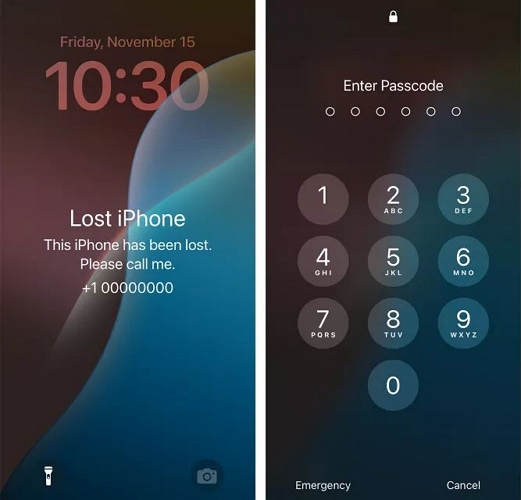
Step 1. Wake the iPhone. Swipe up from the bottom of the screen. On older iPhone models, press the Home button instead.
Step 2. Enter the device passcode.
If you created a passcode while enabling Lost Mode, simply enter those digits. It is basically a screen passcode that Apple requires you to enter to turn off Lost Mode.
Step 3. Wait for the iPhone to unlock. Lost Mode will automatically be removed after successful verification.
One thing to remember is that on iOS 17.3 and later, Stolen Device Protection can change this process. In that case, you’ll have to verify via Face ID or Touch ID before Lost Mode can be turned off.
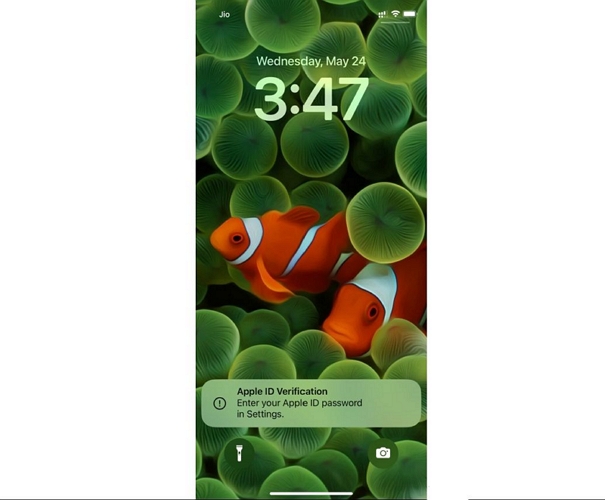
After regaining access to the iPhone, you will see an Apple Account verification prompt. When prompted, follow these steps:
- Open Settings.
- Tap the Apple Account sign-in request.
- Enter the Apple Account password associated with the device.
Once this step is followed, all the other restricted services (like iCloud features, Apple Pay, etc) during Lost Mode will become available again. You can then continue using the iPhone normally.
Way 2. Via iCloud Site
Lost Mode can also be turned off remotely through iCloud where is the same place many users use to enable Lost Mode in the first place.
Keep in mind that this way will only remove the Lost Mode status and your iPhone will remain protected. You will still have to enter the device passcode to get inside it. Here's how to do it.
Steps to Turn Off Lost Mode Through iCloud
Step 1. Go to iCloud.com/find. Sign in using the Apple ID(Apple Account) linked to the iPhone.
Step 2. Select your iPhone from the All Devices list.
Step 3. A device menu will appear with all the details related to that iPhone. Click the Lost option.
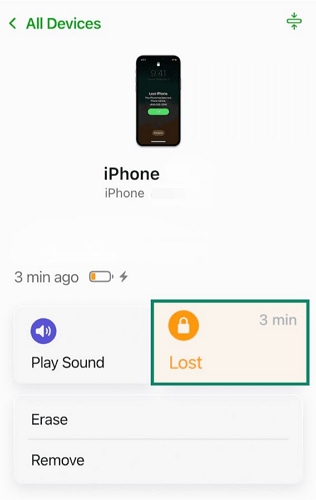
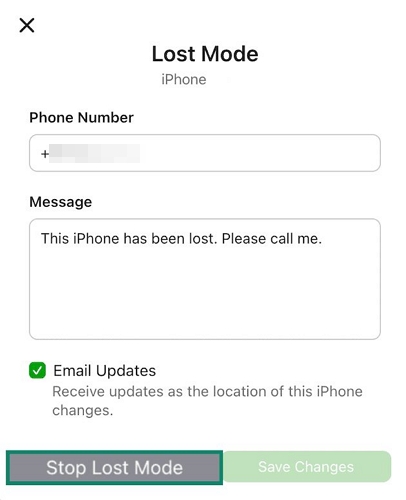
Step 4. You will see the usual Lost Mode screen showing the phone number and custom message displayed on the lock screen.
- Click the Stop Lost Mode button at the bottom.
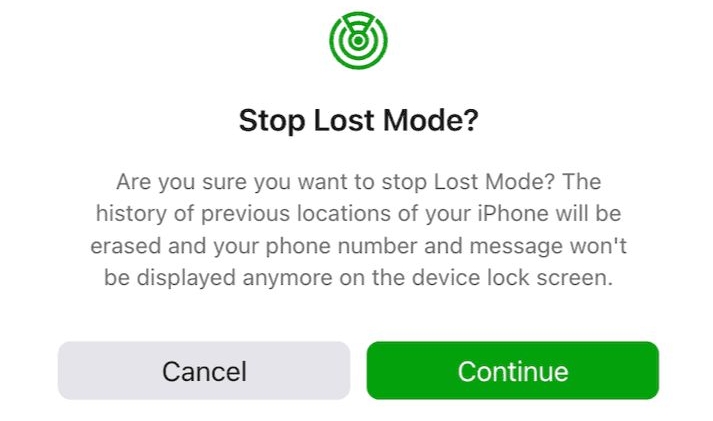
Step 5. A confirmation pop-up will appear. Click Continue to confirm.
The custom Lost Mode message and contact information will disappear from the lock screen immediately. You will still need to unlock it using the usual device passcode. Plus, you will also need to complete Apple Account verification, as discussed above.
Way 3. Through Find My App
This process is similar to the iCloud method discussed above. The only difference is you’ll be using the Find My app instead of a browser.
The benefit is convenience. For instance, you don’t have to sign in through your Apple Account on a random browser to disable the Lost Mode. But then again, you’ll need another Apple device nearby that is signed in with the same Apple ID.
Steps to Turn Off Lost Mode Using Find My App
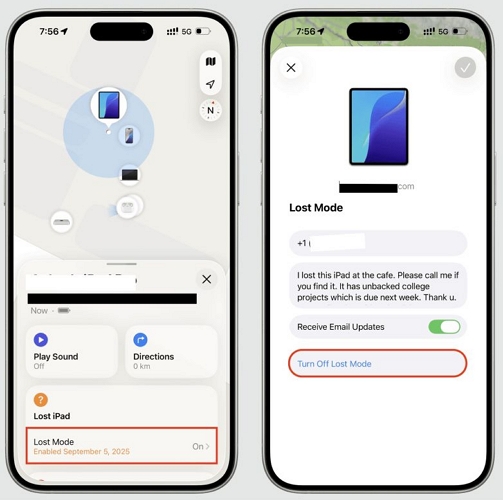
Step 1. Open the Find My app and sign in to the same Apple ID.
Step 2. Tap the Devices tab. Select the iPhone that is currently in Lost Mode.
Step 3. Bring up the device card. Tap Lost Mode.
Step 4. Tap Turn Off Lost Mode. Then confirm the action when the pop-up appears.
The Lost Mode status will be removed. Enter the screen passcode once the iPhone is in your hand. Then, you will be able to start using it.
Can't Turn Off Lost Mode on iPhone (Fixes)
There are times when the three methods above simply won't work. For instance:
- The Lost Mode will refuse to turn off. That is, the iPhone will keep asking for Face ID or Touch ID and you cannot get past the verification screen.
- Or the Lost Mode status is stuck in a pending state.
These are two completely different problems and we've covered how to get out of these situations.
Case 1: Face ID Is Unavailable to Turn Off Stolen Device Protection
Stolen Device Protection was introduced to make a stolen iPhone much harder to access.
Normally, knowing the device passcode is enough to remove the Lock Mode status and get into the locked iPhone. Stolen Device Protection, introduced with iOS 17.3, changes that. It adds another layer of security and may require Face ID or Touch ID to exit Lost Mode. The problem occurs when Face ID stops working. So what do you do when the Face ID hardware is damaged or the TrueDepth cannot recognize you? Fortunately, there are ways to unlock the iPhone even in that case. Here's how it all works.
Fix: Exit Lost Mode on iPhone Without Face ID
The Face ID requirement for exiting Lost Mode depends on how Stolen Device Protection is configured on the iPhone. While setting up Stolen Device Protection, Apple provides two security options:
- Always: Face ID or Touch ID is required for protected security actions regardless of location.
- Away from Familiar Locations: Additional biometric requirements apply primarily when the iPhone is outside trusted locations, such as home or work.
Here are the methods that can help.
Option 1. Disable Lost Mode with Device Passcode
First, connect your iPhone to a familiar Wi-Fi network and make sure you’re performing this fix from a location Apple is likely to recognize: your home or office. Then do this:
- Swipe up the Lock Mode screen.
- Enter your device passoce.
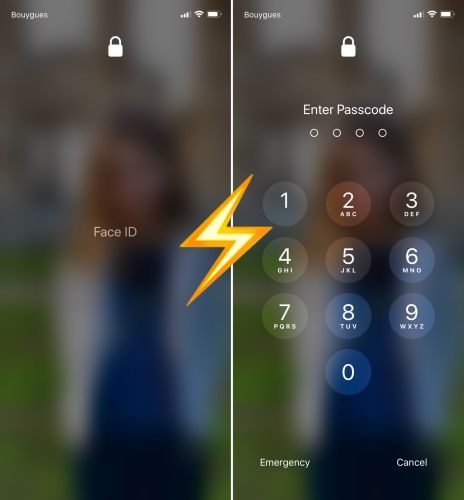
- After a few failed scans, the iPhone will display the passcode screen.
- Simply enter the device passcode to exit the Lost Mode status.
If this works, Stolen Device Protection is likely configured as Away From Familiar Locations, allowing the iPhone to fall back to passcode verification in a familiar environment.
If the iPhone continues requesting Face ID, the stricter Always setting may be enabled. In that case, move on to Option 2.
Option 2. Turn Off Lost Mode Remotely
If the on-device method isn't working, stop trying to remove Lost Mode from the iPhone. Instead, you can use iCloud’s Find My service or the Find My app to remove the Lock Mode status remotely.
After that, return to the iPhone. Enter your screen passcode to unlock the iPhone. You will still need to complete Apple Account verification afterward. But at least the Lost Mode barrier itself has been removed.
Option 3. Erase and Remove iPhone from iCloud
You can also use the "Erase" feature in Find My. This is a hasty step because it will permanently remove all your data (photos, apps, messages, and settings). But then again, when Face ID isn’t available, and none of the above methods work, this is a lifesaver. It will simply allow you to reboot to the Hello screen. Then, you can set up the iPhone and use it again. Still, you can restore data if you have created a backup earlier.
You should also consider erasing the iPhone if it is genuinely lost (Apple recommends it to safeguard your data). One advantage of devices running iOS 15 or later is that they can still be located even after being erased.
The steps are very similar to the remote methods above.
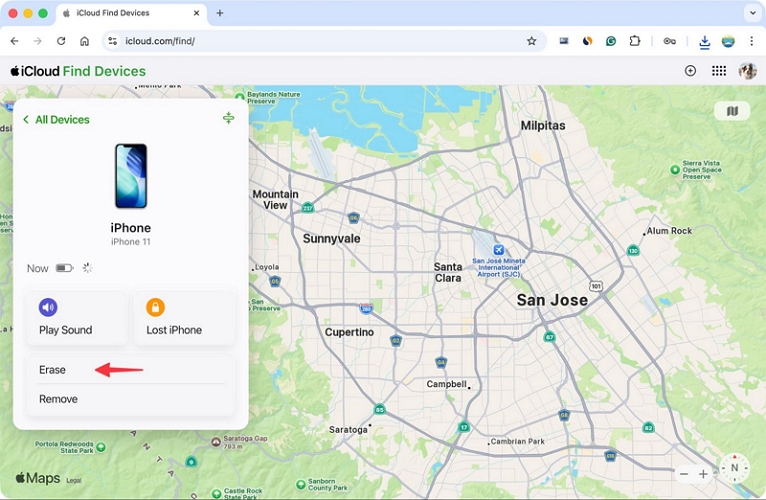
Step 1. Go to iCloud Find My or open the Find My app, sign in with your Apple Account and select the iPhone from the All Devices list.
Step 2. Click Erase This Device or Erase.
Step 3. A confirmation prompt will appear. Click Erase again. Then, follow the on-screen instructions to complete the process.
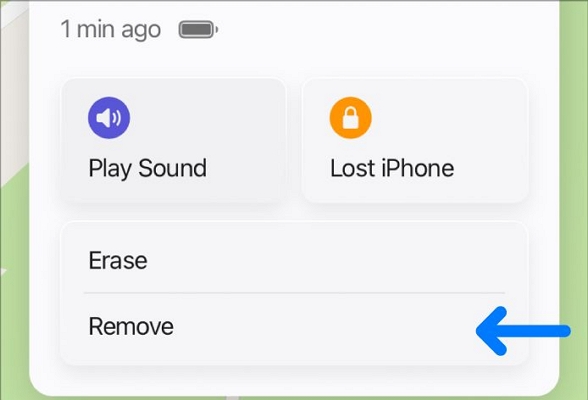
After the erase is complete, you can also click Remove from Account in Find My itself. This will remove Activation Lock. Alternatively, you can enter the Apple ID and password directly on the iPhone to bypass iCloud lock. After that, the iPhone will reboot to the Hello screen.
Option 4. Restore iPhone with Eassiy iPhone Access
You can also remove the Lost Mode status and restore the iPhone with Eassiy iPhone Access. It’s useful when your iPhone is offline and can’t be erased with iCloud instantly or the iPhone cannot complete the passcode verification required to get past the Lost Mode status.
Eassiy supports all iPhone models and recent iOS versions, including iOS 26. Once the Lost Mode status is removed, your iPhone will reboot to the Hello screen. You can then enter the Apple ID credentials, set it up again, restore the data from a previous backup if you have one and use the iPhone normally.
Key Features:
- Remove forgotten 4-digit, 6-digit, custom numeric code and custom alphanumeric passcode.
- Unlock iPhone even when Face ID or Touch ID is broken, unavailable, or cannot complete verification.
- Helps bypass iCloud Activation Lock without requiring the original Apple ID password.
- Enable you to regain full access to your iPhone features by removing Apple ID, Screen Time and MDM.
Steps to Restore iPhone with Eassiy iPhone Access
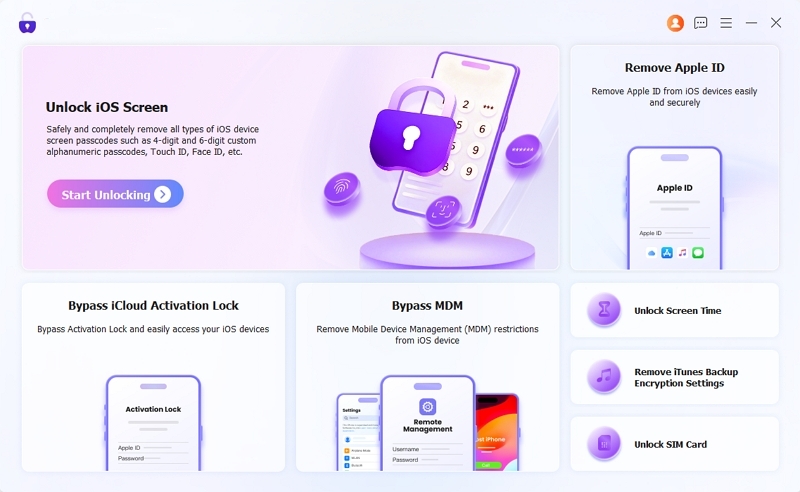
Step 1. Launch Eassiy iPhone Access on your computer. Select Unlock iOS Screen from the main interface.
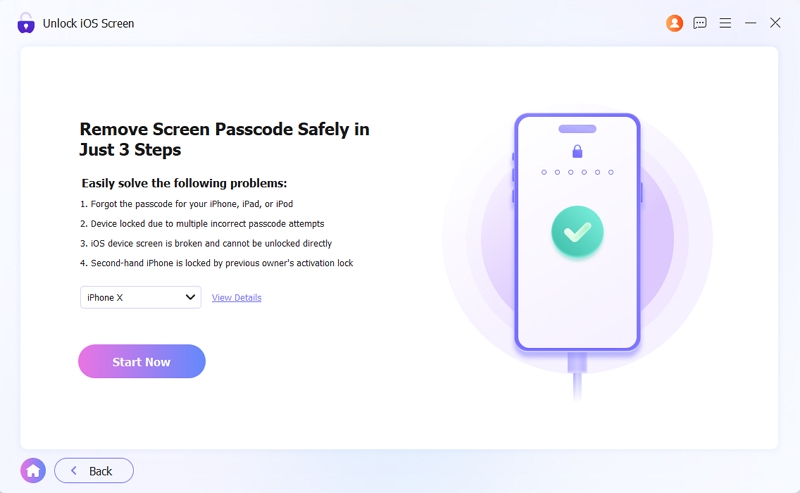
Step 2. Connect your iPhone stuck in Lock Mode. Eassiy will automatically detect the device and display its model information. Review the details and click Start Now.
Eassiy will download the firmware package required for your iPhone. Wait for the download to finish.
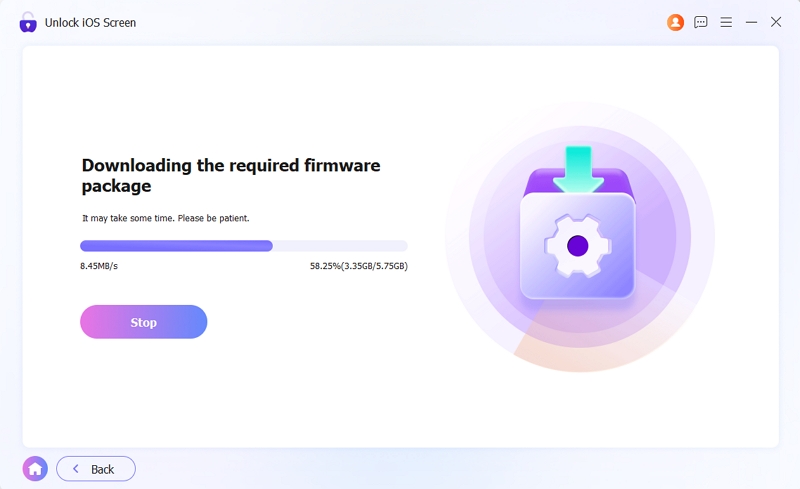
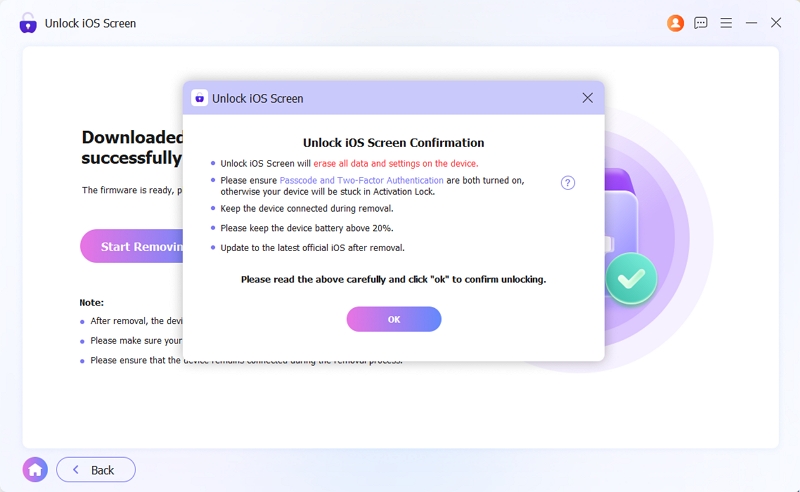
Step 3. Once the firmware is ready, click OK > Confirm Again to confirm the unlock process. Keep the iPhone connected until the process is completed.
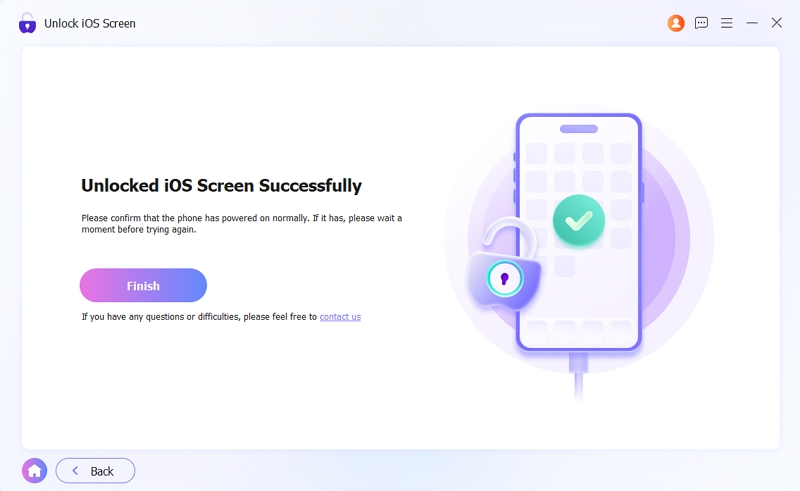
Finally. Eassiy will remove the Lock Mode status and restart the iPhone. Just enter your Apple ID and password to continue. After that, you can then set it up again and use the device normally.
Case 2: Lost Mode Is Pending
Another situation that confuses many users is seeing a Pending status after turning on Lost Mode. Fortunately, this usually isn't a bug. You can easily fix this.
Fix: Stop Lost Mode from Pending on iPhone
The “Pending” status simply means the lost iPhone has not received a command yet. For instance, the device is powered off, is disconnected from the internet or the battery is dead. Until the iPhone comes online, Apple cannot deliver the Lost Mode command to the device. So it will just show the Pending status. Once the device reconnects to the internet, Lost Mode will activate automatically and you’ll see the Lock Mode On status.
If you have already found the iPhone and just want to remove the Pending status, here’s what to do.
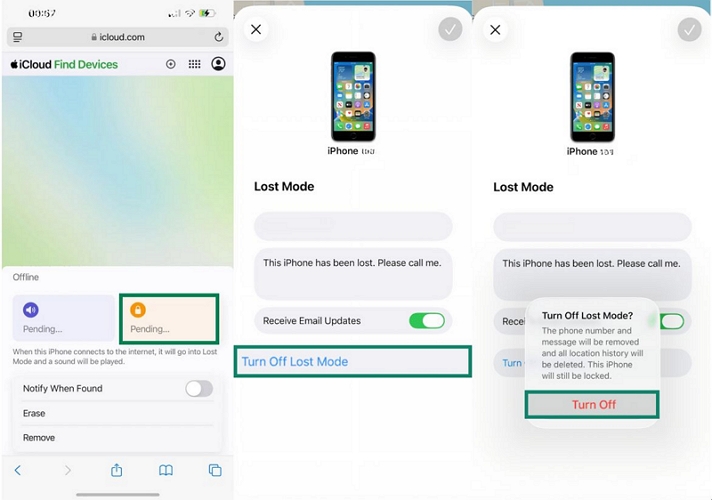
Step 1. Go to Find My or iCloud Find. Then open the All Devices list and select the iPhone showing the Pending status.
Step 2. Open the device details page. Tap or click the Lost Mode option.
Step 3. Choose Turn Off Lost Mode and confirm your choice. The pending Lost Mode request will be canceled. You can then continue using the iPhone normally.
Final Words
That's how you can turn off Lost Mode on iPhone. Once you get your missing iPhone back, you simply need to verify your identity using the device's passcode. This will turn off Lost Mode.
We have even covered what to do when you cannot exit the Lost Mode. But sometimes you no longer remember the screen passcode or get stuck in the Face ID loop, you can Eassiy iPhone Access at that time. It will let you bypass the Lost Mode status and set up the iPhone again.