Help Center
Updated on 2026-04-02
views
5min read
For instant access to films, shows, and unique content, Netflix is a must-have in the current age of streaming. This streaming service offers a wide range of content and a simple interface. Furthermore, you can use Netflix on various devices such as smart TVs, gaming consoles, streaming devices, and smartphones.
Nevertheless, setting up Netflix on a new device can sometimes be tricky, especially when using the Netflix.com/tv8 setup process that requires a special code. This tutorial will guide you through activating Netflix com TV8 on any device you prefer.
Additionally, if you want to watch your favorite streaming content offline on your TV or computer, Eassiy Screen Recorder Ultimate is a great solution. This powerful screen recording tool allows you to capture any video playing on your screen and save it for later viewing, ensuring you can enjoy it without needing an internet connection.
Part 1: What is Netflix.com/tv8 Code?
The code from Netflix.com/tv8 consists of a distinct mix of letters and numbers. This enables users to connect their Netflix account to their TV or other devices. A unique code is displayed on the screen when attempting to access Netflix on an inactivated TV or device. To quickly link to your Netflix account and start viewing content, visit netflix.com.tv8 and enter the code given. Logging in is simplified on devices that lack traditional login methods, like typing with a remote.
Part 2: How to Get Netflix.com/tv8 Activate Code?
The Netflix.com/tv8 code can be obtained by following the steps provided below —
Step 1: Begin by opening the Netflix app on your streaming device. On the other hand, you can also choose to access it by using a web browser on your television.
Step 2: If you have not logged in yet, click on “Sign In”. If you have just established a new device or downloaded the app for the first time, you may be prompted.
Step 3: The app will display a screen containing guidelines. This will typically mean going to the activation site found at “netflix.com/tv8”.
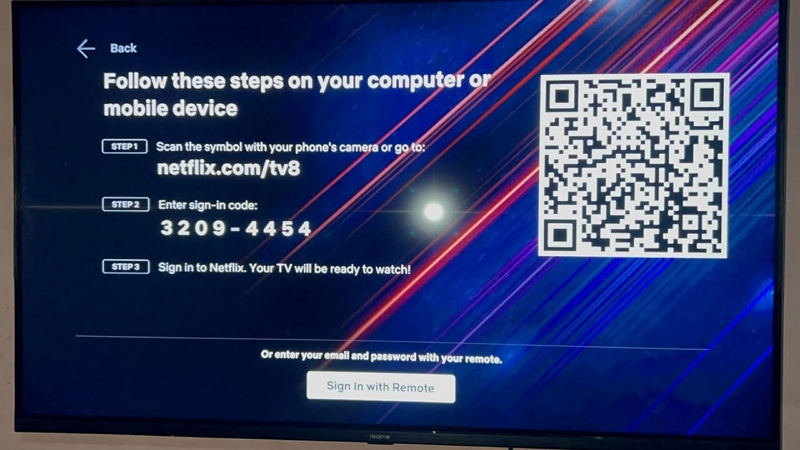
Step 4: Access “netflix.com/tv8” on a different device such as a smartphone or computer using a web browser.
Step 5: Your TV’s Netflix app will show a code for activation. Input this code on the website “netflix.com/tv8”.
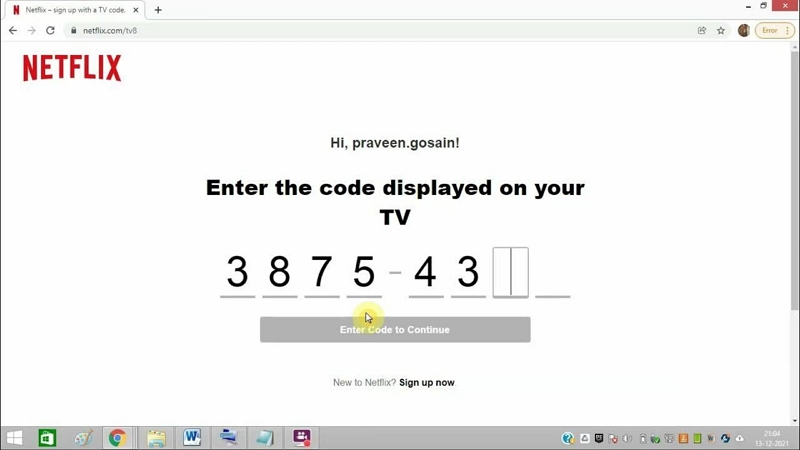
Step 6: If requested, log into your Netflix account using your email and password. Once you enter the code and sign in, your Netflix account will become active on your TV or device and should connect automatically.
Part 3: How to Activate Netflix.com/tv8 Code on Various Devices?
Setting up Netflix on your device is easy, requiring only the input of an 8-digit code.
Activate Netflix on Roku
Step 1: Utilize your Roku remote to move to the Streaming Channels category.
Step 2: Input “Netflix” into the search field. Tap the application and choose “Add Channel”.
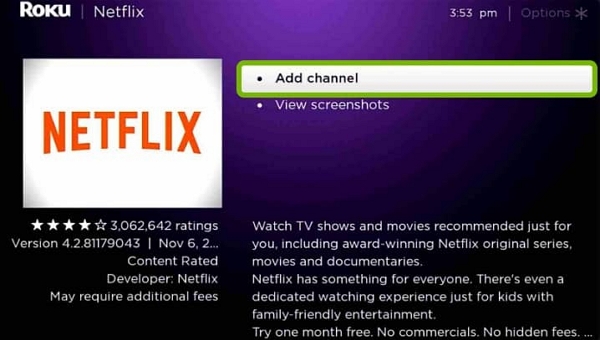
Step 3: Launch Netflix and select “Sign In”. On your television, there will be both an 8-digit code and a QR code visible.
Step 4: Visit Netflix.com/tv8 on your phone or computer. Submit the 8-digit code and press “Continue”.
Step 5: Sign in to your Netflix account and begin watching movies and TV shows!
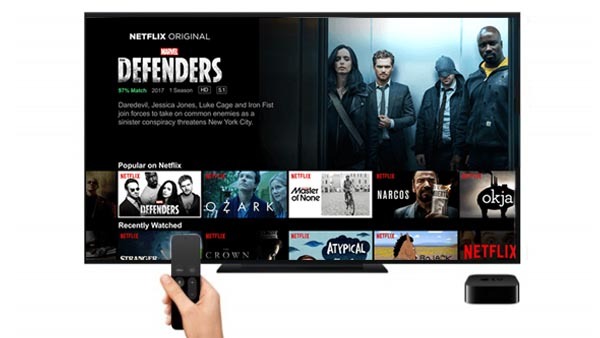
Activate Netflix on Apple TV
Step 1: Access the App Store by locating and clicking on its icon on the main screen.
Step 2: Look for Netflix by entering “Netflix” into the search box. Pick and download Netflix.
Step 3: Access the application to obtain an 8-digit activation code. Open Netflix.com/tv8 via a web browser to go online.
Step 4: Input the 8-digit code and select “Continue” to proceed. Input your Netflix login information to begin viewing content.
Activate Netflix on Fire TV
Step 1: Navigate to the home screen on your Fire TV. Utilize the search bar to locate the Netflix application.
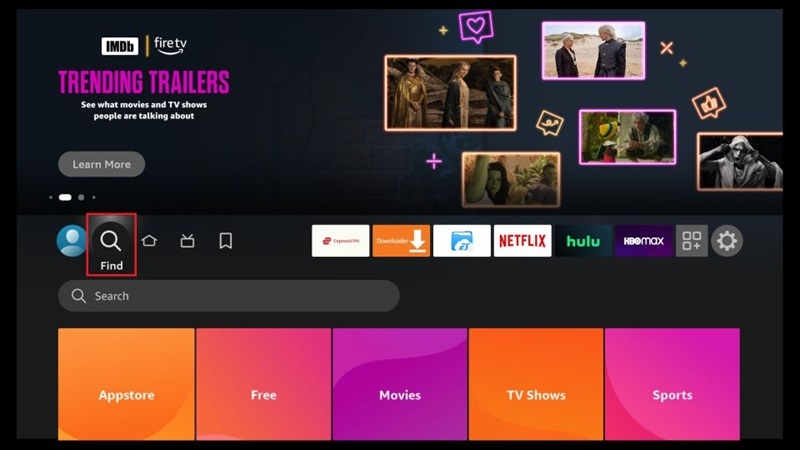
Step 2: To set up Netflix, tap the app and choose “Get” for installation.
Step 3: Access Netflix by opening the app, and you will see the activation code.
Step 4: To access, go to Netflix.com/tv8 using a smartphone or computer.
Step 5: Input the 8-digit code, then press “Continue”. Access your account to begin streaming.
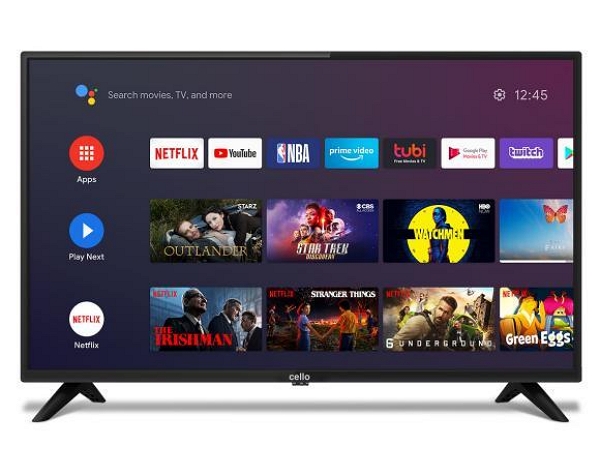
Activate Netflix on Android TV
Step 1: Access the Play Store by moving to Apps > Play Store on your Android TV.
Step 2: Look for the Netflix application. Simply download and launch Netflix.
Step 3: Your TV screen will show you an 8-digit code. Access Netflix online by visiting Netflix.com/tv8 using a web browser.
Step 4: Enter the code and select “Continue”. Sign into your account to access Netflix and begin enjoying its content.
Activate Netflix on Xbox
For Xbox One and Xbox Series:
Step 1: Swipe to the left to enter the store. Navigate to Apps and locate Netflix.
Step 2: Download Netflix by tapping on Install to install the app. Access Netflix in order to receive your activation code and begin the initiation process.
Step 3: Go to Netflix.com/tv8 and input the code. Log in to your Netflix account to finish the sign-in process
Activate Netflix on Chromecast
Step 1: Visit www.netflix.com/activate using your smartphone. Make sure that you have signed in to your Netflix account.
Step 2: Choose the Chromecast device by tapping on the cast icon and selecting the cast option.
Step 3: Select the content you desire to view. Your TV is now ready for Netflix streaming as your device is successfully activated.

Wild Bonus: How to Record Streaming Videos for Offline Watching?
Eassiy Screen Recorder Ultimate enables you to easily capture any video playing on your screen and save it for offline viewing. You can enjoy uninterrupted content with high-definition recording quality and flexible output options. The intuitive interface makes the recording process smooth and straightforward. Furthermore, Eassiy Screen Recorder Ultimate lets you customize your recording settings, including output format, resolution, and audio source, making it easy to manage and organize your saved videos.
Features
- Flexible recording area options — record full screen or customize a specific region around the video player.
- Captures both system audio and microphone simultaneously for a complete recording experience.
- Supports a wide range of output formats including MP4, MKV, and MOV for broad device compatibility.
- Real-time annotation tools allow you to highlight or mark content while recording.
Follow these steps to record streaming videos using Eassiy Screen Recorder Ultimate –
Step 1: Launch Eassiy Screen Recorder Ultimate and select Video Recorder from the main interface.
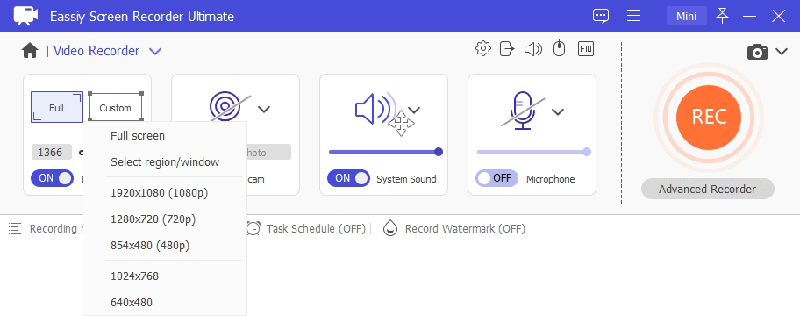
Step 2: Select your recording area. Choose full screen or drag to define a custom region around the video player window.
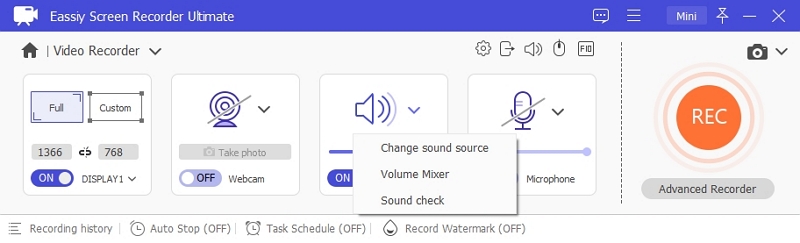
Step 3: Enable System Sound to capture the video's audio. Adjust the volume slider to your preference.
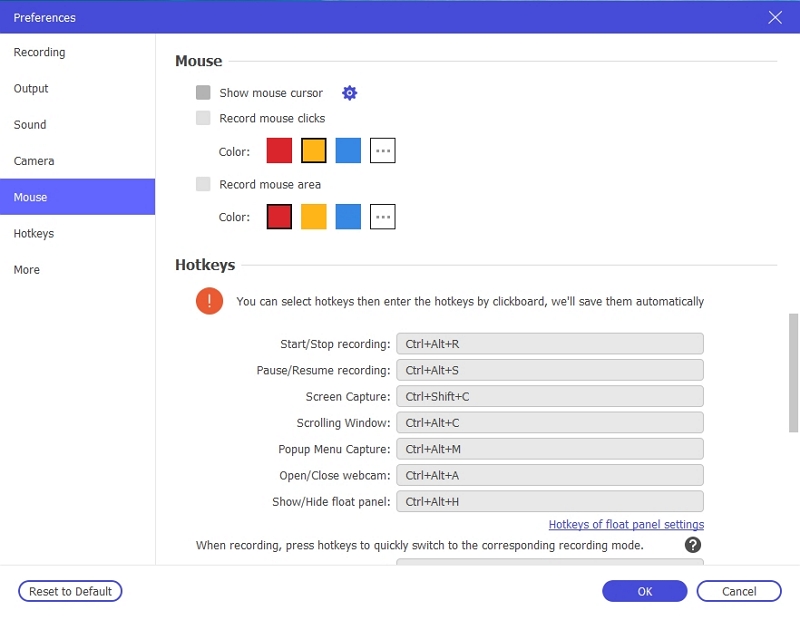
Step 4: Open Preferences to configure your output format, video quality, and hotkeys before starting the recording.
Step 5: Play the video on your screen, then click the REC button to begin recording. Add real-time annotations or highlights during the recording if needed.
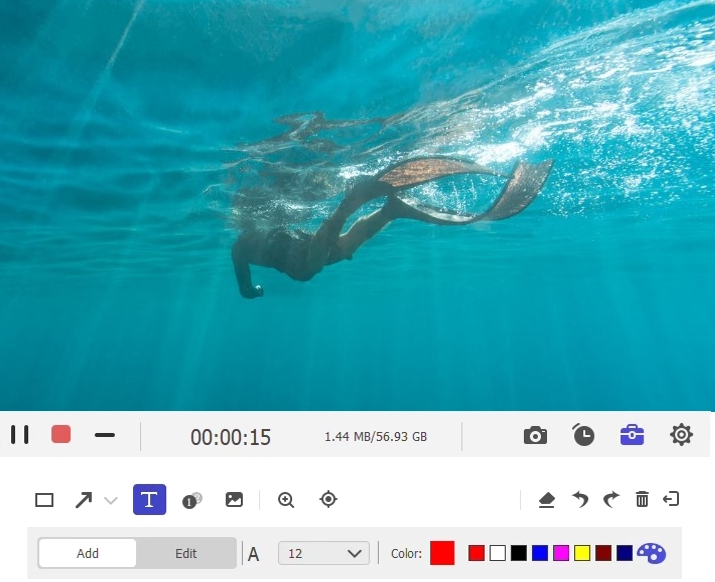
Step 6: Click the Stop button when the video finishes. The recording will be automatically saved to your computer and ready for offline playback at any time.
FAQs
Q. Is it possible for me to activate Netflix on multiple devices?
Of course, it is possible to enable Netflix on multiple devices by entering the netflix.com/tv8 code. Simply complete the activation steps for each device and be sure to utilize the individual code provided for each activation.
Q. Is there any limitation to how many devices I can link to my Netflix account?
Netflix app can be installed on multiple devices to stream. However, your account can only stream on a specific number of devices at the same time based on your Subscription plan. Find exact information by reviewing your Netflix account settings.
Q. What can I do if the activation code expires?
In case the activation code expires, just reboot the Netflix app on your device to obtain a fresh code. Next, return to netflix.com/tv8 and input the updated code.
Conclusion:
Activating your streaming service on your devices improves your overall viewing enjoyment. By simply entering an activation code, you can easily access your preferred movies and TV series. We strongly suggest using Eassiy Screen Recorder Ultimate to capture and save streaming content for offline viewing. It delivers high-definition recording quality, flexible output format options, and an intuitive interface — ensuring seamless enjoyment of your favorite content at any location and time.