Help Center
Updated on 2026-04-10
views
5min read
Are you wondering if you can enjoy Amazon Prime Video content on VLC Media Player? Although VLC cannot directly play Amazon Prime Video due to DRM restrictions, there are reliable methods to make it happen. This guide walks you through the steps to use VLC for playing Amazon Prime Video and troubleshooting common playback issues.
- Q. What is VLC Media Player? Why Choose VLC?
- Q. Can VLC Play Any Video? (Supported Formats)
- Q. Can VLC Play Amazon Prime Video?
- Q. What Are the Limitations of VLC Media Player?
- Step 1: Download Amazon Prime Video with StreamFox for Video
- Step 2: Open the Downloaded Video in VLC
FAQ About Playing Amazon Prime Video on VLC
To better understand why Amazon Prime Video cannot directly play on VLC and how to overcome this limitation, let’s address some frequently asked questions.
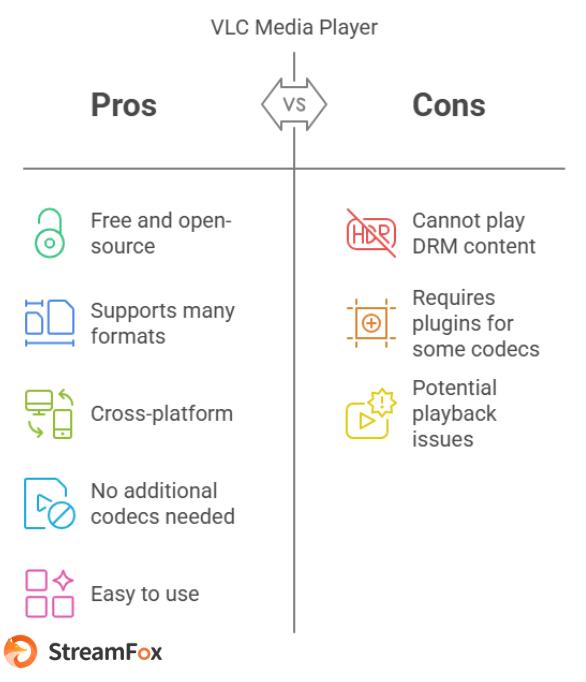
Q. What is VLC Media Player? Why Choose VLC?
VLC Media Player is a free, open-source, and highly versatile media player that supports a wide range of audio and video formats. It is known for its cross-platform compatibility, ease of use, and robust performance. VLC’s ability to handle nearly all file types without requiring additional codecs makes it a go-to choice for many users.
Q. Can VLC Play Any Video? (Supported Formats)
VLC supports a vast array of formats, including MP4, MKV, AVI, MOV, WMV, and more. Its built-in codecs allow seamless playback of most video and audio files. However, some files with specific DRM protections or proprietary codecs might require additional steps to play on VLC.
Q. Can VLC Play Amazon Prime Video?
No, VLC cannot directly play Amazon Prime Video content due to DRM (Digital Rights Management) protections. However, you can use tools like Eassiy Screen Recorder Ultimate to capture streaming video and convert it into VLC-compatible formats for offline playback.
Q. What Are the Limitations of VLC Media Player?
While VLC is powerful, it does have some limitations:
- It cannot play DRM-protected content like Amazon Prime Video directly.
- Some highly compressed or proprietary codecs may require additional plugins.
- Occasionally, certain video formats may experience playback issues, such as audio desynchronization.
Now that we’ve addressed common questions about VLC and its limitations, let’s explore a practical solution to play Amazon Prime Video on VLC, starting with PC and Mac.
How to Play Amazon Prime Video on VLC on PC/Mac Successfully
Playing Amazon Prime Video on VLC on a PC or Mac involves two key steps: downloading the video in a VLC-compatible format and opening it in VLC. Here’s how to do it:
Time required for execution: 15-20 mins
Execution difficulty: Easy
Step 1: Record Streaming Video with Eassiy Screen Recorder Ultimate
Eassiy Screen Recorder Ultimate is a powerful screen recording tool that enables you to capture any video playing on your screen and save it in VLC-compatible formats like MP4 or MKV — without any platform restrictions. It supports both PC and Mac, making it a versatile tool for all your video saving needs.
Why Choose Eassiy Screen Recorder Ultimate:
- Records any on-screen video in up to 4K resolution with no quality loss.
- Captures system audio and microphone simultaneously for a complete experience.
- Supports output formats including MP4 and MKV, fully compatible with VLC media player.
Using Eassiy Screen Recorder Ultimate, you can easily capture streaming videos and watch them on VLC without needing an internet connection.
Steps to Record Videos for VLC Playback:
1. Launch Eassiy Screen Recorder Ultimate and select Video Recorder from the main interface.
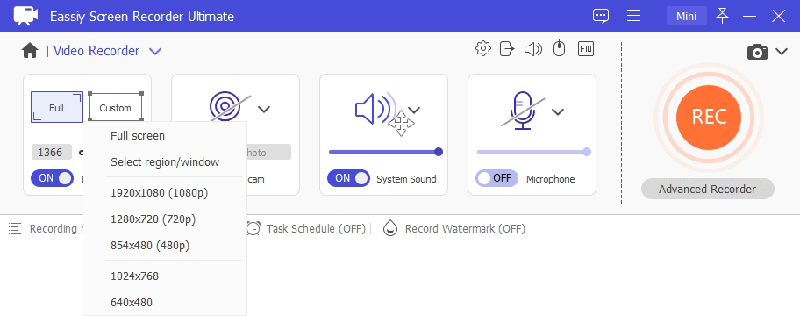
2. Select your recording area. Choose full screen or drag to define a custom region around the video player window.
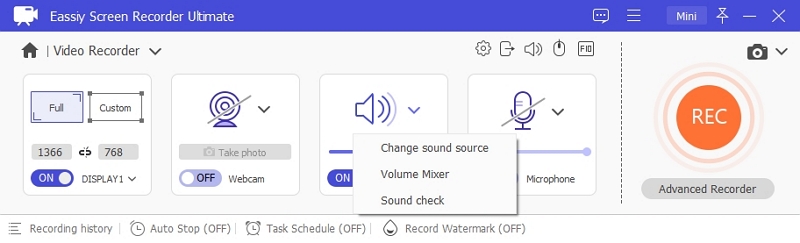
3. Enable System Sound to capture the video's audio. Adjust the volume slider to your preference.
4. Open Preferences to configure your output format — select MP4 or MKV for VLC compatibility — and set your video quality and hotkeys.
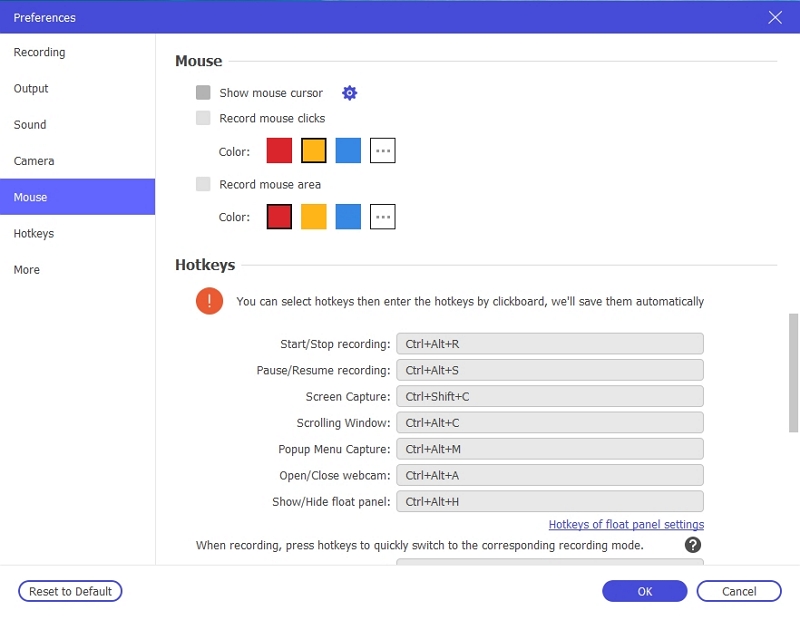
5. Play the video on your screen, then click the REC button to begin recording. Use the annotation toolbar to add highlights or notes in real time if needed.
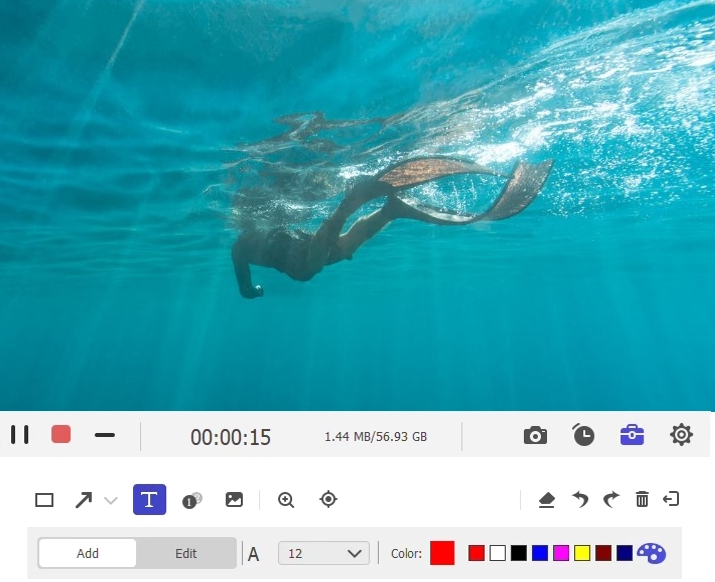
6. Click the Stop button when the video finishes. The recording will be automatically saved to your computer in your chosen format, ready to open in VLC.
Eassiy Screen Recorder Ultimate Price:
- Monthly Plan: $49.95/month — Ideal for short-term use or occasional recordings.
- Quarterly Plan: $89.95/year — Perfect for regular users, saving you more in the long run.
- Perpetual License: $159.95 — A one-time payment for unlimited access to all features.
Customer Service: Quick email response for support.
Step 2: Open the Downloaded Video in VLC
For a smoother playback experience, you can also enable hardware decoding in VLC by navigating to Tools > Preferences > Input/Codecs.
1. Launch VLC Media Player on your computer.
2. Go to Media > Open File and select the downloaded video.
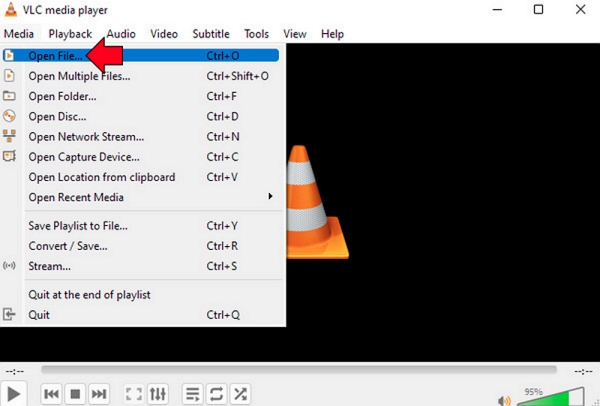
3. Enjoy your video offline without DRM restrictions.
Suitable Scenarios
This method is ideal for users who travel frequently and need to watch their favorite Amazon Prime videos offline during flights or in areas with limited internet access.
Professional Tip
Choose SD quality if you are running low on storage or HD quality for the best viewing experience.
How to Play Amazon Prime Video on VLC on Android/iPhone
If you're a VLC user on mobile, you can also watch Amazon Prime videos offline.
Step 1: Record Videos for Mobile Viewing
1. Use Eassiy Screen Recorder Ultimate on your PC or Mac to record the streaming video you want to watch offline.
2. Save the recorded video in a VLC-compatible format like MP4.
Step 2: Transfer or Access Videos in VLC
Option 1: Transfer the downloaded video from your computer to your mobile device
Follow these steps to transfer the downloaded video:
- Connect Your Devices: Use a USB cable to connect your mobile device to your computer.
- Enable File Transfer Mode: On your mobile device, select the "File Transfer" or "Media Transfer" option when prompted.
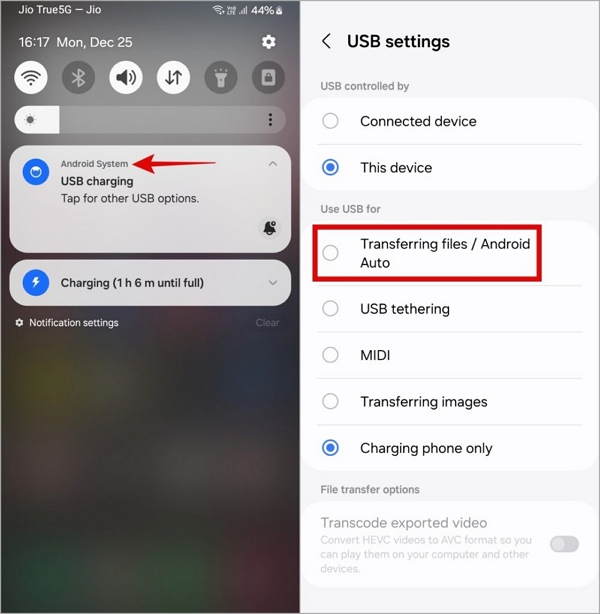
- Locate the Video File: Navigate to the folder on your computer where the downloaded video is stored.
- Copy the Video: Right-click the video file and select "Copy" (or use keyboard shortcuts like Ctrl+C or Cmd+C).
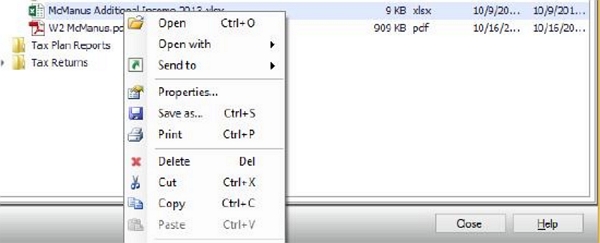
- Paste on Your Mobile Device: Open the desired folder on your mobile device and paste the video file (using Ctrl+V or Cmd+V).
Once the transfer is complete, safely eject your mobile device from the computer. You can now enjoy the video offline on your mobile device!
Option 2: Open the video directly in VLC for Android or iOS
Using VLC’s built-in Network Streaming feature, you can easily play downloaded videos stored on cloud platforms like Google Drive or Dropbox, eliminating the need for USB transfers.”
Step 1. Open the VLC app on your iOS or Android device.
Step 2. Tap the Network tab located at the bottom of the screen.
Step 3. Select Cloud Services to see a list of available cloud services.
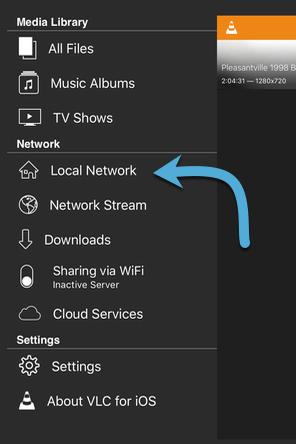
Step 4. Choose iCloud (or the relevant service). This will open the Files app.
Step 5. Navigate to your local folder by tapping the Browse tab at the bottom or using the Back button in the top-left corner.
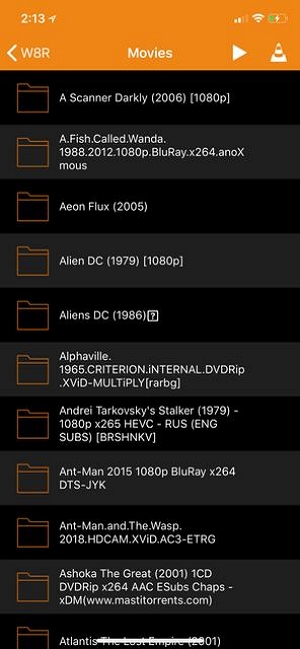
Step 6. Select your video(s) and tap Done in the top-right corner.
Tips: The VLC video library may take some time to display the video(s) based on file size.
Professional Tip
Disable hardware acceleration in VLC settings for smoother playback on mobile devices.
How to Disable Hardware Acceleration in VLC
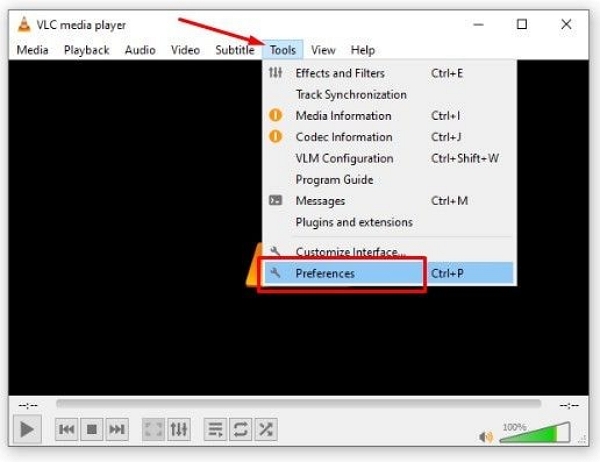
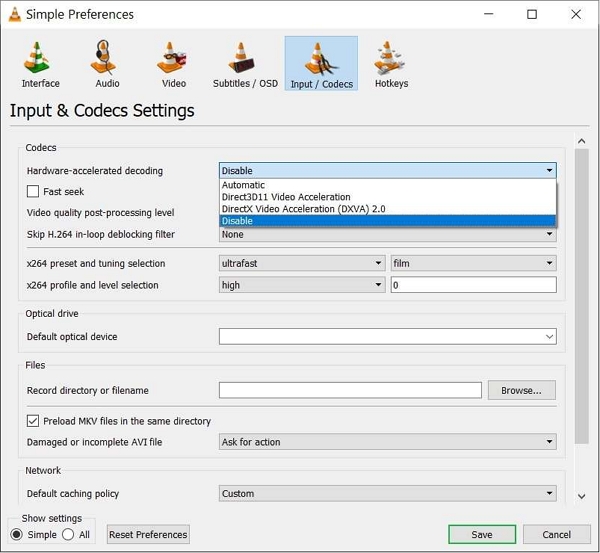
Step 1:Open VLC and go to Tools > Preferences.
Step 2:Click the Input/Codecs tab, then select All under the Show settings section.
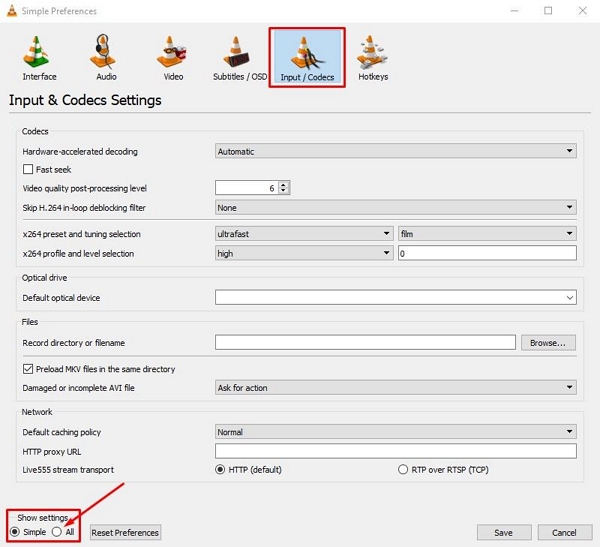
Step 3:In the Hardware-accelerated decoding section, choose Disabled and click Save.
Troubleshooting: Why VLC Can’t Play MP4 Files?
Playback errors, video freezing, and codec issues are common when trying to play MP4 files in VLC. These problems often arise due to unsupported file formats, missing codecs, or video corruption. Let’s explore the key reasons and provide practical solutions.
Reason 1: Missing Codecs
VLC requires specific codecs to decode and play MP4 files. If these codecs are missing, VLC cannot recognize or play the file.
Solution: Download the missing MP4 codec from the official Media Player Codec Pack.
Reason 2: Outdated VLC Player or Operating System
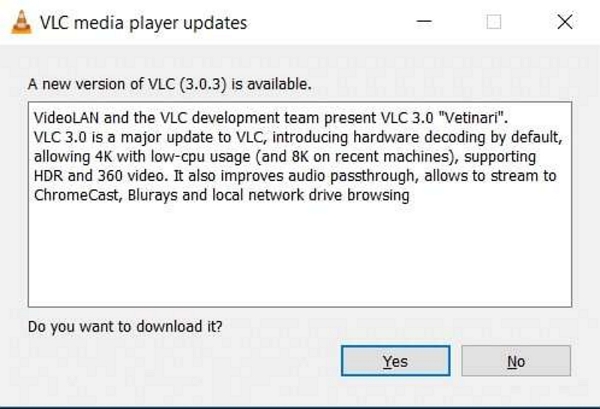
An outdated VLC version may lack support for certain audio/video formats. Similarly, an outdated OS can cause compatibility issues.
Solution: Update VLC by navigating to Help > Check for updates. Also, ensure your operating system is up to date.
Reason 3: Incorrectly Configured Video Settings
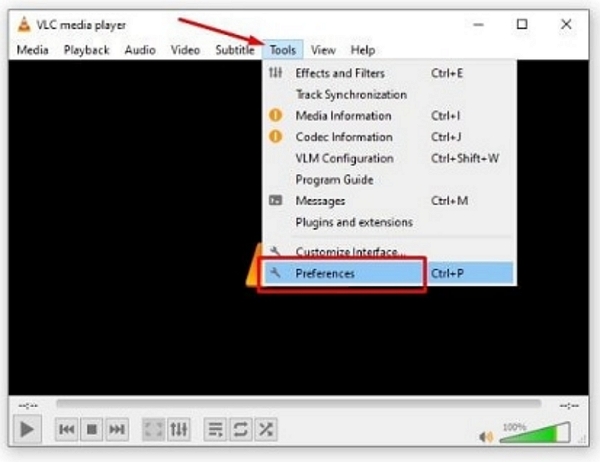
Improper VLC video settings may prevent playback.
Solution: Reset VLC settings by going to Tools > Preferences and selecting Reset Preferences.
Reason 4: Issues with External Devices
Playing MP4 files from malfunctioning external devices may result in errors.
Solution: Transfer the file to your computer and try again.
Alternative Solutions to Fix VLC Not Playing MP4 Video Files
If the MP4-format Amazon videos you downloaded using methods from other articles won't play in VLC, you can try the following solutions to help you successfully play Amazon Prime content offline.
Solution 1: Change VLC Video Output Settings
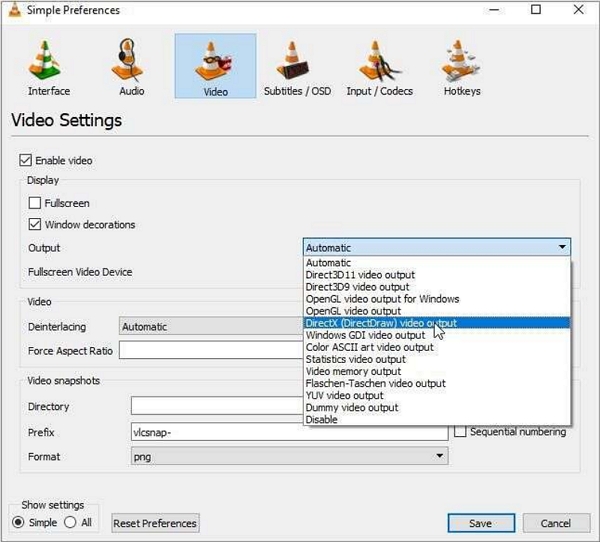
Adjusting video output (rendering) settings can resolve playback issues and fix distorted or unplayable MP4 files. This method is particularly effective when encountering distortion problems, such as a black or white screen while playing MOV or MP4 videos. Follow these steps to modify your VLC video settings:
Step 1. Open VLC and go to Tools > Preferences > Video.
Step 2. Change Output from Automatic to DirectX (DirectDraw).
Step 3. Click Save and restart VLC.
Solution 2: Convert MP4 Files to a Different Format
If your VLC media player is unable to play Amazon Prime in MP4, it may be due to format compatibility. A simple solution is to convert the MP4 video into a format that VLC supports, such as MOV or AVI. This will solve any playback issues and ensure smooth viewing. Fortunately, VLC itself can help you convert the video to a compatible format directly.
Step 1. Open VLC and click Media > Convert / Save.
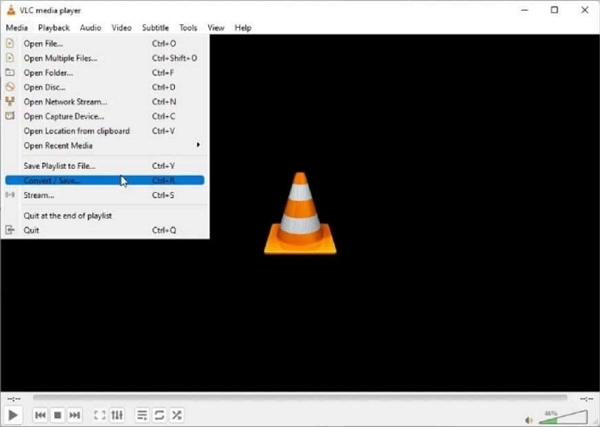
Step 2. Add the MP4 file and select Convert / Save.
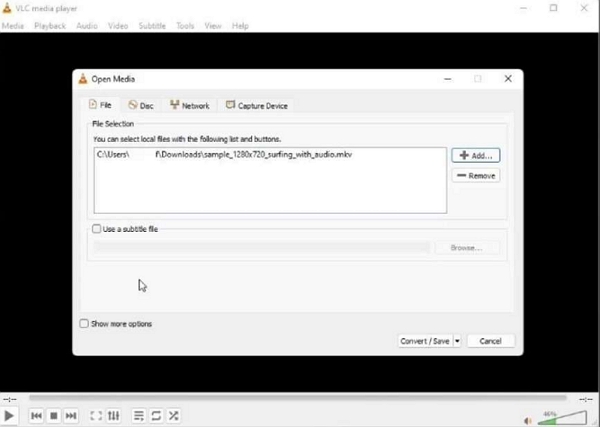
Step 3. Choose a different format (e.g., AVI or MOV) and click Start.
Solution 3: Update Video Drivers
Updating your video drivers can fix common playback issues, improve video quality, and enhance overall performance. If you’re experiencing problems like blurry or choppy video in VLC, updating your drivers is a simple and effective solution. Here’s how to do it:
Step 1. Outdated video drivers can affect playback performance.
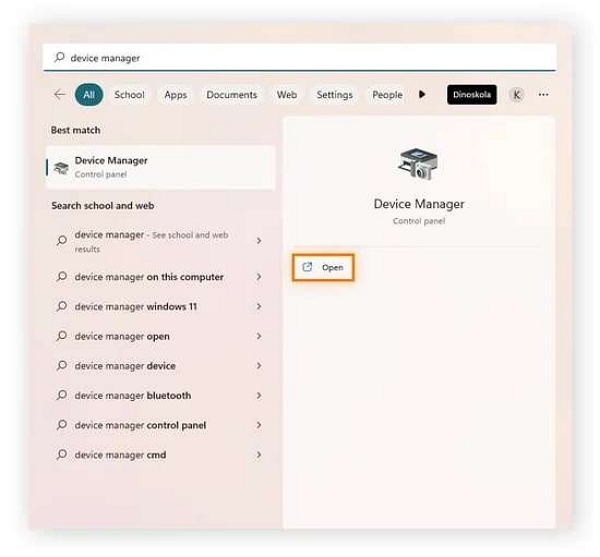
Step 2. Open Device Manager on your computer.
Step 3. Expand Display adapters, right-click your graphics card, and select Update driver.
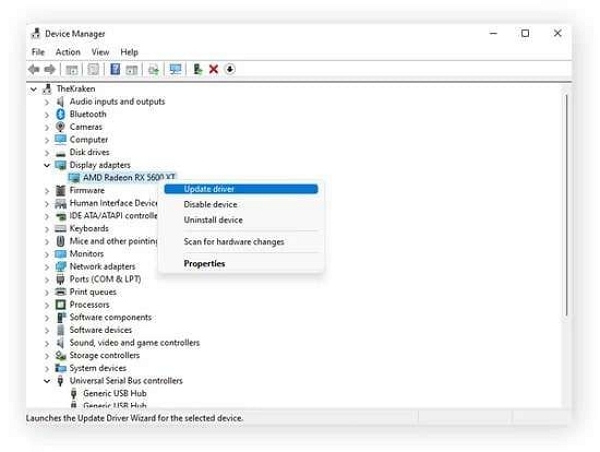
Follow the prompts to install the latest driver.
Conclusion
Although VLC cannot directly play DRM-protected streaming content, tools like Eassiy Screen Recorder Ultimate make it possible to capture and save these videos in VLC-compatible formats for seamless offline playback — on both PC, Mac, and mobile devices.