Help Center
Updated on 2026-04-07
views
5min read
Long flights can be boring, but there are ways you can make your journey more exciting than your destination. You have sufficient time to binge-watch Netflix and catch up with the TV show episodes you have missed. However, the question arises: "How many devices can download on Netflix?" There is no need to worry because this article will help to quickly fix Netflix downloads on too many devices. You can download Netflix on multiple devices and enjoy watching your favorites.
"Netflix Downloads on Too Many Devices" – Common Messages
Regular Netflix users must have encountered various messages regarding downloads. Let us list some common messages you get when downloading Netflix on multiple devices and the steps you should take to fix the issues.
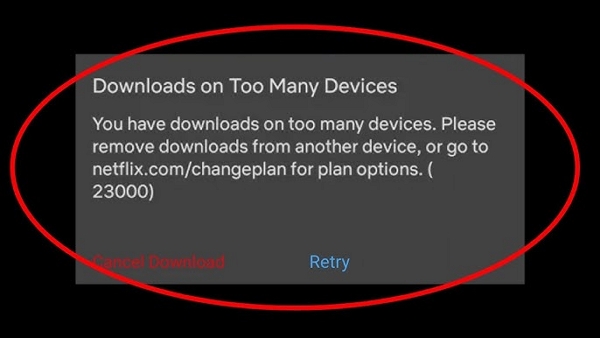
1. You have downloads on too many devices./ /Netflix Error 10016-23000 or NQL.23000
Netflix Android/iPhone/iPad users must have received this Netflix Error Code 10016-23000 or NQL.23000 with the message "You have downloaded on too many devices." That means you have reached the maximum number of download devices your plan allows. Navigate to the "Manage Download Devices" page to view your limit.
2. Download Max Reached./Netflix Error 10016-22005
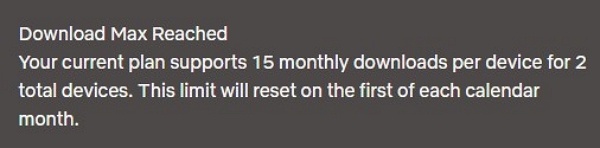
This error usually occurs on Android smartphones and iPhones/iPads. Netflix content distributors set specific limits for the number of downloads a user can make from them. You get this message when you exceed the set limits. The solution also is to delete the downloads you have already watched.
3. This title can be downloaded 1 more time.
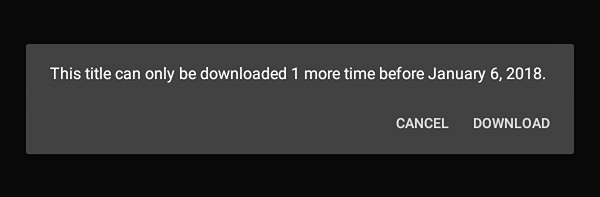
This message indicates that you are approaching the maximum download limit for a specific program. Some movies or TV shows restrict the number of times you can download them. If you select "Download" and confirm your action, you can download the show or movie for the last time. Subsequently, the content will not be available for up to one year.
4. This title is unavailable for download.
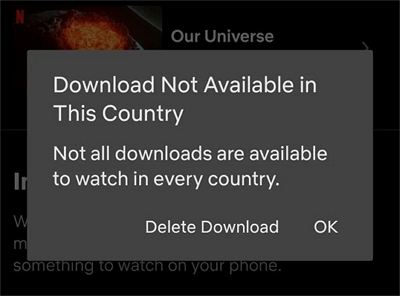
Not all Netflix content is available for download. There can be content rights issues. Content providers can have specific agreements with Netflix regarding restricting download options. Some titles might not be available for downloading in specific regions. New releases also might not be immediately available for download.
Solution 1: Manage/Remove Downloads from Other Devices Netflix
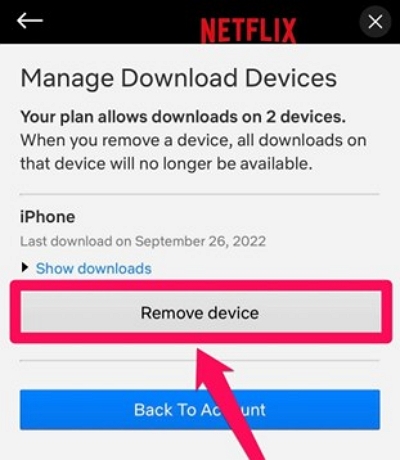
Step 1: Open Netflix and tap “My Netflix.”
Step 2: Go to “Menu” and tap “Account.”
Step 3: Tap “Manage Download Devices” under “Settings.”
Step 4: Tap “Remove device.” It deletes all downloads from the device.
Solution 2: Delete Downloads from Netflix App
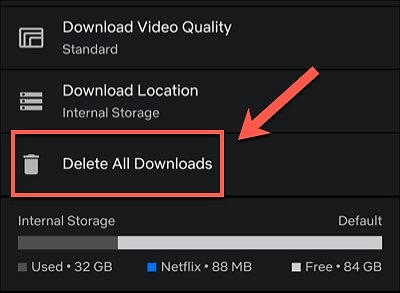
Step 1: Open the Netflix app and tap "My Netflix."
Step 2: Go to “Menu” followed by “App Settings.”
Step 3: Tap “Delete all downloads” under the “Downloads option.
Step 4: Confirm your action to delete all downloads.
Tip: If the message persists, you should change your Netflix plan to allow you to download content on more devices.
Solution 3. Wait for Netflix to Reset Download Limit
Ad-supported plans allow up to 15 downloads per device per calendar month. This limit resets on the first day of each month. You can continue watching Netflix titles online by connecting to the internet.
To download more titles, you’ll need to wait until the limit resets, or you can switch to an ad-free plan for immediate access to more downloads.
Solution 4. Bypass Netflix Download Limits
Question: Is there a limit on Netflix downloads per device?
Netflix has certain limitations on downloads regarding managing content and preventing piracy. Here's a breakdown of the factors that contribute to these restrictions:
Netflix Limits on Download Devices
Netflix offers multiple subscription plans, from Basic to Premium.
- Basic Plan: This plan is available in countries like India but has been discontinued in the US, the UK, and Canada. Subscribers to this plan can download/view Netflix on only 1 supported device at a time. This plan is available with and without advertisements.
- Standard Plan: Subscribers to the Standard Netflix plan can watch/download Netflix content on 2 supported devices at a time. This plan is available with or without ads.
- Premium Plan: The Netflix Premium Plan lets subscribers watch/download Netflix on 6 supported devices simultaneously.
Maximum Downloads on Netflix
Subscribers of a Netflix plan supported by ads are allowed a maximum of 15 downloads in a calendar month. The download limit for subscribers of ad-free plans is 100 downloads. Therefore, depending on your subscription plan, you can download a maximum of 600 titles simultaneously. This limit gets automatically reset on the first day of each month.
Netflix Download Expiry
Netflix has set specific download expiration dates for its content depending on the agreements with the content producers/distributors. Generally, Netflix’s download validity period is between 7 and 30 days. Usually, they expire in 48 hours after watching. However, the downloads are removed when your subscription ends.
Therefore, switching to a higher subscription plan can help overcome these restrictions. Alternatively, you can explore screen recording solutions such as Eassiy Screen Recorder Ultimate to capture streaming content and watch it offline.
Answer. How to Bypass Netflix Download Limits
Method 1. Using Eassiy Screen Recorder Ultimate to Record Streaming Videos
Eassiy Screen Recorder Ultimate offers a flexible solution for bypassing download limits. This software works on Windows and macOS and can capture any video playing on your screen in high quality, saving it permanently for offline viewing without any expiry restrictions. Features like up to 4K recording quality, audio and video customization, real-time annotation tools, and scheduled recording distinguish Eassiy Screen Recorder Ultimate from similar tools. Let's discuss how to record streaming content using Eassiy Screen Recorder Ultimate.
It stands out from other tools with its key features:
- Up to 4K Recording Quality: Capture any on-screen video in crisp, high-definition quality with no loss in resolution.
- Audio & Video Customization: Adjust the recording area, output format, and audio settings to suit your preferences for the best viewing experience.
- Real-time Annotation Tools: Add highlights, text, and arrows during recording to personalize your captured content.
- Scheduled Recording: Set a start and stop time to automate recording tasks, so you never miss a moment.
Step 1: Download and install Eassiy Screen Recorder Ultimate from the official website. Launch the program and select Video Recorder from the main interface.
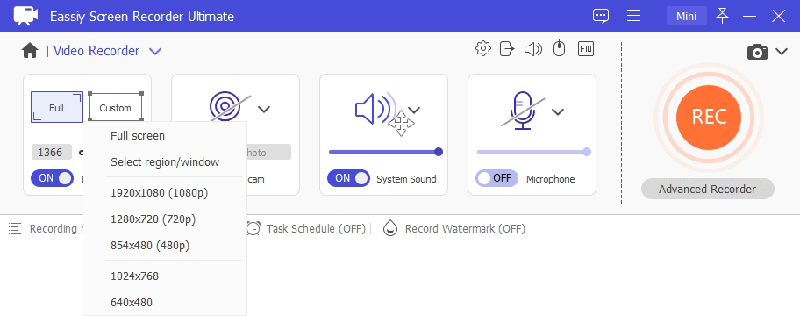
Step 2: Select your recording area. Choose full screen or drag to define a custom region around the video player window.
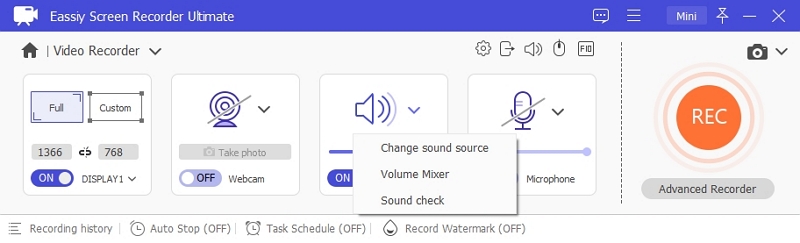
Step 3: Enable System Sound to capture the video's audio. Adjust the volume slider to your preference.
Step 4: Open Preferences to configure your output format (MP4, MKV, or MOV), video quality, and hotkeys before starting.
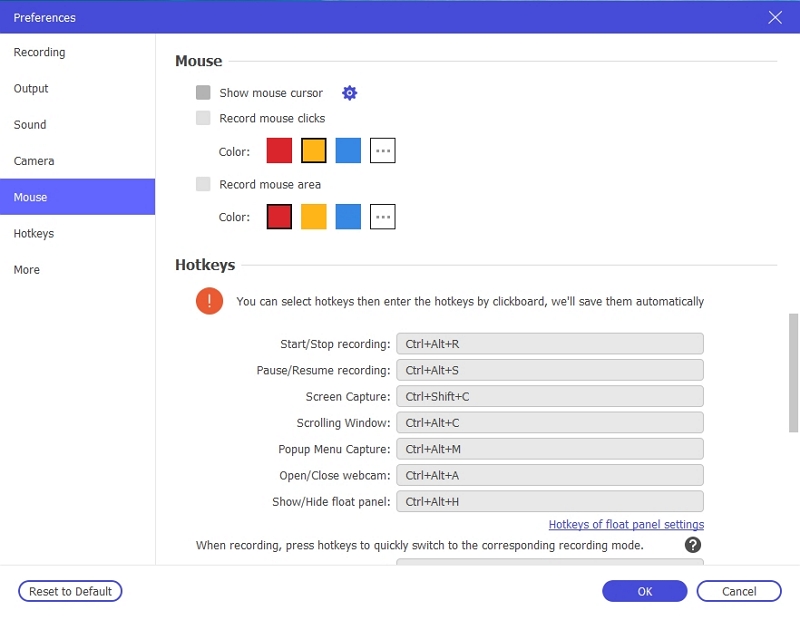
Step 5: Play the video on your screen, then click the REC button to begin recording. Use the annotation toolbar to add highlights or notes in real time if needed.
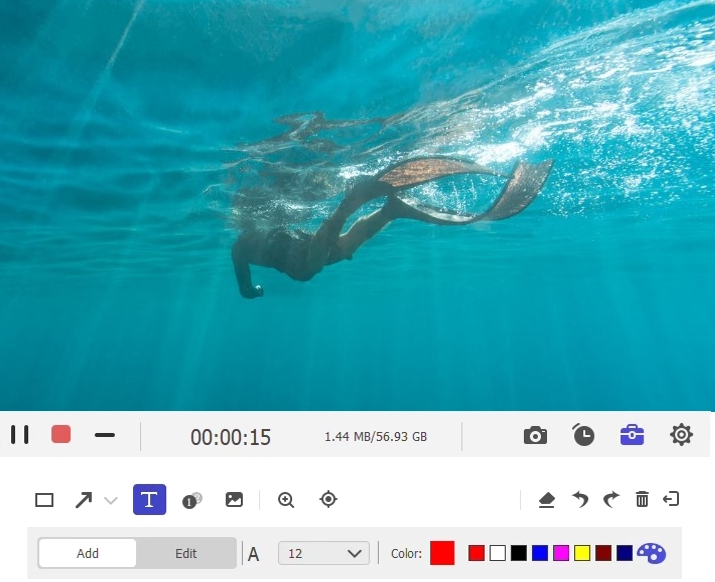
Step 6: Click the Stop button when the video finishes. The recording will be automatically saved to your computer and ready for offline playback at any time with no expiry restrictions.
Can you download Netflix on more than one device at a time?
Yes, you can download Netflix on multiple devices simultaneously. This tabular comparison should simplify the matter. Netflix’s plans differ from one country to another. Let's discuss Netflix plans that are available in the US.
| Plan Name | Plan Cost | Download Limits |
|---|---|---|
| Standard (with ads) | $6.99 per month | Allowed on two devices; Maximum 15 downloads per device in a calendar month |
| Standard (Ad-free) | $15.49 per month | Allowed on two devices; Maximum 100 downloads per device in a calendar month |
| Premium (Ad-free) | $22.99 per month | Allowed on six devices; Maximum 100 downloads per device in a calendar month |
Caution: All downloads on your devices will be automatically deleted if you cancel your Netflix subscription.
Pro Tip
- Keep your Netflix subscription alive.
- If you restart your membership after its expiration, you must download your Netflix content again.
Frequently Asked Questions
Q1. How many devices are too many for Netflix?
It depends on the Netflix subscription plan you choose. The Standard plans allow downloads on a maximum of two devices, whereas the Premium lets you download Netflix content on six devices simultaneously.
Q2. How do I reset my Netflix download limit?
Netflix limits reset automatically on the first day of each calendar month. However, you can upgrade to a higher subscription plan anytime, and the revised limits are available instantly.
Q3. Why can't I download Netflix on my iPhone?
Netflix requires a minimum iOS version (currently 16 or later) to download and run properly. If your iPhone has an older iOS version, it cannot update to meet Netflix's requirements, and you may not be able to download Netflix content.
Conclusion
Streaming platforms have specific requirements and limitations for downloads. Users must subscribe to the appropriate plan to avoid encountering download restrictions. This article clears all misconceptions people have about download limits and also explains how they can use Eassiy Screen Recorder Ultimate to capture streaming content and watch it later at their convenience — without worrying about expiry dates or device limitations.