Help Center
Updated on 2026-04-10
views
5min read
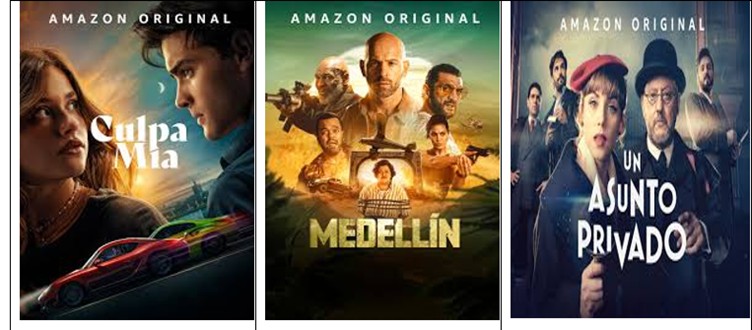
Amazon Prime Video offers quality content in multiple languages. Some of the most-watched non-English movies and series include Culpa Mia (Spanish), Medellin (French), and Un Asunto Privado (Spanish). Even though English-dubbed versions are available, they are best watched in their original language. Is it difficult to understand? The answer is NO because you can get subtitles in English to help you understand the content better.
This article discusses how to get subtitles on Amazon Prime Video for any device.
Benefit of Getting Subtitles from Amazon Prime Video
The benefit of getting subtitles from Amazon Prime Video is that it allows us to watch and enjoy films made initially in languages we cannot understand. For example, The Seven Samurai is an eternal classic that is best watched in Japanese. So, if you do not understand Japanese, you can get English subtitles and enjoy the movie without lip-syncing issues.
Another advantage of getting subtitles is watching movies without switching on your volume. That is helpful when you do not have headphones and want to watch Amazon Prime without disturbing others. Subtitles are also handy if you are watching Amazon Prime content in a noisy environment. Moreover, if you are hard of hearing, movie subtitles allow you to enjoy your favorite content on Amazon Prime Video.
Method 1: Get Subtitles on Amazon Prime Video on Android/iOS
- Ease of Use for Downloading: user-friendly, can download with a few taps
- Download Duration: a few minutes for a standard-length movie
Amazon Prime Video offers subtitling features for online streaming and downloading for offline viewing. You will need the Amazon Prime Video app on your device. Let's discuss both processes.
Online streaming on Android
Step 1: Open Amazon Prime Video
Step 2: Select your desired video.
Step 3: Tap the (three dots) menu icon on the right-hand top corner.
Step 4: Go to the drop-down menu and select “Subtitles.”
Step 5: Choose your preferred language.
Step 6: Tap “Play.” You can watch your video with subtitles.
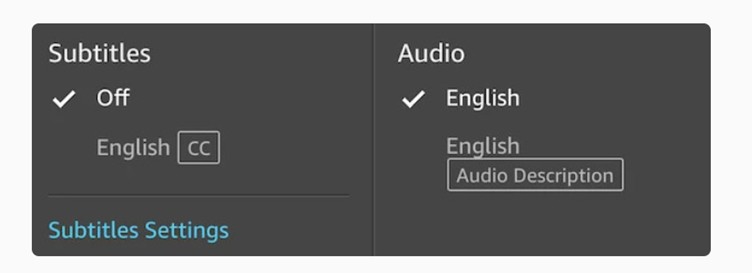
Online streaming on iOS
Step 1: Open Amazon Prime Video.
Step 2: Select your desired video.
Step 3: Bring up the video controls by tapping the screen.
Step 4: Tap the chat bubble (Dialogue icon) on the right-hand top corner.
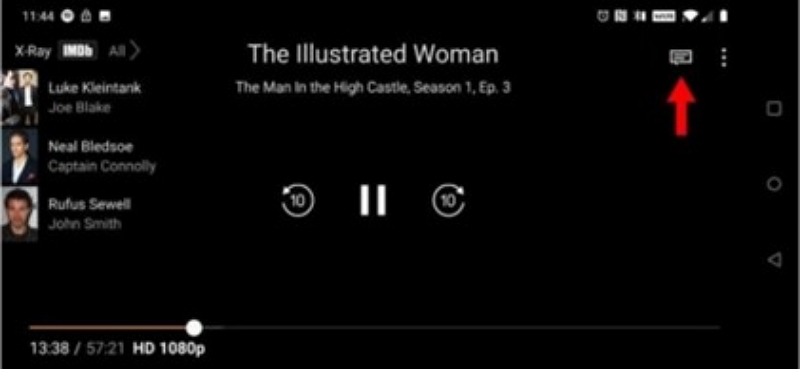
Step 5: Select your preferred language.
Step 6: Tap “Play” to watch the video with subtitles.
Downloading subtitles to watch offline
Step 1. Open the Amazon Prime Video app and navigate to the movie or show you want to download.
Step 2. Tap the "Download" button to save the video for offline viewing.
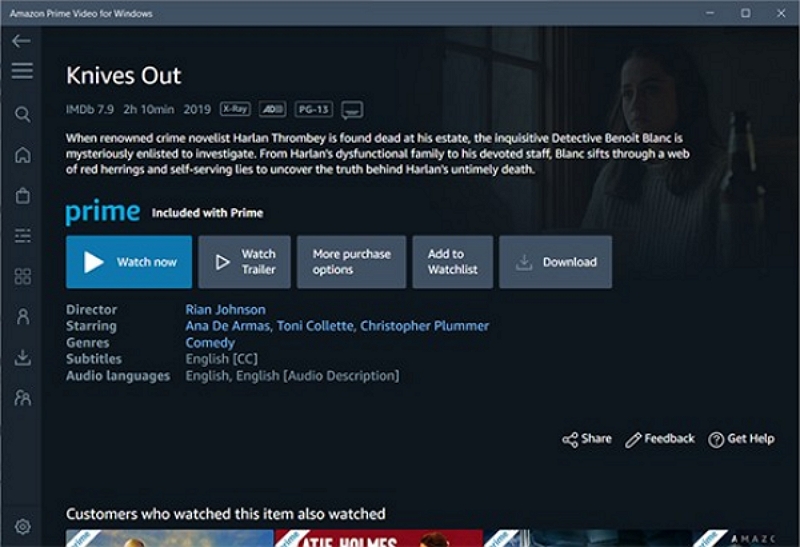
Step 3. Once the download is complete, start playing the video and tap the “Subtitles” (CC) icon to check if the subtitles are available.
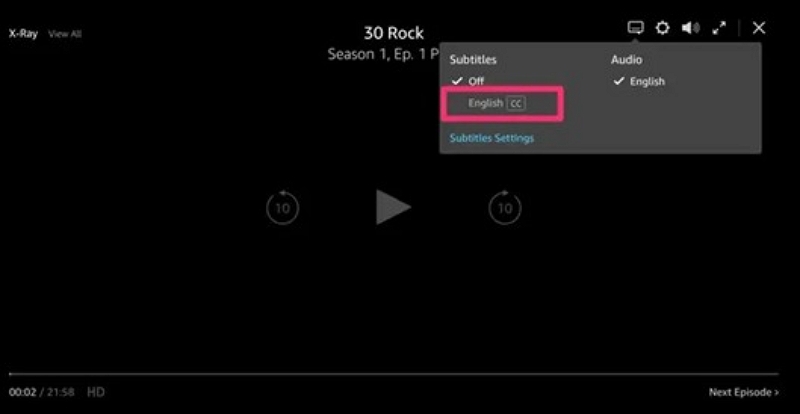
Step 4. Select your preferred subtitle language from the available options.
Note. If subtitles do not appear, ensure they were included in the downloaded version, as not all titles support offline subtitles.
Method 2: Turn on/off Subtitles on Amazon Prime Video on Mobile/Tablet
Please check whether you have installed the Amazon Prime Video app on your mobile or tablet.
Step 1: Open Amazon Prime Video and play the desired video.
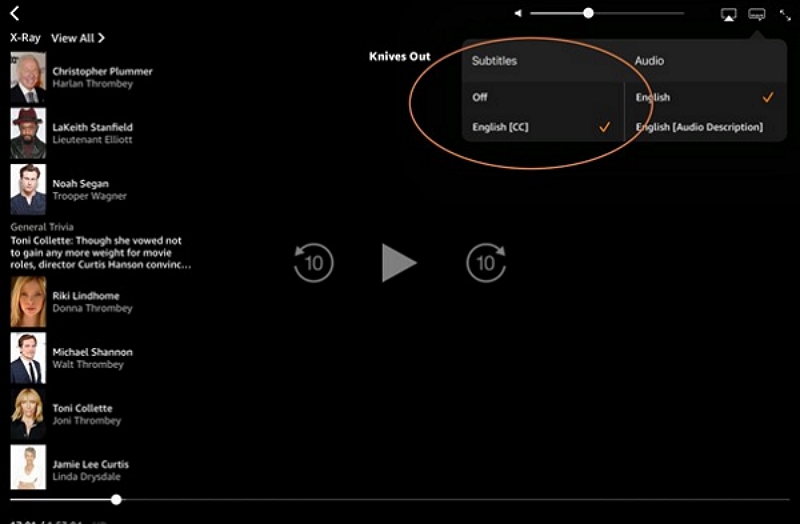
Step 2: Get the play/pause controls by tapping the screen.
Step 3: Locate the speech bubble at the top right-hand corner.
Step 4: Check your preferred language and click on the video. Subtitles appear on the video as you stream it, but you can turn them off anytime.
Method 3: Access Subtitles on Amazon Prime on PC/laptop (Mac and Windows)
Subtitling features are also available when you watch Amazon Prime videos on your PC and laptop.
Step 1: Run Amazon Prime Video. Click on the Prime Video icon.
Step 2: Play your desired video.
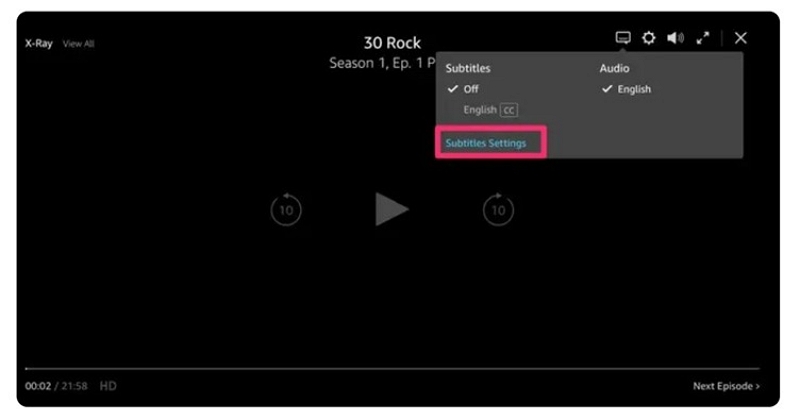
Step 3: Look for the speech bubble on the top right corner of the screen.
Step 4: Select your preferred language. From the "Subtitle Settings" option, you can also change the color and size of the subtitles.
Method 4: Enable Subtitles on Amazon Prime on Smart TV
Enabling subtitles on your smart TV is easy. You can use the TV remote control to get your subtitles for Amazon Prime videos.
Step 1: Play your desired Amazon Prime video or movie.
Step 2: Use the up/down button on your TV remote to access the play menu.
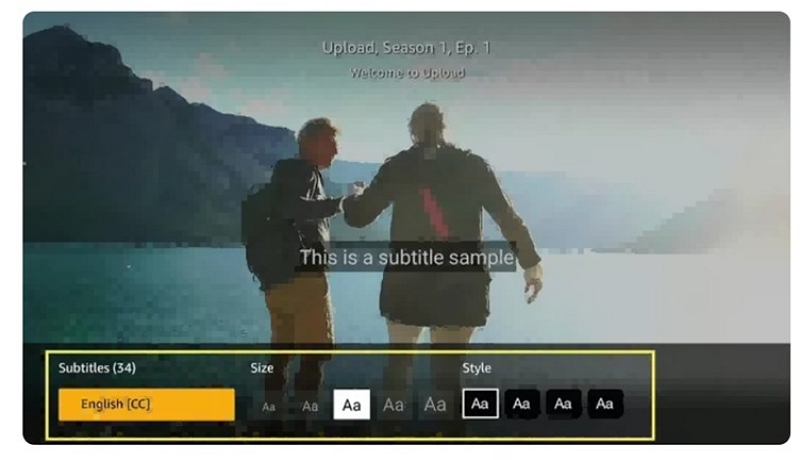
Step 3: Choose the “CC” icon. If you do not find this icon, subtitling features are unavailable for the video.
Step 4: Go to “Subtitles Settings.” You can control the display settings and create presets.
Step 5: Choose your preferred language for the subtitles. It can differ from one smart TV to another.
Method 5: Capture Subtitles on Apple TV
Use the Siri remote or Apple TV remote to access the subtitles menu on your Apple TV.
Step 1: Press the "Play/Pause" button on the remote to bring up the playback controls. This will bring up the video timeline.
Step 2: Choose your desired subtitles by navigating the "Subtitles" option.
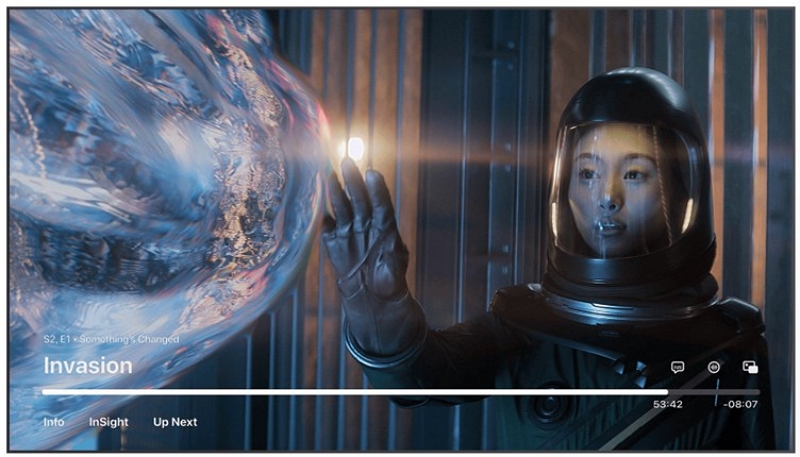
Bonus: How to Download Subtitles from Streaming Videos for Offline Viewing?
Eassiy Screen Recorder Ultimate allows you to capture any video playing on your screen and save it permanently for offline viewing. You can record videos with subtitles already displayed on screen to enhance your viewing experience. The tool's powerful features make it the ultimate solution for saving streaming content offline.
- Save recordings in multiple formats including MP4, MKV, and MOV.
- Capture on-screen video in up to 4K resolution with no quality loss.
- Record system audio and microphone simultaneously for a complete viewing experience.
- Save recorded videos permanently on your device or external drive with no expiry dates.
Step 1: Download and install Eassiy Screen Recorder Ultimate from the official website. Launch the program and select Video Recorder from the main interface.
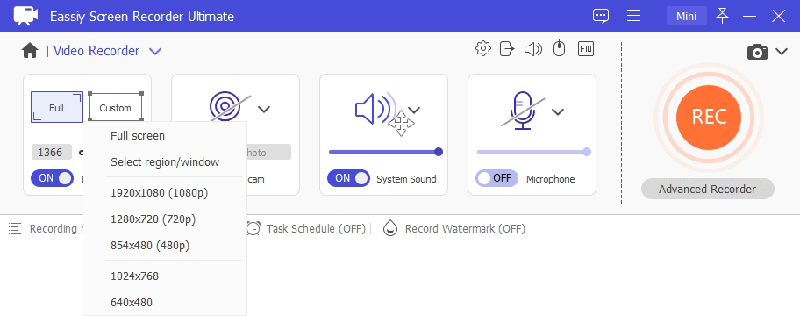
Step 2: Select your recording area. Choose full screen or drag to define a custom region around the video player window.
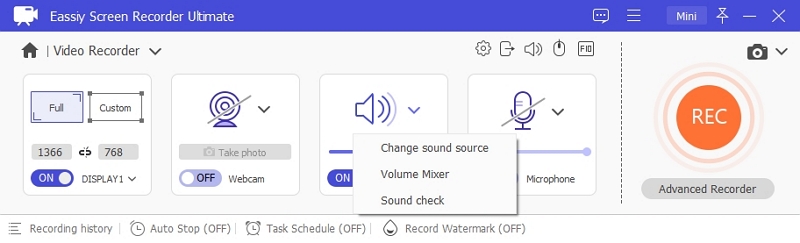
Step 3: Enable System Sound to capture the video's audio. Adjust the volume slider to your preference.
Step 4: Open Preferences to configure your output format (MP4, MKV, or MOV), video quality, and hotkeys before starting.
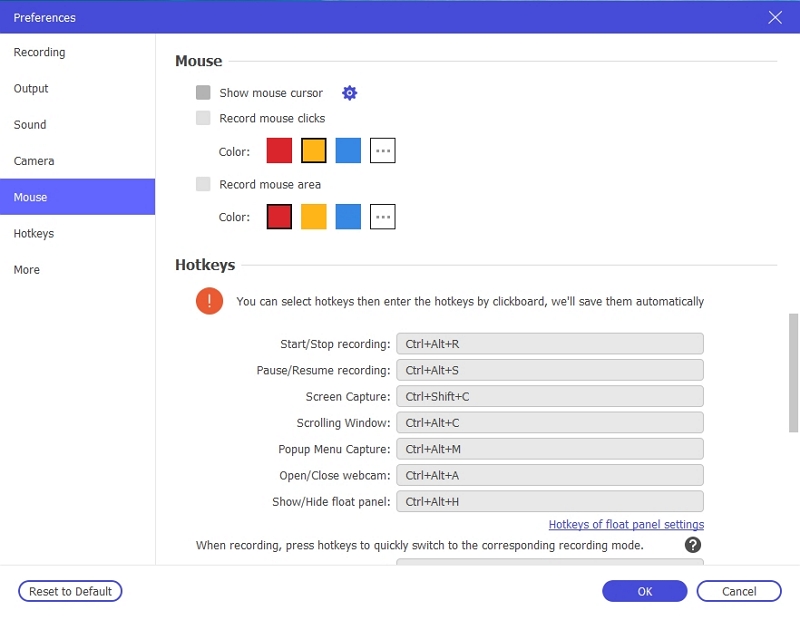
Step 5: Make sure subtitles are enabled on the video player before recording. Then play the video and click the REC button to begin recording. The subtitles displayed on screen will be captured as part of the recording.
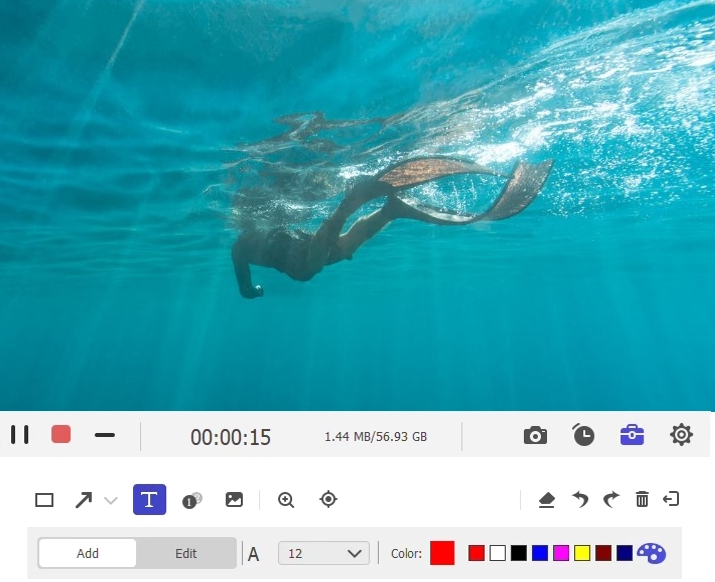
Step 6: Click the Stop button when the video finishes. The recording will be automatically saved to your computer with subtitles included, ready for offline playback at any time.
The subtitle types you may encounter:
- Soft subtitles can be turned on or off according to your preferences.
- Hardcoded subtitles are permanently embedded in the video and cannot be customized.
- External subtitles are standalone files that allow customization.
Enjoy watching your saved video offline with subtitles. Eassiy Screen Recorder Ultimate allows you to capture videos with subtitles displayed in your preferred language and play them on any device.
Frequently Asked Questions
Q1. Can you change the language of your subtitles?
Yes. You can change the subtitle language if the content allows you to. Make sure to enable your preferred subtitle language on the video player before recording with Eassiy Screen Recorder Ultimate, so the subtitles are captured as part of the recording.
Q2. How do you fix out-of-sync subtitles?
Out-of-sync subtitles can be frustrating. However, you can resolve the issue in several ways.
- You can switch to a different browser or device.
- Your internet connection can be unstable. Check it.
- Disabling your VPN can also resolve synchronization issues.
- Clearing your cookie cache can resolve the issue. If you are on iOS, uninstall and reinstall the Amazon Prime Video app.
- Updating the Amazon Prime app can also help fix bugs that cause out-of-sync subtitles.
- Adjusting the streaming quality can remove buffering issues and resolve out-of-sync subtitles.
- Sometimes, turning the subtitles off and back on can resolve things.
Q3. How do you fix subtitles that don’t show on LG TV?
One reason could be that the content does not offer subtitling features. You can check whether subtitles are available.
Step 1: Tap your TV remote’s up/down button when watching the Amazon Prime video.
Step 2: It takes you to the video timeline. Look for the “CC” icon. If it is available, enable it, choose your preferred language, and watch your video with subtitles. Otherwise, subtitles might not be available.
Q4. Why are subtitles not working on Amazon Prime on the phone?
Ensure that subtitles are enabled. If they are still not working, try clearing the cache. Update your device and the Amazon Prime Video app. Check your internet connection for stability.
Conclusion
Subtitles allow you to enjoy streaming videos and movies even if they are in a language you cannot understand. We have discussed how to turn subtitles on or off when watching streaming content across various devices. Eassiy Screen Recorder Ultimate also allows you to save videos with subtitles permanently for offline viewing. So, enjoy watching your favorite content on any device in its original language by enabling subtitles in your preferred language before recording.