Help Center
Updated on 2026-04-02
views
5min read
Apart from streaming its content online, Netflix also offers a feature where users specify whether they would like to download certain content or not. This comes in handy when on the move or in a place where the internet is not dependable. Nonetheless, there is one drawback whereby those downloads will be played through the app itself. You wouldn’t be able to use these downloaded ones even on other platforms like VLC media player.
For those who prefer a powerful and multifunctional media player such as VLC, this may be a frustration. This blog will tell you you how to play Netflix-downloaded files in VLC.
Part 1: Can I Watch Netflix on VLC Player?
Generally, you can’t access Netflix directly through VLC Player. While VLC supports streaming and handles various video formats from sites like YouTube, it doesn’t work with Netflix.
To watch Netflix movies in VLC, you’d need to convert them to formats like MP4 and remove any encryption. Once converted, you can view these videos in VLC without an internet connection.
Part 2: How to Play Netflix Downloaded Files in VLC?
To play streaming content in a VLC player, you will need to first capture the video using a reliable screen recording tool. One of the best options is Eassiy Screen Recorder Ultimate, which allows you to record any video playing on your screen and save it in VLC-compatible formats like MP4, MOV, and MKV. This flexibility ensures that your recordings can be played back on VLC and other media players without any issues.
One of Eassiy Screen Recorder Ultimate's standout features is its support for high-quality video capture up to 4K, along with flexible audio recording options to ensure a complete viewing experience.
Features:
- Flexible recording area selection — capture full screen or define a custom region around the video player.
- Captures system audio and microphone simultaneously for a complete and immersive recording.
- Supports output formats including MP4, MKV, and MOV, fully compatible with VLC media player.
- Real-time annotation tools allow you to highlight or mark content while recording.
Here's how to record videos and play them on VLC:
Step 1: Launch Eassiy Screen Recorder Ultimate and select Video Recorder from the main interface.
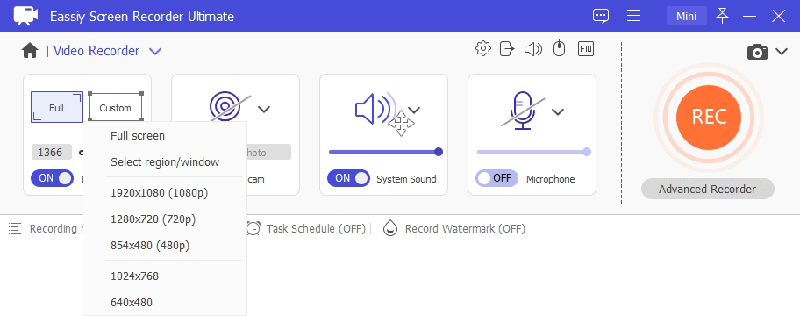
Step 2: Select your recording area. Choose full screen or drag to define a custom region around the video player window.
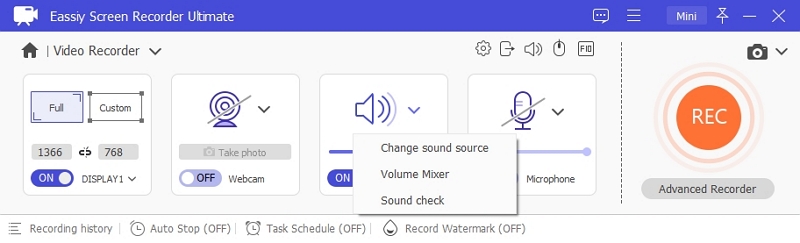
Step 3: Enable System Sound to capture the video's audio. Adjust the volume slider to your preference.
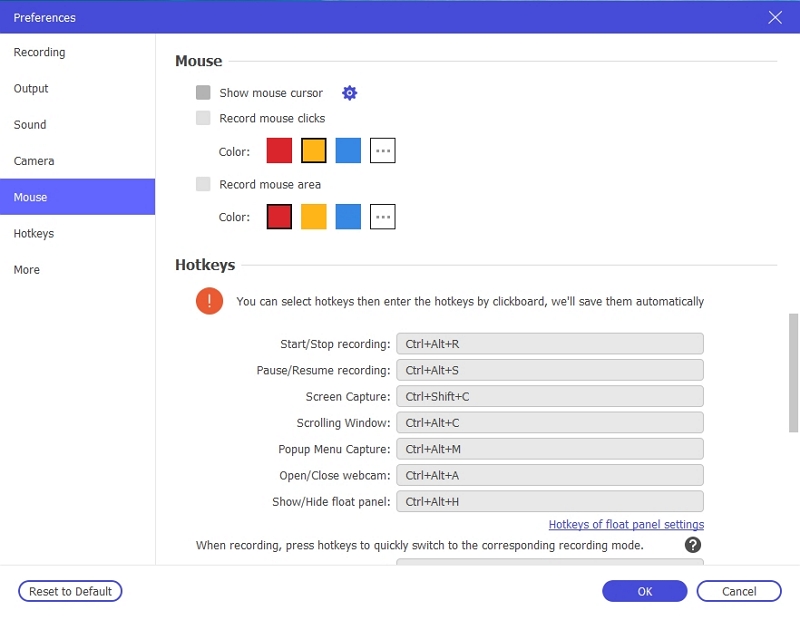
Step 4: Open Preferences to set your output format to MP4 (for VLC compatibility), configure video quality, and set hotkeys.
Step 5: Play the video on your screen, then click the REC button to begin recording. Use the annotation toolbar to highlight content in real time if needed.
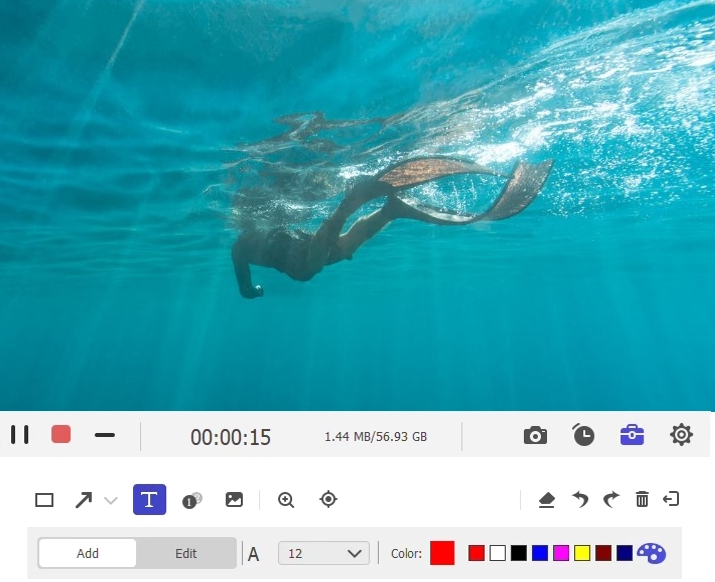
Step 6: Click the Stop button when done. The recording will be automatically saved to your computer in your chosen format.
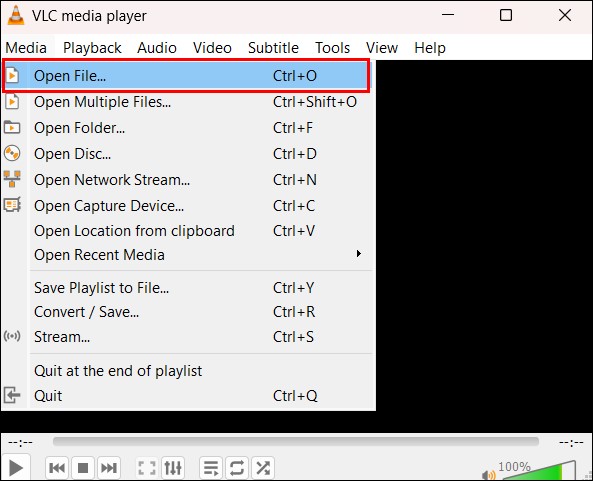
Step 7: Open VLC media player and click "Media" > "Open File".
Step 8: Navigate to the folder where Eassiy Screen Recorder saved your recorded video file, select it, and click Open to start playback.
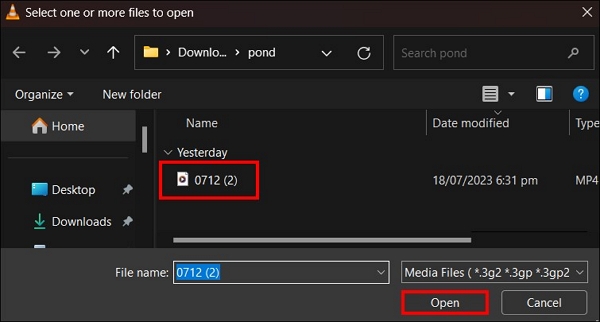
You can now watch your recorded video in VLC easily.
FAQs
Q. How to Change the Quality of the Netflix Downloaded Videos Using VLC?
Once you have recorded videos using Eassiy Screen Recorder Ultimate, you may wish to adjust the video quality settings in VLC. Here is how to do that –
Step 1: Use VLC Media Player to access the downloaded Netflix video.
Step 2: In the top menu, click “Tools” and then “Effects and Filters”.
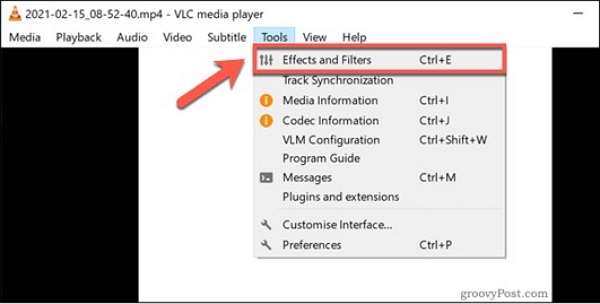
Step 3: Navigate to the "Video Effects" tab. Click that and change the brightness, contrast, saturation, and others to your satisfaction.
Can I Use VLC to Create Playlists with Netflix Downloaded Movies in It?
Yes, VLC permits you to prepare a playlist of several Netflix-downloaded videos and play them in a single attempt without having to quit the application.
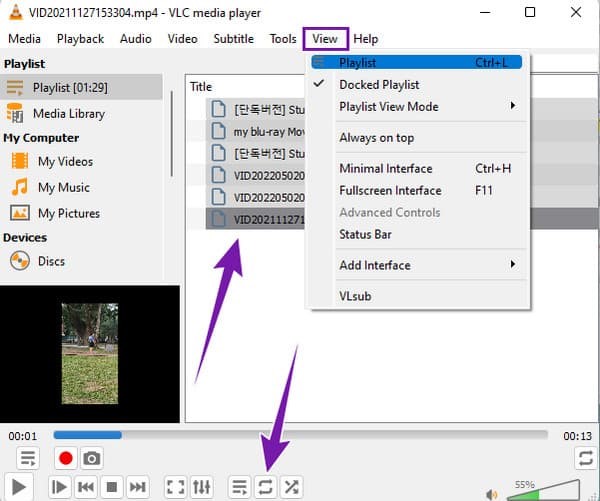
Step 1: After you launch VLC, hit the Ctrl + L and the playlist will pop up. Then you need to drag and drop the videos that you just have downloaded to the playlist.
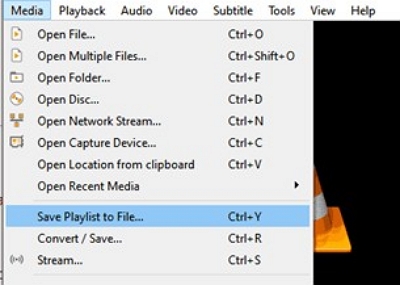
Step 2: Following, go to “Media” > “Save Playlist to File” and save the playlist for your reference later on.
Step 3: To begin playing a playlist, double-click on any movie inside the list; VLC will play the first video and continue to the next.
Q. How to Use VLC’s Screen Capture Feature with Netflix Downloads?
If you want to utilize the VLC’s screen capture feature after downloading a show on Netflix, do the following –
Step 1: Launch VLC Media Player and press the Media option on the upper menu.
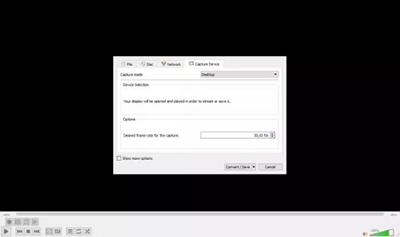
Step 2: Select “Convert / Save” from the option that comes down. In that window that appears, click on the Capture Device option.
Step 3: In the Capture mode drop-down, click on “Desktop”. Modify the Desired frame rate for the capture by clicking on the parameter that best serves the purpose.
Step 4: If you wish to modify the frame rate, click “Convert / Save” at the bottom of the window. After this, you will have to title your file and choose the file that will contain that recording.
Step 5: When you are ready, click on “Save” and upon clicking on “Start”, your computer will start recording the screen.
Conclusion
This blog showed how to record streaming videos and play them on VLC player. Though VLC does not support direct streaming playback from online platforms, using Eassiy Screen Recorder Ultimate solves the problem easily. It allows you to capture any on-screen video and save it in VLC-compatible formats like MP4. For reliable, high-quality recordings and a seamless media experience, Eassiy Screen Recorder Ultimate is the ideal solution.