Help Center
Updated on 2026-04-14
views
5min read
Crossfade creates seamless transitions between songs by blending the end of one track with the beginning of the next, ensuring a smooth and uninterrupted listening experience. Above all, it helps eliminate abrupt pauses and maintains a steady rhythm under some cases. For example, you're curating a playlist for a party, setting the mood with a continuous mix, or simply enhancing the flow of your favorite tracks.
This article will focus on the YouTube Music app and walk you through the best ways to crossfade YouTube Music songs, across various devices. So, you can enjoy your music collection with a better feel overall.
Is Crossfade Available or Inbuilt on YouTube Music?
No, YouTube Music does not currently offer a native Crossfade feature. However, don’t be discouraged! You can still crossfade your YouTube Music tracks by converting them to local files and playing them through apps that support crossfading.
Which Music Streaming Service Has Crossfade?
Several popular streaming platforms offer native Crossfade features. Spotify is well-known for its easy-to-use crossfade option on mobile and desktop apps. Apple Music also supports crossfading on iOS, Android, Windows and Mac devices. Also, system-inbuilt media players like Windows Media Player offer this feature for local music files. Using these tools, you can enjoy smooth transitions between songs from your YouTube Music collection after adding the music files to them.
Preparations for Crossfading YouTube Music
Before you can crossfade songs from your favorite platforms, you must save them as local files so that you can play them on media players or streaming services that offer the Crossfade function. To do this securely and easily, you can use specialized software like Eassiy Screen Recorder Ultimate.
Eassiy Screen Recorder Ultimate is a powerful desktop tool that allows you to capture any audio playing on your device in high quality and save it directly to your local storage. The recorded audio files can be saved in open formats like MP3, AAC, WAV, or FLAC, which are highly compatible with various media players like Apple Music, Spotify, and Windows Media Player. By recording your audio locally, you get complete control over your music collection, making it perfectly ready for crossfading.
Eassiy Screen Recorder Ultimate
Record any audio playing on your device and save it as MP3, AAC, FLAC, and more with system sound capture and permanent offline access.
Key Features
- Record any audio stream in high quality — songs, playlists, podcasts, audiobooks, and more.
- Supports multiple output formats including MP3, AAC, FLAC, and more.
- Built-in timer for hands-free, automated recording sessions with no set limit.
- Preview recordings before saving to ensure quality.
Record Audio to Local Files
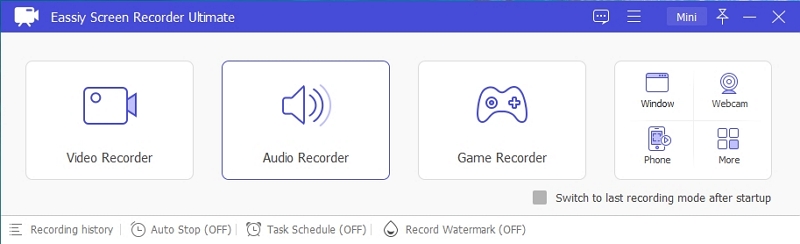
Step 1. Download and install Eassiy Screen Recorder Ultimate on your Windows or Mac computer. Once launched, select the Audio Recorder feature from the main interface.
Step 2. Configure your audio recording settings. Enable System Sound to capture the audio playing on your computer. Click Settings → Preferences → Output to select your desired audio format (e.g., MP3, AAC, FLAC) and set the quality to High. Click OK to save.
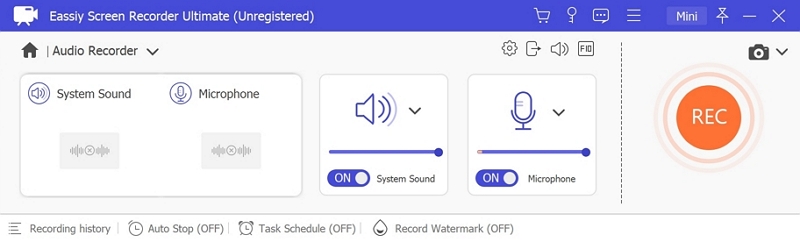
Step 3. Play the audio you wish to record, then click REC to begin recording. Use the toolbar to adjust volume, pause, or stop at any time. To automate the process, click the clock icon to set a recording duration in advance.
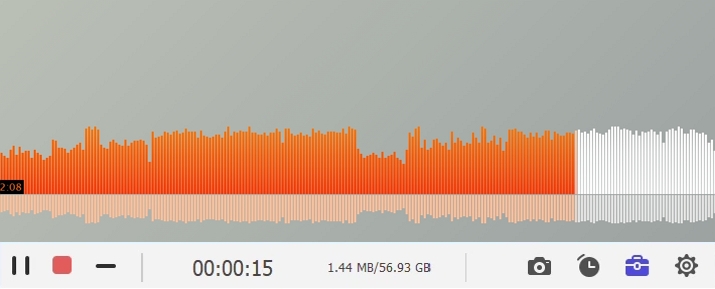
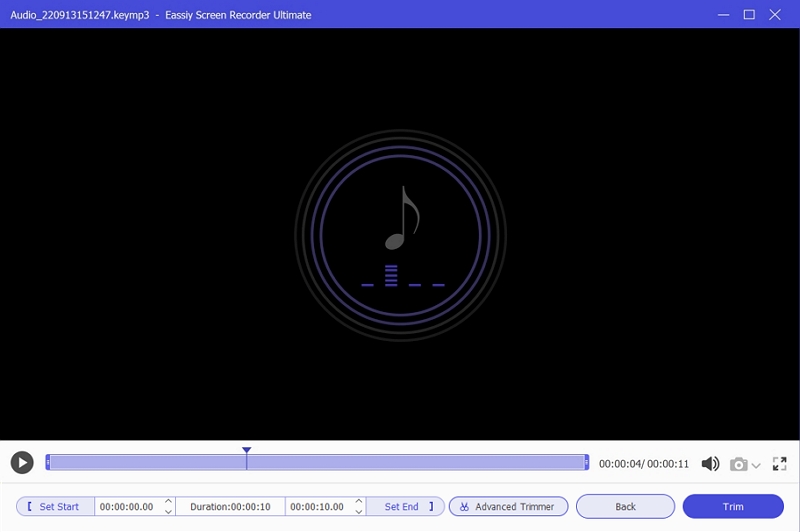
Step 4. When finished, click Stop and preview your recording. Save it in your preferred format to your local drive.
How to Crossfade YouTube Music on iPhone/Mac
On your Apple devices like iPhone, iPad or Mac, using Apple Music’s native crossfade feature is one effective method to achieve smooth transitions with your YouTube Music tracks. Here’s how to crossfade YouTube Music songs with the Apple Music app.
Import YouTube Music to Apple Music
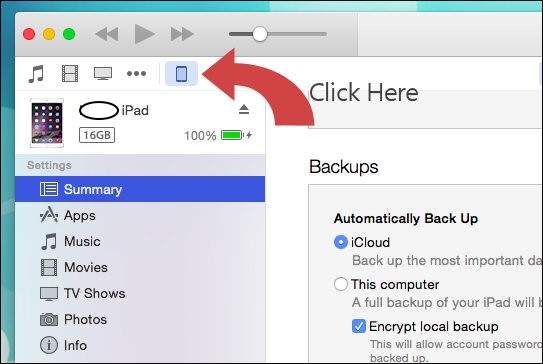
Step 1. Connect your iPhone to your PC with a USB cable. Launch iTunes and click your iPhone’s icon in iTunes.
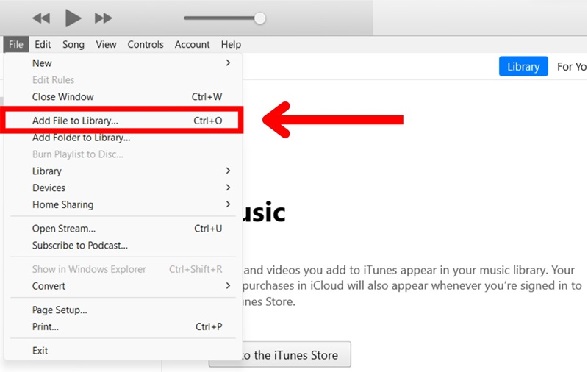
Step 2. In the top bar, click File > Add File to Library. Locate the recorded audio files and click Open to add them to iTunes.
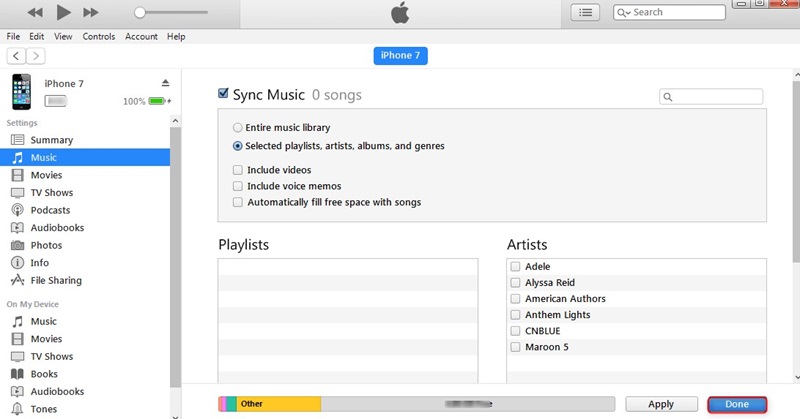
Step 3. Tap on the Music tab, choose Sync Music and check Entire music library. Hit Apply to start the sync and your files will become available in your iPhone’s library.
Crossfade YouTube Music with the Apple Music App
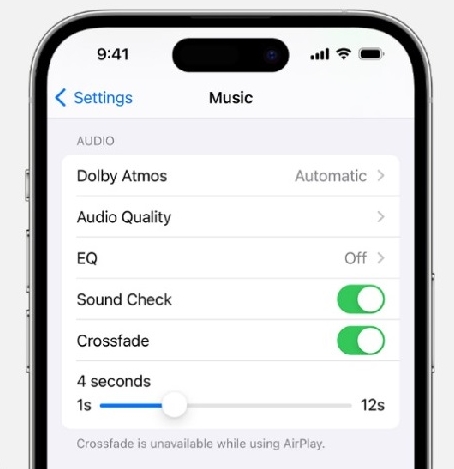
Crossfade is turned on in the iPhone’s general settings (not within the Apple Music App). Open Settings, choose Apple Music and enable the Crossfade toggle. Adjust the fade duration to your liking using the slider. Now, open Apple Music app and you can enjoy YouTube Music songs with the crossfading effect.
How to Crossfade YouTube Music on Android
Spotify’s crossfade feature on Android delivers smooth yet uninterrupted playback. Here’s a quick guide to help you apply Spotify Crossfade feature on YouTube Music songs:
Add YouTube Music to Spotify
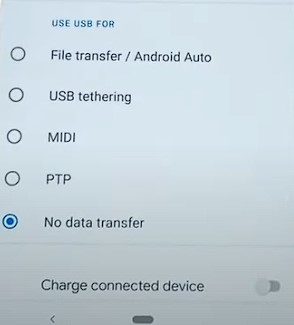
Step 1. Connect your Android device to your Windows computer using an USB cable. Make sure your Android device USB preferences are set to File transfer/Android Auto.
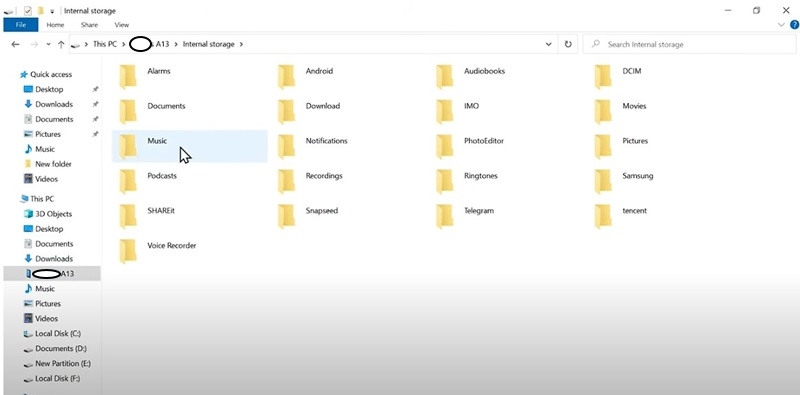
Step 2. Locate the audio files recorded by the screen recorder, select them and press Ctrl + C. Then, navigate to the Android device folder and press Ctrl + V. Your audio files will be transferred from the computer to your phone.
Note: You can copy the files to any location on your Android device, Spotify can detect them.
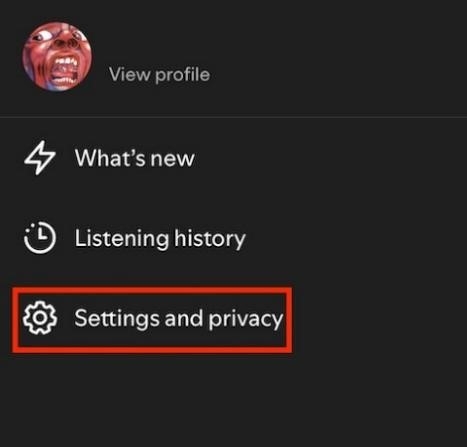
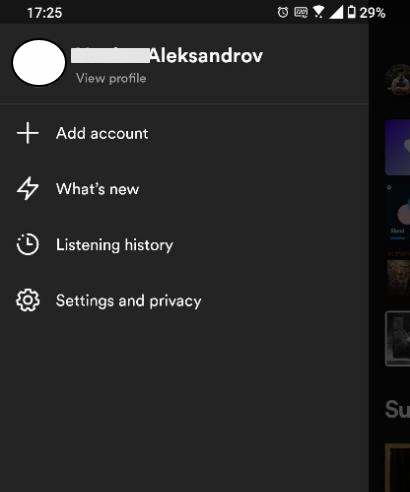
Step 3. Launch the Spotify App on your Android device. Then, tap on your avatar profile pic at the top. Select Settings and Privacy.
Step 4. Scroll down and choose the Local Files menu. Enable the Show audio files from this device toggle.
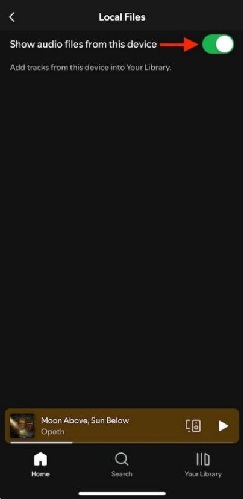
Step 5. Tap on the Your Library icon. Then, click on the Local Files folder. Now all the files Spotify detected on the device are available for playback.
Crossfade YouTube Music with Spotify App
- Run Spotify mobile and click on your profile icon. Then, choose Settings and privacy.
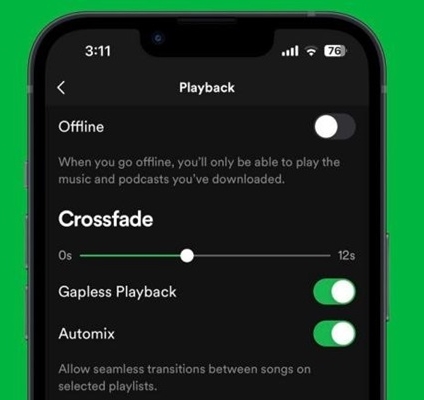
- Then, locate the Playback section and switch on Crossfade.
- Finally, you are all set to enjoy smooth transitions on your Android’s YouTube Music.
How to Crossfade YouTube Music on Windows PC
Windows Media Player includes a crossfade feature for local music files from any source, including YouTube Music audio files. Let’s check out how it works:
Upload YouTube Music to Windows Media Player
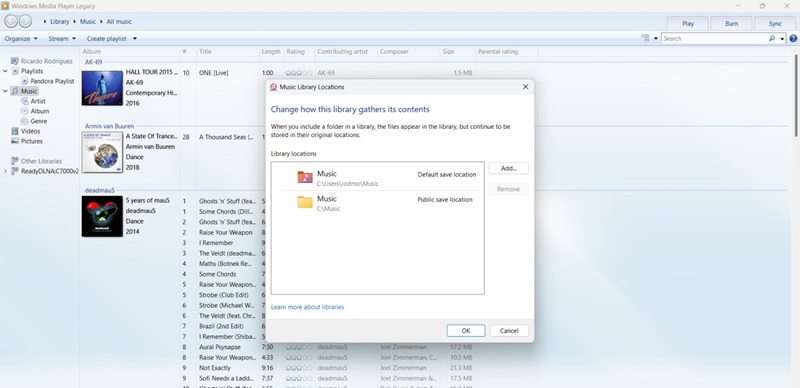
Open Windows Media Player on your computer and select Organize > Manage Libraries > Music. Then, add the folder containing your recorded audio files.
Crossfade YouTube Music with Windows Media Player App
Step 1. Double-click on a track from the library to play it. Tap on the Switch to now playing button at the lower right corner of the screen.
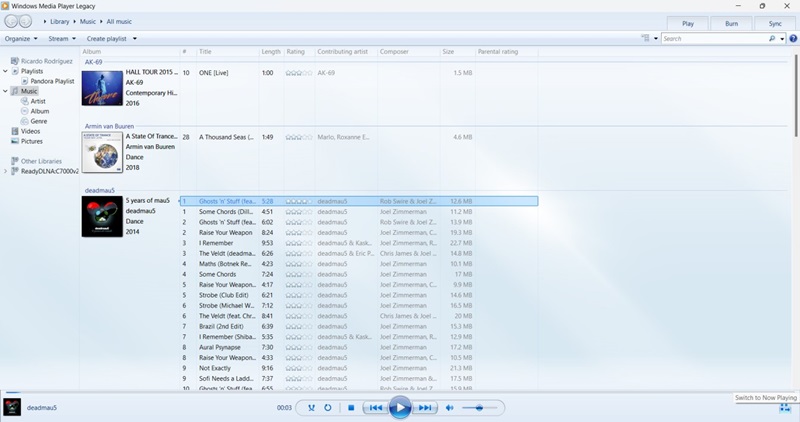
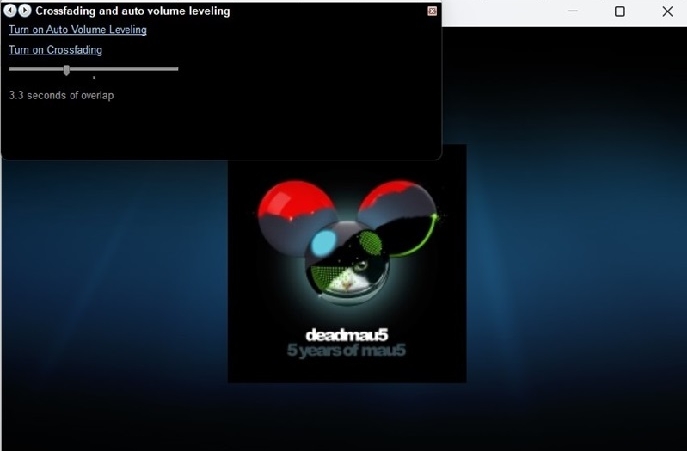
Step 2. Right-click on the Playback area. On the context menu, choose Enhancements > Cross Fading and Auto Volume Settings. Then, tap Turn on Crossfading.
Step 3. Start playing the added audio with fade overlap.
Bonus: Difference Between Crossfade and Gapless Playback
Both crossfade and gapless playback aim to create a smooth listening experience, but they do so in distinct ways.
Crossfade overlaps the end of one song with the beginning of the next, fading out the outgoing track while fading in the incoming one. It’s especially popular for genres like pop, dance, or DJ mixes. In contrast, Gapless Playback eliminates the silence or pause between songs without overlapping audio. One track ends exactly as the next begins, providing a perfectly continuous feeling. It’s ideal for albums designed to be heard as a whole, such as classical music, live concert recordings, or concept albums.
Check out the following table to compare both features side by side:
| Features | Crossfade | Gapless Playback |
|---|---|---|
| How It Works | Overlap the end of current track with the start of next through fading. | Play tracks back-to-back with no gap or overlap. |
| Transition Style | Smooth blend with fading audio. | Instant transition without silence. |
| Best For | DJ sets, pop, dance, mixes. | Concept albums, classical music, live recordings. |
| User Customization | Adjustable fade duration. | No adjustments needed. |
| Example Scenario | Club music playlist | Pink Floyd’s “The Dark Side of the Moon” album |
Does YouTube Music Provide Gapless Playback?
YouTube Music supports gapless playback across many platforms. However, it’s available exclusively to YouTube Music Premium subscribers. This feature is particularly valuable in YouTube Music's extensive library, where users often explore remastered albums, curated playlists, and full-length performances.
Gapless playback on YouTube Music is tied to the subscription and is not manually enabled. It's not something you can toggle on or off but is server-side.
Conclusion
While YouTube Music doesn’t officially support crossfading, converting your tracks to local files and playing them through apps like Apple Music, Spotify, or Windows Media Player gives you full control over seamless transitions. Using tools like Eassiy Screen Recorder Ultimate for audio recording makes this process straightforward, letting you enjoy your favorite music uninterrupted and perfectly blended, no matter your device.