Help Center
Updated on 2026-04-27
views
5min read
When converting a single YouTube video to an MP3 file is all you need, VidToMp3 often comes to mind. Just paste a video link, wait a few seconds, and get your song saved to your computer. That’s how it used to work. However, in 2025, things are far from that simple.
Finding a version of VidToMp3 that actually works is a task in itself. Most proxy links lead to broken pages or endless server errors. And even when it does load, questions pile up: Can it be trusted? What audio quality does it deliver? Can you convert in bulk? In this review, we break it all down and compare VidToMp3 with modern tools like Eassiy Screen Recorder Ultimate, which captures any audio stream playing on your device and lets you save full-quality audio without needing a premium plan.
Bonus: Popular music converter you may be interested in: StreamFox for Music, a desktop tool that can save streaming music without links, recording, or Premium. Songs can be saved in local formats like MP3 with quality up to 320kbps, while preserving all ID3 tags.
What Is VidToMp3?
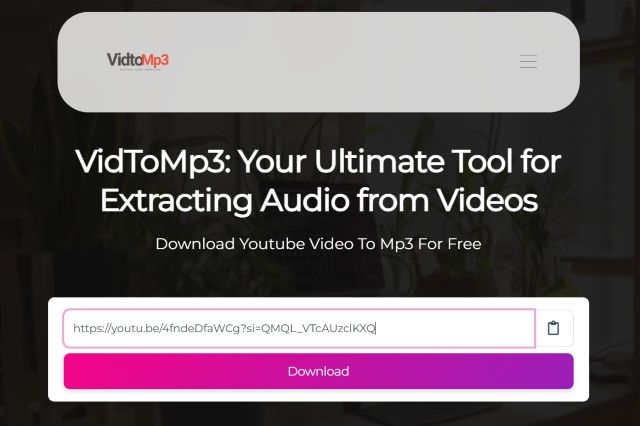
VidToMp3 is a YouTube-to-MP3 converter that claims to turn any video link into a downloadable MP3 file. While the original site (VidToMp3.com) was taken down years ago, several unofficial clones have since surfaced, most notably vidtomp3.pro, which now acts as the most active version.
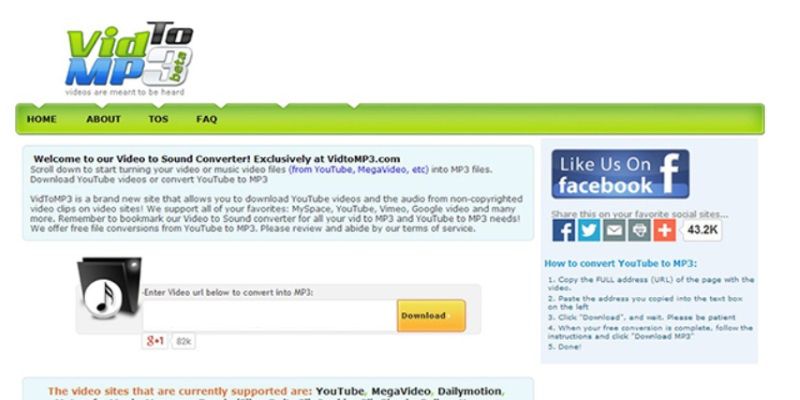
The original tool was fairly clear in its intent. It supported long videos (up to 15–20 minutes) and converted them reliably. The current version, however, doesn't clarify any limitations. In our testing, it failed to convert anything over 7–8 minutes, making it functional only for short tracks or individual songs but not podcasts or long-form content.
At its core, VidToMp3 behaves like any other lightweight video downloader. There’s little control over output’s bitrate, format, or tags. Still, its long-standing name recognition keeps users searching for it, even as the newer versions suffer from poor reliability and lack any official support.
Features of VidToMp3
There aren’t many advanced features to highlight. VidtoMP3 behaves like most light YouTube-to-MP3 sites. In fact, it offers even less features compared to them. Still, here’s a quick breakdown of what to expect from VidtoMP3:
| Feature | Details |
|---|---|
| Audio Format | MP3 only |
| Bitrate Quality | Typically 128–256 kbps, based on YouTube’s stream |
| Metadata (ID3 Tags) | vidtomp3 appears in the file name |
| Ads | Heavy pop-ups, redirects, auto-downloads Opera GX installer Site often shows 500 Server Error Code |
| Batch Downloads | Not supported |
| Speed | Not a stable site: requires multiple clicks, closing automatically opened tabs, and fighting fake pop-ups, which makes the downloading process slower (and frustrating) |
| Source Platform | YouTube |
| Login Required | No |
| Output Control | None—no option to choose format, bitrate, or metadata |
Is VidToMp3 Safe to Use?
The original VidToMp3 was once a reliable online tool, but today’s versions, even the popular vidtomp3.pro, are nowhere near safe or stable.
During testing, the site repeatedly redirected to aggressive ad pages and downloaded the OperaGX browser setup file without warning. That's not something a normal music downloader should ever do.
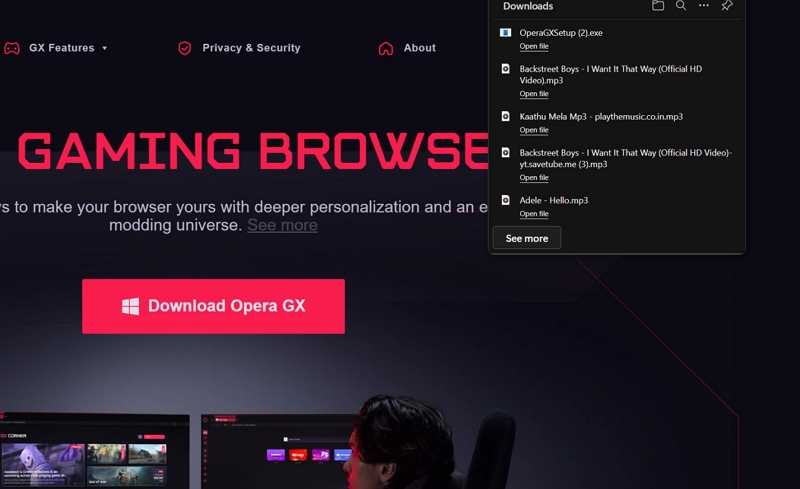
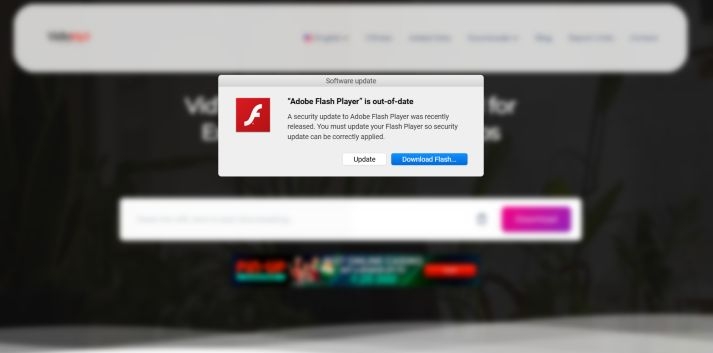
Even worse, trying to click anywhere on the page often results in pop-ups disguised as system alerts. One such ad falsely claims that "Adobe Flash Player is out of date" and tries to push a fake Flash installer, even though Flash is no longer supported by modern browsers.
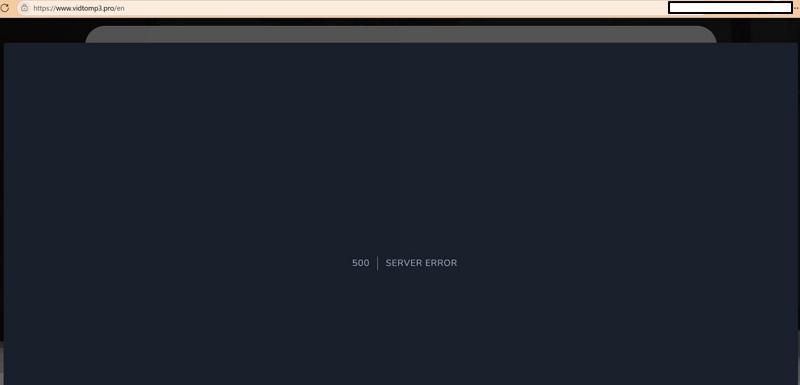
It took over 5 minutes of avoiding pop-ups, auto-downloads, and fake buttons just to test a single track. Most sessions returned 500 Server Error.
So while the MP3 files themselves are fine, the process is filled with shady behavior and unverified redirects. For that reason, this site should be skipped entirely.
How Does VidToMp3 Work?
While VidToMp3 claims to be a simple YouTube-to-MP3 converter, just getting it to work is half the battle. And the problem isn’t location-based either. Unlike many converters blocked by U.S. authorities or limited by region, VidToMp3 remained inaccessible even after testing with VPNs across multiple locations. We tried Oregon, Virginia, London, Amsterdam, Copenhagen, Singapore, Paris, and St. Petersburg, the site either threw a 500 server error or failed to respond at all.
Still, for the rare moment when the site does work, here’s how the process plays out:
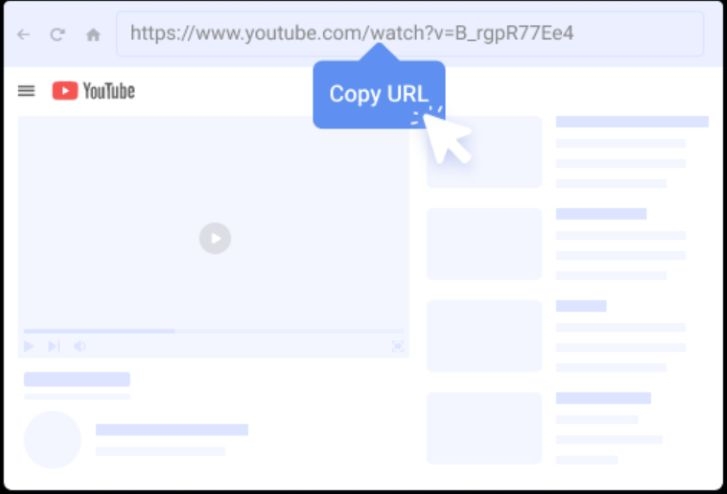
Step 1. Copy the YouTube video URL of the track you want to convert. Keep it under 7–8 minutes in length, as anything longer tends to fail.
Step 2. Visit vidtomp3.pro. Paste your copied URL into the white box and hit the Download button.
Note: The site often throws suspicious ads. Be prepared to close extra tabs and delete any files you didn’t authorize.
Step 3. After clicking Download, the tool will start processing. Once ready, click the Download MP3 button again to begin saving the file.
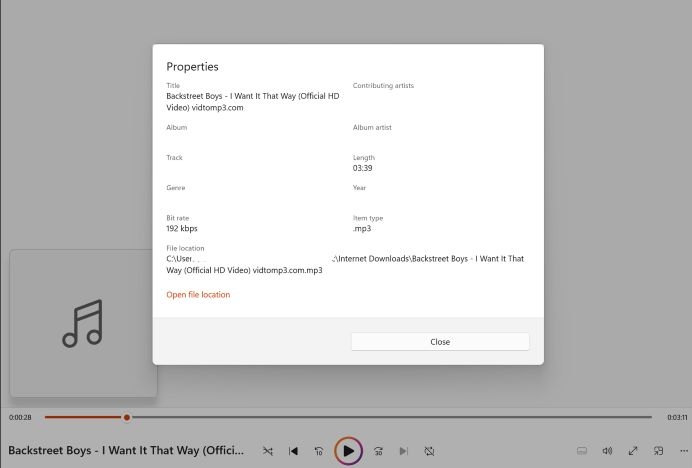
Step 4. Once downloaded, your file will show up in the Downloads folder. In our case, the bitrate was 192 kbps, the filename was watermarked with vidtomp3.com, and there was no cover art or proper metadata. It played fine, but it felt far from a professional rip.
App Alternative to VidToMp3
Eassiy Screen Recorder Ultimate is a desktop audio recording tool built for those who care about real audio quality. It captures any audio stream playing on your device and saves it in your preferred format — MP3, AAC, FLAC, and more — without relying on third-party conversion servers or unstable pop-up-ridden websites.
Eassiy Screen Recorder Ultimate features a built-in timer that removes the need to manually stop recordings. You can simply play your content, set a duration, and the software handles the rest. Once recorded, your audio files are saved cleanly, without watermarks, branding, or fake metadata — just the audio in the format and quality you choose. You can even preview recordings before saving to make sure everything sounds right.
Eassiy Screen Recorder Ultimate
Record any audio stream playing on your device and save it as MP3, AAC, FLAC, and more with system sound capture and permanent offline access.
Key Features
- Record any audio stream in high quality — no watermarks, no branding added to filenames.
- Supports multiple output formats including MP3, AAC, FLAC, and more.
- Built-in timer for hands-free, automated recording sessions.
- Works on both Windows and Mac with an intuitive interface requiring no technical skills.
How to Record Streaming Audio Using Eassiy Screen Recorder Ultimate
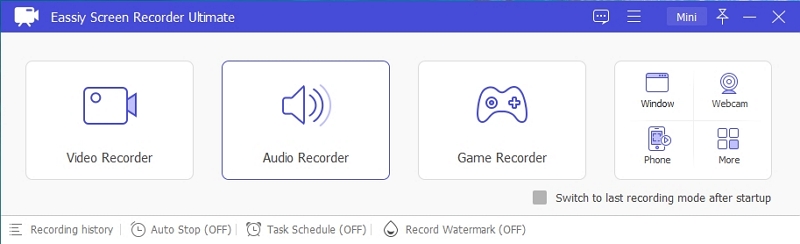
Step 1. Download and install Eassiy Screen Recorder Ultimate on your computer. Once launched, select the Audio Recorder feature from the main interface.
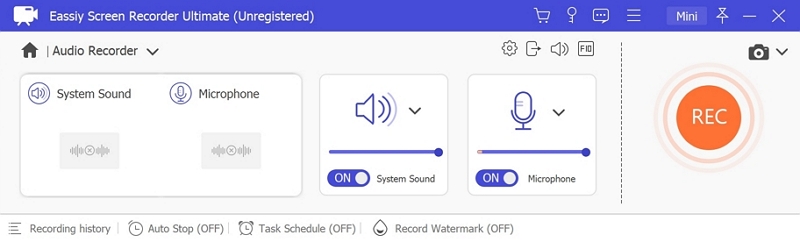
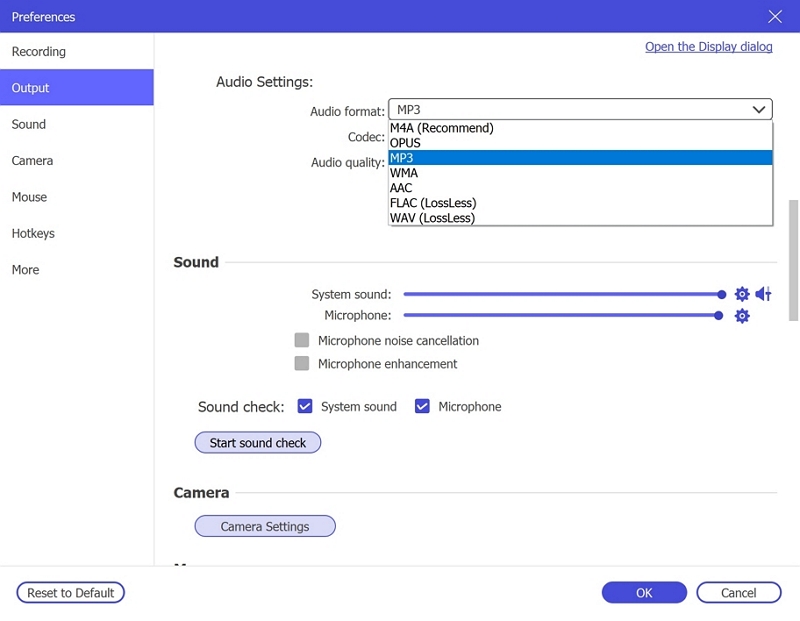
Step 2. Configure your audio recording settings. Enable System Sound to capture the live stream audio. Optionally enable the microphone if needed. Click Settings → Preferences → Output to select your desired audio format (e.g., MP3, AAC, FLAC) and set the quality to High. Click OK to save.
Step 3. Play the audio stream you wish to record, then click REC to begin recording. Use the toolbar to adjust volume, pause, or stop at any time. To automate the process, click the clock icon to set a recording duration in advance.
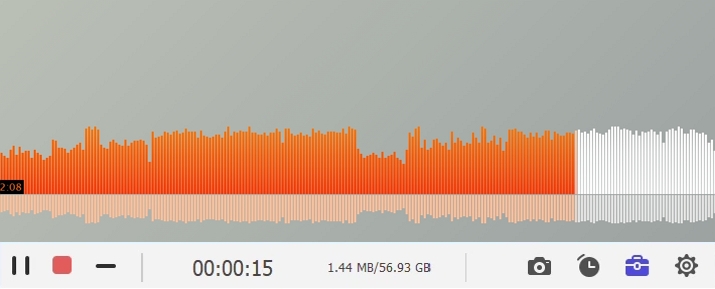
Step 4. When finished, click Stop and preview your recording. Save it in your preferred format to your device for offline listening anytime.
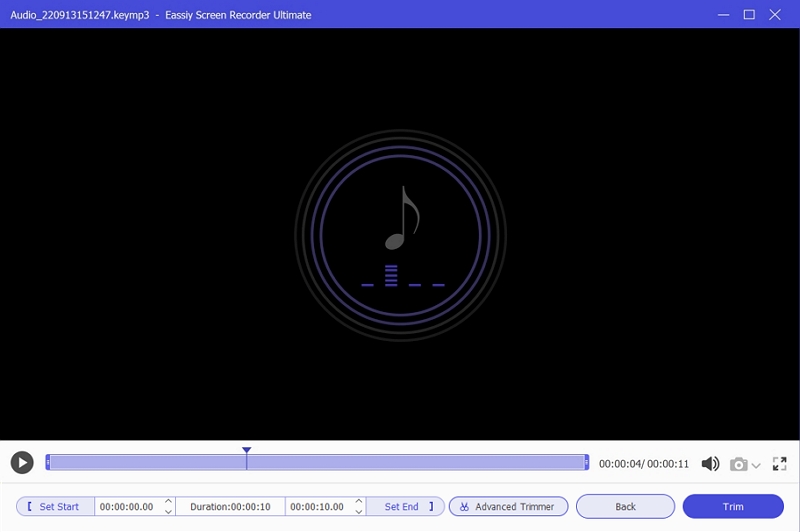
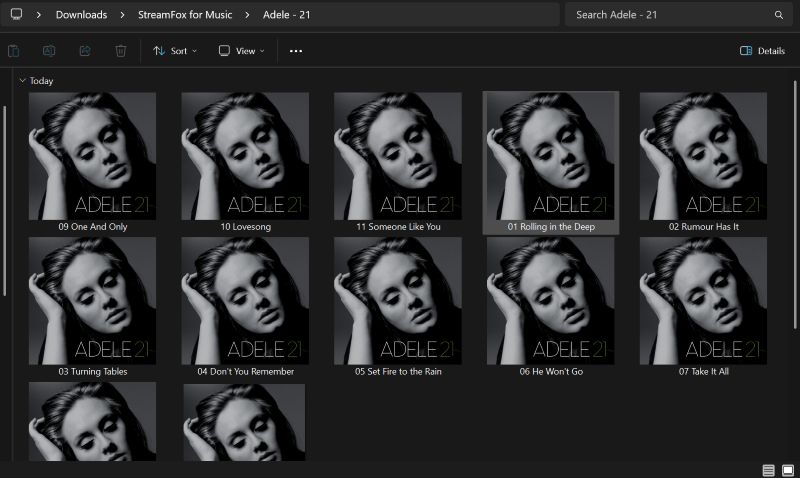
Step 5. Open your recordings folder. Your audio files will be saved cleanly, sorted and ready to play on any media player or transfer to any device.
Online Alternatives to VidToMp3
To help you find a reliable YouTube-to-MP3 converter, here are a few online tools worth keeping in your bookmarks. Most of these sites offer the same core functionality—search, paste, and download, but we’ve picked ones that try to give something extra and at least are consistent.
Here’s a look at the 4 best alternatives of VidToMP3 and 1 tool to save YouTube Shorts:
| Site Name | Audio Quality | Metadata | Format Supported | Key Features |
|---|---|---|---|---|
TubeNinja.net |
128 kbps (web version) PC app supports MP4, M4A, WAV |
Preserved with watermark | MP3, MP4 (web) MP4, M4A, WAV (PC version) |
Support 80+ sites, YouTube playlists, desktop version available |
MP3DL |
64 to 320 kbps | Preserved | MP3 | Custom bitrate selection, simple UI trim out intro or outro, max video length: 1 hr |
YTMP3 |
Selectable, up to 320 kbps | Preserved but watermarked | MP3, MP4 | Support basic conversion, work without login |
Y2Mate |
256 kbps fixed | Watermarked with Y2Mate | MP3, MP4 | Max video length: 45 mins, does not support shorts/livestreams/age-restricted/private videos |
YTShortsDL |
MP4 video only | No. The videos will have random strings | MP4 | Dedicated to downloading YouTube Shorts only |
Bonus: How to Use VidToMp3 APK
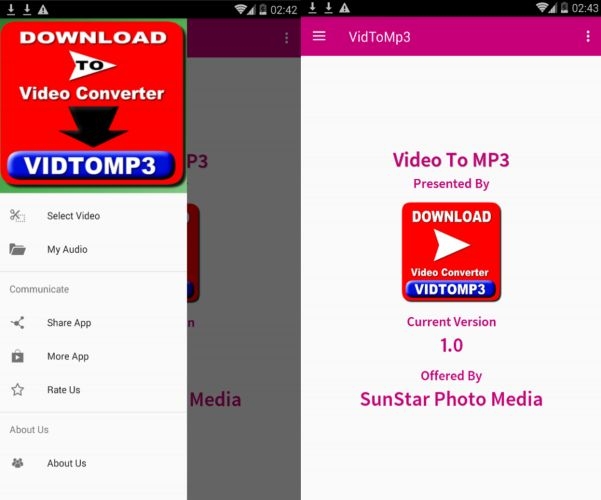
There’s a version of VidToMp3 available on the Amazon Appstore, listed under a 2018 release by “Amazon Media USA”. While the name gives it a somewhat official feel, it actually comes from a third-party developer known for publishing generic tools like free MP3 players and YouTube converters.
The app is only installable on Fire tablets and certain Amazon devices, but it won’t work on standard Android phones.
During testing, the APK did launch and accept a YouTube link, but the conversion failed. The app didn’t produce any downloadable result, and there’s no option to choose format or bitrate.
More importantly, the app hasn't seen updates in years. If you're looking for a stable, modern audio saving tool, it's much wiser to go with a reliable tool like Eassiy Screen Recorder Ultimate, which supports real-time audio capture from any streaming source on your computer.
Wrap Up
VidToMp3 is built on an old idea. The revised version focuses more on pushing popups than downloading any music. You can try the other online alternatives if you're just looking for something light. Still, they only deliver compressed, low-quality tracks.
Eassiy Screen Recorder Ultimate stays on your computer and allows you to capture audio in original quality from any streaming source. Yes, it is an all-in-one audio recorder that features a built-in timer and format selector, letting you record, save, and organize your audio library cleanly — without ads, watermarks, or server errors.