Help Center
Updated on 2026-04-14
views
5min read
Dark Mode was invented as a way to reduce eye strain by providing a softer yet less glaring display environment, which is especially beneficial during low-light conditions. Beyond comfort, it plays a role in preparing the body for its natural sleep cycle by minimizing blue light exposure that can disrupt circadian rhythms. As more users value health-conscious technology features, Dark Mode has become a widely adopted interface option across popular apps.
So, does Apple Music support dark mode? Yes, but only for Android Apple Music currently. However, don’t worry, it’s still available to make Apple Music dark mode on iPhone, Windows or Mac and we will explore how to get it done on your phone and computer. Read on!
How to Make Apple Music Dark Mode on Android
Android’s Apple Music app comes with a Dark Mode feature, giving users the choice to enjoy the app’s sleek dark interface. Besides the inbuilt option, you can also use the phone system setting to get dark mode on Apple Music. Here are more details.
Way 1. Use In-app Option [Apple Music Only]
This method darkens just the Apple Music app without changing your device's overall theme.
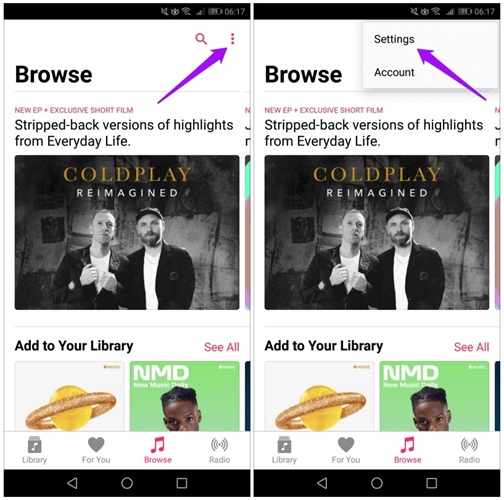
Step 1. Open Apple Music on your Android device, tap the three dots (…) on the top right corner and select Settings.
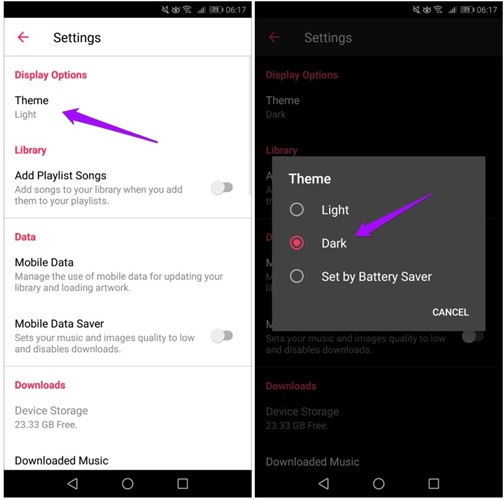
Step 2. Locate the Display Options section and press Theme. Then, choose Dark on the pop-up screen.
Way 2. Through Android Settings [Affect All Apps]
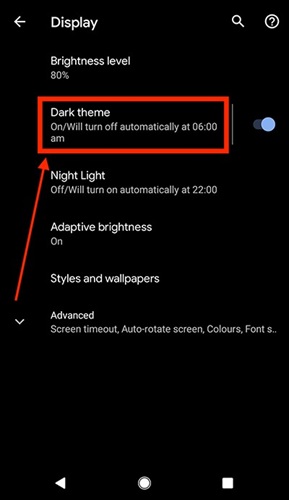
This option switches your entire device, including Apple Music, to Dark Mode. To enable it, on your Android phone, launch the Settings app and tap on Display. Then, toggle the Dark Theme on.
How to Get Apple Music Dark Mode on iPhone [System-Wide]
Apple Music on iPhone follows the system-wide Dark Mode settings. Turning it on applies the dark theme throughout your phone, including the Apple Music app.
Turn on iOS Dark Mode
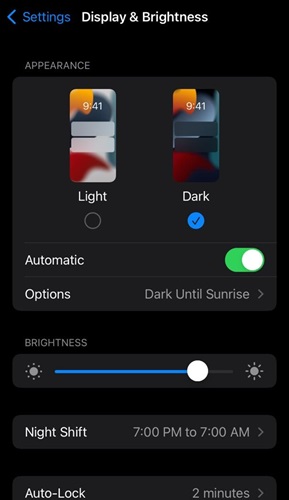
Step 1. On your iPhone, open the Settings App. Then, scroll down and select Display & Brightness.
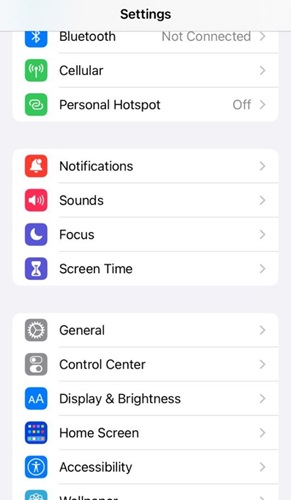
Step 2. Under Appearance, choose the Dark option. Instantly, Apple Music and other apps on your device will now display in Dark Mode.
How to Put Apple Music on Dark Mode on PC [Windows 11or Lower]
Windows PCs offer two ways to enjoy Apple Music in Dark Mode. One is via system settings, which affect all apps, the other is by using third-party media players with dark interfaces.
Way 1. Via System Settings [Apply to All Apps]
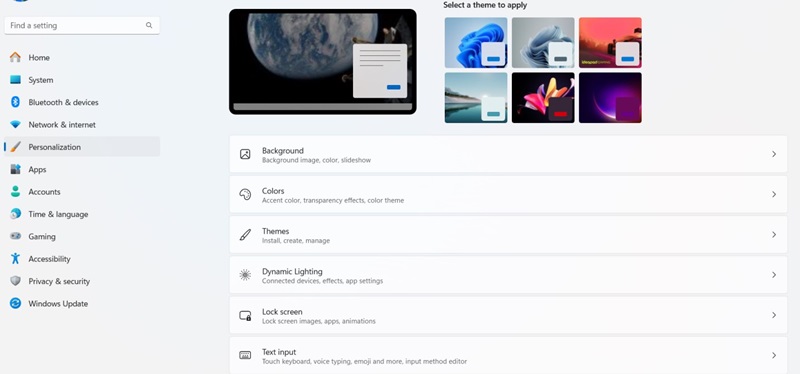
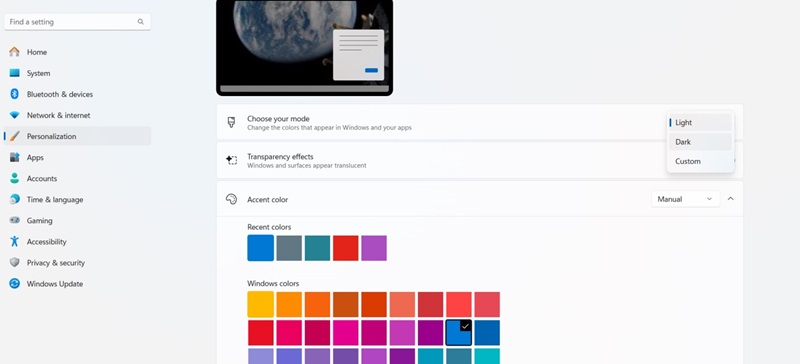
Step 1. On Windows, click the Start menu and open Settings. Select Personalization > Colors.
Step 2. Under Choose your mode, pick Dark. Now, all compatible apps, including Apple Music will get the dark theme.
Way 2. Use Dark Mode on Another Media Player
If you want to enjoy your audio in dark mode on your PC without switching your whole system over, here’s a neat workaround. Simply record your audio to local files and play them with a media player that has a sleek dark mode interface by default (like Spotify). To save your audio as offline files securely, a powerful tool like Eassiy Screen Recorder Ultimate is here to help.
Eassiy Screen Recorder Ultimate can capture any audio playing on your computer and save it into high-quality files. The recorded audio tracks can be saved in MP3, AAC, FLAC, and more, which makes it easy for you to add them to other dark-themed media players. In addition to retaining high sound quality, it bypasses the need for unreliable web tools by recording exactly what you hear directly from your system.
Eassiy Screen Recorder Ultimate
Record any audio playing on your device and save it as MP3, AAC, FLAC, and more with system sound capture and permanent offline access.
Key Features
- Record any audio stream in high quality — songs, playlists, podcasts, audiobooks, and more.
- Supports multiple output formats including MP3, AAC, FLAC, and more.
- Built-in timer for hands-free, automated recording sessions with no set limit.
- Preview recordings before saving to ensure quality.
Record Audio to Local Files
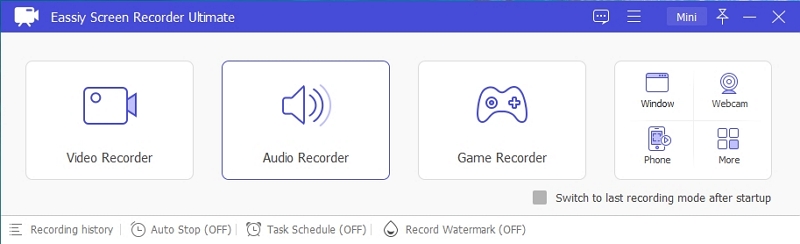
Step 1. Download and install Eassiy Screen Recorder Ultimate on your Windows or Mac computer. Once launched, select the Audio Recorder feature from the main interface.
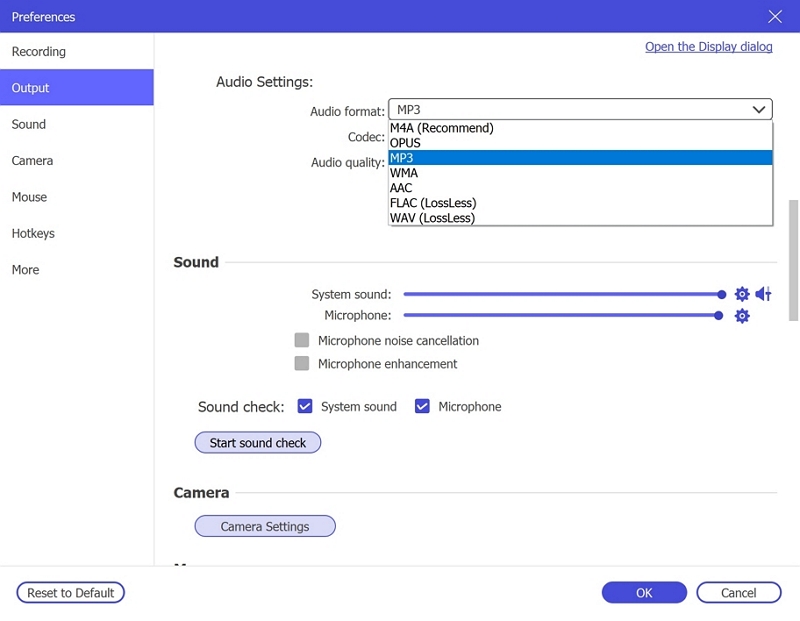
Step 2. Configure your audio recording settings. Enable System Sound to capture the audio playing on your computer. Optionally enable the microphone if needed. Click Settings → Preferences → Output to select your desired audio format (e.g., MP3, AAC, FLAC) and set the quality to High. Click OK to save.
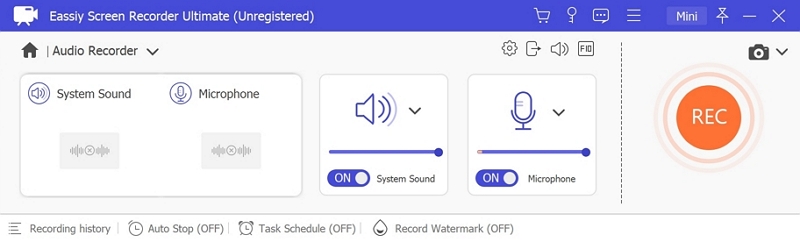
Step 3. Play the audio you wish to record, then click REC to begin recording. Use the toolbar to adjust volume, pause, or stop at any time. To automate the process, click the clock icon to set a recording duration in advance.

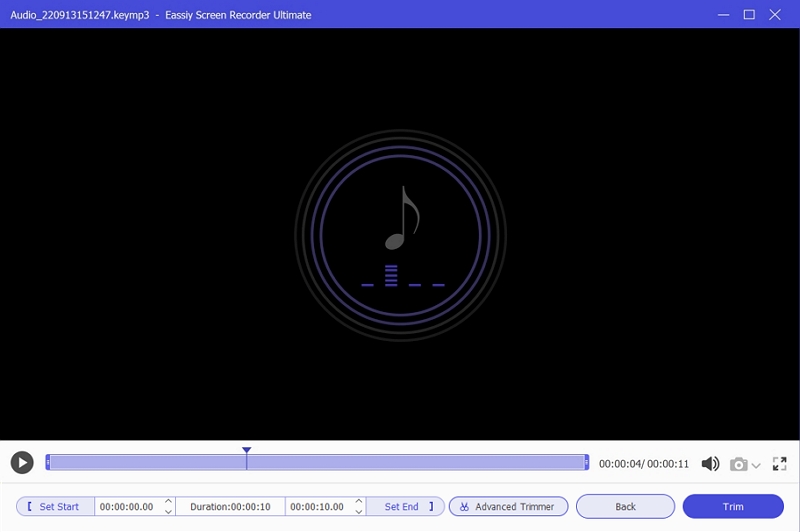
Step 4. When finished, click Stop and preview your recording. Save it in your preferred format to your computer.
Add Recorded Audio to a Dark-Themed Player (like Spotify)
Spotify's default dark-themed app already offers a sleek visual experience, letting you enjoy your music locally without any additional adjustments needed for dark mode. So after recording your audio, the only thing left to do is import the files to Spotify desktop.
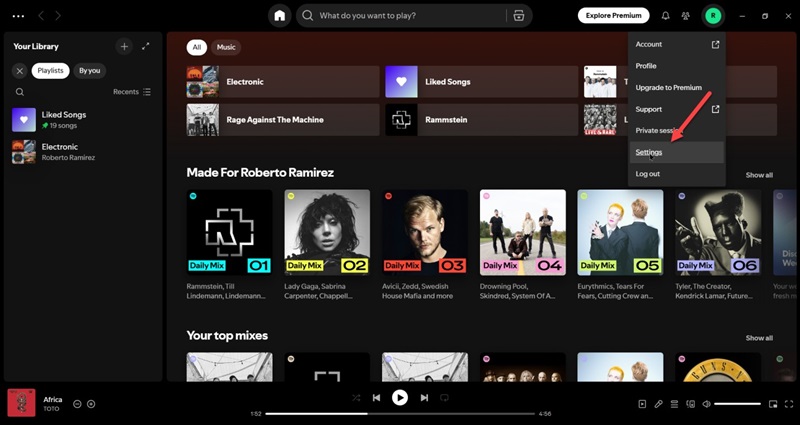
Step 1. Launch your Spotify desktop app. Then, click your avatar and select Settings.
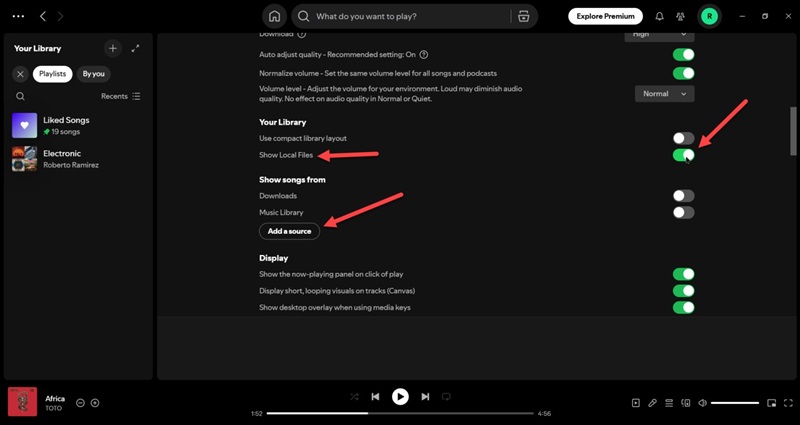
Step 2. Scroll down to the Your Library section and turn on the Show Local Files toggle. Then, click on the Add a source button to upload the recorded local audio files.
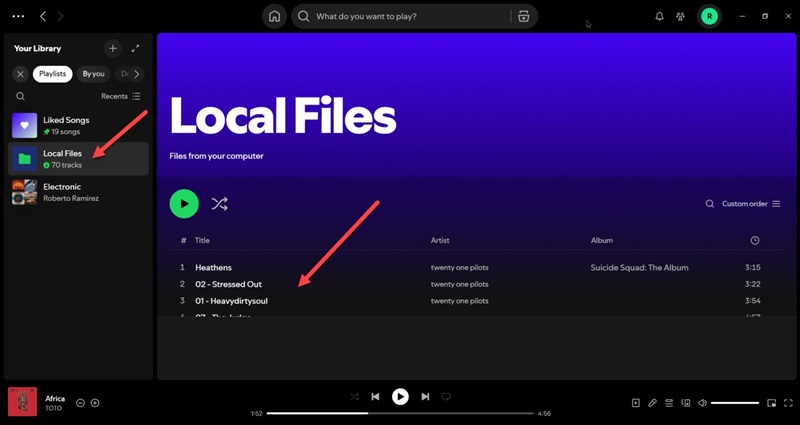
Step 3. At the left panel, choose Local Files. Now all the files you transferred can be playable on Spotify, meaning that you can enjoy your audio with a perfect dark mode interface.
How to Enable Apple Music Dark Mode on Mac [System-Level]
Mac's system-wide Dark Mode transforms your interface, including Apple Music, into a sleek, elegant dark theme. Below are the steps to activate it effortlessly.
Turn on Mac OS Dark Mode
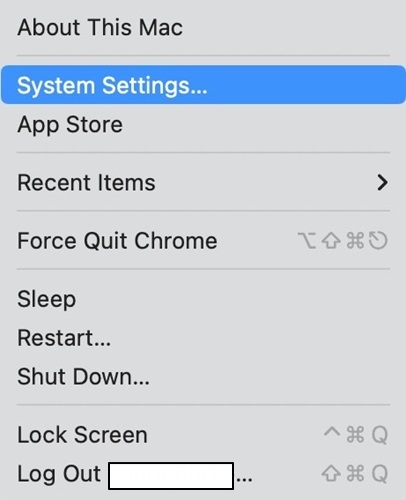
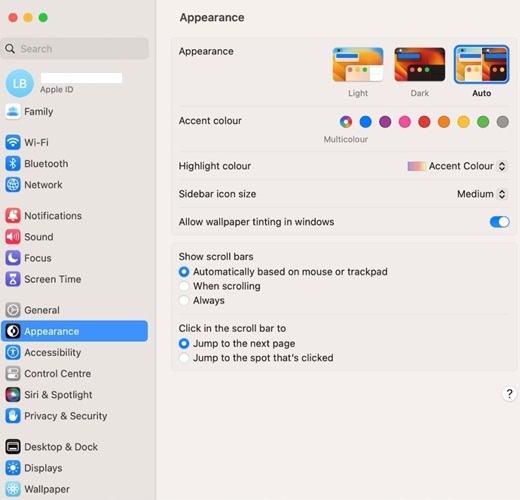
Step 1. Click the Apple menu and go to System Settings.
Step 2. Choose Appearance. Then, on the appearance section, select Dark. Next, you can enjoy Apple Music in dark mode.
How to Turn on Apple Music Dark Mode on Apple TV [Entire System]
Just as with other Apple devices, Apple TV supports Dark Mode at the system level, impacting all apps including Apple Music for a visually comfortable interface. Following are the steps to activate it:
Steps to Enable tvOS Dark Mode
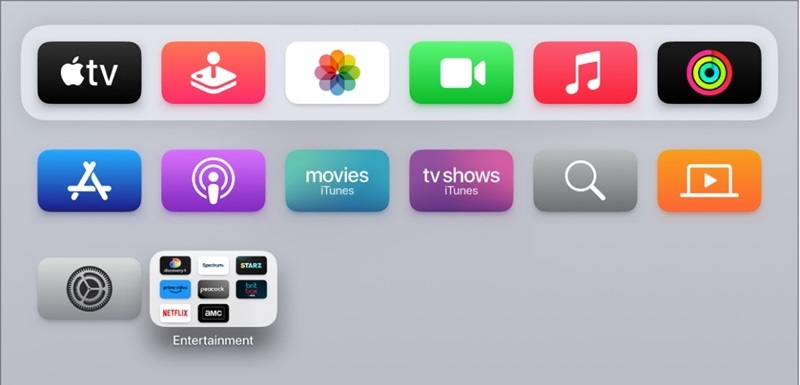
Step 1. Launch Settings on your Apple TV and navigate to General.
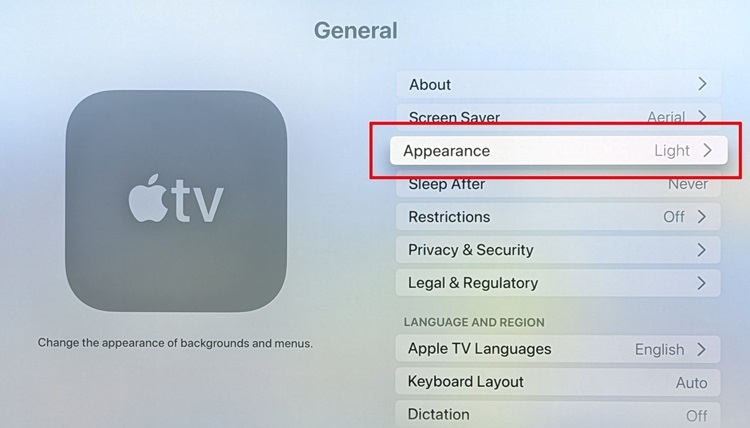
Step 2. Select Appearance.
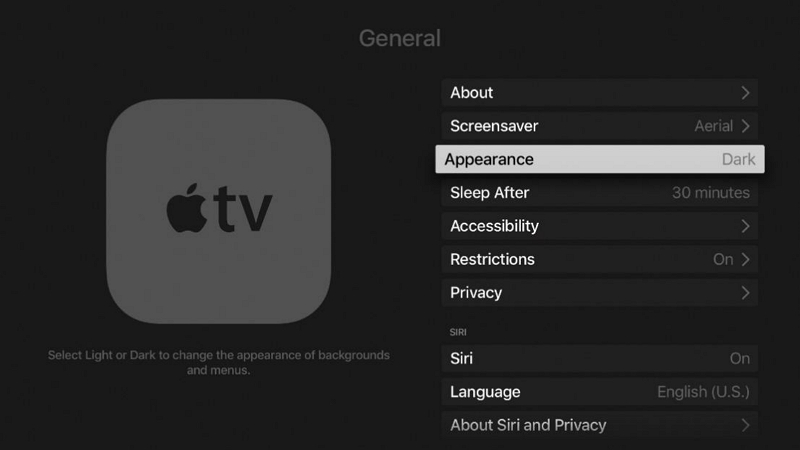
Step 3. Then, choose Dark. The Apple Music app will now display with a dark theme on your Apple TV.
Final Words
Apple Music Dark Mode offers a visually pleasing and sleep-friendly way to enjoy your music across devices like Android phones, iPhone, Windows PC, Mac, and Apple TV. Whether you prefer a system-wide dark theme or just a dark app interface, there are various easy ways to enable it. Utilize a reliable tool like Eassiy Screen Recorder Ultimate for added convenience if you want a dedicated dark mode experience on any device by recording and playing your audio via dark-themed media players.