Help Center
Updated on 2026-04-27
views
5min read
MyFreeMP3 is a long-established website for free music downloads. However, if you search for it online, you'll find that there are many websites named after it. So which one is the official MyFreeMP3? Is it safe to use? What is the sound quality like for downloaded songs? Read on to find out! We review MyFreeMP3 in terms of security, sound quality, and more, and also introduce its best alternatives.
Try This! If you're looking for a stable desktop alternative to MyFreeMP3, StreamFox for Music is worth trying. You can log in to its built-in Spotify browser, search for the songs you want, and save them directly. The music can be downloaded in formats like MP3, with audio quality up to 320kbps.
Full Review of MyFreeMP3
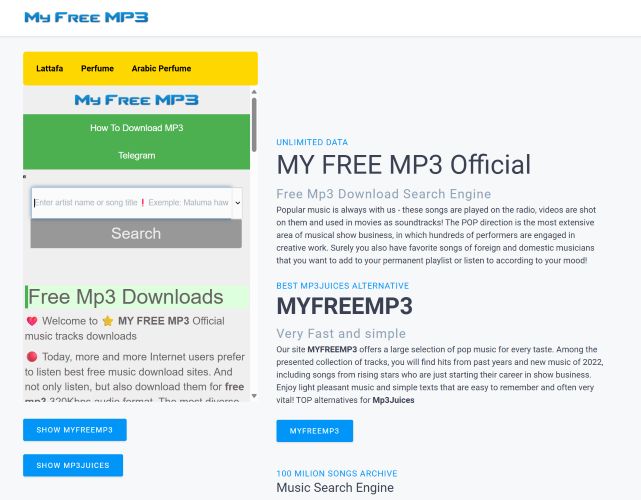
At its core, MyFreeMP3 is a music search engine and downloader. It was originally created as an alternative to the now-defunct MP3Juice. You type in a song name and the site pulls results from public sources like YouTube, JioSaavn, and Hungama, offering direct MP3 downloads.
Interestingly, it highlights support for songs in English, Spanish, and Hindi. And it doesn’t hold true to some extent: when trying to download regional songs, the results often are unrelated or completely random.
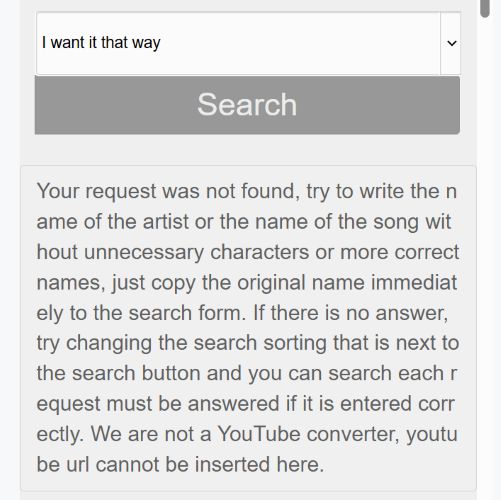
Some search terms don’t bring up results at all, even for popular songs.
Also important to note: there’s no option to choose your audio format and everything is saved as MP3. As for bitrates, each track in the search results comes with its own: 128kbps, 192kbps, or occasionally 320kbps. You won’t get any selection panel, so you’ll have to check each listing manually and download the one with the quality you want.
All in all, MyFreeMP3 is similar to other online converter tools: it is packed with ads. So, pop-ups and redirects appear frequently, even when clicking in the search bar. There’s no batch download support either. In fact, unlike most link-based converters, it doesn’t let you paste in an exact link, which makes getting a specific version of a song harder.
Here’s a table that summarizes exactly what to expect:
| Features | Details |
|---|---|
| Music Source | Pull songs from various public sources, like YouTube. |
| Audio Format | MP3 only. |
| Bitrate Quality | No control over quality. Each track comes in a fixed bitrate. |
| Metadata | Basic metadata only. Track names will include strange characters or domains like myfreemp3.vip in filenames. |
| Cover Art | No album covers. |
| Batch Downloads | Not supported. You have to download tracks one by one. |
| Speed | Decent per file, but lack of batch mode makes the overall process slow for multiple tracks. |
| Ads | High. Popups appear frequently, even while clicking inside the search box. |
| Official Site | The original my-free-mp3.net no longer works. Current working clones include new.myfreemp3.cc, myfreemp3.blog, and others. |
Is MyFreeMP3 Safe to Use?
The original site (my-free-mp3.net) no longer exists. All the versions you find today are unofficial. Some may have been set up by former developers, but there’s no way to verify that. Others, for sure, are just clones using the same name and logo.
However, all MyFreeMP3 versions often redirect you through a series of popups and suspicious domains before a download even begins. So, these sites are far from trustworthy.
In short, this is a rare recommendation from us. You’re relying purely on your own judgment and luck when using it.
Does MyFreeMP3 Have Android Apps?
There are no official Android apps for MyFreeMP3. However, two older apps do exist on the Amazon Appstore:
- One listed under Vormalin (released in 2015).
- Another older one dated around 2014.
Both of these apps are now outdated. Even if they show up on the store, they no longer allow song downloads.
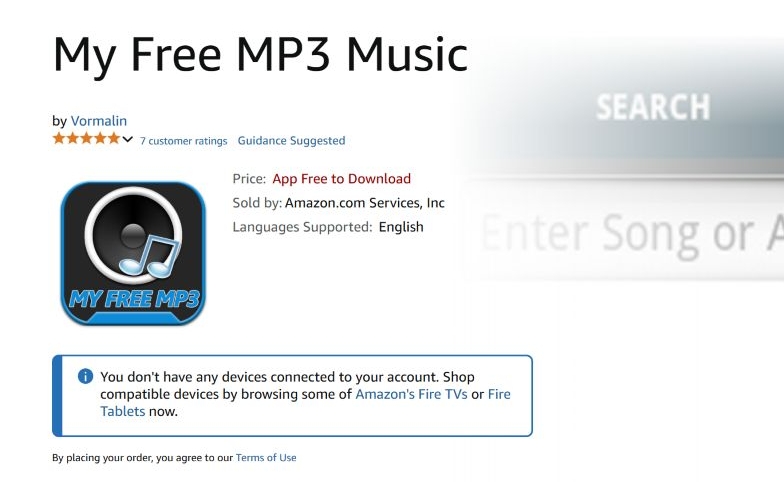
Additionally, there’s a listing on CNET too, you can find it as MyFreeMP3-Download Player.
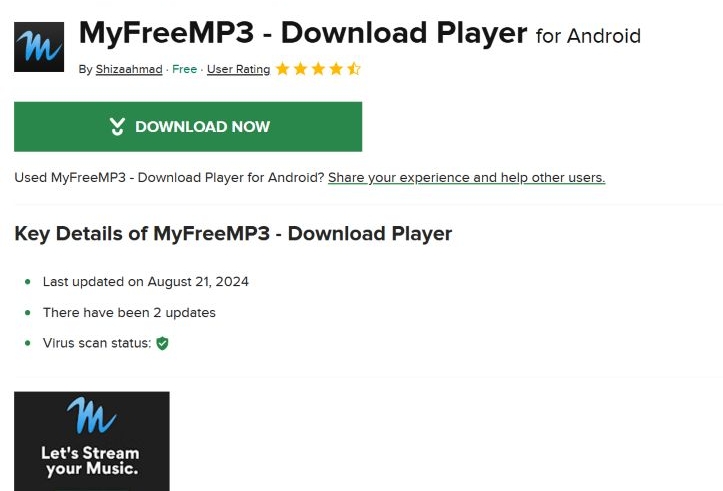
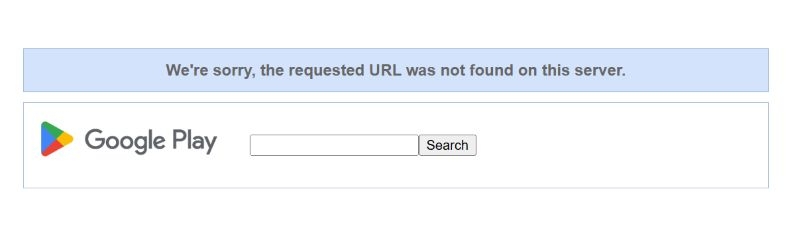
However, the link leads to a nonexistent Play Store listing, meaning that the app has clearly been removed. Clicking on the “Download Now” button will take you to Google Play, where the broken page simply shows the message: “This page no longer exists.”
How to Use MyFreeMP3
You can choose from either of the two main domains (they both lead to the same layout and features), the process remains the same. So it doesn’t matter which one you use, the steps are identical. Here’s how to use the site properly, along with some tips to make it easier:
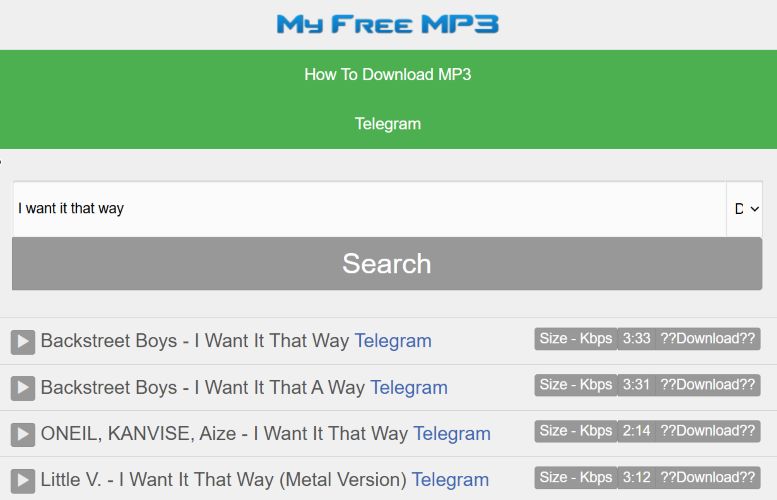
Step 1. Go to the MyFreeMP3 site. On the homepage, enter the song name you want in the Search bar. On the far-right side of the search bar, there’s a small drop-down menu. Click it to sort results by Date, Popularity, or Longest track, depending on your preference.
- Once you press Enter, the site will show the matching results.
- On the far-right of each result, you’ll see the duration, and a button labeled “Size – Kbps”. Click on this to check the actual file size and bitrate (these vary by track, so it’s worth checking manually).
- Click the ??Download?? button next to the version you want.
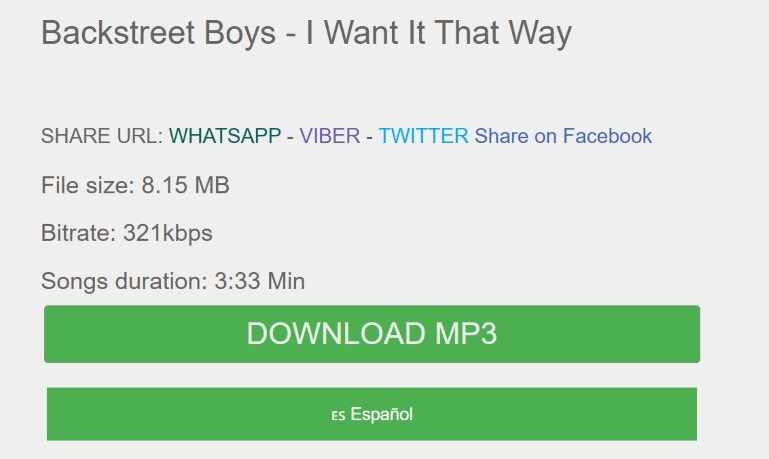
Step 2. You’ll be taken to a new page showing the file’s details, including file size, bitrate, and duration. Click the green Download MP3 button to start the download. The file will be saved directly to your computer.
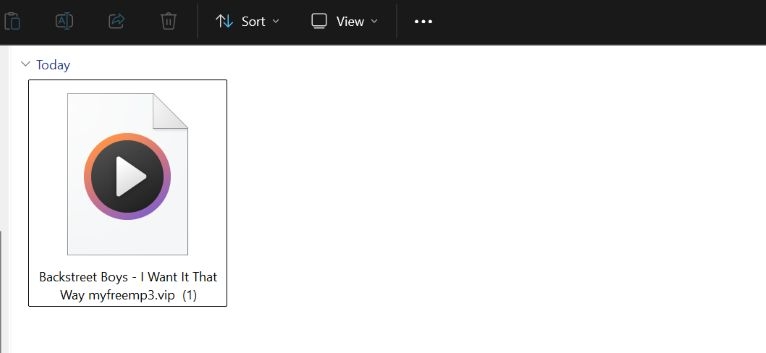
Step 3. Once downloaded, the file will appear in your Downloads folder. The name will usually include the site’s domain (e.g., myfreemp3.vip). Cover art will be missing, and metadata will be limited — but yes, the MP3 file will still play.
Best Alternatives to MyFreeMP3
Now that you've seen how MyFreeMP3 works and where it falls short, it's time to look at a few better alternatives. Most of the online tools in this list still come with ads, and their long-term reliability isn't something you can count on. That's why, at the beginning, we'll introduce Eassiy Screen Recorder Ultimate first — a stable desktop audio recording tool that works across all platforms, without fail.
So whether you prefer quick web-based tools or a permanent audio recorder for your computer, you'll find an option here that fits exactly how you want to save songs.
1. Eassiy Screen Recorder Ultimate
Eassiy Screen Recorder Ultimate is the best choice when you want to save audio from any streaming source in high quality as local files. Unlike online tools that pull from public sources, Eassiy captures exactly what you hear from the original platform — in the quality you choose, without watermarks, ads, or redirects.
What truly sets Eassiy Screen Recorder Ultimate apart is its simplicity. Simply play your audio stream, click record, and the software handles the rest. There's no link copying, no bot dependency, and no technical setup. Plus, a built-in timer lets you schedule and automate recordings for hands-free operation.
Eassiy Screen Recorder Ultimate – Feature Overview
| Features | Eassiy Screen Recorder Ultimate |
|---|---|
| Audio Format | MP3, AAC, FLAC, and more |
| Bitrate Quality | High quality capture from the original stream — no upscaling |
| Metadata | Captures audio as played; no watermarks in output files |
| Ads | None |
| Batch Downloads | Supported via scheduled recording and timer automation |
| Speed | Real-time recording with timer support for automated sessions |
| Source Platforms | Any audio stream playing on your device |
| Login Required | No — simply play audio and record |
| Output Control | Choose format, quality, and output folder from preferences |
Steps to Use Eassiy Screen Recorder Ultimate to Record Streaming Audio
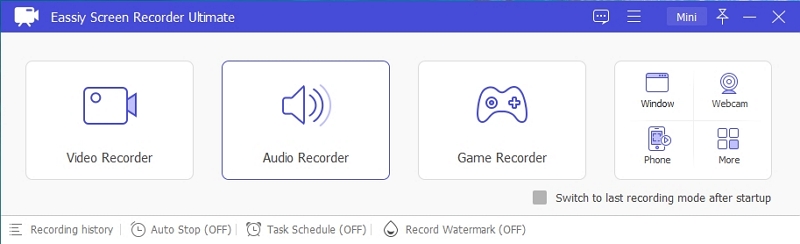
Step 1. Download and install Eassiy Screen Recorder Ultimate on your Windows or Mac. Once launched, select the Audio Recorder feature from the main dashboard.
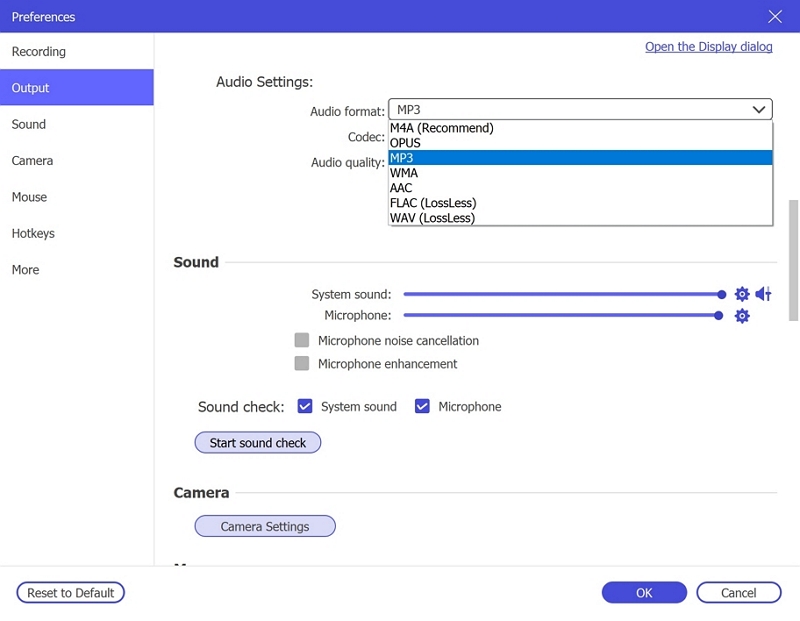
Step 2. Configure your audio recording settings. Enable System Sound to capture the live stream audio. Optionally enable the microphone if needed. Click Settings → Preferences → Output to select your desired audio format (e.g., MP3, AAC, FLAC) and set the quality to High. Click OK to save.
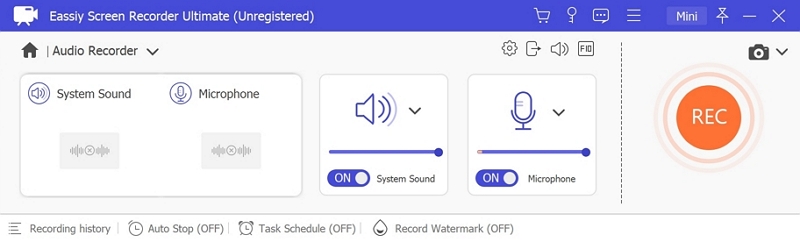
Step 3. Play the audio stream you wish to record, then click REC to begin recording. Use the toolbar to adjust volume, pause, or stop at any time. To automate the process, click the clock icon to set a recording duration in advance.
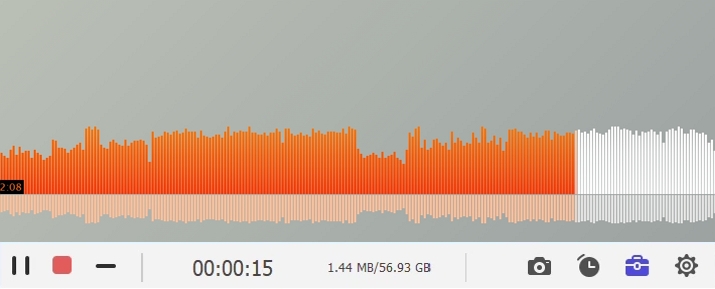
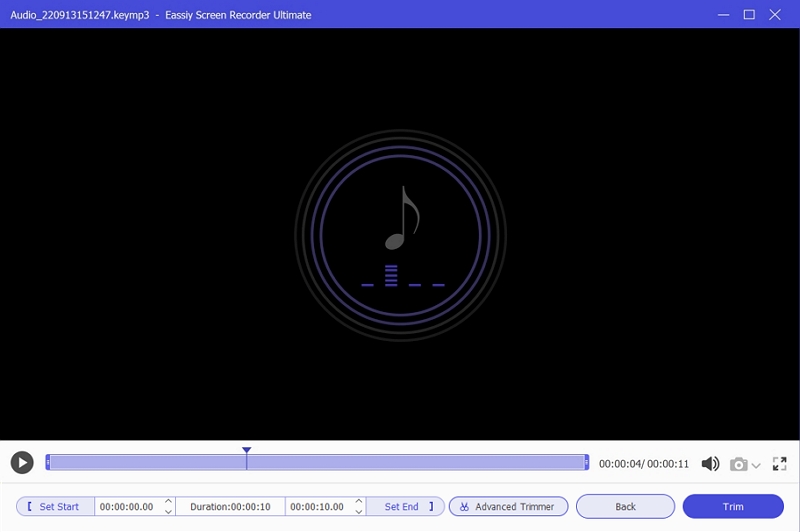
Step 4. When finished, click Stop and preview your recording. Save it in your preferred format to your device for offline listening anytime — organized, clean, and without any watermarks.
2. SquidWTF
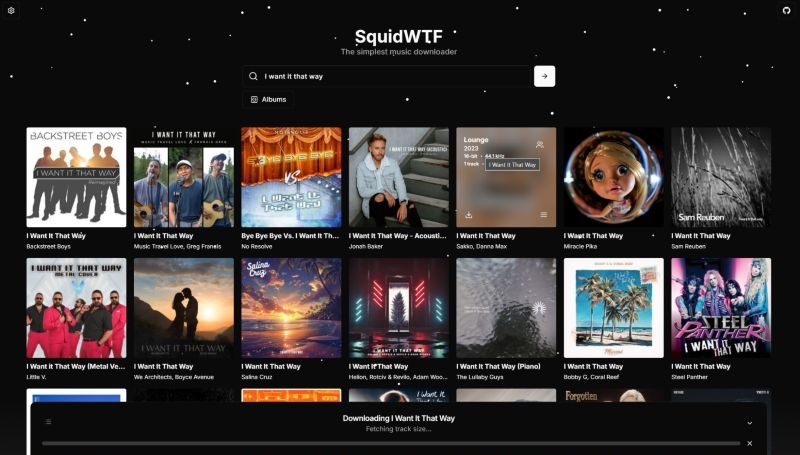
The first online tool in the list is Squid.wtf, a powerful downloader that works through Qobuz. By default, it only allows you to download a 30-second preview of any track. To access the full-length songs, you need a valid Qobuz token generated from their site, which requires a paid Qobuz membership.
Despite the need for a subscription, Squid.wtf offers impressive output and customization. It functions similarly to MyFreeMP3 in terms of interface simplicity, but with far more options. The tool is independently maintained and donation-supported, which also means uptime can vary. For instance, the Deezer North America and Europe servers were inactive at the time of writing, but Qobuz’s North America server worked fine.
Squid.wtf Downloader Overview
| Feature | Squid.wtf |
|---|---|
| Audio Format | FLAC, WAVE, ALAC, MP3, AAC, OPUS |
| Bitrate Quality | 16-bit/44.1kHz, 24-bit/96kHz, 24-bit/192kHz, etc. |
| Metadata | Original cover art, album name, song title, artist name |
| Ads | None |
| Batch Downloads | Yes |
| Speed | Good (depends on your setup & browser type—native support for FFmpeg is required) |
| Source Platforms | Qobuz (Deezer currently down) |
| Login Required | No to download 30-second previews. Yes (Qobuz token needed). |
| Output Control | Choose format, bitrate, output folder |
3. FreeMP3 Cloud
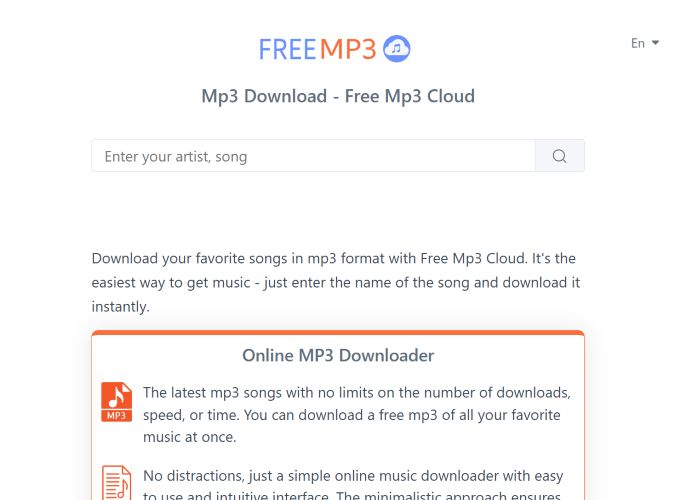
Free MP3 Cloud works a lot like MyFreeMP3. It’s a search-based music downloader that doesn’t actually convert YouTube videos. Instead, it finds and lists tracks available through public or unofficial sources like re-recordings, live performances, fan uploads, and occasionally even the official versions.
We also noticed it works better when searching by artist name rather than just the track name. The interface supports multiple languages and occasionally takes you to unrelated pages and starts random downloads, so staying cautious while using the site is advised.
FreeMP3 Cloud Downloader Overview
| Features | FreeMP3Cloud.com |
|---|---|
| Audio Format | MP3 |
| Bitrate Quality | Decent quality 320 kbps (varies slightly) |
| Metadata | Clean titles, some titles have cover art, no watermarking |
| Ads | Heavy ad presence |
| Batch Downloads | No |
| Speed | Generally fast |
| Source Platforms | Not explicitly mentioned (likely public sources, not YouTube conversions) |
| Login Required | No |
| Output Control | No customization options |
4. MP3Juice
Of course, MyFreeMP3 was made as an alternative to the original MP3Juice. Yes, the real MP3Juice site is long gone, but there are dozens of copycat versions floating around. One such version is MP3Juice Ninja, which works as a YouTube-to-MP3 converter and lets you search for songs using either keywords or a direct YouTube URL. Its interface is also as simple as MyFreeMP3. Plus, you can download files in either audio or video formats.
However, despite boldly claiming “no ads,” the site throws multiple popups and redirects the moment you interact with land on the site. On the bright side, you can download songs from your browser on desktop or phone without any login or setup.
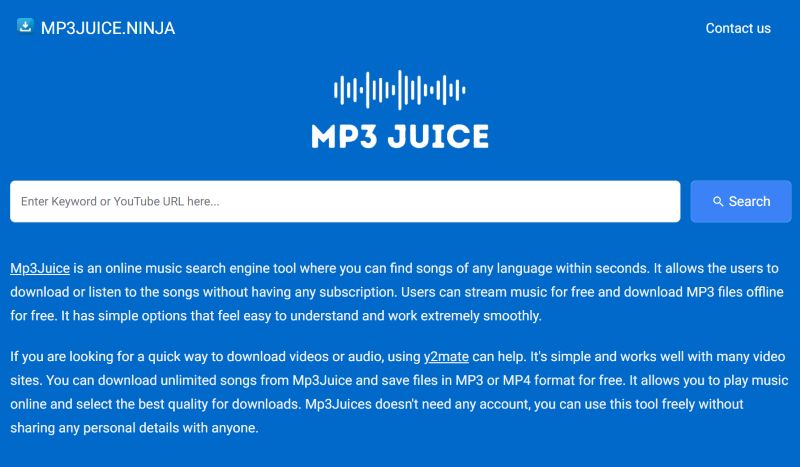
MP3Juice Overview
| Features | MP3Juice (Cloned Versions) |
|---|---|
| Audio Format | MP3, MP4 (video) |
| Bitrate Quality | 128 kbps (fixed) |
| Metadata | No cover art, filename includes yt.savetube.me watermark |
| Ads | Pop Ups, redirections, occasional links to shady third-party domains |
| Batch Downloads | Not supported |
| Speed | Fast but often interrupted by ad layers |
| Source Platforms | YouTube (search or paste link) |
| Login Required | No |
| Output Control | Format selection only: MP3 or MP4 |
5. MP3Banana
Another downloader that feels very similar to MyFreeMP3 in how it works is MP3Banana. You can search for any song by title or artist name, and the site will fetch results typically sourced from YouTube, though the platform doesn’t state that outright.
What makes MP3Banana slightly more flexible is that it offers some level of customization. You can choose from multiple quality levels, or switch to a video version instead. It’s 100% free to use, doesn’t ask for sign-up, and works directly in your browser.
Still, you’ll have to download one track at a time, and it often suggests unrelated downloads afterward. Besides, it downloads songs in a low success rate. After clicking the download icon, it redirects to another page and then nothing happens.
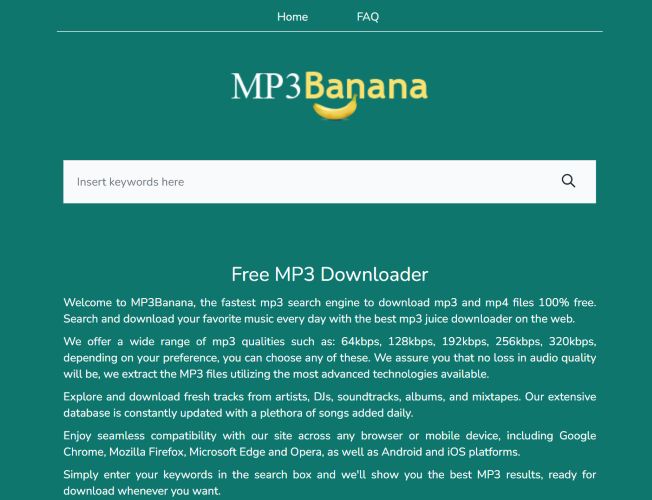
MP3Banana Overview
| Features | MP3Banana |
|---|---|
| Audio Format | MP3, MP4 |
| Bitrate Quality | 64kbps to 320kbps (user-selectable) |
| Metadata | File name includes watermark: mp3banana |
| Ads | Frequent pop-ups and forced redirects |
| Batch Downloads | No |
| Speed | Decent per file, no queuing or multiple downloads at once |
| Source Platforms | Likely YouTube (not explicitly stated) |
| Login Required | No |
| Output Control | Format (MP3/MP4) and bitrate can be selected before download |
Conclusion
That's MyFreeMP3 for you. It was a useful tool back when MP3Juice shut down, and even now, it holds up in many ways. These kinds of online converters, including their alternatives, can still be worth using if you don't mind dealing with ads or just want something quick without installing any software.
Eassiy Screen Recorder Ultimate, however, captures original, full-quality audio directly from any streaming source on your device. There are no popups, no redirects, and no watermarks. So if you're looking for reliability, quality, and control, Eassiy Screen Recorder Ultimate is your best choice.