Help Center
Updated on 2026-04-17
views
5min read
Android devices give you enough flexibility to do just about anything. So, if you’re wondering how to download Spotify songs without premium on Android, you’re not far from turning that idea into reality. We’ll explore three methods to make it happen.
We’ve also included an ultimate solution that lets you build a complete offline Spotify music library without premium, and not just on Android, but on any device. To make things easier, we’ve dedicated sections for audio quality, formats, pros, and cons for each tool. We’ve even laid out step-by-step instructions.
Part 1. How to Download Spotify Songs without Premium on Android for Free
We’ll explore three solutions in this section. Two are dedicated apps, ideal if you want something built for the task. The third is an online tool that is great for skipping the trouble of installing apps. Let’s take a closer look at each.
Way 1. Use SpotiFlyer
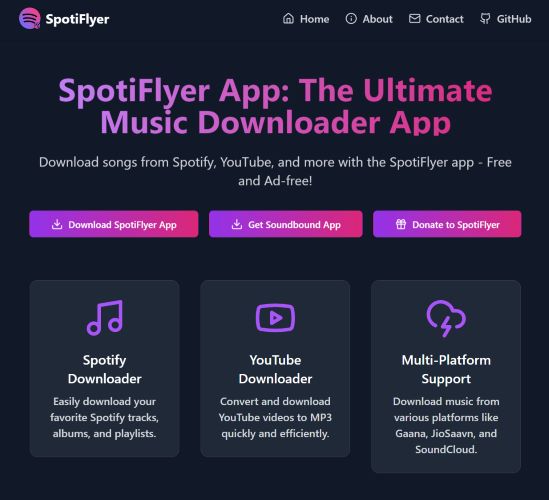
SpotiFlyer is a cross-platform tool that has gained particular popularity among Android users for downloading Spotify music without a subscription. It features a simple interface and offers a completely ad-free experience. Besides, SpotiFlyer acts well as a Spotify playlist to MP3 downloader.
Keep in mind, though, SpotiFlyer relies on platforms like YouTube Music or JioSaavn to source songs. These platforms must be accessible in your region for the app to function. So, don’t expect SpotiFlyer to match Spotify’s high bitrate. As for the output, SpotiFlyer will automatically save the song in the format available on the source platform. However, you can modify this to MP3 via its basic Settings menu.
How to Use SpotiFlyer to Download Spotify Music:
Step 1. Visit spotiflyer.app/download using your Android browser. Under the Supported Platforms section, tap on the Download for Android card to download the app. Once installed, open the app and grant the necessary permissions.

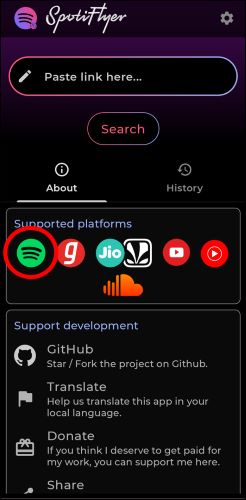
Step 2. Open SpotiFlyer. From the Supported Platforms section, select the Spotify icon to redirect to the app.
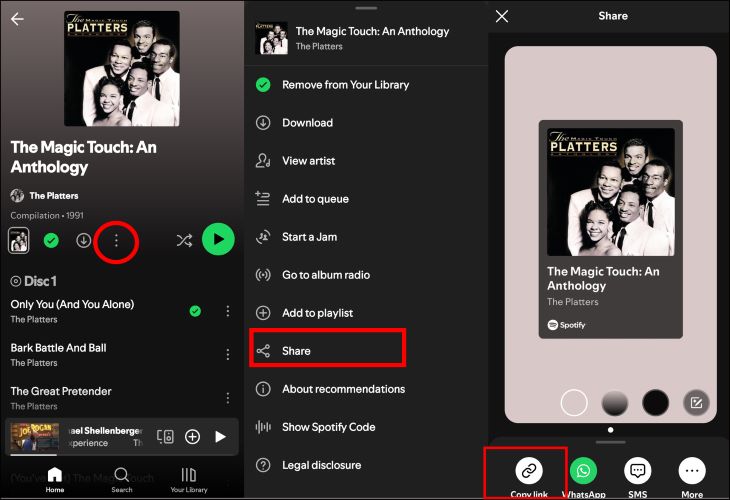
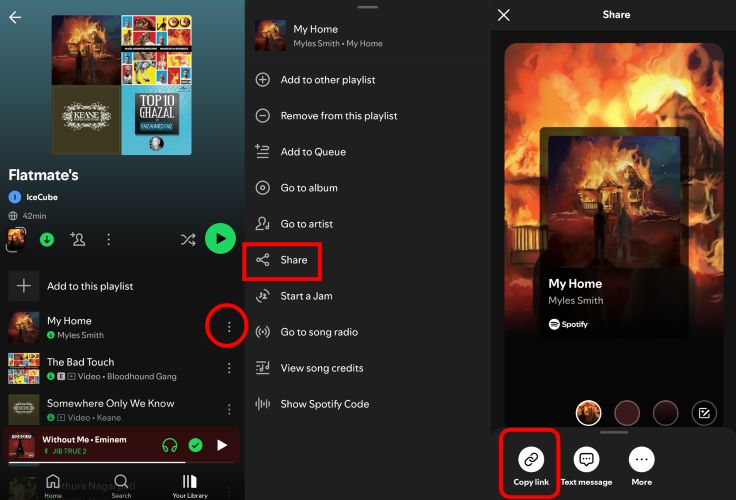
Step 3. Tap the three dots below the desired playlist or album that you want to download. Select Share from the context menu and then choose Copy Link.
Step 4. Go back to SpotiFlyer and paste the copied link into the Paste Link Here box. Tap Search to process the link.
Once processed, you’ll see the playlist songs listed. Choose individual tracks using the arrow icon next to each song. Or, simply tap Download All at the bottom for batch downloads.
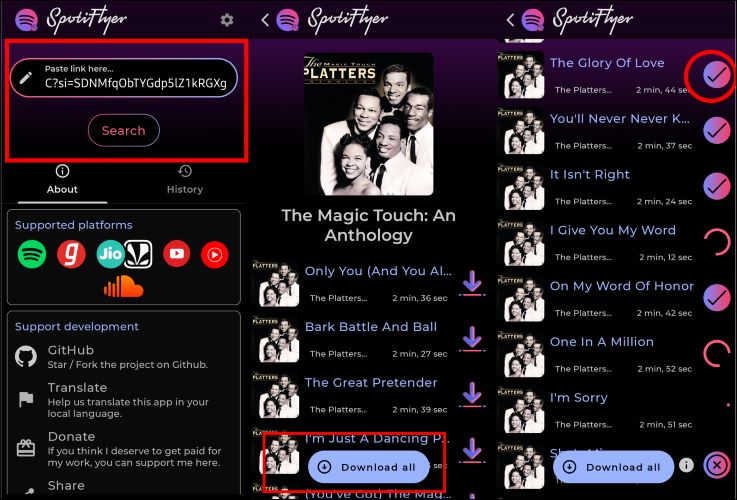
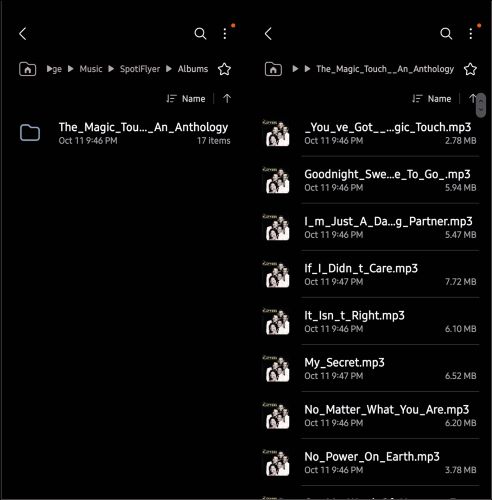
Once downloaded, you’ll see a tick mark indicating completion. Check your device’s internal storage. The songs will be available under the Music > SpotiFlyer folder. The metadata will have some formatting issues, but the tracks remain identifiable.
| Audio Quality | Audio Format | Pros | Cons |
|---|---|---|---|
| Variable, depends on source (e.g., YouTube Music) | MP3 |
|
|
Way 2. Use SpotDL.io
SpotDL.io is suitable when you need a quick and no-fuss downloader right on your Android device to save Spotify without premium. It can handle playlists or albums for processing, though it only downloads one track at a time. Metadata is equally sparse: just the song name. You won’t get the album art or artist details.
Overall, SpotDL.io is great for occasional downloads, like grabbing a song for a ringtone or a small project. It’s definitely not the tool to build a library. For simple tasks, there’s nothing better.
How to Use SpotDL.io to Save Spotify Music Offline:
Step 1. Start by grabbing the link to your desired song or playlist from Spotify.
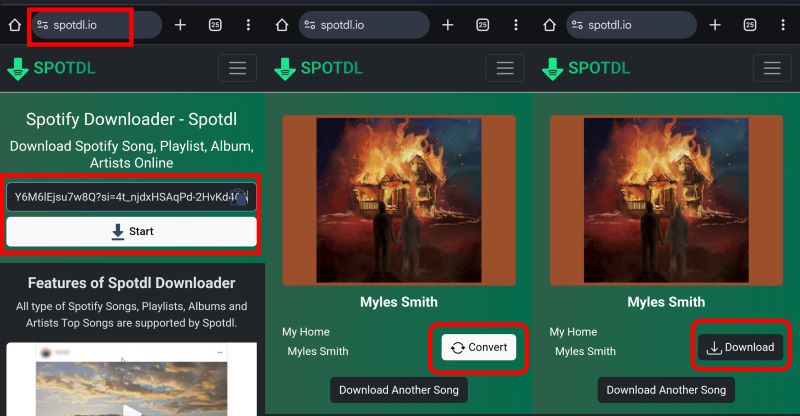
Step 2. Head to your mobile browser and type in SpotDL.io. On the main page, paste the copied link into the search bar and click Start.
Step 3. SpotDL will process the link and display the tracks. You’ll see a Convert button next to each song. Tap it, and once processed, tap the Download button.
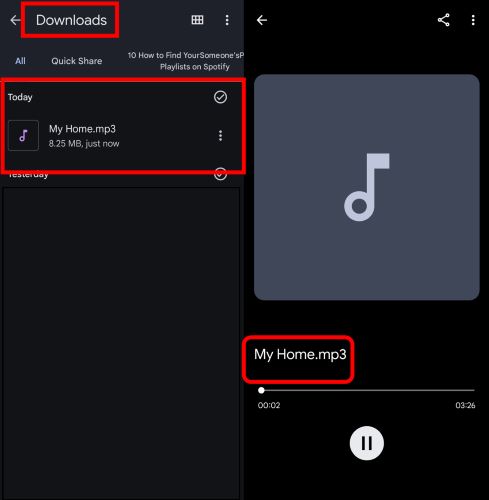
The audio file will be saved directly to your device’s Downloads folder. Keep in mind, only the song’s name is retained as metadata.
| Audio Quality | Audio Format | Pros | Cons |
|---|---|---|---|
| 128kbps to 256kbps, depends on source platform. | MP3 |
|
|
Way 3. Use Fildo
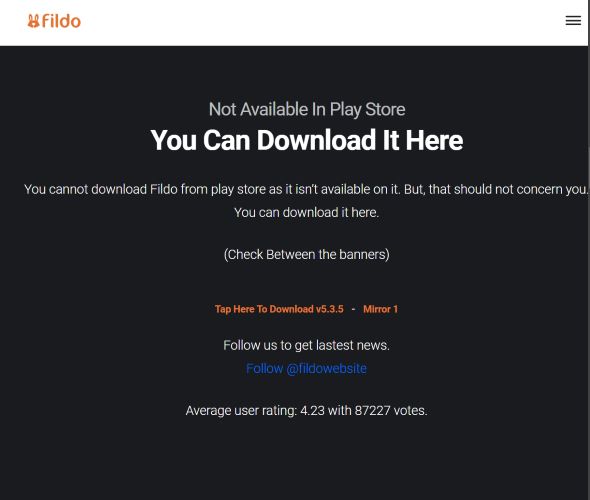
Fildo, with over 87,000 votes, stands as another well-known app for downloading and aggregating audio content from various sources on Android. Needless to say, it extends well beyond downloading and can act as your music player. Unlike dedicated music platforms, it doesn’t host its own library. Still, you can pull and stream music from platforms like SoundCloud, Spotify, and others. Keep in mind that the experience isn’t exactly smooth. Ads will pop up frequently whenever you perform an action.
When it comes to downloading music, Fildo lets you search for individual tracks or directly connect your Spotify library for batch downloads. It offers two output formats: MP3 and FLAC.
How to Use Fildo to Download Spotify Songs without Premium:
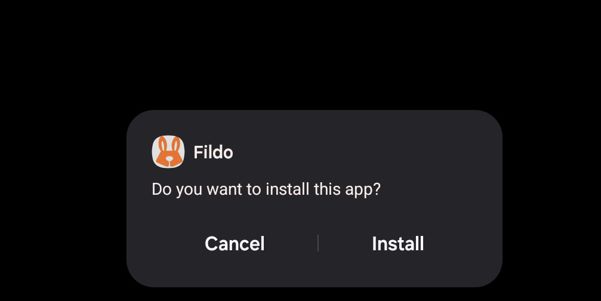
Step 1. On your Android device, visit fildo.net and download the app. Once the APK file is downloaded, grant any required permissions to install third-party applications and tap Install.
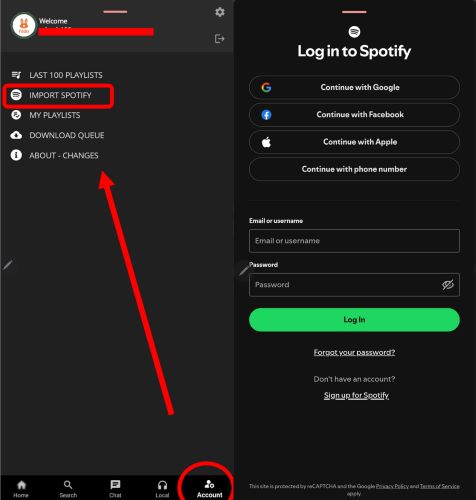
Step 2. Open Fildo, and on the main interface, locate Account at the bottom left. Tap on it and then select Import Spotify. You’ll be taken to the Spotify login screen.
Step 3. Enter your credentials and tap Agree to connect Spotify with Fildo. Once connected, your Spotify playlists and library will sync with Fildo automatically.
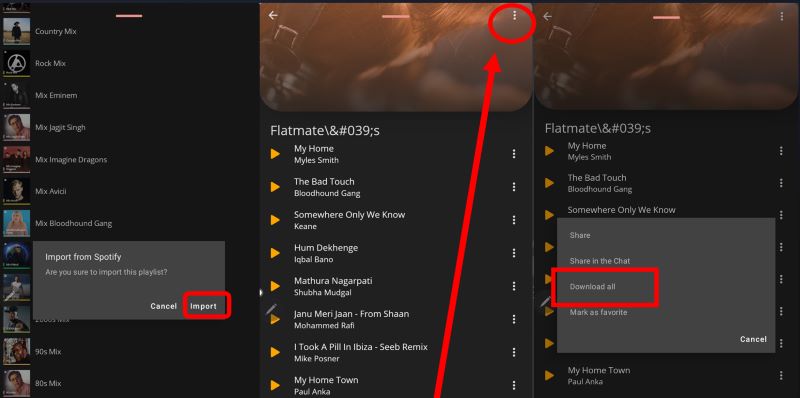
Step 4. Tap the playlist you want to import. Once the import is done, you will see the Playlist Imported Successfully message.
Step 5: Open the playlist and tap the three-dot menu. From the pop-up, select Download All.
Note: Ensure you’ve set the desired audio quality before starting. It will be set to Low by default. You can choose to convert Spotify to FLAC or MP3 before music conversion.
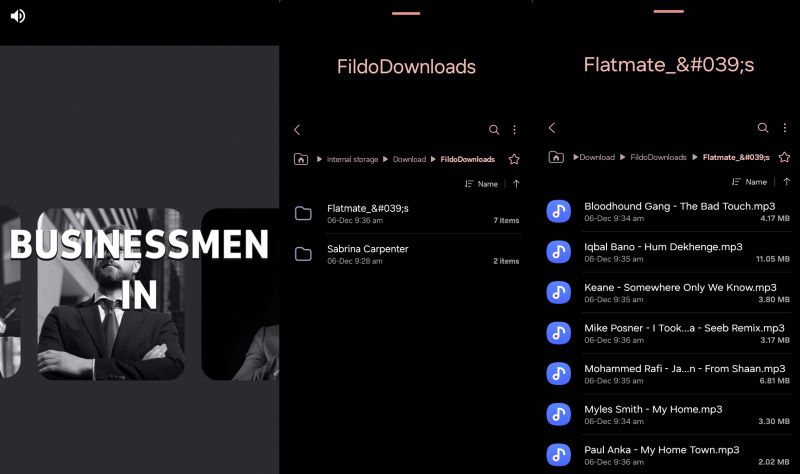
Fildo will process and download your tracks. You'll see a notification bar at the bottom indicating progress. Once finished, the songs will be saved in your device’s Downloads folder under a new sub-folder called Fildo Downloads.
| Audio Quality | Audio Format | Pros | Cons |
|---|---|---|---|
| 128kbps to 320kbps (configurable) | MP3, FLAC |
|
|
Part 2. How to Record Streaming Audio for Any Device with Free Account
For those who want to save streaming audio on every device, Eassiy Screen Recorder Ultimate is an exceptional solution. It works on Windows and Mac, enabling you to record any audio stream playing on your device and transfer the recordings to Android, iPhone, MP3 players, or USB drives for car systems. Eassiy Screen Recorder Ultimate also makes it easy to use your saved recordings as ringtones or alarms on any device.
Eassiy Screen Recorder Ultimate captures audio directly from your device's output, which means there's no reliance on third-party platforms. Simply play your content and hit record — no link copying required. All recordings are saved in clean, high-quality format with no watermarks, making sure your offline library is organized and sounds great on any device.
Key Features
- Record any audio stream playing on your device — songs, playlists, podcasts, and more.
- Supports multiple output formats including MP3, AAC, FLAC, and more.
- Set recording duration with a built-in timer for hands-free, automated operation.
- Preview recordings before saving to ensure quality.
How to Record Streaming Audio for Any Device Using Eassiy Screen Recorder Ultimate:
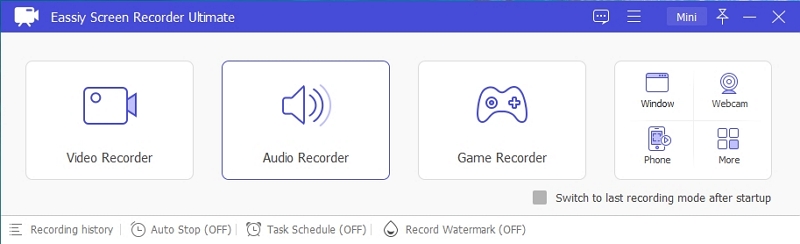
Step 1. Download and install Eassiy Screen Recorder Ultimate on your computer. Once launched, select the Audio Recorder feature from the main interface.
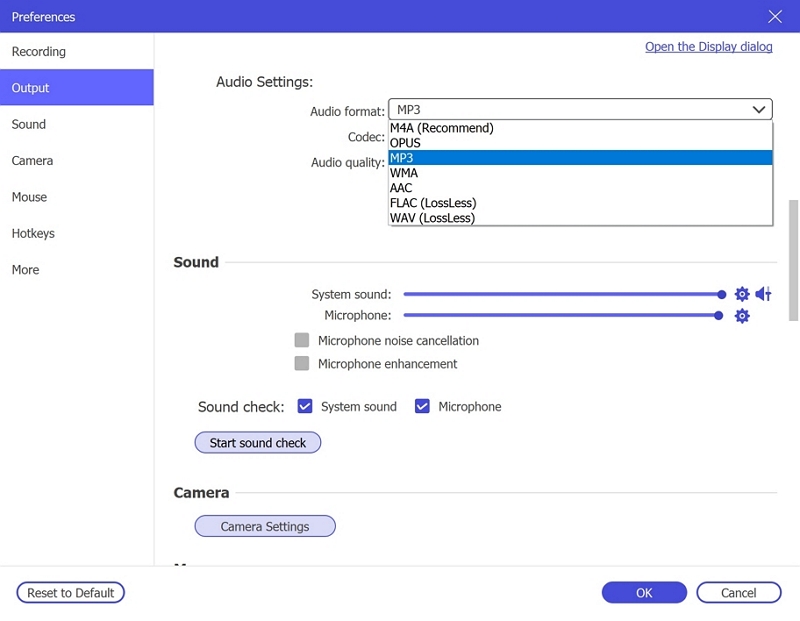
Step 2. Configure your audio recording settings. Enable System Sound to capture the live stream audio. Optionally enable the microphone if needed. Click Settings → Preferences → Output to select your desired audio format (e.g., MP3, AAC, FLAC) and set the quality to High. Click OK to save.
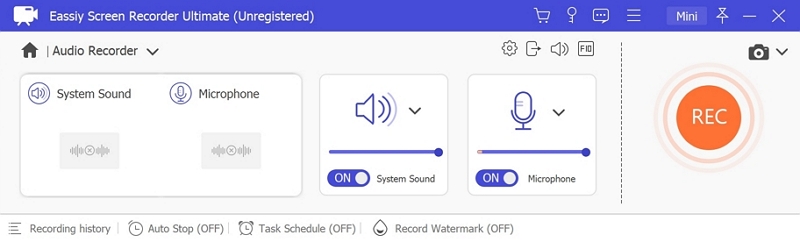
Step 3. Play the audio stream you wish to record, then click REC to begin recording. Use the toolbar to adjust volume, pause, or stop at any time. To automate the process, click the clock icon to set a recording duration in advance.
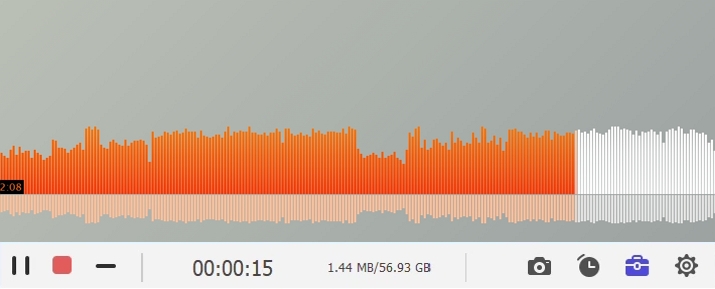
Step 4. When finished, click Stop and preview your recording. Save it in your preferred format to your computer for offline listening anytime.
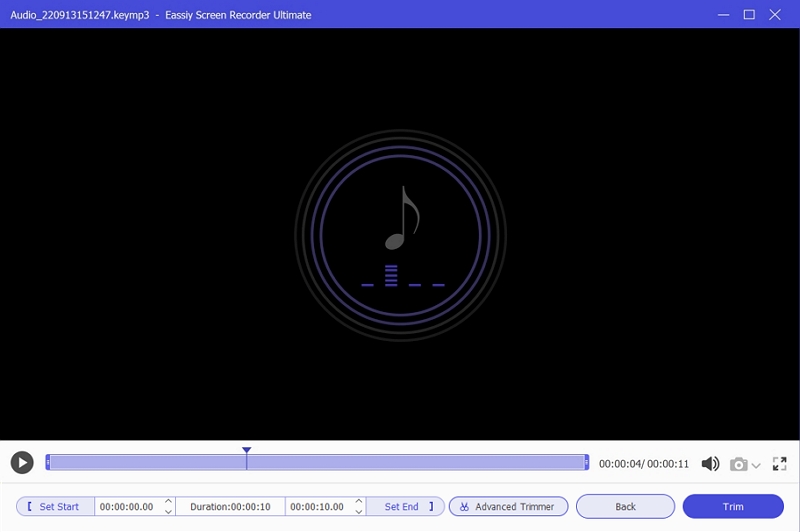
Step 5. Open your recordings folder. Here, you'll find every track neatly saved. You can transfer them to other devices easily from here.
Alternative to Eassiy Screen Recorder
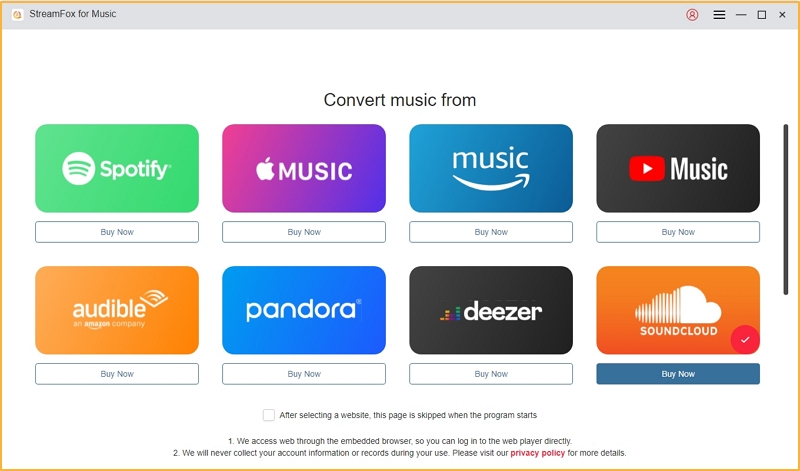
Eassiy Screen Recorder Ultimate is used for recording Spotify music into local files. As a best alternative, StreamFox for Music allows you to directly save Spotify songs as MP3, FLAC, or WAV files. Whether it is individual tracks, playlists, or albums, you only need to log in with your free Spotify account through StreamFox’s built-in Spotify interface, then select the music you want to export. Before exporting, you can customize settings such as audio quality (up to 320 kbps), output location (including your connected Android device), and output format. After conversion, your local files will retain complete metadata, such as album artwork and song titles.
How to Transfer Eassiy Screen Recorder Recordings to Android Device:
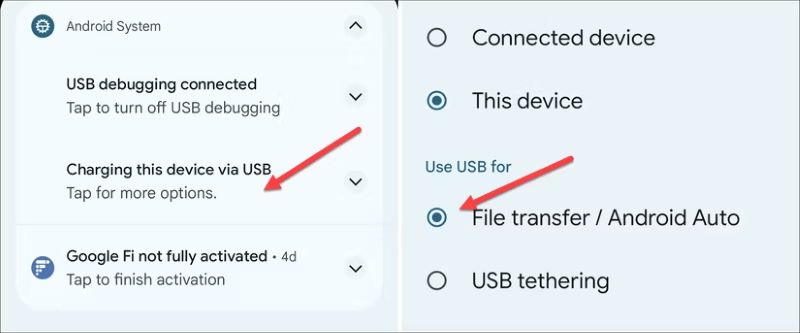
Step 1. Connect your Android device to your computer using a compatible cable. Pull down the notification shade on your phone and switch the USB option to File Transfer (or MTP mode).
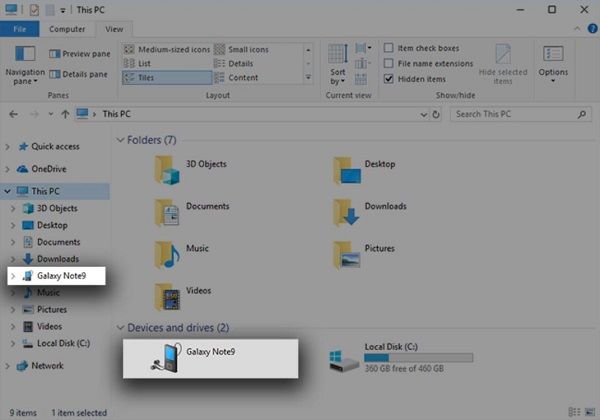
Step 2. On your computer, open File Explorer. Your phone will appear under This PC as a connected device. Open your phone's storage, choose Internal or SD card, and leave the folder window open.
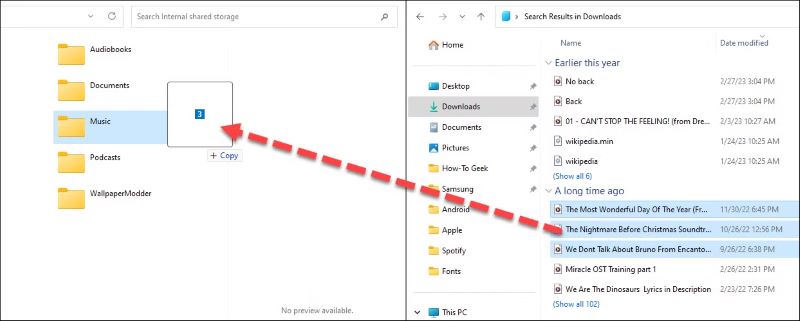
Step 3. Side-by-side, open another File Explorer window to your Eassiy Screen Recorder recordings folder. Drag and drop the audio files into your phone's Music folder (or any other folder). Eject the device once the transfer is complete.
| Audio Quality | Audio Format | Pros | Cons |
|---|---|---|---|
| High-quality capture from the original stream — no upscaling beyond source quality | MP3, AAC, FLAC, and more |
|
|
Conclusion
The comparison speaks for itself: Eassiy Screen Recorder Ultimate outshines every Android-based music downloader tool. Why? Because Android tools don't download music directly from the source — the result is inconsistent audio quality and frequent error codes.
Eassiy Screen Recorder Ultimate changes the game entirely. It simplifies the audio capture process. You can record your favorite playlists on your computer, preserve every bit of quality, and transfer them to any device effortlessly — no premium subscription required.