Help Center

Updated on 2026-05-14
views
5min read
Recently, I logged into my Apple ID on a completely reset iPhone 14. During the initial setup, on the "Transfer Your Apps & Data" screen, I specifically chose "Don't Transfer Anything" so I could start fresh and just let iCloud sync my data in the background.
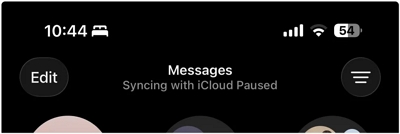
However, when I opened the device to check if my data had populated, I ran into a frustrating obstacle. Right at the top of the Messages app, a persistent warning appeared: "Syncing with iCloud Paused."
If you rely on your message history for work or personal life, seeing your texts held hostage in the cloud is incredibly stressful. I spent the next few hours testing different methods to force the sync. Some tricks worked, some completely bugged out, and one surprisingly simple solution ended up being the ultimate fix.
Here is exactly why this happens, the exact steps I took, and other verified solutions you can try to get your messages syncing again.
Why is Syncing with iCloud Paused on Messages?
After actively troubleshooting this issue on my own devices, I realized that iCloud syncing doesn't just pause randomly. It is usually triggered by a combination of the following factors:
Insufficient iCloud Storage: This is the most common culprit. Messages (especially those with image and video attachments) take up a massive amount of space. If your iCloud is full, Apple automatically halts the sync.
The Sheer Amount of Messages: If you are transferring gigabytes of message history to a new (or older) device, iOS will pause the sync to manage device resources and prevent overheating.
Network Instability: iCloud requires a rock-solid Wi-Fi connection to download large encrypted message packets.
It Simply Needs Time: Even when your network is perfect and your storage is empty, Apple's servers sometimes throttle the download. In many cases, iOS is just processing the data in the background.
How I Fixed It (What I Suggest You Try First)
When troubleshooting iOS issues, I always look for the most logical bottleneck. Here is the exact order of steps I took, and what I recommend you do first.
1. Toggle Messages Sync Off and On (The Classic Jumpstart)
This must be a useful trick for most people to "jumpstart" a frozen iCloud connection. When I tried this, it didn't work for me because the "Use on this iPhone" toggle simply got stuck and wouldn't let me tap it. However, if your settings app isn't glitching out, this is highly recommended.
How to do it:
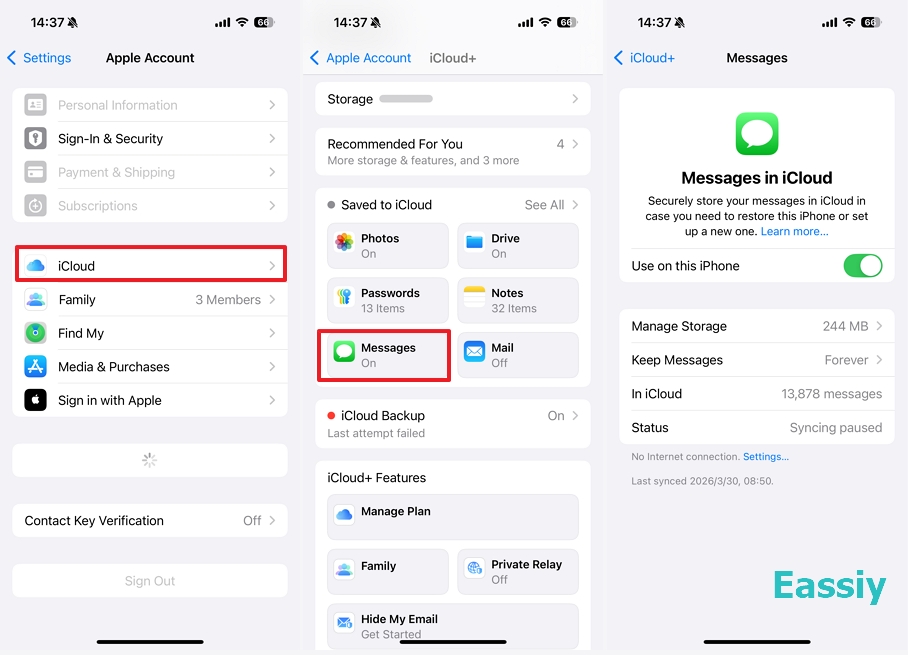
- Head to Settings > [Your Name] > iCloud > Messages.
- Turn off Use on this iPhone, and tap Disable and Download Messages if the prompt is shown.
- Restart your iPhone.
- Return to the Messages iCloud settings and enable Use on this iPhone again.
2. Check and Clean Up iCloud Storage
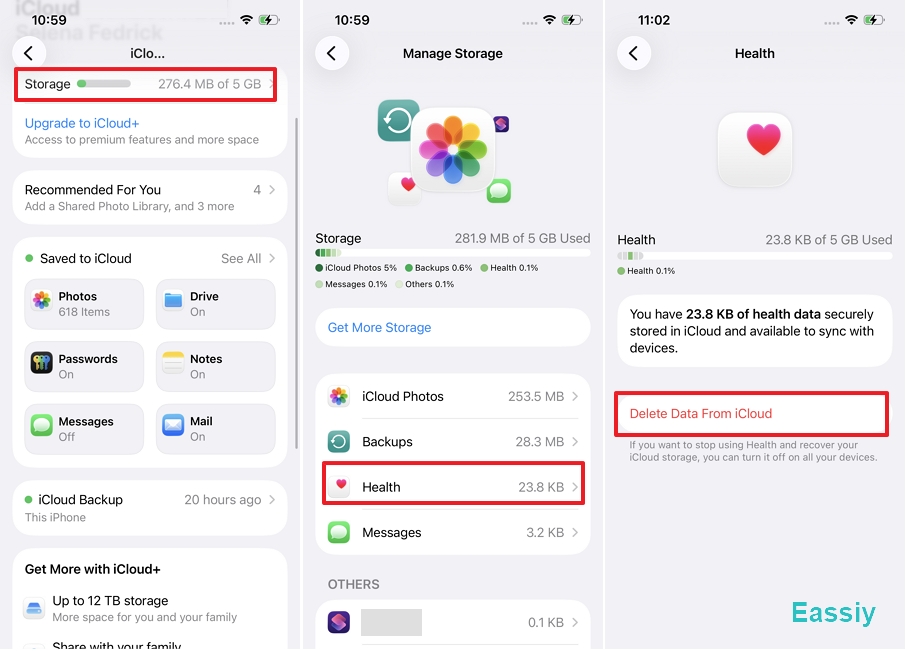
When I checked my iCloud account on iCloud.com, I realized I had way too many photos and videos eating up my quota. Even though cleaning it up didn't force the sync to resume immediately, I think this is extremely helpful. If you have no space, the sync will eventually fail anyway.
How to fix it:
- Go to Settings > [Your Name] > iCloud > Storage to review your available space.
- Try to delete duplicated photos, large videos, or old device backups here.
If you have nothing left to delete, choose Change Storage Plan to add more capacity to your account.
3. Temporarily Stop Syncing Photos on iPhone
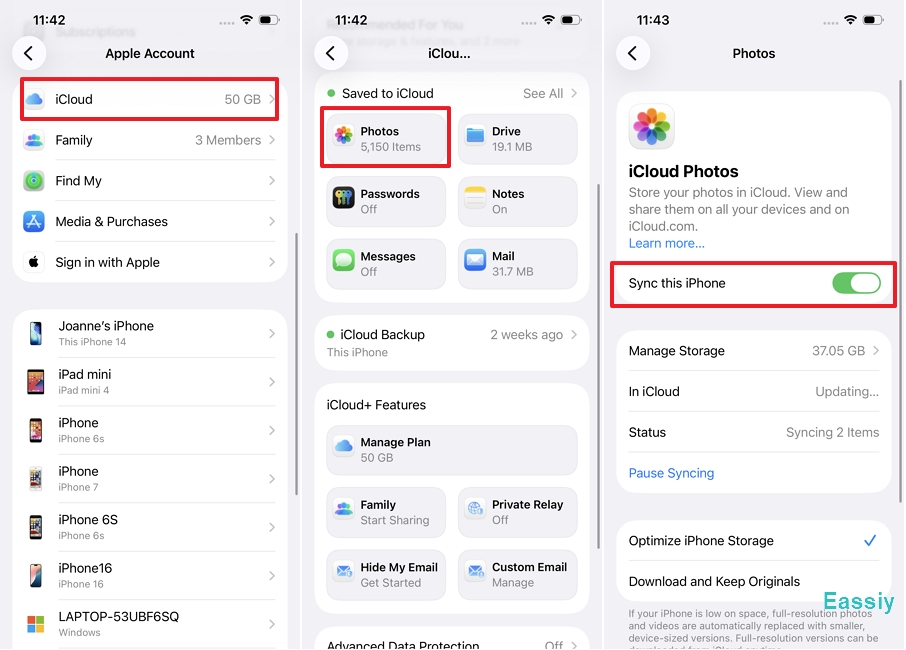
Considering that my photos and videos take up a massive amount of data, I decided to temporarily stop syncing them on my iPhone 14. This trick forces the iPhone to focus its bandwidth and prioritize syncing the messages first. Once my messages successfully synced later on, I simply went back and turned iCloud Photos back on.
How to do it:
- Open Settings.
- Tap [Your Name] at the top.
- Tap iCloud.
- Tap Photos.
- Turn off Sync this [Device].
4. Restart the Messages App and the iPhone
It sounds like a cliché IT fix, but a fresh boot clears temporary cache files that might be stalling the download. I force-closed the Messages app and restarted my iPhone 14. This didn't work immediately for me either, but it is a necessary step to clear system memory and re-establish the connection to Apple's servers.
How to do it:
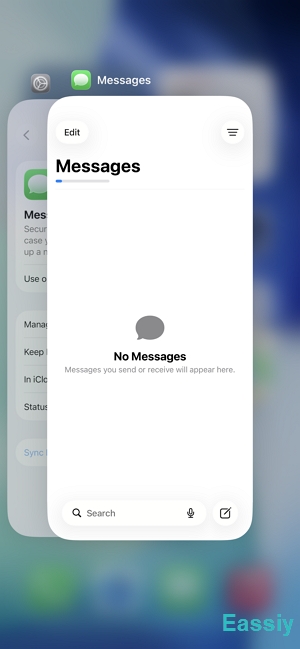
- Swipe up from the bottom of your screen and pause in the middle to open the App Switcher.
- Swipe left or right to find the Messages app, then swipe up on its preview window to force close it.
- Press and hold the Side button and either Volume button until the power-off slider appears.
- Drag the slider to turn off your iPhone. Wait about 30 seconds, then press and hold the Side button until you see the Apple logo to turn it back on.
5. Simply Wait
Sometimes, doing nothing is the hardest but most effective step. During the waiting period, I checked my network to ensure nothing was wrong.
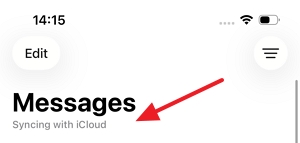
Then, I just left the phone alone. After about 2 hours, the messages shows "Syncing with iCloud", and they are automatically resynced. If you know your Wi-Fi is good and you have enough storage, just give iCloud the time it needs to process the queue.
Other Solutions That Might Help
If you have tried my steps above and your messages are still permanently paused after several hours, here are a few other system-level fixes backed by Apple's official support guidelines:
1. Turn Off Low Power Mode
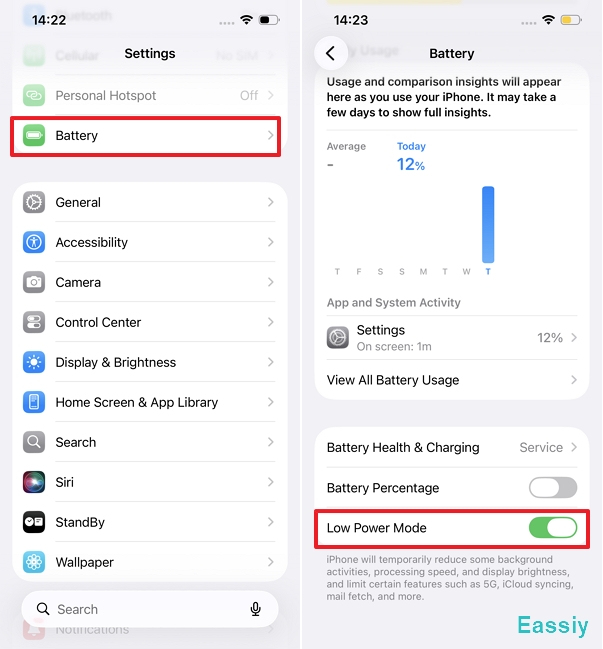
According to Apple Support, when an iPhone is in Low Power Mode, background tasks like iCloud syncing (for both Photos and Messages) are automatically paused to save battery.
How to do it: Go to Settings > Battery and turn off Low Power Mode. Alternatively, just plug your iPhone into a charger, as Low Power Mode automatically turns off when the battery reaches 80%.
2. Connect to Wi-Fi and Plug into Power
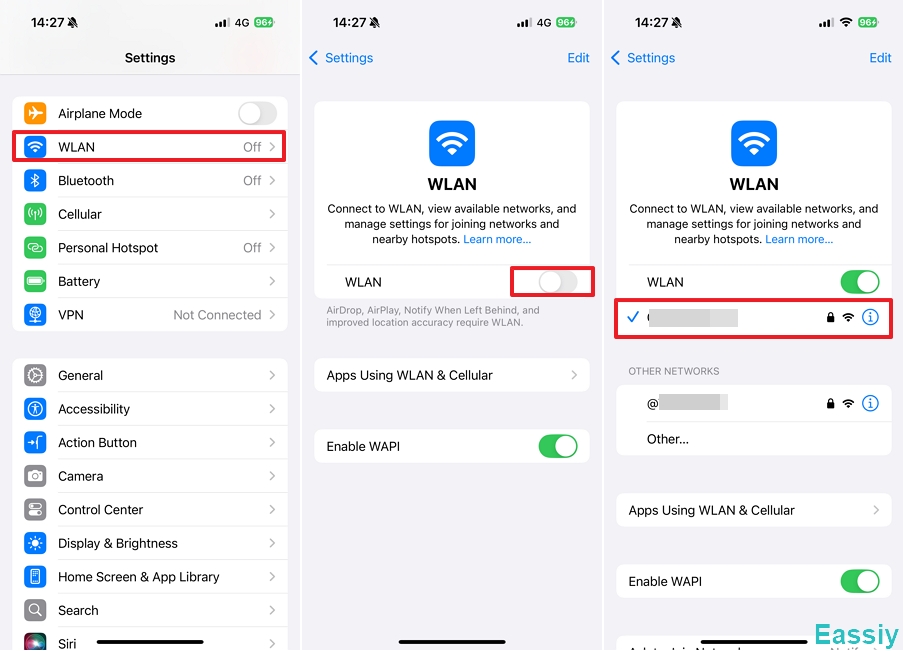
Apple's iOS is designed to be extremely conservative with your cellular data and battery life. If you have a massive amount of messages to sync, iOS will refuse to do it over cellular data or while running purely on battery power.
How to do it: Plug your iPhone directly into a wall charger and ensure you are connected to a stable Wi-Fi network (not a personal hotspot). Leave the phone locked; iCloud syncs heavy data most efficiently when the device is idle and charging.
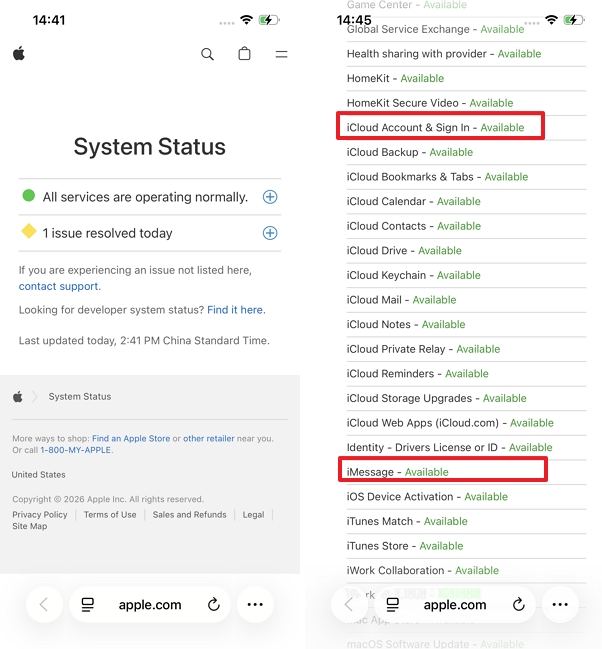
3. Check Apple's System Status
Sometimes the issue isn't with your phone at all. iCloud servers occasionally experience outages or maintenance downtime.
How to do it: Visit Apple’s official System Status page on your browser. Look for "iCloud Account & Sign In" or "iMessage". If the dot next to them is yellow or red, Apple is experiencing server issues, and you just have to wait until they fix it.
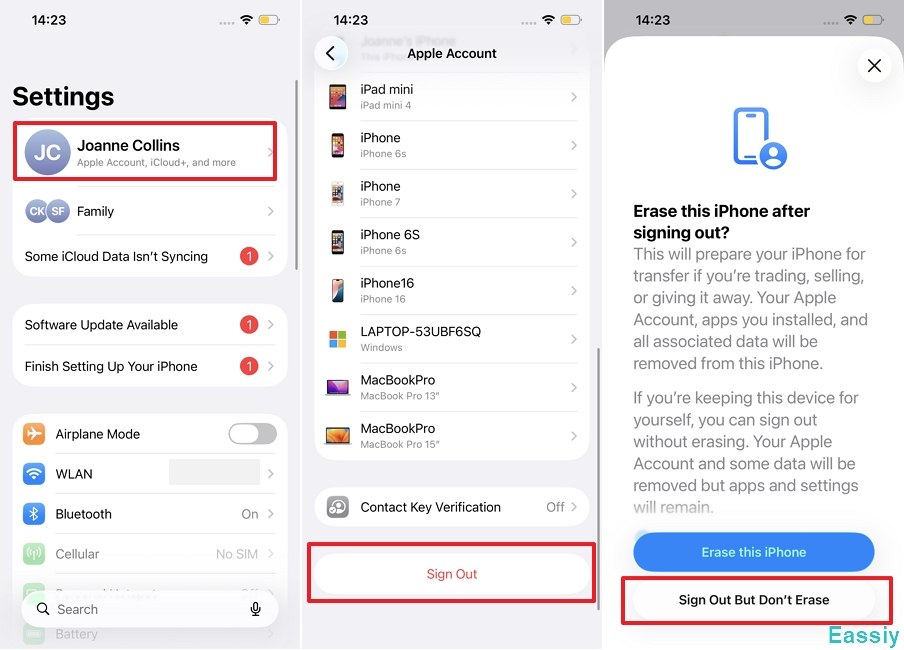
4. Sign Out and Sign Back Into Your Apple ID
If the sync is truly stuck (similar to the toggle glitch I experienced), forcing a fresh authentication token with Apple's servers can clear the bug.
How to do it:Go to Settings > [Your Name], scroll to the very bottom, and tap Sign Out. You will need to enter your Apple ID password. Once signed out, restart your phone, go back to Settings, and sign back in. Note: Ensure you know your password before attempting this.
Final Thoughts
Dealing with a paused iCloud sync on iPhone messages is definitely stressful, especially when you are waiting for important texts to appear. But as my experience taught me, it is rarely a permanent issue—it is usually just a digital traffic jam. Clear some cloud storage, temporarily pause your photos to free up bandwidth, and above all, be patient. Plug your iPhone in, connect to Wi-Fi, and let Apple's servers catch up. Your messages will be there before you know it.