Help Center

Updated on 2026-07-07
views
5min read
A second-hand iPhone or iPad should be ready to use right away. But sometimes, the setup process comes to a sudden stop, stuck on a “Remote Management” screen that blocks access to the device entirely. You may also run into this situation after leaving a company, only to find that your iPhone is still managed and controlled by your former organization. It can be a stressful and confusing experience, especially when removing the lock appears difficult without risking data loss or privacy violations.
In this detailed guide, you will learn exactly what Remote Management on an iPhone or iPad is and how Mobile Device Management (MDM) works. We will explain why this screen appears on your device, whether an administrator can monitor your personal data, and how to fix it. Backed by real testing, this article highlights safe solutions to remove Remote Management limitations and help you regain full iPhone access.
Key Takeaways
- It is an organizational control tool: Remote Management (MDM) allows companies or schools to centrally control device settings, enforce security policies, and restrict apps. It requires organizational login credentials, not your personal Apple ID.
- Your personal data remains private: While administrators can restrict features or wipe the device, Apple’s privacy architecture prevents them from reading your personal texts, viewing your photos, or accessing your personal passwords.
- A factory reset will not remove it: Because the MDM enrollment is linked directly to Apple's servers, a standard factory reset will simply trigger the lock again.
- You have two main removal options: To permanently regain access, you must either ask the original IT administrator to release the device from their server, or utilize professional MDM removal software to bypass the restriction locally.
What Is Remote Management on iPhone or iPad
Remote Management on an iPhone or iPad is Apple's implementation of Mobile Device Management (MDM). This protocol allows organizations to centrally control Apple devices provided for work or educational purposes. Through MDM, IT administrators can remotely manage device settings, deploy or uninstall apps, enforce security policies, and regulate access to internal organizational resources.
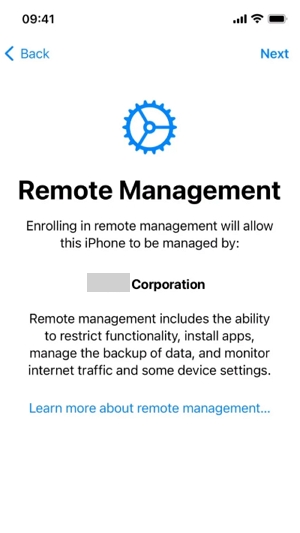
Simply put, seeing the “Remote Management” screen on an iPhone or iPad indicates that you are not the primary administrator of the device. A Configuration Profile installed on the phone grants a company or school the authority to manage selected features from a distance.
This setup commonly restricts certain settings, locks specific apps in place, and forces the iOS setup process to request organizational credentials before you can use the phone.
What Are the Remote Management Username and Password?
Seeing a login screen often leads users to believe it requires their personal Apple ID. This is not the case.
The login details required on the “Remote Management” screen are organizational credentials created and managed by a company or institution. These credentials are issued directly by an IT department through management platforms like Jamf, Kandji, or Apple Business Manager.
- For current employees/students: Your IT department is responsible for providing these login details or remotely removing the device from their MDM server.
- For second-hand buyers: The situation is much more complicated. Because these credentials are tied to the original company or school, they cannot be bypassed or recovered through standard Apple ID recovery processes. This is why many used iPhones with active MDM locks are practically impossible to activate without the original owner’s assistance.
How to Check if Your iPhone or iPad Is Remotely Managed
You can identify an active Remote Management lock or an MDM profile on your iPhone your iPad using two common scenarios.
Scenario A: You See the “Remote Management” Screen During Setup
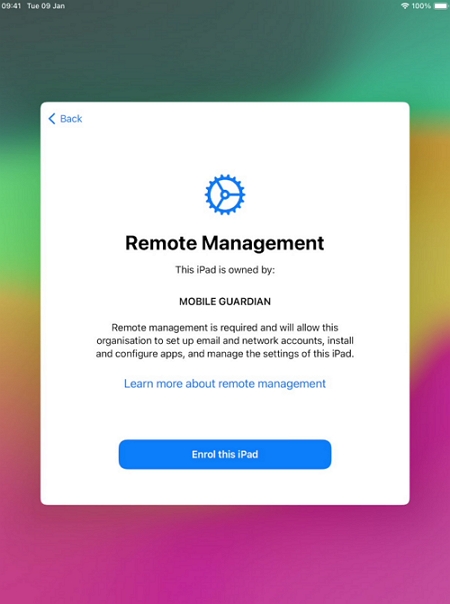
The most obvious sign is getting stuck on the Remote Management login page while initially setting up the iPhone or iPad. This usually happens after a factory reset, a complete data erasure, or when booting up a second-hand iPhone for the first time.
At this point, the device requires server-side authentication from the organization to move forward. Without valid credentials, activation cannot be completed.
Scenario B: Check Through Settings
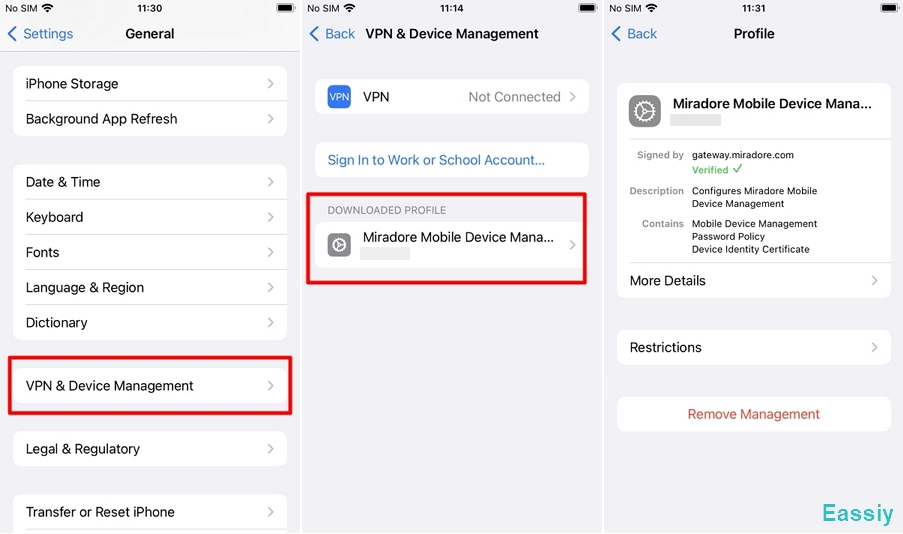
If the device is already activated and you can access the home screen, you can manually check if a management profile is silently running in the background.
- Open the Settings app.
- Tap General.
- Scroll down and select VPN & Device Management.
If you see a section labeled Mobile Device Management, Configuration Profile, or the name of a specific organization, your iPhone or iPad is remotely managed. Tapping the profile will reveal exactly which restrictions and permissions the organization controls.
Note: If this section is entirely missing, your iPhone does not have an active MDM profile installed.
For more details on how Apple handles these profiles, you can review the official Apple Support guide on installing and removing configuration profiles.
What Can the Administrator Actually Do with Remote Management
One of the biggest concerns users have after discovering an MDM profile is their personal privacy. It is natural to worry that a former employer or school can track everything you do on the iPhone or iPad. Fortunately, Apple places strict, system-level restrictions on the level of access MDM administrators actually have.
What the Administrator CAN Do:
With MDM in place, the administrator can manage device features to protect corporate data. Depending on their specific policies, they can:
- Restrict app installations or block specific apps.
- Enforce strict passcode and security requirements.
- Configure company Wi-Fi, VPNs, and corporate email accounts.
- Remotely lock the iPhone.
- Erase or wipe the device entirely if it is reported lost or stolen.
- Install or remove work-related apps.
- Track the device’s approximate location (typically only on strictly "supervised" corporate devices).
What the Administrator CANNOT Do:
Despite these management capabilities, Apple’s core privacy architecture prevents administrators from accessing your private, personal content. An MDM administrator cannot:
- Read your personal iMessages or SMS conversations.
- View your private photo library.
- Listen to your phone calls or access microphone recordings.
- Access saved passwords stored in your iCloud Keychain.
- See your personal Apple ID password.
- Monitor personal app activity (like WhatsApp, banking apps, or private emails) unless those specific apps are managed by the organization.
You can verify these privacy limitations directly on Apple's official MDM Privacy documentation.
How to Remove Remote Management on iPhone or iPad
The method for removing Remote Management varies drastically based on whether you can contact the original organization, have the management PIN, or need to bypass it entirely. Below are the most effective solutions.
Method 1: The Official Way (Contact the IT Administrator)
For devices previously owned by a school or workplace, the absolute best approach is to reach out to the IT support team for an official MDM removal. By providing them with the iPhone’s serial number, the administrator can permanently release the device from their Apple Business Manager or Apple School Manager portal.
Once officially released on the server side, simply restarting or reactivating the iPhone will permanently eliminate the Remote Management screen.
Method 2: Remove MDM Profile in Settings
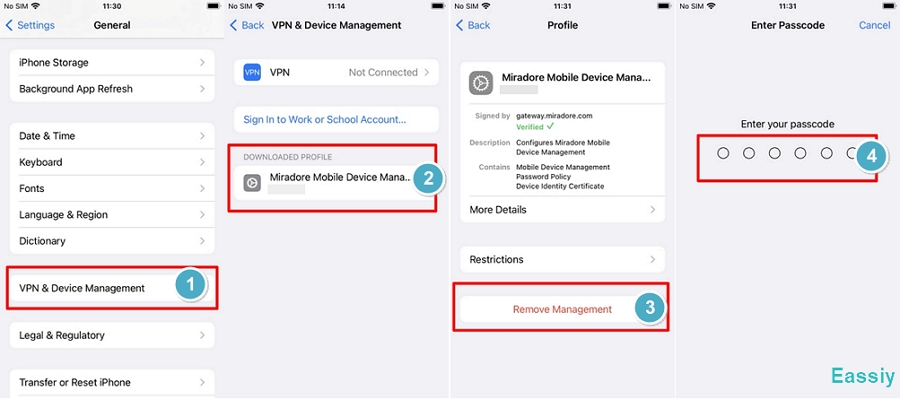
If the iPhone is already activated, successfully on the home screen, and you have been given the management PIN by the administrator, you can remove the profile locally.
- Open Settings.
- Go to General.
- Tap VPN & Device Management.
- Select the installed MDM profile.
- Tap Remove Management.
- Enter the management password or your device passcode when prompted.
After successful verification, the iPhone will delete the configuration profile and lift all related restrictions.
Method 3: Bypass Remote Management via Professional Software
Many second-hand iPhone or iPad buyers run into a serious roadblock where the original owner is unreachable, the company is unresponsive, or the business has shut down entirely. In these cases, the Remote Management setup screen makes the iPhone completely unusable.
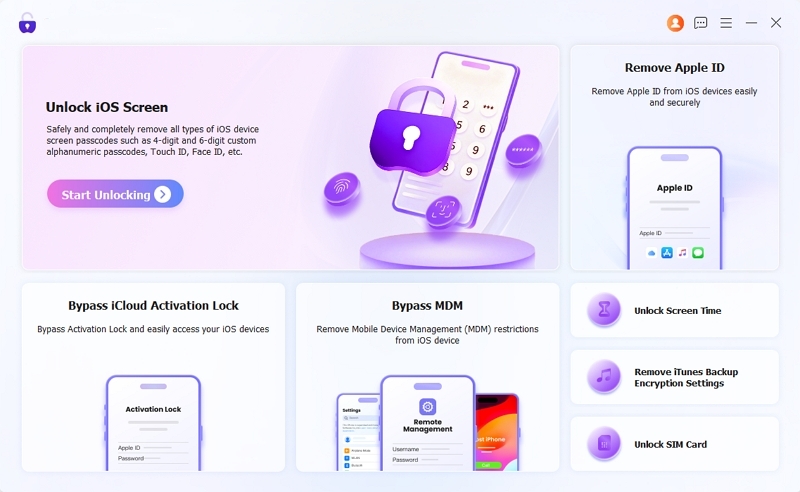
This is where professional MDM bypass software like Eassiy iPhone Access is heavily utilized. This dedicated tool can easily remove restrictive MDM profiles and bypass the Remote Management setup screen on corporate or school iPads and iPhones—without requiring any institutional login credentials.
It features a highly intuitive interface that allows users to regain secure, unrestricted control of their devices in minutes, all while keeping internal data 100% intact throughout the bypass process.
Click the download button below to install the software. Besides MDM removal, Eassiy can safely unlock iOS screens, remove Screen Time Passcode, and bypass iCloud Activation Locks quickly and securely.
Frequently Asked Questions
Q1: Does a factory reset remove Remote Management?
No. A factory reset does not remove Remote Management if the iPhone is officially enrolled in an organization’s system. If the device’s serial number is registered with Apple Business/School Manager, the iPhone will check Apple’s activation servers after a reboot and immediately force the Remote Management screen back onto the device during setup.
Q2: Is bypassing Remote Management illegal?
It depends entirely on ownership. If the device legally belongs to an organization, attempting to bypass MDM without permission violates company policy. However, if you legally purchased a second-hand device that the previous company simply forgot to unenroll, bypassing the lock to use the hardware you own is generally considered acceptable, though unauthorized bypass methods are often temporary (surviving until the next factory reset).
Q3: Does MDM bypass software require jailbreaking my iPhone?
No. Reliable, professional MDM bypass tools do not require you to jailbreak your iPhone. They work by safely circumventing the local configuration profile setup without compromising the core security architecture of iOS.
Q4: Will the Remote Management screen return if I update to the latest iOS?
In most cases, standard Over-The-Air (OTA) iOS updates will not re-trigger the Remote Management screen once the device is already activated and locally unrestricted. However, if the device remains officially enrolled in the corporate MDM on Apple's servers, performing a full factory reset or a computer-based firmware restore will trigger the Remote Management lock again during the initial setup phase.
To Conclude
Remote Management (MDM) is a powerful way designed to give organizations centralized control over Apple devices issued to employees or students. It allows IT departments to enforce security policies, manage app access, and protect sensitive organizational data remotely.
If you are dealing with a managed iPhone or iPad, the correct approach depends entirely on ownership. If the device was issued by your current company or school, always follow organizational policies and request official removal through your IT administrator.
However, if you legally purchased a second-hand iPhone and find yourself locked out by an unresponsive organization, utilizing a professional tool like Eassiy iPhone Access is the most practical way to bypass the setup screen and finally use the device you paid for.