Help Center

Updated on 2026-07-07
views
5min read
You might be trying to factory reset your iPhone before selling or fixing it, or perhaps you are deliberately attempting to erase your iPhone simply to bypass Screen Time restriction. Either way, everything comes to a sudden stop. The device demands a Screen Time passcode that you do not have, preventing the reset entirely. At this point, most users start frantically searching for a workaround.
Stop guessing the passcode. Multiple failed attempts will only trigger longer lockout timers, making the situation much more frustrating. This guide covers the best lab-tested methods to bypass this roadblock—including how to remove the Screen Time passcode without losing your data, and how to force-erase the iPhone without Screen Time passcode if necessary. All methods are fully verified on modern iPhone models and updated for Apple’s latest security changes.
Why You Can't Erase an iPhone Using "Transfer or Reset iPhone"?
Apple strictly restricts factory resets on iPhones with active Screen Time settings until the correct Screen Time passcode is entered. This security measure is implemented to maintain control over parental restrictions and prevent unauthorized users from bypassing screen limits by simply wiping the device.
Here’s what happens when we attempt a standard reset on an iPhone 14 running iOS 26.4.2:
1. You navigate to Settings > General > Transfer or Reset iPhone.
2. You tap Erase All Content and Settings.
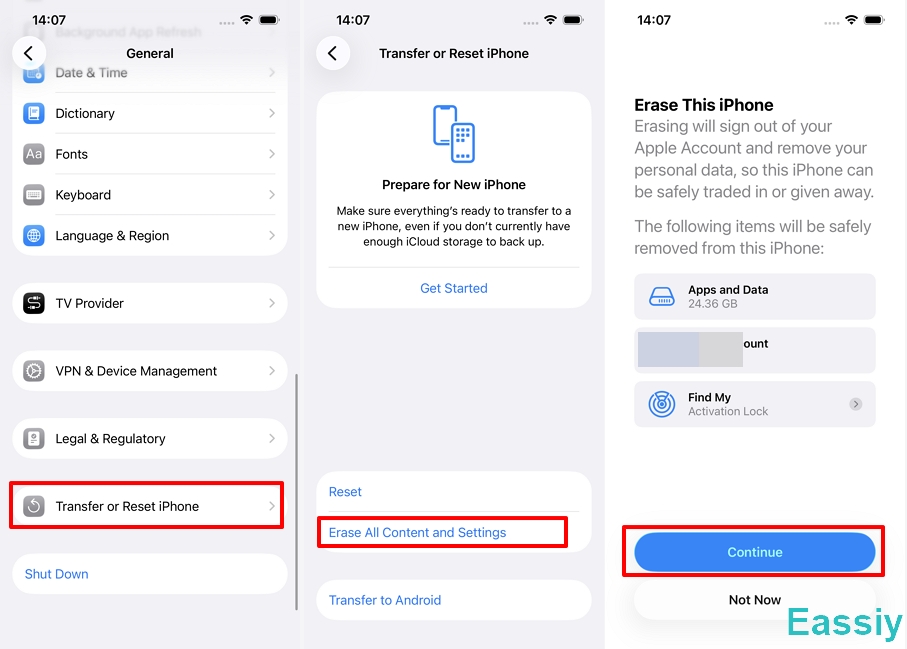
3. The iOS system prompts you to enter your standard iPhone lock screen passcode.
4. Then, the system acts as a roadblock, prompting you to enter your Screen Time Passcode before the erase process can actually begin.
Without the correct 4-digit Screen Time code, the reset simply cannot continue.
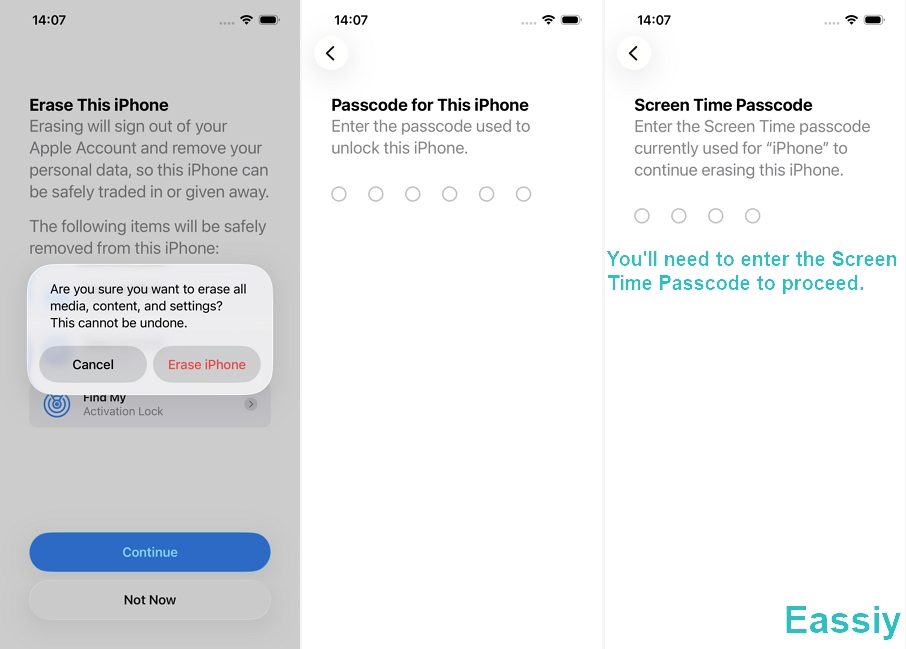
Why does this happen? This protection was intentionally designed into Apple's ecosystem. If anyone could simply reset an iPhone from the Settings app without the Screen Time passcode, it would create a massive loophole in Apple’s parental controls. While excellent for family safety, it creates a major headache for owners who have simply forgotten their Screen Time passcode.
The First Check: Can You Just Reset the Screen Time Passcode?
Prior to erasing your iPhone completely, you should check whether Apple's built-in Screen Time Passcode recovery feature allows you to turn off the Screen Time Passcode with your Apple ID credentials. This is the best approach if you want to recover access quickly.
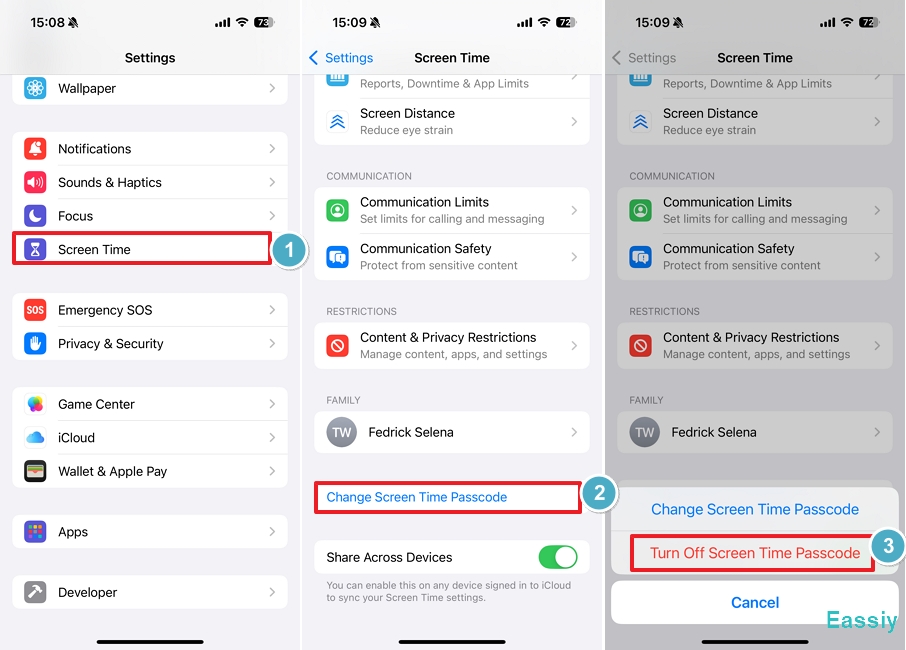
Here’s how we turn off the Screen Time passcode directly on our iPhone 13 running iOS 18.5 using the Apple ID credentials:
1. Open the Settings app on your iPhone and tap Screen Time.
2. Tap Change Screen Time Passcode, then select Turn Off Screen Time Passcode from the pop-up menu.
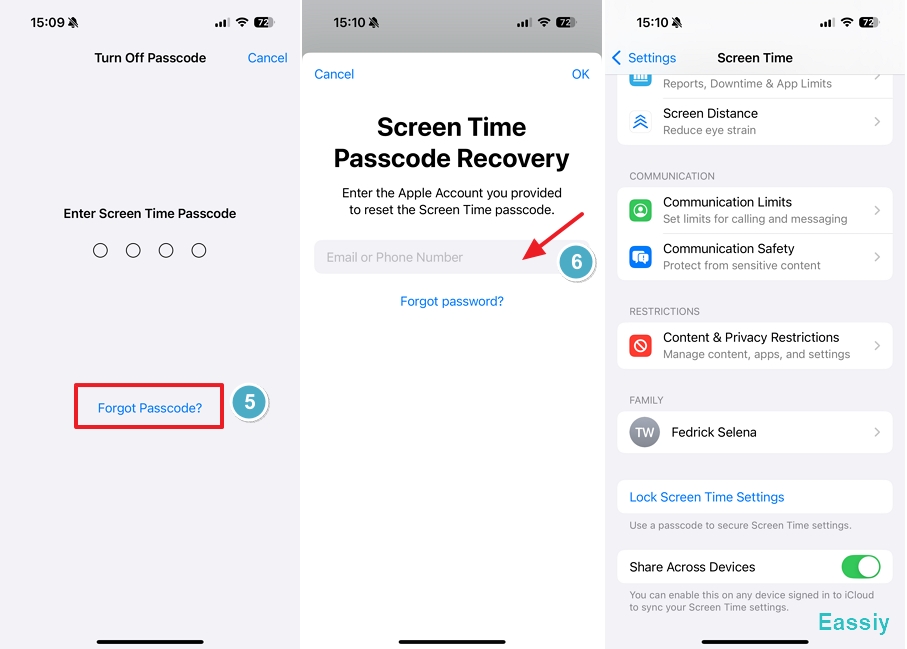
3. On the passcode entry screen, tap Forgot Passcode?
4. Enter the Apple ID and password that were originally used to set up the Screen Time passcode, then tap OK.
5. If the information is entered correctly, the Screen Time passcode will be removed from your iPhone. After that, the Change Screen Time Passcode option will no longer appear in Screen Time settings.
You will no longer be required to enter the Screen Time passcode during the iPhone erase process.
Note: This recovery method only works if Apple ID recovery was enabled during the initial Screen Time setup. For more details, you can reference the official Apple Support guide on resetting Screen Time passcodes.
The Best Alternative: Remove Screen Time Passcode WITHOUT Erasing
Many users only want to erase their iPhone because they think it is the only way to get rid of a forgotten Screen Time restriction. If your end goal is just to bypass the restriction, or if you lack your Apple ID credentials and simply do not want to lose your data, you do not need to erase your phone.
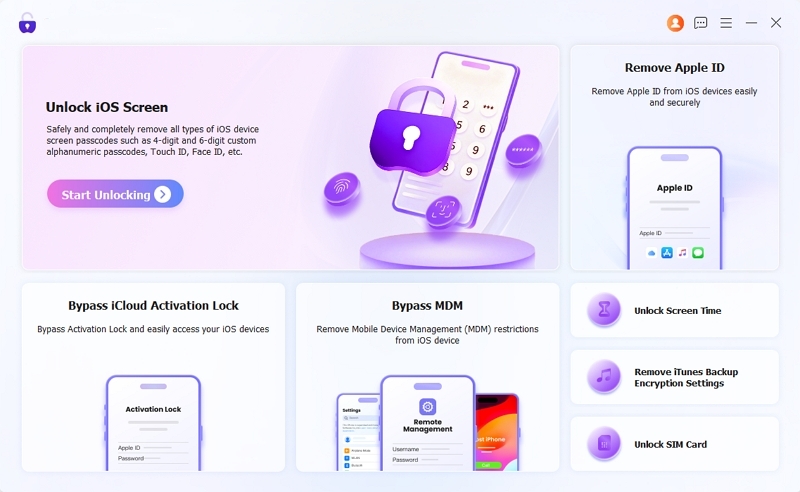
You can use a dedicated iOS utility like Eassiy iPhone Access. It securely removes the Screen Time restriction without requiring Apple ID credentials. Thanks to an intuitive interface, Eassiy enables users with zero technical skills to remove the Screen Time passcode in minutes, completely avoiding a destructive factory reset.
Here're the steps we used to remove Screen Time passcode on an iPhone 14 running iOS 26:
1. Download and install the Eassiy iPhone Access software on your computer.
2. Connect your iPhone to the computer using a USB cable, ans select the "Unlock Screen Time" mode on the main dashboard.
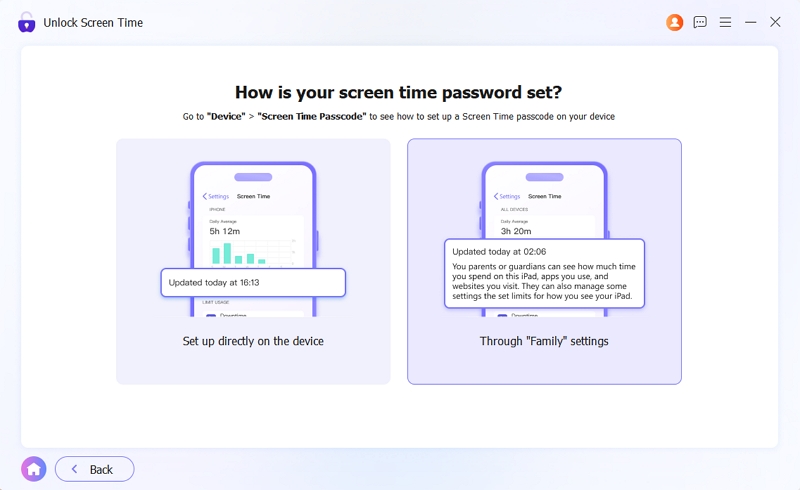
3. Follow the brief on-screen instructions and let the software work its magic.
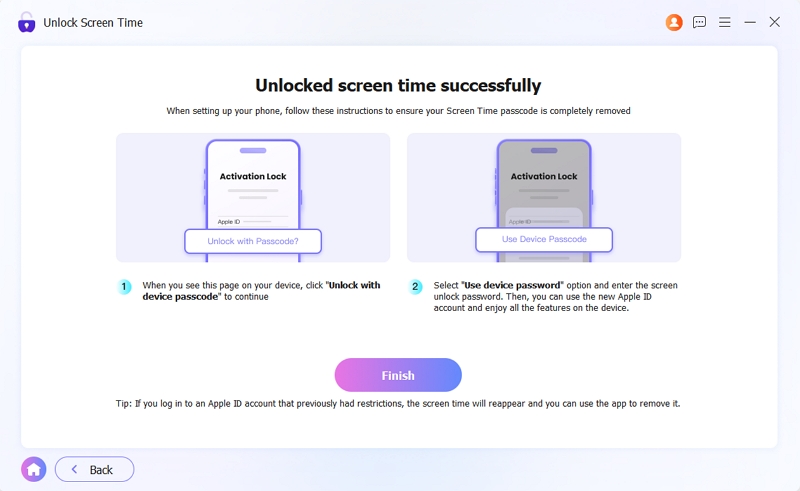
4. Once the Screen Time passcode has been removed, make sure to follow the on-screen instructions to set up your iPhone properly.
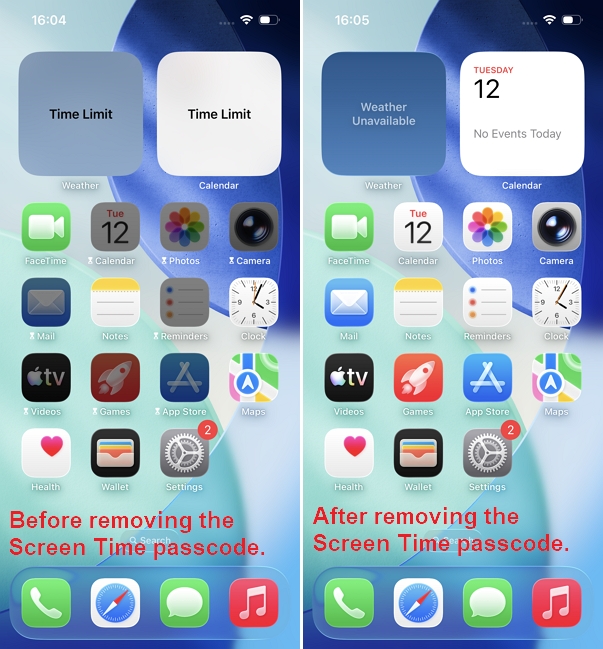
Unlike official Apple reset methods, this tool removes the Screen Time lock without deleting your data. Once the process is complete, you regain 100% access to your device. You can then continue using the iPhone normally, or navigate back to the Settings app to factory reset the device without any passcode prompts blocking your way.
How to Erase iPhone Without Screen Time Passcode (3 Apple Solutions)
If you genuinely need to wipe your iPhone entirely (e.g., you are selling it) and the methods above did not apply, you must bypass the local restriction by using Apple's remote or firmware-level wipe protocols.
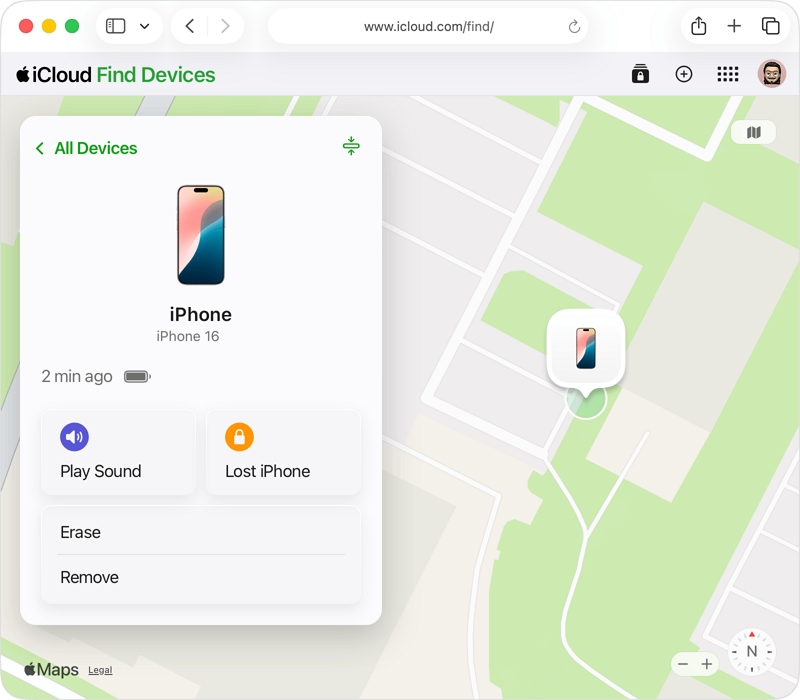
Solution 1: Erase iPhone from iCloud.com (Requires "Find My" to be ON)
Scenario: This method functions perfectly provided you know your Apple ID credentials and previously enabled "Find My iPhone." It allows you to log into iCloud through a web browser on any device (phone, tablet, or computer) and trigger a remote erase. The Screen Time PIN is bypassed entirely.
Here're the steps we used to erase an iPhone 14 using icloud.com:
- Open a web browser and log into iCloud Find Devices using your Apple ID.
- During our test, you'll need to complete the two-factor authentication (2FA) prompts.
- Click on All Devices at the top of the screen and select the locked iPhone you want to erase.
- Click Erase iPhone and follow the on-screen instructions to confirm the request.
- The moment the locked iPhone connects to a Wi-Fi or cellular network, Apple will execute the request, wiping all stored data, settings, and Screen Time protections.
Solution 2: Erase Remotely via the Find My App (Using Another Apple Device)
Scenario: This is highly convenient if you own a Mac, iPad, or secondary iPhone that is already logged into your Apple ID. It allows you to trigger a remote wipe without needing to log into iCloud via a web browser.
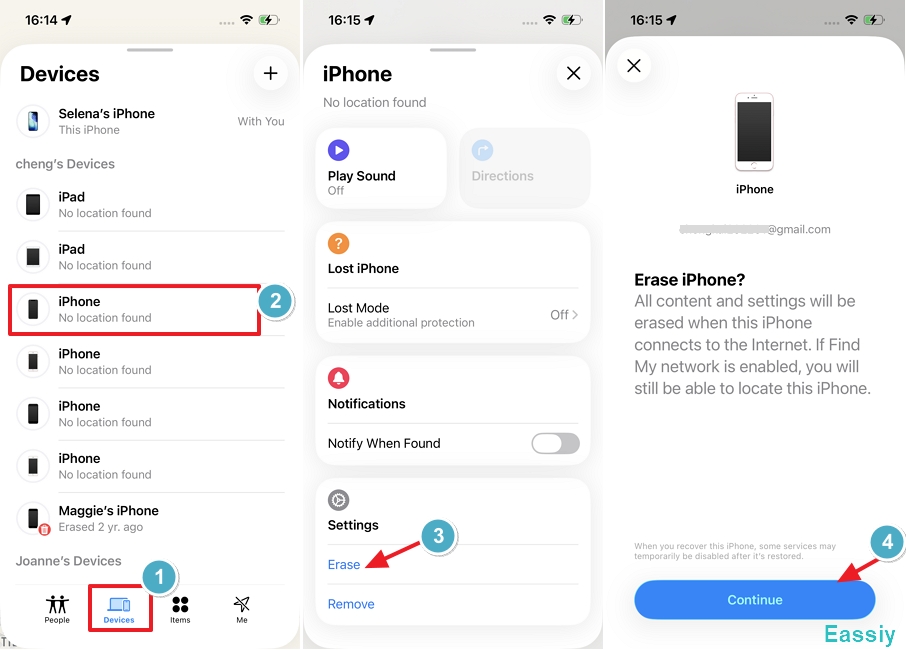
Here're the steps we used to erase an iPhone using Find My:
- Open the native Find My app on your secondary Apple device and navigate to the Devices tab.
- From the list, select the iPhone that is blocked by the Screen Time passcode.
- Scroll down the device information panel, tap Erase This Device, and confirm your choice.
- Once the target device is online, it will automatically delete all content and settings, bypassing the Screen Time lock.
Solution 3: Force Erase in Recovery Mode (If "Find My" is OFF)
Scenario: A computer-based hard reset is the ideal failsafe when the Find My is turned off on your device or iCloud options fail. This method does not rely on the iPhone's internet access, as the device is wiped by forcefully restoring the firmware via a computer.
Steps:
- Connect the iPhone to a Mac or Windows PC using a certified USB cable.
- Put the iPhone into Recovery Mode (For modern iPhones: Quickly press and release Volume Up, then Volume Down, then press and hold the Side Power Button until the Recovery Mode screen appears).
- Open Finder (on Mac) or iTunes/Apple Devices App (on Windows). Click on the iPhone icon when it appears.
- A prompt will appear stating there is a problem with the iPhone. Click Restore.
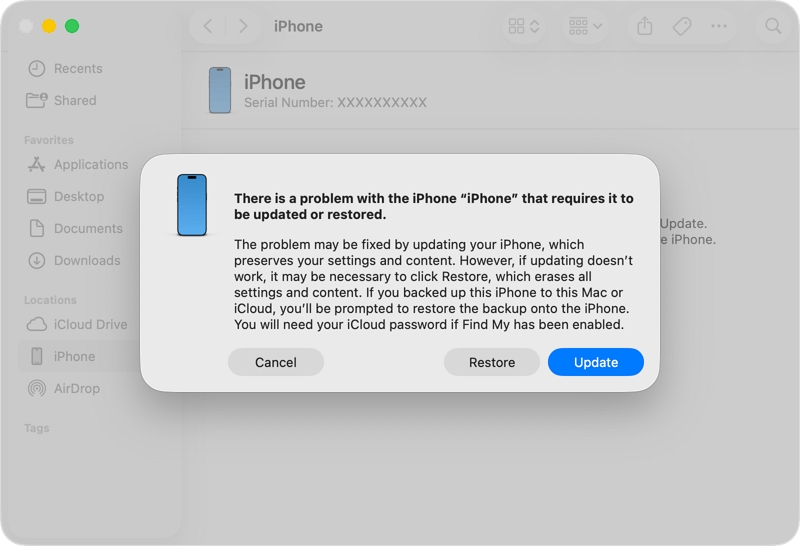
Note: This carries out a full factory reset by installing iOS from scratch, permanently deleting all stored data, custom settings, and Screen Time restrictions. (See Apple Support's official Recovery Mode instructions for older device button combinations).
Quick Comparison of the Erasure & Bypass Methods
Every method works under different conditions. The table below helps you quickly compare all four options based on requirements, data loss, and difficulty level, so you can pick the most suitable fix.
| Method | Requirements | Data Loss | Difficulty Level |
|---|---|---|---|
| Method 1: Eassiy iPhone Access | Mac/PC + Eassiy software. No Apple ID required | No (Removes Screen Time passcode only; you can then manually erase your iPhone if desired) | Very Easy |
| Method 2: iCloud.com | Apple ID + password, Find My enabled, 2FA access, Web browser | Yes (Complete wipe) | Easy |
| Method 3: Find My App | Secondary Apple device logged into the same Apple ID, Find My enabled | Yes (Complete wipe) | Moderate |
| Method 4: Recovery Mode | Mac/PC + USB cable. No Apple ID or Find My required | Yes (Complete wipe / Firmware restore) | Moderate |
Frequently Asked Questions
Q1: Will tapping "Reset All Settings" bypass the Screen Time passcode?
No, this will not work. Apple strictly enforces Screen Time verification for the “Reset All Settings” feature as well. Entering the correct Screen Time passcode is mandatory; otherwise, the reset option will remain disabled.
Q2: If I restore my iPhone from an old backup after erasing it, will the Screen Time passcode come back?
Yes. Backups created while Screen Time was turned on will include those restrictions and the original PIN. If you restore that backup, the passcode will reappear on your newly erased device. To prevent this, you must either set the iPhone up as a "New Device" or use a tool to remove the Screen Time restriction before you create your final backup.
To Conclude
A lost Screen Time passcode can quickly turn a simple iPhone reset into a frustrating roadblock, but it is not permanent. The ideal approach depends entirely on your end goal and the tools you have available.
If your primary objective is simply to remove the restriction without causing forced data loss, utilizing a professional tool like Eassiy iPhone Access is the smartest and safest choice. However, if you are trading in the device and need it wiped completely, the quickest official methods are utilizing iCloud.com or the Find My app. In cases where the device is offline or you lack Apple ID access, Recovery Mode offers a direct offline restore to get the job done.