Help Center

Updated on 2026-05-21
views
5min read
Key Takeaways
- 10 failed Screen Time passcode attempts will not erase your iPhone or permanently lock you out.
- After the 10th incorrect try, you will face a 60-minute lockout before you can try again. This penalty maxes out at one hour for all subsequent attempts.
- You can bypass the Screen Time lockout without data loss using the "Forgot Passcode?" option in Screen Time settings or a professional iOS unlocker tool.
If you've entered the wrong Screen Time passcode multiple times, you are likely staring at a lockout screen and wondering: "Did I just permanently lock my iPhone? Will my data be erased?"
Take a deep breath—your device is safe. When it comes to the Screen Time passcode, Apple enforces a strict cooldown period rather than a destructive security wipe.
In this comprehensive guide, we will break down exactly what happens after 10 failed Screen Time passcode attempts on your iPhone based on our first-hand lab testing, put your data loss worries to rest, and show you exactly how to regain access.
The Big Mix-Up: iPhone Passcode vs. iPhone Screen Time Passcode
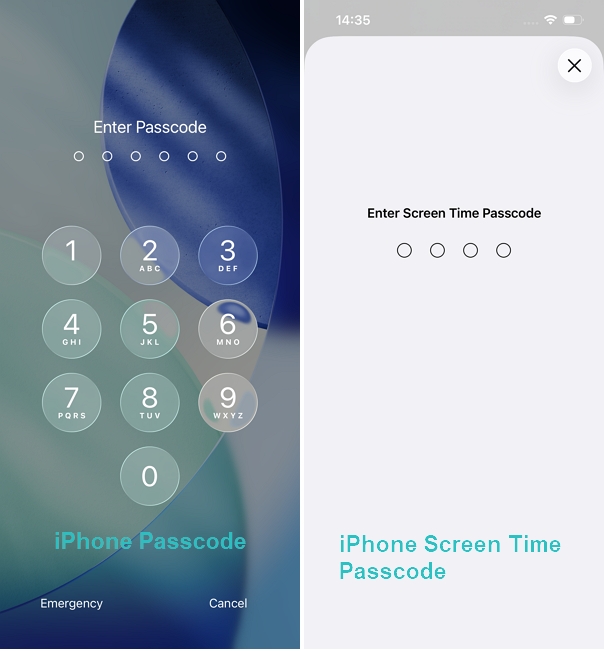
When searching for answers online, it’s incredibly common to find conflicting, panic-inducing information. This happens because many sources fail to distinguish between the main iPhone Passcode and the Screen Time Passcode.
Before assuming the worst, it is crucial to identify which code you are dealing with, as Apple treats them completely differently.
iPhone Passcode (The Main Lock)
This is the code (or Face ID/Touch ID) used to unlock your iPhone screen and authorize Apple Pay. If you enter your passcode incorrectly 10 times, your device will trigger a "Security Lockout" or "iPhone Unavailable" alert. To protect your privacy, your iPhone will automatically erase all its data and settings if you continue entering the wrong passcode until the maximum limit is reached.
Screen Time Passcode (The Restriction PIN)
This is a secondary, 4-digit code strictly used to control app usage limits, downtime, and parental controls. It does not control access to your home screen.
In short: One protects your entire iPhone from thieves, while the other simply stops users (often kids) from bypassing app time limits.
What Happens After 10 Failed Screen Time Attempts on iPhone?
Based on our extensive lab testing on an iPhone 14 running the latest iOS 26, even after entering the wrong Screen Time passcode 10 times, the system only restricts further attempts for 1 hour.
You can still use your device for regular tasks, calls, and unrestricted apps. This simply means you are locked out of changing Screen Time settings or extending app limits for exactly 1 hour.
Here is the exact lockout progression timeline based on our tests:
- 1-5 failed attempts: No lockout. The system only registers the incorrect attempts.
- 6 failed attempts: "Try again in 1 minute" (1-minute lockout).
- 7 failed attempts: "Try again in 5 minutes" (5-minute lockout).
- 8 failed attempts: "Try again in 15 minutes" (15-minute lockout).
- 9 failed attempts: "Try again in 60 minutes" (60-minute lockout).
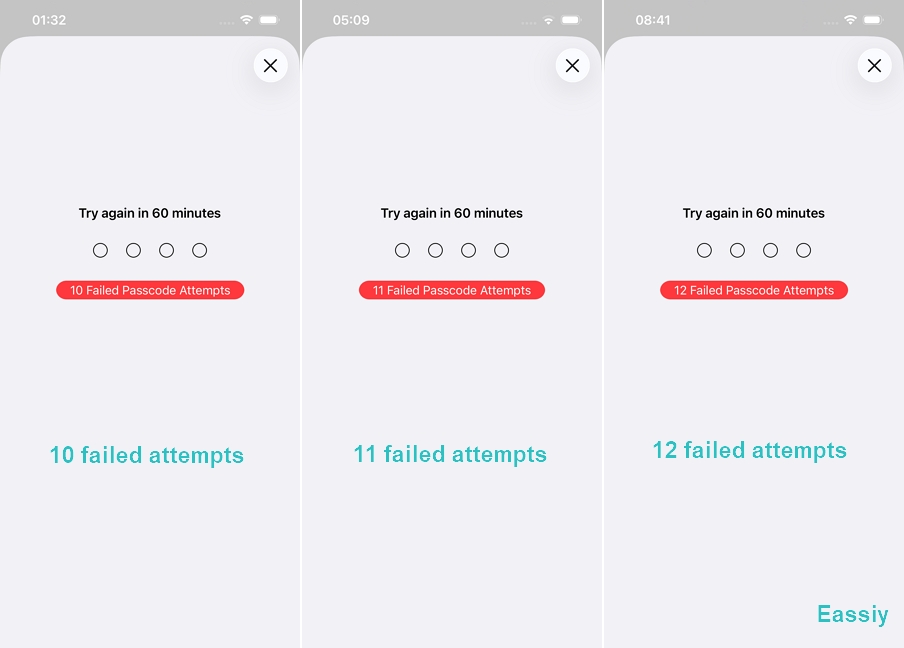
- 10 failed attempts: "Try again in 60 minutes" (60-minute lockout).
- 11+ failed attempts: "Try again in 60 minutes" (The 60-minute lockout repeats for every subsequent failure).
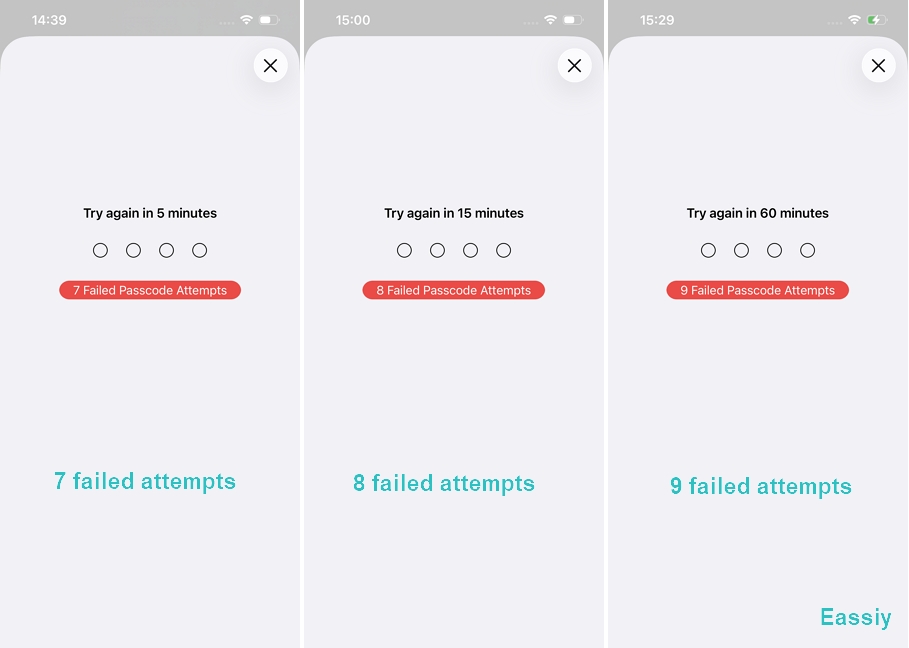
If you continue to enter the wrong Screen Time passcode 11, 12, or more times, the outcome remains exactly the same. The system simply imposes another 1-hour lockout. No additional time penalty is added, and no further device restrictions are applied.
Are you worried that your parents will get a notification if you fail the Screen Time passcode 10 times? We tested this exact scenario in our lab. We used an iPhone 16 as the parent device and applied Family Sharing restrictions to an iPhone 14 acting as the child's phone. The result? The parent's iPhone did not receive a single alert or notification about the failed passcode attempts.
Will Your Data Be Erased After 10 Incorrect iPhone Screen Time Attempts?
The short answer is absolutely not.
Based on our extensive lab testing on an iPhone 14, we can confirm that even after 10 incorrect attempts, Screen Time will not erase your iPhone.
One of the most widespread myths on the internet is that messing up the Screen Time code will trigger a factory reset. Apple designed Screen Time as a usage management tool, not a fortress against data theft. Your photos, messages, apps, and iCloud files remain 100% untouched and secure. The only consequence of your 10th failed attempt is a frustrating one-hour wait.
How to Get Out of the Screen Time Restrictions
If you are stuck at the 60-minute lockout limit and cannot remember the code, guessing isn't going to help. Here is how you can actually reset it if you have forgotten your Screen Time passcode:
The "Forgot Passcode?" Option
If your iPhone is running iOS 13.4 or later, Apple provides a built-in escape hatch. Tap the "Forgot Passcode?" button on the Screen Time passcode entry screen. You can enter the Apple ID and password originally used to set up the passcode to instantly create a new one. Here's how:
1. Go to Settings > Screen Time on your iPhone or iPad.
2. Select Change Screen Time Passcode, then tap Change Screen Time Passcode again when the pop-up appears.
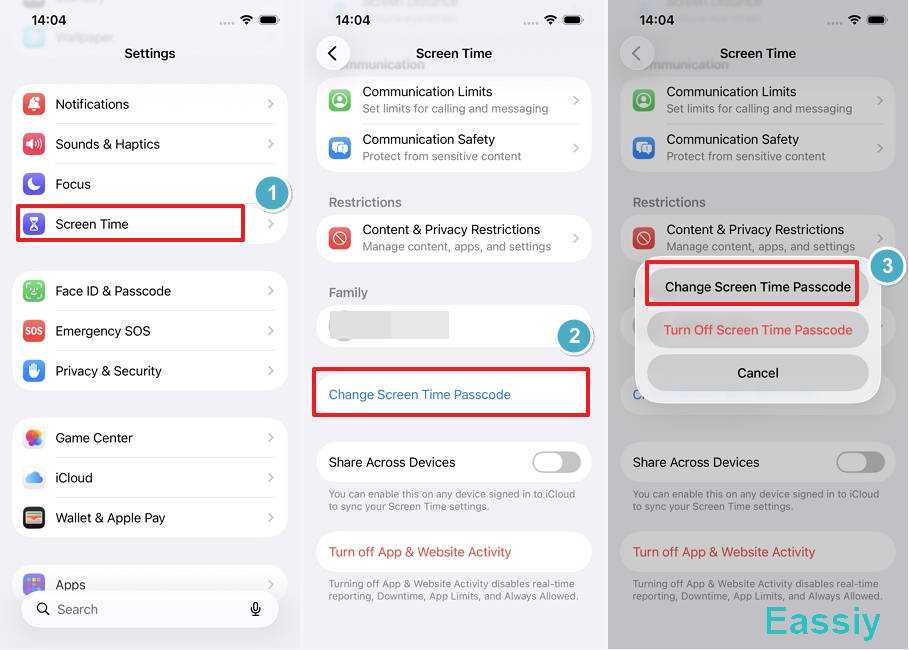
3. On the next screen, tap Forgot Passcode? at the bottom. Enter the Apple ID and password, then tap OK.
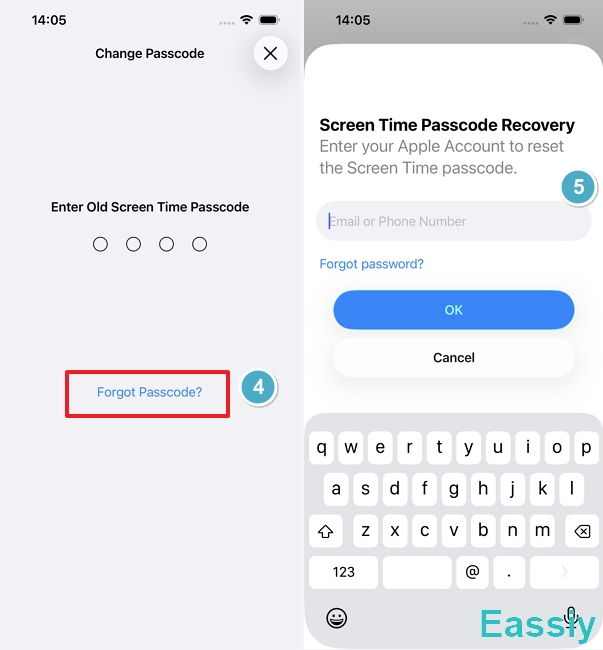
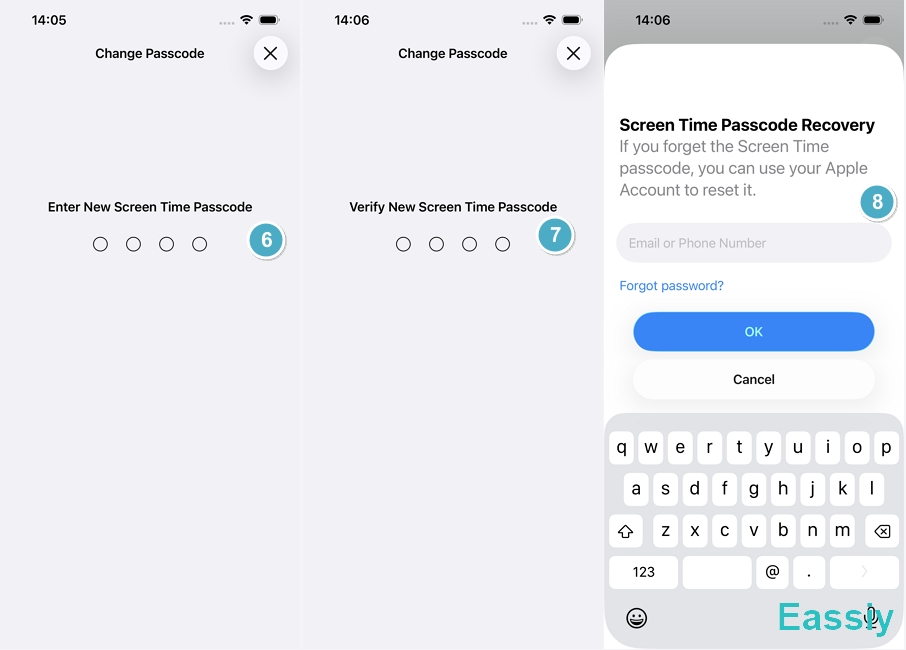
4. Once verified, you’ll be asked to create a new Screen Time passcode.
5. Re-enter your Apple ID and password to enable Screen Time passcode recovery for future use.
Family Sharing Restrictions
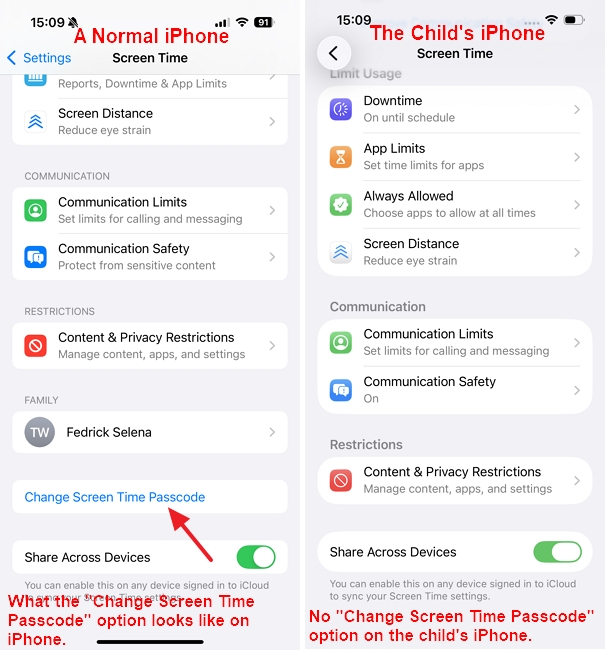
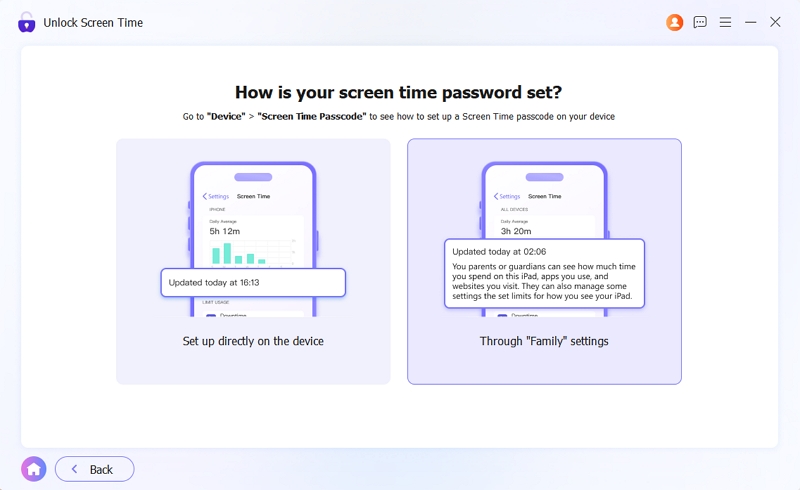
Are you a teenager or managing a child's device? If the Screen Time passcode was set up via Family Sharing, the "Change Screen Time Passcode" option will not appear on the restricted device.
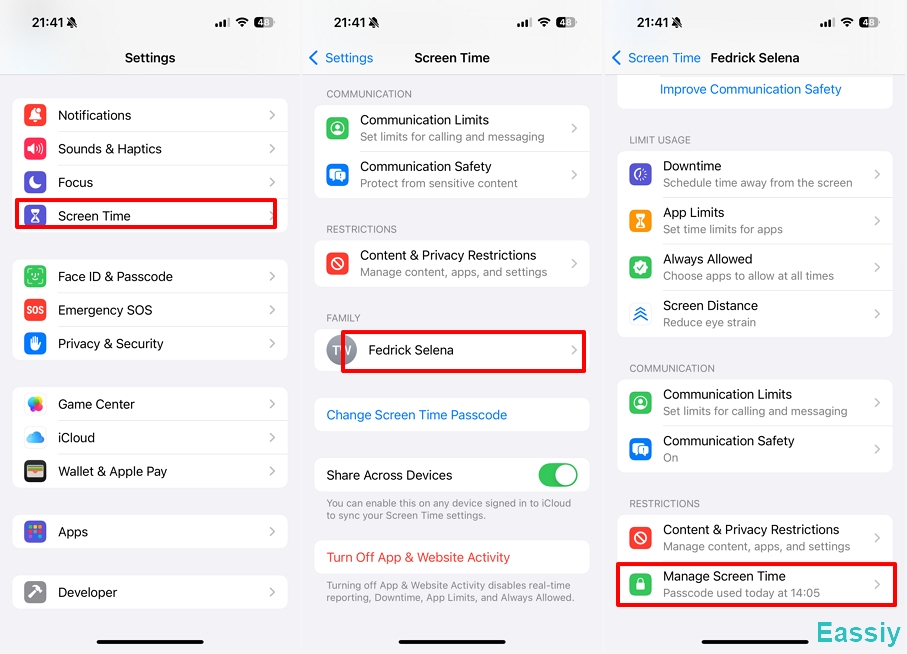
The Family Organizer (the parent) must go into their own iPhone's Settings, select the child's name under Family Sharing, and change or remove the passcode remotely.
The Ultimate Fallback: Professional iOS Unlockers
What happens if you forgot the Apple ID password, or the "Forgot Passcode?" option is missing due to iOS glitches? Standard recovery methods like iTunes or Finder will force you to factory reset the iPhone, causing total data loss.
To avoid this, you can bypass the restriction using specialized desktop software like Eassiy iPhone Access. Designed to handle complex iOS security protocols, this tool allows you to safely remove the forgotten Screen Time passcode in minutes while retaining 100% of your personal data, photos, and apps.
To Conclude
Accidentally failing your Screen Time passcode 10 times is incredibly frustrating, but it is not a digital disaster. The 60-minute lockout is simply Apple's way of preventing brute-force guessing. Your data is safe, your phone is not bricked, and whether you use your Apple ID recovery or a dedicated tool like Eassiy, you have clear, non-destructive paths to regain full control of your device.