Help Center

Updated on 2026-07-07
views
5min read
Forgetting the Screen Time passcode on your iPhone can be incredibly frustrating, especially when it locks you out of your favorite apps, restricts important settings, or disrupts your daily routine. Fixing it quickly is essential to restore full control of your iPhone and get your digital life back on track.
In this guide, we will show you exactly how to fix the "forgot Screen Time passcode on iPhone" issue. Whether you need to reset it directly on your device, bypass it through Family Sharing, or use a trusted third-party alternative, our lab has tested and verified the most effective solutions for you.
Key Takeaways
- A forgotten Screen Time passcode restricts access to app limits, content settings, and core device controls.
- You can securely reset the passcode using your Apple ID and passcode without losing any data.
- If the "Forgot Passcode" option is missing, it is usually due to Family Sharing restrictions, an inactive Apple ID, or an account mismatch.
- For child devices, only the designated Family Sharing organizer can reset the Screen Time passcode.
- When official methods fail, verified third-party tools like Eassiy iPhone Access can safely remove the restrictions.
Reset the Screen Time Passcode for Your iPhone
Apple strictly requires your 4-digit Screen Time passcode whenever you try to modify or disable your digital wellbeing settings, such as App Limits, Content & Privacy rules, or your daily Downtime schedule.
If you originally set up this Screen Time passcode on your own iPhone or iPad but forgot it, you can easily reset it using your Apple ID. This official Apple recovery method is highly secure, restores your access immediately, and most importantly, will not affect or delete any of your personal data.
Here is how to reset the Screen Time passcode directly on your iPhone:
1. Open the Settings app on your device and tap on Screen Time.
2. Tap Change Screen Time Passcode, and then select Change Screen Time Passcode again from the pop-up menu.
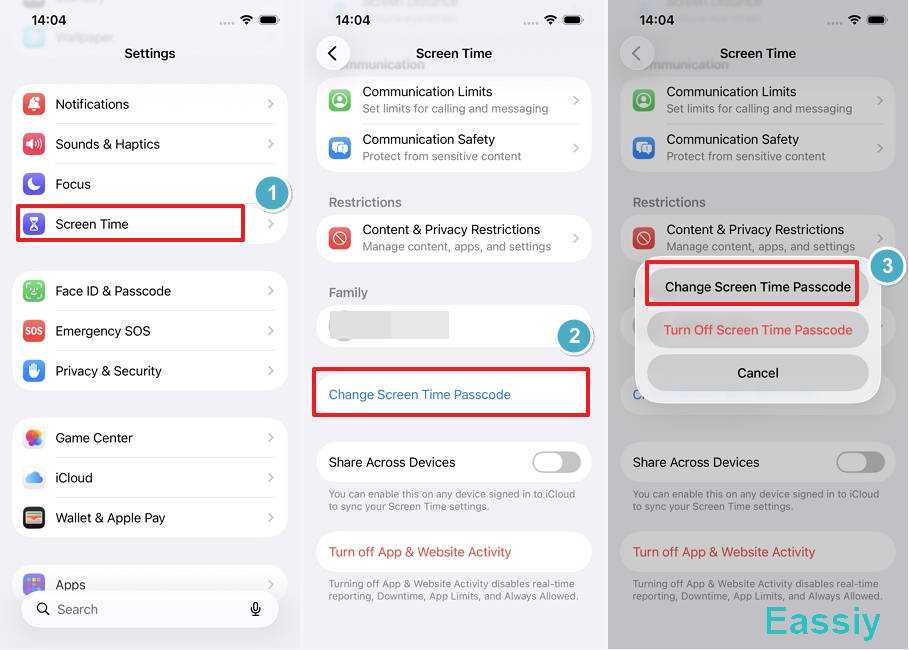
3. Tap "Forgot Passcode?" at the bottom of the screen.
4. Enter the Apple ID and password you originally used to set up the Screen Time passcode, then tap OK.
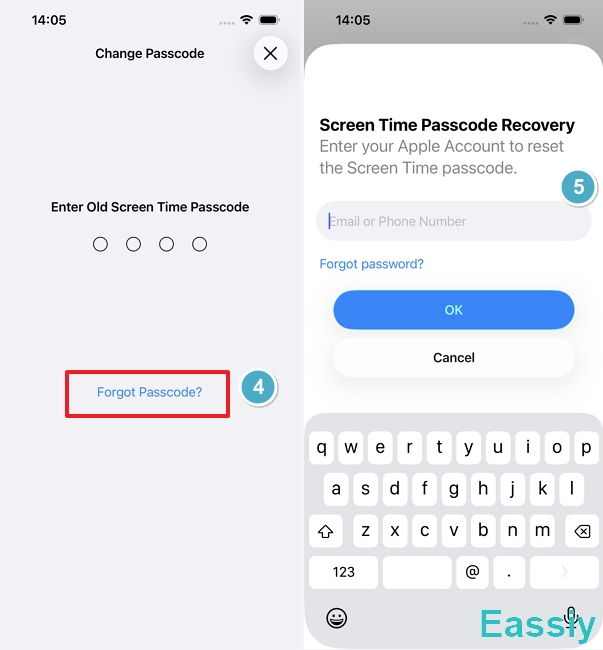
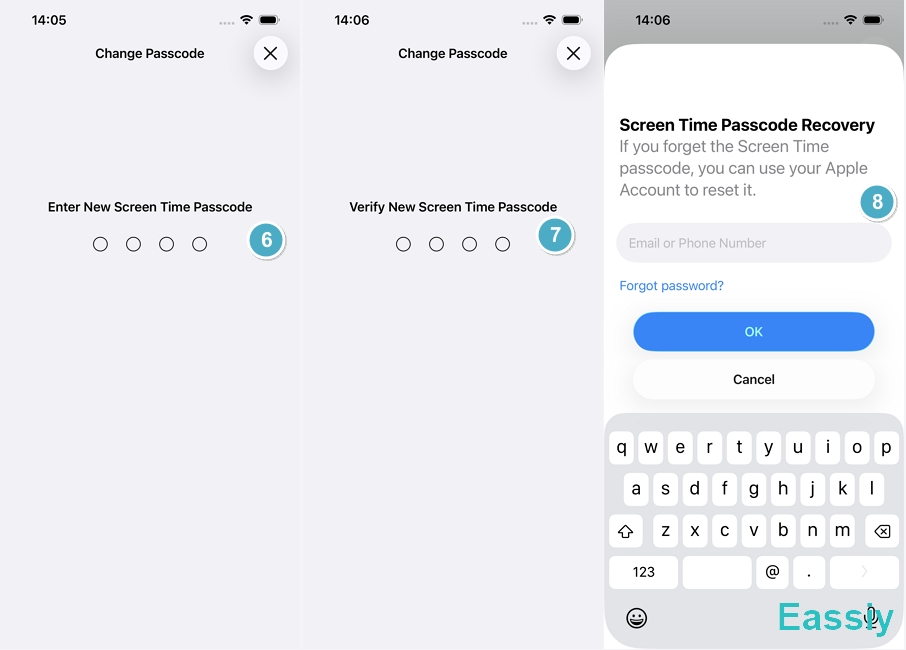
5. You will be prompted to enter a new Screen Time passcode.
6. Enter the new passcode one more time to confirm your choice.
7. You'll have to re-enter the Apple ID and password to set up the Screen Time passcode Recovery at the end.
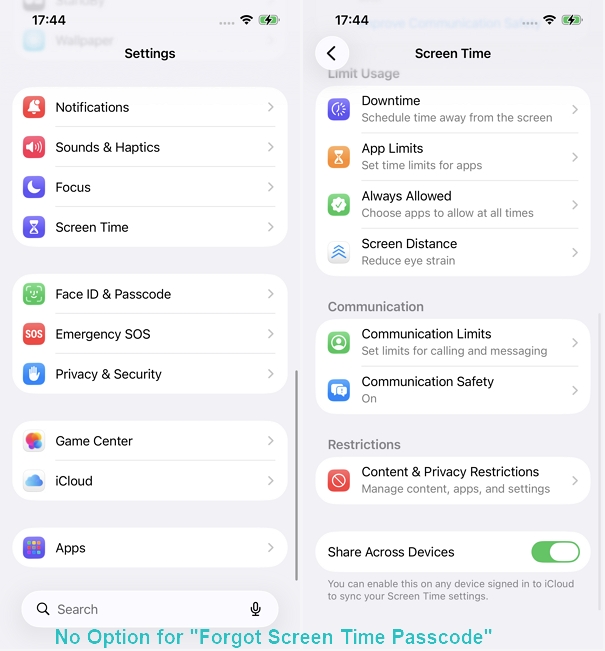
No Option for "Forgot Screen Time Passcode"?
During our testing on a kid's iPhone, we found that the "Change Screen Time Passcode" option doesn't appear at all. This is usually due to account permissions or setup mismatches. Here are the three most common scenarios and how to fix them.
Family Sharing Restrictions
If your iPhone is managed under Family Sharing, the reset option will not appear on your screen. In this scenario, only the Family Organizer has the permission to make changes. If this applies to you, skip ahead to next part to see how the organizer can reset the Screen Time Passcode for your device.
Missing Apple ID Sign-In
The reset option requires an active Apple account. If your iPhone is not currently signed in with an Apple ID, the "Forgot Passcode" link will disappear. Simply go to the top of your Settings menu, sign in with your Apple ID, and the option should reappear.
Wrong Apple Account
If the Apple ID currently signed into the device does not match the one used to originally set up Screen Time, you will be blocked from resetting it. Make sure you are using the exact email and password tied to the initial Screen Time setup.
Reset the Screen Time Passcode for a Child's Device
If you manage a child's device via Family Sharing, Apple restricts the passcode reset access strictly to the organizer's device to maintain parental control security.
Here is how the family organizer can reset the passcode for a child:
1. Open Settings on the organizer’s iPhone or iPad and tap Screen Time.
2. Scroll down to the Family section and tap your child’s name.
3. Tap Manage Screen Time under Restrictions.
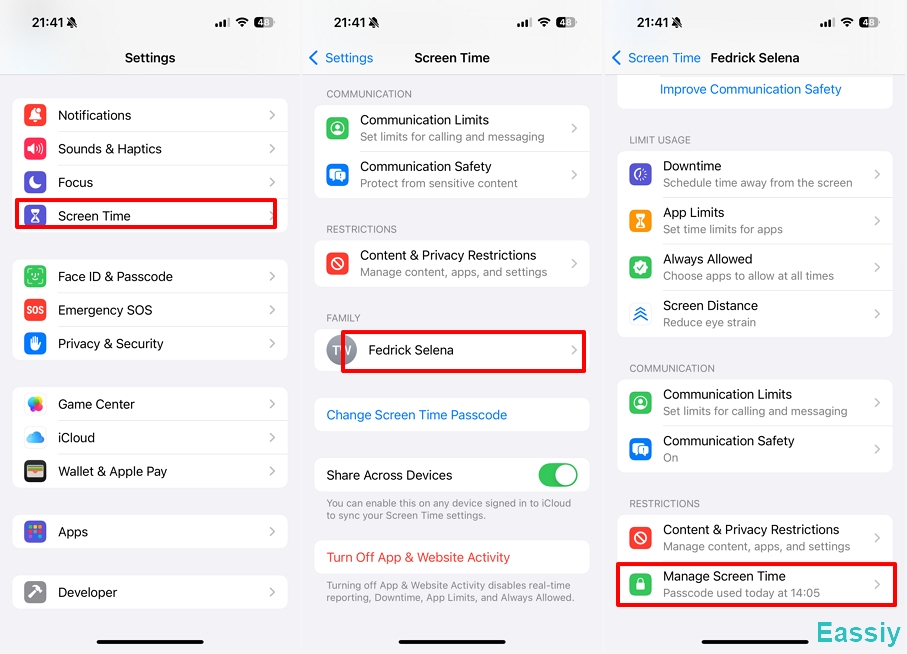
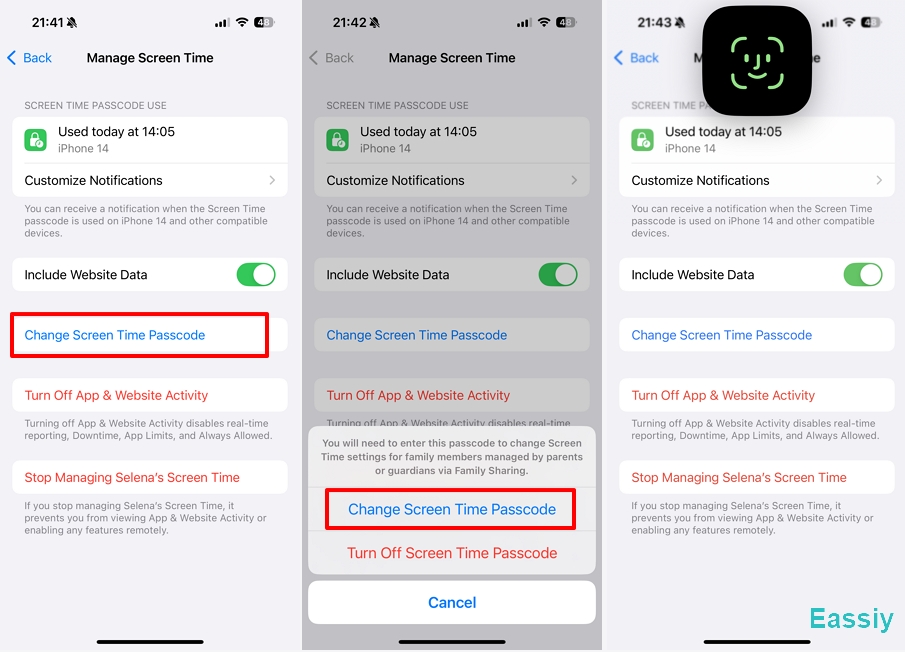
4. Tap Change Screen Time Passcode, then tap it again to confirm.
5. Authenticate the action using your Face ID, Touch ID, or device lock screen passcode.
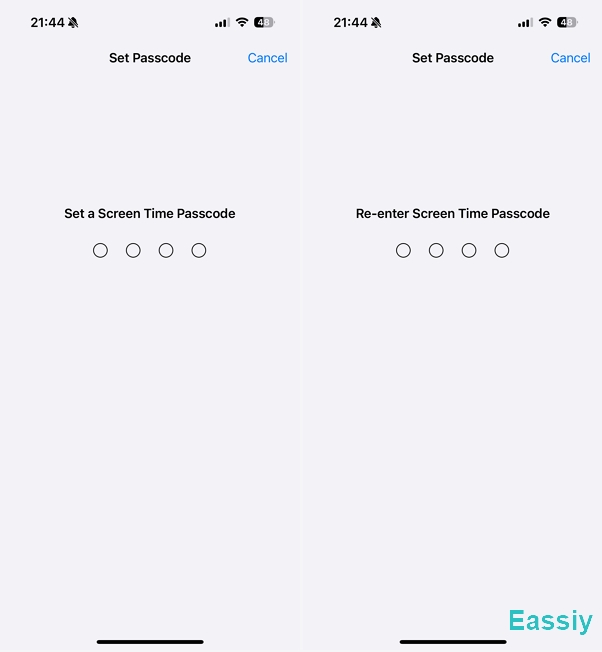
6. Enter a new Screen Time passcode for your child, and enter it once more to confirm.
Resolve "Forgot Screen Time passcode on iPhone" with Screen Time Passcode Remover
If you cannot remember your Apple ID details or the Family Sharing methods are failing, you might feel permanently locked out. In these situations, Eassiy iPhone Access is the most reliable tool to regain control.
Based on our lab evaluations, Eassiy iPhone Access securely removes the Screen Time passcode and turn off Screen Time. Unlike some aggressive reset methods, it does this without forcing a factory data wipe, keeping your photos and contacts safe.
Here is how to bypass the Screen Time lock using Eassiy:
1. Download and install Eassiy iPhone Access on your Mac or PC.
2. Launch the program and select the Unlock Screen Time mode.
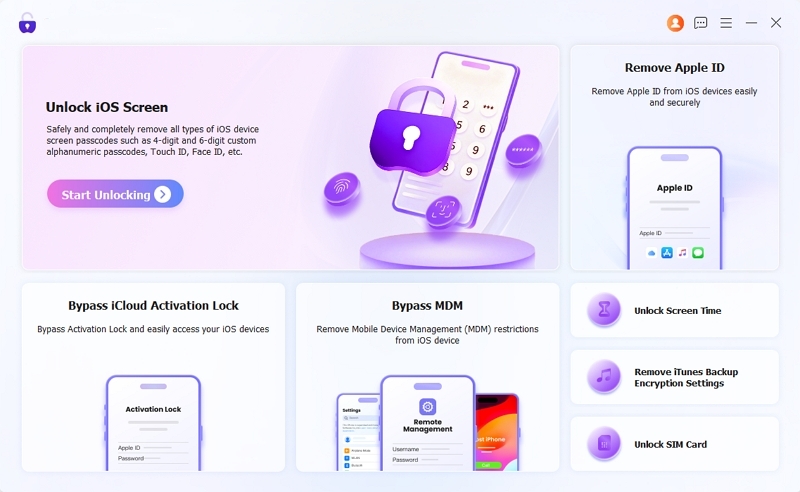
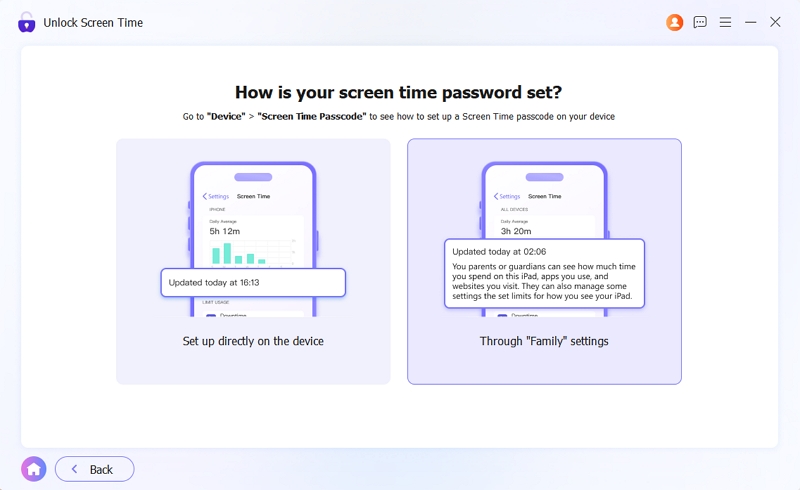
3. Select the option that matches your setup (Choose "Family Sharing" if the device is managed by a parent).
4. Connect your iPhone or iPad to the computer using a Lightning or USB-C cable. Click Start Now to initiate the removal process.
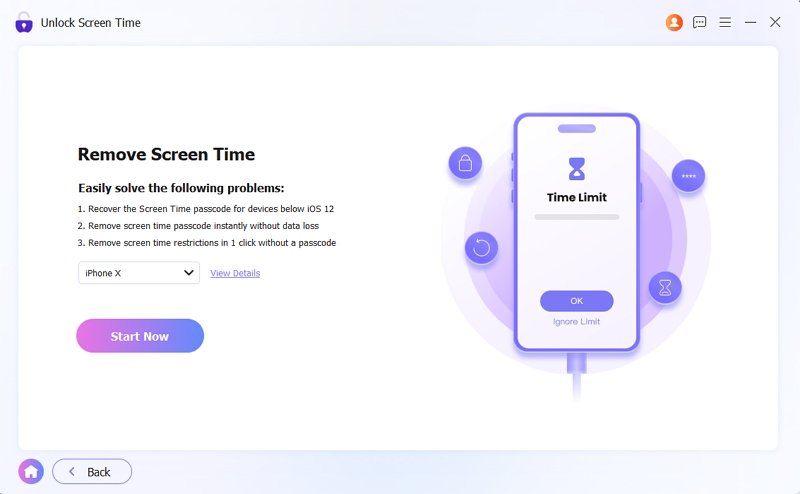
Note: You must temporarily disable "Find My iPhone" before proceeding. Let the software remove the forgotten Screen Time passcode. Your device will automatically restart once completed.
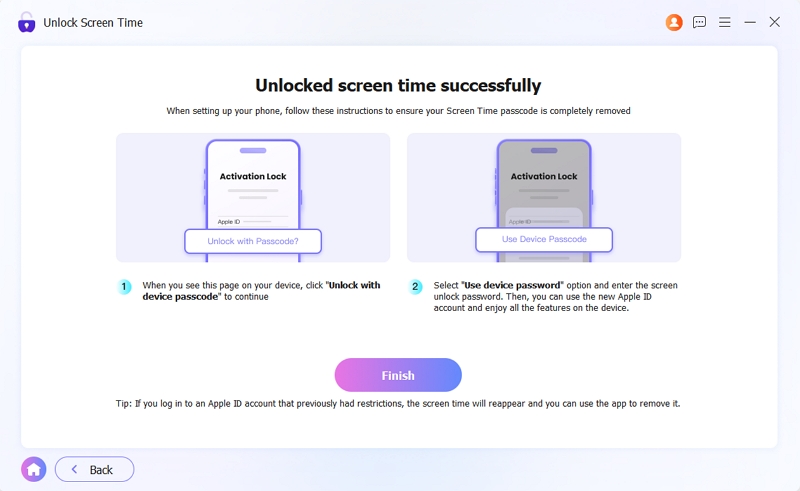
5. While setting up your iPhone after the restart, make sure to follow the on-screen instructions. Your existing data will remain safely on the device.
Eassiy Lab Test: What We Found When Solving Forgot Screen Time Passcode Issue
We noticed that some articles on this topic provide incorrect information, or suggest solutions where the cost is simply too high to recommend. To help you get the right information, our team tested the "reset Screen Time passcode when forgot passcode" scenario across multiple iPhones in our lab.
To provide you with the most accurate technical advice, here is what actually happens when you try to force your way past a Screen Time lock.
1. Erase iPhone from iCloud.com: The Sledgehammer Approach
We noticed that quite a few online guides recommend erasing iPhone without Screen Time passcode using iCloud.com. Based on our tests using an iPhone 14 running iOS 26.4.2, erasing the device from iCloud.com does technically remove the Screen Time restriction. However, it is like using a sledgehammer to crack a nut—we strongly advise against it.
The cost of this operation is massive: it will permanently delete all data on the phone, whether it is yours or your child's. You can easily resolve the "forgot Screen Time passcode on iPhone" issue using the lightweight, data-safe solutions we recommended above, none of which will erase your phone.
However, if you still want to understand how this extreme method works (or what to avoid), here are the steps:
Prerequisites:
- You must know the Apple ID and password currently used on the target device.
- Find My iPhone must be enabled on the target iPhone.
Steps:
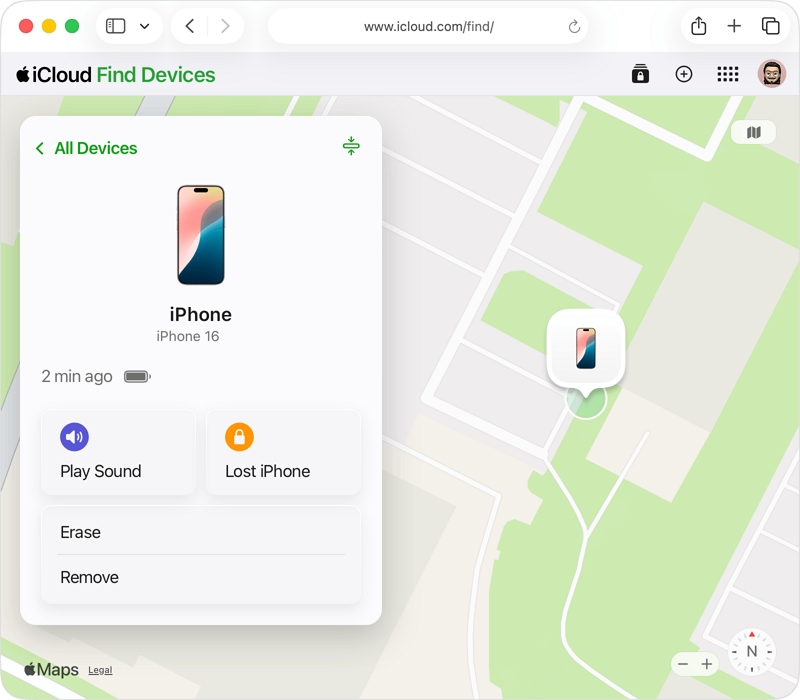
- Visit iCloud.com on a browser and log into the Apple account used on the iOS device.
- Choose the Find My icon from the dashboard.
- Select All Devices at the top and choose the target iPhone.
- Tap the Erase iPhone button, and tap it once again to confirm your decision.
2. You Cannot Remove Screen Time Passcode by Erasing Your Device Locally
A common misconception is that simply factory resetting your iPhone from its own settings will clear the Screen Time restrictions. Our rigorous testing on devices running iOS 26 confirms that Apple has explicitly blocked this workaround. If you attempt to wipe the iPhone manually, you will be required to enter the Screen Time Passcode during the process:
1. Go to Settings > General > Transfer or Reset iPhone.
2. Tap Erase All Content and Settings and confirm by tapping Continue.
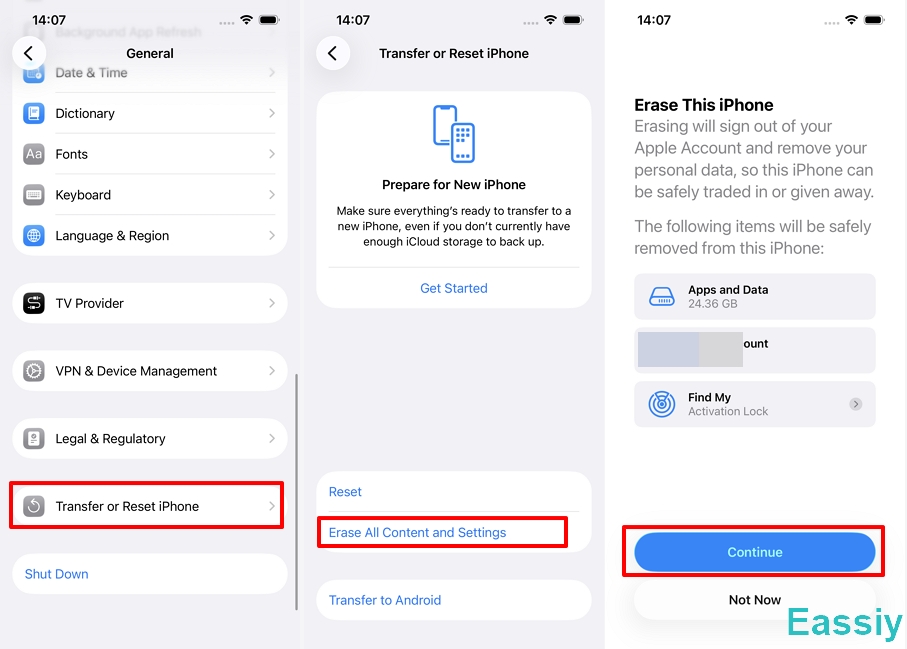
3. The iOS system will prompt you to enter your standard iPhone lock screen passcode.
4. Immediately after entering your lock screen passcode, the system will prompt you to enter your Screen Time Passcode before the erase process can actually begin.
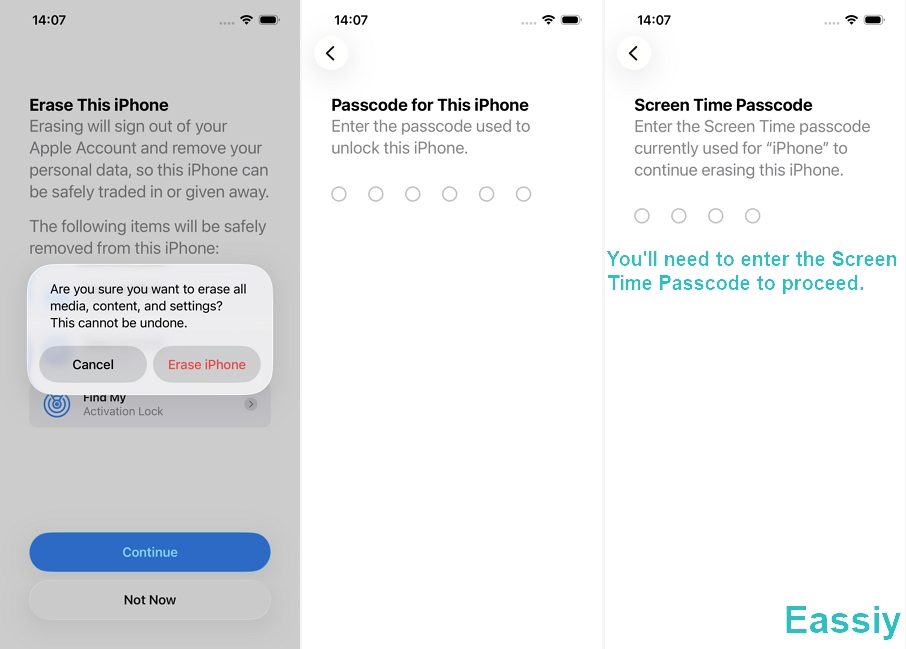
Unless you can provide that specific 4-digit Screen Time PIN, the local reset is entirely halted. You are effectively stuck. This hardware-level security measure proves that built-in settings alone cannot resolve a forgotten Screen Time passcode.
3. What Happens After 10 Incorrect Screen Time Passcode Attempts?
If you enter an incorrect Screen Time passcode 10 times in a row, your iPhone or iPad will lock you out of the Screen Time settings for a full hour. During this penalty period, you are completely blocked from making any changes to your app limits or resetting the Screen Time feature.
If you continue guessing, the penalty caps out. Your 11th failed attempt—and any subsequent wrong guesses—will simply trigger another 60-minute lockout.
The best part? Your data is completely safe. You can breathe a sigh of relief knowing that, unlike the main device lock screen, guessing the wrong Screen Time passcode will never trigger a factory reset. No matter how many times you enter the wrong Screen Time PIN, your photos, contacts, and personal files remain 100% secure.
Check out this article for real test results and real images on What Happens After 10 Incorrect Screen Time Passcode Attempts.
Here is the exact lockout escalation based on our tests:
| Failed Attempts | Lockout Duration |
|---|---|
| 6 attempts | 1-minute lockout |
| 7 attempts | 5-minute lockout |
| 8 attempts | 15-minute lockout |
| 9 attempts | 60-minute lockout |
| 10 attempts | 60-minute lockout |
| 11 attempts | 60-minute lockout |
| 12 attempts | 60-minute lockout |
To Conclude
Dealing with a "forgot Screen Time passcode on iPhone" scenario is undoubtedly stressful, but it is completely fixable. Whether you use your Apple ID credentials, have the Family Organizer reset it, or utilize a professional bypass tool like Eassiy iPhone Access, you can regain full control of your device. Evaluate your current situation and choose the method that best protects your data and restores your access quickly.