Help Center

Updated on 2026-07-07
views
5min read
Forgetting the passcode on an iPhone often leads to frustration. After repeated incorrect entries, the iPhone locks and restricts access to important apps and stored data. Also, multiple incorrect passcode attempts may render your iPhone unavailable or permanently disable it. This can quickly disrupt your routine and cause unnecessary stress.
In this guide, we test various methods that allow you to attempt the passcode of a locked iPhone without triggering the disabled or unavailable status— we found only one method to be successful. Furthermore, we test four ways to reset the iPhone if you forgot passcode, providing the verified results you need to know.
We tested the process on many devices, including:
- An iPhone 16 running iOS 18.5;
- An iPhone 14 running iOS 26.4.1;
- An iPhone X running iOS 16.7.1;
- An iPhone 6s running iOS 15.8.7.
What to do if You Forgot Your iPhone Passcode
It is inconvenient to forget your iPhone passcode, especially when it locks you out of your regular apps and data. Thankfully, access can be restored with your Apple ID or an available backup. Using the correct process can simplify accessing your device.
1. Avoid Repeatedly Entering the Wrong Passcode
If you’ve forgotten your iPhone passcode, avoid guessing randomly. Repeated incorrect attempts can cause your iPhone to become temporarily disabled or unavailable.
If you continue to input the wrong passcode, your iPhone will extend the waiting time for the next try. In the worst-case scenario, the iPhone may be locked completely, and a full reset will be needed to regain access.
The following is an exact timeline based on our tests:
- 1 to 5 incorrect attempts: There is no time penalty.
- 6th incorrect attempt: "iPhone Unavailable, try again in 1 minute."
- 7th incorrect attempt: "iPhone Unavailable, try again in 5 minutes."
- 8th incorrect attempt: "iPhone Unavailable, try again in 15 minutes."
- 9th incorrect attempt: "iPhone Unavailable, try again in 1 hour." (Note: Depending on your iOS version, this might also show 3 hours or 8 hours).
- 10th incorrect attempt: "iPhone Unavailable." (No timer. The device is permanently locked).
2. Try Recalling Your Passcode Using Personal Patterns
Instead of rushing through guesses, pause and think carefully about possible passcode combinations you typically use. as it is usually linked to familiar habits or meaningful numbers. Many individuals set passcodes from significant dates or straightforward number patterns like birthdays, anniversaries, or repeating digits.
Recall any familiar number combinations you could have used for the device. For example, you might have used the following.
- Simple patterns, such as repeating or sequential numbers
- Your own birthdate or a family member’s
- A memorable year
If your passcode is 6 digits, try adjusting combinations of familiar numbers. However, avoid repeated incorrect entries in quick succession—spacing them out can help prevent triggering a lockout.
This approach may seem basic, but in many cases, users can recall their passcode by revisiting familiar number patterns.
3. Test the Passcode on Your Other Apple Devices
Once you have a passcode you think might be correct, try entering it on your other Apple devices logged into the same Apple ID. According to our tests on an iPhone 6s and iPhone 14, if your Apple ID is signed in across multiple devices, you can attempt to regain access using another active device.
This allows you to safely test the passcode on a different device without risking a lockout on your primary iPhone. Here are the tested steps to do this:
Note: This workaround may not be fully universal. However, we got it working on our iPhone 6s and iPhone 14:
1. Go to the Settings app on another one of your Apple devices, such as an iPhone 6s.
2. At the top, tap “Sign in to your [device]” and log into the account with your Apple ID and password to proceed.
3. If prompted for a two-factor authentication (2FA) code, you can retrieve it from any of your other active, trusted devices.
4. You will then be asked to enter the passcode for the device you are currently using.
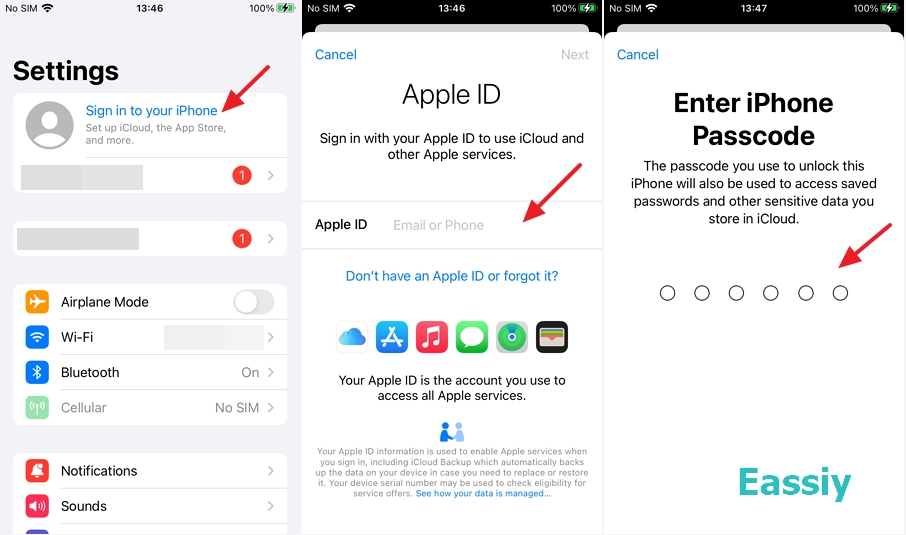
5. Next, you will be required to enter the passcode for other devices with the same Apple account. The other device here could be your locked iPhone, for which you have forgotten the passcode.
6. This is your opportunity to test potential passcodes for your locked iPhone. Doing this here will not trigger an "Unavailable" or "Security Lockout" state on the locked device itself. If the screen says you’ve tried too many times, don't worry—you can simply start the process over and try again.
7. Once you successfully verify the correct passcode here, you can confidently enter it on your locked iPhone without risking a permanent lockout or data loss.
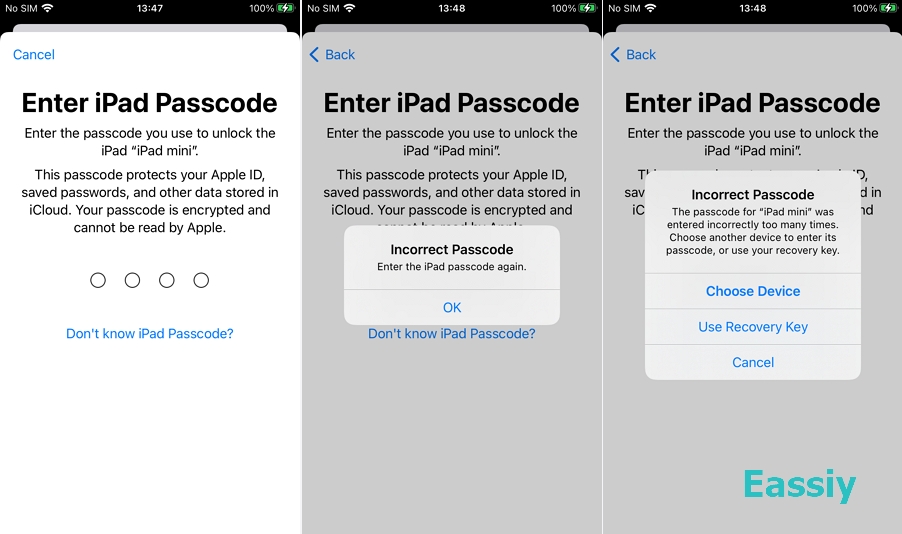
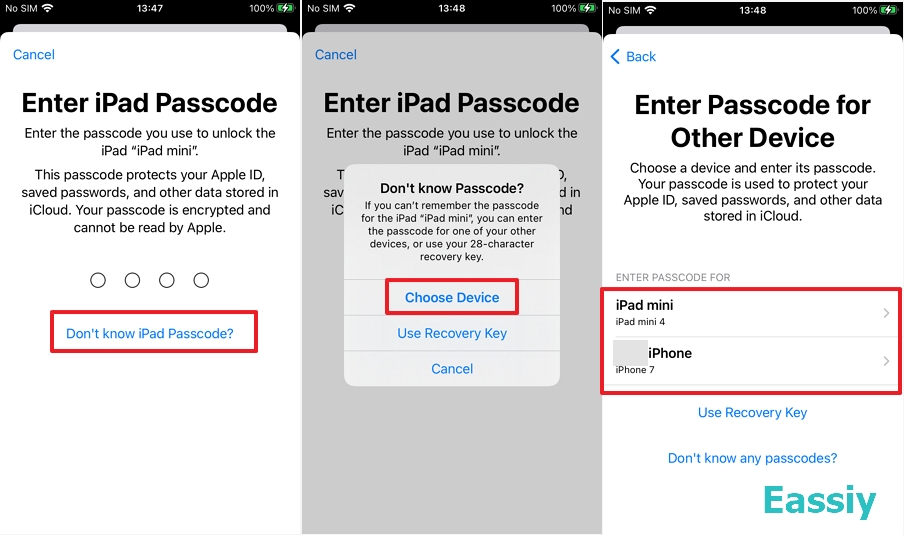
If this isn't your locked device, click on Don't know (Device) Passcode? > Choose Device > Choose your locked device from the list.
4. Test the Passcode by Resetting Apple ID Password on Another iPhone.
We also tested another popular workaround recommended online: "Test Your Passcode by Resetting the Apple ID Password on Another iPhone." Similar to the method we introduced above, this trick involves initiating an Apple ID password reset on a secondary device, which theoretically grants you additional passcode attempts without triggering a security lockout.
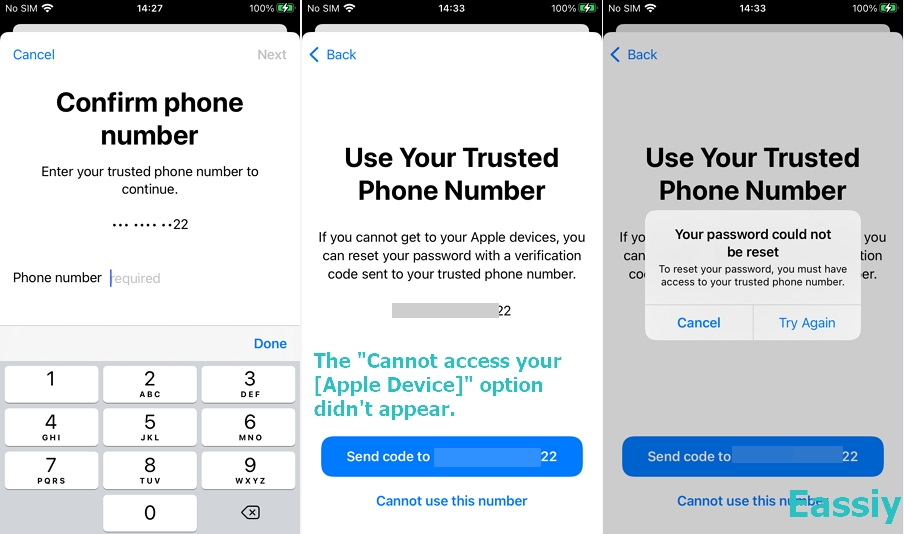
However, when we tested this method, we didn’t reach the “Enter Passcode for Other iPhone” screen either on iPhone 6s, iPhone 14, or iPhone 16. Instead, during step 6, the "Cannot access your [Apple Device]" option didn't appear. Even though this process failed for us, it may still be worth trying since results can vary depending on the iOS version. Here are the steps to try:
1. Sign in on a different iPhone, then move to Settings > [your profile] > Media & Purchases and tap Sign Out.
2. Tap Media & Purchases again, and a message will appear asking if you want to set up Media & Purchases with your Apple ID.
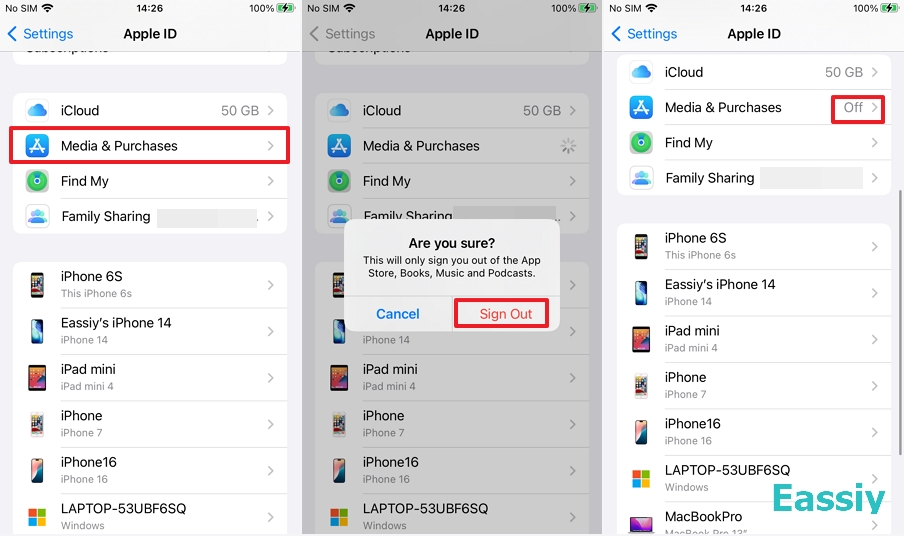
3. Select the option “Not [your Apple ID]” and then choose “Forgot Apple ID?”.
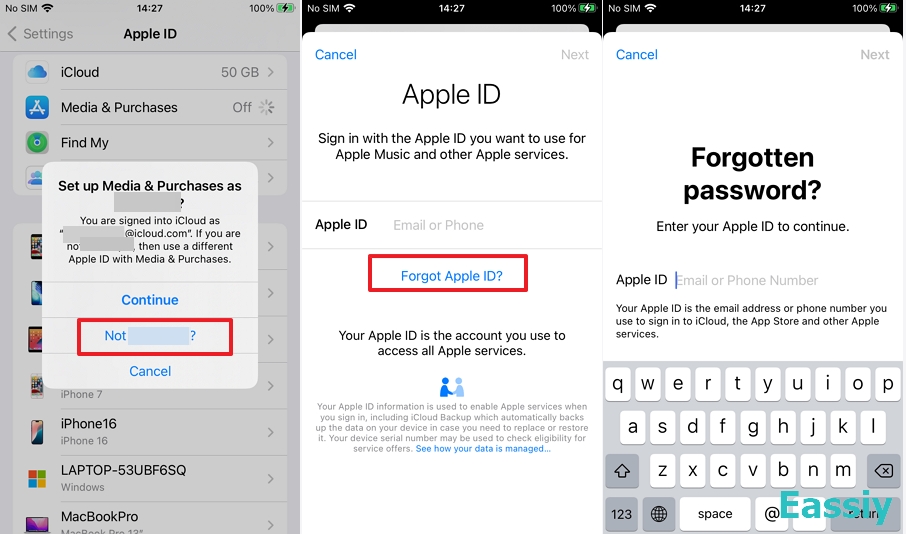
4. Sign in using your Apple ID and confirm your identity with a trusted phone number or email.
5. Select Cannot access your [Apple Device]. A message will show up requesting the passcode for a different iPhone. Ensure the listed device is the one that's currently locked.
6. Input your suspected passcodes and check whether access is restored.
How to Reset iPhone if You Forgot Passcode
When passcode recovery isn’t possible, resetting the iPhone becomes the only option. It erases your iPhone completely and clears the lock screen protection.
Here, we’ll cover 4 practical ways to reset and unlock your iPhone so you can set it up and use it again.
Way 1. Unlock iPhone Passcode without Computer (iOS 15.2 and Later)
With “Erase iPhone” Option (iOS 15.2 - iOS 16)
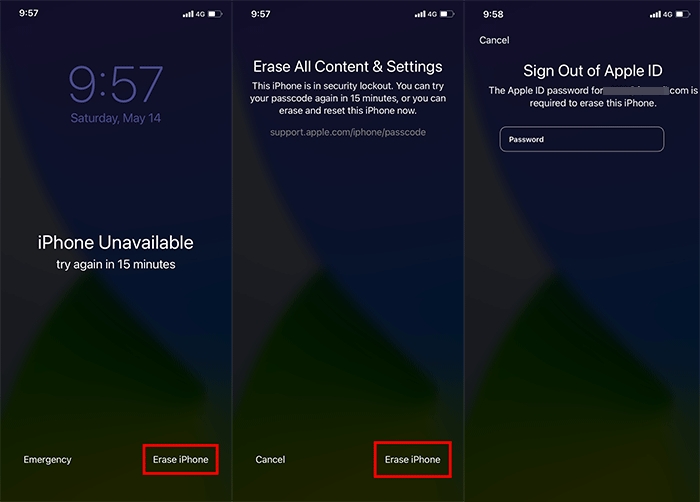
The “Erase iPhone” option on the 'iPhone Unavailable' screen provides a built-in way to reset your device without needing a computer. Available on iOS 15.2 and later, this feature directly wipes the iPhone and removes the passcode lock, allowing you to regain access to your device.
Best For
- Users who want a simple, on-device reset without using a computer.
- Users who remember their Apple ID and password.
- Devices running iOS 15.2 or later (up to iOS 16) with the “Erase iPhone” option visible.
- Users who have enabled Find My iPhone, and can complete verification steps easily.
- Devices connected to cellular data or a secure WiFi connection.
How to Unlock with the Erase iPhone Option
1. Press the Erase iPhone button at the lower-right corner.
2. Confirm by tapping Erase iPhone again.
3. Type your Apple ID password to sign out of the account.
4. The device will erase all data and restart automatically.
5. Set it up again.
Our Test Result: Based on our test results, the “Erase iPhone” option did not appear on our iPhone 6s running iOS 15.8.1 despite multiple incorrect passcode attempts, even though it was connected to Wi-Fi and “Find My” was enabled. This shows that availability may vary depending on device model, iOS behavior, and system conditions.
With “Forgot Passcode?” Option (iOS 17–iOS 26)
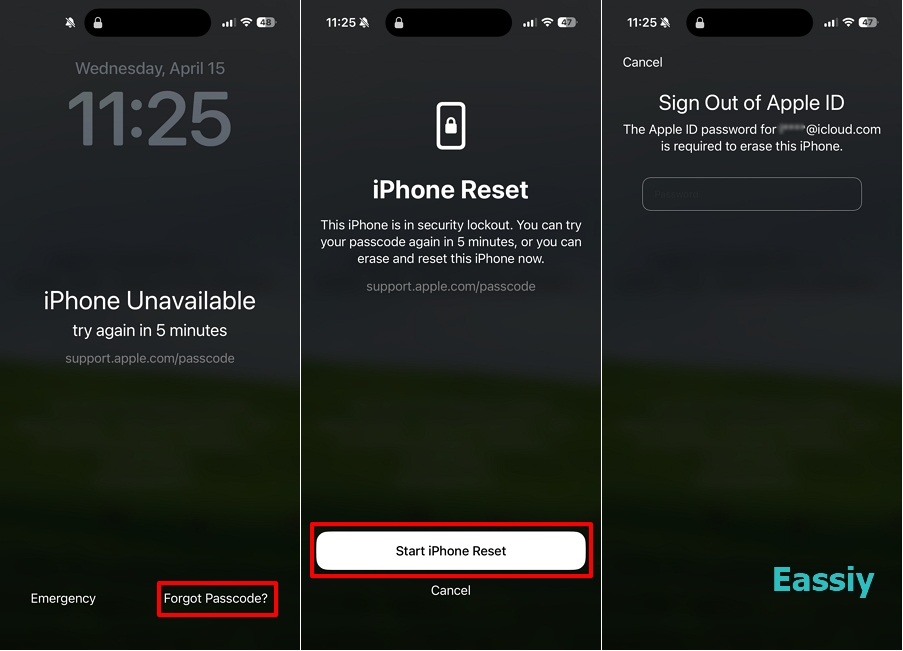
On iPhones running iOS 17 and later, the “Forgot Passcode?” option replaces the older “Erase iPhone” feature, and lets users unlock a locked iPhone by erasing and resetting it with their Apple ID after multiple failed attempts. It includes a 72-hour grace period, allowing users who recently changed their passcode to continue using the previous one without losing data.
Best For
- Users running iOS 17, iOS 18, or iOS 26 with the “Forgot Passcode?” option available.
- People who remember their Apple ID and password for verification.
- Devices that are stuck on iPhone unavailable screen after multiple incorrect passcode attempts.
- Users who want a direct on-device reset without using a computer.
How to Unlock with the “Forgot Passcode?” Option
1. Press Forgot Passcode? located at the lower-right corner.
2. Press Try Passcode Recovery.
3. Within 72 hours, tap Enter Previous Passcode. And use your old code to unlock without erasing data.
4. After 72 hours, tap Start iPhone Reset. Then, enter your Apple ID password and choose Erase iPhone.
Our Test Result: In our lab tests on an iPhone 16, the “Forgot Passcode?” option appeared and functioned perfectly as long as “Find My” was enabled and the device had an internet connection. Conversely, the option did not appear when “Find My” was disabled, confirming that this recovery method strictly requires “Find My” to be active.
Way 2. Factory Reset iPhone Through iCloud.com
The Find My feature on iCloud.com enables remote erasing of a locked iPhone. Signing into your Apple ID allows you to unlock and reset the device without direct access.
Best For
- Users with a second Apple device to receive the iCloud login code.
- People who have “Find My iPhone” enabled on the device.
- Users who want to perform a remote reset using any browser or device.
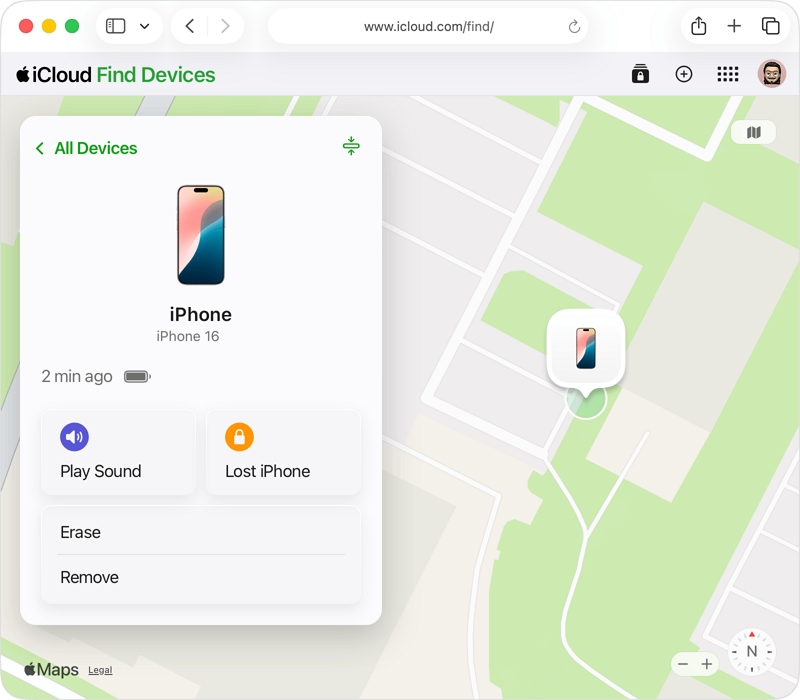
Guide to Reset a Locked iPhone Using iCloud.com
1. Launch iCloud.com from any available device or internet browser.
2. Use your Apple ID to log in and input the verification code from the second device.
3. Open the Find My app on the website.
4. Choose your locked iPhone from the list of available devices.
5. Select Erase iPhone and complete the steps shown. And the device will start erasing once it connects to the internet.
Our Test Result: Based on our test results, iCloud.com login requires Two-Factor Authentication, sending a 6-digit code to a trusted device. It indicates you need another trusted Apple device to access the verification code and complete the login process.
Way #3. Reset iPhone Using Recovery Mode
Restoring an iPhone in Recovery mode helps restore an iPhone and also reset the passcode. By using a computer and Recovery Mode, you can restore iOS and unlock the iPhone. This method is commonly used when other unlock options fail.
Best For
- Situations in which the “Forgot Passcode?” or “Erase iPhone” options are unavailable.
- Users with a Mac or Windows PC (iTunes/Finder) and a USB cable.
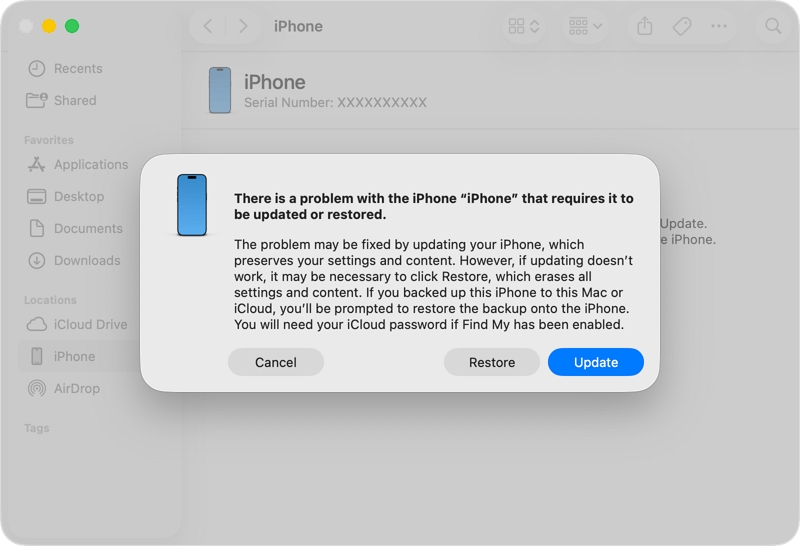
How to Reset an iPhone Using the Recovery Mode
1. Start Recovery Mode on your iPhone.
- On iPhone 8, iPhone X up to iPhone 16, and iPhone SE (2nd/3rd generation): Press Volume Up, then Volume Down, and hold the Side button to enter Recovery Mode
- On iPhone 7 and 7 Plus: Keep pressing the Side button and Volume Down button simultaneously until Recovery Mode appears
- On iPhone 6s and earlier: Press both Home and Top/Side buttons simultaneously to trigger Recovery Mode
2. Use a USB cable to connect your iPhone and computer.
3. Click “Restore” when iTunes or Finder detects an issue with the device.
4. The computer will then download the iOS software and erase the device.
Our Test Result: Our lab test involved attempting an iPhone restore through Recovery Mode with iTunes and Finder. On Windows, iTunes frequently froze or failed to respond after entering Recovery Mode, making it difficult to continue the restore.
Way #4. 100% Reliable iPhone Access Solution: Eassiy iPhone Access
Failed official methods can lead to roadblocks such as absent erase options, restore errors in iTunes, or iCloud sign-in issues. Unlocking your iPhone can become difficult or impossible due to these limits, showing the need for a more reliable and easier approach.
Eassiy iPhone Access is designed to simplify this entire process by providing a guided way to regain access when Apple’s standard options don’t work. It handles technical errors in the background and offers a clear interface to help you complete the unlock process efficiently without dealing with repeated system failures.
What Makes Eassiy iPhone Access Favorable?
- Unlock the iOS screen without requiring any technical experience.
- Works for disabled iPhone, forgotten passcodes, and security lockout situations.
- Bypasses issues such as missing “Erase iPhone,” iCloud login failures, and Recovery Mode failures.
- Helps bypass the iCloud Activation Lock, MDM Lock, and remove the Screen Time Passcode.
- Delivers a straightforward process that anyone can follow without technical skills.
Best For
- Users who are completely locked out of their iPhone.
- Users who are facing iCloud 2FA issues or iTunes errors.
- People unable to use Apple ID or Recovery Mode methods.
- Devices that are disabled or stuck on the lock screen.
- Situations where quick, guided unlocking is needed.
- Users looking for a simple tool-based recovery solution.
How to Use Eassiy iPhone Access to Unlock iPhone
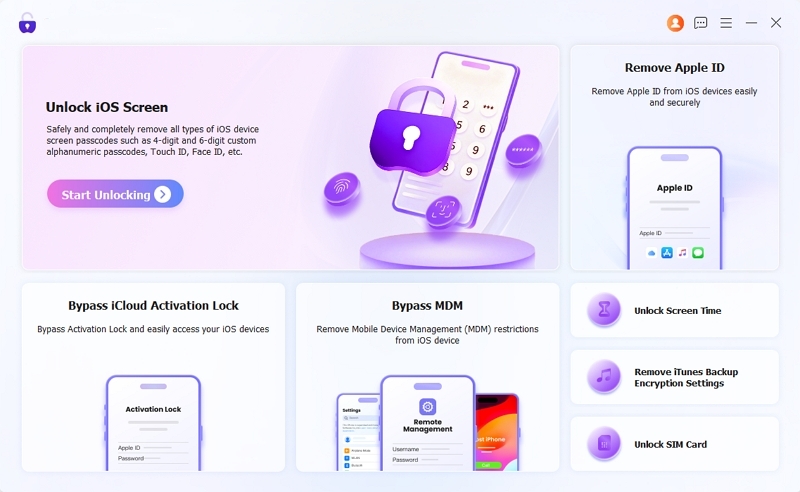
1. Download and launch Eassiy iPhone Access. And select Unlock iOS Screen mode.
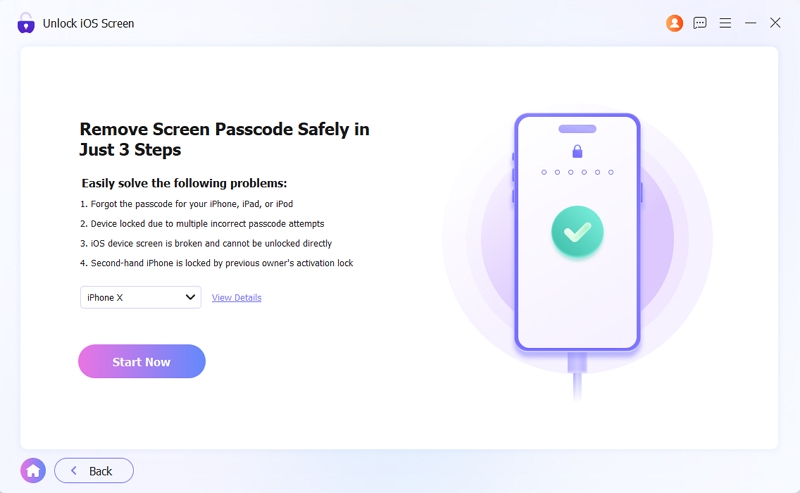
2. Connect your iPhone via USB, verify device details, and click Start Now.
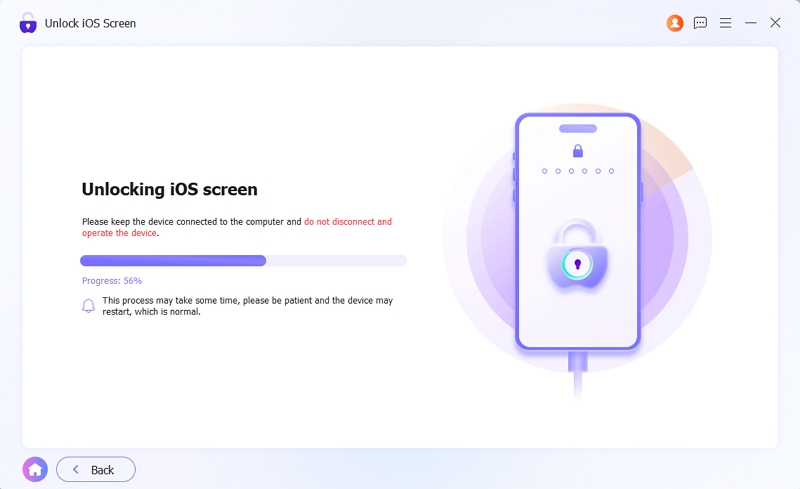
3. The software will download the correct iOS firmware automatically. As soon as the download completes, read the final warning and tap to begin unlocking. Your iPhone will be erased and ready in about 20 minutes.
Our Test Result: We tested Eassiy iPhone Access on iPhone 14 and iPhone X. Despite restrictions in official methods, it detected both devices instantly, downloaded the correct firmware, and completed the unlock process in under 20 minutes without any error messages. Plus, there were no error messages. Hands down, it worked the best!
Comparison of All the 5 Ways to Unlock an iPhone
Here’s a quick overview comparing all five iPhone unlock methods. It highlights what each method needs, how easy it is, and when it works best to guide your choice.
Ways |
Requirements |
Data Loss |
Ease of Use |
Best For |
|---|---|---|---|---|
Erase iPhone (iOS 15.2–iOS 16) |
Apple ID + internet + “Find My” enabled |
Yes |
Easy |
Quick on-device reset after lockout |
Forgot Passcode? (iOS 17–iOS 26) |
Apple ID + internet + “Find My” enabled |
Yes (unless within 72-hour rule) |
Easy |
Newer iPhones with a built-in reset option |
iCloud.com |
Apple ID + internet + “Find My” enabled + 2FA code |
Yes |
Moderate |
Remote unlock when the device is not accessible |
Recovery Mode Restore |
Computer (iTunes/Finder) |
Yes |
Hard |
Fully locked or disabled iPhones |
Eassiy iPhone Access (Tool) |
Computer + software |
Yes |
Very easy |
When official methods fail or show errors |
To Conclude
Forgetting the iPhone passcode often causes stress, especially when the iPhone becomes locked or unusable after several attempts. Thankfully, now you have reliable methods in case you forgot passcode on iPhone. In most cases, recovery relies on Apple’s built-in reset options or other methods depending on iOS version and settings. Depending on the method, data may be preserved or a complete reset may be required. The best option varies depending on your device's condition and your access to an Apple ID or tools.