Help Center

Updated on 2026-05-24
views
5min read
If your iPhone suddenly blocks your apps, silences your daily notifications, or abruptly shows a grey screen saying, “You’ve reached your limit,” Downtime is probably turned on. When this happens, many users panic because they think their iPhone is broken, hacked, or stuck in a severe system glitch. In reality, Apple’s Screen Time settings are just doing exactly what they were told to do.
The real issue is that Apple's Downtime settings are notoriously confusing, deeply hidden, and packed with vague terms like “Always Allowed” and “Block at Downtime.” In this guide, we will answer all your questions: what is downtime on iPhone, how does it actually work, and what do those confusing menu options mean? Plus, we will show you step-by-step how to turn it on or off, and what to do if the system malfunctions.
Key Takeaways
- What Downtime is: Downtime is a built-in Screen Time feature that creates a digital rest period by locking app usage during specific hours.
- The Passcode Trap: If you don't enable the "Block at Downtime" toggle with a Screen Time passcode, Downtime is just a soft reminder that anyone can bypass with a single tap.
- Keep Essentials: You must configure your "Always Allowed" list beforehand so essential apps like Phone, Maps, or Messages never get blocked.
- The Locked Out Fix: If you get permanently locked out of your own apps due to a forgotten Screen Time passcode, professional tools like Eassiy iPhone Access can remove it without data loss.
What Is Downtime on iPhone?
In short, iPhone Downtime is a built-in Apple Screen Time feature that helps you set digital boundaries by limiting which apps and notifications you can access during specific hours. When it is active, your phone essentially goes into a restricted rest period—only phone calls, text messages, and the specific apps you explicitly choose to whitelist will remain available, while everything else gets temporarily locked up.
For example, if you set a Downtime schedule from 10 PM to 7 AM, distracting apps like Instagram, YouTube, TikTok, and mobile games will instantly freeze at 10 PM. Their icons will dim, and you won't be able to open them. However, core tools like Apple Maps, the Phone app, and your emergency contacts will stay fully accessible so you are never cut off from the world.
While you can easily turn Downtime on or off manually on demand, it is primarily designed to run on an automated schedule. To see how this built-in tool can completely change your digital habits, look at how you can match this setup to your daily life:
- For Deep Work & Focus: You can schedule Downtime during your core business hours (e.g., 9 AM to 5 PM) and whitelist only your work email, calendar, and phone. This completely eliminates the subconscious habit of picking up your phone to check social media every five minutes while working.
- For Better Sleep Hygiene: Try setting Downtime to trigger exactly one hour before you intend to go to sleep (e.g., 10 PM to 6 AM). By forcing distracting entertainment and news apps to lock up automatically before bed, your brain naturally winds down, leading to significantly better rest.
- For Strict Parental Controls: If you are managing a child's device, you can set Downtime to trigger after bedtime. By pairing the schedule with a unique Screen Time passcode, you can ensure they cannot bypass the limits to secretly play games or watch YouTube late at night.
Why Are People So Confused by Downtime on iPhone?
On paper, Downtime sounds incredibly straightforward. However, Apple’s user interface makes this feature much more confusing than it needs to be. If you browse online communities like Reddit, you will find thousands of frustrated users asking the exact same thing: “What’s the point of blocking apps if I can just tap ‘Ignore Limit’ and keep using them anyway?”
This massive confusion happens because, out of the box, Apple treats Downtime as a soft suggestion rather than a strict lock. This leads to incredibly common complaints, such as:
- An app looks blocked, but opens immediately after tapping “Ignore Limit.”
- Downtime triggers, but several daily apps continue working completely normally.
- Notifications still pop up on your screen even when the app itself is restricted.
- Parents expect iron-clad controls, but their kids bypass the time limits in seconds.
The secret to mastering Downtime—and fixing all of these issues—lies in understanding a few specific toggle switches. If you don't configure these correctly, the feature will always feel broken. Let’s clear up Apple's confusing backend terms so you can finally make your apps lock the exact way you want them to.
What Does "Block at Downtime" Mean?
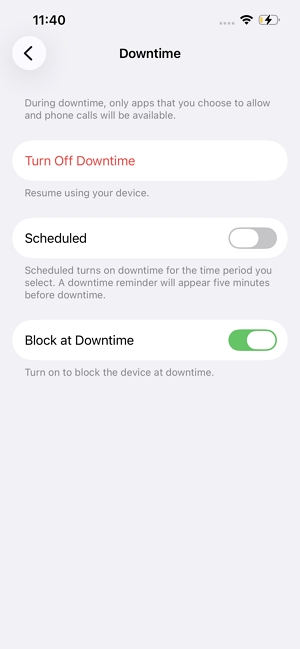
This is the single most confusing setting in the entire Screen Time menu. It acts as the master switch that decides whether Downtime is a gentle, polite reminder or an iron-clad restriction.
What Happens if I Turn "Block at Downtime" ON? (Strict Restriction)
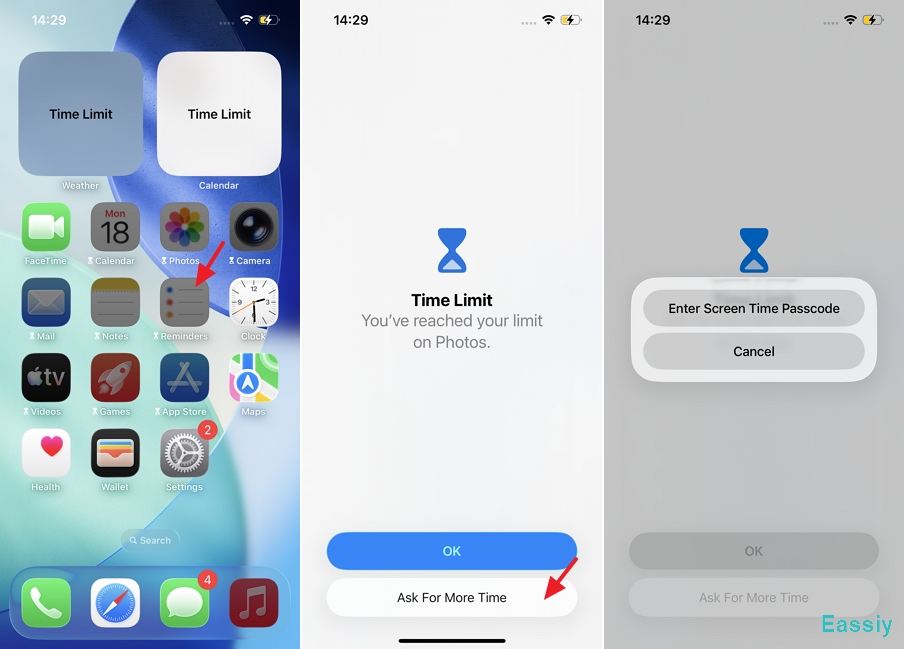
When this is turned ON, your scheduled Downtime becomes a true lock. The moment the clock strikes your scheduled hour, restricted apps become completely inaccessible. Their icons on your home screen will turn dark or greyed out, and a small hourglass icon will appear next to their names.
If you or your child tries to open a blocked app like YouTube, a full-screen warning will appear saying you've reached your limit. The only way to open the app is to tap "Enter Screen Time Passcode" and type in your secret 4-digit PIN. This is the mode you want to use for serious distraction management or strict parental control.
What Happens if I Leave "Block at Downtime" OFF? (Soft Suggestion)
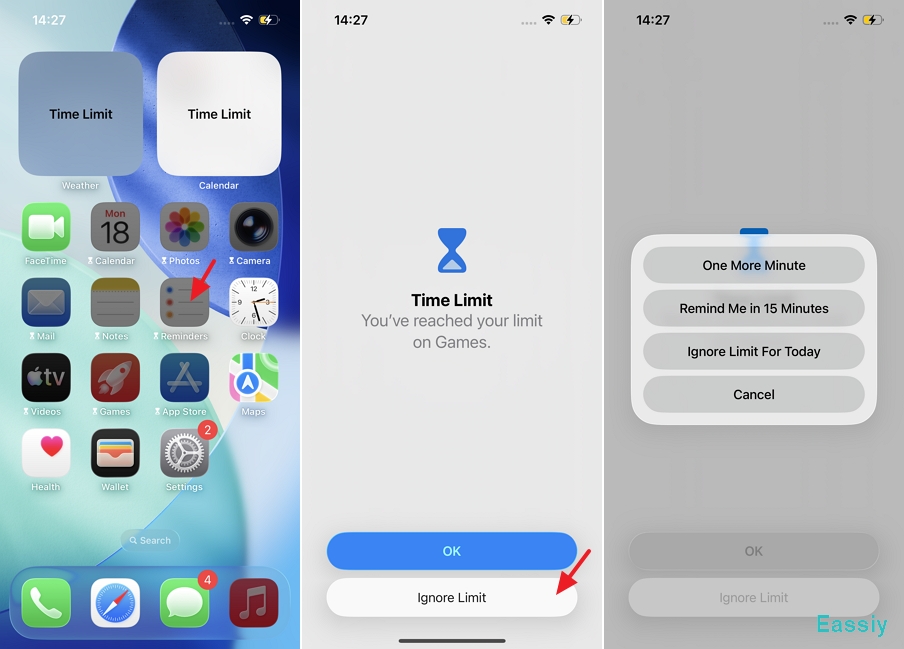
When this is turned OFF, Downtime completely loses its teeth. The app icons will still look greyed out, but when you tap on a blocked app, the iPhone will simply show a warning screen with options like "Ignore Limit," "One More Minute," or "Remind Me in 15 Minutes."
Clicking "Ignore Limit" lets you use the app normally for the rest of the day without needing to enter any passcode. Apple designed this mode for adults who want a gentle nudge for self-discipline, but it is completely useless for parental control because children can bypass it instantly.
What Does "Turn On Downtime Until Schedule" Mean?
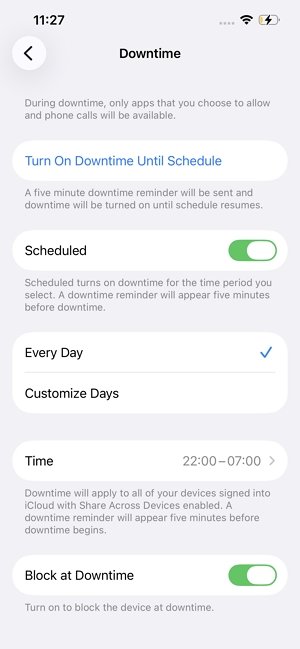
Turn On Downtime Until Schedule is simply a manual override button to activate Downtime immediately. If your normal Downtime schedule isn't supposed to start until 10 PM, but you need to sit down and study right now at 3 PM, you can tap this button to activate Downtime immediately. It will stay running until your next official schedule cycle resets it the following morning.
What Does "Ignore Downtime Until Schedule" Mean?
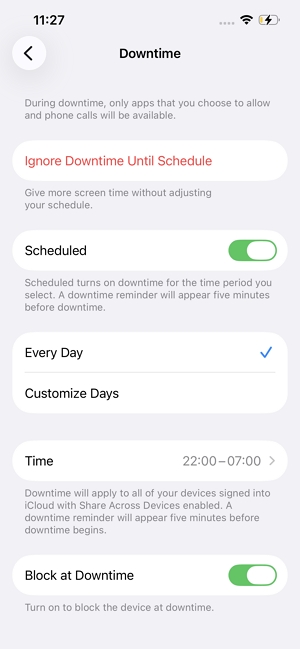
This option only appears when Downtime is actively running. It is the temporary "off switch." Tapping this will instantly turn off all restrictions and give you full access to your apps for the remainder of the day. The automated schedule will resume as normal tomorrow.
How to Set Up Downtime on iPhone?
Setting up Downtime correctly requires two parts: choosing your scheduled hours and setting up your "Always Allowed" exceptions. To make this guide truly practical, let’s look at how to configure these settings based on your specific real-life goals, followed by how to turn the feature off when you no longer need it.
How to Turn On Downtime on iPhone
Downtime shouldn't just be viewed as a rigid restriction; it is incredibly powerful when paired with the right lifestyle design. Follow the standard steps below, but choose the configuration that matches your goal:
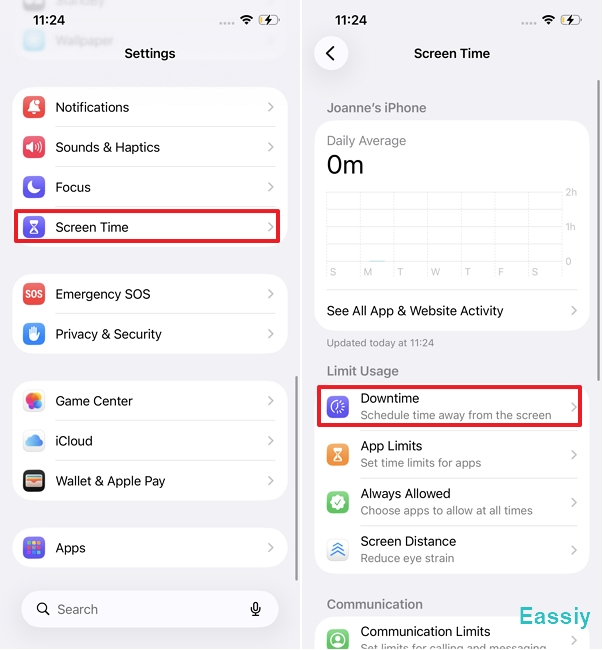
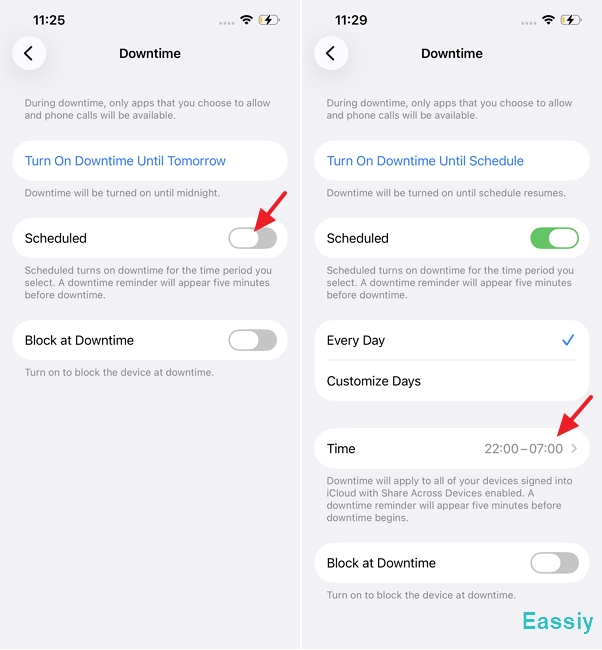
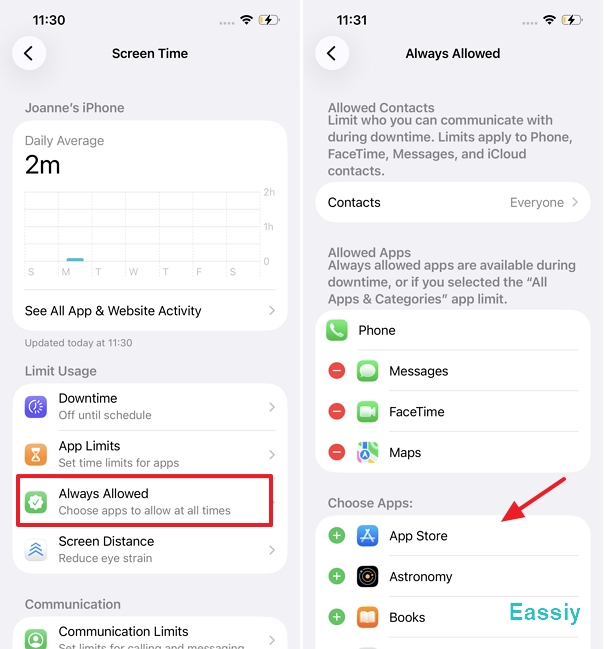
1. Open Settings on your iPhone and tap Screen Time > Downtime.
2. Toggle the Scheduled switch to green (ON).
3. Choose either Every Day or Customize Days.
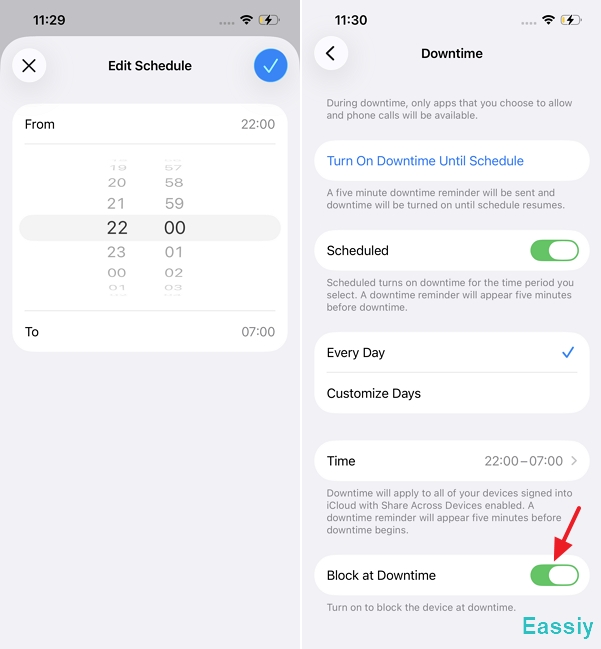
4. Then, select your exact Start and End times. Toggle on Block at Downtime to ensure the restrictions require a passcode.
5. Go back to the main Screen Time menu, tap Always Allowed, and add essential apps (like Phone, Messages, Maps) to the allowed list so they never lock up.
How to Turn Off Downtime on iPhone
Depending on whether you just need a temporary break to finish a task or you want to disable the automation completely, you have two simple choices.
If Downtime is currently running and blocking an app you urgently need, you don't have to delete your entire schedule. When the grey restriction screen pops up on the app, tap Ask for More Time (or go to your settings) and select Ignore Downtime Until Schedule. This lifts the lock for the rest of the day without altering your permanent settings.
If you no longer want to use the feature at all, you can disable the automation entirely in just a few taps:
1. Go to Settings > Screen Time > Downtime.
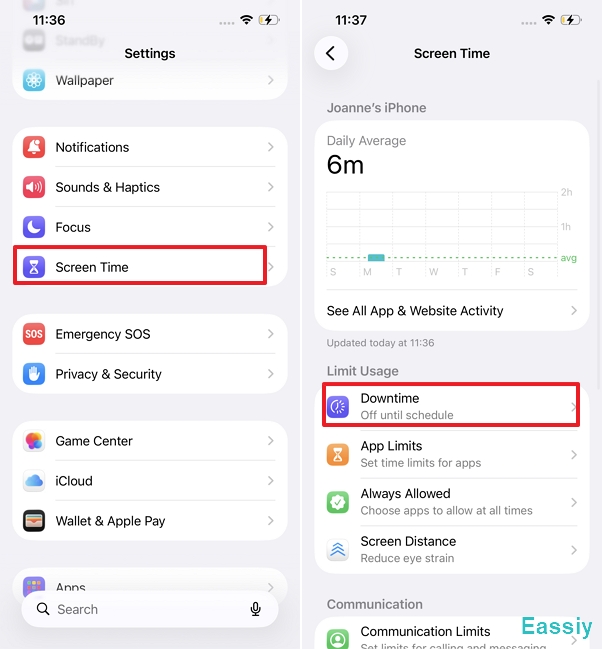
2. Enter your 4-digit Screen Time passcode if prompted.
3. Look at your active status options: If you turned it on manually, tap "Turn Off Downtime". If it is currently running on a preset schedule, tap "Ignore Downtime Until Schedule". Both of these options will lift the app restrictions immediately for the rest of the day.
4. If you want to make sure Downtime never automatically triggers again, simply toggle the Scheduled switch to grey (OFF).
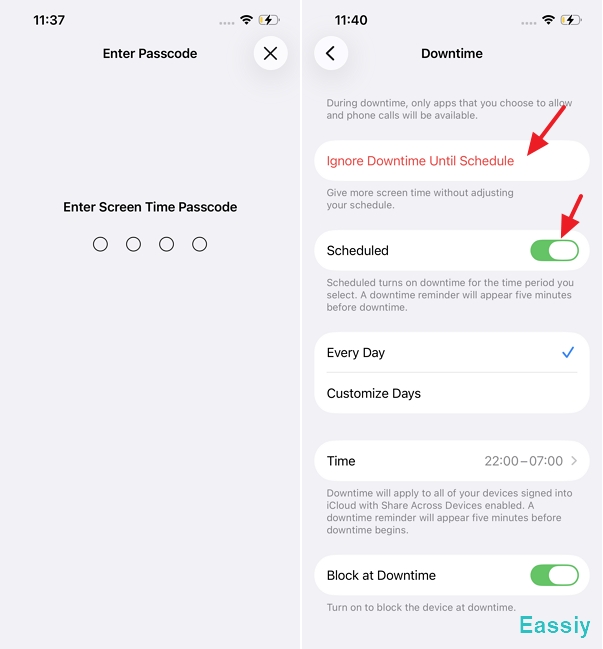
Once disabled, Downtime will stop restricting your apps, and normal device usage will continue until you choose to reactivate it.
What About Multiple Devices?
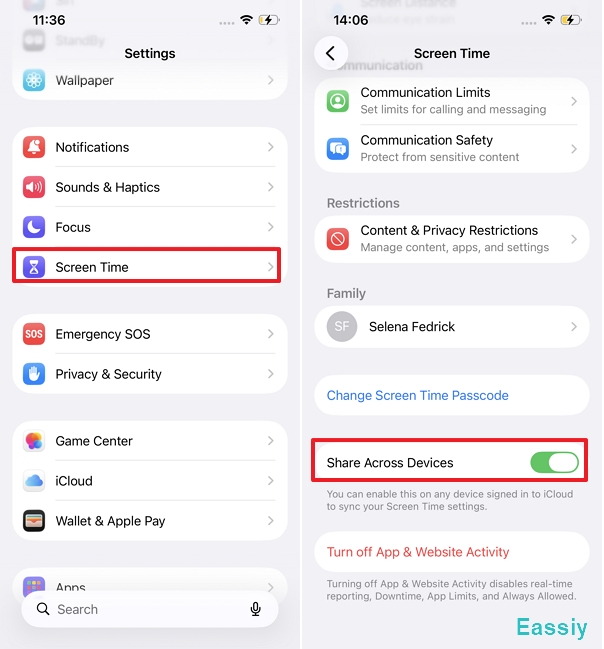
A common point of confusion arises when you own multiple Apple devices, such as an iPhone, an iPad, and a Mac. By default, Apple turns on a setting called "Share Across Devices" inside the Screen Time menu.
This means if your Downtime is scheduled to start at 10 PM, it will simultaneously lock your iPhone, your iPad, and your Mac at 10 PM, provided they are all signed into the same Apple ID. If you only want to lock your phone but keep working late on your Mac, you must go to Settings > Screen Time, scroll down, and turn off Share Across Devices.
Troubleshooting: iPhone Downtime Not Working Properly?
If your apps are getting blocked at the wrong times, or if your child is magically bypassing their limits, it is usually a settings conflict rather than an iOS system bug. Here is how to fix the two most common glitches:
Essential apps are blocked when they shouldn't be?
If a critical app like your email or messages is greyed out during Downtime, it means you forgot to whitelist it. Go to Settings > Screen Time > Always Allowed, scroll through the list, and hit the green "+" icon next to the app to keep it active at all times.
Downtime completely ignores the schedule?
If Downtime triggers too late or fails to turn off in the morning, it is almost always caused by an iCloud sync delay across your devices, or your child is using the notorious "Time Zone Trick" (changing the phone's clock to bypass limits). To fix this, turn off "Share Across Devices" in the Screen Time menu to force the phone to rely strictly on its local, unalterable clock.
Forgot Your Screen Time Passcode?
But what if you find yourself in the ultimate nightmare scenario—you or your family member completely forgot your Screen Time passcode? If that happens, you are essentially trapped in your own device. Without that PIN, you won't be able to turn off Downtime, modify your app exceptions, or approve requests for more time.
Before you panic and resort to a full factory reset—which wipes out all your precious photos, messages, and files—there is a much smarter way out. You can use Eassiy iPhone Access to safely solve this exact issue. This powerful utility can bypass and remove a forgotten Screen Time passcode on any modern iOS version (including advanced systems up to iOS 26). The best part is that it clears the passcode instantly without erasing your iPhone, giving you complete control over your Downtime configurations once again.
To Conclude
Downtime is an incredibly powerful tool on iPhone for reclaimed focus and digital wellbeing, but only when you pierce through Apple's confusing terminology. Once you understand the golden rule—leave "Block at Downtime" OFF for flexible personal reminders, and turn it ON for strict boundaries—the feature becomes incredibly easy to manage. And if a forgotten passcode ever leaves you locked out of your own device, professional recovery tools like Eassiy are always there to rescue your data and reset your digital schedule.