Help Center

Updated on 2026-05-15
views
5min read
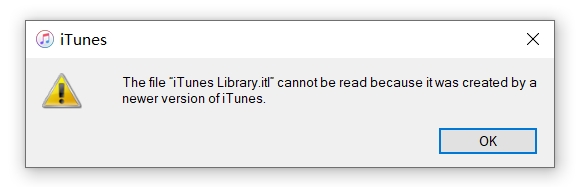
Recently, I encountered a highly frustrating issue. I opened iTunes on my Windows computer, connected my iPhone via USB, and the exact moment I clicked the device icon to manage my iPhone, a warning popped up: "The file iTunes Library.itl cannot be read."
If you are dealing with this, I know firsthand how alarming it feels. This problem completely blocks iTunes from loading your library, managing your device, and causes all your songs, playlists, and media files to appear missing. When your priority is simply to sync your phone or load your library as usual, this sudden error is a major roadblock.
In this article, based on my real-world troubleshooting experience, we will discuss exactly why this happens and explore various ways to fix the "iTunes Library.itl cannot be read" error on both Windows and Mac. We will also cover what to do if you cannot find the actual file or if the “Previous iTunes Libraries” folder is completely empty.
Why the "iTunes Library.itl Cannot Be Read" Error Occurs
According to Apple's official support documentation and developer community guidelines, the iTunes Library.itl file is the core database that records the songs in your library and the playlists you've created.
Depending on your operating system, the exact error message will vary slightly.
- On a Windows computer, you will receive the message: "The file iTunes Library.itl cannot be read because it was created by a newer version of iTunes."
- On a Mac, you will receive the prompt: "Your library cannot be read because it was created by a newer version of Music."
This error almost always occurs due to a version mismatch or database corruption. The most common authoritative reasons include:
Downgrading iTunes: If you recently updated iTunes, the .itl database is automatically upgraded to match the new software. If you then uninstall that new version and reinstall an older version of iTunes, the older software cannot read the newer database format, triggering this exact error.
Corrupted OS Updates: A recent macOS or Windows system update may have abruptly altered or corrupted the file permissions, making the database unreadable.
Third-Party Syncing Software: Sometimes, using third-party iOS management tools can interrupt the read/write process of the iTunes database, locking or corrupting the .itl file.
Fix the "iTunes Library.itl Cannot Be Read" Error on Windows
On Windows, this issue often occurs when the library file is broken, altered, or incompatible following a software update. The most effective fix involves recovering an earlier version of the library database or performing a fresh installation.
Follow these steps to fix the error on Windows:
1. Uninstall the older or corrupted iTunes installation from your computer. Then, download and install the latest iTunes version from Apple or the Microsoft Store for stable operation.
2. Open File Explorer, select the Music folder, and open the iTunes directory. Look for a file named iTunes Library.
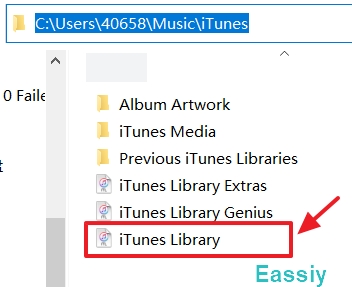
Note: If you do not see it, click the View tab in File Explorer and check the box for Hidden items.
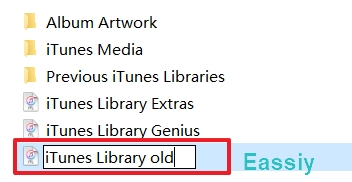
3. Right-click the file and rename it to iTunes Library old.
4. Open the Previous iTunes Libraries folder (located in the same iTunes directory).
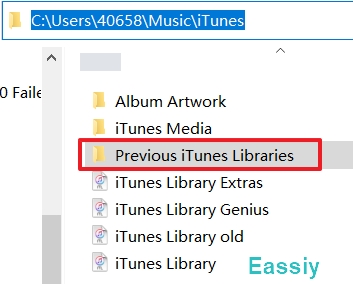
5. Find and copy the iTunes Library file. The file usually has the exact date in their file name.
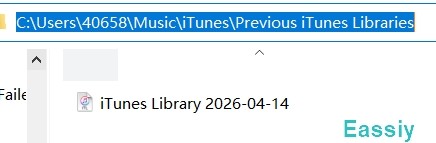
6. Paste the copied file back into the main iTunes directory.
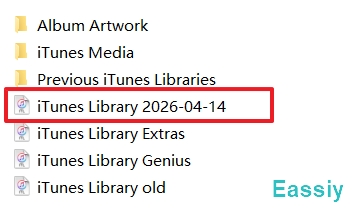
7. Rename it to iTunes Library (removing the date).
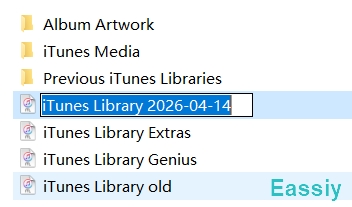
7. Open iTunes and connect your device.
At this point, iTunes should open correctly without the error popup when clicking the device icon. Your entire media collection should now be visible and accessible.
Fix "Your library cannot be read because..." Error on Mac
For Mac users (specifically those running older macOS versions that still utilize iTunes), this error usually appears when the library file becomes corrupted after a system update. You can resolve the issue by recovering a previous backup and recreating the library structure.
Follow these steps to fix the error on a Mac:
1. Ensure you install the most up-to-date version of iTunes for your macOS to ensure compatibility.
Note: If you use iCloud Music Library, disconnect your Mac from the internet during the following steps. This prevents iCloud from trying to sync while you are fixing the local database.
2. Open Finder, press Command + Shift + G to open "Go to Folder", and input ~/Users/[Your Username]/Music to quickly access your directory.
![~/Users/[YourName]/Music](https://www.eassiy.com/uploads/images/go-to-folder-mac.jpg)
3. Click on the iTunes Library or Music Library file and rename it, adding the old so it becomes iTunes Library old.
4. Go to the Previous Libraries folder and duplicate the iTunes Library or Music Library file. (Like Windows, these files have dates in their names for easy identification).
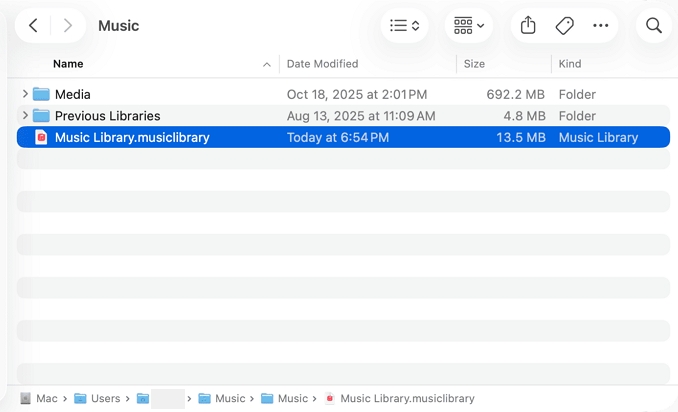
5. Paste the duplicated Music Library file into the main ~/Music/ folder and rename it exactly to iTunes Library.
6. Reopen iTunes or Finder on your computer.
Tech Tip: Adding old to a file name is a widely used IT best practice for safely backing up a file while troubleshooting. Because the system no longer recognizes the old file as the active database, it stops trying to read the corrupted data. If anything goes wrong during your fix, simply deleting the new file and removing the old from the original name will safely return your system to how it was.
What If You Can't Find "iTunes Library.itl"?
At times, the file may appear missing because it has been shifted, renamed, or hidden by the operating system. Generally, the file is placed inside the default Music directory that holds all your media.
Please note that the iTunes Library.itl file is not located in the main iTunes installation directory (such as Program Files or Applications). Instead, it is stored in your personal user directory:
Here is where to look based on your operating system:
- On Mac: Open a Finder window, click Go in the top menu bar, select Home, open the Music folder.
- On Windows (7, 10, and 11): Navigate to
C:\Users\[Your Username]\Music\iTunes\. - On Windows XP: Navigate to
C:\Documents and Settings\[Your Username]\My Documents\My Music\iTunes\.
Additionally, both Windows and macOS hide known file extensions by default. This means you will likely not see the .itl part at the end of the file name. In your folder, the file will simply appear as "iTunes Library". Please look directly for the file named "iTunes Library" to proceed.
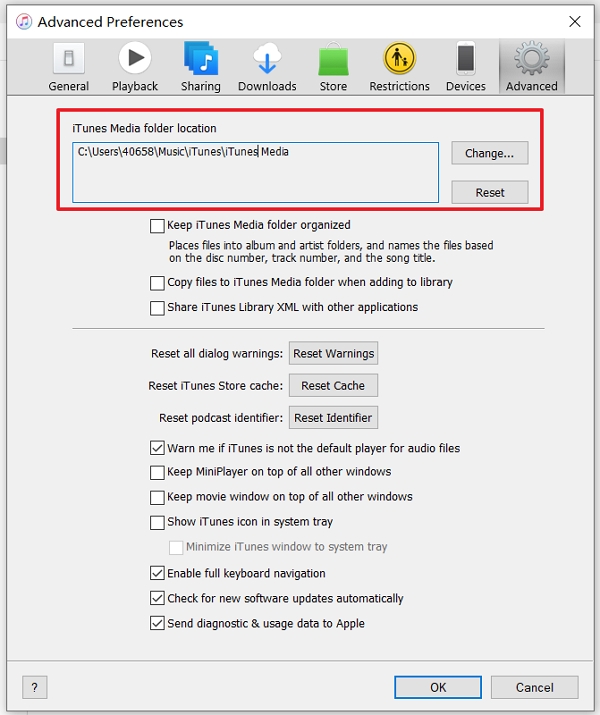
If your iTunes Media folder was moved from the default path, you can find its location through iTunes:
1. Access Preferences:
- Mac: In the top menu bar, select iTunes > Preferences.
- Windows: From the top menu bar in iTunes, select Edit > Preferences.
2. Go to the Advanced tab.
3. Look in the "iTunes Media folder location" box to find the exact directory path where your database and media are saved.
What If the "Previous iTunes Libraries" Folder Is Missing?
Sometimes, when you go to look for a backup of iTunes Library, you might find that the “Previous iTunes Libraries” folder is completely missing or empty. Do not panic—this is not a major problem.
Usually, simply renaming the corrupted iTunes Library.itl to .old and reopening iTunes fixes the crash. When you reopen iTunes without an active .itl file, the software automatically generates a fresh, blank library. Your old playlists might not show up immediately, but the error will be gone.
- For macOS users: Media recovery is heavily integrated with iCloud. If you use Apple Music or iTunes Match, your cloud library will slowly populate the new database. You can also use Time Machine to restore the missing
.itlfile from a past date. - For Windows users: Windows provides recovery tools like File History or System Restore that can help recover a previous version of the folder. Alternatively, if you have iCloud syncing enabled via Apple Music or iTunes Match, your purchases and cloud songs will eventually resync to the new blank library.
To Conclude
Through my own frustrating experience of being blocked from managing my iPhone, I learned that the "iTunes Library.itl cannot be read" error is usually a strict version mismatch or database corruption.
By simply renaming the corrupted file to old and replacing it with a backup from the "Previous iTunes Libraries" folder, you can restore full access to your media and successfully sync your iPhone again without risking your data. If you ever find yourself empty-handed, letting iTunes recreate a blank library and allowing iCloud to resync is a safe fallback.