Help Center
Updated on 2026-05-09
views
5min read
After unboxing your new iPhone, you may find yourself stuck on the setup page when trying to transfer data from your old iPhone to the new one as "Quickly Set Up iPhone" fails to function. The screen keeps showing "Looking for nearby devices," but nothing moves forward.
We recently encountered and successfully resolved the issue "Quickly Set Up iPhone not working" firsthand on an iPhone 14 running iOS 26. In this guide, we’ll walk you through the most effective fixes to get "Quickly Set Up" working again.
What is Quickly Set Up iPhone?
Quick Start helps you quickly and easily configure a new iPhone. Placing the old iPhone next to the new one triggers automatic detection and setup. It moves your Apple ID, settings, Wi-Fi credentials, and other key information without requiring manual input. It speeds up the setup and helps avoid mistakes.
It removes the need to type passwords or sign in again by securely sharing information from the old iPhone. It is a shortcut that simplifies setup and saves time and effort.
The transfer process keeps both iPhones busy, so they cannot be used until the task completes. It is best to begin the process when both phones are free for a while so the transfer can finish smoothly without interruption.
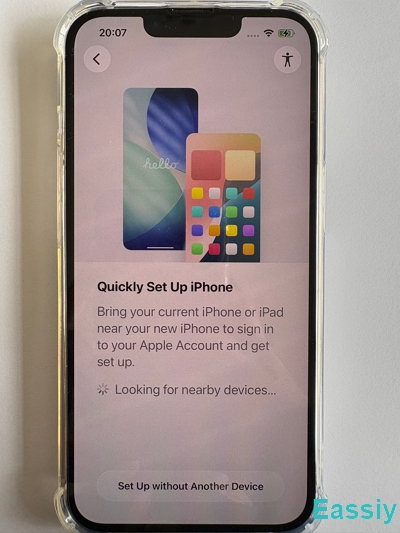
Top Solutions for Quickly Set Up iPhone Not Working Error
Solution 1. Restart the Old iPhone (The Most Effective Fix)
A very common reason for the "Quickly Set Up iPhone" failing on new iPhone is simply missing the "Set Up New iPhone" prompt on your old iPhone. Here is what we discovered in our testing lab when transferring data from an iPhone 16 (running iOS 18.5) to an iPhone 14 (running iOS 26.4.2):
The "Set Up New iPhone" prompt on the old device only appears for about 20 seconds before disappearing automatically. Furthermore, the prompt will close instantly if you accidentally touch anywhere else on the old iPhone's screen. If you miss or accidentally dismiss this pop-up—which happened on our end—the new device can get stuck indefinitely on the Quickly Set Up iPhone screen with“Looking for nearby devices” status.
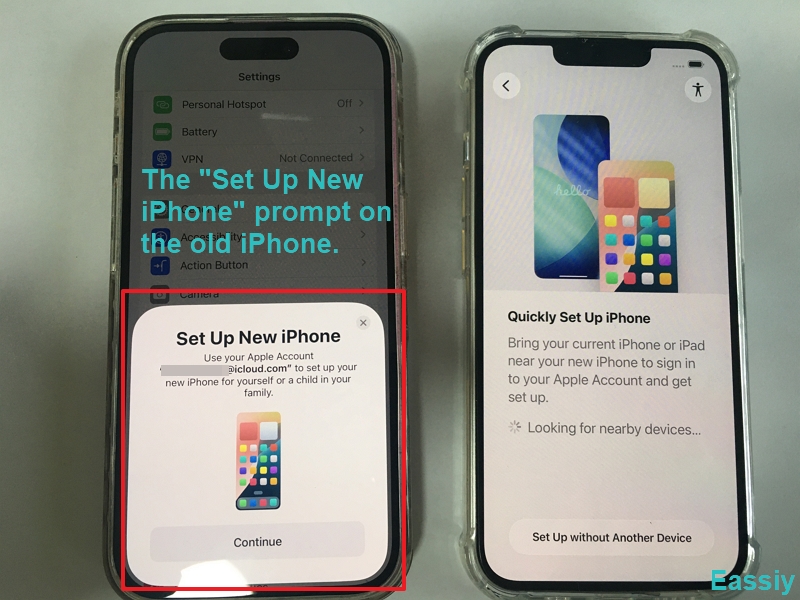
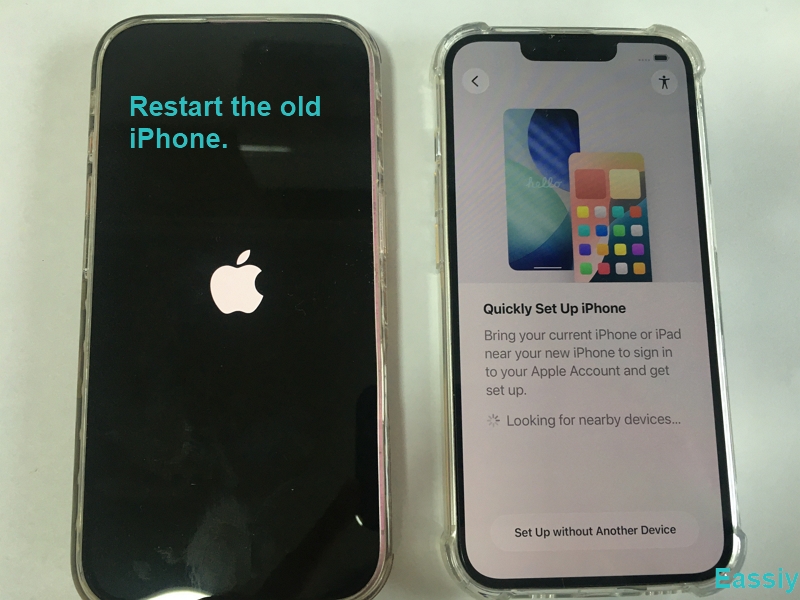
We tried going back to the Appearance settings on the new iPhone and re-entering the Quick Setup screen to retrigger the prompt on the old phone, but without success. To successfully retrigger the “Set Up New iPhone” prompt, the only working solution we found was to restart the old iPhone.
After restarting, place both phones close together and begin the setup process again to force the Quick Start prompt to reappear. Once the pop-up shows up on your old iPhone, make sure you don't miss it again by tapping the Continue button immediately. Your new iPhone will then move forward without getting stuck on the “Looking for nearby devices” screen.
Apple also officially recommends this step in their "Use Quick Start to transfer data to a new iPhone or iPad" support post:
"Make sure that your current device is connected to Wi-Fi and Bluetooth is on. Turn on your new device and place it near your current device. Follow the onscreen instructions to get started. If the prompt to set up your new device disappears from your current device, restart both devices."
Solution 2. Check the Wireless Connections
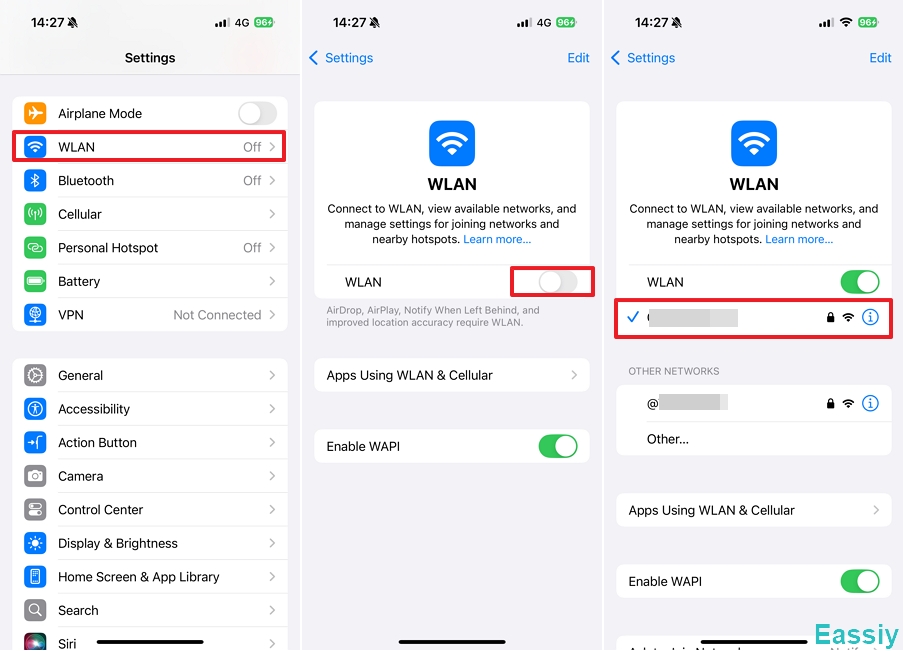
If it is still stuck at the Quickly Set Up iPhone screen, your next step is to verify the wireless connections. Quick Start connects your old and new iPhones using Wi-Fi and Bluetooth. If either of these is turned off, or if the devices are too far apart, the setup may not begin.
Ensure your old iPhone has Wi-Fi turned on and Bluetooth enabled, then start the new iPhone and place it right next to the old device. Keeping them physically close helps create a reliable wireless connection, allowing Quick Start to recognize the device and continue the setup.
Solution 3. Update iOS on Your Old iPhone
Should the connection still fail after verifying your wireless settings, incompatible software might be the culprit. Running outdated iOS software on your old iPhone may prevent proper compatibility with a newer iPhone. If the software versions don’t match, Quick Start may not detect the devices, leading to a connection failure.
To fix the issue:
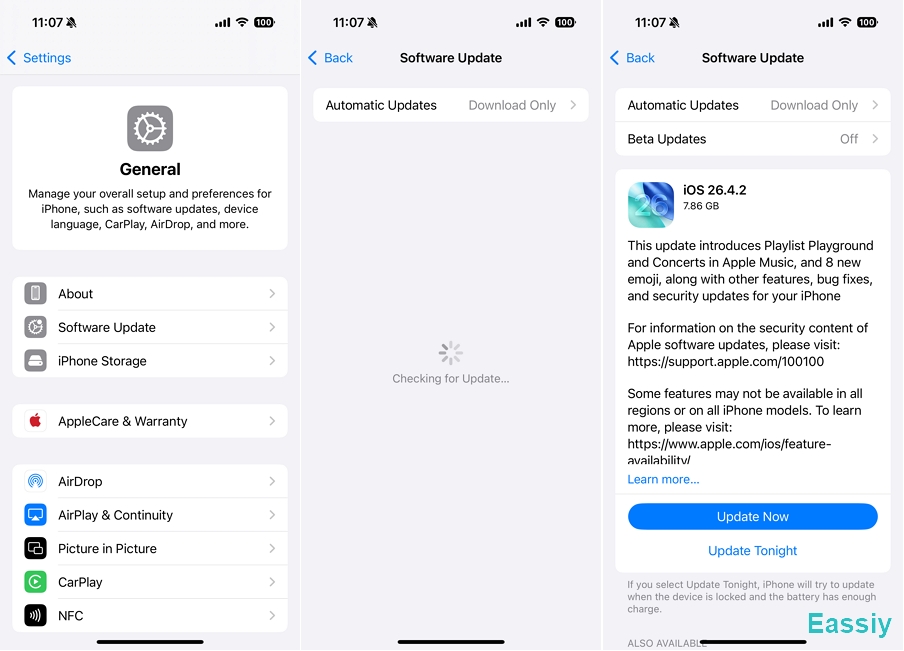
- Prior to starting, open Settings > General > Software Update on your old iPhone and install the newest iOS version.
- After updating, restart the phone to refresh the system settings.
- Then, place it near the new iPhone and try Quick Start again. This helps ensure a proper connection and smooth data transfer.
Solution 4. Plug Both Devices Into Power
Another frequently overlooked factor that halts the setup process is the battery. If either iPhone has a low battery, Quick Start may stop or fail to begin. Data transfer requires enough power, and the system actively prevents interruptions or sudden shutdowns during the process.
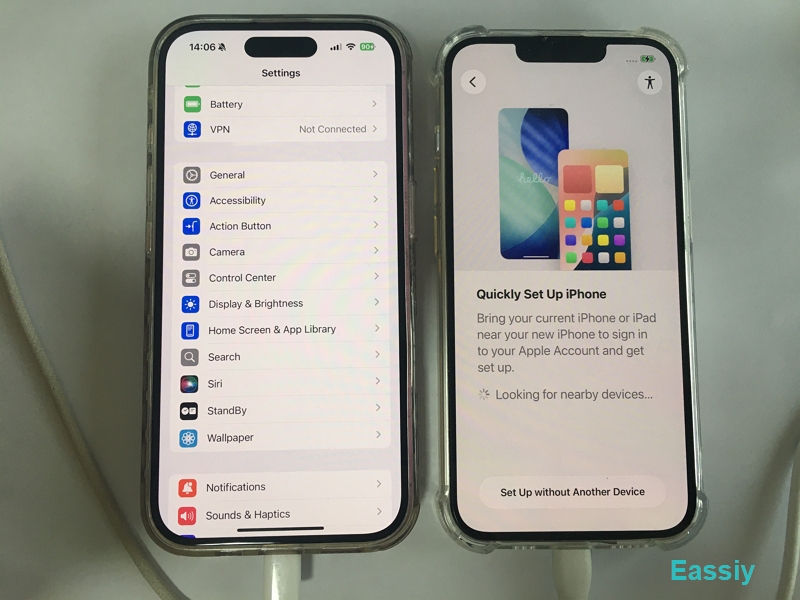
To prevent a weak battery from pausing or failing your setup, plug both iPhones into a power source before starting Quick Start. Once they are charging, place the devices close together and restart the setup process to enable a stable and successful transfer.
Solution 5. Use Manual Authentication
If the devices finally detect each other but you get stuck at the camera scanning step, try this workaround:
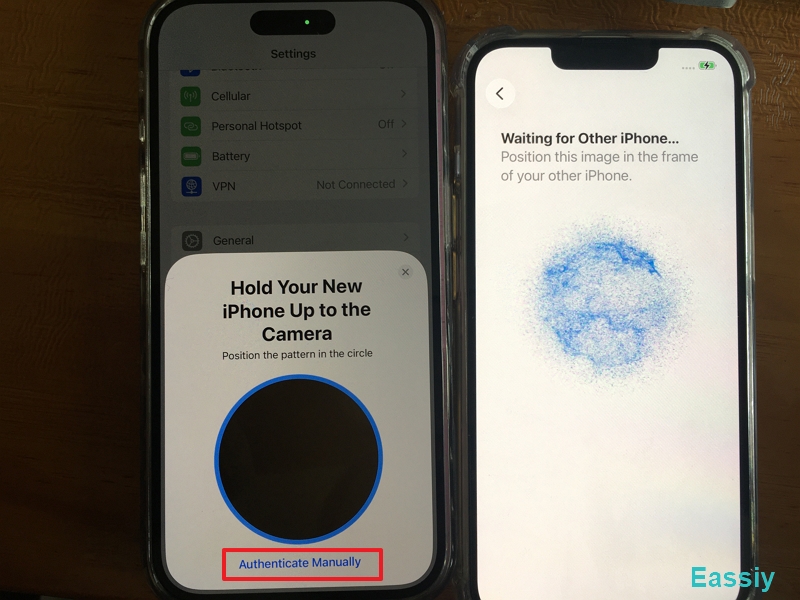
Sometimes the devices connect, but the old iPhone’s camera cannot properly scan the animated pattern shown on the new iPhone. A dusty lens, a faulty camera, or weak focus can cause Quick Start to fail verification and stop the setup process.
If you cannot scan with the camera, simply tap “Authenticate Manually” at the bottom of the screen. Your new iPhone will show a pairing code. Enter this code on your old iPhone to confirm the connection, and Quick Start will proceed normally.
Solution 6. Switch to Restore from iCloud or Computer Backup
When all else fails and the automated Quick Start absolutely refuses to cooperate, you can always revert to the manual route.
If Quick Start still stays stuck on “Looking for nearby devices,” the automatic connection has completely failed, likely due to deeper connectivity or software problems.
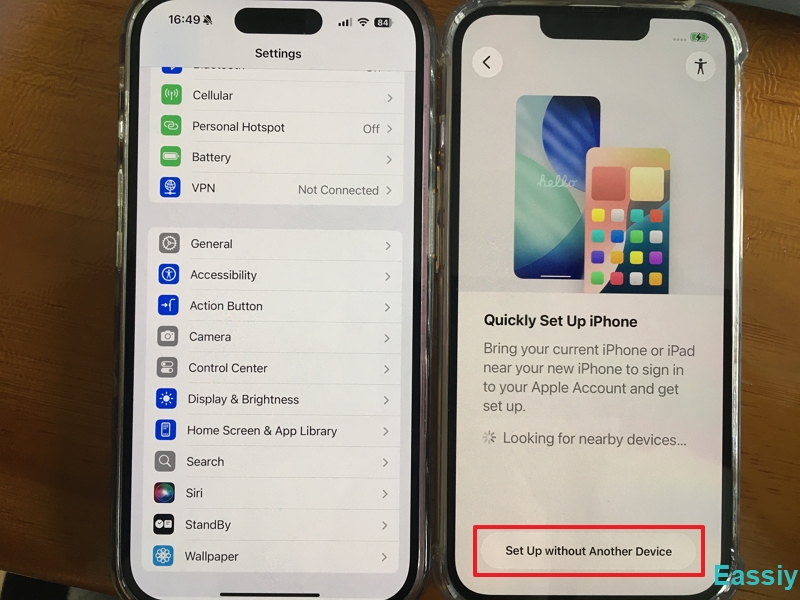
In such cases, you should skip Quick Start and proceed with the manual setup process instead. Tap “Set Up Without Another Device” on the Quick Start screen to bypass the automatic transfer. From there, you can continue setting up your iPhone manually:
- Join a Wi-Fi network, which is required for iPhone activation.
- When asked how you want to transfer your data, you have a few choices. You can choose “Restore from iCloud Backup” or “Restore from Mac or PC” to bring over your data. Alternatively, you can select “Don’t Transfer Apps & Data” if you prefer a fresh start.
- Sign in with your Apple Account, or create a new one if you don’t have one.
- Finish the setup by configuring Face ID or Touch ID, choosing a passcode, and enabling Siri.
This option bypasses Quick Start entirely but still provides a smooth and complete iPhone setup process.
Conclusion
While Quick Start is meant to be a seamless shortcut, it can occasionally hit a roadblock and get stuck on the "Looking for nearby devices" screen. As we found in our own testing, a simple restart of the old iPhone is often the quickest and most reliable fix. By ensuring your software is updated, your connections are active, and your batteries are charged, you can clear almost any hurdle. And remember, if the automatic route just won't cooperate, falling back to the manual setup or using an iCloud backup is a surefire way to get your new iPhone up and running without delay.