Help Center
Updated on 2026-07-03
views
5min read
Millions of Apple users treat iCloud like a magical time machine, assuming that every nightly backup is safely stored in a permanent vault. This misconception leads to catastrophic data loss when users try to recover a deleted text message or an old photo, only to realize the backup they need is gone.
If you are wondering, "Do iCloud backups overwrite each other?" or "How many backups does Apple actually keep?" you are not alone.
To give you the most scientifically accurate answer, we bypassed the basic tech forums and dug directly into Apple's official Platform Security architecture. Here is the lab-verified truth about how iCloud actually handles your data.
Do iCloud Backups Overwrite Each Other?
The short answer is yes, but only for the same device. iCloud backups are not designed to stack endlessly like files in a computer folder. Instead, to save massive amounts of server space, Apple uses a rolling overwrite system. To understand exactly how and when your backups are overwritten, you must distinguish between backups of a single device and backups across multiple devices.
For a Single Device
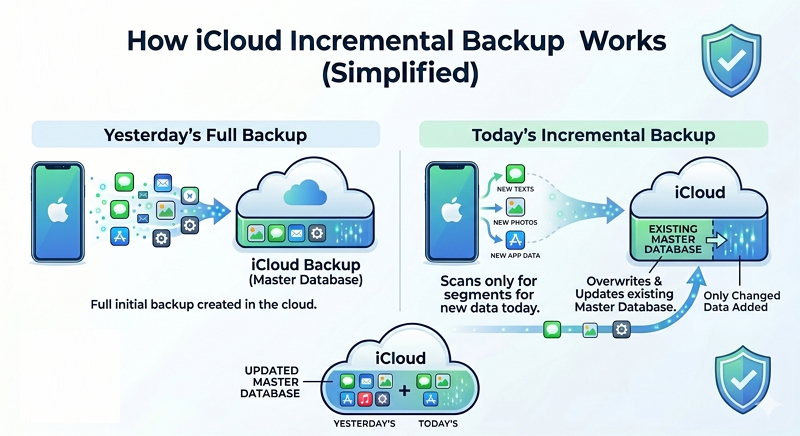
If you are backing up your current iPhone, today's backup will overwrite yesterday's data. To prove this, we can look directly at Apple’s engineering documents. In the official Apple Platform Security Guide, Apple explicitly defines the mechanics of this system under the iCloud Backup Security section:
"iCloud Backup is designed to keep data secure while allowing incremental, unattended backup and restoration to occur."
In computer science, an "incremental" backup means the system does not create a brand-new 100GB file every night. Instead, it only scans for the increments—the new texts, photos, or app data you generated today—and continuously overwrites or updates the existing master database in the cloud.
What Data is Actually Overwritten?
Because iCloud relies on a rolling backup mechanism to save its limited 5GB space, it is crucial to understand what files are actively being replaced. For example, many users ask: does iCloud backup include photos, or does iCloud save text messages?
The short answer is yes. Unless you have enabled their respective real-time iCloud sync toggles in Settings, both your massive camera roll and SMS history are bundled into that single backup file. When an overwrite occurs, the old versions of your photos and texts are wiped out to make room for the latest ones.
When Exactly Does the Overwrite Happen?
Apple's automated system usually triggers an overwrite when your device is plugged in, locked, and connected to Wi-Fi. Before taking any recovery actions, you should always check your iPhone last backup date. If a new sync was completed overnight, your previous digital snapshot has already been permanently replaced.
For Multiple Devices
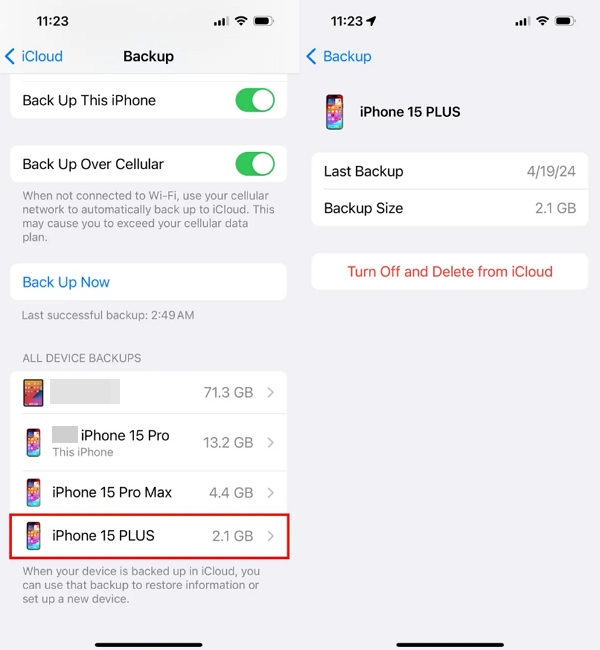
The overwrite rule only applies to a single, specific device. Backups from different devices are strictly independent and will never overwrite each other, even if they are logged into the exact same Apple ID.
This means your iPad's nightly backup will never overwrite your iPhone's backup; they simply exist side-by-side in your iCloud storage. This strict separation also applies during device upgrades, which is where many users get confused.
If you buy a new iPhone and restore it from your old iPhone's backup, the new phone begins creating its own, brand-new daily backups. Your old iPhone's final backup remains static and untouched in iCloud until you manually delete it (or until it auto-deletes after 180 days of inactivity).
How to Stop the Automatic Overwrite
If you lose a file today, your deleted data might still be safely sitting in your previous iCloud snapshot. Your immediate goal is to prevent the next automatic backup from overwriting it. But to stop it, you first need to know exactly when that overwrite will happen.
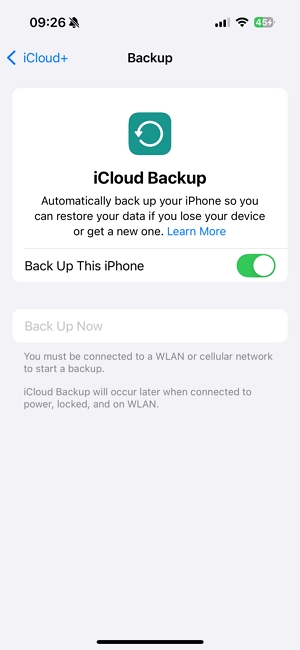
A common misconception is that iCloud only backs up "at night." According to Apple's official support guidelines, an iCloud backup happens automatically once a day whenever three physical conditions are met simultaneously:
- Your device is connected to a power source.
- Your device is connected to a Wi-Fi network.
- Your device's screen is locked.
Because people usually plug their locked phones into a charger before going to sleep, these backups typically happen overnight. However, if you plug your phone in at your office desk on a Wi-Fi network during the day, the overwrite can trigger right then and there.
To stop the overwrite and protect your deleted data, you simply need to break one of those three conditions. If you realize you just deleted something important, the easiest method is to immediately turn off Wi-Fi or disconnect your phone from the charger.
By breaking the conditions and pausing the overwrite cycle, you buy yourself the crucial time window needed to use an iCloud data extraction tool or perform a full device restore using your older, un-overwritten snapshot.
How Many iCloud Backups Are Stored?
Because of this incremental overwrite system, iCloud technically maintains exactly ONE continuous backup database per device. However, Apple’s servers retain a short history of recent states (timestamps) within that database, allowing you to "roll back" to a state from a few days ago.
So, how many of these historical "snapshots" can you access? Typically, Apple retains your last 3 successful backups. Why do most people think there is only one? Because Apple displays different information depending on where you look.
From Settings
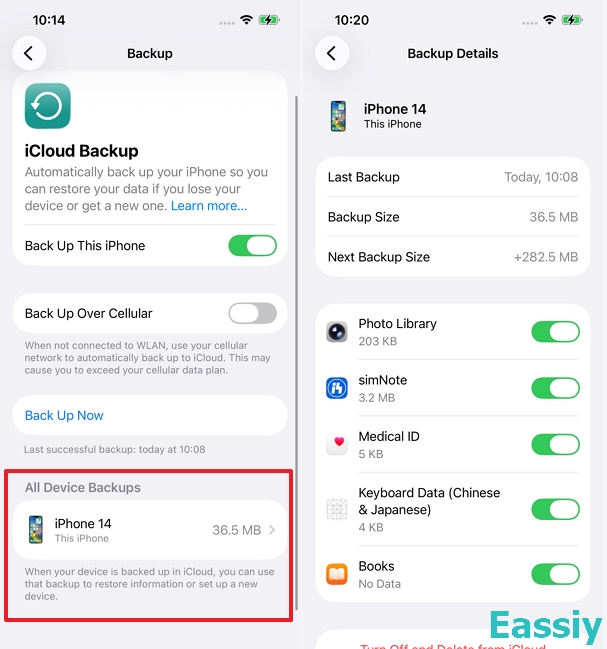
If you navigate to Settings > [Your Name] > iCloud > Manage Account Storage > Backups, you will only ever see one backup file listed per device. This menu only shows the total storage footprint of that device, hiding the historical snapshots to keep the user interface simple.
From iOS Setup Screen
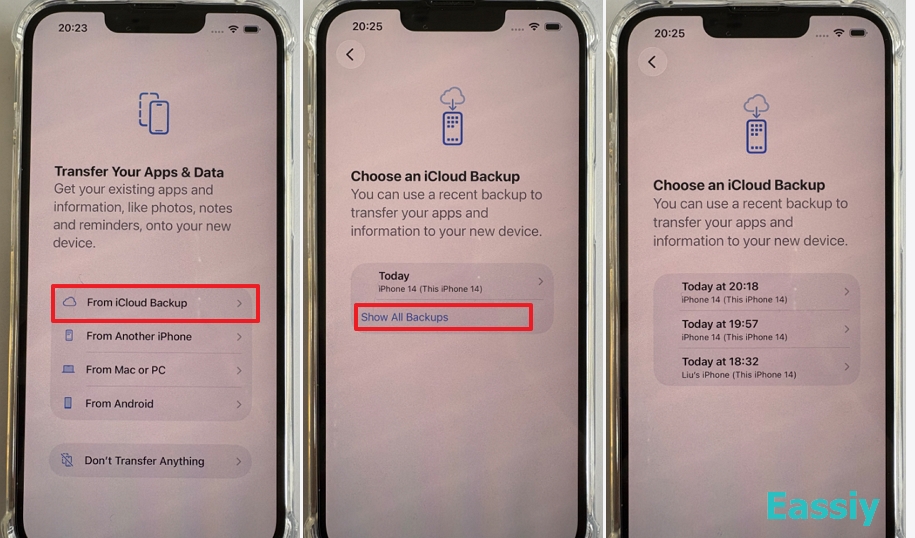
You can only see the multiple backups when you completely erase your iPhone and trigger the iOS Setup Assistant. Apple’s own user manuals confirm that multiple historical points exist.
In the official support document titled Restore your iPhone, iPad, or iPod touch from a backup, Step 4 of the restore process explicitly instructs users to compare multiple files:
"Choose a backup. Look at the date and size of each and pick the most relevant."
Furthermore, in their troubleshooting guide If restore from iCloud backup failed, Apple reveals how to find these older snapshots:
"When you choose a backup, you can tap Show All Backups to see all available backups."
During our testing in the Eassiy Lab, tapping "Show All Backups" consistently revealed a rolling window of the last three successful backups. Anything older than those recent few days is permanently purged by the incremental overwrite system.
The Sync Exception: What iCloud Backup Does NOT Include
Even if you perfectly understand the rolling overwrite rules, there is a massive blind spot that catches many users off guard: knowing what your backup actually contains.
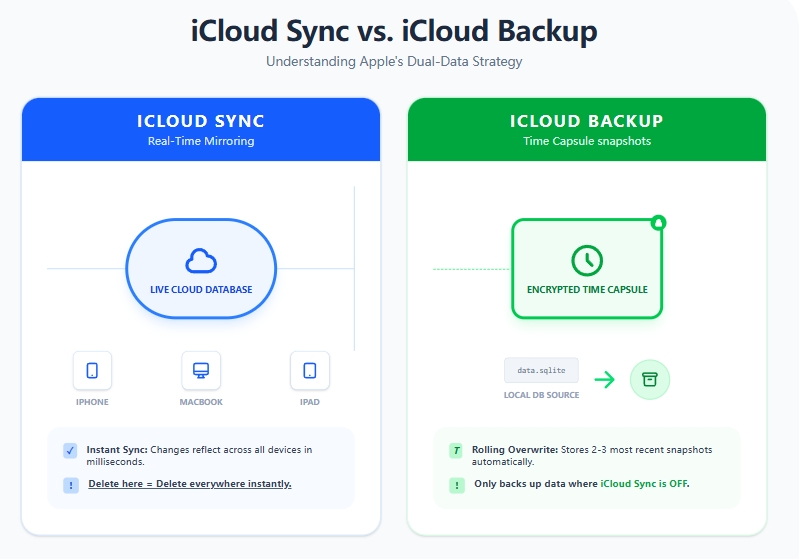
Before you attempt to rely on an iCloud Backup to recover lost data, you must understand Apple's strict storage rules. To prevent storing duplicate data and wasting server space, iCloud Backup does not include any information that you are already syncing to iCloud.
If you have features like iCloud Photos, Messages in iCloud, or iCloud Contacts toggled ON in your settings, those items are treated as live, real-time databases. They are strictly excluded from your nightly incremental backups.
Why this matters: If you delete a photo or a text message while Sync is ON, it is instantly deleted from Apple's servers. Rolling back your phone using yesterday's iCloud Backup snapshot will not bring that synced photo or message back, because it was never inside the backup file to begin with.
The Danger for Data Recovery
Understanding the incremental overwrite rule—combined with the strict "Sync" exception—reveals a harsh truth: iCloud is a terrible solution for recovering old, deleted data.
If you accidentally deleted an important text message a month ago, relying on an official iCloud restore is a dead end. By the time you realize the message is missing, your iPhone has already backed up dozens of times. The automatic overwrite cycle has permanently destroyed the old snapshot that actually contained your deleted text.
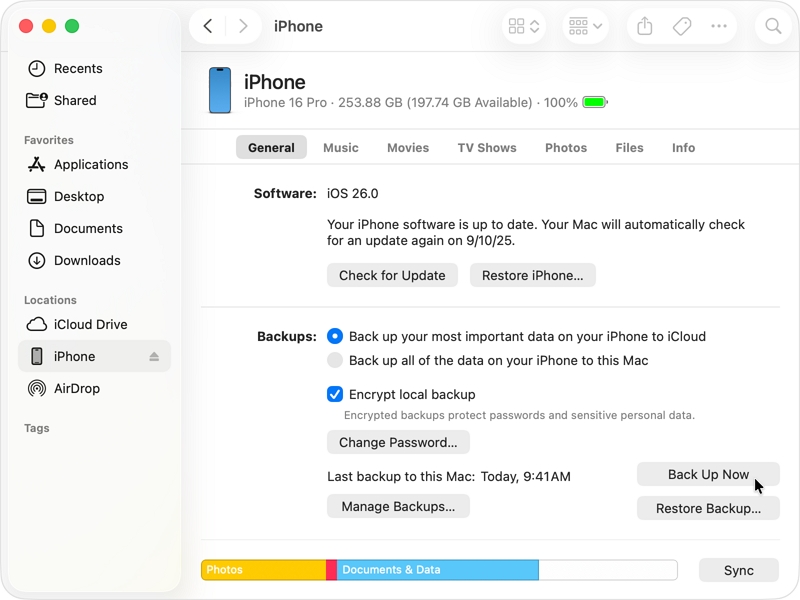
If you want a true, historical "time machine" that never overwrites itself, you must stop relying solely on the cloud. We highly recommend periodically plugging your iPhone into a computer and creating a Local Encrypted Backup using Finder (on a Mac) or iTunes (on a PC).
Unlike iCloud, local backups act as permanent archives that sit safely on your hard drive. You can create as many of them as your computer's hard drive can hold, and they will never overwrite each other unless you specifically tell them to.
The Final Verdict
So, do iCloud backups overwrite each other? Yes, but systematically. For any single Apple device, iCloud utilizes an incremental overwrite system. While it keeps a rolling window of your most recent snapshots (typically the last 3 days), today’s automatic backup will inevitably overwrite the oldest data to conserve your cloud storage. However, backups from entirely different devices—like your iPad and your iPhone—will always remain completely separate and never overwrite one another.
The takeaway is simple: Treat iCloud Backup as a short-term safety net for device failures, not as a permanent time capsule. If you need bulletproof, historical archives of your digital life that never auto-delete or overwrite, establishing a routine of local, encrypted computer backups is the only truly foolproof strategy.