Help Center
Updated on 2026-07-03
views
5min read
If you are wondering, "Does iCloud save my text messages?" the short answer is yes. However, the way it saves them is where millions of Apple users make catastrophic mistakes.
Many online tutorials confuse two fundamentally different iCloud features. Apple saves your messages using either a Real-Time Sync or a Time-Capsule Backup—and understanding the difference is the only way to prevent permanent data loss.
In this guide, we break down the facts that every iPhone user should know behind iCloud text messages backup, including the iOS data architecture, exposing the hidden "30-day deletion" setting, and showing you exactly how to view your iCloud messages based on verified Apple Platform Security guidelines.
Does iCloud Save Text Messages?
The short answer is yes, iCloud saves text messages.
Whether you are sending a standard SMS (green bubble) or an iMessage (blue bubble), Apple has built-in mechanisms to ensure your conversation history is preserved in its cloud servers.
If you are skeptical about whether your private texts are actually sitting on Apple's servers, both official Apple guidelines and direct system data confirm that they are.
What Apple's Official Documentation Says
Apple does not hide the fact that they store your messages. In their official support document titled "Keep all your messages in iCloud", Apple explicitly states:
"When you use Messages in iCloud, all of your text messages and the attachments they contain are stored in iCloud so that you can use your device's local storage for other things."
Overview of iCloud Messages Storage
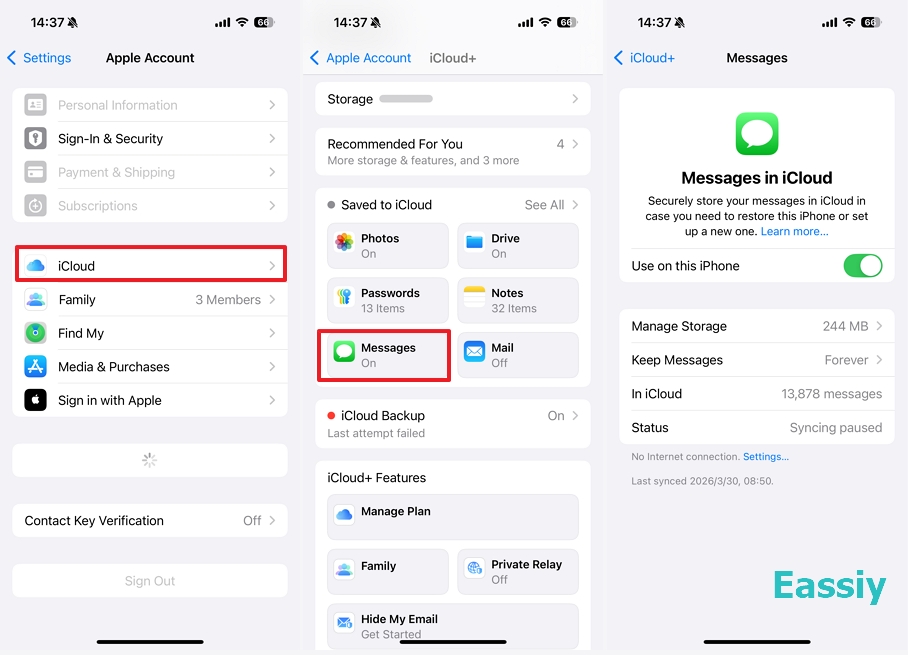
You don't just have to take Apple's word for it; you can actually see the server space your texts are occupying right now. By navigating to Settings > [Your Name] > iCloud > Messages (under the "Saved to iCloud" section), you will find a detailed overview of your synced messages.
This includes the exact number of messages stored and the total amount of cloud storage they occupy. This serves as undeniable proof that your data has left your local device and is safely residing in iCloud.
Our Eassiy Lab Test
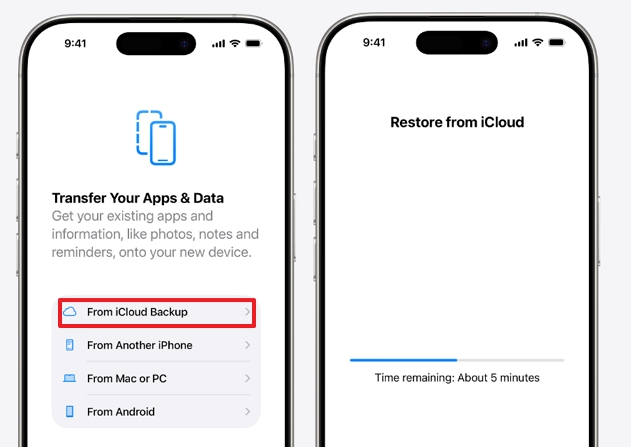
We ran a direct test in the Eassiy testing lab using an iPhone 14 running iOS 26, and iPhone 16 running iOS 18.5. We took a factory-reset, completely blank iPhone 14 and selected the "Restore from iCloud Backup" from "Trasnfer Your Apps & Data" screen.
Within minutes, years of text message history, including large video attachments and SMS verification codes on my iPhone 16, began populating in the empty Messages app.
However, before you assume your data is completely safe, there is a crucial technical detail you must understand. iCloud helps keep your data safe in two main ways: syncing and backing up. How you configure these two methods completely changes how your messages are saved—and how easily they can be lost forever.
iCloud Sync vs. iCloud Backup
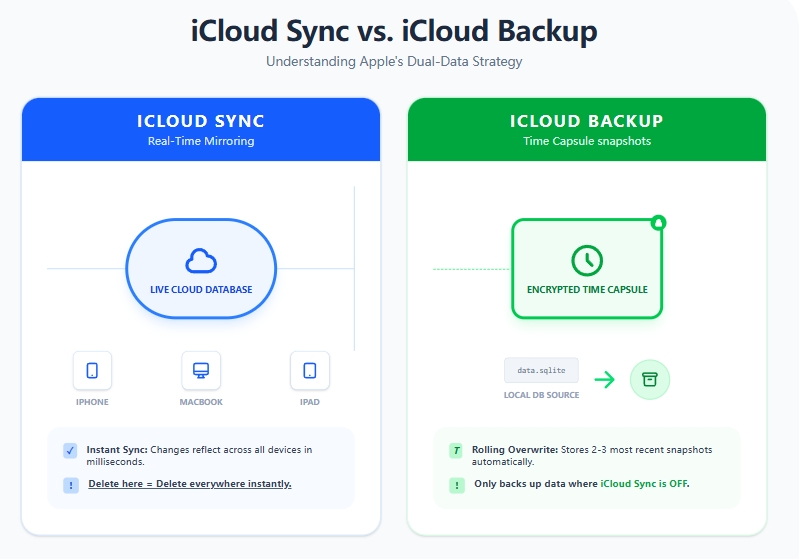
Most iPhone users confuse "Syncing" and "Backing up," but Apple’s iOS architecture treats them as mutually exclusive features. To save server space, Apple enforces a strict rule: If a feature is synced, it is NOT included in your device backup.
- iCloud Sync: When you toggle on "Sync this iPhone" for Messages, iCloud acts as a live, centralized database. Any change you make—receiving a text or deleting one—happens instantly across all your connected Apple devices.
- iCloud Backup: If you turn Sync off, your messages live locally on your iPhone. In this scenario, when your phone backs up at night while charging, those texts are bundled into the iCloud Backup "snapshot."
"iCloud Backup helps keep your data safe by making a copy of the information on your iPhone, iPad, and Apple Vision Pro that isn't already synced to iCloud. If you haven't turned on Messages in iCloud, your messages are included in iCloud Backup. If you use Messages in iCloud, your messages automatically sync to iCloud so they aren’t included in your daily backup."
Beware of The "30-Day Deletion" Setting
Because iCloud Sync forces all your devices to share a single, real-time database, a wrong setting on an old device can trigger a disaster. This is a common tragedy we frequently see on Reddit, where users report losing years of precious text messages overnight without warning.
How the trap works: Imagine you buy a new iPhone and set your Message History to "Forever." However, you have an old iPad with 16GB space (or a secondary work phone) logged into the same Apple ID, and its message settings are set to keep messages for "30 Days" to save space.
When day 31 arrives, that old iPad automatically tells the iCloud database to delete the 30-day-old message. Because it's a real-time sync, iCloud complies and erases the data. Your new iPhone then syncs with iCloud and erases the message too—even though your main phone was set to "Forever."
We replicated this exact scenario in our Eassiy testing lab using an iPhone 14 (set to Keep Messages: Forever) and an iPhone 16 (set to Keep Messages: 30 Days). Both were logged into the same Apple ID with iCloud Sync enabled. As soon as the system triggered the 30-day cleanup on the iPhone 16, those older messages were wiped from the iCloud database and instantly vanished from the iPhone 14 as well.
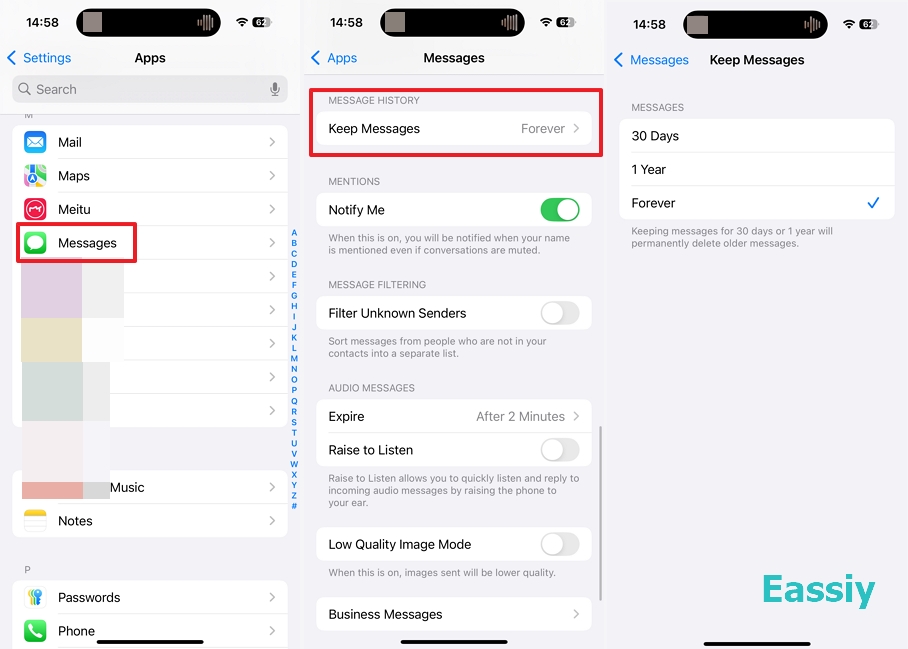
To prevent this, grab every Apple device you own right now (iPhones, iPads, and Macs). Go to Settings > Apps > Messages > Keep Messages and ensure every single device is strictly set to Forever.
Does iCloud Save Deleted Text Messages?
This is the most common question we get in our data recovery lab. The answer depends entirely on your settings.
Within 30 Days
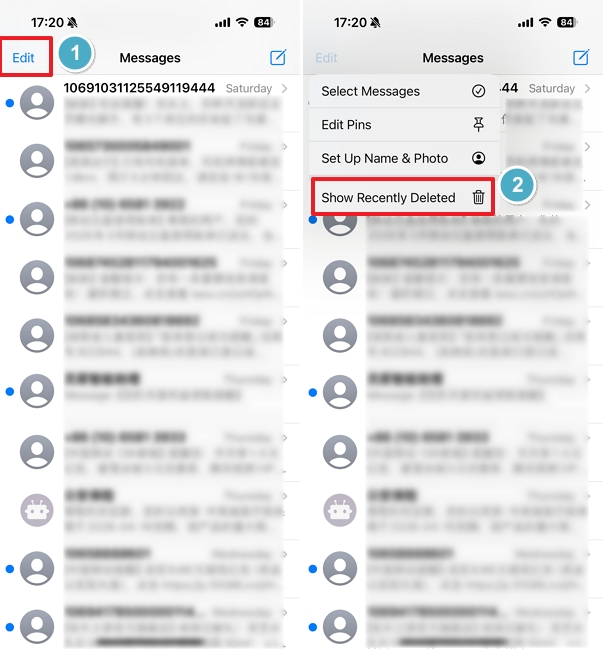
Navigate to the Messages app, tap Edit (or Filters) in the upper-left corner, and tap Show Recently Deleted. From here, you can select and recover recently trashed conversations.
If iCloud Sync is ON
No, as deleting a text instantly removes it from all your connected Apple devices. Because Apple treats this as a real-time database sync rather than a static backup file, you cannot retrieve these messages through a traditional iCloud Backup restore.
If iCloud Sync is OFF
Yes, BUT, if your messages were backed up last night, and you delete a text this afternoon, that text is still safely hidden inside last night's iCloud backup file. However, you are sitting on a ticking time bomb due to Apple's overwrite rules:
iCloud does not work like a time machine with unlimited history. It uses a Rolling Overwrite system. It generally only keeps your most recent backup.
If you delete a message today, it is safe in yesterday's backup. But if you plug your phone in tonight and it connects to Wi-Fi, iCloud will create a new backup that reflects your phone's current state (without the deleted message). The new backup permanently overwrites the old one.
If you just deleted an important text, you may need to immediately disconnect from Wi-Fi and prevent tonight's auto-backup. You now have a narrow window to retrieve the deleted text messages from the cloud.
The Truth: iCloud is Not an Ideal Solution to Back Up Messages
If you accidentally deleted a text message and more than 30 days have passed, we have to share a harsh truth: iCloud is no longer a viable recovery option.
Many users mistakenly believe that iCloud keeps a permanent archive of everything they have ever done. However, based on the iOS data architecture we outlined above, the 30-day mark is generally the "point of no return" for both iCloud methods:
- If you use iCloud Sync: The "Recently Deleted" folder in the Messages app permanently erases texts after 30 days. Once the 30-day timer expires, Apple's servers execute a hard delete, and the data is wiped from the cloud.
- If you rely on iCloud Backup: Because iCloud performs automatic daily backups, it utilizes a "rolling overwrite" mechanism. It only retains your most recent device snapshots to save storage space. After 30 days, your iPhone has likely backed itself up dozens of times. The old backup file that actually contained your deleted message has long been overwritten and replaced by the current, message-free state of your phone.
If the deletion happened over a month ago, relying on an official iCloud restore is essentially a dead end. In these cases, your only slim chance of recovery involves scanning the physical SQLite database fragments on your device's local flash storage using specialized iOS data recovery software like the Eassiy iPhone Data Recovery tool.
To prevent this data loss nightmare from happening again, you need a better backup strategy. If you want to protect your messages from automatic overwrites, regularly create local computer backups using Finder (on Mac) or iTunes (on PC). Unlike iCloud, local backups act as permanent archives that sit safely on your hard drive until you decide to delete them.
How to View Your iCloud Text Messages?
Many guides claim you cannot officially view iCloud messages. This is only half true. How you view them depends on how they are saved.
Method 1: View Messages by Syncing to a Mac or Another iPhone
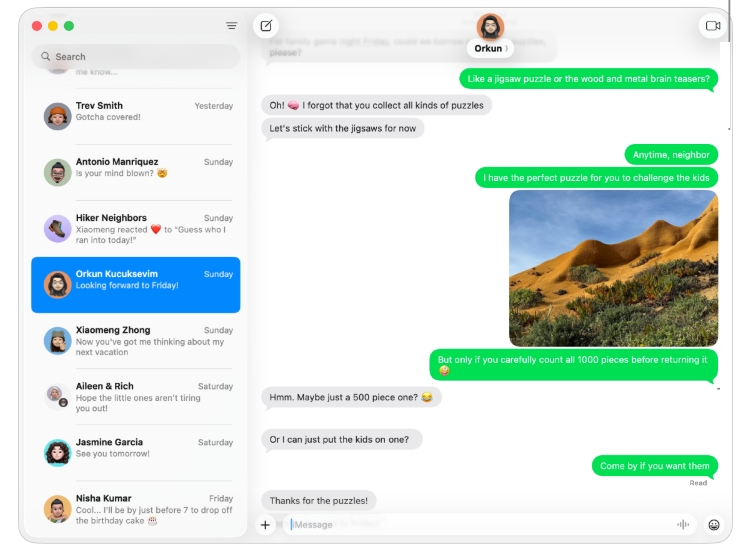
While you cannot view synced messages directly on iCloud.com, you can access them seamlessly across your Apple ecosystem. When "Messages in iCloud" is enabled, the cloud acts as a central database, pushing your conversation history to any Mac, iPhone, or iPad signed in to your Apple ID.
Here're the steps to sync your messages:
- Ensure that your iPhone, Mac, or secondary Apple devices are all logged into the exact same Apple ID.
- Go to Settings > [Your Name] > iCloud > Show All (under Saved to iCloud) on your iPhone, and toggle Messages to ON.
- Open the Messages app on your Mac or the secondary Apple device.
- In the top menu bar, go to Messages > Settings (or Preferences on older macOS).
- Click the iMessage tab and check the box next to "Enable Messages in iCloud".
- To ensure standard text messages sync alongside your blue iMessages, open your iPhone and go to Settings > Messages > Text Message Forwarding. Turn on the toggle next to your Mac or other linked devices as well.
Why Are My Text Messages Not Syncing?
If you have enabled "Messages in iCloud" but your new texts aren't syncing across your devices, the most common culprit is a full iCloud storage drive. Apple only provides 5GB of free cloud space, which can be exhausted very quickly by iMessage attachments.
Just as many users frequently ask, does iCloud backup include photos? In our lab observations, high-resolution photos and heavy text message attachments (like videos and GIFs) are the two biggest storage consumers. If your camera roll has maxed out your iCloud limit, your iPhone will immediately stop saving and backing up your newly received text messages.
Method 2: View Messages by Restoring from iCloud Backup
If you don't use the real-time "Messages in iCloud" sync feature, and your messages are trapped inside an iCloud Backup "time capsule," Apple provides no way to preview them. Your only option to view messages is to factory reset your iPhone and restore it from an entire iCloud backup. However, before you erase all your current data, you must do some crucial verifications.
First, always check your iPhone last backup date. If the last successful backup was created a month ago, restoring it to get an old text message back means you will permanently lose all the new data you've generated over the past 30 days.
Second, during our data recovery tests on iOS 26 environments, users often hesitate, wondering: do iCloud backups overwrite each other? The short answer is yes. To optimize server space, Apple's system usually keeps your most recent backup snapshot and gradually overwrites the older ones. Therefore, if your phone has already performed a new automatic backup after you deleted that important text message, the message is likely gone from the cloud forever.
Method 3: The Eassiy Extraction Method (No Reset Required)
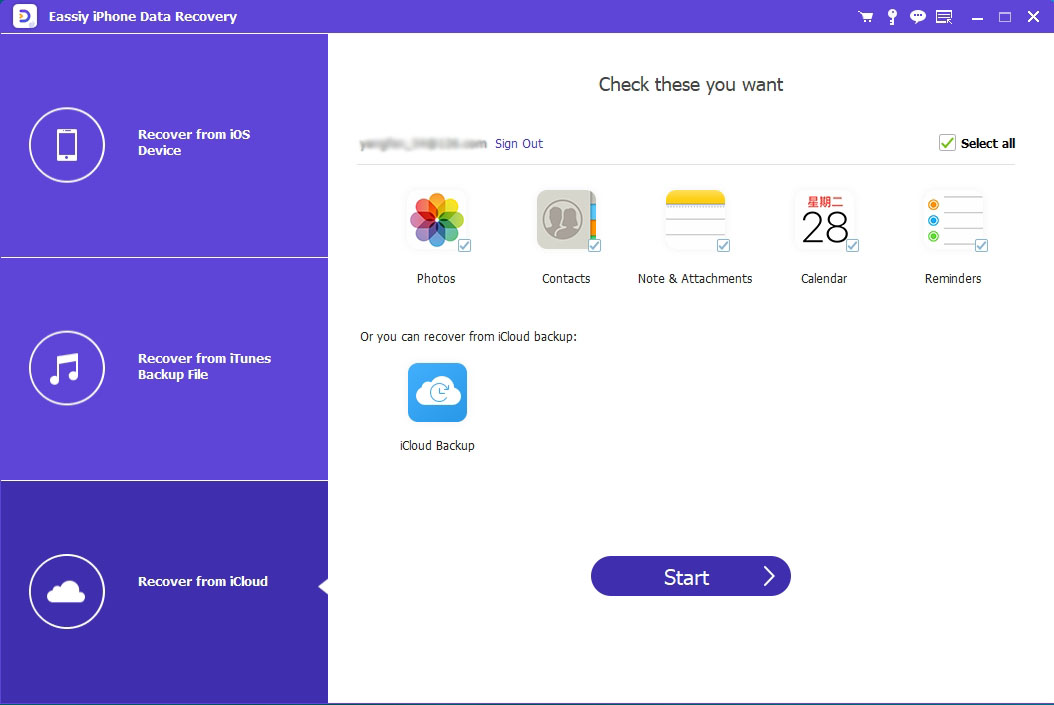
If you need to view or recover a deleted text from an iCloud Backup but refuse to wipe your current phone, you need a backup extractor. Tools like Eassiy iPhone Data Recovery can log into your iCloud, scan the raw backup files, and let you read and extract specific text messages directly to your computer without erasing your iPhone's current data.
Final Thoughts
Yes, iCloud saves your text messages, but understanding how is the key to preventing data loss:
- iCloud Sync: Best for multi-device convenience. Just remember: a deletion on one device deletes it everywhere instantly.
- iCloud Backup: A short-term safety net. You must turn Sync off to use this, and act fast before the next daily automatic backup overwrites your deleted texts.
- Local Backup (Recommended): Use Finder (Mac) or iTunes (PC) to create a permanent, foolproof archive that never auto-overwrites.
If the cloud fails you, stop using your phone immediately to protect the physical storage, and use a specialized iOS data recovery tool to scan your device's local database fragments.