Help Center
Updated on 2026-05-18
views
5min read
It often feels like your photos are completely secure in the cloud, until you restore your device and realize they weren’t stored the way you expected. This creates an incredibly stressful situation, particularly when you are switching to a new iPhone, factory resetting your current device, or searching for irreplaceable memories you thought were safe. Before you assume everything is protected, it is crucial to ask: Does an iCloud backup include your photos, or are they left out?
The answer isn’t a simple yes or no—it depends entirely on your iOS settings. In this comprehensive guide, we will break down exactly how Apple manages your images, clear up the confusion between iCloud syncing and backups, and show you whether iCloud Backup includes your photos or deleted photos.
Key Takeaways
- The Golden Rule: iCloud Backup only includes your photos if "iCloud Photos" is turned OFF. If iCloud Photos is turned ON, your images are synced, not backed up.
- No Duplication: Apple designed iCloud to avoid wasting your storage space; it never stores the same photo in both a sync queue and a daily device backup.
- Deletion Warning: When iCloud Photos is active, deleting a picture from your iPhone removes it from iCloud and all other connected Apple devices instantly.
- Smart Extraction: You cannot officially view photos inside an iCloud Backup without wiping your phone, but tools like Eassiy iPhone Data Recovery allow you to preview and extract photos from iCloud backups safely to your PC.
Does iCloud Back Up Photos?
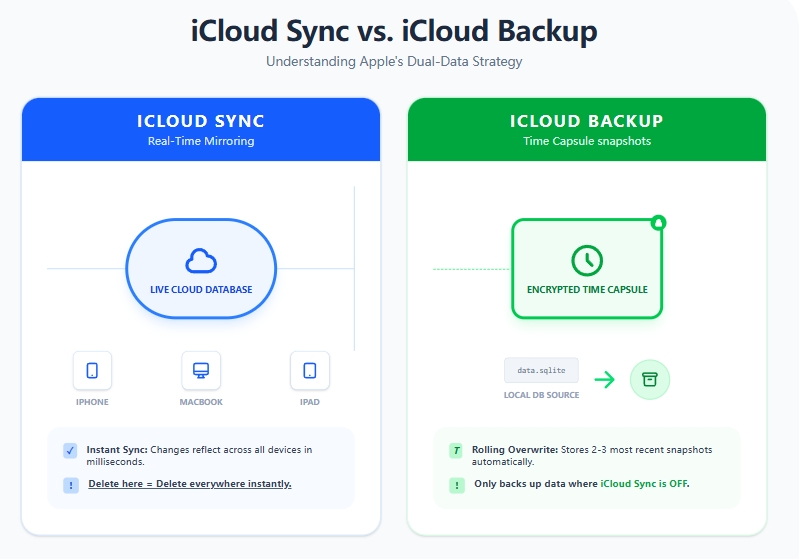
To understand whether your photos are safe, you first need to understand how Apple handles cloud data. According to Apple's official security documentation, iCloud helps keep your data safe in two main ways: syncing and backing up.
- Syncing: If you are using services like iCloud Photos, iCloud Drive, or Notes, your information automatically syncs to the cloud. It is kept perfectly up-to-date across all of your devices whenever you make a change.
- Backing Up: Any data on your device that isn't regularly synced is stored securely in your iCloud Backup. With Backup turned on, iCloud takes periodic snapshots of this remaining data to make sure that it's easy to restore any time you get a new device.
Between syncing and backing up, all of your data is kept safe in the cloud. However, because these two systems work side-by-side, your photos will only ever belong to one of them at a time.
Does iCloud Backup Include Photos?
Now that we know the difference between syncing and backing up, we can answer the main question. Whether your photos are included in your daily iCloud Backup depends entirely on a single toggle switch in your settings:
Scenario A: If iCloud Photos is Disabled
If you do not use iCloud Photos to sync your media across devices, then yes, iCloud Backup will include your photos and videos. Your Camera Roll is treated as local device data. Therefore, when your iPhone performs its automatic nightly backup, a full snapshot of your photo library is saved. If you buy a new phone or reset your current one, you will get these photos back by restoring that specific backup.
Scenario B: If iCloud Photos is Enabled
If you have turned on iCloud Photos, then no, iCloud Backup does not include your photos. Instead, your media is continuously uploaded and synced directly to iCloud.com. Apple explicitly excludes synced photos from your daily device backup to prevent duplicate storage usage and save your precious cloud space.
Does iCloud Back Up the Deleted Photos?
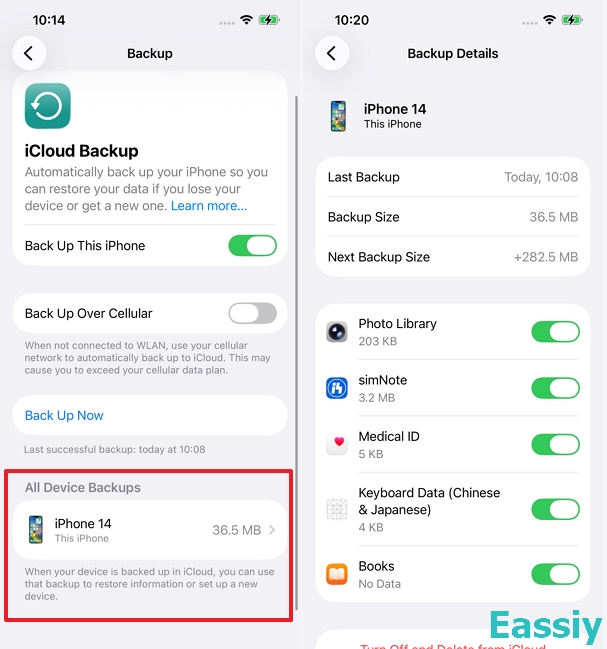
The answer to whether iCloud keeps a copy of your deleted photos depends entirely on your synchronization settings—and in some cases, a strict race against time.
Scenario A: If iCloud Photos is Enabled
Absolutely not. This is the most common mistake iPhone users make. Because iCloud Photos is a live synchronization service rather than a passive, long-term archive, any action you take on your handset reflects across the cloud instantly. If you delete a photo from your iPhone Camera Roll, it is immediately wiped from iCloud.com and all other connected Apple devices.
Since synced photos are completely excluded from the daily backup file, you cannot retrieve a deleted photo from a past iCloud backup. Fortunately, Apple provides a minor safety net: any photo you delete is moved to the "Recently Deleted" album, where it is held for up to 30 days before being permanently erased.
If you are deleting photos just to clear up phone storage, stop! Instead, turn on the "Optimize iPhone Storage" option mentioned in part 5: How to Enable iCloud Photos Across Your Apple Devices, or transfer your files to a completely separate cloud service (like Google Photos or Dropbox) before removing them locally.
Scenario B: If iCloud Photos is Disabled
In this scenario, your deleted photos can sometimes be rescued from an iCloud Backup, but it depends heavily on when the last backup occurred:
- If iCloud hasn't backed up since the deletion: You are in luck. If you accidentally deleted an image, and your iPhone has not performed a new automatic backup yet, that deleted photo still exists safely inside your previous iCloud Backup snapshot. You can use an extraction tool to get it back.
- If iCloud has automatically backed up after the deletion: The outlook changes. If your device plugged into power, connected to Wi-Fi overnight, and successfully completed a new backup after you deleted the photo, the new snapshot will overwrite the old one. Once that happens, the deleted photos are gone from the iCloud backup forever.
How to See Whether iCloud Photos Is Enabled on Your iPhone
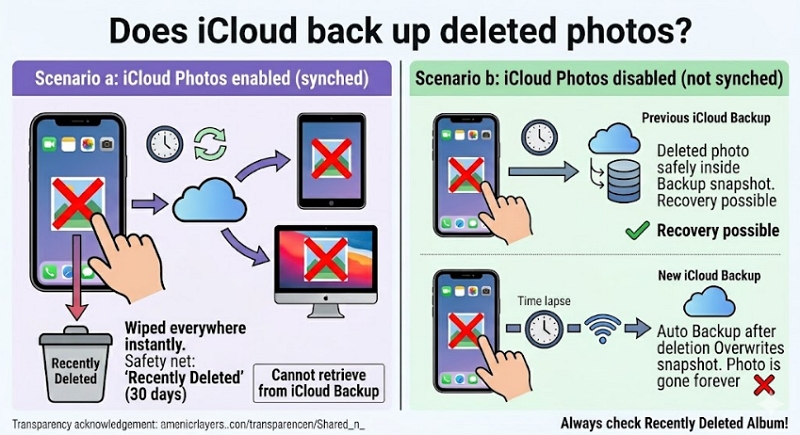
Before making any changes or resetting your iPhone, you should verify exactly where your photos are currently being stored. Follow these steps to check your iCloud photos settings:
1. Open the Settings app on your iPhone and tap [Your Name] at the top.
2. Tap on iCloud, then select Photos.
3. Look at the Sync this iPhone toggle:
- If it is Green (ON): Your photos are safely synced to iCloud.com but are excluded from your device backups.
- If it is Grey (OFF): Your photos are strictly local and rely entirely on your daily iCloud Backup for protection.
How to Enable iCloud Photos Across Your Devices
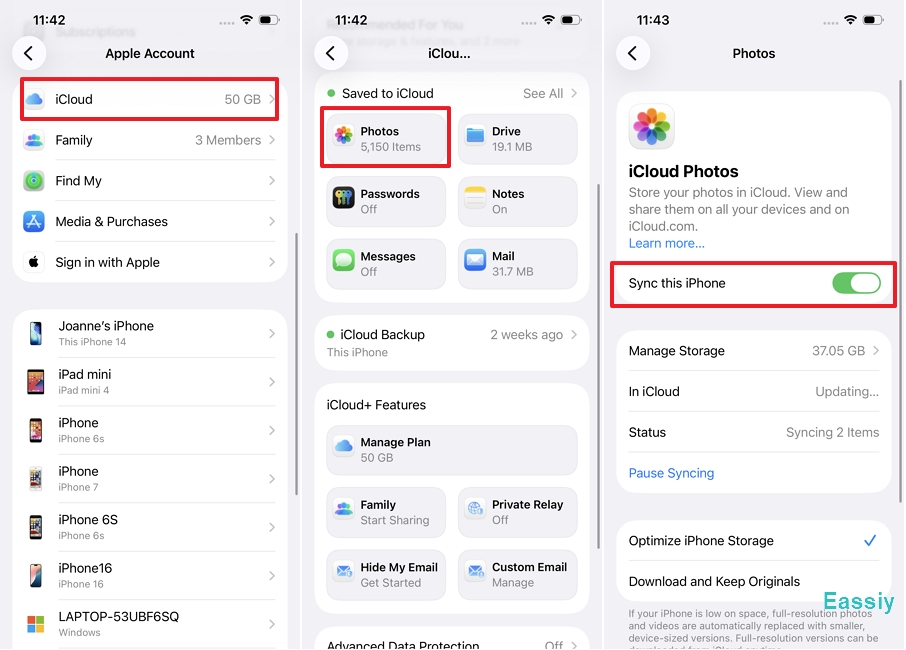
If you want the convenience of accessing your entire photo library seamlessly across all your screens, enabling iCloud Photos is the best path. It automatically ensures your media is protected and helps free up local device space.
On iPhone and iPad:
- Go to Settings > [Your Name] > iCloud > Photos.
- Toggle on Sync this iPhone/iPad.
- Choose your storage preference:
- Select Optimize iPhone Storage if your phone is running low on space. This keeps smaller, lightweight versions on your device while saving the full-resolution originals in iCloud.
- Select Download and Keep Originals if you have plenty of local storage and want to retain the full, high-quality images directly on your phone.
On Windows PC:
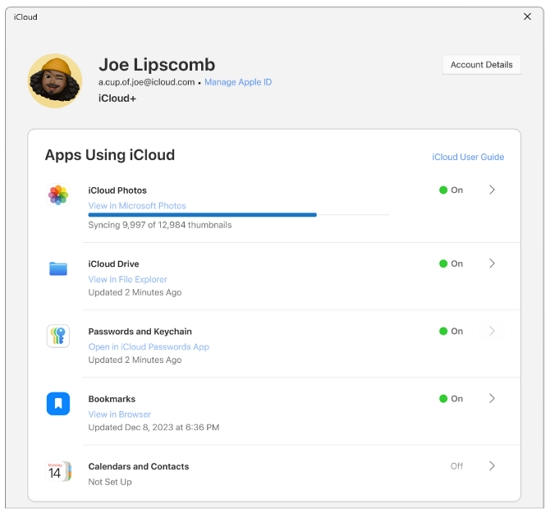
- Download and install the official, free iCloud for Windows app from the Microsoft Store.
- Launch the app and sign in using your Apple account credentials.
- Check the box next to Photos, click Options to customize your sync folders, and apply the changes.
On Mac:
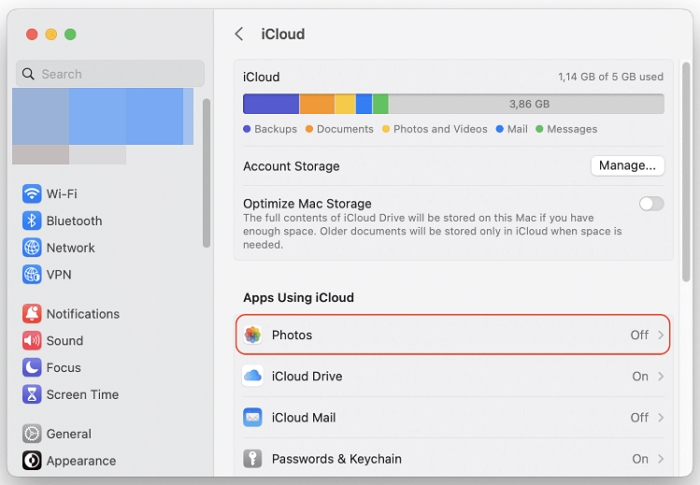
- Open System Settings (or System Preferences on older macOS versions).
- Click your Apple account at the top, then navigate to iCloud > Photos.
- Check the box or turn on the switch for Photos, then click Done. Your media will now populate inside the native Mac Photos app.
How to See What Photos Are in iCloud
If your photos are stored via iCloud Sync, viewing them is easy—you simply log into iCloud.com on any browser. But what if your photos were stored inside an old iCloud Backup?
Officially, Apple offers no way to peer inside an iCloud Backup file to see what photos are hidden there. The only official route is to completely factory reset your iPhone and restore the backup blindly, which risks overwriting your current data.
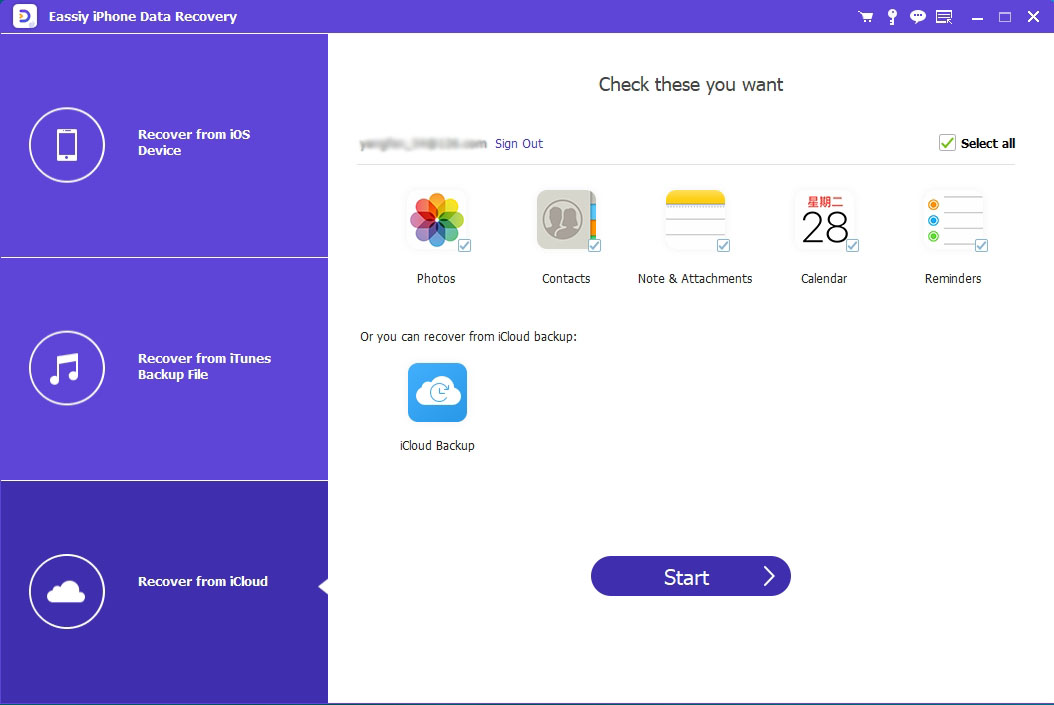
To bypass this hurdle, you can use Eassiy iPhone Data Recovery. This professional utility features a dedicated "Recover from iCloud" mode, allowing you to access, scan, and selectively preview individual photos inside your iCloud backup without wiping your device.
Here's the step-by-step guide to view and see photos in your iCloud via Eassiy:
- Download, install, and launch Eassiy iPhone Data Recovery on your PC or Mac.
- From the main dashboard, select the "Recover from iCloud" module.
- Sign in securely using your Apple Account credentials to load your available cloud data.
- Choose the data type you wish to inspect—select "Photos"—and click the "Start" button to begin a secure scan of your files.
- Once the scan completes, you can freely browse through all found images. Simply check the boxes next to the specific photos you want to save, and click "Recover" to export them safely to your computer.
To Conclude
Ultimately, the answer to “Does an iCloud backup include photos?” depends entirely on your personal configuration. If iCloud Photos is enabled, your images are safely handled by live syncing and excluded from daily backups. If it is disabled, your images are packed into your standard device backup instead. Understanding this boundary is the absolute best way to keep your memories secure, prevent accidental deletions, and ensure a seamless transition whenever you upgrade your Apple hardware.