Help Center
Updated on 2026-05-06
views
5min read
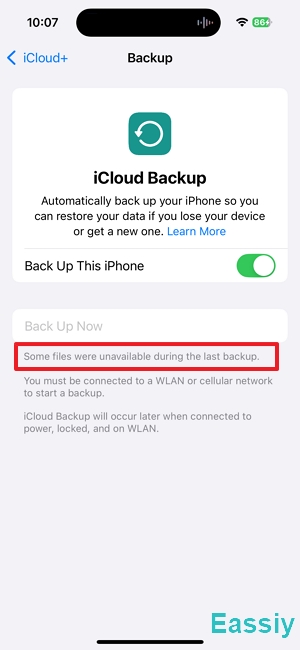
Seeing “Some files were unavailable during the last backup” on iCloud can be frustrating—your iCloud backup failed. Furthermore, Apple gives you almost no detail about what went wrong. We’ve seen this before and found it’s usually caused by app data conflicts, unstable connections, or temporary iCloud sync issues that are quickly fixed.
We also saw this issue firsthand on a test iPhone 16 running iOS 18.5 during controlled iCloud backup testing scenarios. After trying multiple fixes, we identified the underlying cause and successfully resolved it. In this guide, we’ll share and discuss all the tried and tested solutions to resolve the error.
What Is "Some files were unavailable during the last backup" from iCloud?
In most cases, “Some files were unavailable during the last backup” error indicates that your iCloud backup was partially completed because specific data was momentarily unavailable while the iCloud backup was running. It is often triggered when apps are still active or processing information while iCloud is attempting to create a backup.
iCloud needs full access to app data to create a complete backup. If an app is running in the background, syncing, or modifying its files at that moment, those files may be “locked,” causing iCloud to skip them. As a result, the backup completes partially—but triggers this warning because not everything could be included.
The "Quick Kill" Solution: Closing Backlog Apps
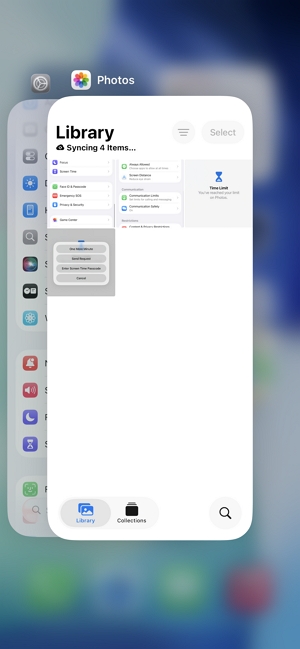
In our testing on an iPhone 16, the most effective immediate fix for the 'Some files were unavailable during the last backup' error is force closing all background apps. This releases any locked files, allowing iCloud to properly read and back them up.
Steps:
- Access the app switcher and manually close every open app in the background by swiping each one off the screen.
- Keep your iPhone plugged in and on a reliable Wi-Fi connection to ensure a smooth backup process.
- Lock your device with the side button to trigger iCloud’s background backup process.
Once all apps are closed and the phone is idle, iCloud can access previously locked files and complete the backup without errors.
Alternative Troubleshooting Solutions for a Failed iCloud Backup
If the “Quick Kill” doesn’t resolve the “some files were unavailable during the last backup” error, move through these fixes in order—from simplest to more advanced.
Toggle iCloud Backup
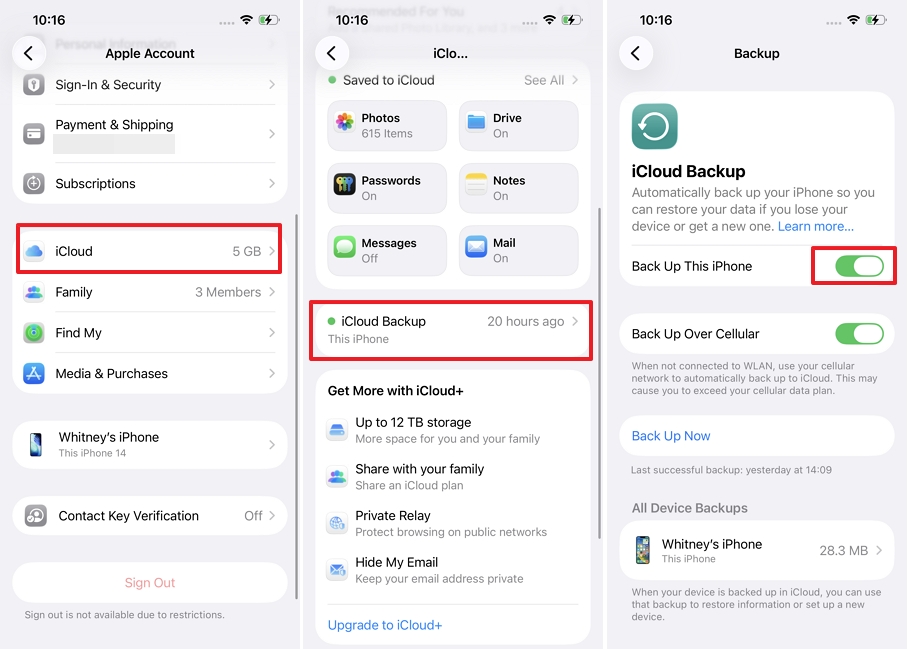
Sometimes the iCloud backup service gets stuck due to sync errors or incomplete sessions. Refreshing the backup service removes short-term bugs and helps restart interrupted backups. Switching it off and re-enabling it prompts the iPhone to restart the backup service and establish a clean iCloud sync session.
Steps:
- Launch Settings and tap your profile ([Your Name]) at the top.
- Go to iCloud and tap iCloud Backup from the menu. Toggle Back Up This iPhone OFF, and wait for about 30 seconds.
- Toggle iCloud Backup ON again.
- Tap Back Up Now to manually start a fresh backup.
Once you delete the backup, the data is removed from iCloud immediately and cannot be recovered. If this is your current primary device, you may want to ensure you have a local computer backup (via Finder or iTunes) before pulling the plug on your cloud backup.
Check Network Stability
For successful completion, iCloud backups rely on a steady and reliable flow of data throughout the process. When using congested public Wi-Fi, high latency and packet loss are common, often causing unstable or interrupted data syncing. If uploads of large files are interrupted, iCloud may flag them as “unavailable” and automatically omit them from the backup.
Steps:
- Avoid public Wi-Fi in crowded locations, since shared usage often results in instability and interruptions.
- Move to a reliable private network (home or office) for better speed and stability.
- Stay near your router to maintain a strong and stable signal.
- Restart the router if needed to improve network stability and performance.
- Connect your phone to power, then lock your iPhone to begin a clean and uninterrupted backup process.
Reliable connectivity allows uninterrupted uploads, particularly for large files, preventing future backup issues.

Check iCloud Storage
If the “some files were unavailable during the last backup” error continues to appear, your iCloud storage limit may be the main constraint causing the issue. Even if a backup begins, low storage space can stop larger files from backing up completely.
Steps:
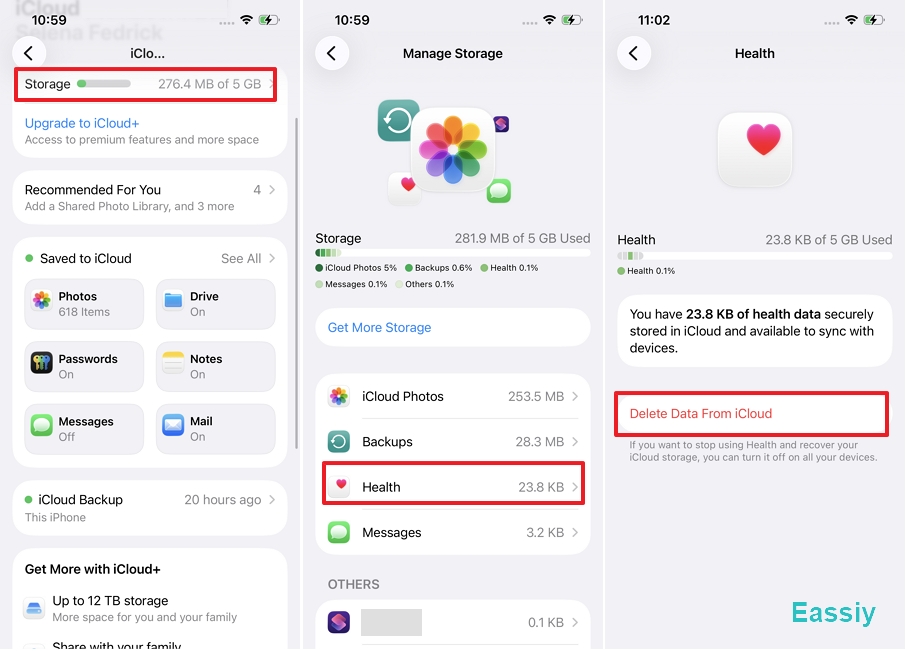
- Open the Settings app on your iPhone.
- Tap your [Your Name] / Apple ID.
- Tap on iCloud.
- At the top of the screen, you will see a color-coded bar graph showing a quick overview of your total and available storage. Tap it.
- You will see a list of all apps utilizing your iCloud, sorted by the amount of space they consume.
Here, you can check how much space is left and identify which apps or data are taking up storage. If space is low, start by clearing out unnecessary data. Here’s how to free up space:
- Delete old device backups: Tap Backups, select devices you no longer use, and remove them.
- Remove large 4K videos and media: These files take up significant space—either delete them or move them to another storage service.
- Trim bloated app data: Review the apps using iCloud backup and disable non-essential ones to save space.
Once you’ve freed up enough storage, run a manual backup again. With adequate space available, iCloud can include all files without skipping any, eliminating the error.
Restart Your iPhone
Over time, background processes can consume RAM or leave temporary file locks active, which interfere with iCloud’s ability to access all data during a backup. A simple reboot can help eliminate deeper software issues and refresh system processes. Restarting the device clears temporary files, stops background activity, and helps iCloud start a clean backup process.
Steps:
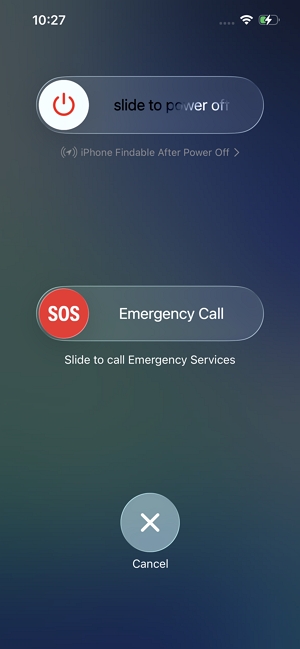
- Press and hold the side button along with either volume button (or just the top/power button on older models) until the power-off slider appears.
- Drag the “slide to power off” control and let the phone fully switch off before proceeding.
- Turn your iPhone back on and let it finish loading all system processes.
Immediately after the phone restarts—and before opening any apps:
- Go to Settings > tap [Your Name].
- Go to iCloud and tap iCloud Backup.
- Tap “Back Up Now” to start the backup right away.
With no background apps active, iCloud has the best conditions to finish a full backup without missing data.
Delete the Last iCloud Backup
The error may be caused by a corrupted or incomplete previous iCloud backup. Since backups are incremental, damaged data can affect new attempts. Deleting the old backup removes these broken files and forces iCloud to create a fresh, clean archive, resolving the issue effectively.
Steps:
- Launch Settings from your home screen.
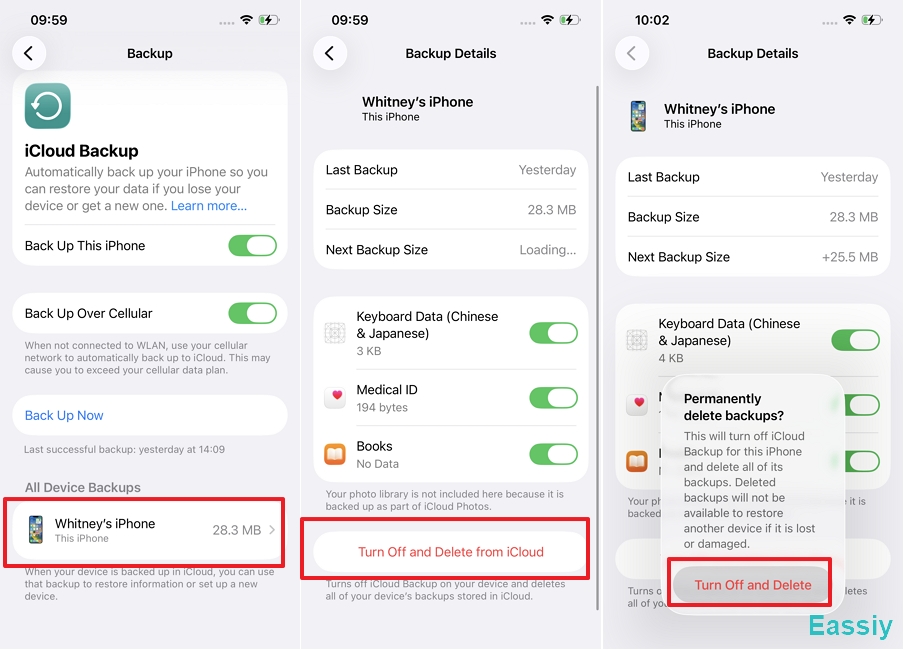
- Tap [Your Name] > iCloud > iCloud Backup, then go to Manage Account Storage and tap Backups.
- You will see a list of devices backed up to your iCloud. Tap on the device whose backup you want to delete.
- Scroll to the bottom of the device's backup details and tap Delete Backup or Turn Off & Delete from iCloud.
- Tap Turn Off & Delete again to confirm your choice.
- After deletion, open iCloud Backup again and tap “Back Up Now.”
After this, iCloud will create a clean, full backup from scratch, eliminating any hidden corruption from previous attempts and resolving persistent backup failures.
Update iOS
If the error persists, outdated system software may be responsible for subtle iCloud or CloudKit issues affecting backups. Apple updates often fix backup stability, syncing errors, and network issues. Since CloudKit handles iCloud syncing, bugs in older iOS versions can disrupt backups, leading to missing files or incorrect status reports.
Steps:
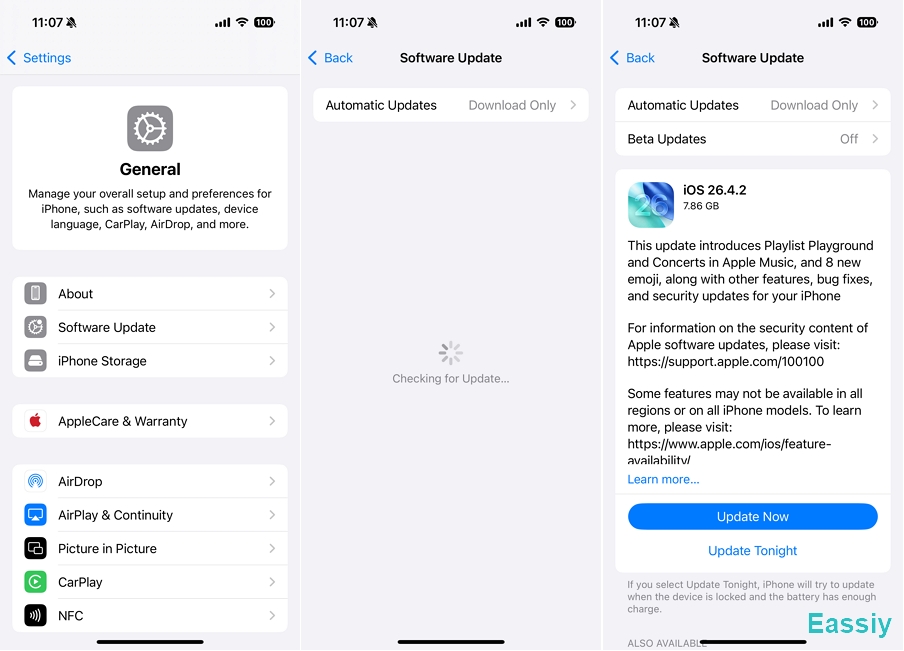
- Launch Settings, open General, then tap Software Update.
- Wait for your device to check for available updates.
- If an update is available, tap Update Now or Download and Install to move forward with the installation.
- Ensure the device remains connected to Wi-Fi and power throughout the update process.
- After the update, reboot your iPhone if it fails to restart automatically.
- Once updated, go to your iCloud Backup settings and tap Back Up Now.
Keeping iOS up to date provides important fixes that enhance iCloud reliability and minimize backup problems linked to system bugs.
Local Computer Backup
If the “some files were unavailable during the last backup” error keeps appearing, avoid depending only on iCloud for your data protection. Local backups using iTunes or Finder provide reliable data safety without dependence on network or cloud services.
Steps:
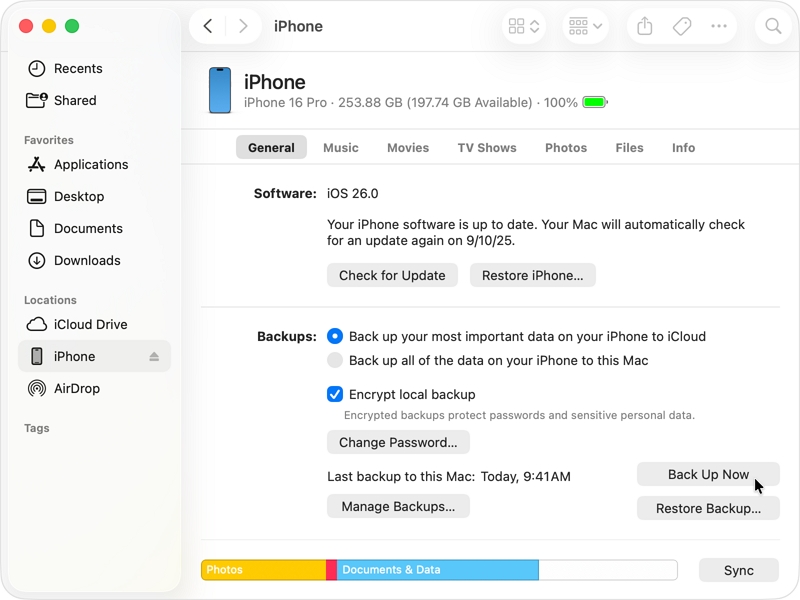
1. Connect your iPhone to your computer using the appropriate Lightning or USB-C cable. Unlock your device and tap “Trust This Computer” if prompted.
2. Open the appropriate tool:
- On Mac (macOS Catalina or later): Open Finder and select your iPhone from the sidebar.
- On Windows (or older macOS): Open iTunes and click the device icon at the top.
3. Under the Backups section, choose “Back up all the data on your iPhone to this Mac/computer.”
4. Click Back Up Now. Let the process complete without interruption or disconnecting the cable.
5. Confirm that the latest backup timestamp appears successfully in Finder/iTunes.
A computer backup works without iCloud, making it a strong alternative when cloud backups keep failing or skipping data.
Conclusion
Most often, the “some files were unavailable during the last backup” error reflects minor, temporary software or synchronization issues. Often, active background processes, inaccessible files, unstable connections, or short iCloud outages can interfere with backups.
The good news is that simple actions—like closing apps, restarting the iPhone, or resetting iCloud Backup—usually resolve the issue. When combined with checks for storage, network stability, and system updates, these steps successfully restore normal backup behavior.
A hybrid strategy of utilizing both iCloud and computer backups provides stronger long-term protection, safeguarding your data if one backup option ever fails.