Help Center
Updated on 2026-07-03
views
5min read
We see this scenario all the time in our data recovery lab: someone’s screen is completely shattered, or they are staring at an "iPhone Unavailable" error, and their first thought is, “Did I even back up my iPhone?”
Whether you’re just getting ready to upgrade your iPhone or you're currently in full-blown panic mode because your iPhone is dead, knowing exactly when your data was last saved gives you massive peace of mind.
The good news? You don't actually need to hold your iPhone in your hands to find out. If you are wondering how to check iPhone last backup, our team has broken down the exact steps you need to take. Part 1 covers what to do if your iPhone is working fine. If your device is broken, locked, or completely out of reach, skip straight to the emergency bypass methods in Part 2.
How to Check the Last Backup for a Working iPhone
If your phone is turning on and responding to touch, checking your backup status takes maybe 30 seconds. We've verified these steps up through the latest iOS 26, though the process is nearly identical for older versions.
1. Check the Last iCloud Backup of Your iPhone
This is your first and easiest stop. Just make sure you're connected to Wi-Fi.
Step 1: Open the Settings app.
Step 2: Tap your name (the Apple ID banner) right at the top.
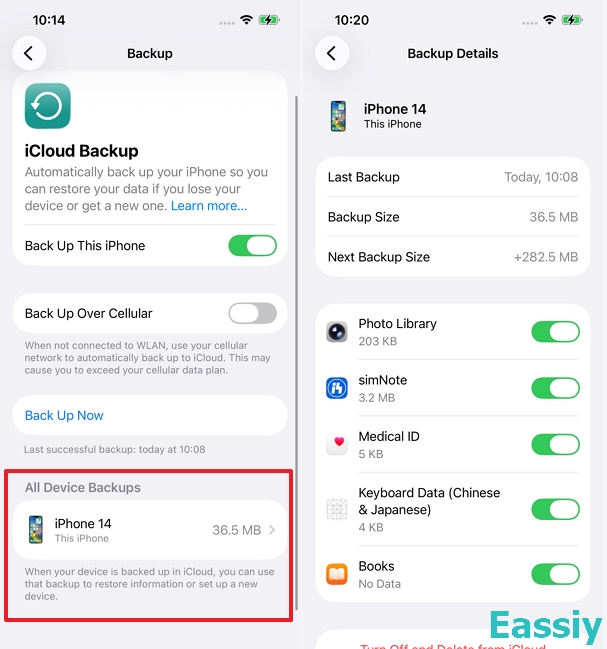
Step 3: Go to iCloud, then scroll down and tap iCloud Backup.
Step 4: Look directly under the "Back Up Now" button. You’ll see a line of text saying "Last successful backup:" along with the exact date and time.
Curious about what actually gets saved? Apple has a detailed breakdown in their official iCloud Backups Guide.
What is Included in Your Last iCloud Backup?
Once you successfully check your iPhone's last backup date, you might wonder what exactly is stored inside that file before you decide to restore it. To clarify common doubts, many users ask does iCloud save text messages and does iCloud backup include photos? The short answer is yes—both are securely included in your full backup, provided you haven't enabled their separate real-time sync toggles.
2. Check Your Last Computer Backup of Your iPhone
If you’re the type of person who prefers keeping data on a physical hard drive rather than the cloud, your computer is where you need to look.
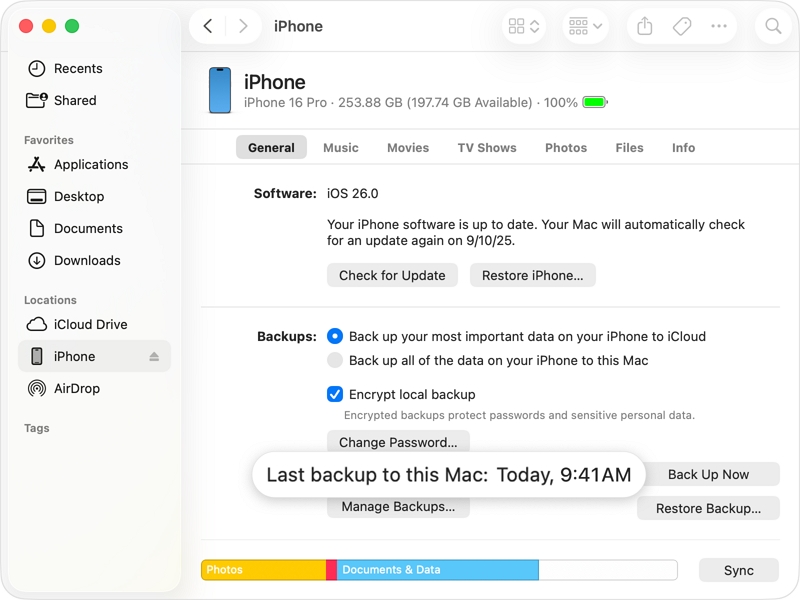
If you're on a Mac (macOS Catalina or newer):
Step 1: Connect your iPhone to your Mac using a USB cable.
Step 2: Open a Finder window.
Step 3: Look at the left sidebar under "Locations" and click on your iPhone.
Step 4: Under the General tab, look for the "Backups" section. Click the Manage Backups... button. A list will pop up showing all your device backups with their exact dates and times.
If you are using a Windows PC or an older Mac (macOS Mojave or earlier):
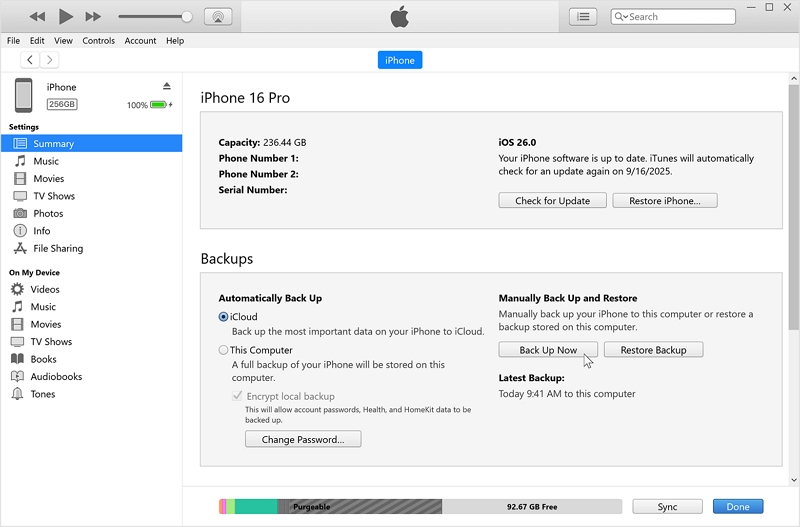
Step 1: Connect your iPhone to the computer and open iTunes (or the Apple Devices app on newer Windows versions).
Step 2: Click the small Device icon (shaped like a phone) near the top left corner of the iTunes window.
Step 3: Click on Summary in the left sidebar.
Step 4: Look under the "Backups" section. You will clearly see the "Latest Backup" timestamp indicating when your data was last saved to this computer or iCloud.
How to Check the Last Backup When Your iPhone is Broken, Lost, or Unavailable
This is the part where most people freak out. If your screen is broken or your iPhone is lost or unavailable, you obviously can't open Settings or tap "Trust This Computer" to make iTunes work. Take a deep breath. As long as iCloud was doing its job behind the scenes, or you plugged it into a computer recently, we can find those hidden records.
Check the Last iCloud Backup Without iPhone
Do you own an iPad, a Mac, or maybe an older spare iPhone? As long as it's logged into the same Apple ID, you can snoop on your broken phone's backup status remotely.
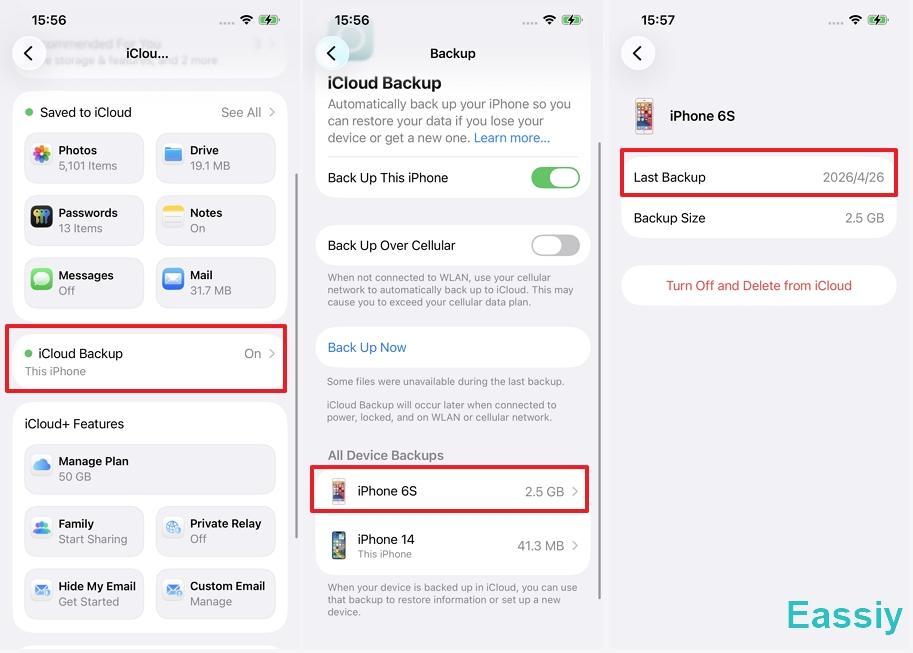
From an iPad or another iPhone:
- Go to Settings > tap your name > iCloud.
- Tap on iCloud Backup.
- Tap Backups. You’ll see a list of every device tied to your account.
- Tap the name of your broken or missing iPhone to check when it last backed up to Apple's servers.
From a Mac:
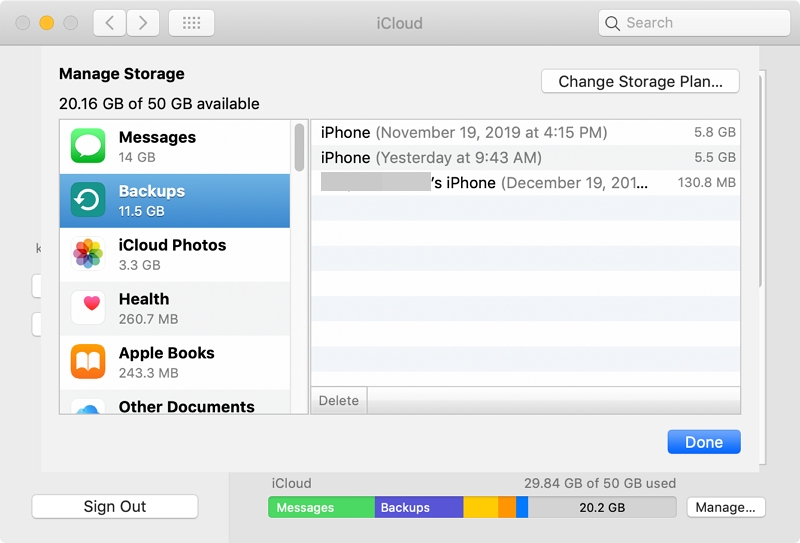
- Click the Apple logo > System Settings.
- Click your name > iCloud.
- Hit the Manage... button next to your storage bar, then select Backups on the left.
From a Window PC:
If you don't have a spare Mac or iPad laying around, use a Windows PC.
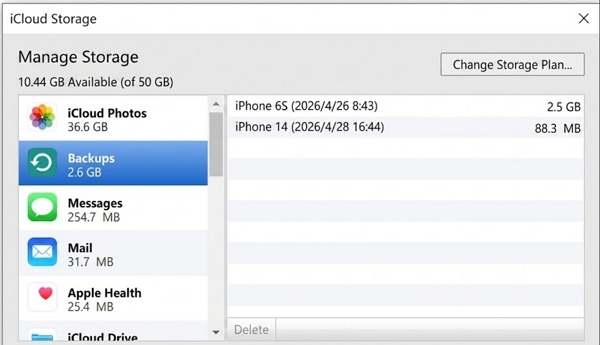
- Download Apple's official iCloud for Windows app and sign in.
- Click the Storage button on the main dashboard.
- Select Backups from the sidebar. Just like on a Mac, it will spit out a list of your devices and tell you exactly when the cloud last saved your data.
Can You Find Older iCloud Backups?
If the date of your last backup is too recent and you are looking for an older snapshot, you need to understand Apple's storage mechanism. Do iCloud backups overwrite each other? Yes. To save server space, iCloud automatically replaces your previous daily backup with the newest one, meaning you usually only have access to the single most recent file.
Check the Last Computer Backup Without iPhone
Let's say you don't use iCloud at all, but you did plug your iPhone into your computer a few weeks ago. Your computer holds onto those files even when the phone isn't plugged in. You just have to know where to dig.
Apple actually has a specific Support Document on this, but here is the quick version.
From a Mac:
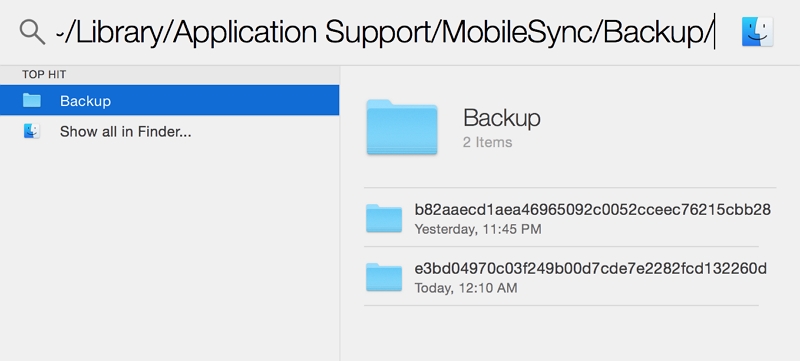
Step 1: Open Finder, press Command + Shift + G, and paste this exact path:~/Library/Application Support/MobileSync/Backup/
Step 2: Press Return. You’ll see a bunch of folders with crazy, long names. Look at the "Date Modified" column next to those folders—that is the exact timestamp of your last local backup.
From a Windows PC:
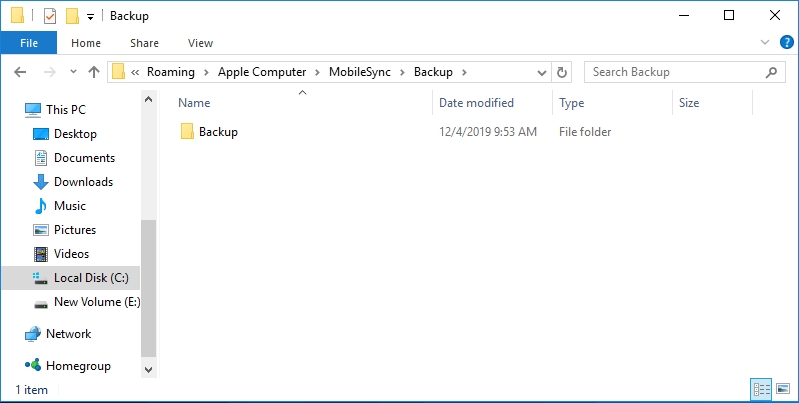
Step 1: Press the Windows Key + R to open the Run box.
Step 2: Type %appdata% and hit OK.
Step 3: Navigate to Apple Computer > MobileSync > Backup (on some PCs, it's just Apple > MobileSync > Backup). Check the "Date Modified" of the folders inside.
Conclusion
A shattered screen or a lost iPhone doesn't automatically mean your data is gone forever. Whether you are holding a perfectly working iPhone or trying to salvage data from a total brick, those timestamps are recorded. Take five minutes to run through these remote cloud checks or local hard drive paths. Once you check your last backup for your iPhone, you can confidently replace the screen or get a new device, knowing your photos and contacts are safe.