Help Center
Updated on 2026-09-29
views
5min read
You might want to screen record Snapchat after watching a funny Story, receiving an important video message, or taking part in a memorable video call. However, Snapchat’s privacy rules vary by content type. That means your screen recording may be handled differently depending on what you capture.
Meanwhile, the wrong recording method can cause poor video quality, missing audio, or incomplete recordings. Fortunately, reliable methods allow you to record Snapchat while preserving quality and avoiding unexpected notifications.
This guide explains when Snapchat detects screen recordings and which types of content trigger notifications. In addition, you will learn reliable methods to record Stories, videos, and video calls across Windows, Mac, iPhone, and Android.
FAQs
Before recording Snapchat, note that the app doesn’t handle all content in the same way. Whether a notification is sent depends on the content you screen record. The answers below cover Snapchat's screen recording behavior and answer the questions users ask most often.
Can Snapchat Tell When You Screen Record?
Yes. Snapchat detects screen recordings for some content, primarily disappearing photo and video Snaps in chats. When you record these, the sender is usually notified. However, recording Stories, Spotlight videos, public profiles, and regular chats generally doesn't trigger a notification. But as Snapchat evolves, its screen recording detection may also change.
Will Snapchat Notify the Other Person When You Screen Record?
It depends. Snapchat typically notifies the sender when you screen record disappearing photo or video Snaps. However, the notification depends on the type of Snapchat content being recorded, not the recording tool you use. Whether or not a notification appears, respect the sender’s privacy when sharing recordings.
How to Screen Record Snapchat Without Notifications (Guaranteed Methods)
Not every Snapchat Story, chat, or video call, is intended to notify the other person that you've saved their content. As a screen recording notification may influence future interactions, many users look for ways to record supported Snapchat content more discreetly.
Whether you're saving important information or keeping temporary content for personal reference, avoiding unnecessary notifications helps the interaction continue naturally. Choosing the right recording method can help you achieve that.
Way 1. Record Videos on Snapchat via Computer
Recording Snapchat on a computer involves using Snapchat Web or mirroring your iPhone or Android to a desktop before recording. Unlike the Snapchat mobile app, Snapchat Web currently doesn't detect or send screen recording notifications for supported content. Mirroring provides another computer-based way to capture Snapchat content on your phone without others knowing.
Step 1. Access Snapchat on Desktop
Start by getting Snapchat onto your computer. The two options below let you record different types of Snapchat content more effectively.
Option 1. Log in to Snapchat on the Web
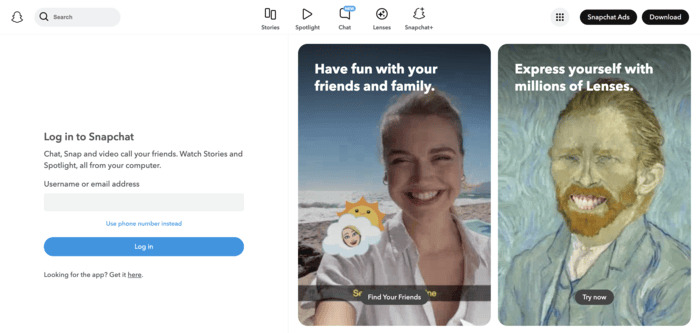
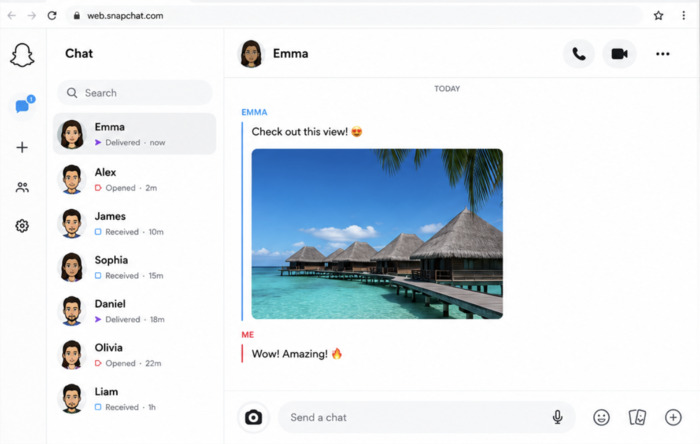
Snapchat Web allows you to access your account from a desktop browser. Although disappearing Snaps and chats continue to follow Snapchat's normal viewing and expiration rules, supported content captured on Snapchat Web currently doesn't trigger screenshot or screen recording notifications.
1. Launch your browser and access Snapchat for Web. Sign in to your Snapchat account.
2. Open the Story, chat, or video call you prefer to record.
Option 2. Mirror Snapchat from Mobile to Computer
For Snapchat features that aren't supported on the web, mirror your iPhone or Android to your computer. This lets you record directly from the full mobile app while using your desktop recorder.
On iPhone
1. Install and launch Eassiy Screen Recorder Ultimate. And click the phone icon to open Phone Recorder.
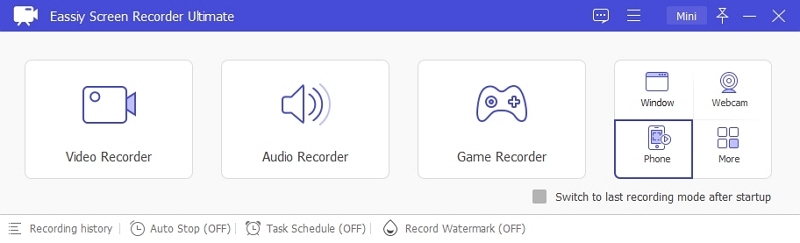
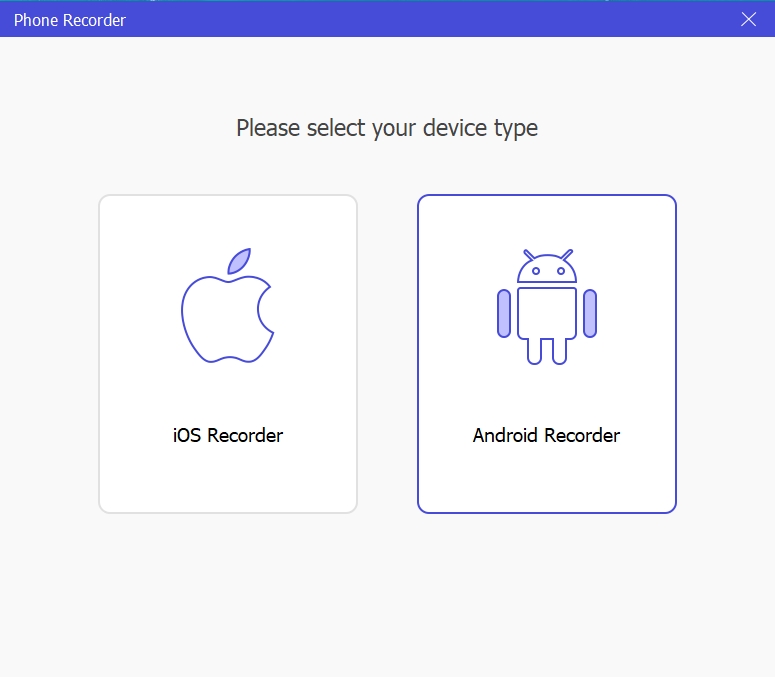
2. Choose iOS Recorder.
3. Use the same WiFi network to connect your iPhone and computer.
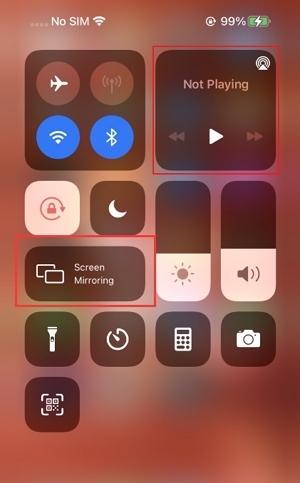
Open Control Center on your iPhone and tap Screen Mirror for screen mirroring.
4. Now open Snapchat on your iPhone to access it from your desktop.
On Android
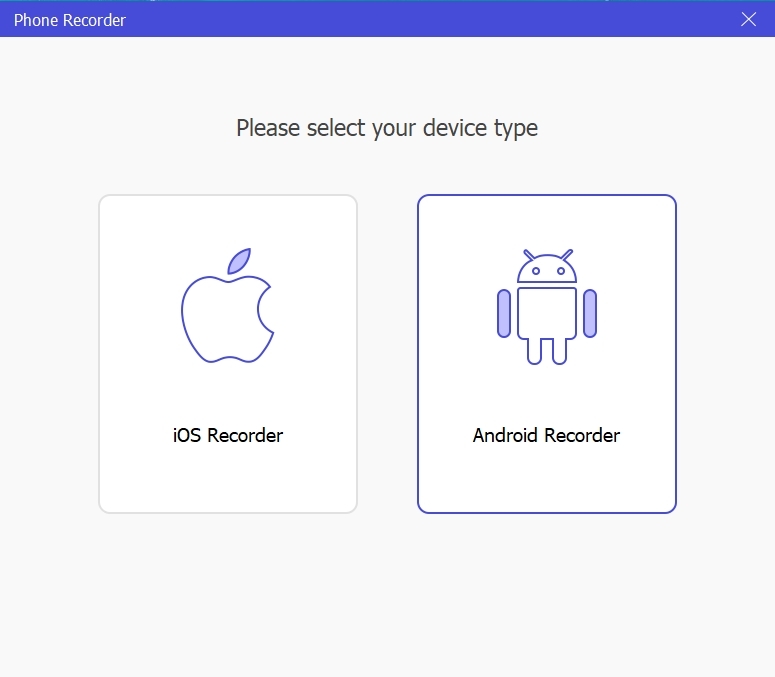
1. Install and launch Eassiy Screen Recorder Ultimate. Then go to the phone icon and click Android Recorder.
2. Connect your Android phone and computer using either a Wi-Fi connection or a USB cable.
Step 2. Screen Record Snapchat on Desktop
With Snapchat accessible on your computer, a dedicated screen recorder helps you capture every detail with clear video, synchronized audio, and flexible recording controls.
Eassiy Screen Recorder Ultimate is an all-in-one screen recording solution for mobile and desktop. You can use it to record Snapchat for web on Windows or Mac or record Snapchat app on your iPhone or Android from your desktop.
From Stories and Spotlight videos to Snapchat video calls, it delivers high-quality recordings with controls designed for different recording needs. Eassiy lets you capture the entire screen, a selected window, or a custom area, while recording system audio and microphone input separately or together. You can even save the finished recordings directly to your computer.
Key Features
- Record Snapchat Stories, Spotlight videos, and video calls in up to 4K quality.
- Record system audio, microphone, or both for videos and calls.
- Capture cleaner conversations with built-in noise reduction for microphone recordings.
- Trim or crop unnecessary clips and save recordings in multiple formats without noticeable quality loss.
To record Snapchat via browser on desktop:
1. Run Eassiy Screen Recorder Ultimate on your computer and select Video Recorder.
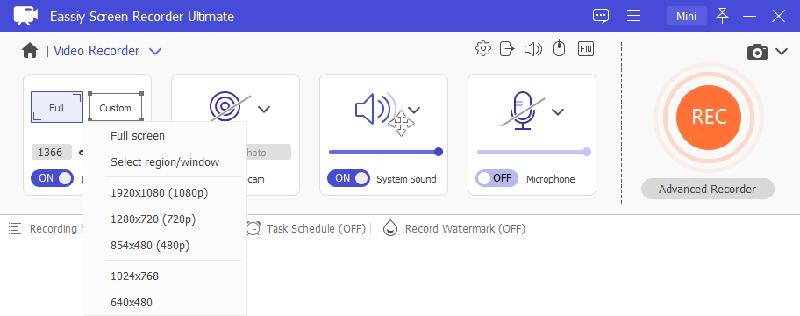
2. Choose Window or Custom mode for a Snapchat Story or Spotlight video.
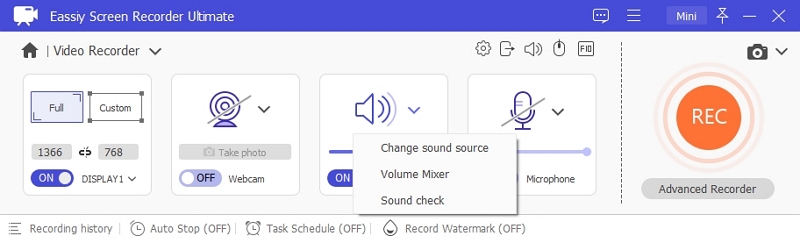
3. Configure the audio source based on what you're recording:
- Stories or Spotlight videos: Enable System Sound if the video contains audio.
- Video messages: Turn on System Sound to capture the playback audio.
- Snapchat video calls: Enable both System Sound and Microphone to record the conversation clearly.
4. Click REC. Then play the Story, video, or start the video call.
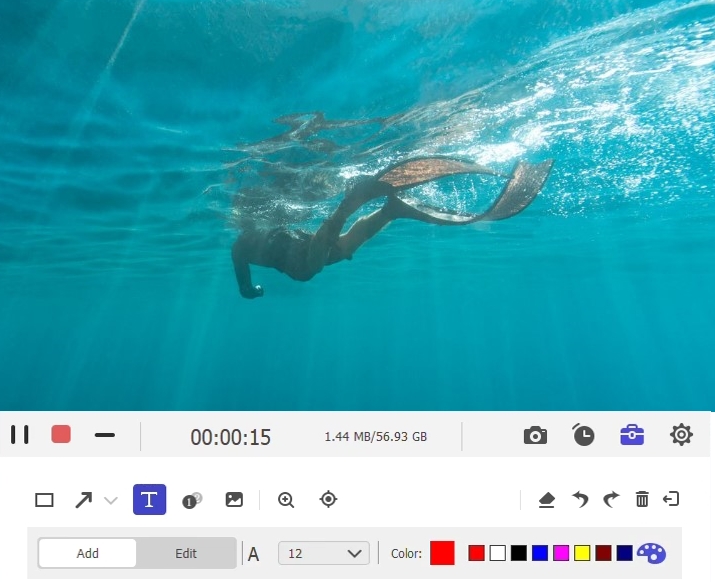
5. Select Stop once the recording completes.
6. Trim unnecessary parts from the recording, then save it in your preferred format.
To record Snapchat on mobile from desktop:
Once your iPhone or Android screen is mirrored to your computer, you can record Snapchat directly through Eassiy Screen Recorder Ultimate.
1. Verify that your iPhone screen is displayed in Eassiy Screen Recorder Ultimate.
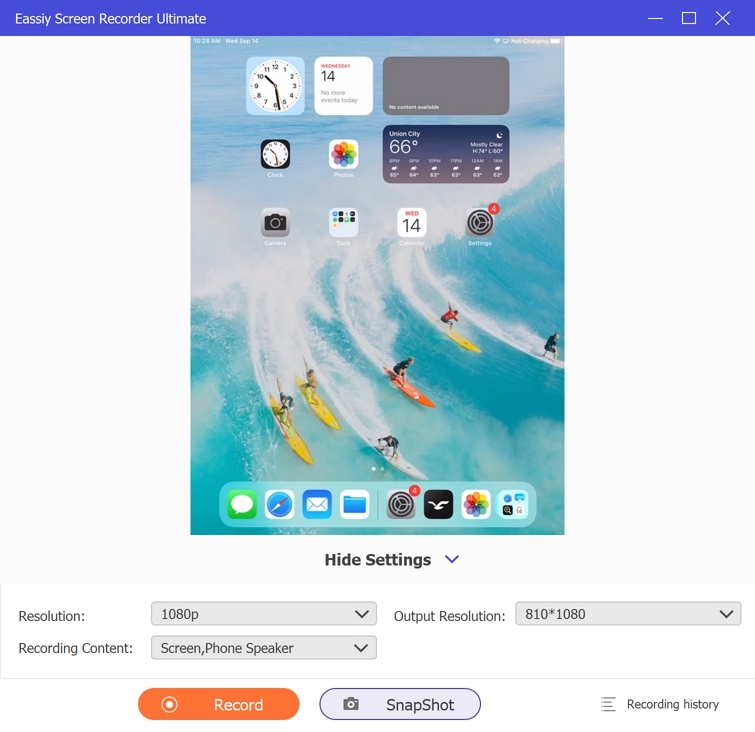
2. Select Record to start recording your Snapchat session.
3. Click Stop to finish recording when you're done.
4. Preview the recording, trim it if needed. And save it to your computer.
Way 2. Record Snapchat Videos Using Another Device
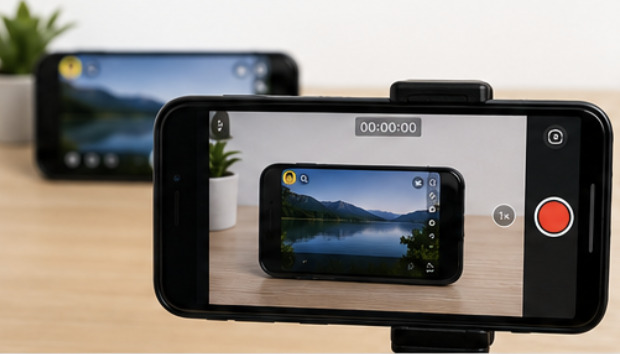
Using a second phone or camera is another simple way to save Snapchat content. You can point the camera at your phone’s display and record the Snapchat content externally instead of using a screen recorder. While the quality won’t be as sharp as desktop recording, this method is useful for quick recordings without installing additional software.
Steps to Record Snapchat Using Another Device
1. Place your primary phone on a stable, flat surface in good lighting to reduce screen glare.
2. Turn on your secondary phone or camera, switch to video mode, and frame your primary phone’s screen clearly.
3. Tap Record on your secondary device before opening anything on Snapchat to ensure you don't miss a single second.
4. Once the camera is actively rolling, open the Snapchat Story, private Snap, or video call on your primary phone.
5. Let the content play through completely without moving either device.
6. Stop the recording once the Snap disappears or the video ends.
Which One Is Better?
Both methods let you capture Snapchat content, but they differ in recording quality, setup requirements, and flexibility. The comparison below helps you choose the method that best fits your situation.
| Comparison Factors | Way 1: Record via Computer | Way 2: Record Using Another Device |
|---|---|---|
| Recording Quality | High-definition video with clear audio | Depends on the second device's camera, lighting, and screen glare |
| Audio Recording | Captures system audio and microphone separately or together | Records external sound only, including background noise |
| Ease of Setup | Requires a computer and initial setup | Quick to use and requires minimal setup |
| Equipment Needed | Windows or Mac computer | A second phone or camera |
| Best For | Recording Stories, videos, and video calls regularly | Recording Snapchat content occasionally |
| Pros | Excellent video quality, flexible recording area, built-in editing tools, supports long recordings | No software installation, simple to use, works anywhere, ideal for quick captures |
| Cons | Requires a computer and screen recording software | Lower video quality, camera shake, glare, and limited audio quality |
Final Verdict:
For users who want a recording they can save, edit, or reuse later, Way 1 offers a significantly better experience because it preserves video and audio quality. Way 2 works best as a temporary alternative when another recording setup isn't available.
How to Screen Record Snapchat Without Notifications (Possible Methods)
In addition to the reliable options above, a few unofficial workarounds may reduce the chance of Snapchat detecting a screen recording. As Snapchat regularly updates its privacy features, these methods may stop working at any time and aren’t guaranteed to work.
Way 1. Screen Record Snapchat in Airplane Mode (iPhone)
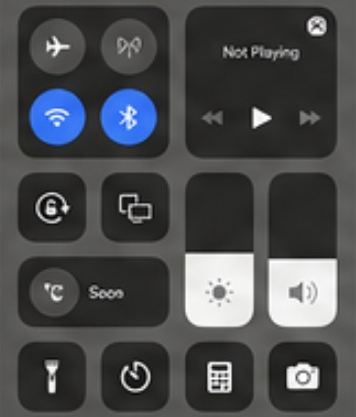
Airplane Mode works by taking your iPhone offline before you open the Snap, preventing Snapchat from syncing recording activity immediately. Although many users still report success, Snapchat updates can affect how reliably this workaround works.
Steps to Screen Record Snapchat in Airplane Mode on iPhone
1. Launch Snapchat and allow the unread Snap to load completely before opening it.
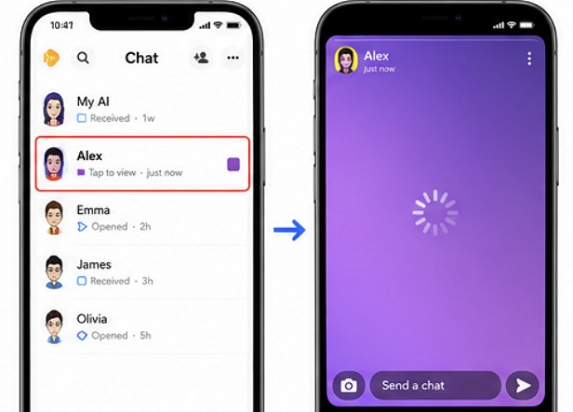
2. Enable Airplane Mode, open the Snap, and record the content.
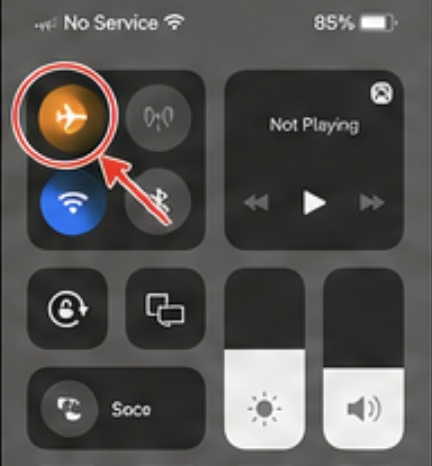
3. Once you’ve completed the recording, close Snapchat and remove it from your iPhone.
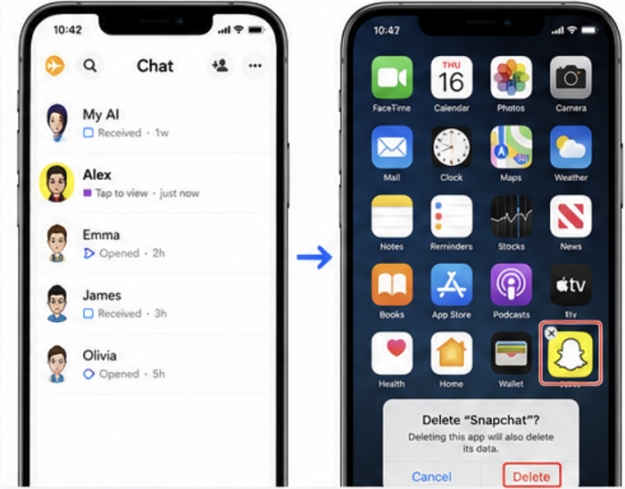
4. Turn off Airplane Mode, restore your internet connection, then reinstall Snapchat from the App Store.
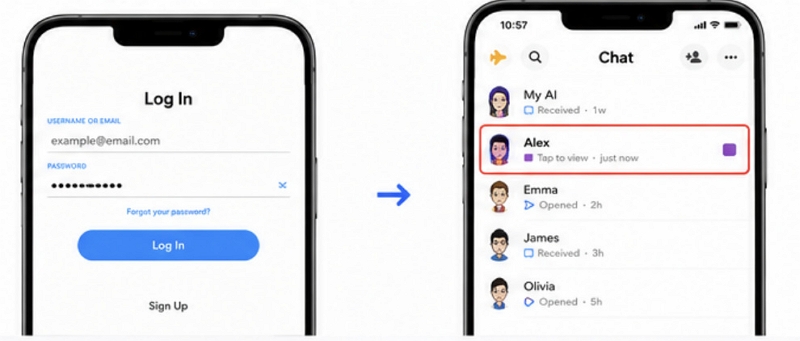
5. Sign back into Snapchat, find the conversation, and verify that the Snap is still marked unopened.
Way 2. Use Built-in Screen Recorder (Android)
Some Android users have reported success recording Snapchat with the built-in Screen Recorder available on their devices. Unlike the guaranteed methods discussed earlier, compatibility varies across Android devices and software versions.
Steps to Use Built-in Screen Recorder on Android
1. Open the Snapchat content you want to record. And swipe down from the top to open Quick Settings.
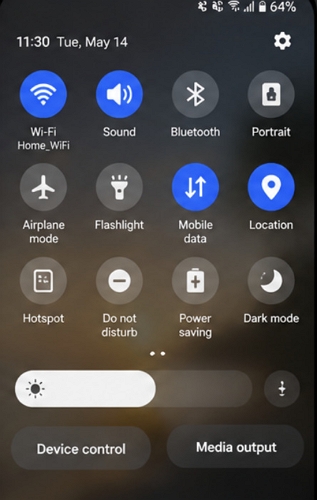
2. Tap Screen Recorder. And select Device Audio, Microphone, or both.
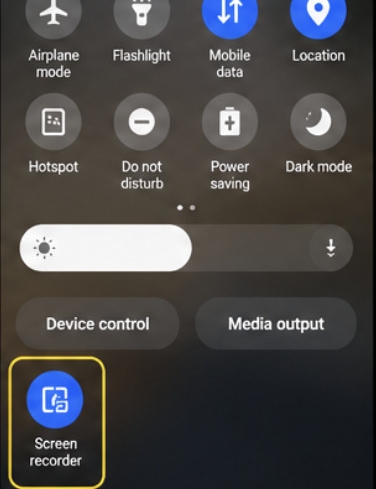
3. Begin recording, then return to Snapchat when prompted.
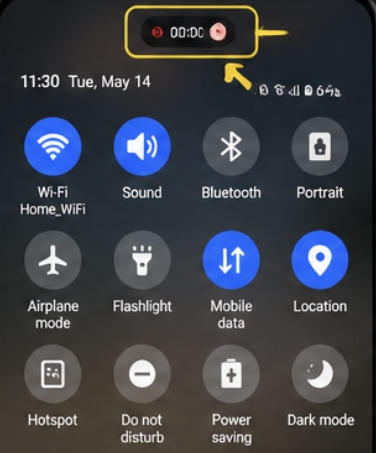
4. Tap Stop from the notification panel or floating toolbar when done.
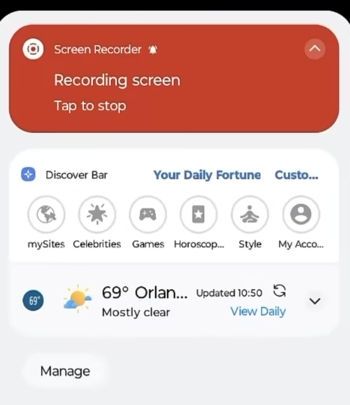
5. Find the recording in Gallery or Photos to edit or share it.
Conclusion
How you screen record Snapchat depends on the content you want to save and the recording quality you expect. For reliable results, using Eassiy Screen Recorder Ultimate on Windows or Mac offers high-quality video, flexible audio capture, and more recording controls. Understanding these differences helps you select the right method while respecting the privacy of other Snapchat users.