Help Center
Updated on 2026-04-02
views
5min read
If you’ve ever tried to screenshot content on Amazon Prime Video, you’re aware that you’ll only get a black screen with the subtitle text. This is because of Amazon Prime Video’s DRM (Digital Rights Management) technology - it prevents unauthorized copying or distribution of its content.
Fortunately, there are several workarounds to screenshot Amazon Prime Video without a black screen. This article covers practical methods to screenshot Amazon Prime Video on your computer or smartphone effectively.
Part 1: Can You Screenshot Amazon Prime Video Normally?
No, you cannot take a screenshot of Amazon Prime Video.
Amazon Prime Video uses strict DRM encryption to block screenshots and screen recordings on all devices. That’s why you often see only a black screen when attempting a screenshot—even with tools like:
- Windows: Snipping Tool, Snip & Sketch, or Win + PrtScn
- Mac: Shift + Command + 4 or Command + Shift + 3
- Mobile: Power + Volume buttons on Android/iOS
None of these default methods work reliably for capturing Prime Video content. But don't worry—effective workarounds exist.
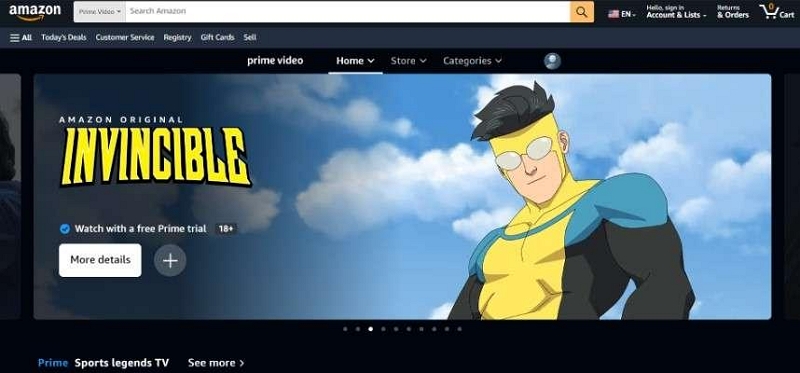
Part 2: Best Way to Screenshot Prime Video Without Black Screen
The best way to screenshot Prime Video without a black screen is by using advanced software like Eassiy Screen Recorder Ultimate.
You can use this software to screenshot or screen record scenes in Amazon Prime Video on computers and smartphones with ultra-clear quality. And it offers many customization features to edit the video or image according to your needs.
What sets Eassiy Screen Recorder apart from regular screen recorder apps is its smart functions. You can use it to screen record and screenshot Amazon Prime Video simultaneously. Plus, it supports real-time annotation tools for adding texts, arrows, and other real-time editing when recording or taking screenshots.
Additionally, this software supports scheduled recording and auto-stop recording. These features are very helpful for automating screen recording tasks. The schedule recording feature allows you to set the start and end time for a screen recording task, while the auto-stop recording enables you to set an end time for a recording task, allowing you to focus on other important things.
Key Features
- Access 10+ screen recording tools for recording high-quality footage (up to 8K quality).
- Built-in real-time annotation tools to add text, arrows, and lots more during screen recording tasks.
- Supports more than 1000+ video formats.
- Offers a wide range of video editing features for merging, cutting, cropping, and doing lots more.
How to Screenshot Amazon Prime Video using Eassiy Screen Recorder
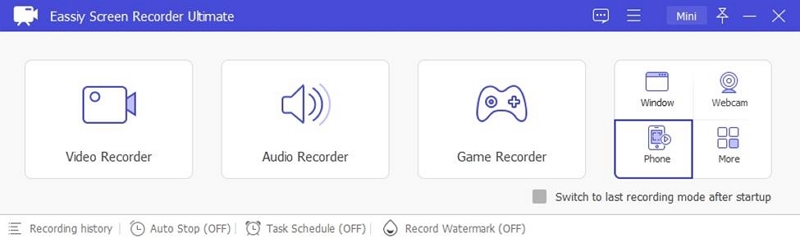
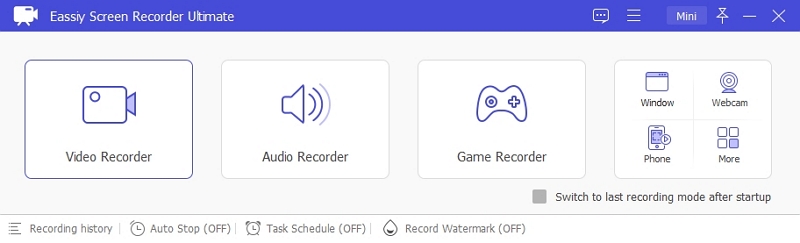
Step 1: Start Eassiy Screen Recorder and select “Video Recorder.”
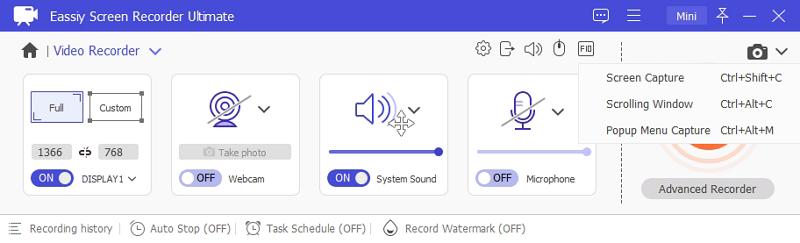
Step 2: Select “Full” and turn on the toggle next to “System Sound” to record Amazon Prime Video with sound. Then, click on the “Camera icon” at the top-right and select “Screen Capture.”
Alternatively, you can just click the “menu” icon at the top-right corner and select “Preferences.” Then, choose the desired settings to take a screenshot and click “Ok” to save the settings.
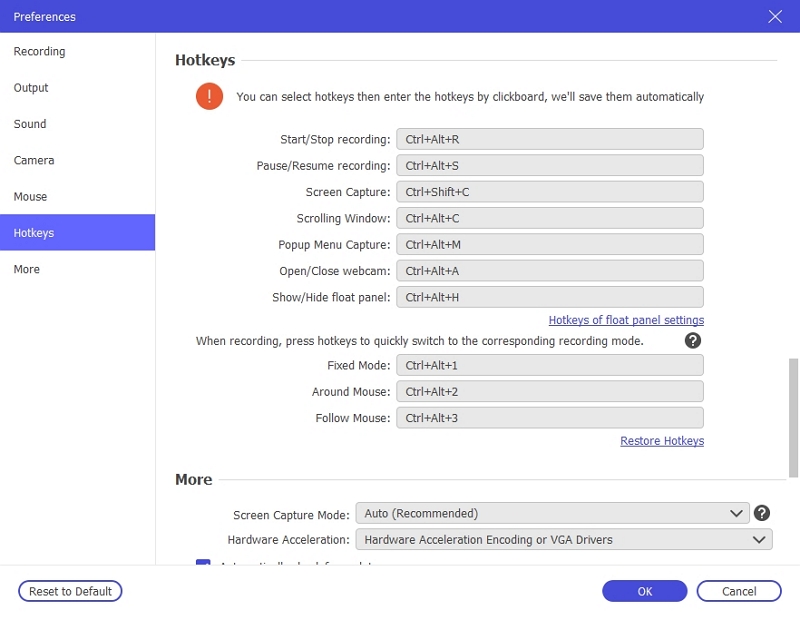
Once you change the settings, press the hotkey combination on your keyboard to take a screenshot without a black screen.
Step 3: Finally, edit the screenshot according to your preferences and save the image on your computer.
Steps to Screenshot Amazon Prime Video on Smartphone using Eassiy Screen Recorder
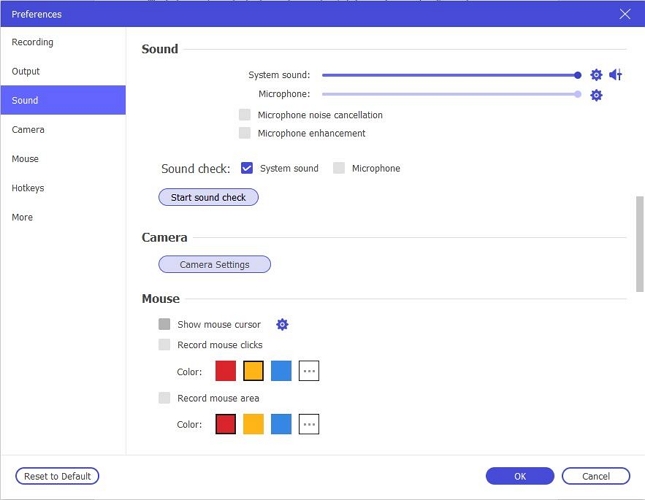
Step 1: Click on the three-line menu icon at the upper right side and select “Preferences.”
Step 2: Check the box next to 'Microphone' and select 'OK' to save the Sound Settings.
Step 3: Next, click on “Phone.”
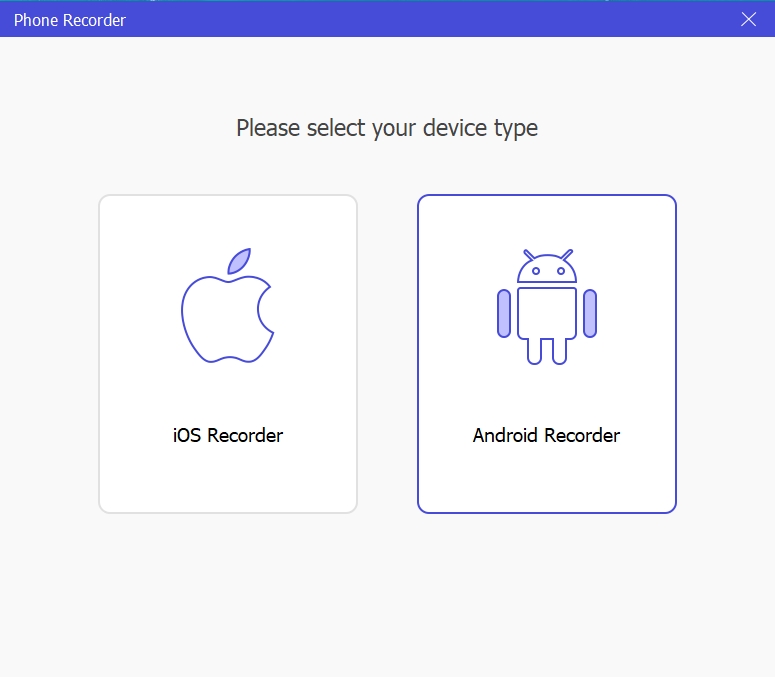
Select your device type and connect it to your computer using a compatible USB cable.
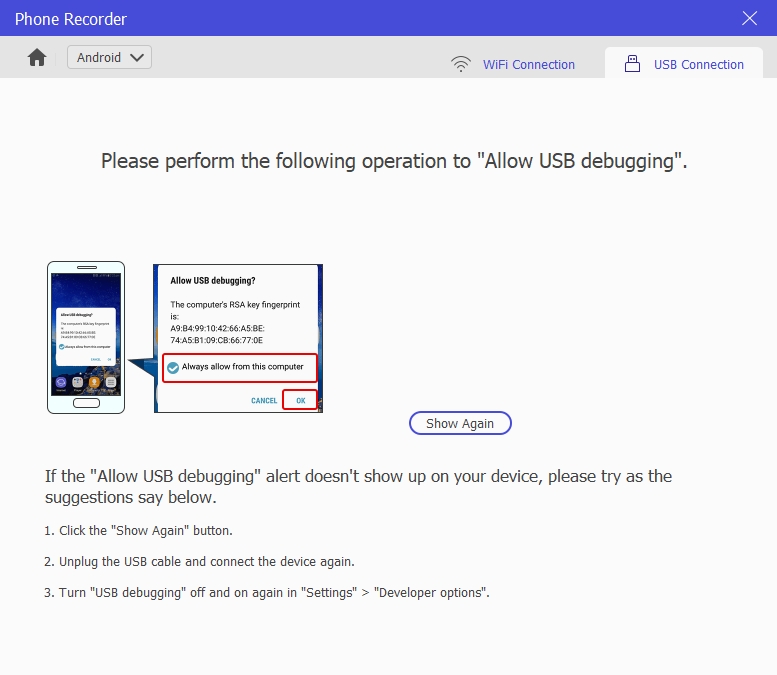
Step 3: A notification will pop up on your phone screen saying, “Allow USB debugging.” Click on “OK” to allow Eassiy to install a small application - FoneLab Mirror - on your smartphone (No jailbreak is required, and it does not occupy your phone storage).
Step 4: At this point, your smartphone screen should be displayed on the software’s interface. All you need to do is adjust the “output resolution,” recording content,” and “resolution.”
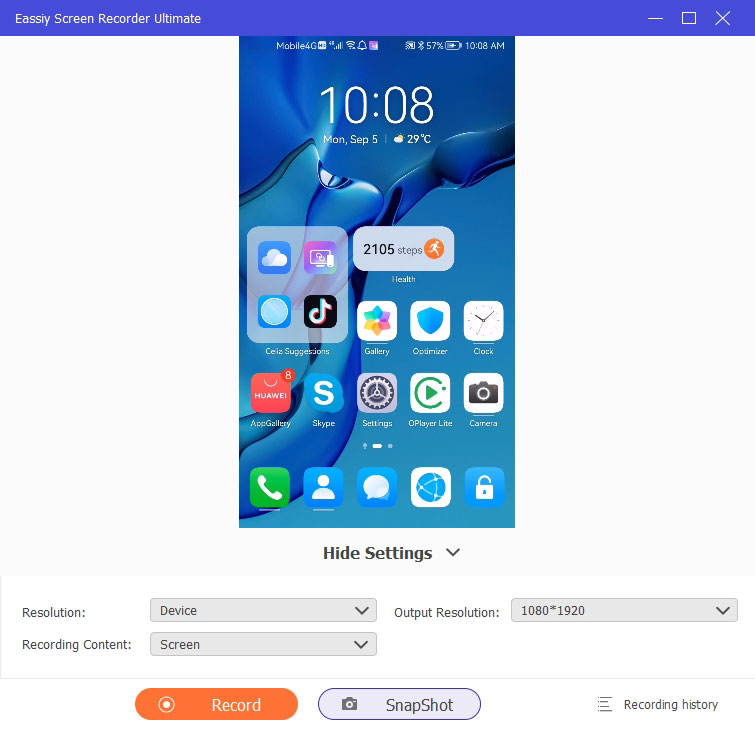
Step 5: Open the “Amazon Prime Video” app on your phone and start watching the movie you want to screenshot. Then, click on the “Snapshot” button to screenshot of Amazon Prime Video without a black screen.
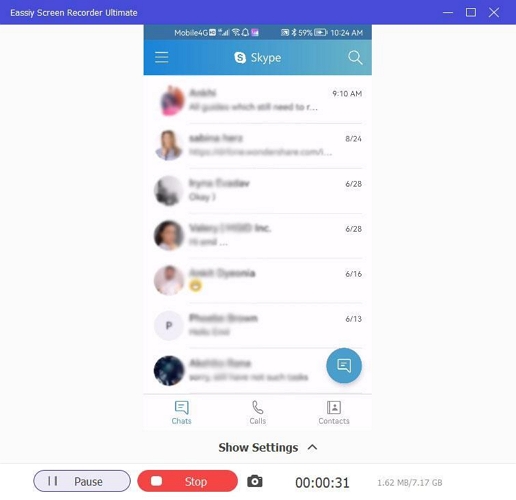
Step 6: Your screenshot will be saved to the Recording History menu.
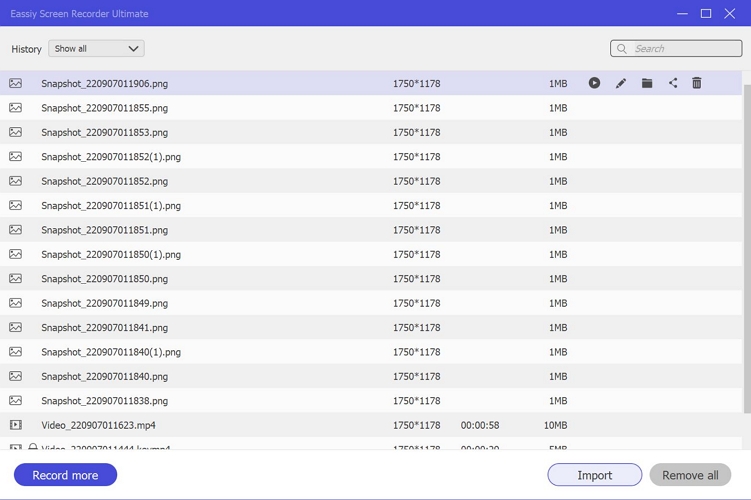
Go to the Recording History menu in the Eassiy program to access the screenshots. You can edit the screenshots by clicking on the Pencil icon.
Part 3: Other Ways to Capture Amazon Prime Video Without Black Screen
Besides using Eassiy Screen Recorder Ultimate, there are other tricks you can use to capture Amazon Prime Video without a black screen. You just need to follow the methods below;
Method 1 – Disable Browser Hardware Acceleration
While disabling your browser's hardware acceleration does not always solve the black screen problem, it’s a commonly recommended trick that’s worth trying.
Hardware acceleration is a feature in your browser that offloads graphic rendering tasks to the GPU (Graphics Processing Unit), instead of the CPU, enhancing your PC’s overall performance when playing videos or rendering complex content on web pages.
Here is how to disable hardware acceleration on different browsers;
For Chrome: Click the “three-dot icon” at the top-right corner and select “Settings.”
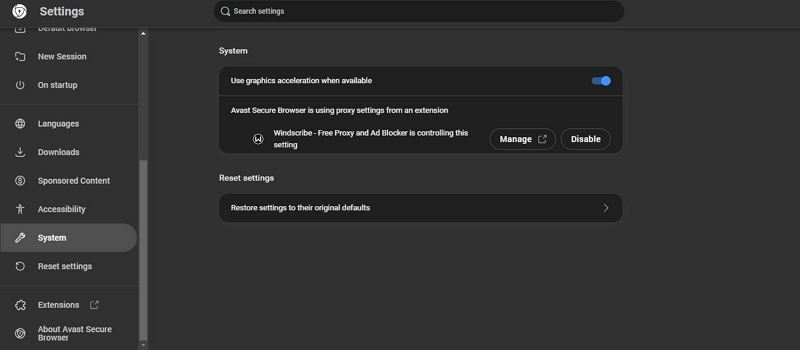
Choose “System” from the left menu and turn off the toggle next to “Use graphics acceleration when available.”
For FireFox: Navigate to “Settings” and select “General” > “Performance.”
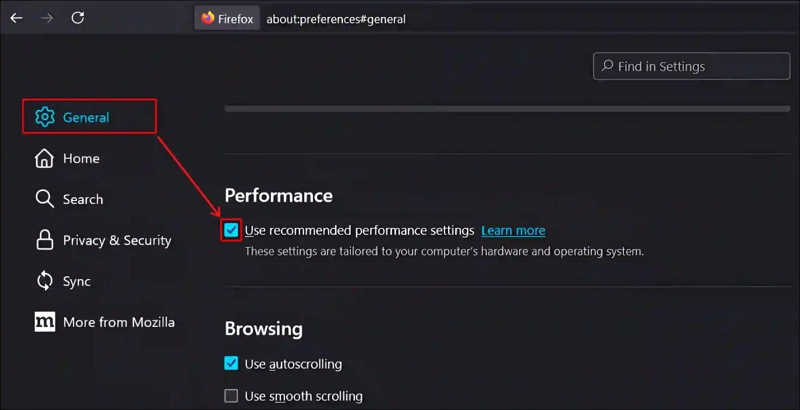
Disable “Use Recommended Performance” and “Use hardware acceleration.”
Method 2 – Photograph the Screen With a Second Device
For users who don't want to download third-party apps, you can screenshot Amazon Prime Video without a black screen by taking a photo of the scene with another device - your smartphone or tablet. Ensure to use a device with a high-quality camera to get the best result.
FAQs
Does Disabling Hardware Acceleration Fix the Black Screen Issue?
Disabling hardware acceleration can fix the black screen issue in many cases, especially in web browsers like Chrome, Firefox, or Edge. However, the result is not guaranteed. In some cases, disabling hardware acceleration can cause display problems, such as flickering or a completely black screen.
How to Screen Share Amazon Prime Video on Discord Without a Black Screen?
Screen sharing Amazon Prime Video on Discord often results in a black screen due to DRM (Digital Rights Management) protections and hardware acceleration settings. To fix this, follow the steps below;
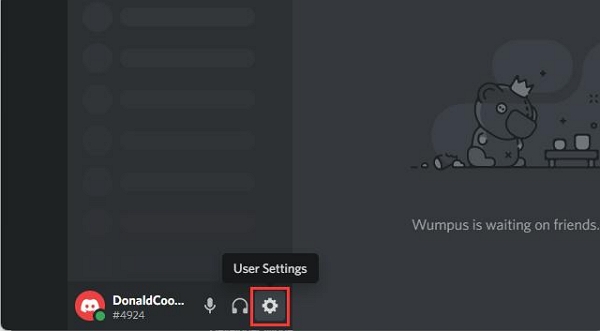
Step 1: Open Discord and go to User Settings
Step 2: Navigate to App Settings > Advanced
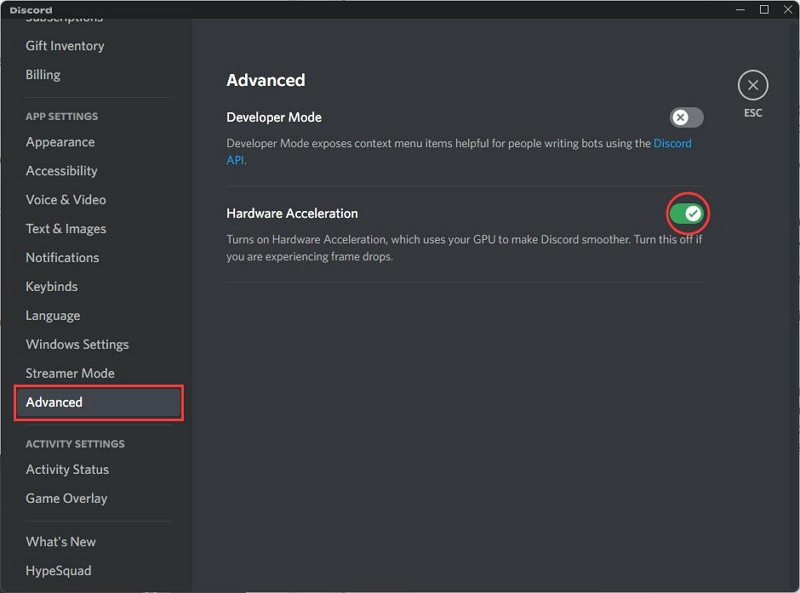
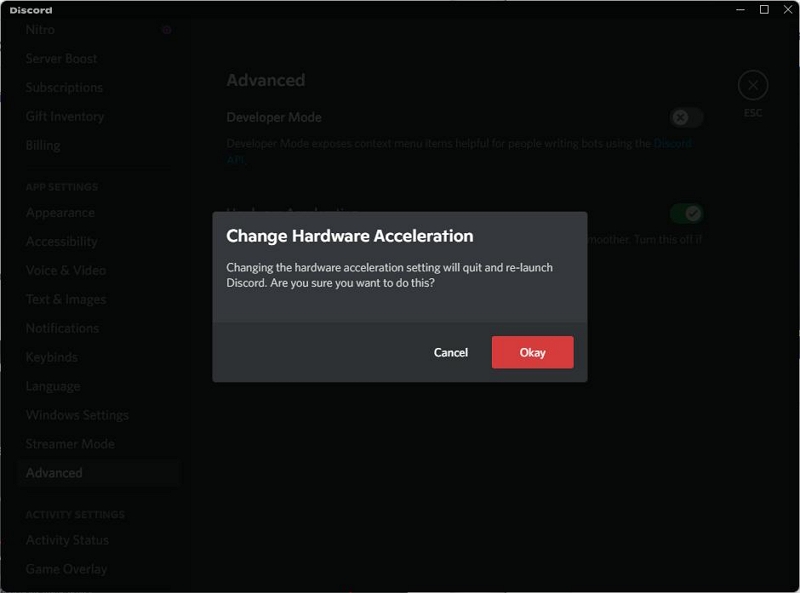
Step 3: Turn off “Hardware Acceleration” and click on “OK” to confirm the changes
Step 4: Once you disable hardware acceleration, navigate back to the main screen and select a server to watch Netflix in your Discord.
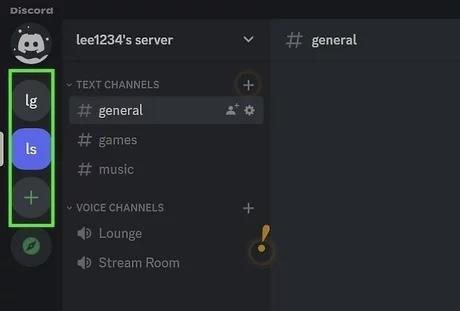
Step 5: Go to settings againand and choose “Activity Status.”
Step 6: Select the option that says “Add It” under “No Game Detected”.
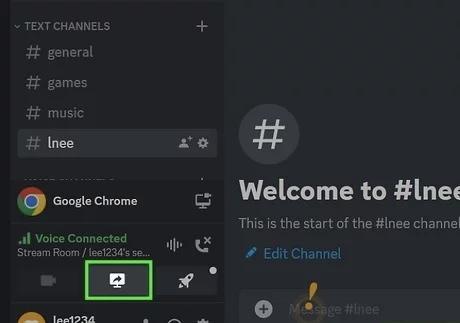
Step 7: Select a web browser that you’d use to stream Amazon Prime Video (In our case, we used Google Chrome). Click on “Add Game,” and close the settings page.
Step 8: Click on the “Screen Sharing” icon next to your browser’s name.
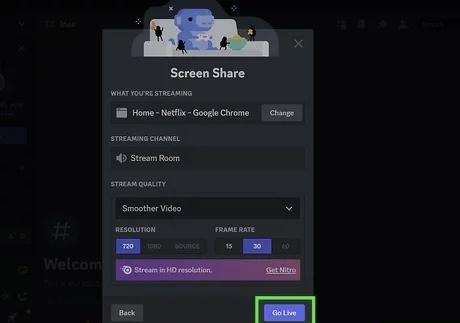
Step 9: Change the video streaming settings according to your needs in the pop-up window and click on “Go Live.”
Step 10: Open your browsers, log in to your Amazon Prime Video account, and start streaming any movie.
How to Rip Movies from Amazon Prime
The most effective way to rip movies from Amazon Prime Video is by using a screen recording tool like Eassiy Screen Recorder Ultimate. This tool can capture any video playing on your screen, allowing you to save content locally without getting banned, and then take screenshots freely from the saved file.
Conclusion
Screenshotting Amazon Prime Video is a great way to save and share your favorite scene in a movie. However, the platform's DRM protection can be a problem. Our article explains various ways to screenshot Amazon Prime Video content using advanced software and other reliable tricks.
Overall, using Eassiy Screen Recorder Ultimate is the best solution, as it gives you the freedom to capture and save any on-screen video, allowing you to take as many screenshots as you want without a black screen.